

Download invoices and receipts in RosterElf (Stripe)
This article explains how to download invoices in RosterElf. You may need to download invoices for accounting, record keeping, or reconciliation purposes. RosterElf allows you to access your billing history and download invoices or receipts directly from your account settings.
Keeping copies of your invoices helps you stay organised and ensures you have accurate financial records. You can quickly locate past invoices, download them as needed, and share them with your accountant or payroll team. This process is simple and only takes a few steps within your account overview. If you also need to update your billing details or update your payment method, those can be managed from the same billing info section.
Account owner access required
Only the account owner can access invoices and billing history in RosterElf. Admins, managers, and staff members do not have access to this section. If you need an invoice, ask the account owner: the staff member with the green OWNER ribbon on their card in Staff.
1. Download invoices in RosterElf settings
This section explains how to download invoices in RosterElf using your account settings. You will learn how to navigate to your billing information and access your invoice history. This allows you to download invoices or receipts whenever needed.
Downloading invoices from your settings ensures you always have access to accurate billing records. It also helps you manage expenses, track payments, and provide documentation for accounting or reporting purposes. Follow the steps below to open your account overview and download your invoice.
1.1 Download invoices from billing info
1.1.1 Open RosterElf in your web browser.
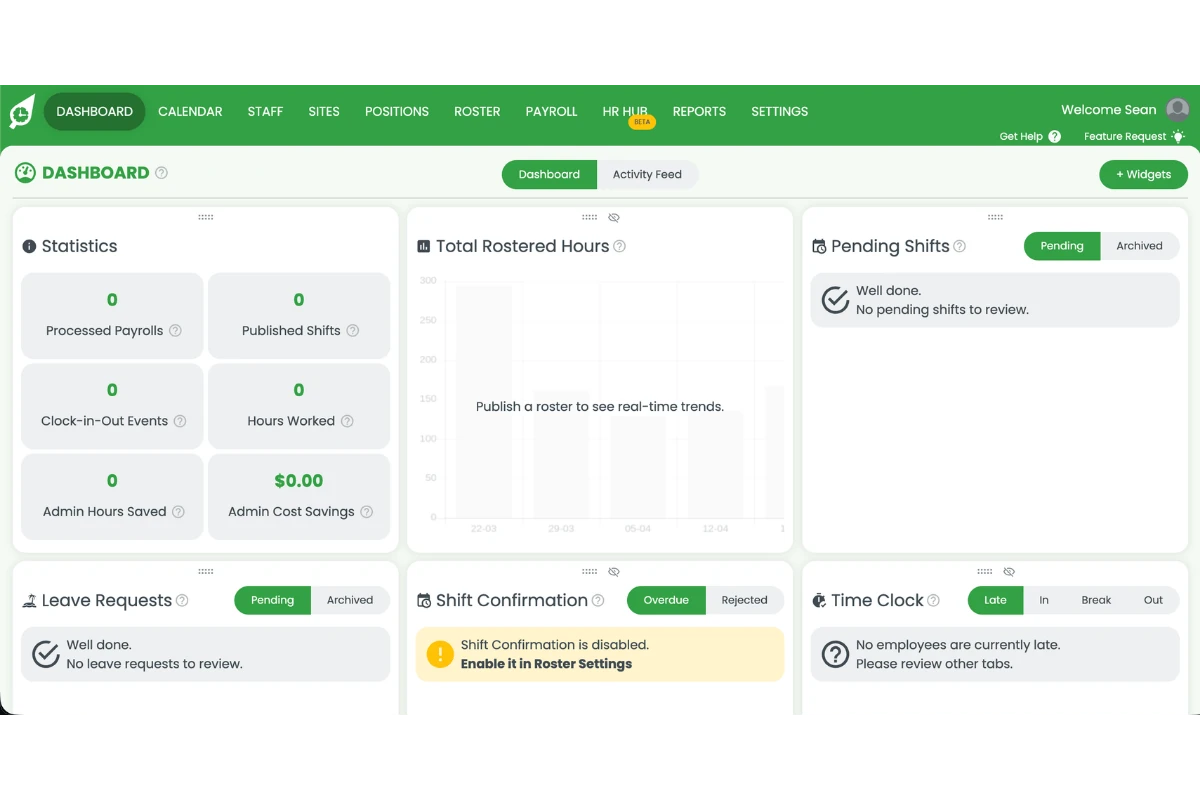
1.1.2 Click the welcome message in the top right corner of the screen.
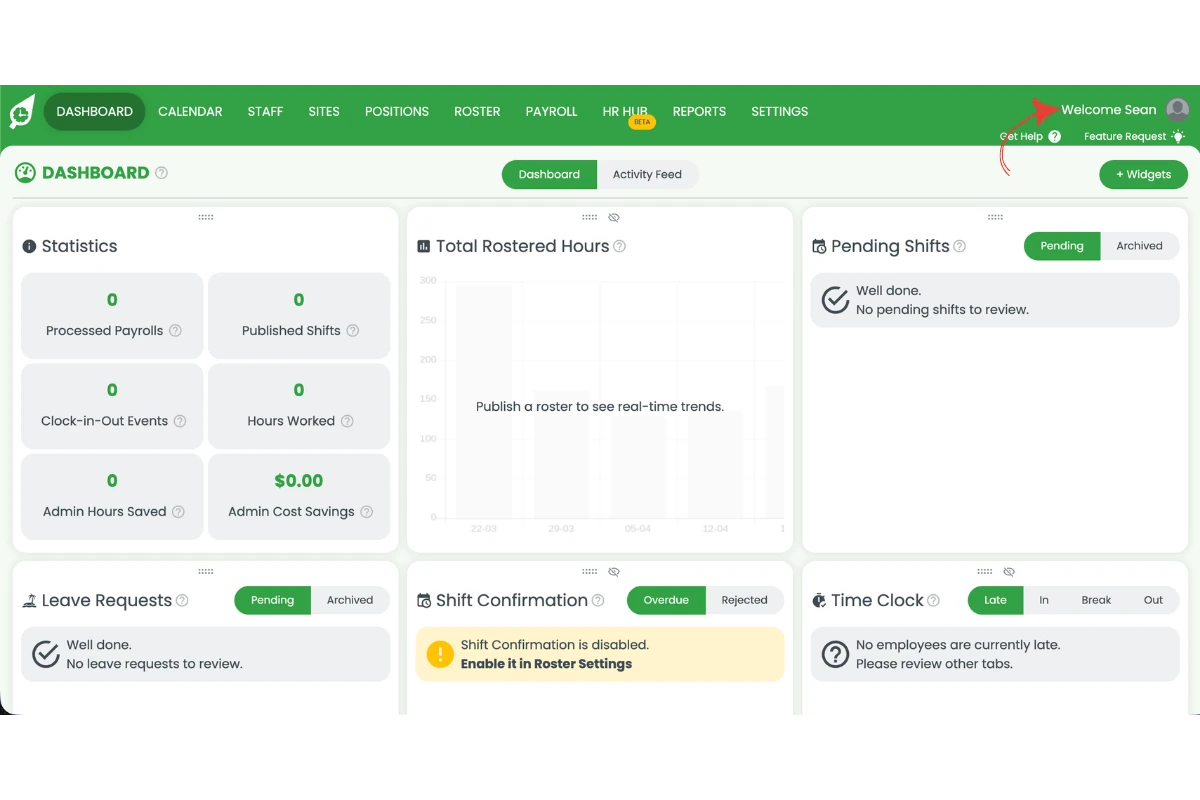
1.1.3 Click account overview from the dropdown menu.
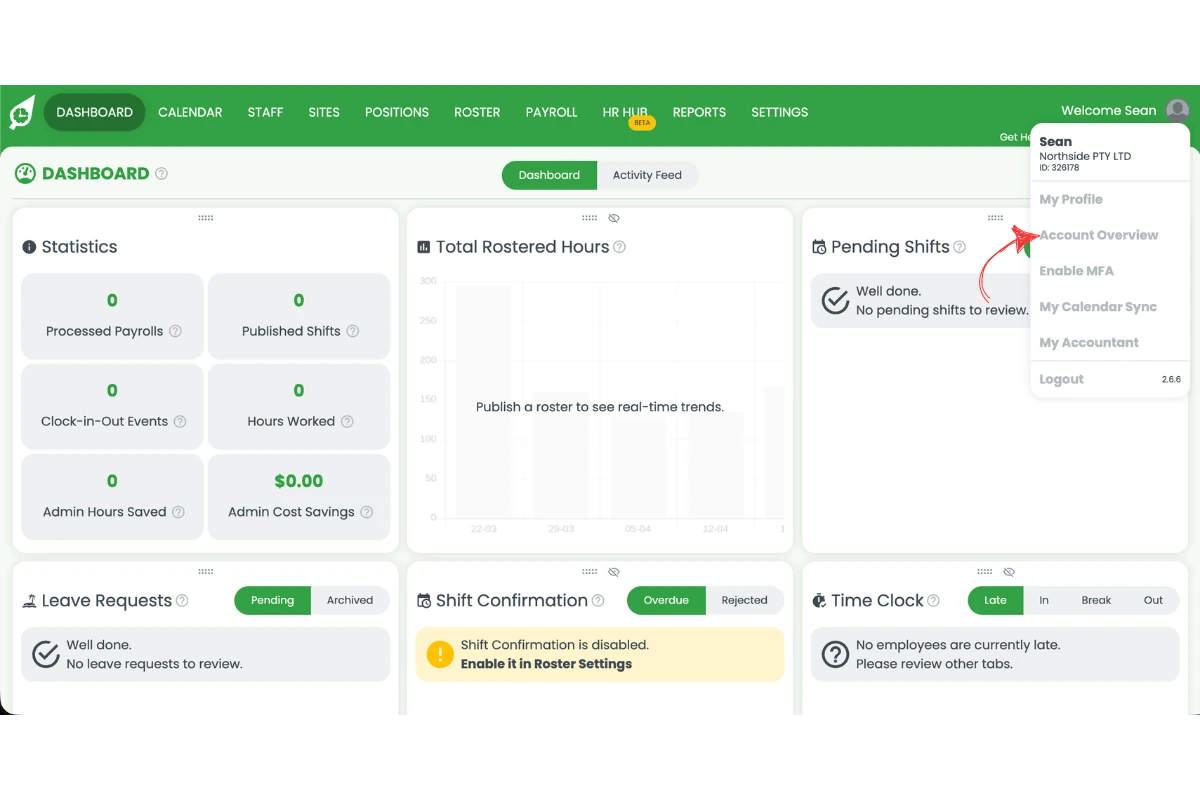
1.1.4 Click subscription settings.
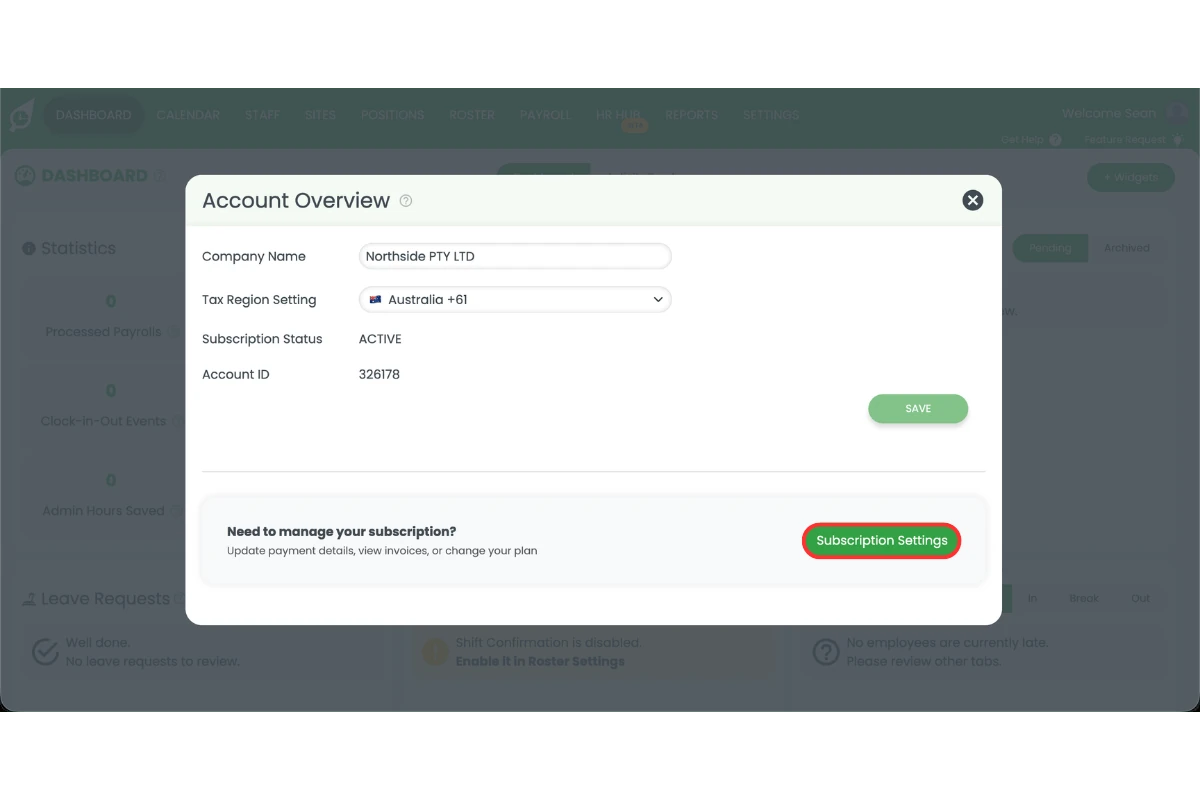
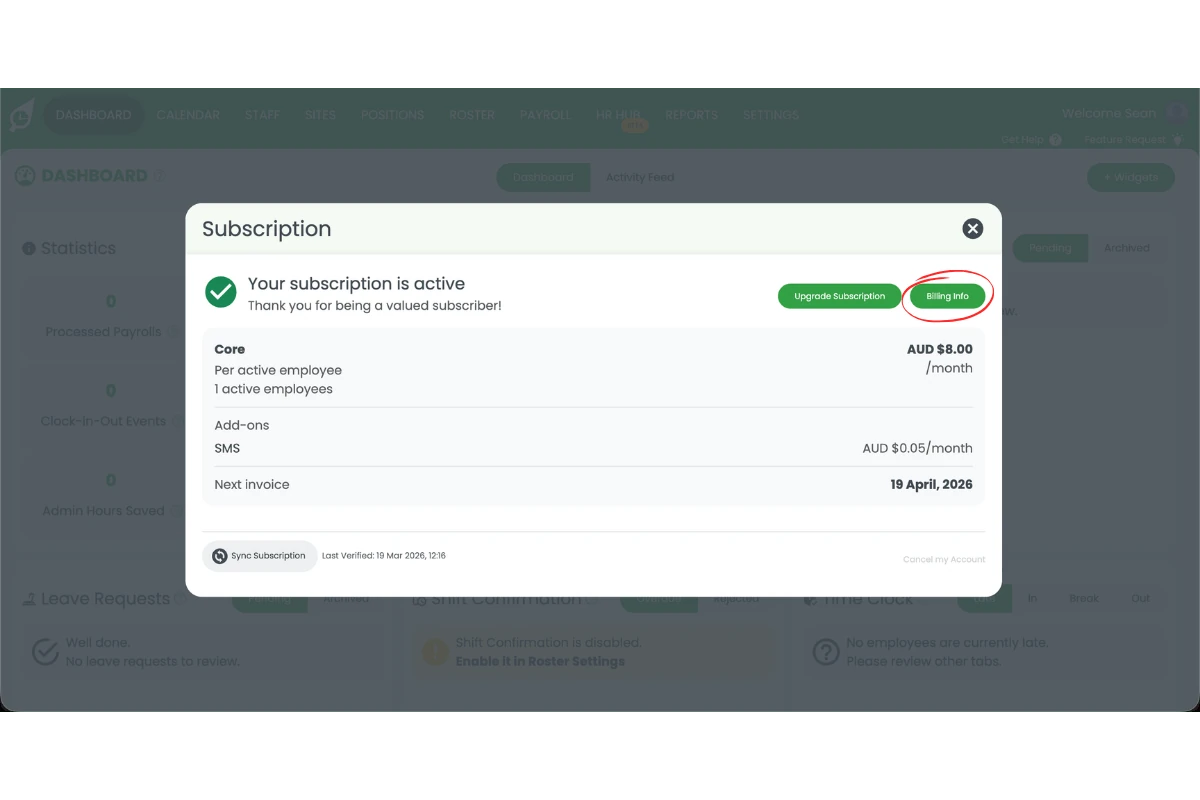
1.1.5 Click billing info.
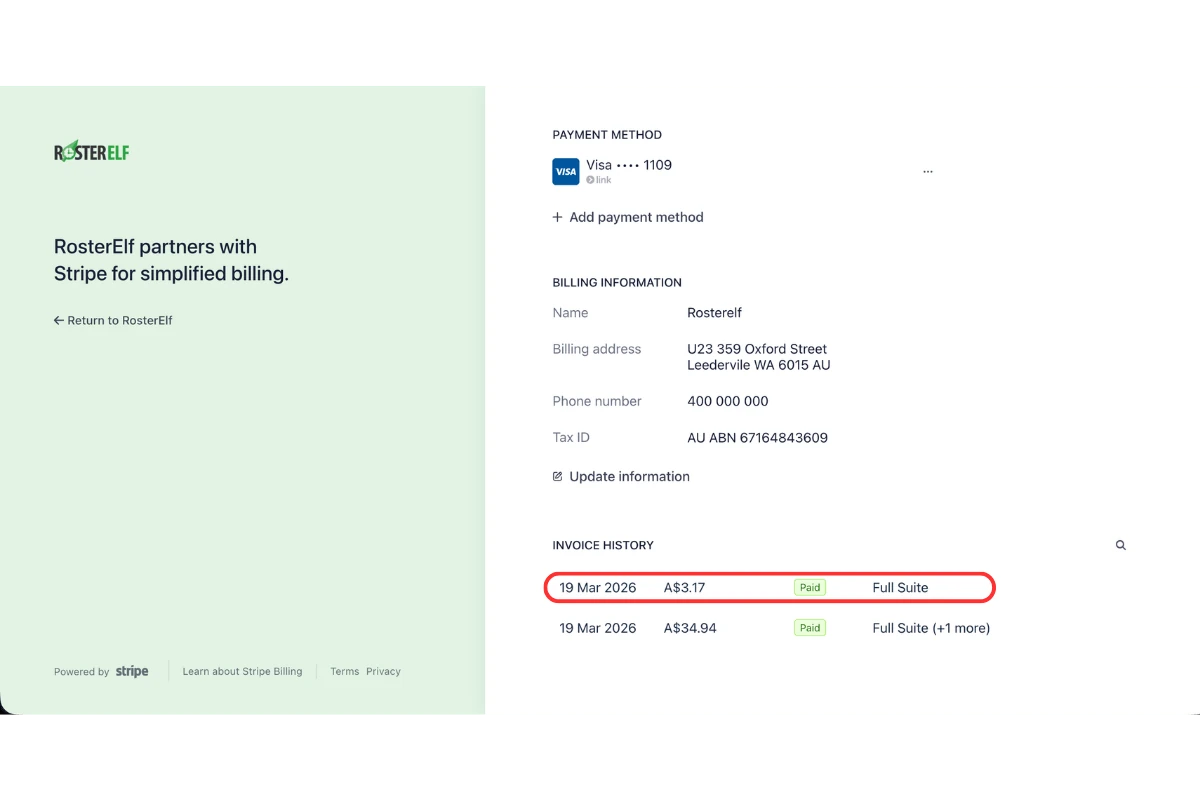
1.1.6 Select an invoice from the invoice history section.
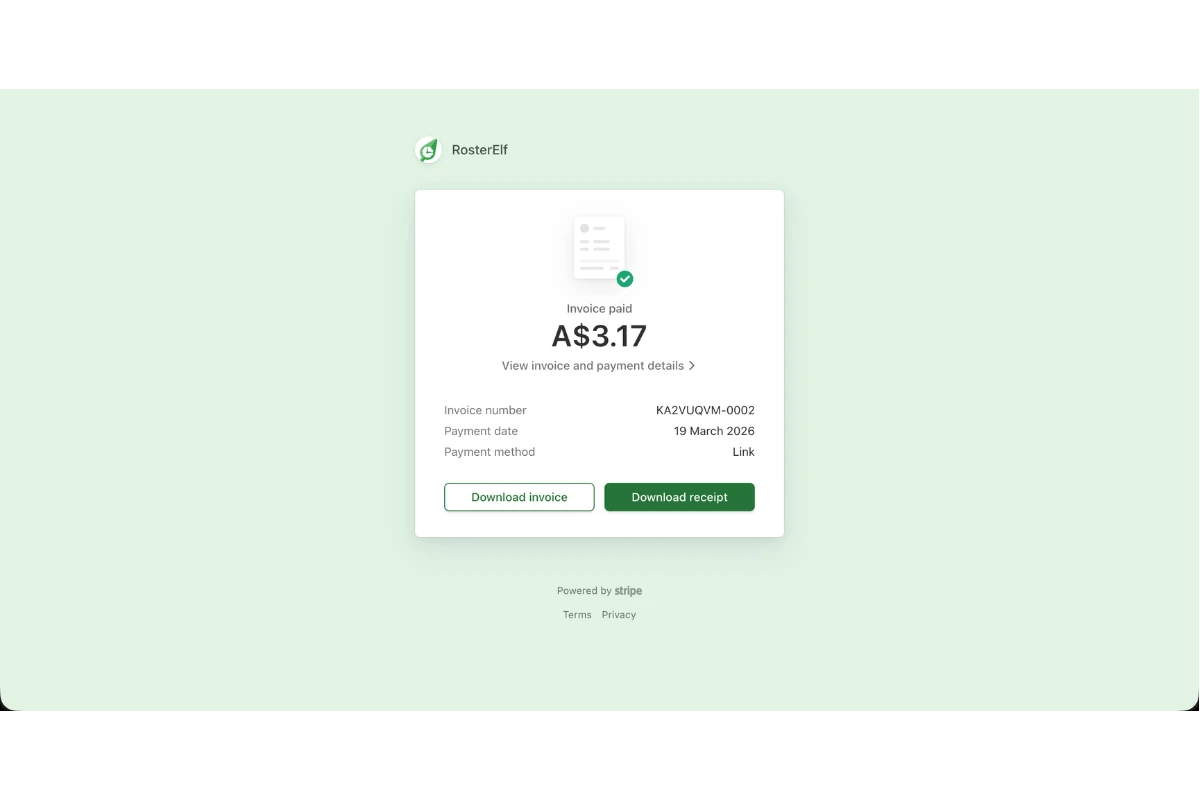
1.1.7 Click download invoice or download receipt to save the document.
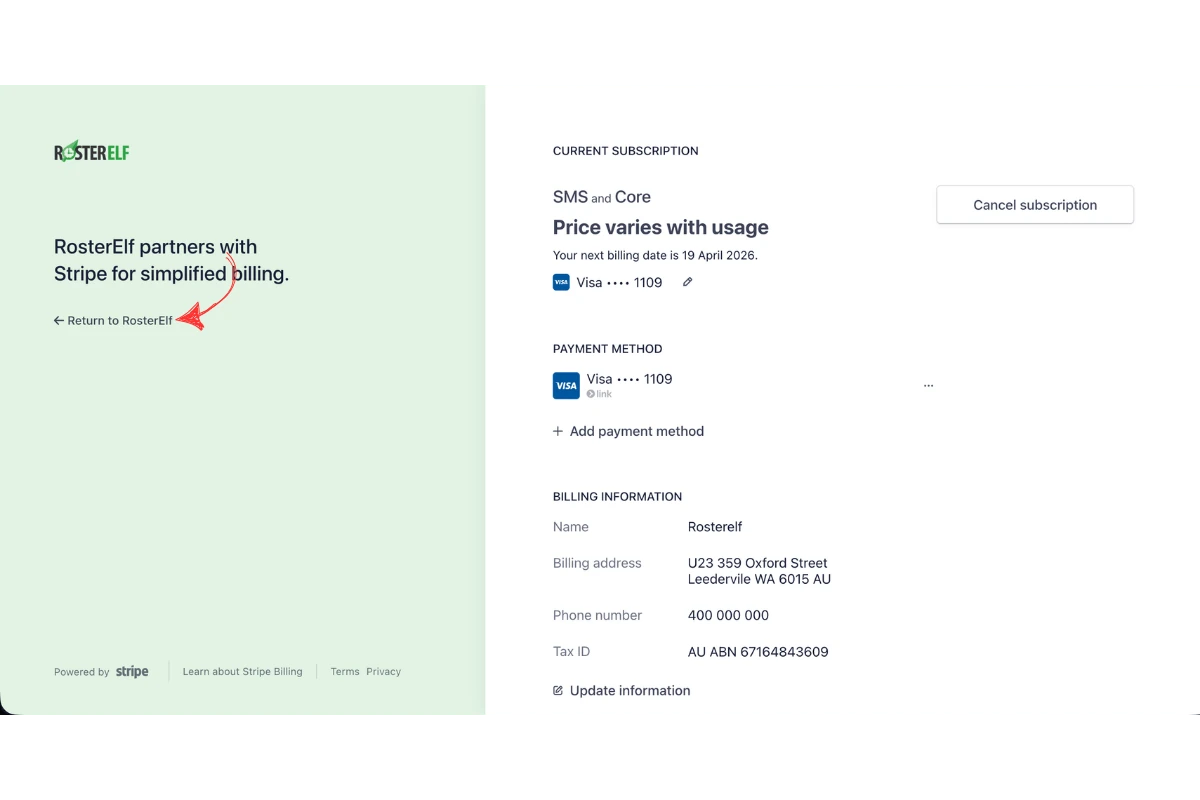
1.1.8 Close the tab and press return to RosterElf.
Frequently asked questions
1. How do I download invoices in RosterElf?
To download invoices in RosterElf, open your account and go to your account overview. Then select subscription settings and open billing info. From there, choose the invoice you want and download either the invoice or receipt. This process allows you to quickly access your billing history and save documents for your records.
2. Where can I find my invoices in RosterElf?
You can find your invoices in the billing info section within your account overview. Navigate through subscription settings to access your billing history. This section stores all past invoices and receipts, making it easy to locate and download them when needed.
3. Can I download both invoices and receipts in RosterElf?
Yes, RosterElf allows you to download both invoices and receipts. Once you select an invoice from the billing info section, you can choose whether to download the invoice or the receipt. This helps you keep accurate records for accounting and reconciliation.
4. Why should I download invoices from RosterElf?
Downloading invoices helps you maintain accurate financial records. You can use these documents for accounting, tax reporting, and reconciliation. Keeping copies also makes it easier to share information with your accountant or payroll team when required.
5. What should I do if I cannot download an invoice in RosterElf?
If you cannot download an invoice, check that you are in the correct billing info section within your account overview. Ensure your access permissions are correct and try refreshing the page. Note: only the account owner can access billing history — admins and managers do not have access. If you are looking for invoices from before the billing migration to Stripe (previously processed through eWAY), these are not available in the Stripe portal. Please contact support at customersupport@rosterelf.com and we can provide historical invoices from the previous system.
6. Why do I have two invoices for my annual subscription?
The first invoice is a pro-rata charge for the remaining days in the current month. On the 1st of the following month, you will be charged for the full annual subscription.
7. Can I have fewer seats than active staff on my annual subscription?
No. The number of seats on your annual subscription cannot be less than your active staff count.
8. When will I be charged for adding additional seats?
You will be charged 5 days after increasing your subscription seats.
9. Will I be charged if I reactivate a staff member for reporting?
No. You will only be charged if the staff member remains active 5 days after reactivation. To avoid charges, archive the staff member after completing your report.
10. Can I update my billing email in Stripe?
No. Currently, there is no option to update the billing email in Stripe.
11. Why am I charged GST if I am not in Australia?
RosterElf adds GST only when your account’s Tax Region Setting is set to Australia. Open Account info from the welcome message at the top right, change Tax Region Setting to the country your business is based in, and press Save — the change applies from your next invoice. Full steps: tax region and GST on your invoice.
12. Why does it look like I have been charged twice?
There are two common reasons. Post-migration outstanding invoice: After migrating from the previous billing system to Stripe, any charges that could not be collected are issued as a separate invoice — this is an outstanding balance, not a duplicate. Switching to an annual plan mid-month: You receive a pro-rata invoice for the remaining days of the current month, then a second invoice for the full annual subscription on the 1st of the following month. Both are correct. If you believe you have been charged in error, contact customersupport@rosterelf.com.
13. I cannot find invoices from before the billing migration to Stripe — where are they?
Invoices from the previous billing system (eWAY) are not carried over to Stripe and will not appear in your billing history. If you need a copy of a pre-migration invoice, please email customersupport@rosterelf.com with the approximate invoice date and amount and we will send it to you.
14. Does my RosterElf invoice show an ABN, for a valid tax invoice?
Yes. RosterElf’s invoices carry our ABN — 67 164 843 609 — alongside the other details needed for a valid tax invoice. If you have an older invoice that appears to be missing it, contact customersupport@rosterelf.com and we can reissue it.
15. I already have a card on file for automatic billing — why did I receive an invoice asking me to pay manually?
This is usually a legitimate outstanding balance — for example, a charge that failed before your card was added (see the questions above about post-migration and pro-rata invoices). If you’re confident your account is fully up to date and automatic billing is active, this can occasionally happen due to a processing issue on our end. Contact customersupport@rosterelf.com with the invoice details and we’ll confirm whether it should be disregarded and fix the underlying cause.
16. Can RosterElf generate invoices for my clients based on hours worked?
No. RosterElf exports payroll-ready hours to Xero, MYOB, or CSV for paying your own staff — it doesn’t generate invoices to bill your clients or customers. If you need a standalone invoice, try the free Invoice Generator, which creates an Australian-compliant tax invoice with ABN and GST fields.