

Change subscription to annual in RosterElf settings (Stripe)
This article explains how to change your subscription to annual in RosterElf. Switching to an annual plan allows you to manage your billing more efficiently and save 30% compared to monthly billing. It is ideal for businesses that are confident in using RosterElf long term and want a more streamlined billing cycle.
Switching to annual replaces your monthly plan
You can only have one billing type active at a time. When you switch to annual, your monthly subscription is replaced immediately — you cannot run both concurrently. Annual plans require a minimum of 10 seats.
If you ever need to move back to monthly billing, you must cancel the annual plan and wait for the current annual term to end before resubscribing on a monthly plan.
Changing your subscription is simple and can be completed directly from your account settings. You can access your subscription details, update your plan type, and confirm the number of seats required for your team. Once completed, your subscription will switch to an annual plan and your billing will update accordingly.
Coming from a free trial with more staff than you need?
Annual plans require a minimum of 10 seats, and your seat count cannot be lower than your active staff count. If your free trial has 20 active staff but you only want 15 seats, you cannot subscribe to annual directly — RosterElf will not allow it.
The workaround: Subscribe to a monthly plan first — monthly billing charges per active employee, so it adjusts as soon as you archive staff. Archive the staff you no longer need. Once your active staff count matches your target seat number, switch from monthly to annual using the steps on this page.
In this guide, you will learn how to open your account settings, access your subscription, and switch your plan to annual. Following these steps ensures your subscription is updated correctly and without disruption. You can also update your annual plan seats at any time after switching, and update your billing details if your payment information changes.
1. Change subscription to annual in settings
This section explains how to change your subscription to annual using your account settings in RosterElf. You will learn how to navigate to your subscription settings, update your plan, and confirm your changes.
Updating your subscription through the settings ensures your billing preferences are applied correctly. It also allows you to select the correct number of seats for your team, helping you manage costs and access effectively. Follow the steps below to switch your subscription to an annual plan.
1.1 Change subscription to annual in RosterElf
1.1.1 Open RosterElf in your web browser.
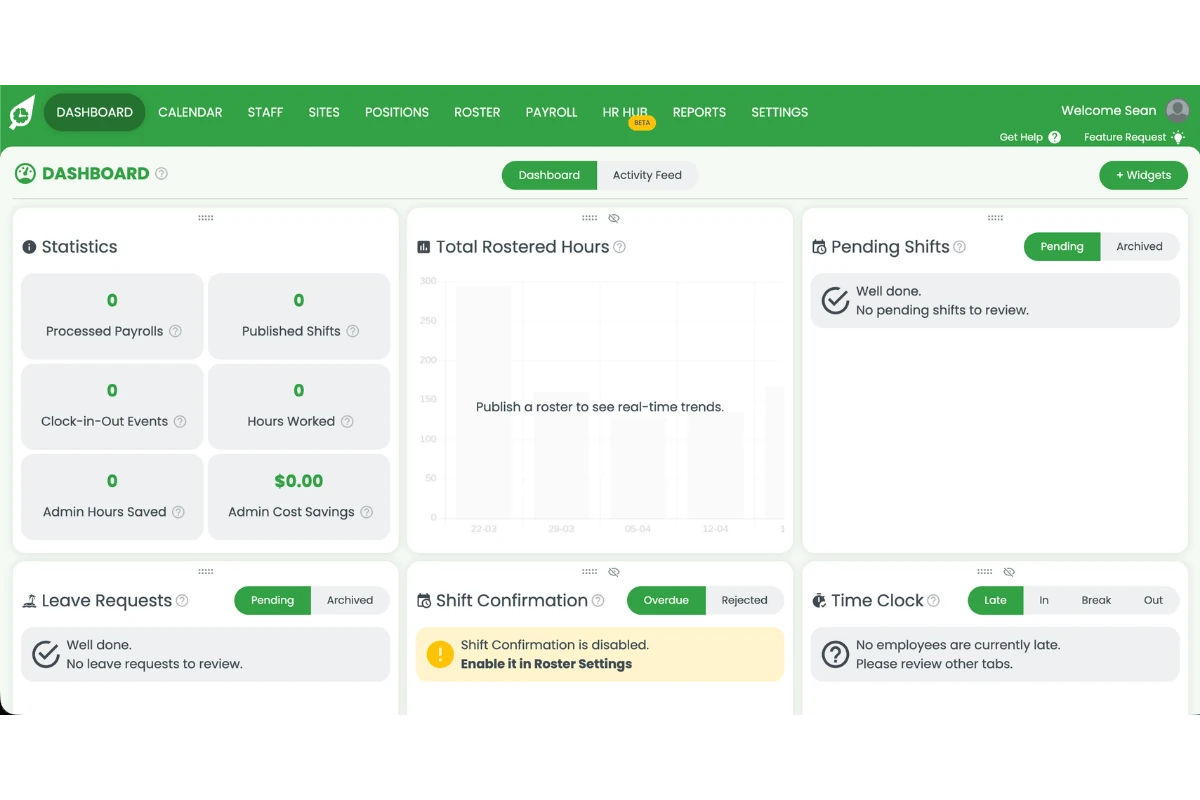
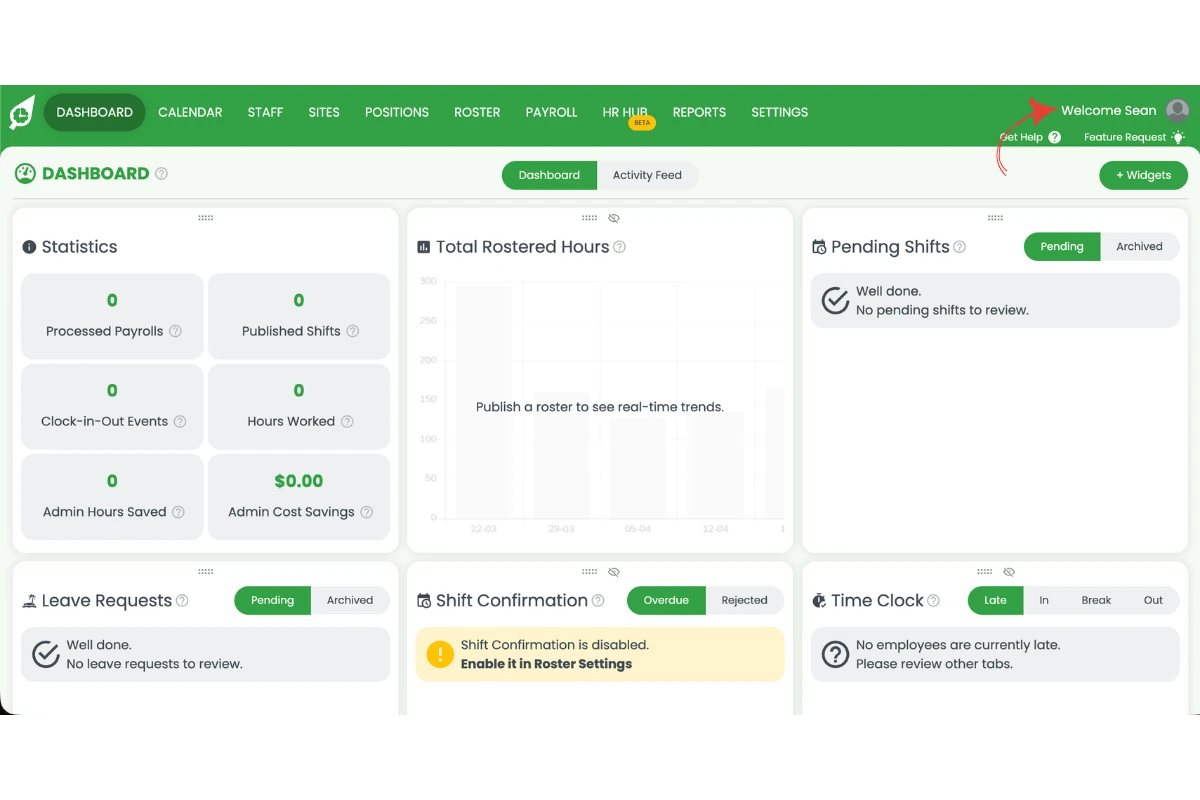
1.1.2 Click the welcome message in the top right corner of the screen.
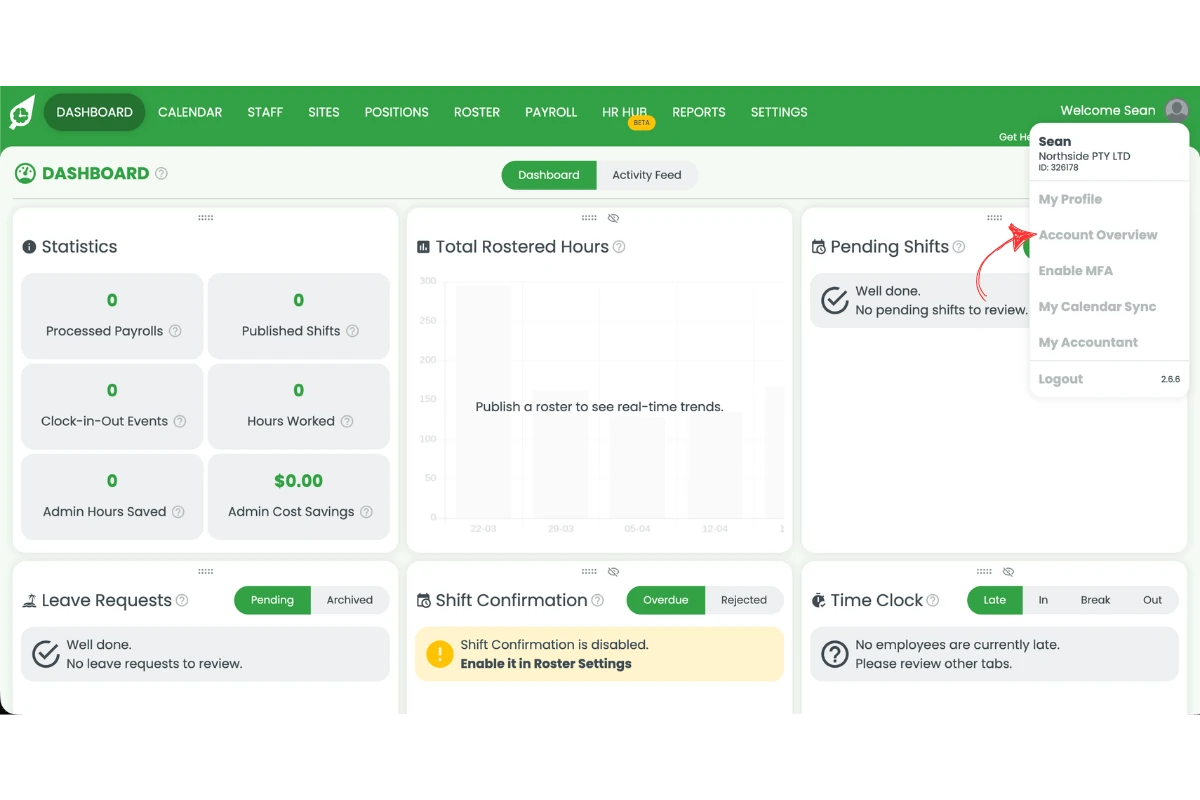
1.1.3 Click account overview from the dropdown menu.
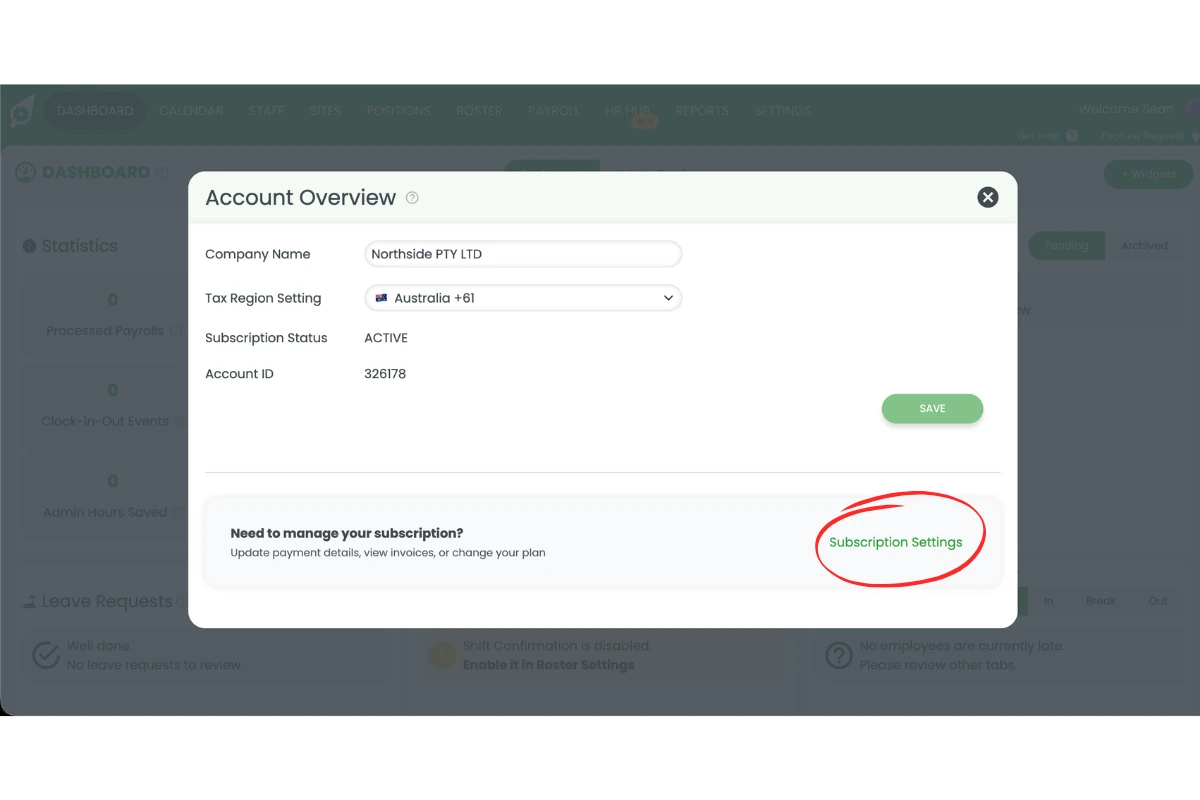
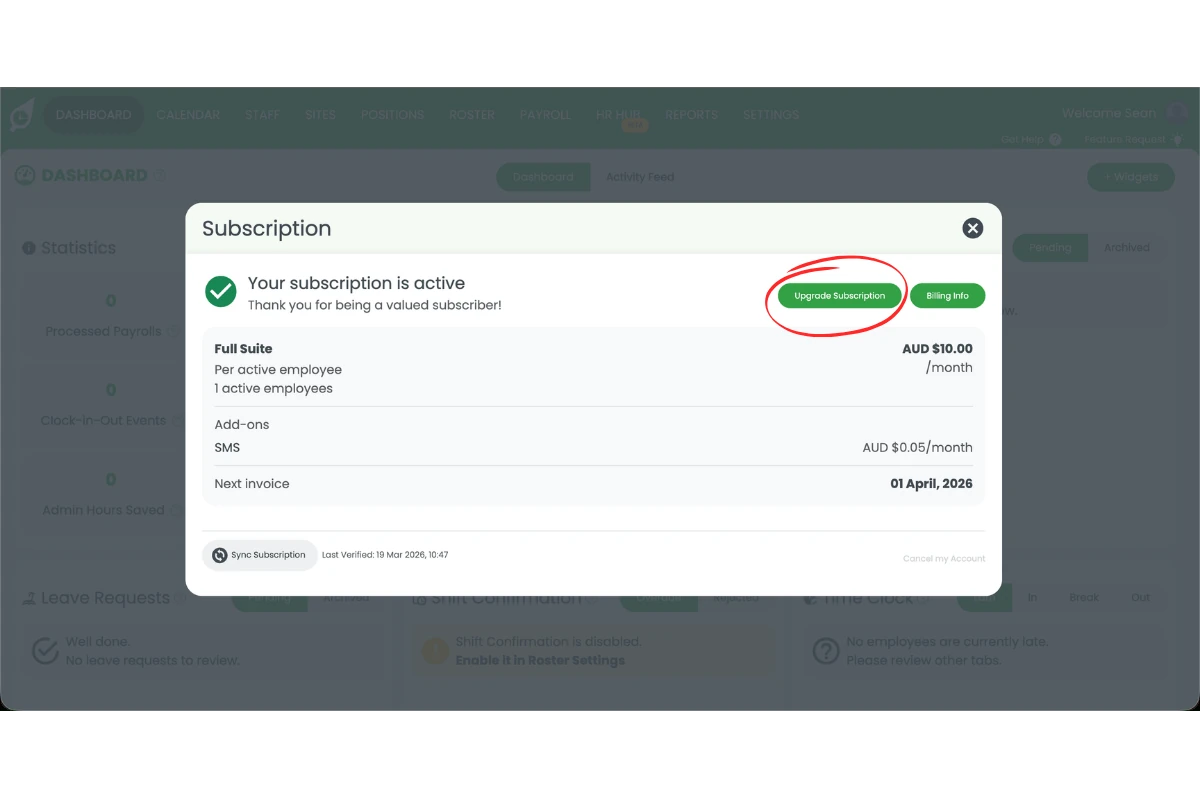
1.1.4 Click subscription settings.
1.1.5 Click update subscription.
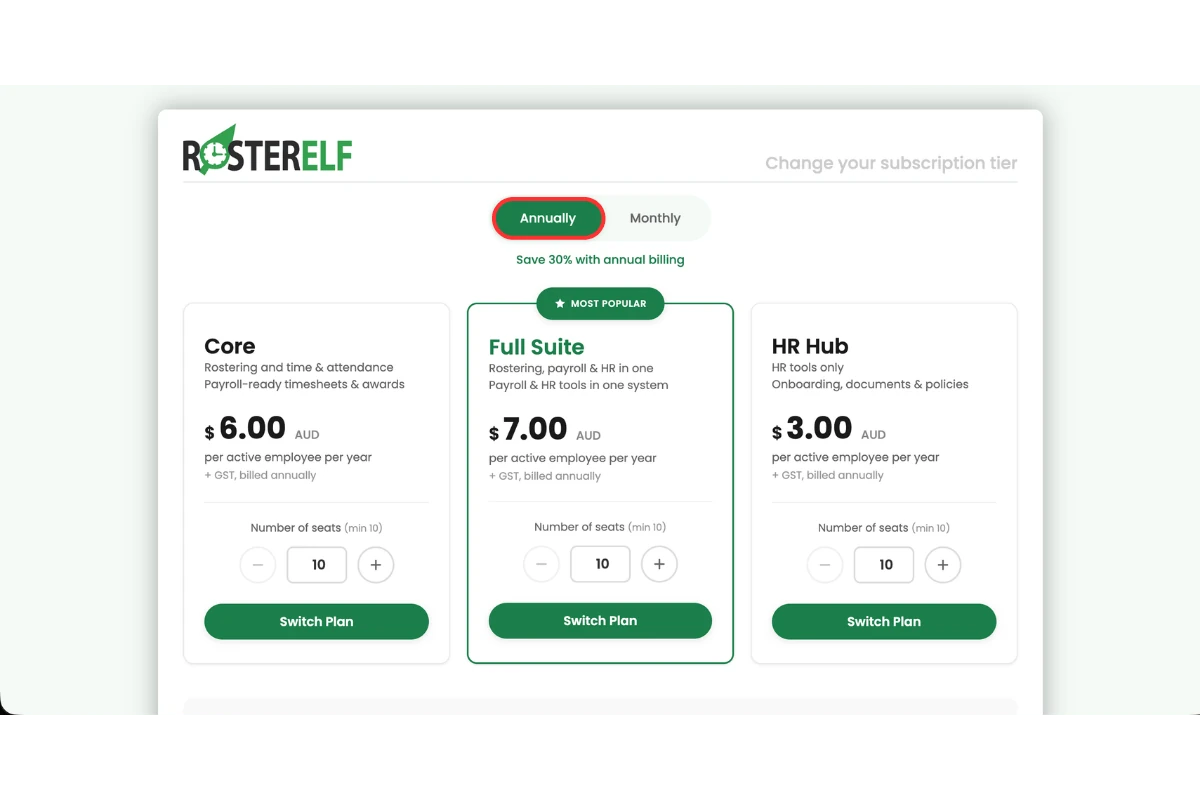
1.1.6 Select annually.
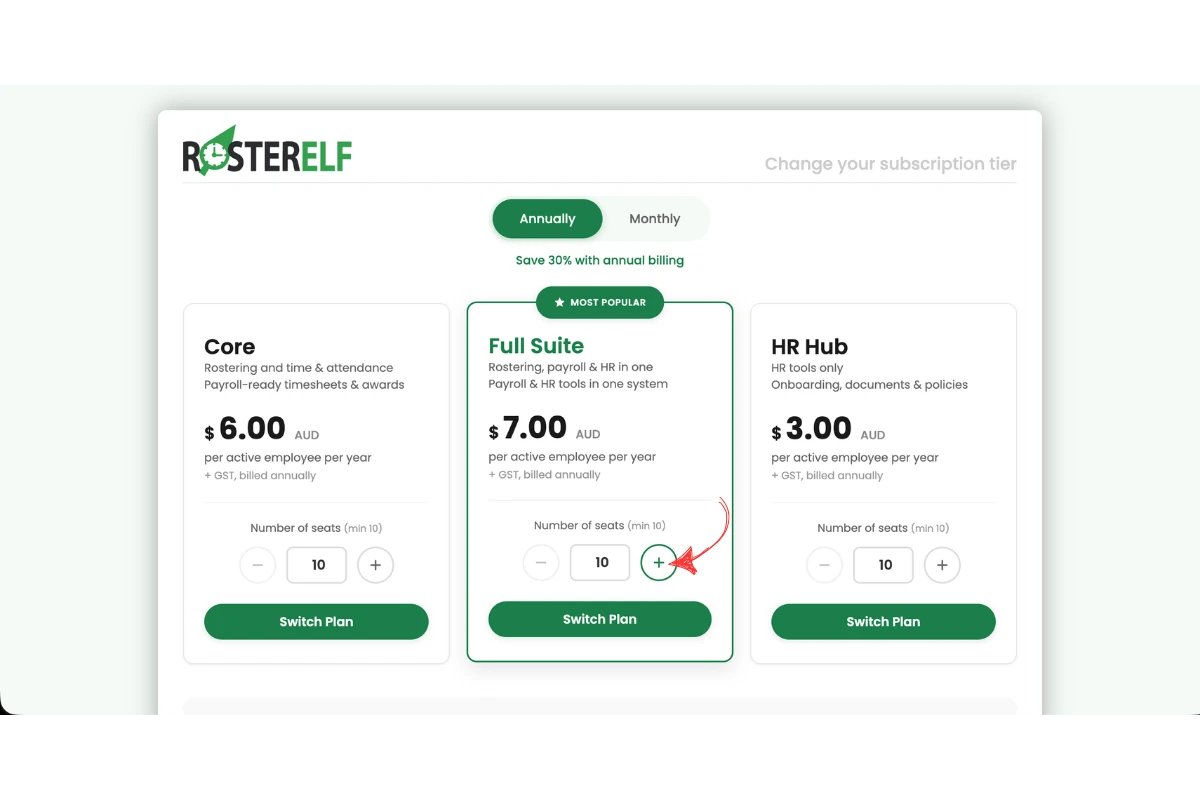
1.1.7 Select your number of seats using the + and – controls.
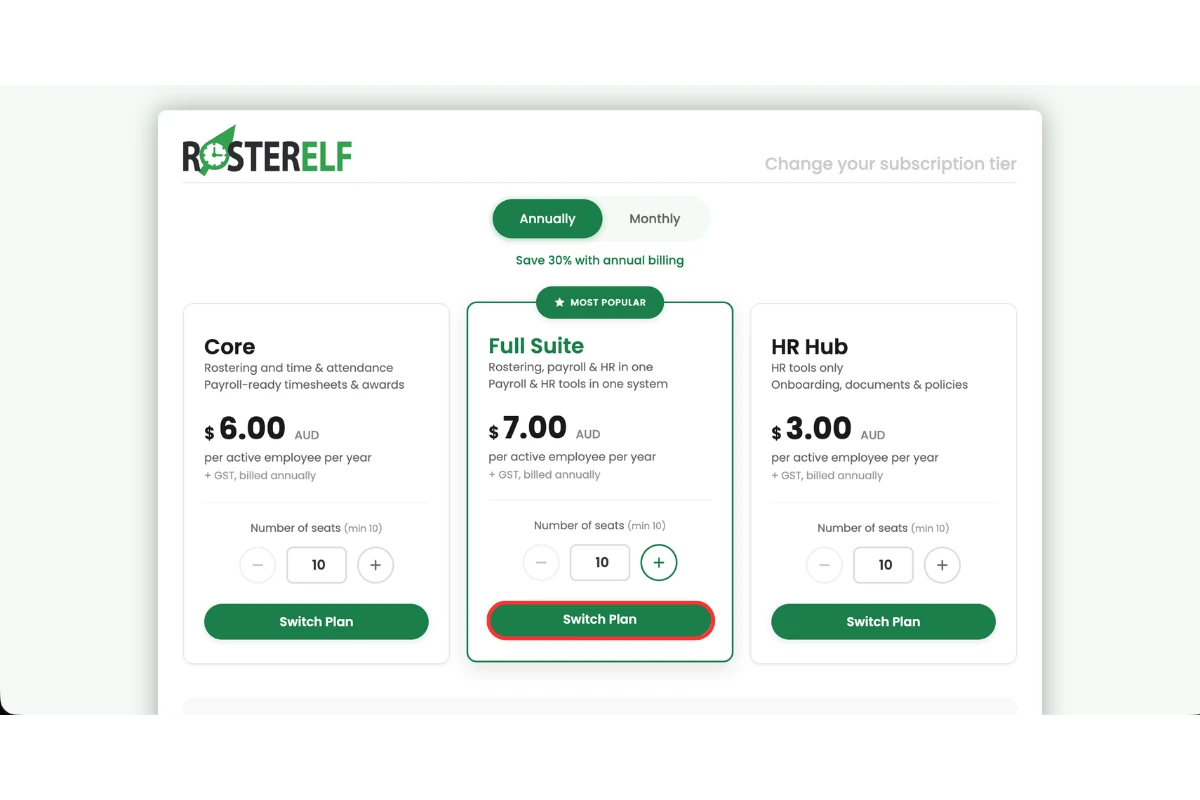
1.1.8 Click switch plan to confirm.
Frequently asked questions
1. What happens when I change subscription to annual in RosterElf?
When you change your subscription to annual in RosterElf, your billing switches from monthly to yearly. You will be charged annually instead of each month. Your access to features remains the same, but your billing cycle updates immediately after confirming the change.
2. Can I change subscription to annual at any time in RosterElf?
Yes, you can change your subscription to annual at any time through your account settings. You can access your subscription settings, select the annual plan, and confirm the update without needing to contact support.
3. Can I run an annual and a monthly subscription at the same time?
No. You can only have one billing type active at a time — annual or monthly, not both. When you switch to annual, your monthly subscription is replaced immediately. If you later want to return to monthly billing, you must cancel the annual plan and wait for the current annual term to finish before resubscribing on a monthly plan.
4. How do I select seats when I change subscription to annual?
When you change your subscription to annual, you must select the number of seats for your team. Annual plans require a minimum of 10 seats. The number of seats should match or exceed your active staff count.
5. Will my subscription change to annual immediately after updating?
Yes, your subscription will update to annual as soon as you confirm the change by pressing switch plan. Your billing will adjust accordingly, and your account will reflect the new annual plan straight away.
6. Where do I change subscription to annual in RosterElf?
You can change your subscription to annual in the account overview section of RosterElf. Press the welcome message, go to account overview, select subscription settings, and press update subscription to switch to annual.
7. Why do I have two invoices for my annual subscription?
The first invoice is a pro-rata charge for the remaining days in the current month. On the 1st of the following month, you will be charged for the full annual subscription.
8. Can I have fewer seats than active staff on my annual subscription?
No. The number of seats on your annual subscription cannot be less than your active staff count.
9. When will I be charged for adding additional seats?
If you increase seats through the subscription settings flow, you are charged immediately when you confirm. If a staff member becomes active on your annual plan without you first purchasing additional seats, the billing reconciliation runs 5 days after activation — staff who remain active after 5 days are charged for.
10. What if I am on a free trial and want fewer seats than my active staff count?
Annual plans cannot have fewer seats than your active staff count, and the minimum is 10 seats. If your free trial has more active staff than you need on annual, you cannot subscribe to annual directly. Instead: subscribe to a monthly plan first, archive the staff you no longer need, then switch from monthly to annual once your active staff count matches your desired seat count.
11. Will I be charged if I reactivate a staff member for reporting?
No. You will only be charged if the staff member remains active 5 days after reactivation. To avoid charges, archive the staff member after completing your report.
12. Can I update my billing email in Stripe?
No. Currently, there is no option to update the billing email in Stripe.
13. Why am I charged GST if I am not in Australia?
RosterElf adds GST only when your account’s Tax Region Setting is set to Australia. Open Account info from the welcome message at the top right, change Tax Region Setting to the country your business is based in, and press Save — the change applies from your next invoice. Full steps: tax region and GST on your invoice.
14. How do I turn off auto-renewal on my annual plan?
RosterElf annual subscriptions renew automatically at the end of each annual term. There is no dedicated auto-renewal toggle. To prevent your plan from renewing, cancel your subscription before your renewal date — your access continues until the end of your current paid annual term. If you want to switch to monthly billing instead of cancelling entirely, cancel your annual subscription and then resubscribe on a monthly plan once the annual term expires. See changing your subscription plan for more detail.