

Update billing details in RosterElf subscription settings (Stripe)
This article explains how to update billing details in RosterElf. Keeping your billing details up to date ensures your subscription continues without interruption. RosterElf partners with Stripe for secure, simplified billing.
You may need to update your billing information if your card has expired, been replaced, or your business payment details have changed. RosterElf allows you to securely update your card details directly from your account settings. This ensures all future invoices are processed correctly.
Account owner access required
Only the account owner can update billing details in RosterElf. Admins, managers, and staff members do not have access to this section. If you need to update billing information, ask the account owner: the staff member with the green OWNER ribbon on their card in Staff.
Updating your billing information is quick and easy. You can access your account overview, open subscription settings, and edit your billing details in just a few steps. Once updated, your new payment method will apply to upcoming charges. If you need to change your subscription to annual or update your annual plan seats, those can also be managed from subscription settings. For a full list of supported payment options, see accepted payment methods in RosterElf.
1. Update billing information in RosterElf settings
This section explains how to update billing information in RosterElf using the account settings. You will learn how to access your subscription settings and update your billing details securely through Stripe.
Updating your billing information through the settings ensures your payment method is current and valid. This helps prevent failed transactions and ensures your subscription continues without disruption. Follow the steps below to open your account overview, navigate to billing information, and update your card details. If you have recently migrated from E-Way, see our guide on the change from E-Way to Stripe instead.
1.1 Update billing information in account overview
1.1.1 Open RosterElf in your web browser.
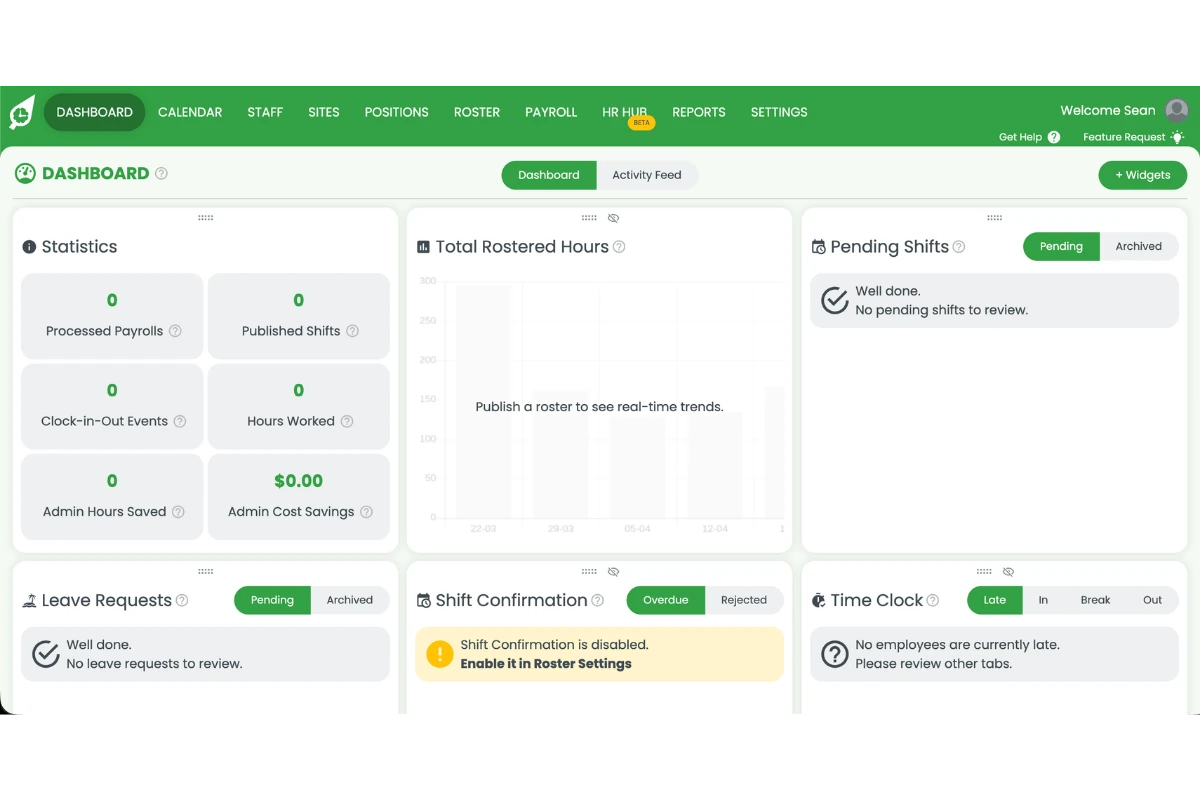
1.1.2 Click the welcome message in the top right corner of the screen.
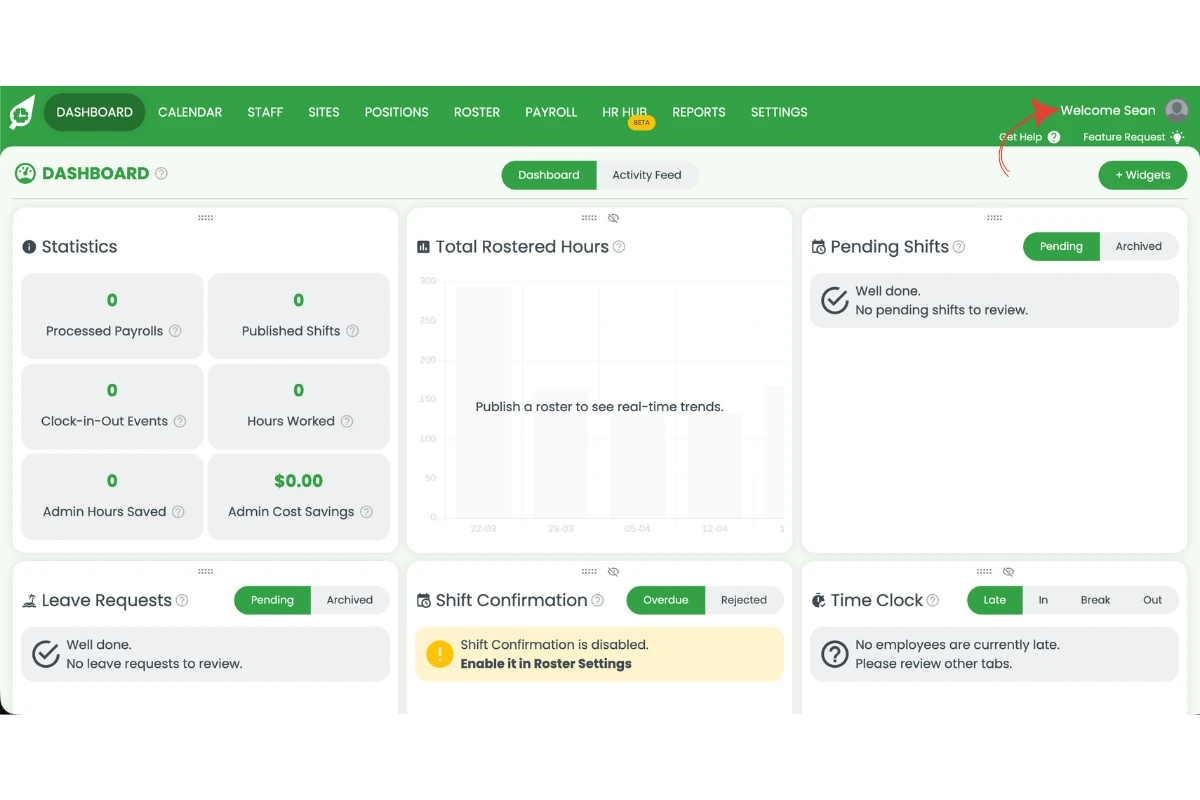
1.1.3 Select account overview from the dropdown menu.
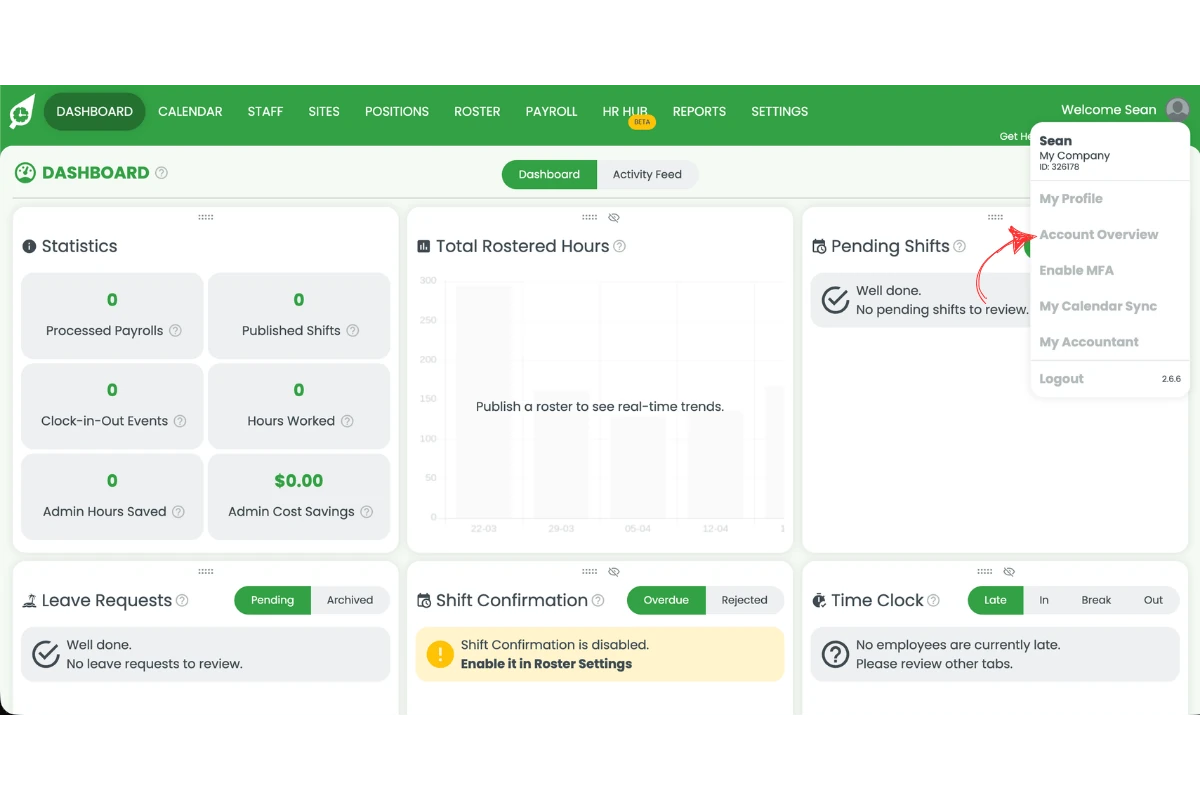
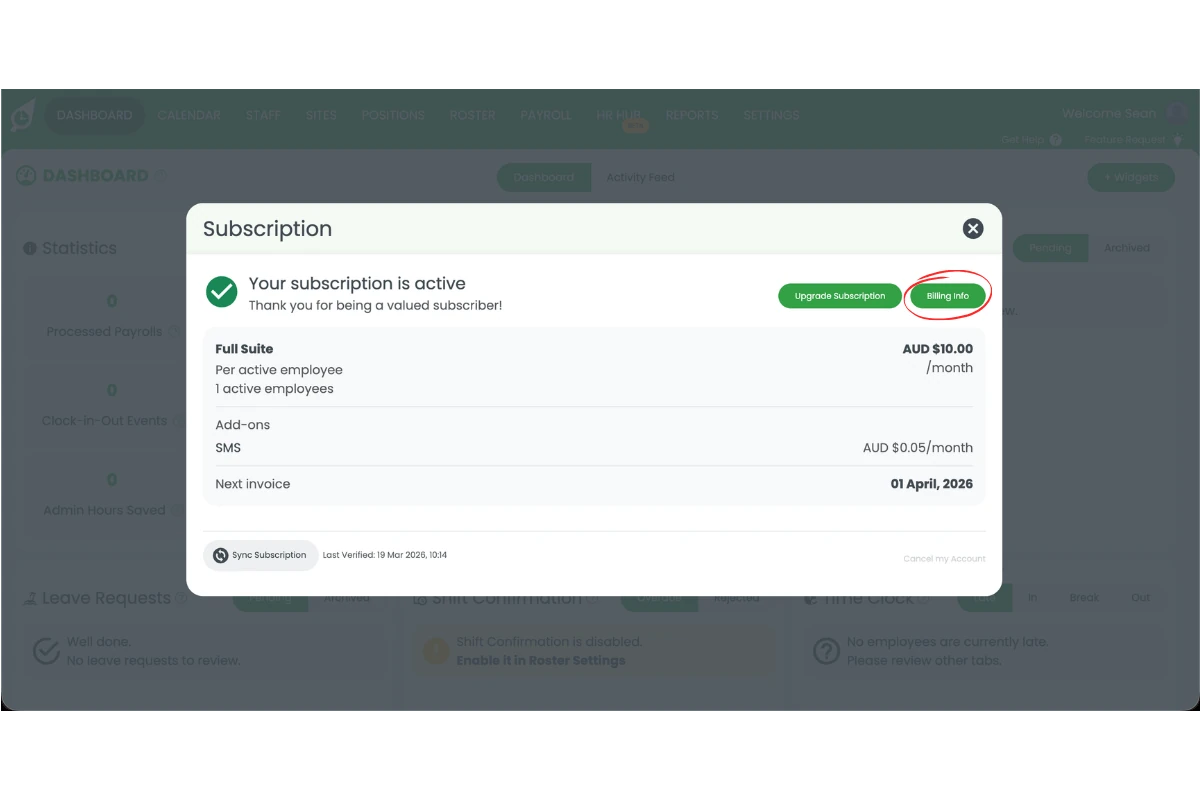
1.1.4 Click subscription settings.
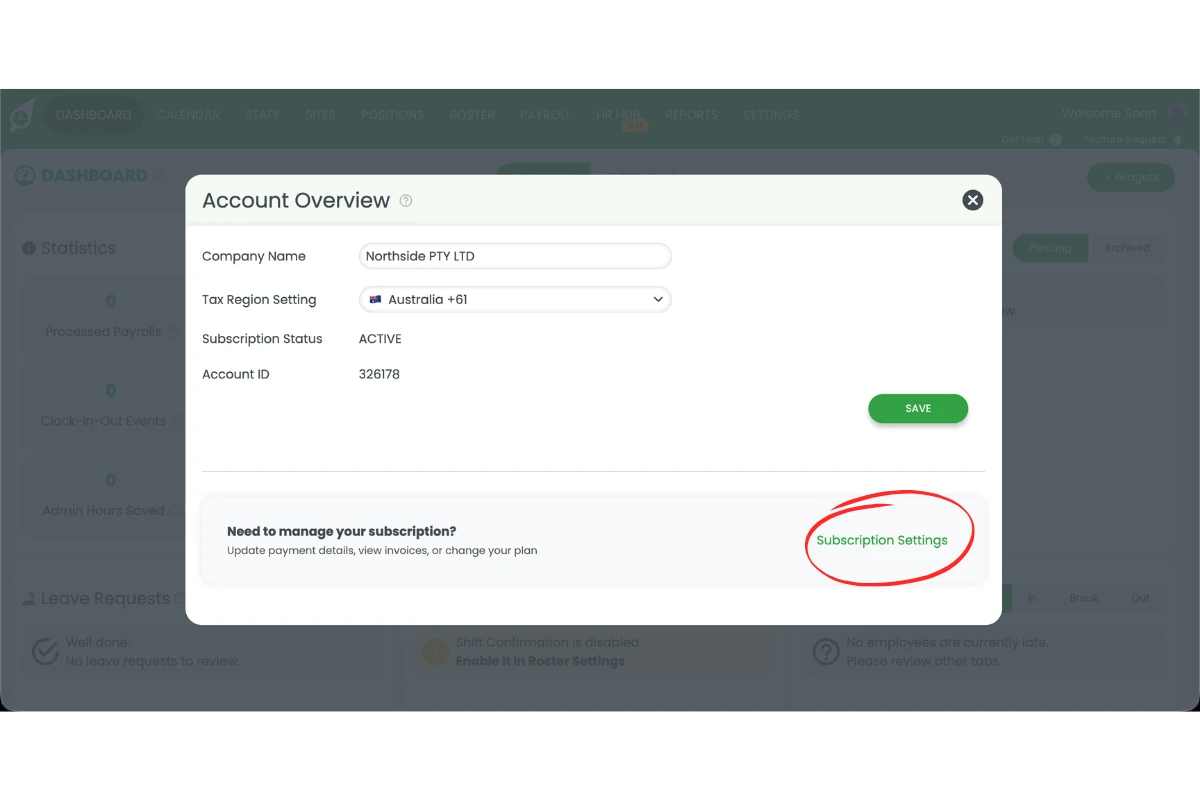
1.1.5 Click billing info.
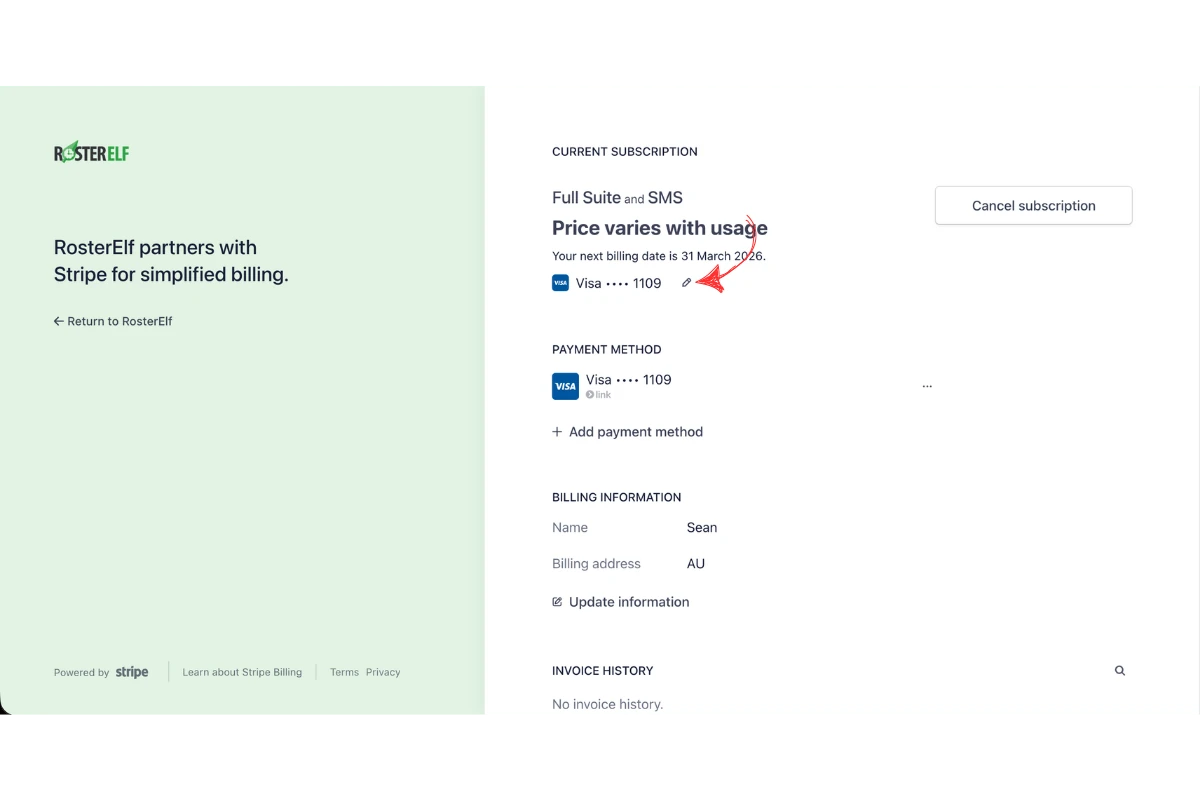
1.1.6 Click the pencil icon next to your card details.
1.1.7 Select your existing card or choose add payment method to add a new one.
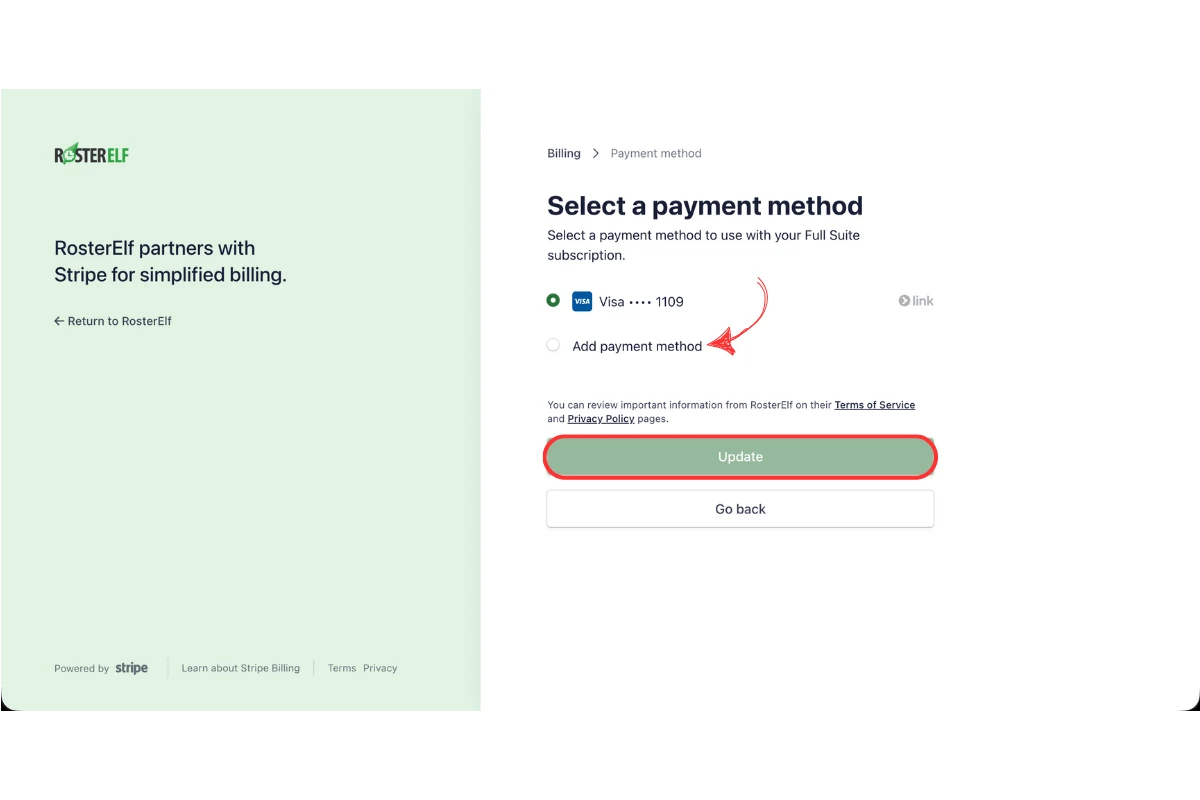
1.1.8 Click update to confirm your payment method selection.
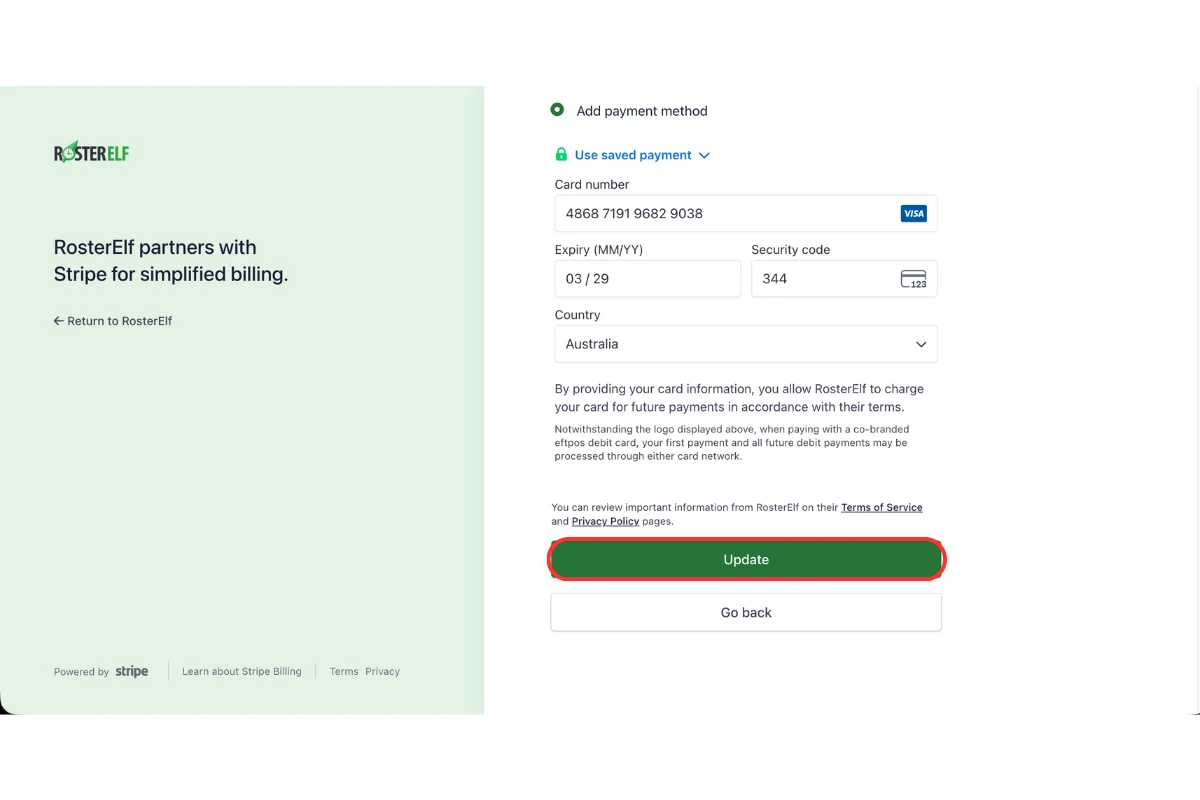
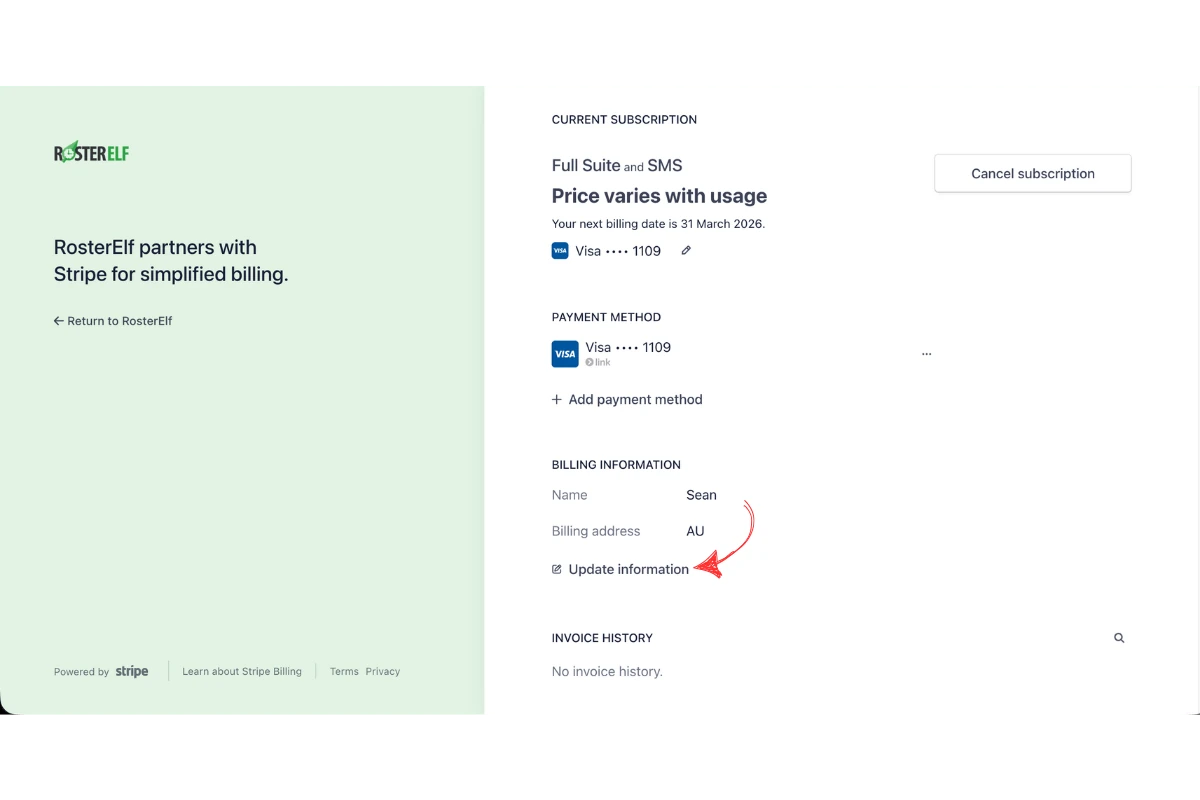
1.1.9 Click update information to edit your billing details.
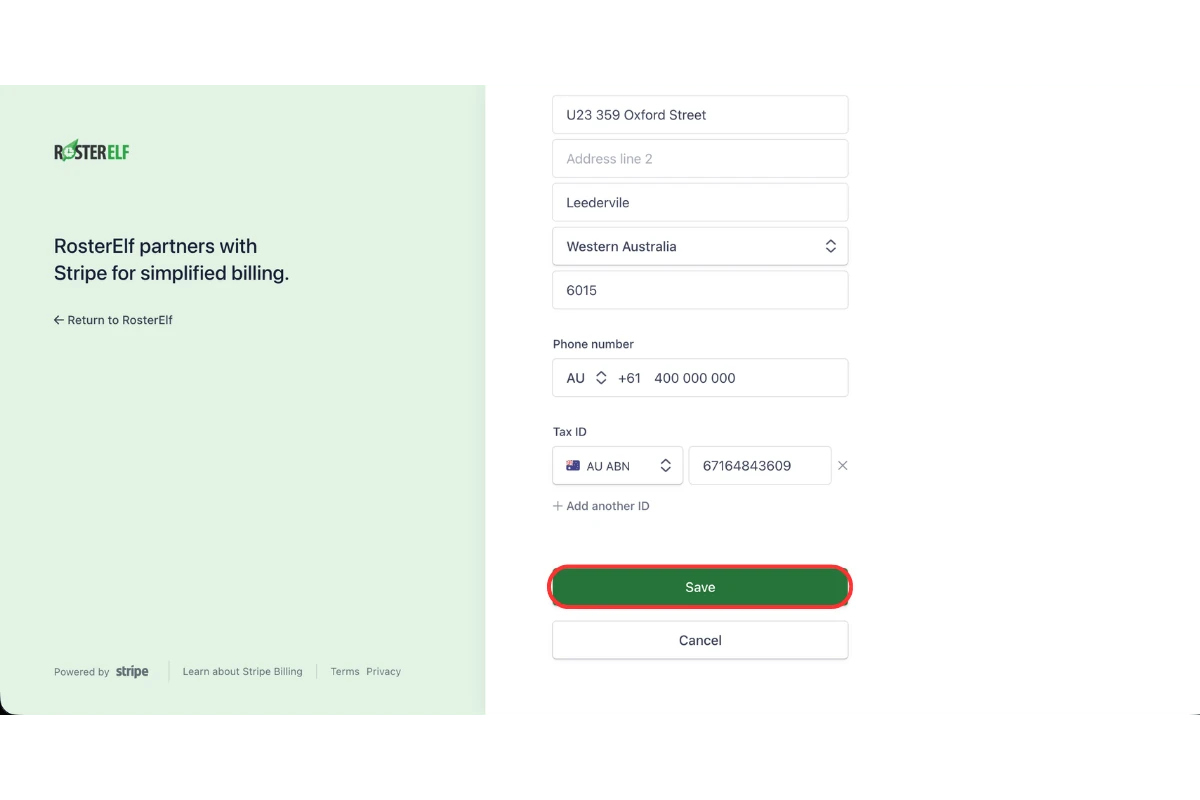
1.1.10 Enter your updated billing information including name, address, and Tax ID.
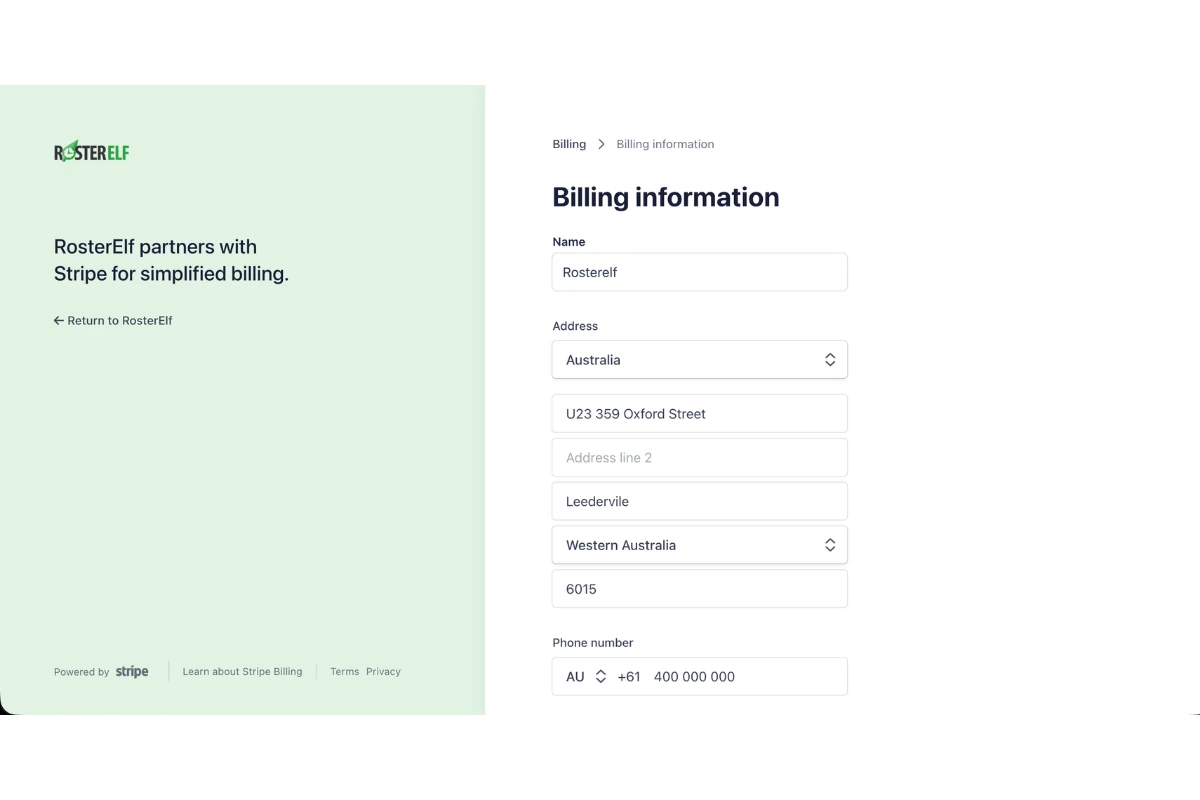
1.1.11 Click save.
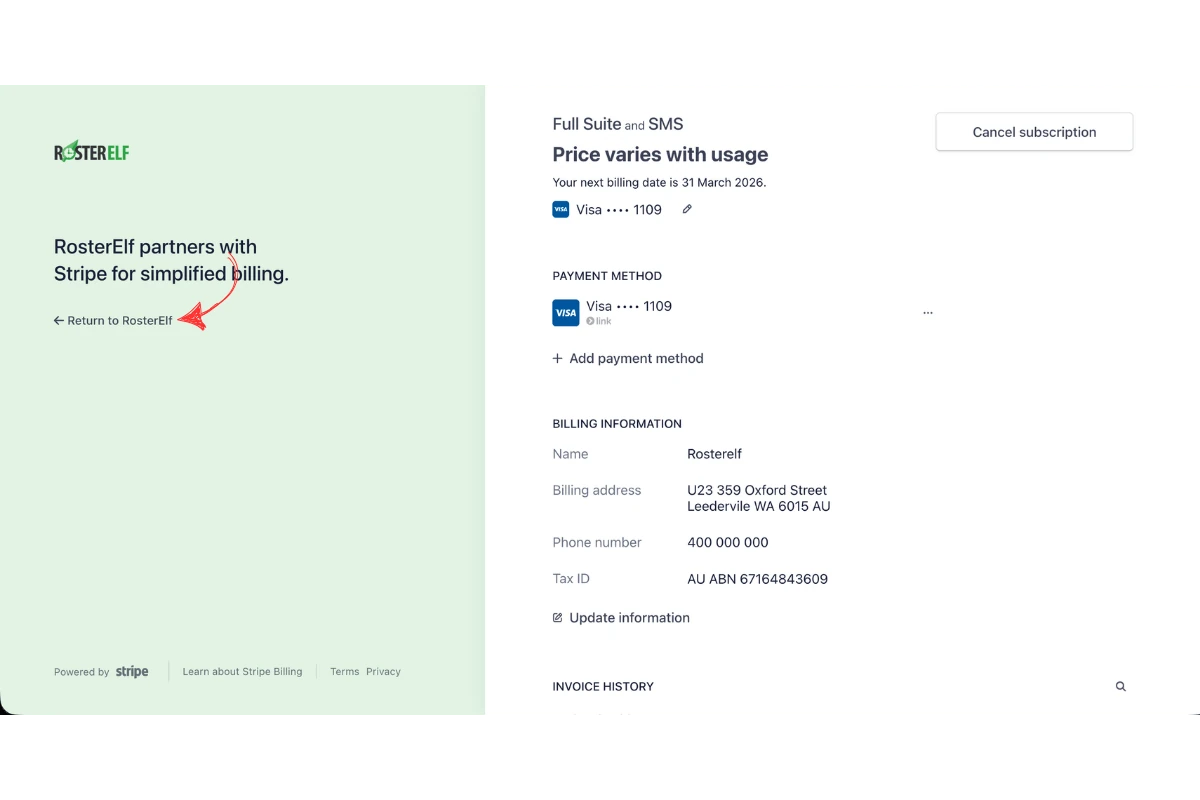
1.1.12 Click return to RosterElf.
Note
For security, never share your card details over email. Always update payment information directly through the RosterElf platform via Stripe.
Frequently asked questions
1. I received an email asking me to add a payment method — what does this mean?
It means Stripe, our billing provider, has no valid card for your account: none was added, or the card has expired. RosterElf needs one to charge your subscription, including any active staff above your plan count. Add your card from the link in the email, or press FIX NOW on the red banner in RosterElf, or go to subscription settings → billing info. If you have just moved from eWAY, see our guide on changing from eWAY to Stripe.
2. How do I update billing information in RosterElf?
You can update billing information in RosterElf by opening your account overview, selecting subscription settings, and pressing billing info. Select the pencil icon next to your card details, enter your new payment information, and press update to apply the change.
3. Where can I find billing information in RosterElf?
You can find billing information in RosterElf within your account overview. Open RosterElf, press the welcome message in the top right corner, then go to subscription settings and press billing info. This is where you can view and update your payment details.
4. Why should I update billing information in RosterElf?
You should update billing information in RosterElf to ensure your subscription continues without interruption. Keeping your payment details current helps prevent failed transactions and ensures invoices are processed correctly.
5. Can I change my payment method in RosterElf?
Yes, you can change your payment method in RosterElf at any time. Access your billing info in subscription settings, then add a new card or update your existing card details. Save the changes to apply the new payment method.
6. What happens if my billing information is not updated in RosterElf?
RosterElf needs a valid card on file. If there is no card, or the card has expired, and your account is on a monthly plan or has more active staff than seats, the subscription is cancelled. Staff can no longer log in. The account owner can still log in, and sees a payment screen where they can add a card and restart the subscription. Add or update your card in subscription settings → billing info to keep access.
7. What does the red “There's an issue with your payment method” banner mean?
It means RosterElf has no valid card on file for your account, or a payment is overdue. The banner shows on every page until it is fixed. Click FIX NOW on the banner to open your subscription, then Billing Info to add or update your card. If nothing is done, the subscription can be cancelled and staff lose access — see update billing details.
8. Does RosterElf automatically retry failed payments?
Yes — Stripe (our billing provider) automatically retries failed payments on a schedule over the following days. You do not need to contact us to trigger a retry. If the payment continues to fail, the most common cause is an expired or declined card. Update your payment method in subscription settings and the next automatic retry will use the new payment method.
9. Why do I have two invoices for my annual subscription?
The first invoice is a pro-rata charge for the remaining days in the current month. On the 1st of the following month, you will be charged for the full annual subscription.
10. Can I have fewer seats than active staff on my annual subscription?
No. The number of seats on your annual subscription cannot be less than your active staff count.
11. When will I be charged for adding additional seats?
If you increase seats through subscription settings, you are charged immediately when you confirm. If a staff member becomes active on your annual plan without you first purchasing additional seats, the billing reconciliation runs 5 days after activation — staff who remain active after 5 days are charged for.
12. Will I be charged if I reactivate a staff member for reporting?
No. You will only be charged if the staff member remains active 5 days after reactivation. To avoid charges, archive the staff member after completing your report.
13. Can I update my billing email in Stripe?
No. Currently, there is no option to update the billing email in Stripe.
14. Why am I charged GST if I am not in Australia?
RosterElf adds GST only when your account’s Tax Region Setting is set to Australia. Open Account info from the welcome message at the top right, change Tax Region Setting to the country your business is based in, and press Save — the change applies from your next invoice. Full steps: tax region and GST on your invoice.