

Update annual plan seats in RosterElf settings
This article explains how to adjust the number of seats on your RosterElf annual plan. The key thing to understand is that the direction of the change determines when it takes effect:
- Increasing seats via subscription settings: Takes effect immediately and you are charged immediately when you confirm.
- Active staff added without purchasing seats first: Billing reconciliation runs 5 days after a staff member becomes active — if they remain active after 5 days, a charge applies.
- Decreasing seats: Scheduled change — takes effect at your next billing date. Your current seat count remains active until then.
If you have not yet switched to an annual plan, see our guide on changing your subscription to annual. To switch between annual plan tiers (Core, Full Suite, HR Hub), see switching or downgrading your annual subscription plan. For a complete overview of all plan change rules, see changing your subscription plan.
1. Increase annual plan seats (immediate)
When you increase your seat count through the subscription settings flow, the change takes effect immediately and you are charged immediately upon confirming. Follow the steps below to increase your annual plan seats through subscription settings.
1.1 Increase annual plan seats in RosterElf
1.1.1 Open RosterElf in your web browser.
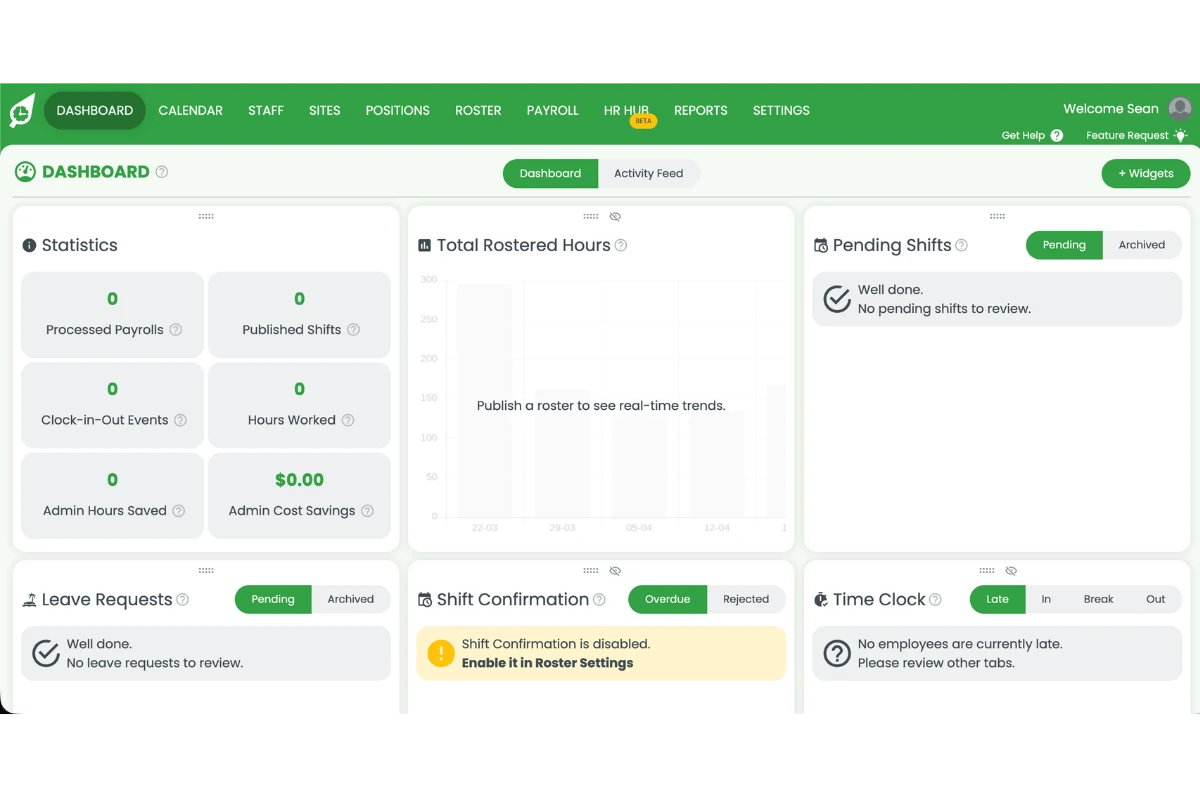
1.1.2 Press the welcome message in the top right corner of the screen.
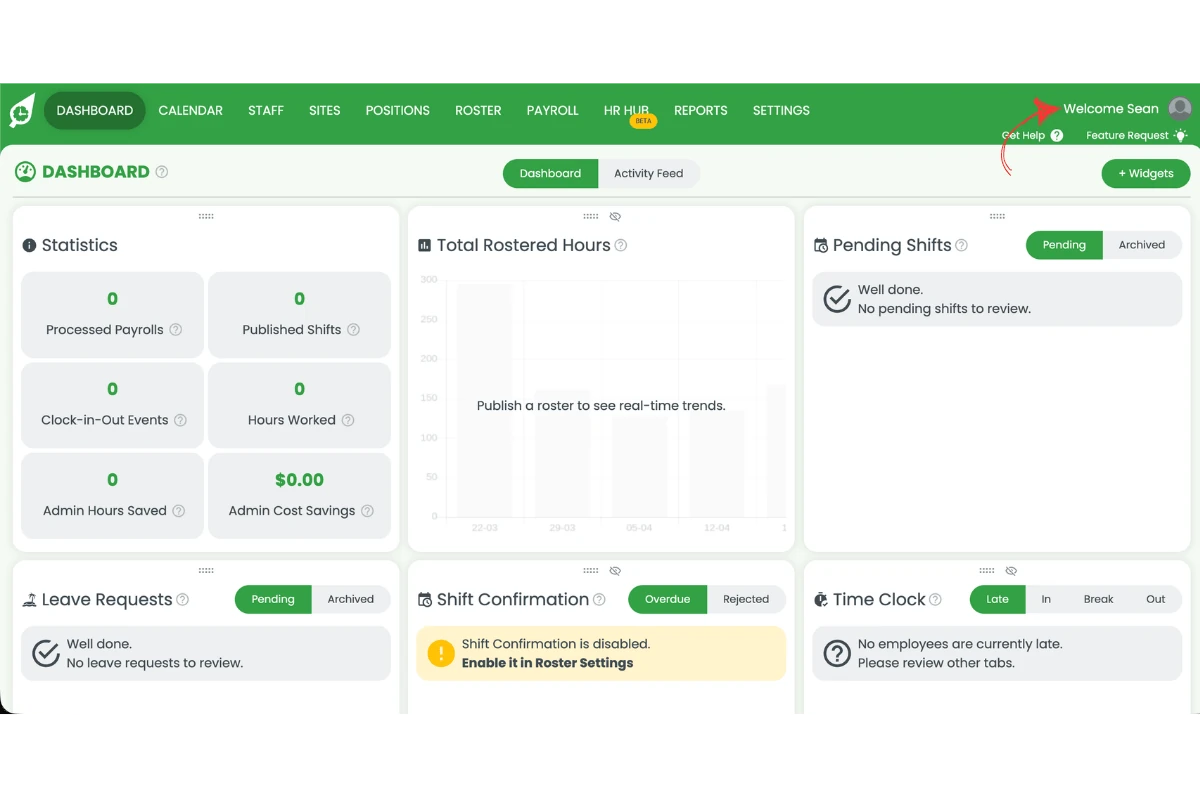
1.1.3 Press account overview from the dropdown menu.
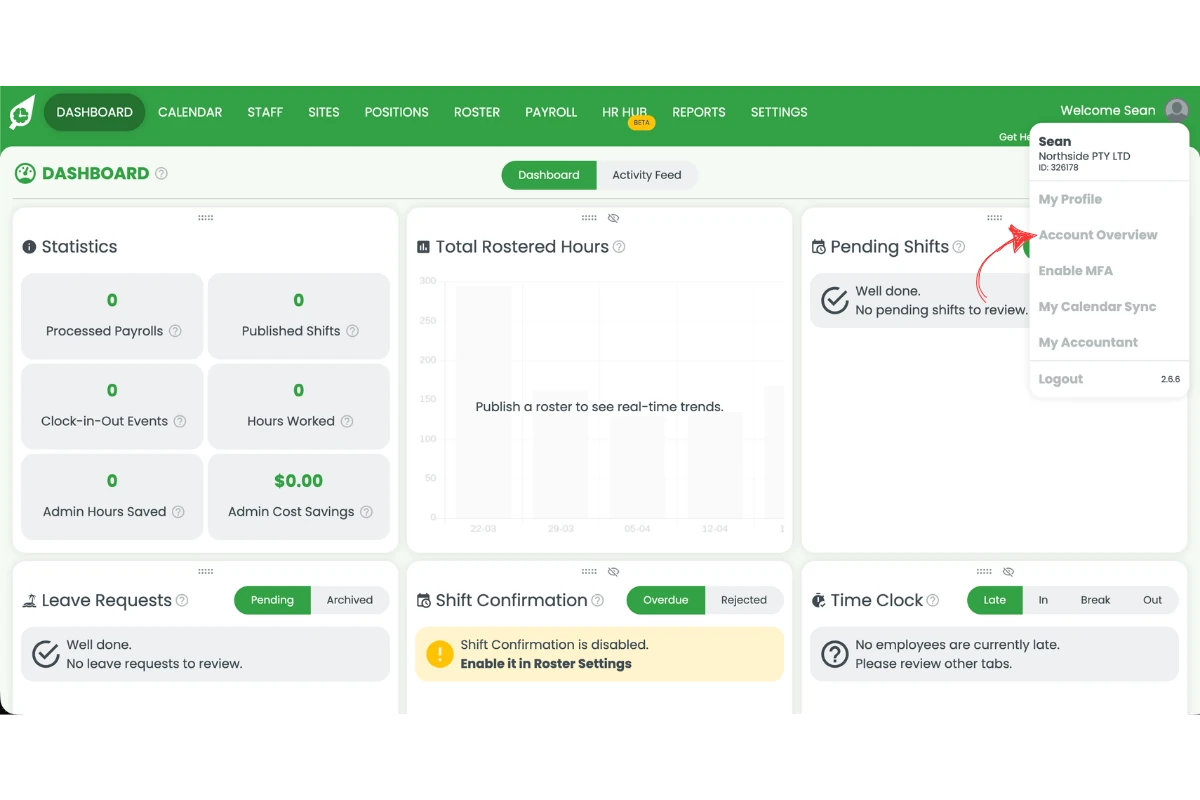
1.1.4 Press subscription settings.
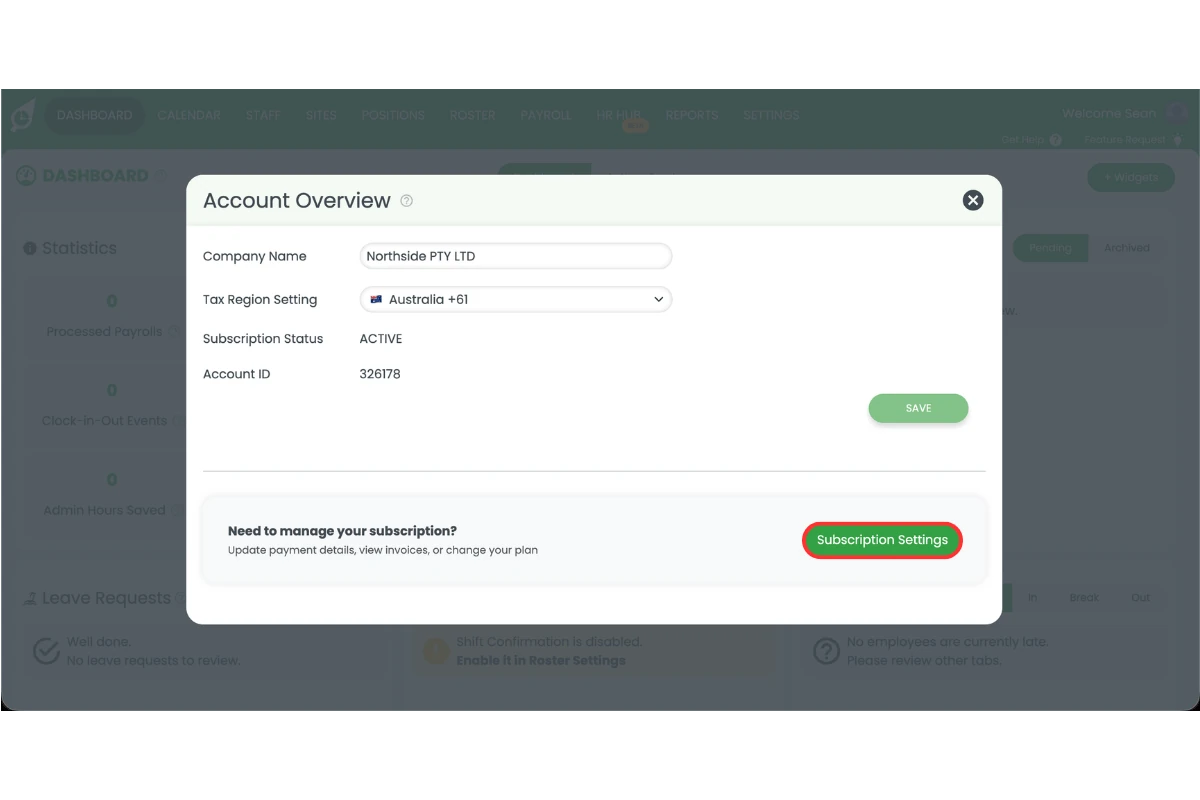
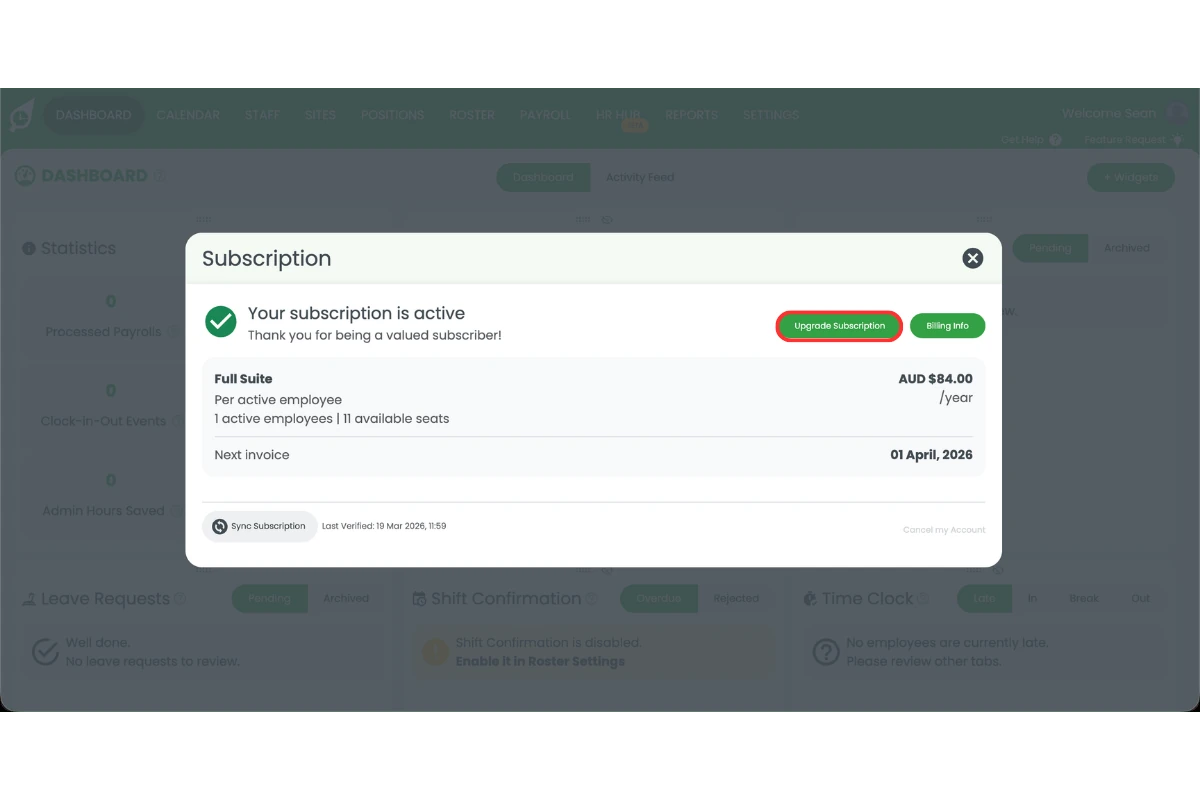
1.1.5 Press upgrade subscription.
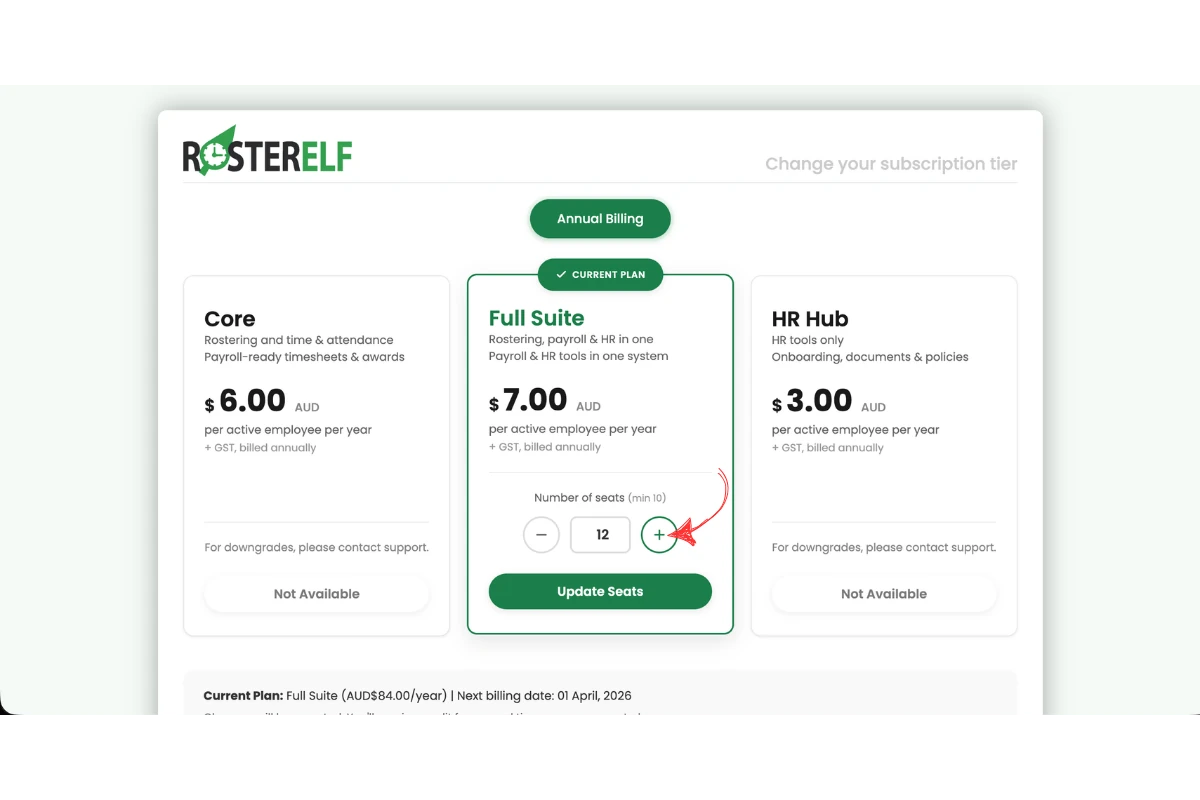
1.1.6 Adjust the number of seats using the + and – controls.
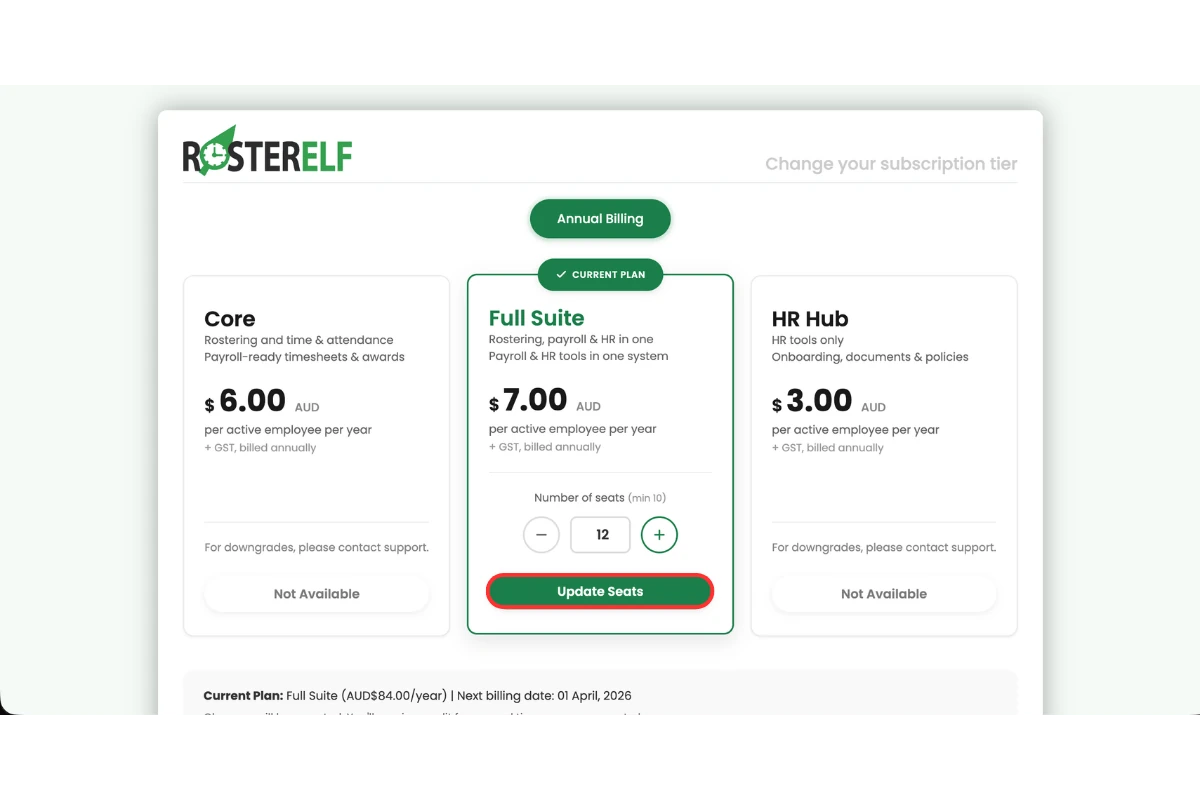
1.1.7 Press update seats to confirm.
Minimum seat limits apply
You cannot reduce seats below your active staff count, and the minimum on any annual plan is 10 seats. Archive any staff you no longer need before attempting to reduce your seat count.
2. Decrease annual plan seats (next billing date)
Reducing your seat count on an annual plan is a scheduled change — it does not take effect immediately. When you reduce seats, you will see a yellow Schedule Downgrade button instead of the green Confirm Change button. The lower seat count will become active at your next billing date, and the confirmation dialog will show you the exact date.
For step-by-step instructions with screenshots, see the dedicated guide: Switch or downgrade your annual subscription plan (section 4 — Decrease annual plan seats).
Your current seats stay active
After scheduling a seat reduction, nothing changes immediately. Your current seat count remains active until the billing date shown in the confirmation dialog. The reduced count applies automatically on that date.
Frequently asked questions
1. What does updating annual plan seats mean in RosterElf?
Updating annual plan seats means changing the number of staff included in your subscription. This ensures your plan matches your active staff count. It helps you stay compliant and avoid paying for unused seats.
2. When should I update annual plan seats in RosterElf?
You should update annual plan seats when your team size changes. Increase seats when hiring new staff. Reduce seats when staff leave or are archived. This keeps your subscription accurate and cost-effective.
3. Can I reduce annual plan seats below my active staff count?
No, you cannot reduce seats below your active staff count, and the minimum on any annual plan is 10 seats. You must first archive any staff you no longer need. This ensures your subscription aligns with your current team.
4. What is the minimum number of seats on an annual plan?
Annual plans require a minimum of 10 seats. You cannot reduce your seat count below 10 regardless of how many active staff you have.
5. Does increasing seats take effect immediately?
Yes. When you add seats through subscription settings, the change takes effect immediately and you are charged immediately upon confirming. If a staff member becomes active on your annual plan without you first purchasing additional seats, the billing reconciliation runs 5 days after activation.
6. Does decreasing seats take effect immediately?
No. Reducing your annual seat count is a scheduled change — it takes effect at your next billing date, not immediately. Your current seat count remains active until then. The confirmation dialog will show the exact date.
7. Why do I have two invoices for my annual subscription?
The first invoice is a pro-rata charge for the remaining days in the current month. On the 1st of the following month, you will be charged for the full annual subscription. For a breakdown of the credit and charge lines on a prorated invoice, see understanding your prorated invoice.
8. Can I have fewer seats than active staff on my annual subscription?
No. The number of seats on your annual subscription cannot be less than your active staff count.
9. When will I be charged for adding additional seats?
If you increase seats through subscription settings, you are charged immediately when you confirm. If a staff member becomes active on your annual plan and pushes you over your current seat count, the billing reconciliation runs 5 days after activation — staff remaining active after 5 days are charged for.
10. Will I be charged if I reactivate a staff member for reporting?
No. You will only be charged if the staff member remains active 5 days after reactivation. To avoid charges, archive the staff member after completing your report.
11. One staff member is leaving and another is starting — will I be charged for an extra seat?
Not if you archive the departing staff member first. Seat billing only checks whether your active staff count exceeds the seats you’ve already paid for — it doesn’t matter which staff member fills a seat, only how many are active at once. Archive the person leaving (Staff tab → hover → X → Deactivate — see deleting staff manually) before you add and activate the new starter, and your active count never exceeds what you’ve already paid for, so no charge applies. Processing the leaver’s final timesheet is unrelated to seat billing and can be done at any time, before or after you archive them. If you do need the new starter active before the leaver is archived, you still have the 5-day grace period above to archive them and avoid the charge — see understanding your prorated invoice.
12. Can I update my billing email in Stripe?
No. Currently, there is no option to update the billing email in Stripe.
13. Why am I charged GST if I am not in Australia?
RosterElf adds GST only when your account’s Tax Region Setting is set to Australia. Open Account info from the welcome message at the top right, change Tax Region Setting to the country your business is based in, and press Save — the change applies from your next invoice. Full steps: tax region and GST on your invoice.
14. I received an email saying I am under my allocated seats — what does this mean?
This email means your current active staff count is lower than the number of seats included in your subscription. For example, if your plan has 20 seats but you only have 15 active staff members, you are paying for 5 unused seats. You can reduce your seat count to match your current staff and lower your costs — see the steps above to update your annual plan seats. Alternatively, keep the extra seats if you are planning to hire. No immediate action is required, but reducing seats will lower your next billing amount.