

Cancel your RosterElf subscription steps (Stripe)
This article explains how to cancel a paid RosterElf subscription billed through Stripe. Cancelling your subscription allows you to stop future billing and manage your account based on your current business needs. This is useful if you no longer require the platform, are reducing operations, or want to pause your usage.
RosterElf makes it simple to cancel your subscription directly from your account settings. You do not need to contact support. You can access your billing settings, review your subscription details, and complete the cancellation in just a few steps. This ensures you remain in control of your billing at all times.
Before cancelling, you should ensure you have downloaded any required data such as reports or invoices. See our guide on downloading invoices for help with this. Once your subscription is cancelled, your access will continue until the end of your current billing period. For more information on how cancellation affects your billing, refer to our refund and cancellation policy.
On a free trial? There is nothing to cancel
A free trial ends automatically after 15 days. No payment details are collected, so nothing is charged and there is no subscription to cancel. See when your trial ends for your options, including asking support for an extension.
Account owner access required
Only the account owner can cancel the subscription. Admins, managers and staff don’t see subscription settings. If you need to cancel, ask the account owner: the staff member with the green OWNER ribbon on their card in Staff.
1. Cancel RosterElf subscription in settings
This section explains how to cancel your RosterElf subscription using your account settings. You will learn how to access your subscription details, navigate to your billing information, and confirm your cancellation. Cancelling through your settings ensures the process is completed instantly and without delays.
Using the subscription settings gives you full visibility over your billing and allows you to make changes securely. This method is the quickest way to stop future charges while ensuring your account updates correctly. Following these steps helps you avoid billing issues and ensures your cancellation is processed successfully.
1.1 Cancel RosterElf subscription steps
1.1.1 Open RosterElf in your web browser.
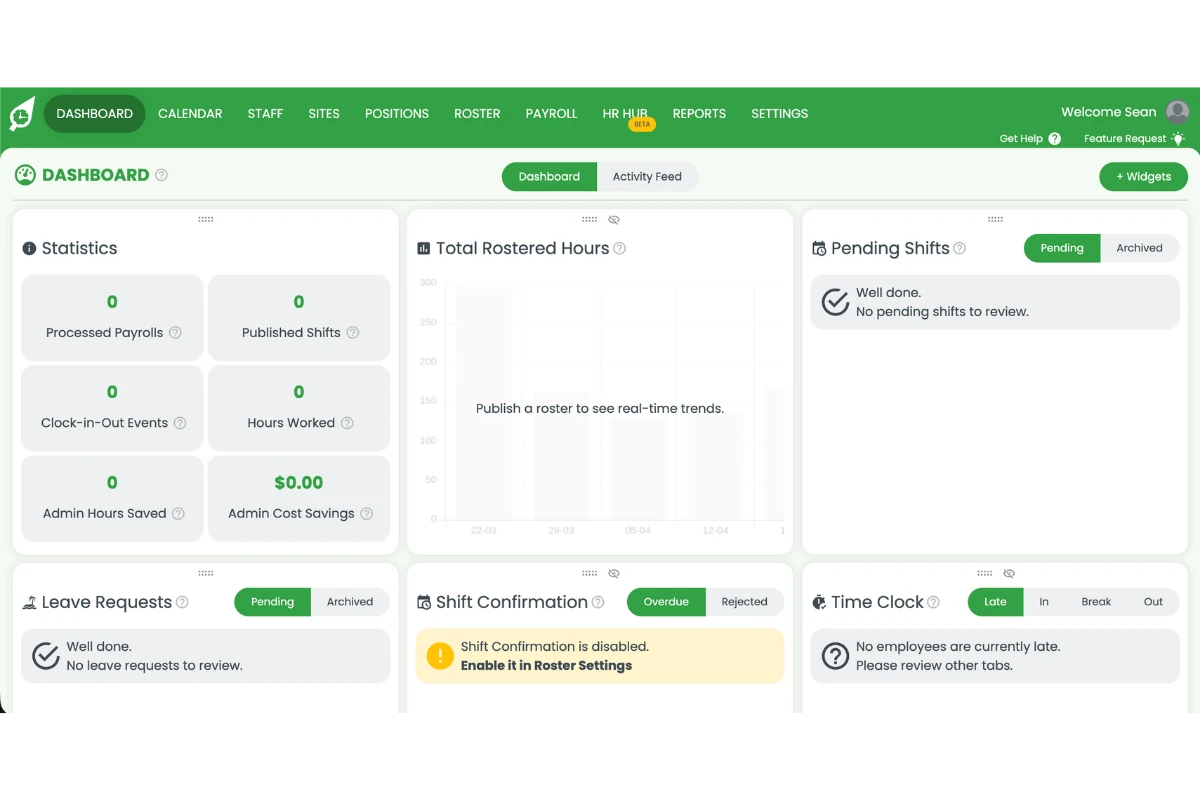
1.1.2 Click the welcome message in the top right corner of the screen.
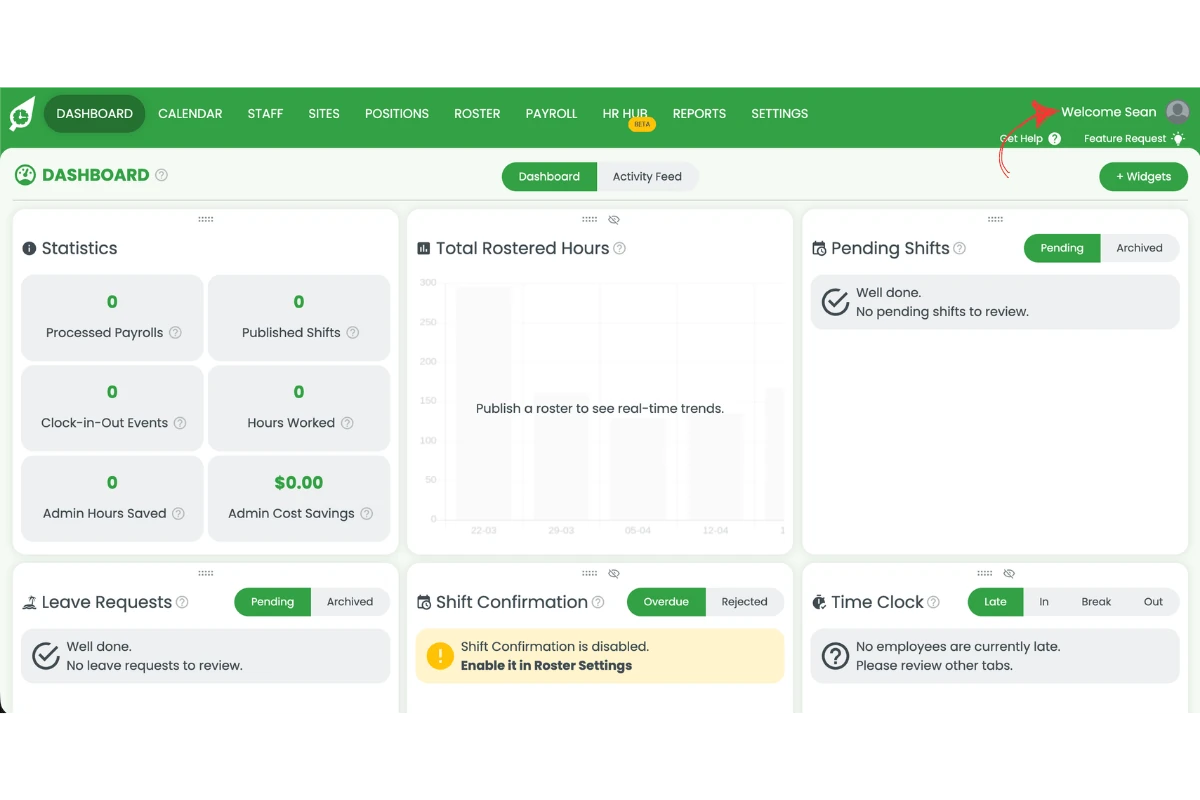
1.1.3 Click account overview from the dropdown menu.
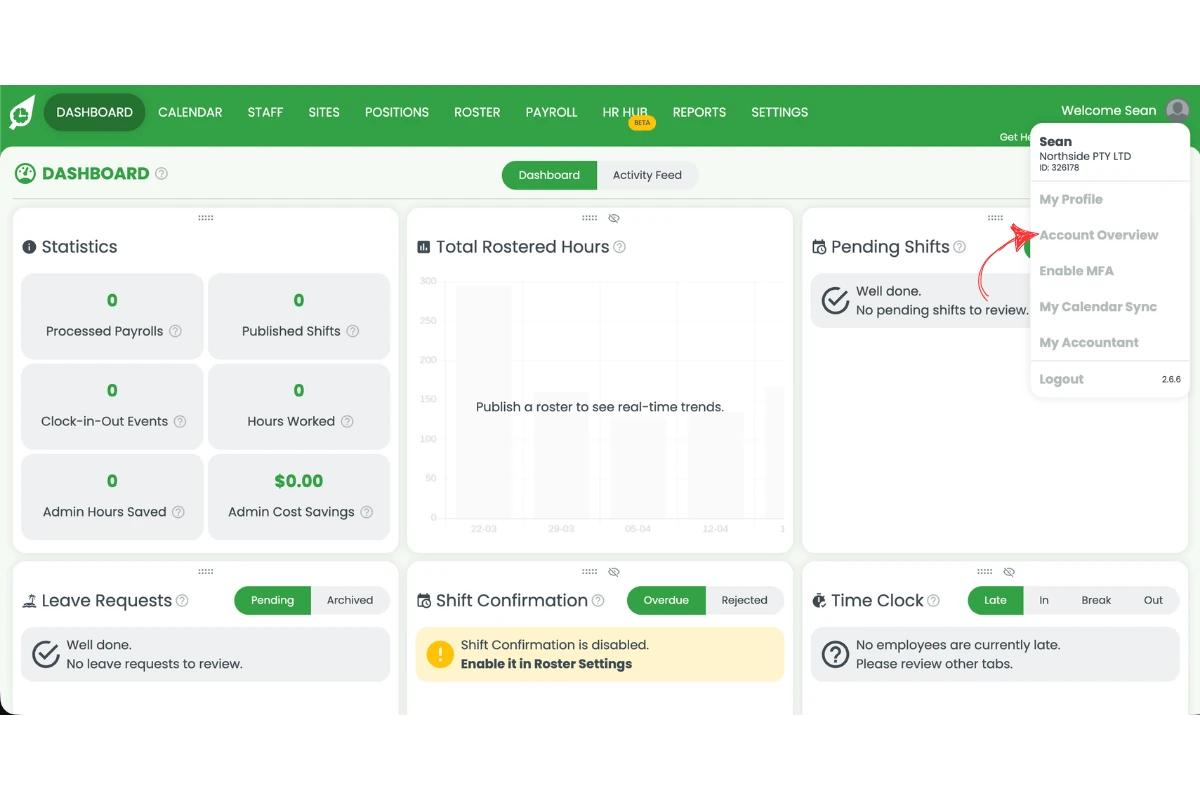
1.1.4 Click subscription settings.
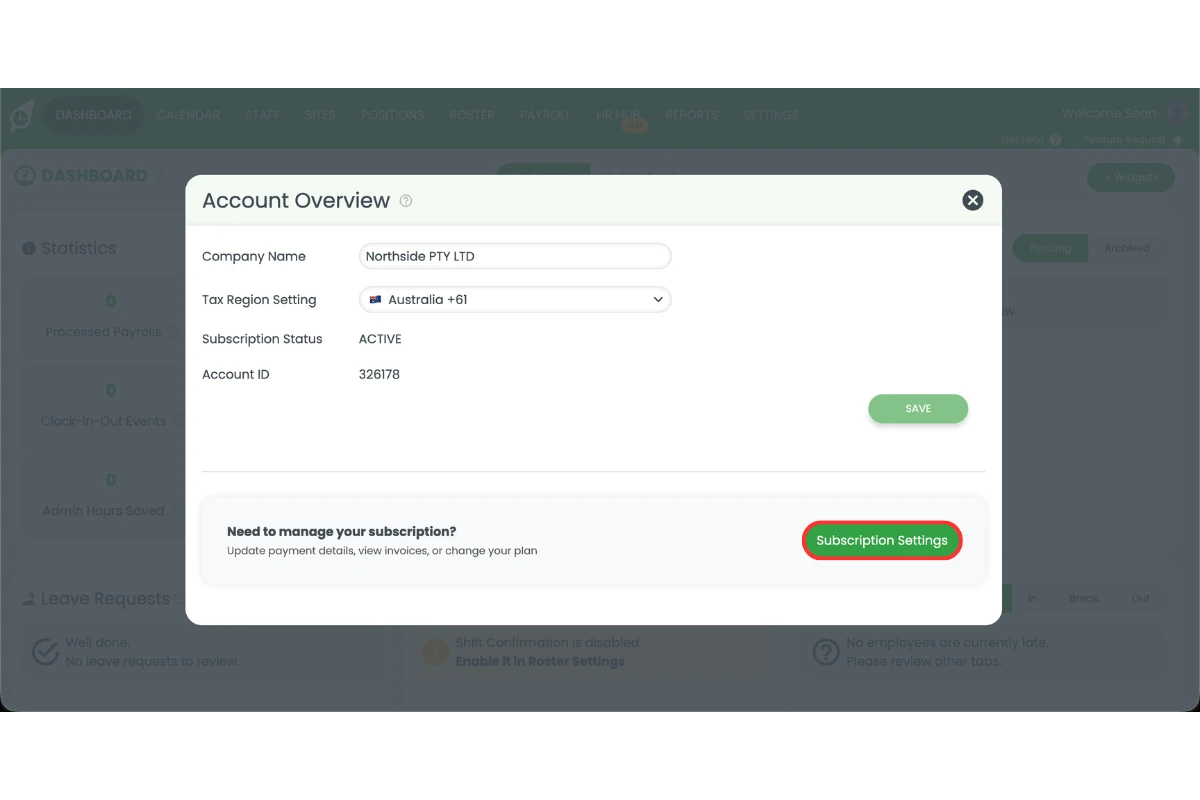
1.1.5 Click billing info.
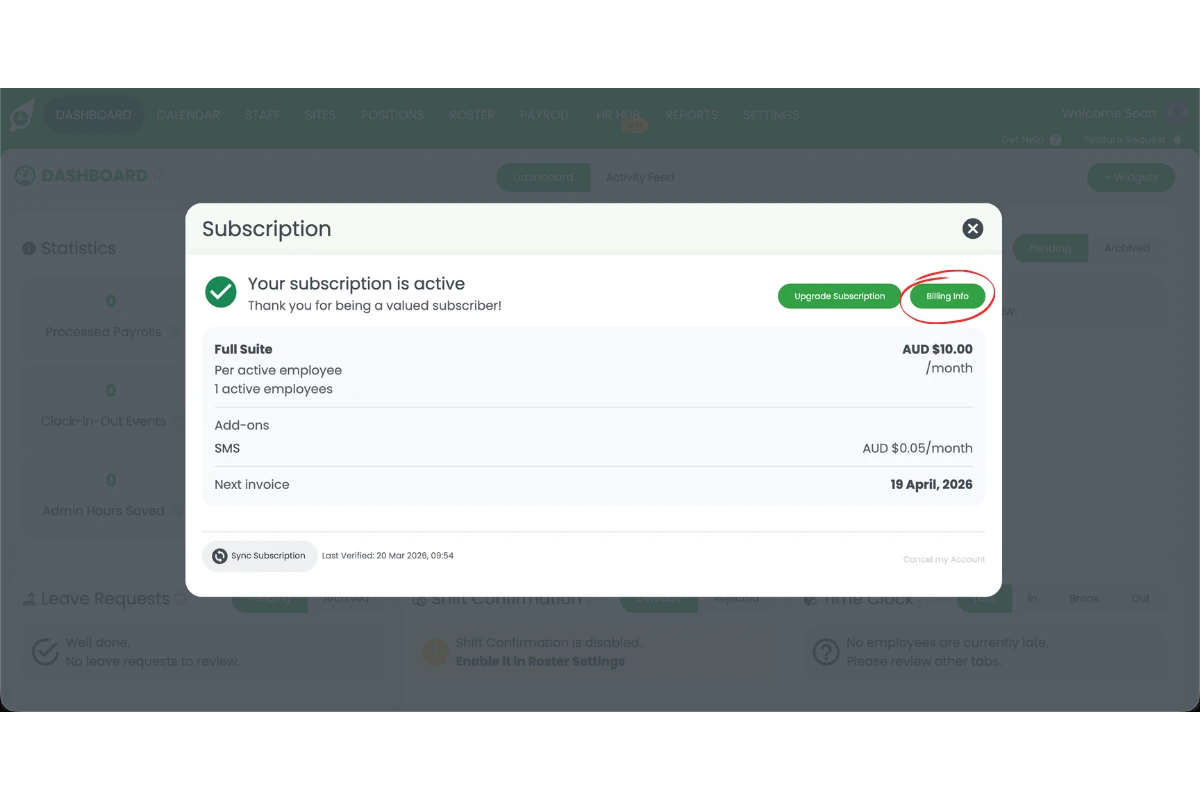
1.1.6 Click cancel subscription.
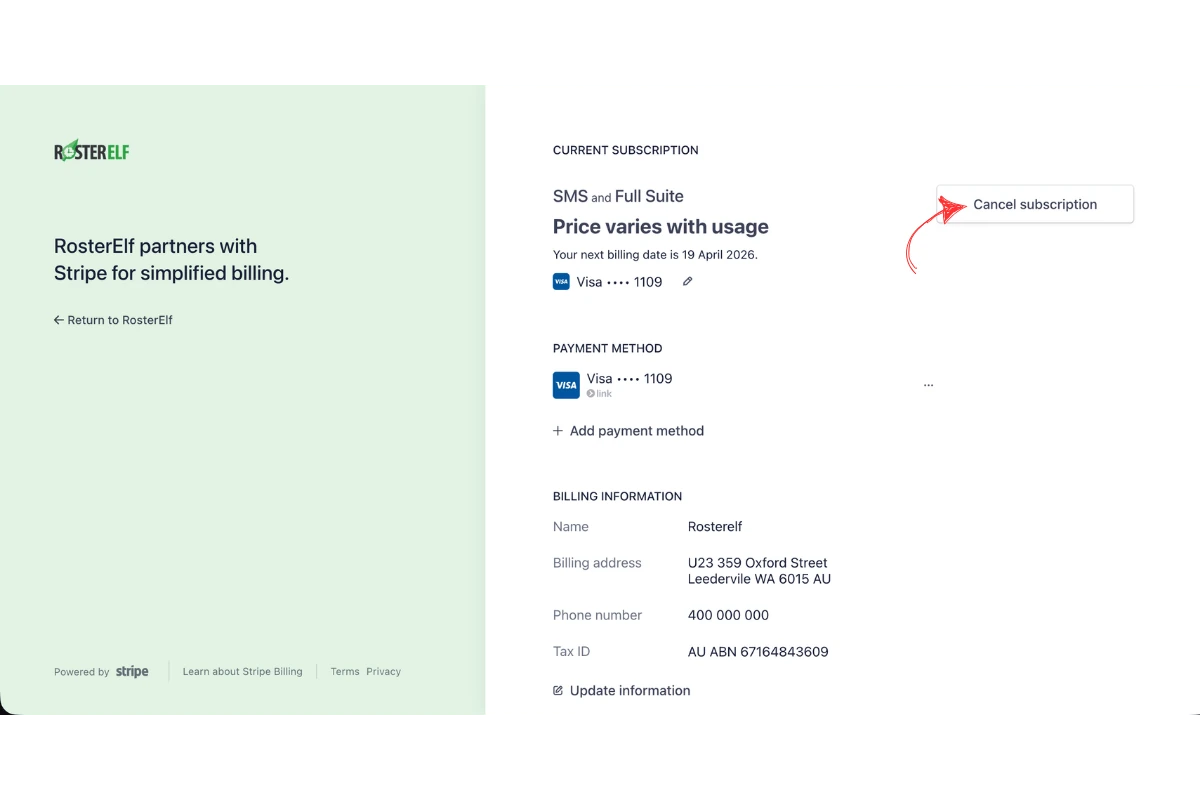
1.1.7 Confirm the cancellation by pressing cancel subscription.
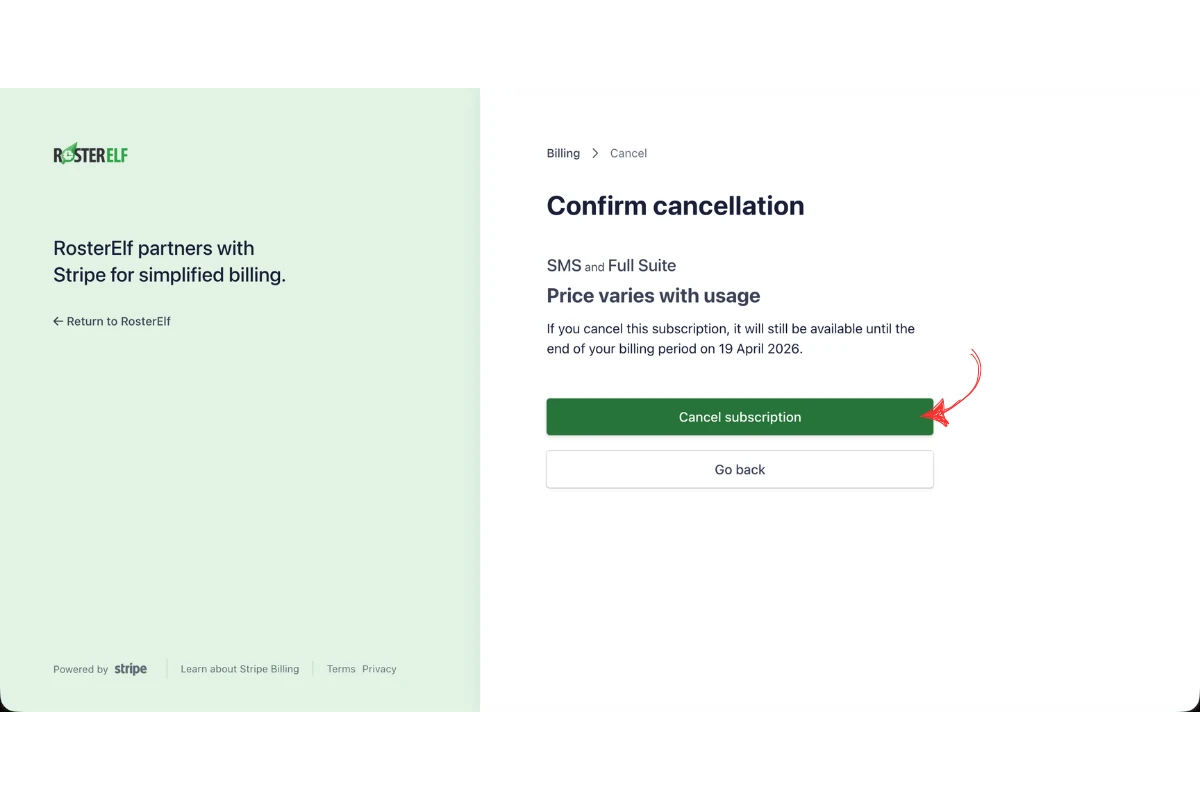
1.1.8 Leave any feedback on your cancellation, then press submit or no thanks.
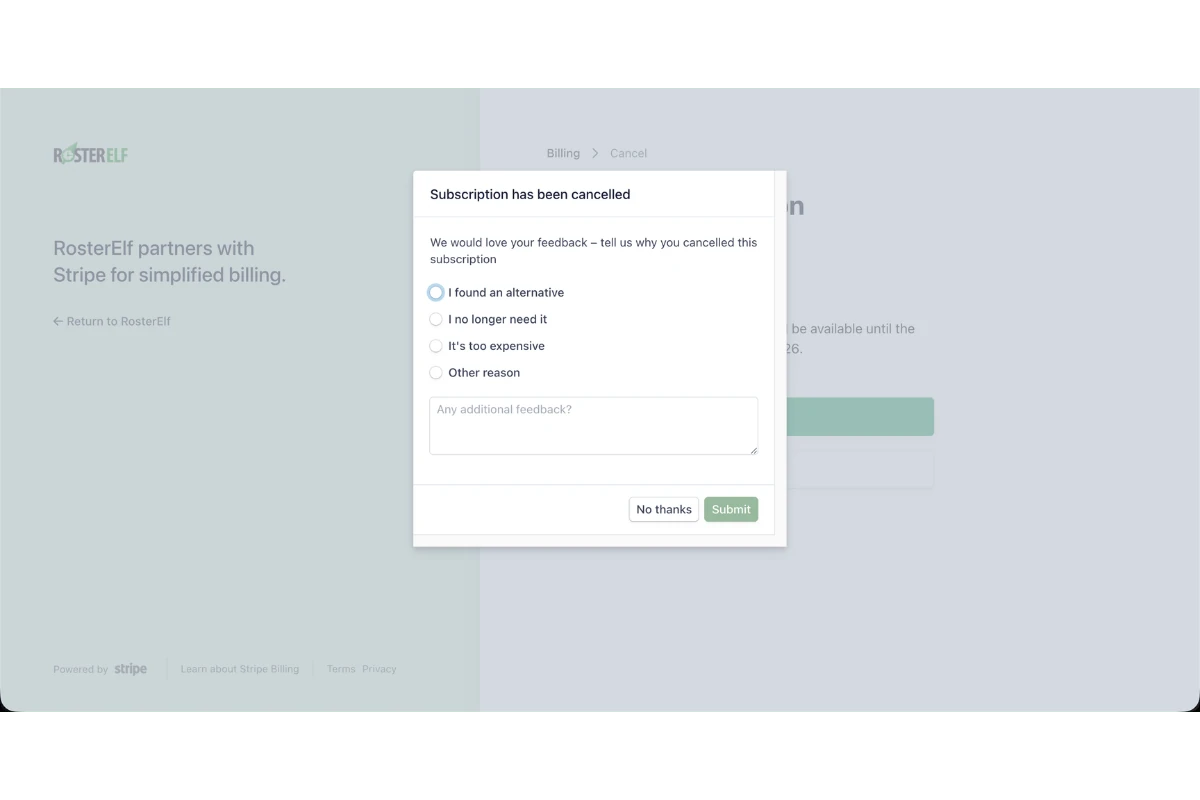
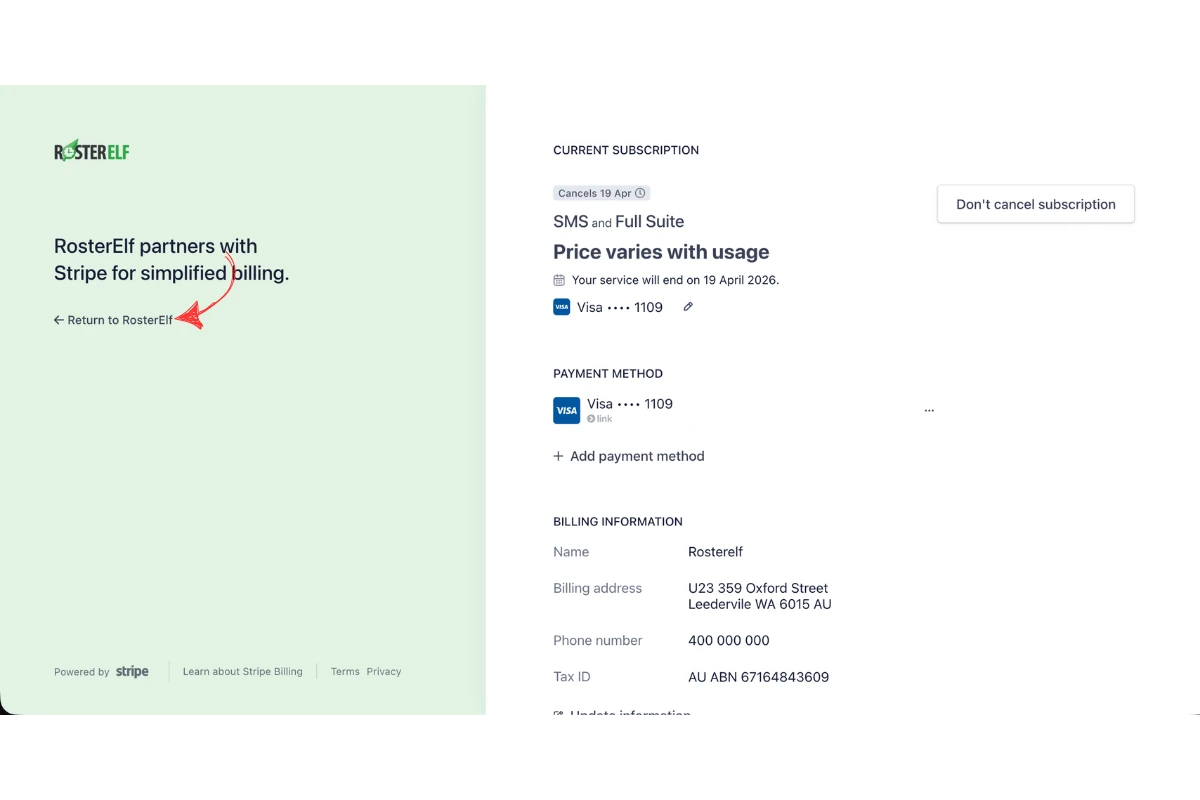
1.1.9 Click return to RosterElf.
Access after cancellation
Your subscription will remain active until the end of your current billing period. For monthly subscribers, this is the end of the billing month. For annual subscribers, access continues until the end of the paid term. Account data is permanently deleted 30 days after cancellation and cannot be recovered. Refer to our refund and cancellation policy for full details.
Frequently asked questions
1. How do I cancel my RosterElf subscription?
You can cancel your RosterElf subscription directly from your account settings. Open RosterElf, press the welcome message, go to account overview, then press subscription settings and billing info. Select cancel subscription and confirm your cancellation. This process does not require contacting support.
2. Who can cancel a RosterElf subscription?
Only the account owner. Admins and managers can’t open subscription settings. To find the owner, open Staff and look for the card with the green OWNER ribbon, then ask them to cancel.
3. How do I cancel my RosterElf free trial?
You don’t need to — there is no option to cancel a free trial. The trial ends automatically after 15 days, and because no payment details are collected, nothing is charged. The steps on this page only apply to paid subscriptions. See when your trial ends.
4. Do I need to contact support to cancel my RosterElf subscription?
No, you do not need to contact support. RosterElf allows you to cancel your subscription directly through your account settings in just a few steps. This ensures you can manage your billing quickly and at any time.
5. Will I be charged after I cancel my RosterElf subscription?
Monthly plans are billed in arrears at the end of each calendar month. When you cancel, you will receive one final invoice at the end of the billing month in which you cancelled — covering that full month of use. After that, no further charges will apply. You retain access until the end of that billing month. See clause 17 of our Terms and Conditions for full details.
6. Why did I receive a charge after cancelling my RosterElf subscription?
This is expected and is not an error. Monthly plans are billed in arrears at the end of each calendar month, based on the number of active staff during that period — as set out in clause 3 of our Terms and Conditions. When you cancel, you are charged for the full billing month in which the cancellation occurs. This is your final invoice. For example, if you cancel on 15 May, you will receive one final invoice at the end of May covering that month of use. No charges will apply after that. If you believe a charge is incorrect, please review our refund and cancellation policy or contact our support team.
7. What happens after I cancel my RosterElf subscription?
After cancellation, your access will continue until the end of your current billing period. For monthly subscribers, this is the end of the current billing month. For annual subscribers, access continues until the end of the paid subscription period.
8. Should I download my data before cancelling my RosterElf subscription?
Yes. Before cancelling, you should download any important data such as reports and invoices. Account data is permanently deleted 30 days after cancellation and cannot be recovered.
9. Is there a fee for cancelling my RosterElf subscription?
No, there are no cancellation fees associated with ending your RosterElf subscription.
10. How do I turn off auto-renewal on my annual plan?
RosterElf annual subscriptions renew automatically at the end of each annual term. There is no dedicated auto-renewal toggle. To prevent your plan from renewing, cancel your subscription before your renewal date using the steps on this page. Your access will continue until the end of your current paid annual term. If you want to move to monthly billing rather than cancelling entirely, cancel your annual subscription now and then resubscribe on a monthly plan once the annual term expires.