

Deleting staff in RosterElf
This article explains how to delete and reactivate staff members in RosterElf. You’ll learn the steps to remove an employee from your active staff list and how to manage any future rostered shifts. Additionally, it covers how to reactivate staff members who were previously deleted.
1. Deleting staff in RosterElf
Deleting a staff member will remove them from your active roster. If they have any future shifts or approved leave, you’ll need to address those before completing the deletion.
1.1 Steps to delete a staff member
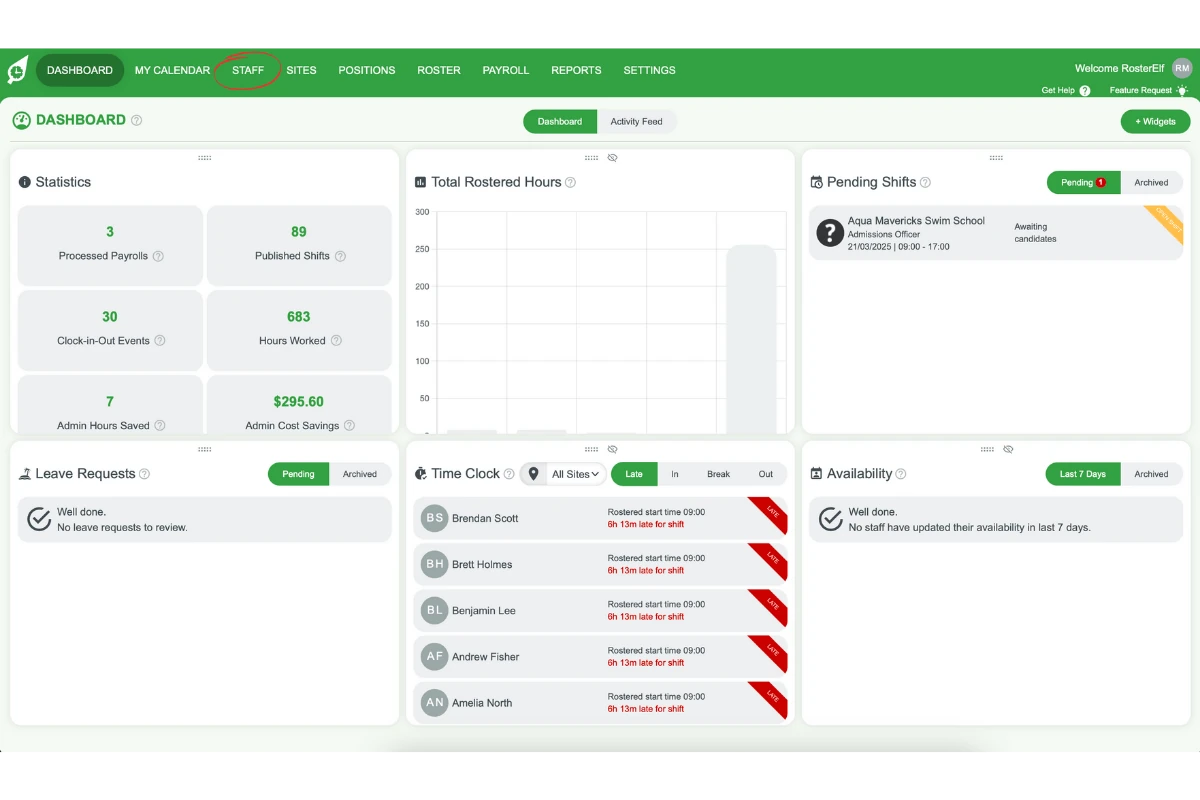
1.1.1 Click on the Staff tab.
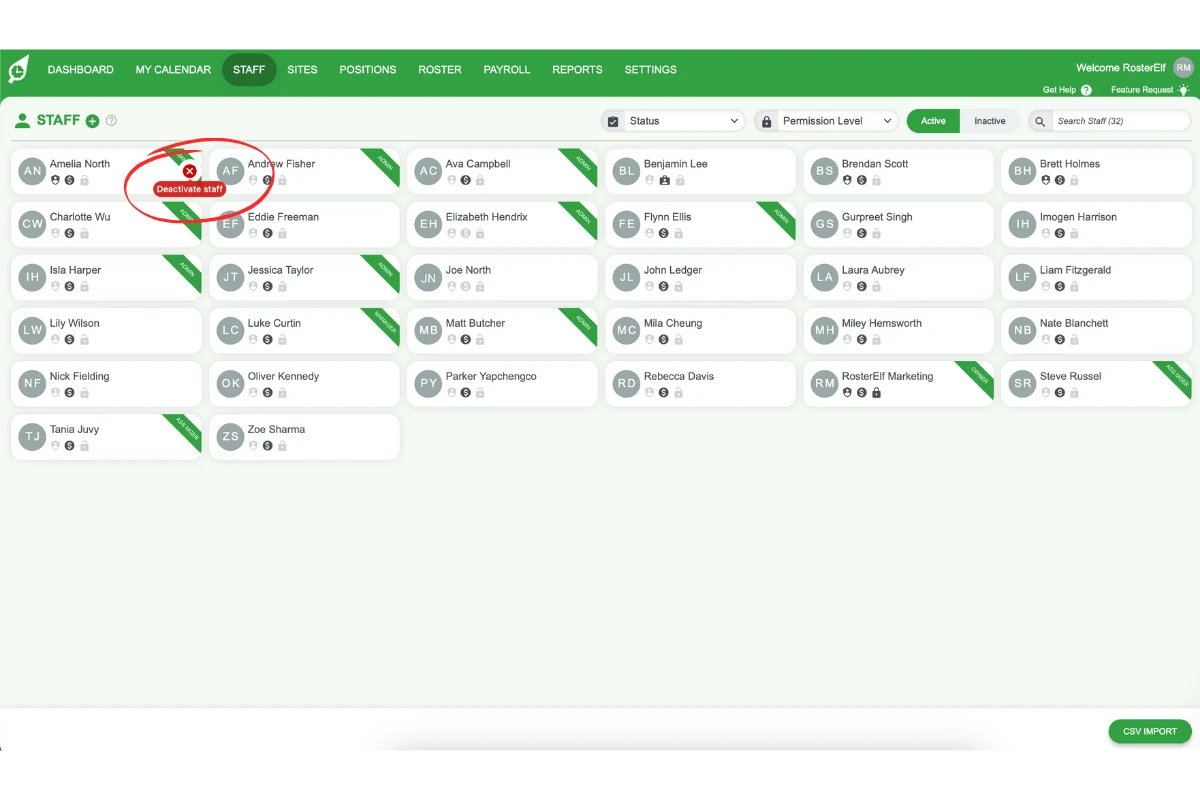
1.1.2 Hover over the employee you want to delete and click the X button.
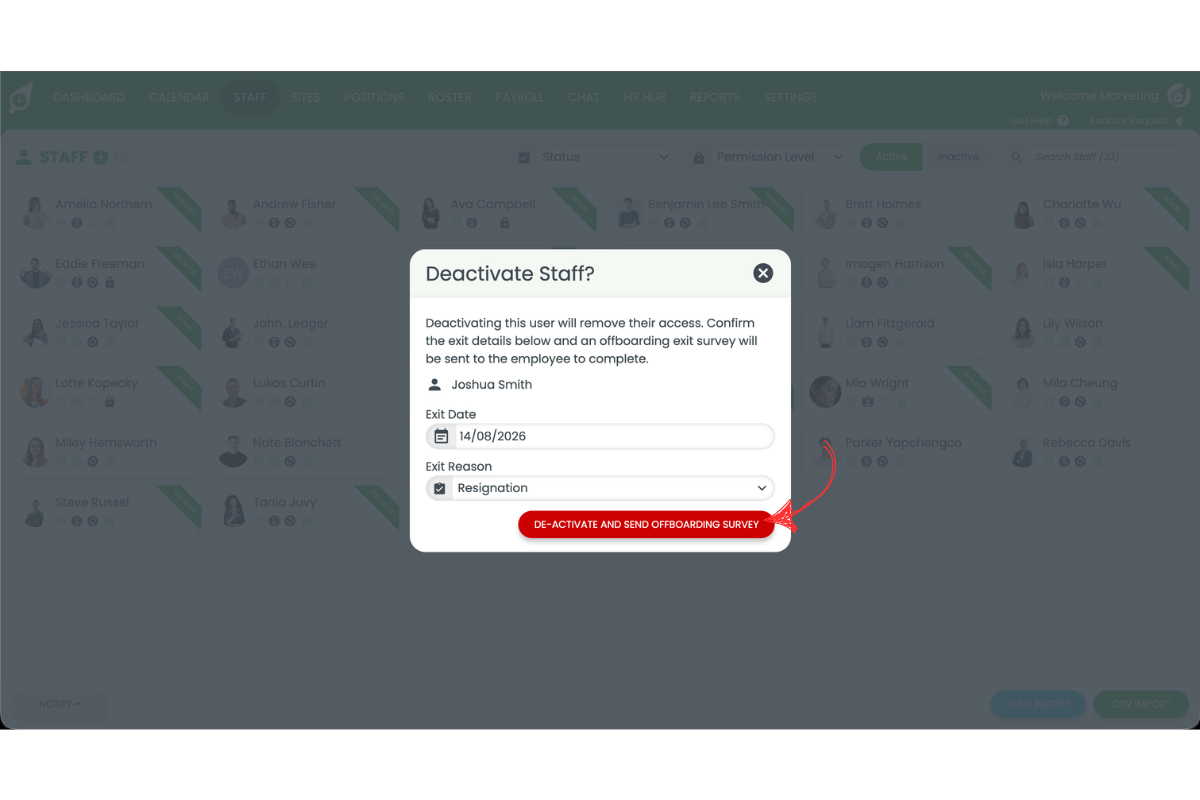
1.1.3 Review the confirmation popup displayed by RosterElf. Select an exit date and exit reason, then click De-activate.
If your account has HR Hub offboarding turned on, this same popup automatically sends the departing employee an exit survey — there’s no extra step.
Exit reasons and who can deactivate
If your account uses HR Hub offboarding, exit reasons appear for Account Owners, Administrators, Managers and Assistant Managers.
What differs is scope, not access. Managers and Assistant Managers can only deactivate and reactivate staff at the sites they are assigned to. Account Owners and Administrators can do it for any staff member across the whole account.
So if a staff member does not appear for you to deactivate, it is because they are not at one of your assigned sites — ask an Account Owner or Administrator, or have yourself assigned to that site.
2. Reactivating staff in RosterElf
If you have deleted an employee but need to restore them, follow these steps to make them active again. Reactivating staff allows them to appear on future rosters.
2.1 Steps to reactivate a staff member
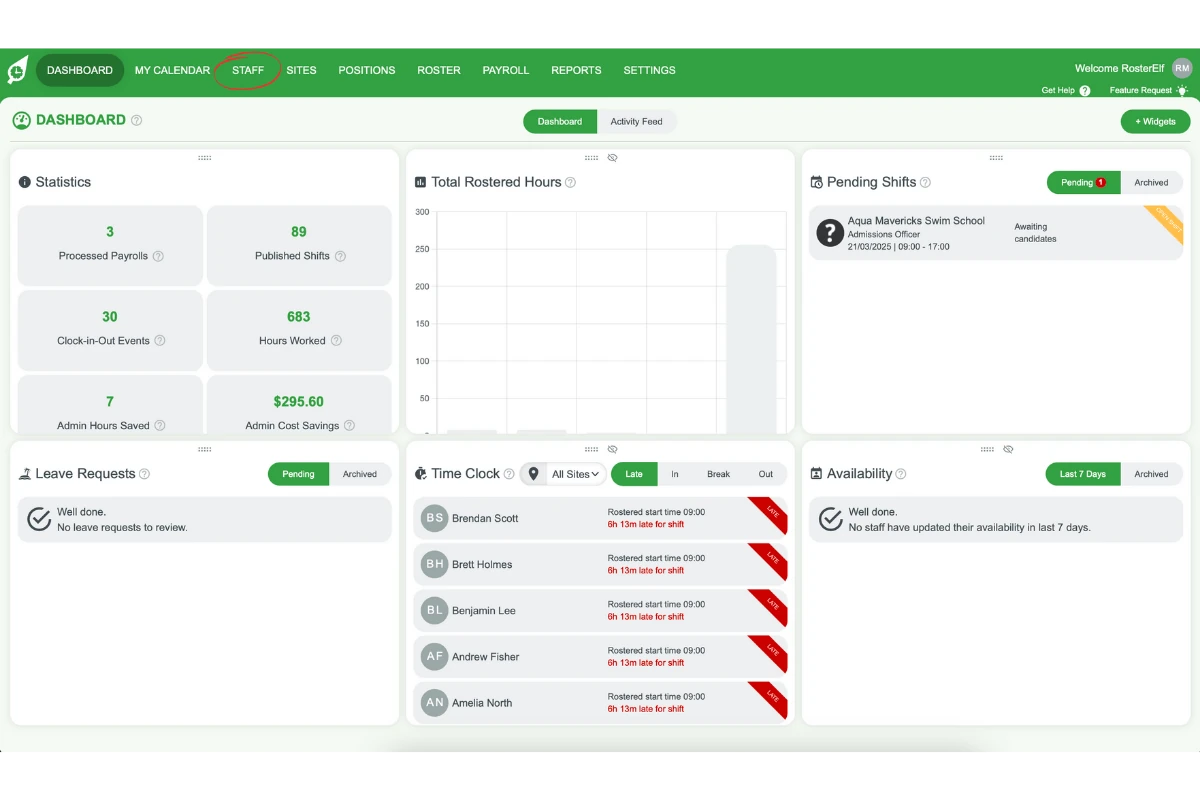
2.1.1 Click on the Staff tab.
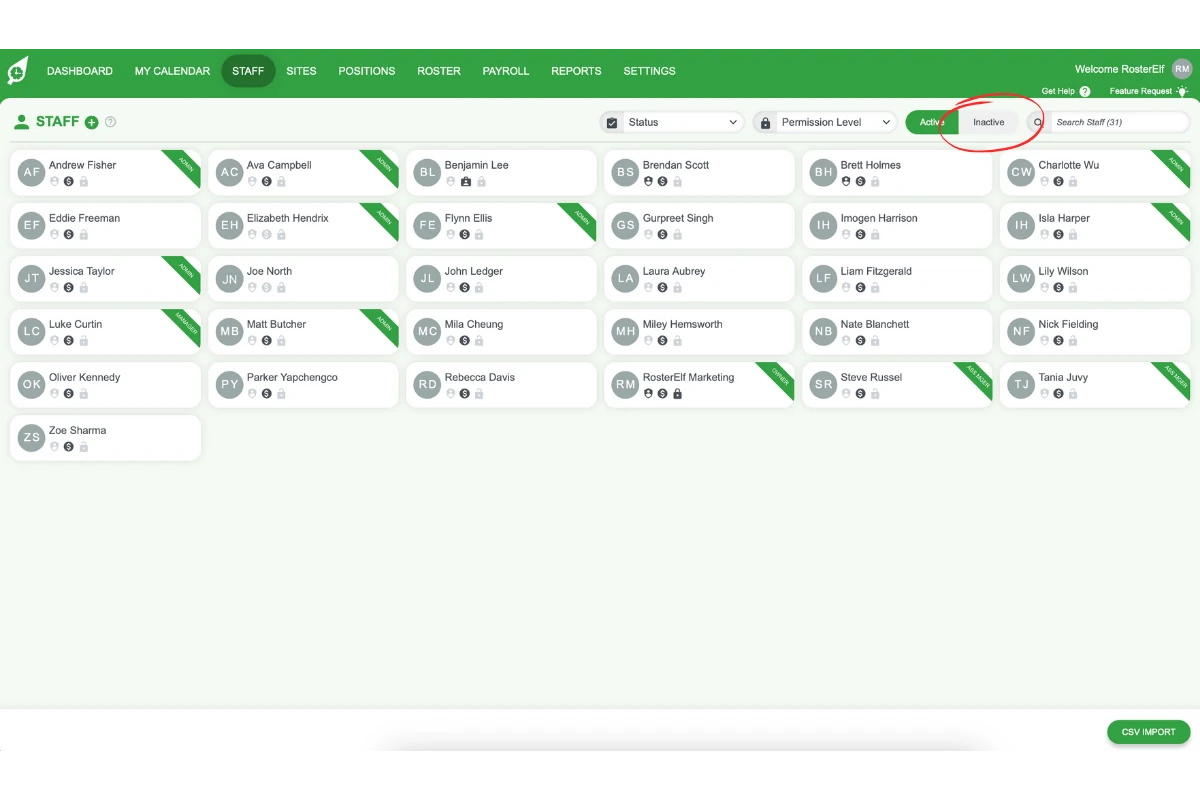
2.1.2 On the top right of your RosterElf screen, click the Inactive button to display deleted staff members.
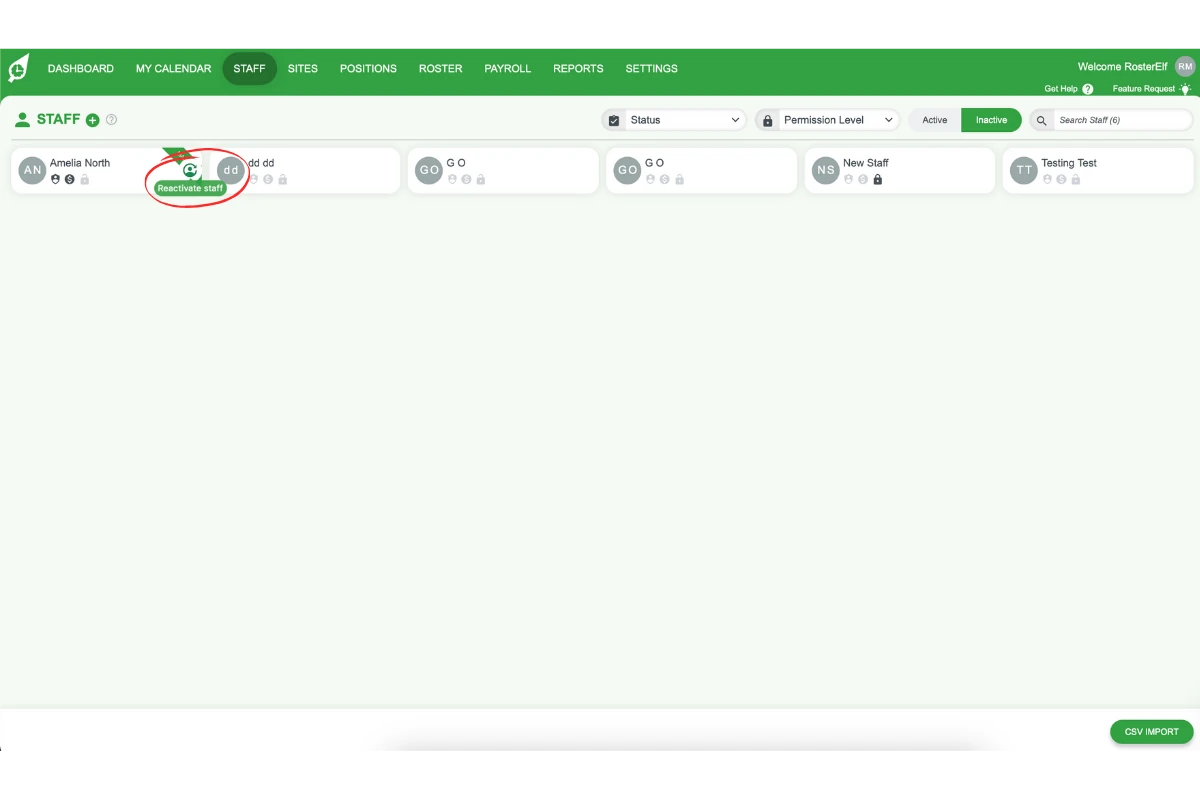
2.1.3 Hover over the staff member you want to reactivate and click the green re-activate icon.
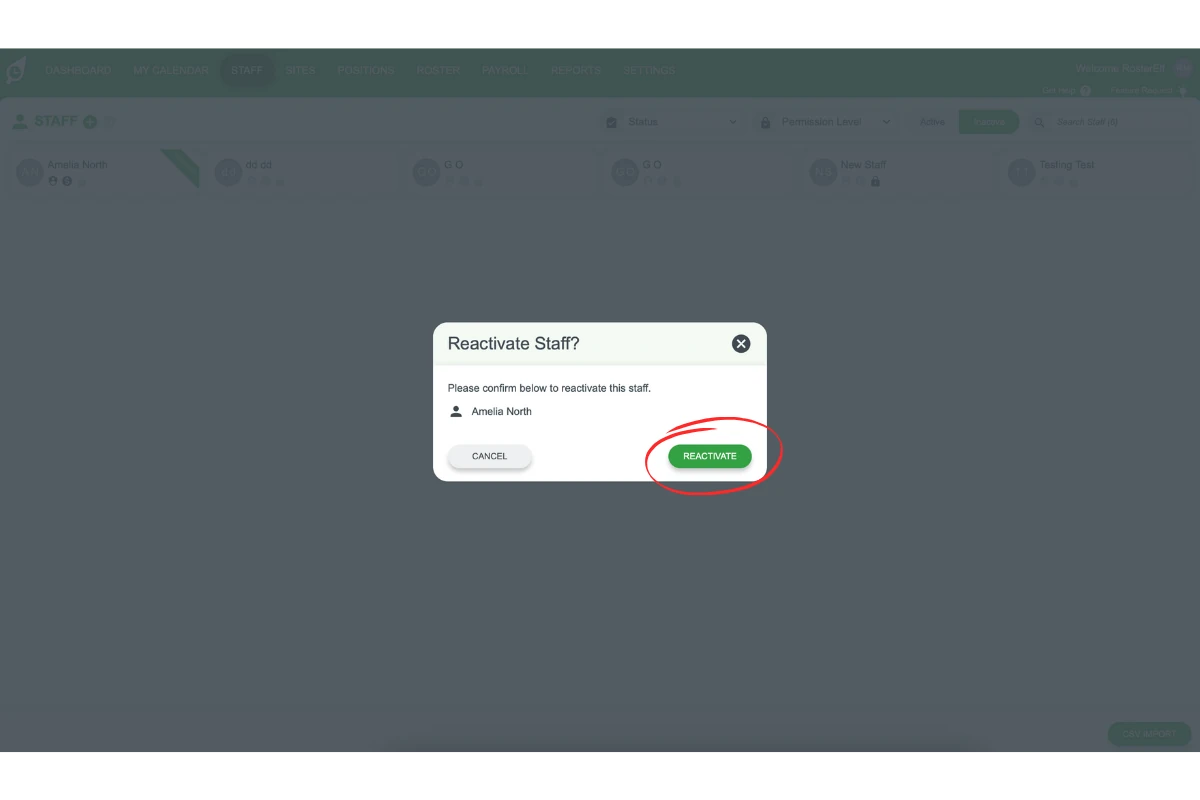
2.1.4 Click Reactivate on the popup to confirm the reactivation.
Frequently asked questions
1. How do I delete a staff member in RosterElf?
Go to the Staff tab, hover over the employee, and click the X button. Confirm the deletion in the popup. Ensure you manage any future shifts or approved leave before finalising.
2. What happens to future shifts when a staff member is deleted?
Future shifts assigned to them remain on the roster with the name appearing in red. Open each shift, tick Mark as open and Apply to all future shifts, then save and republish the roster.
3. Can I reactivate a deleted staff member in RosterElf?
Yes, click the Staff tab, select the Inactive button, hover over the desired staff member, and click the green tick. Confirm the reactivation in the popup.
4. Will reactivating a staff member restore their previous shifts?
No, reactivating allows them to be scheduled for new shifts, but previous shifts are not automatically restored. You need to add them back to rosters manually.
5. Do I need to remove approved leave before deleting a staff member?
Approved leave will be removed when you delete a staff member. Review their leave status before proceeding to avoid loss of leave records.
6. Why can't I see an archived staff member in reports?
You cannot view an archived staff member’s information in reports until you reactivate their profile. To do this, go to the Staff tab, select Inactive, open the archived staff member’s profile, and reactivate them. Once you have run your report, you can archive them again. See the shift report with inactive staff guide for full instructions.
7. If I delete a staff member and add a new one, will I be charged for an extra seat?
Not if you delete the departing staff member first. Deactivating them here frees up their spot in your active staff count before the new hire fills it, so you never exceed the seats you’ve already paid for. See update annual plan seats for how seat billing works when staff change over.
8. Does deleting a staff member send them an exit survey?
Only if HR Hub offboarding is turned on. When it is, the same Deactivate Staff popup captures an exit date and reason and automatically emails the departing employee a customisable exit survey — no separate step required. Exit reasons appear for Account Owners, Administrators, Managers and Assistant Managers. Managers and Assistant Managers can only deactivate staff at the sites they are assigned to, so if someone does not appear for you, ask an Account Owner or Administrator, or have yourself assigned to that site.