

Deleting an employee in RosterElf
This article explains how to delete an employee from your RosterElf account using the mobile app. Once deleted, the employee is marked as inactive, and any approved or pending leave is removed. Follow the steps below to manage your staff list efficiently.
1. Open the more menu
1.1 On the bottom-navigation bar, tap More (three-dot icon).
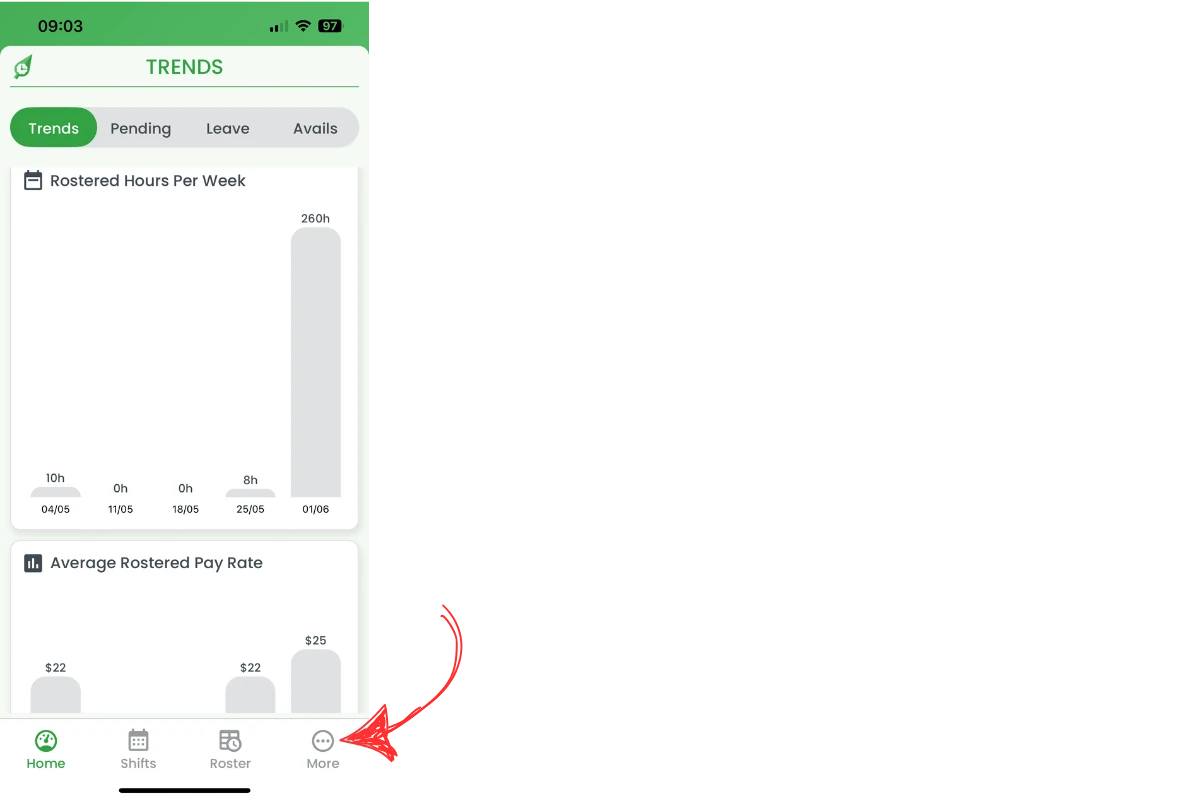
1.2 In the modal that appears, tap Staff.

2. Swipe to reveal the delete button
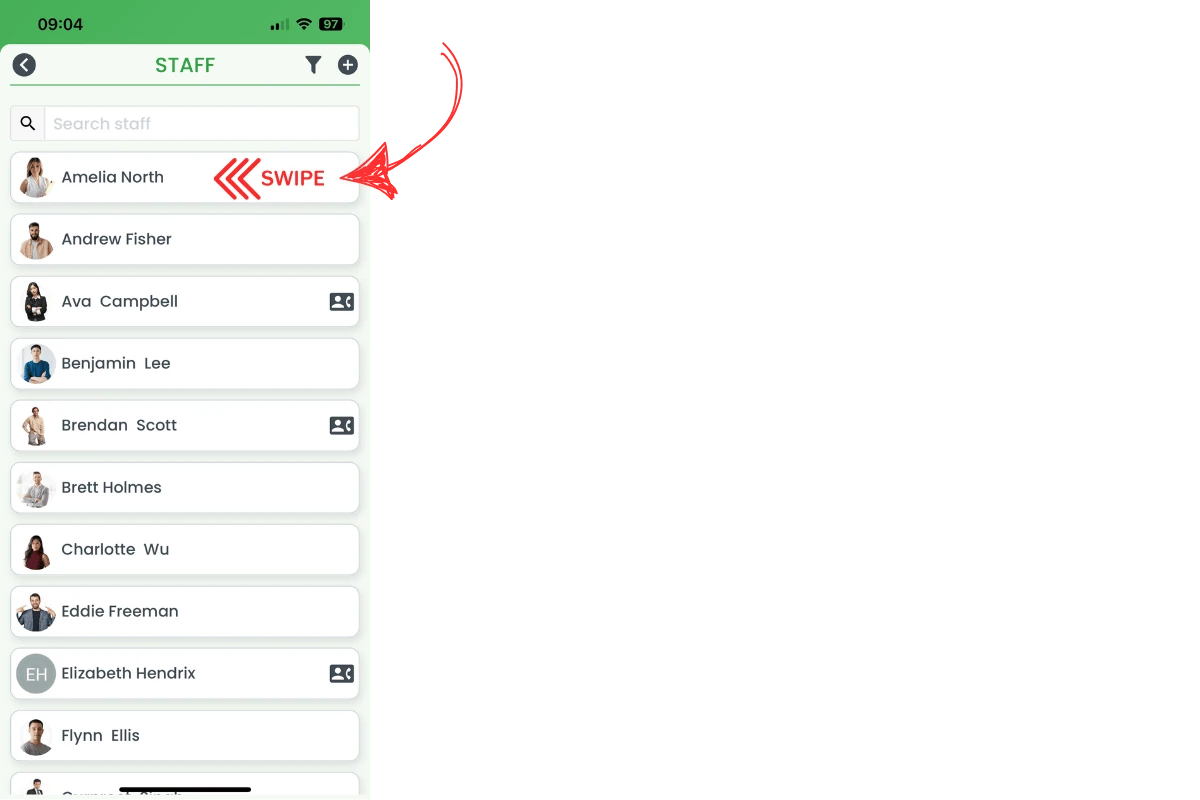
2.1 Locate the employee in the list.
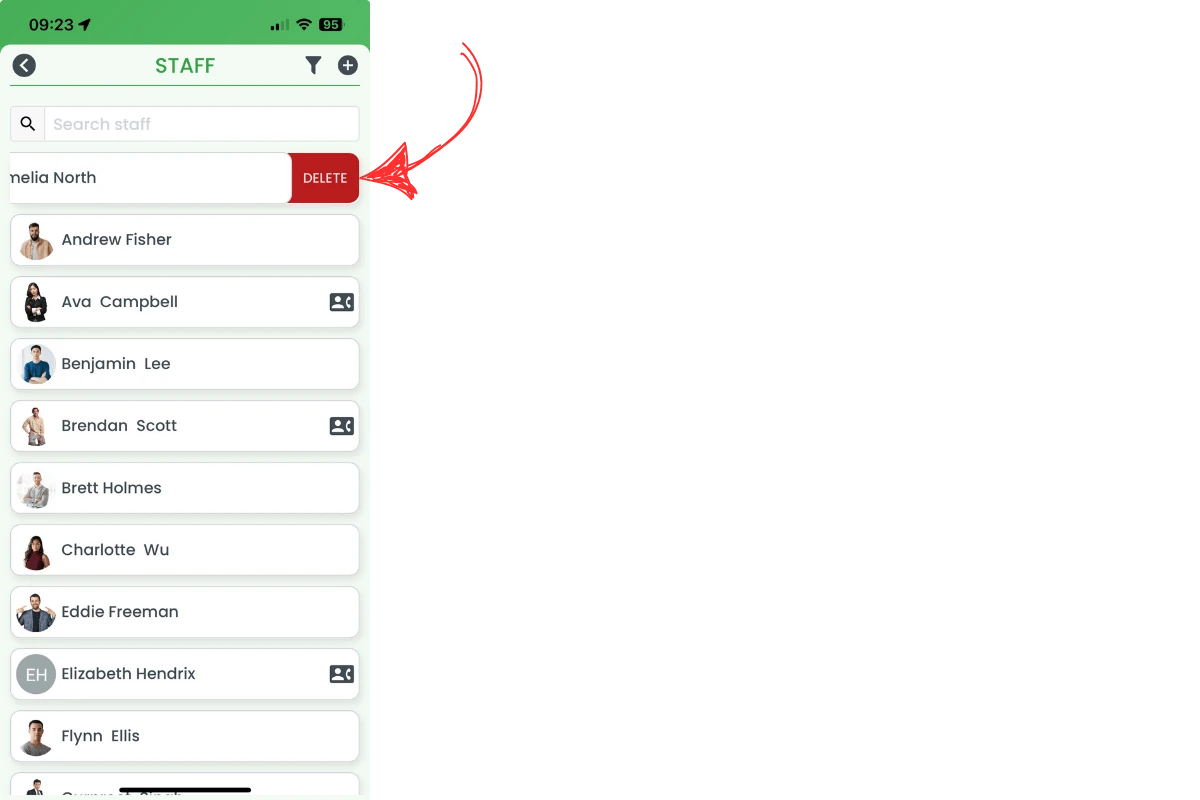
2.2 Swipe left on the employee’s name to reveal the red Delete button.
2.3 Tap Delete.
2.1 confirm the deletion
2.1.1 A confirmation message appears asking if you are sure you want to delete the selected staff member.
2.1.2 Tap Delete to confirm or Cancel to abort.

3. What happens after deletion
3.1 employee becomes inactive
3.1.1 The employee is marked as inactive in your account.
3.2 pending or approved leave
3.2.1 All pending or approved leave records for the employee are removed.
Important
Historical timesheets and payroll records are retained for compliance and reporting purposes.
Frequently asked questions
1. How do I delete an employee in the RosterElf mobile app?
Open More › Staff, swipe left on the employee’s name, tap Delete, then confirm the deletion.
2. What happens to future rostered shifts after I delete a staff member?
You will need to re-assign all future shifts that were assigned to the deleted employee.
3. Does deleting an employee remove any pending or approved leave?
Yes. The system automatically clears all pending and approved leave records for the deleted employee.
4. Can I reactivate an employee once they are deleted?
Yes. You can reactivate a deleted employee by accessing the Inactive staff list and clicking the reactivate icon.
5. Will deleting a staff member erase their past timesheet data?
No. RosterElf retains historical timesheets and payroll records for compliance and reporting purposes; only future items are removed.