

What the tax region setting does
Tax Region Setting tells RosterElf which country your business is based in, and that decides the tax on your RosterElf subscription invoice. GST is added when the region is set to Australia, and is not added when it is set to anywhere else.
It is a billing setting only. It does not change how RosterElf works out your staff’s pay — pay rates come from your award templates and pay rules.
This setting answers both of these
- "We're an Australian business but there's no GST on our invoice." — the region is set to another country.
- "We're in the UK and we're being charged Australian GST." — the region is still set to Australia.
When GST is added to your invoice
Australian GST is 10% and applies to Australian businesses. RosterElf uses your tax region to decide whether to add it:
| Tax Region Setting | GST on your RosterElf invoice |
|---|---|
| Australia | Added |
| Any other country | Not added |
If the region does not match where your business actually operates, the invoice will be wrong in one direction or the other. Correcting the region is the fix in both cases.
1. Open Account Info
Tax Region Setting lives in the Account Info window. Only an admin can open it.
1.1 Open Account Info
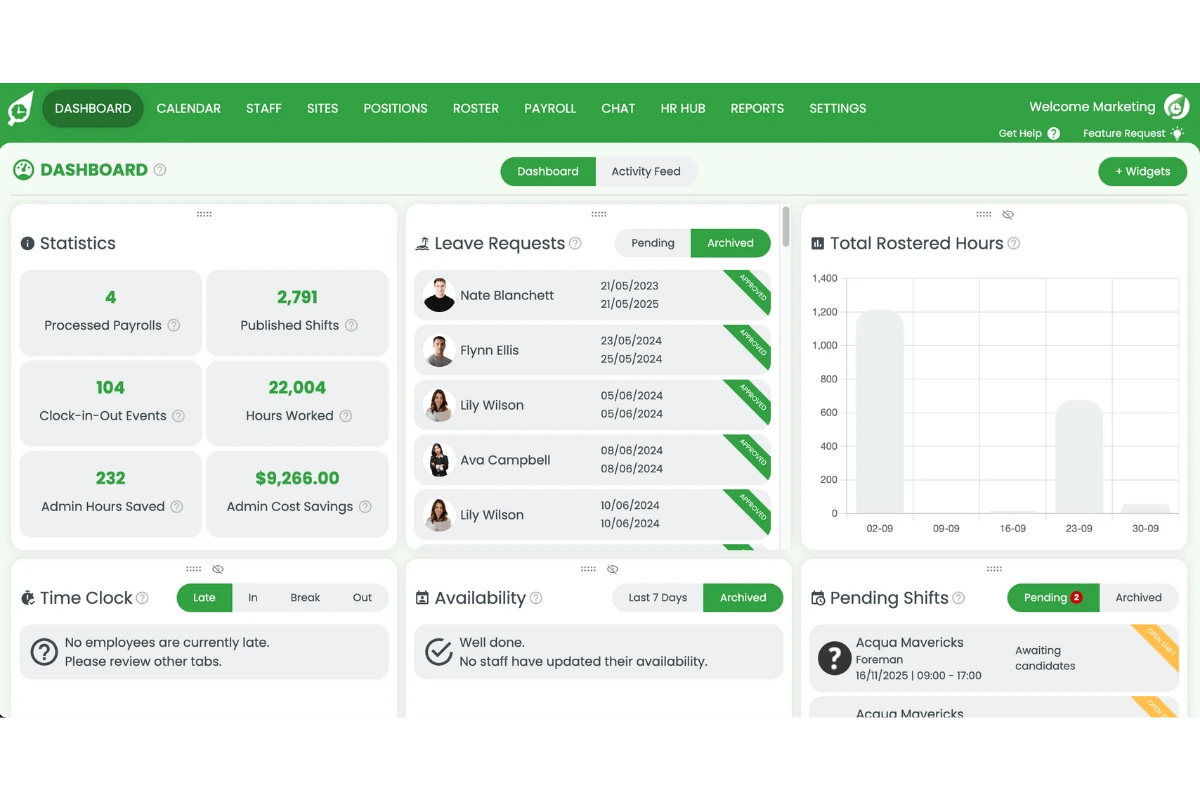
1.1.1 Log in to RosterElf.
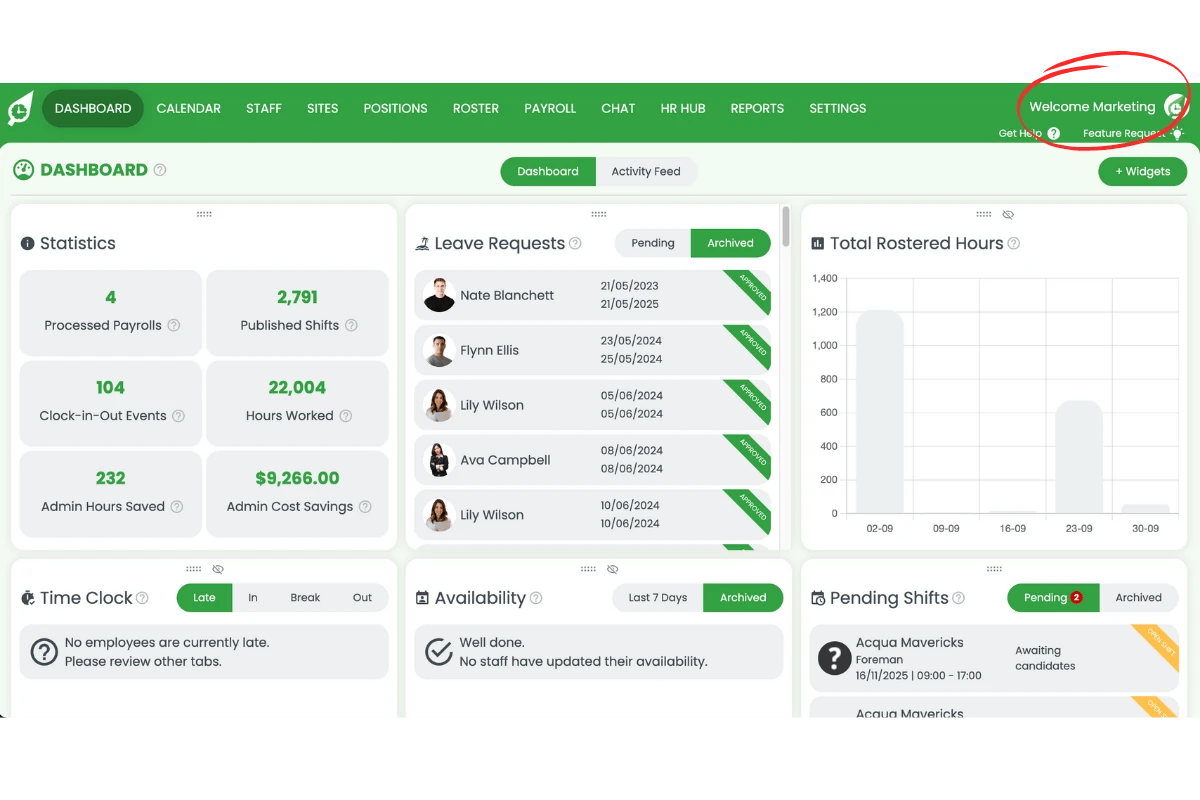
1.1.2 Press the welcome message at the top right of the page.
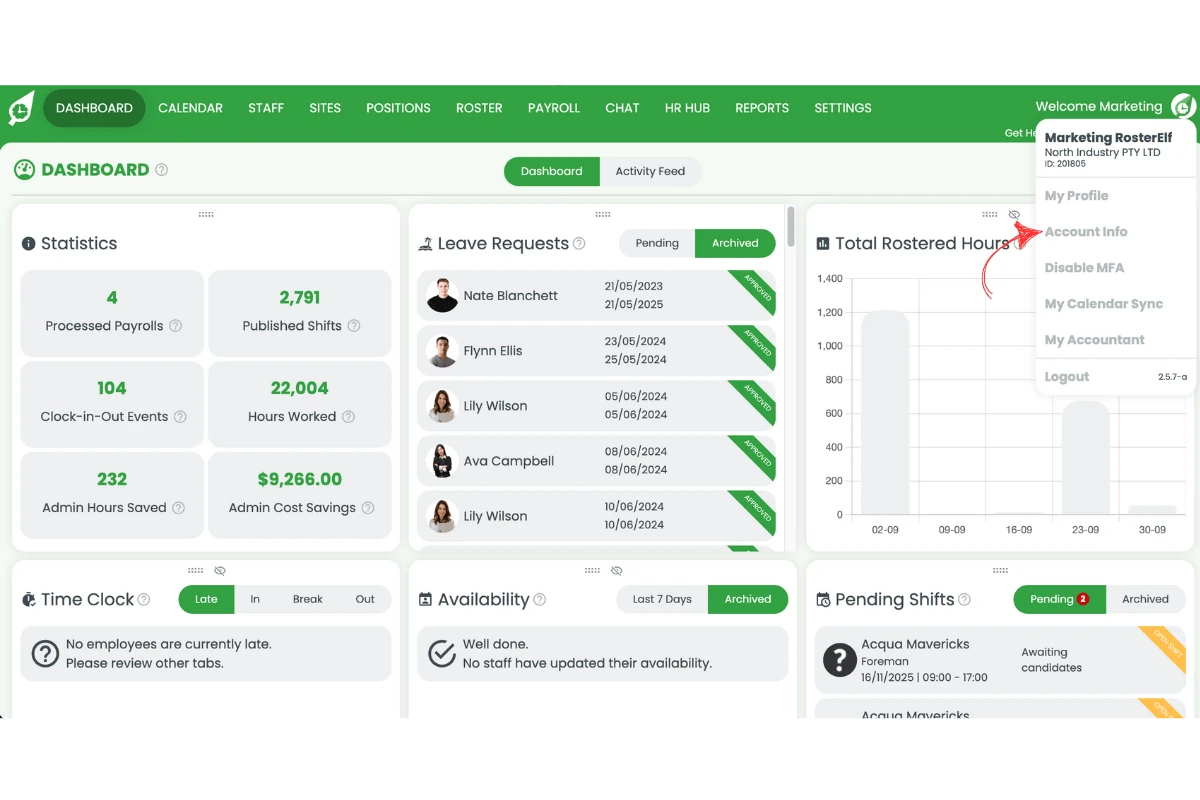
1.1.3 Select Account info from the menu.
2. Change your tax region
The Account Info window holds your company name, the address invoices are sent to, your subscription and your account ID. Tax Region Setting sits between them.
2.1 Set the country your business operates in
2.1.1 Find the Tax Region Setting row.
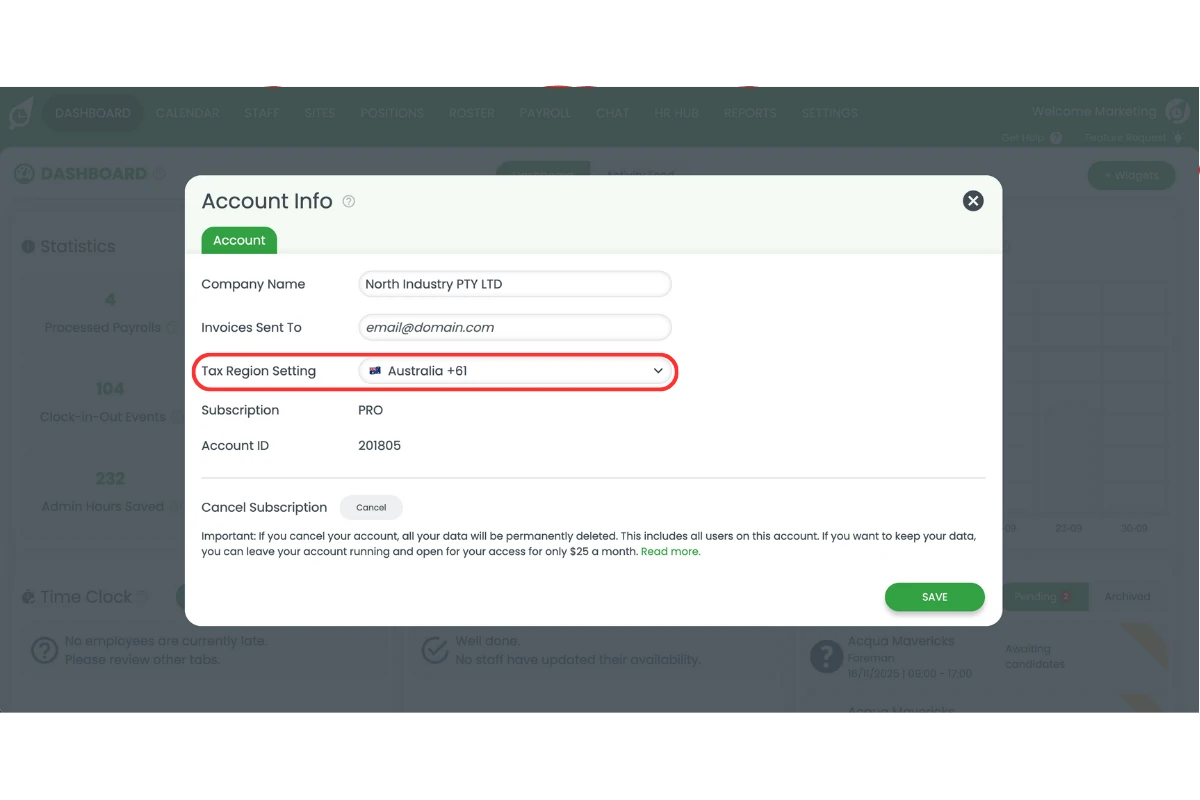
2.1.2 Open the dropdown and select your country. Australia, New Zealand, the United Kingdom and the United States are pinned at the top; every other country follows in alphabetical order.
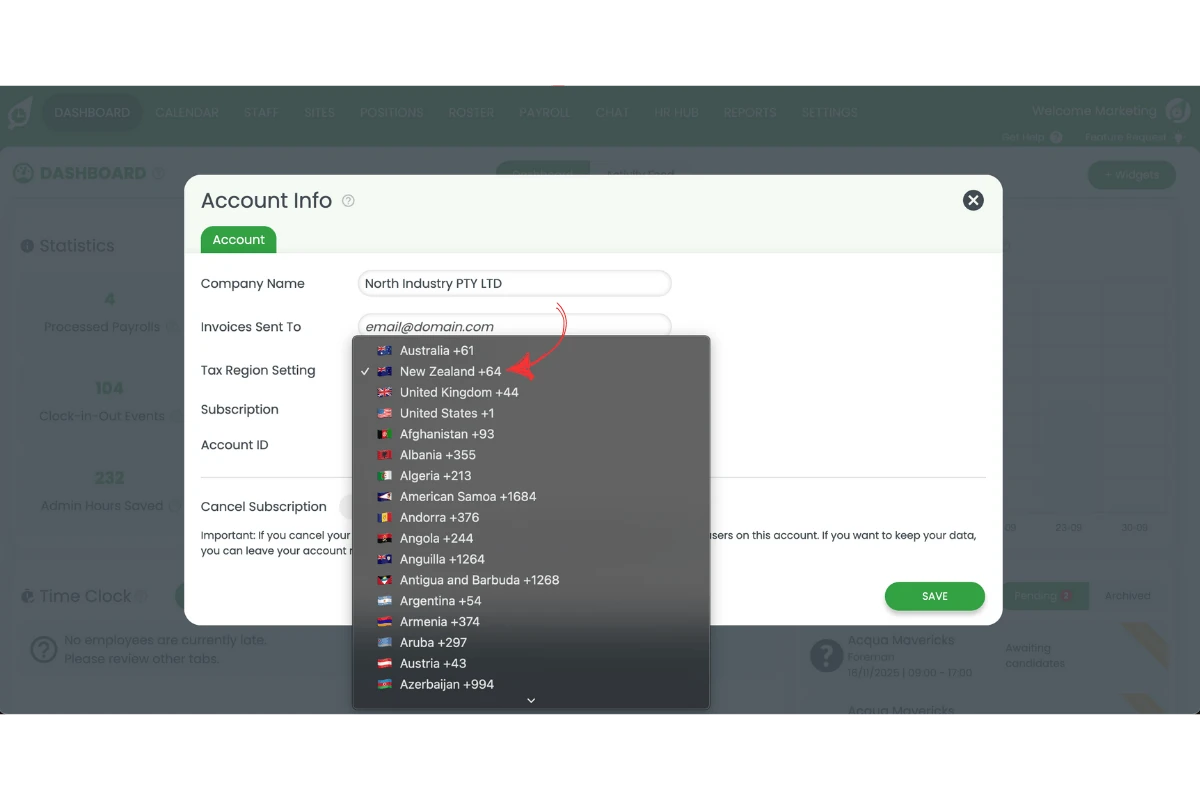
2.1.3 Press Save.
3. What happens after you save
The change applies from your next invoice
Saving a new tax region does not re-issue invoices you have already been charged for. If an invoice already issued has the wrong tax on it, change the setting so it does not recur, then contact support with the invoice number — you can find it under downloading invoices.
Your billing address is separate from the tax region and is the address printed on the invoice itself. If that is also wrong, update it under update billing details.
Frequently asked questions
1. Why is GST not showing on my RosterElf invoice?
RosterElf adds GST only when your account’s Tax Region Setting is set to Australia. If you’re an Australian business and your invoice shows no GST, the setting is on another country. Open Account Info from the welcome message, change Tax Region Setting to Australia, and press Save.
2. Why am I being charged GST when I'm not in Australia?
Your account’s tax region is still set to Australia. Open Account info from the welcome message, change Tax Region Setting to the country your business is based in, and press Save. The change applies from your next invoice. Also check the billing address on your card is correct, since that address is what appears on the invoice — see update billing details.
3. Where is the tax region setting in RosterElf?
Log in, press the welcome message at the top right of the page, and select Account info. Tax Region Setting sits in that window, below Company Name and Invoices Sent To. Only an admin can see and change it.
4. Does changing my tax region change how my staff are paid?
No. Tax Region Setting only affects the tax on your own RosterElf subscription invoice. Staff pay rates come from your award templates and pay rules, and are not touched by this setting.
5. Does this setting affect the Tax Free Threshold in the Tax File Declaration?
No. The tax region setting is a billing setting and is not linked to an employee claiming the tax-free threshold on their tax file number declaration.
6. I've already been charged the wrong tax — does changing the setting fix that invoice?
No. Changing the tax region applies from your next invoice, not to invoices already issued. If an invoice you have already been charged shows the wrong tax, change the setting first so it doesn’t happen again, then contact support with the invoice number. You can find it under downloading invoices.