

Switch or downgrade your annual subscription plan
This article explains how to change your annual RosterElf subscription plan, including upgrading or downgrading between plan tiers (Core, Full Suite, HR Hub) and adjusting your seat count. The key thing to understand is that not all annual plan changes take effect at the same time. For a full overview of all plan change rules across monthly and annual billing, see changing your subscription plan. If you have not yet switched from monthly to annual, see how to change your subscription to annual.
When do annual plan changes take effect?
- Immediately: Upgrading to a higher plan tier, or increasing your seat count.
- Next billing date: Downgrading to a lower plan tier, or reducing your seat count.
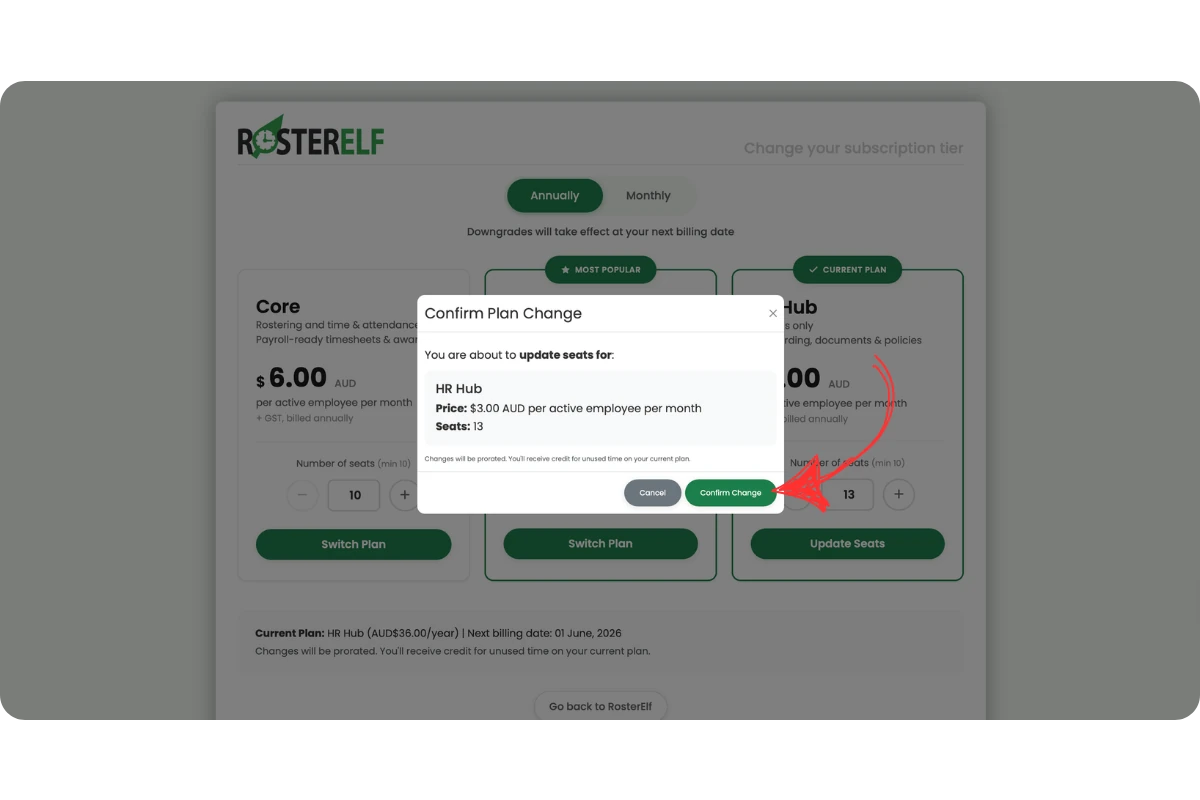
The app makes this clear — upgrades show a green Confirm Change button, while downgrades show a yellow Schedule Downgrade button. Your current plan always remains active until the scheduled date.
Account owner access required
Only the account owner can change the subscription plan in RosterElf. Admins, managers, and staff members do not have access to subscription settings. If you need to change the plan, ask the account owner: the staff member with the green OWNER ribbon on their card in Staff.
1. Upgrade your annual plan tier (immediate)
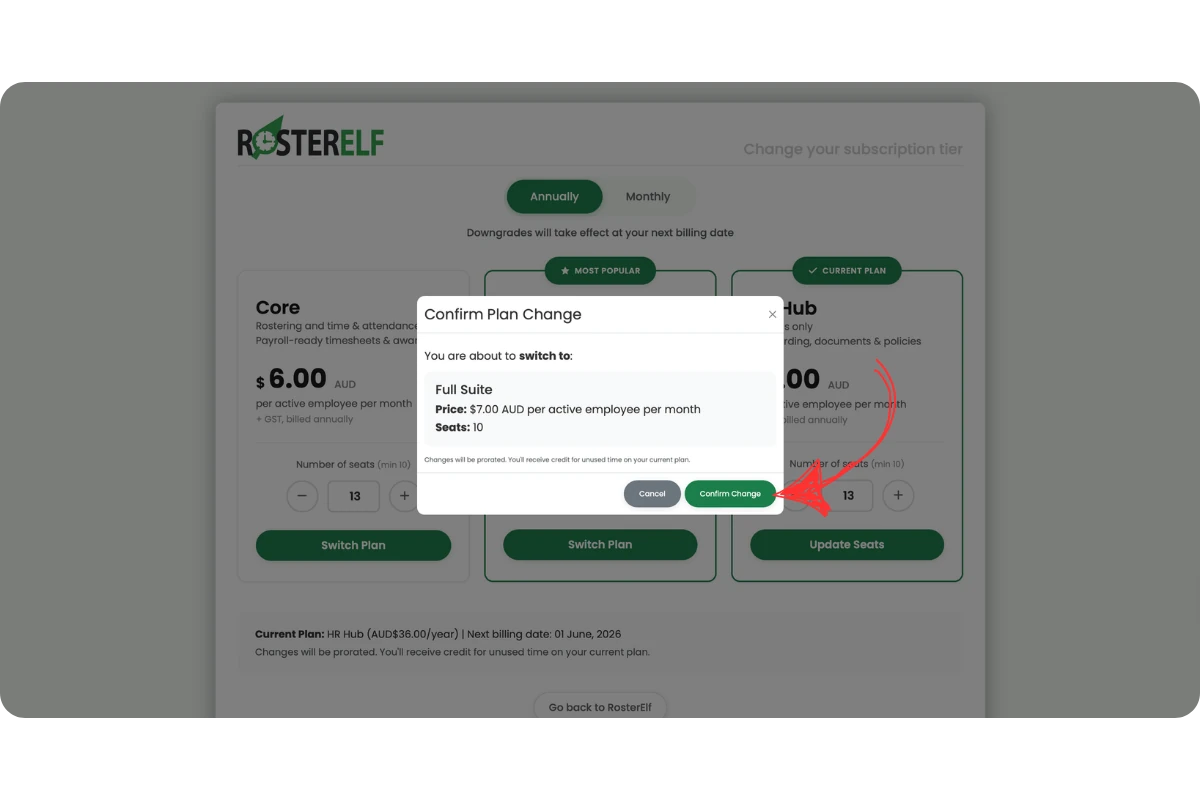
Switching from a lower annual plan to a higher annual plan — for example from Core to Full Suite — takes effect immediately. You will see a green Confirm Change button and a prorated credit will be applied for any unused time on your current plan. Follow the steps below to upgrade your annual plan tier.
1.1 Upgrade your annual plan tier in RosterElf
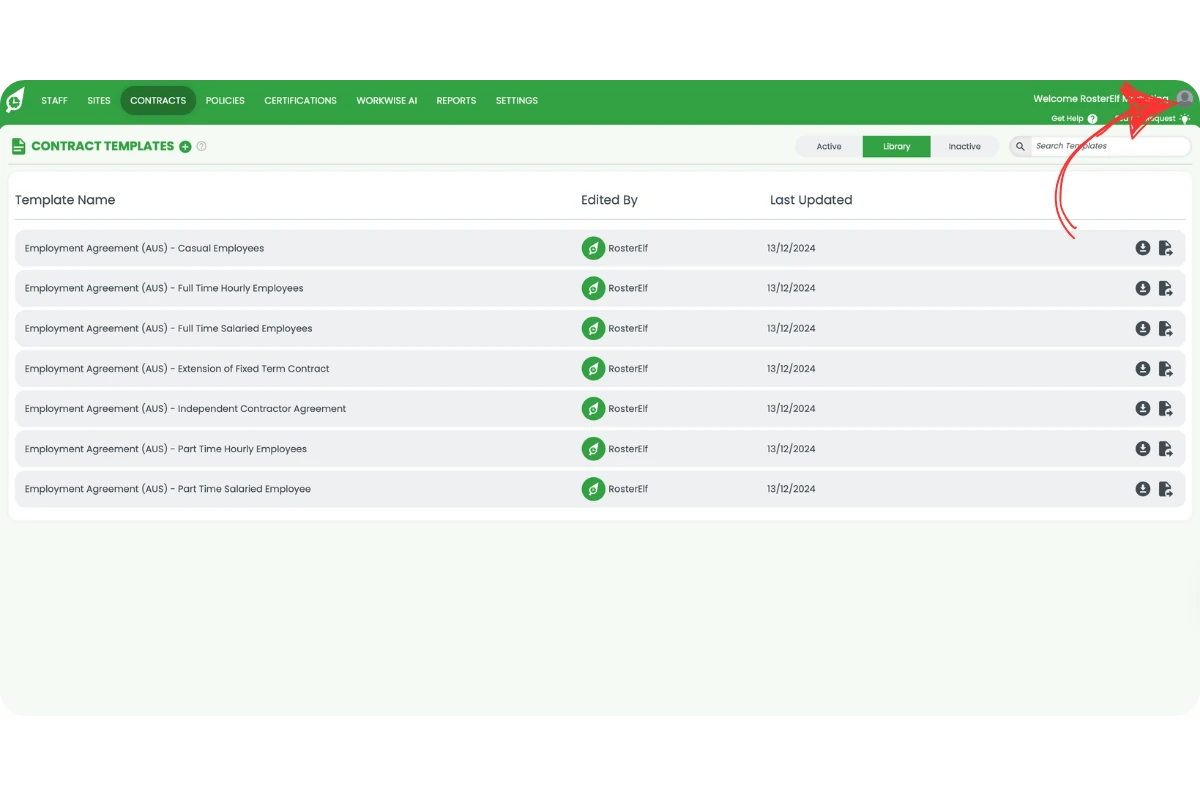
1.1.1 Open RosterElf in your web browser and click the profile icon in the top right corner.
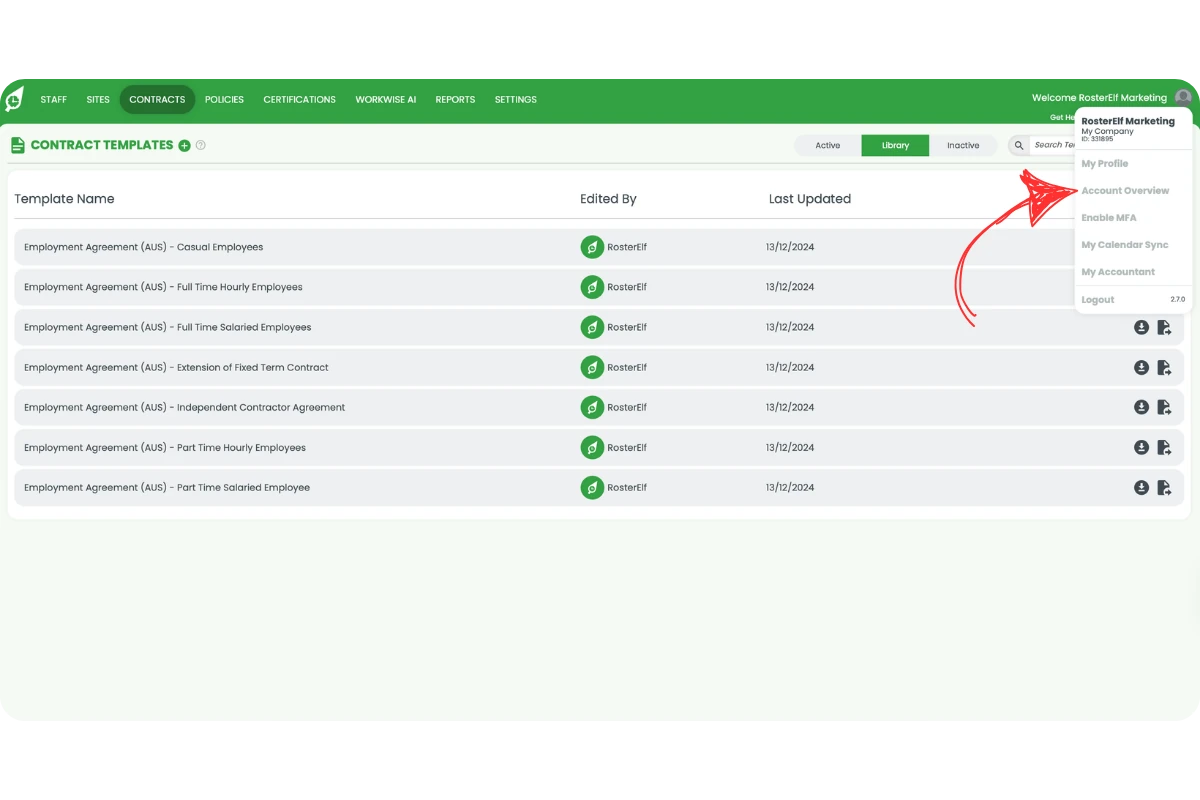
1.1.2 Click account overview from the dropdown menu.
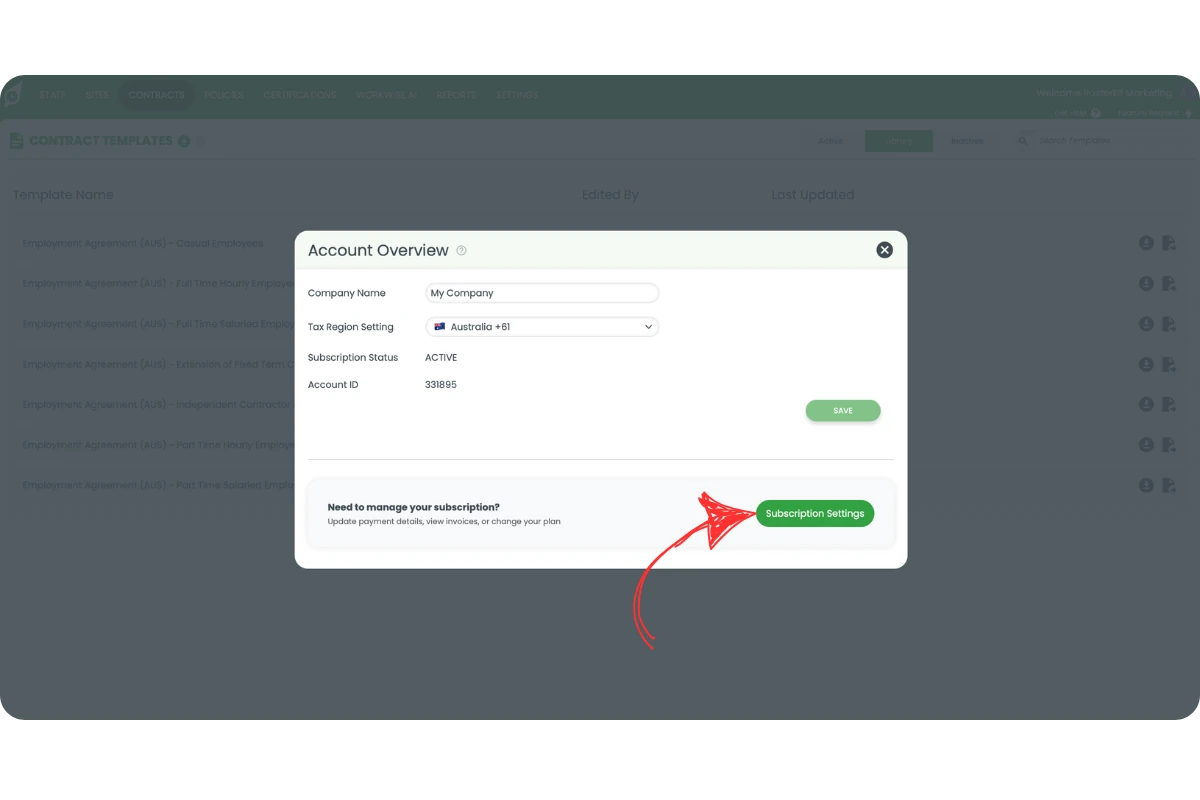
1.1.3 Click subscription settings in the account overview modal.
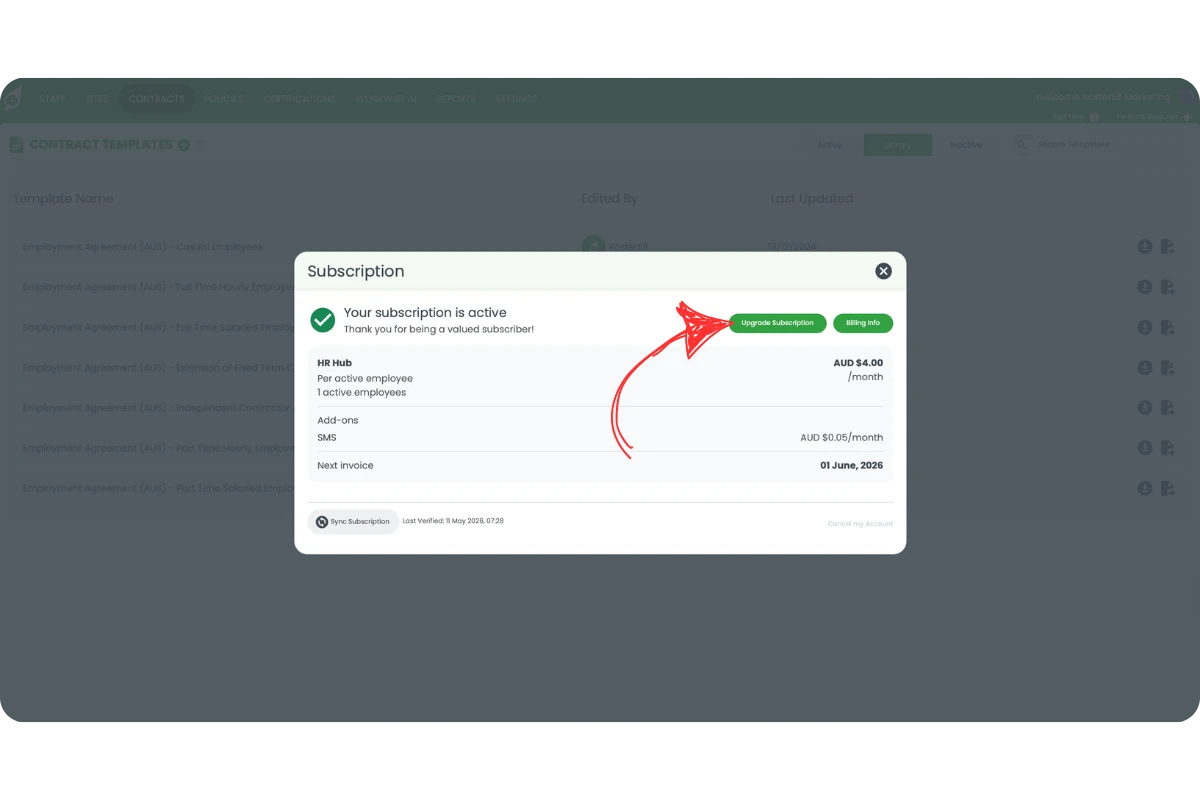
1.1.4 Click upgrade subscription.
1.1.5 Click switch plan on the higher tier you want to move to (e.g. Full Suite).
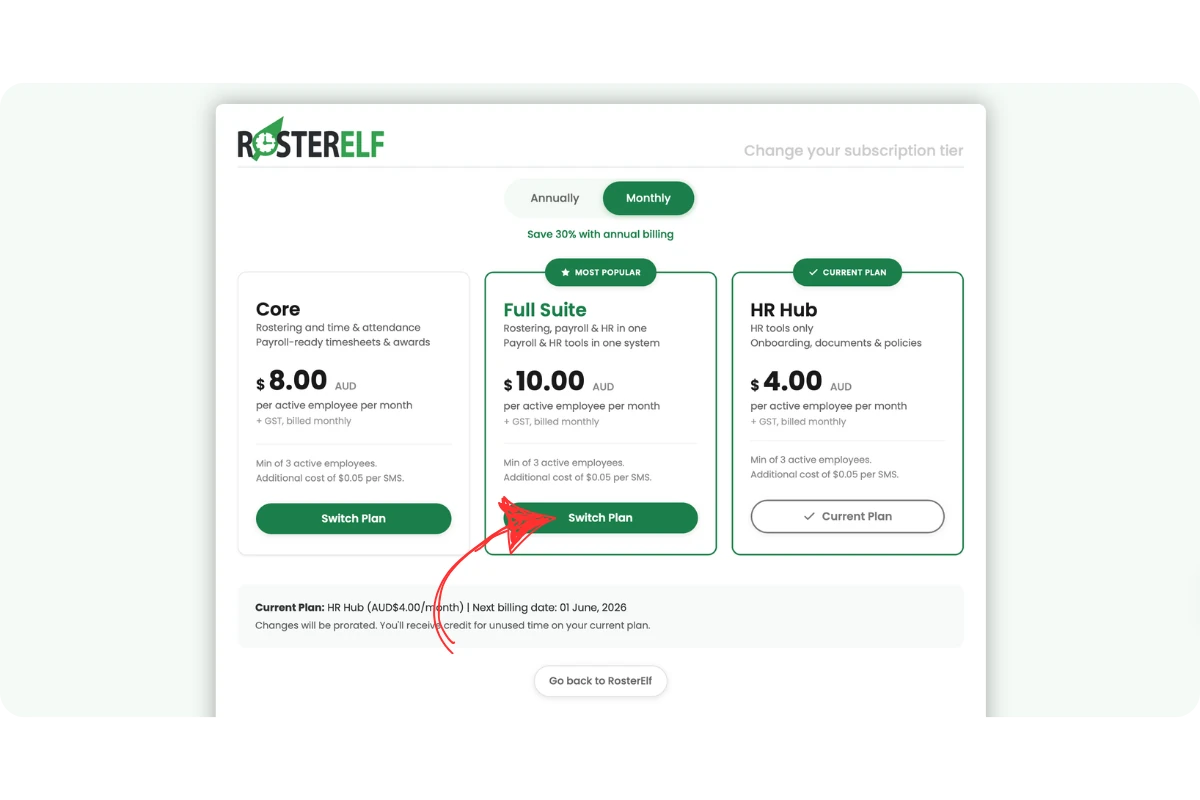
1.1.6 Review the plan details and click confirm change to apply immediately.
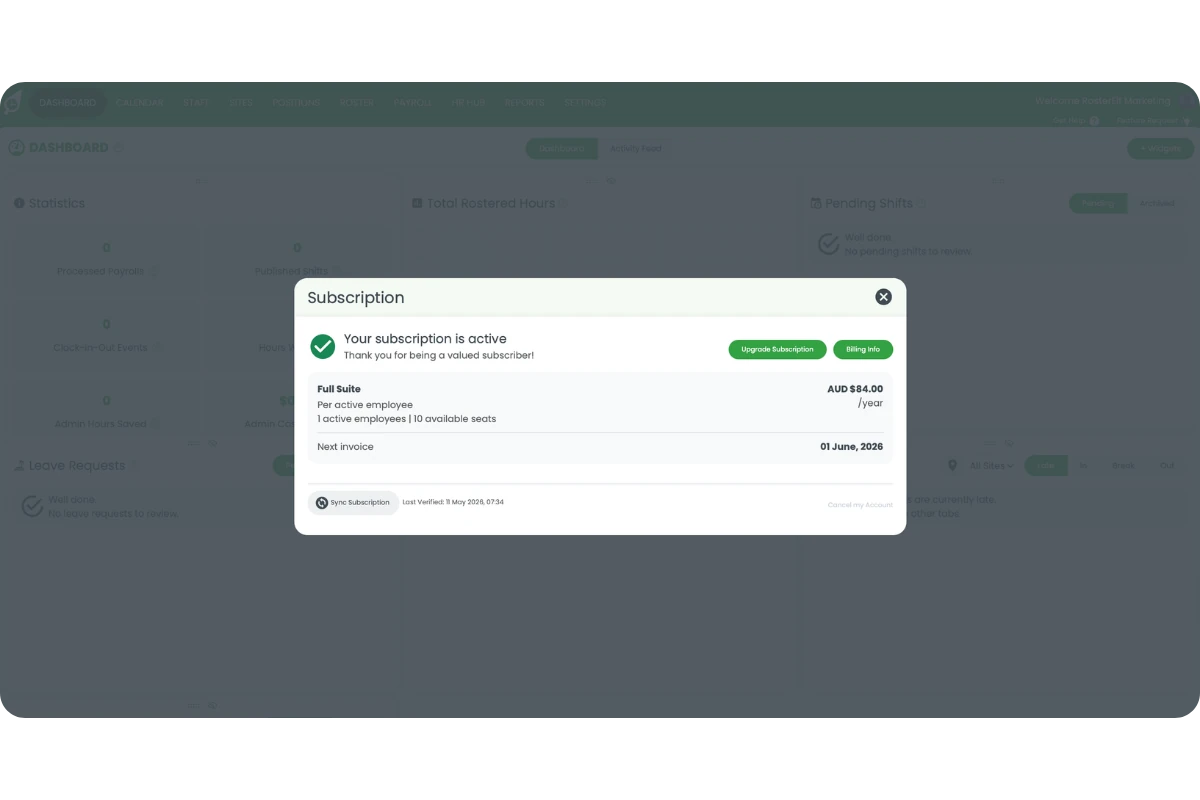
Prorated credit
When you upgrade your annual plan tier, changes are prorated. You will receive credit for any unused time on your current plan, and the higher plan rate applies from the date of the upgrade.
2. Increase annual plan seats (immediate)
If your team has grown and you need to add more staff to your annual plan, you can increase your seat count at any time. When you add seats through the subscription settings flow, the change takes effect immediately and you are charged straight away. Follow steps 1.1.1–1.1.4 above to open the subscription tier page, then continue below.
2.1 Increase annual plan seats in RosterElf
2.1.1 After pressing upgrade subscription, make sure the Annually tab is selected. On your current plan card, click the + button to increase the number of seats.
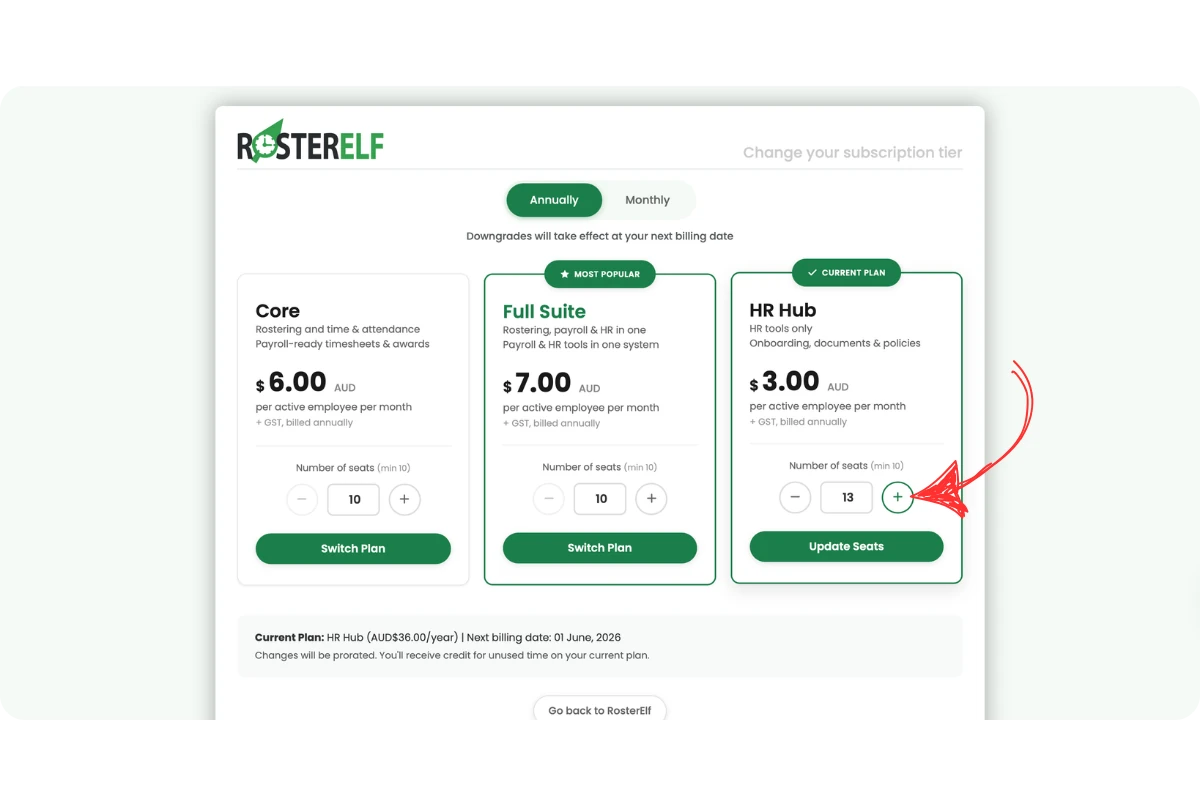
2.1.2 Click update seats on your current plan card.
2.1.3 Review the updated seat count and click confirm change to apply immediately.
3. Downgrade your annual plan tier (next billing date)
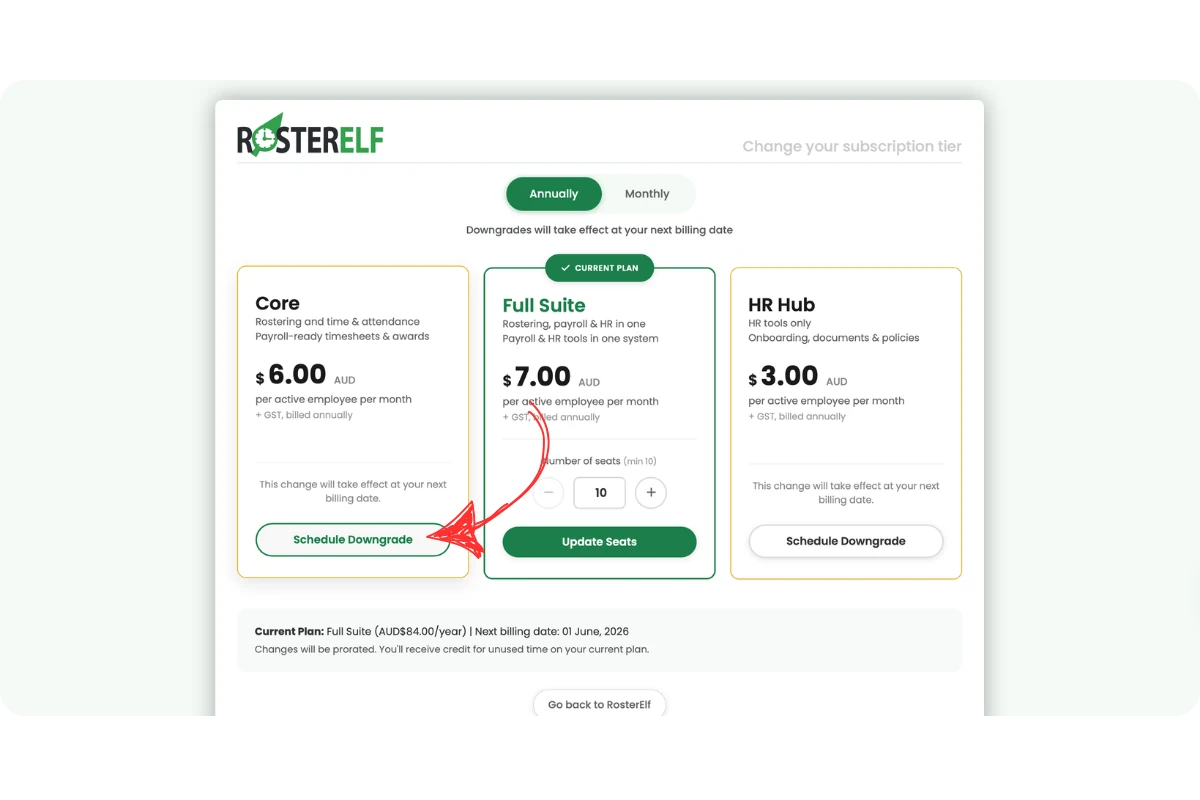
Switching from a higher annual plan to a lower annual plan — for example from Full Suite to Core — is a scheduled change. It will not take effect immediately. Instead, your current plan remains active until the end of your billing period, and the lower plan starts on your next billing date. You will see a yellow Schedule Downgrade button instead of a green Confirm Change button.
Follow steps 1.1.1–1.1.4 above to open the subscription tier page, then continue below.
3.1 Schedule a downgrade to a lower annual plan tier
3.1.1 With the Annually tab selected, lower plan tiers will show a Schedule Downgrade button instead of Switch Plan. Click schedule downgrade on the plan you want to move to.
3.1.2 Review the scheduled change details, including the exact date the downgrade will take effect.
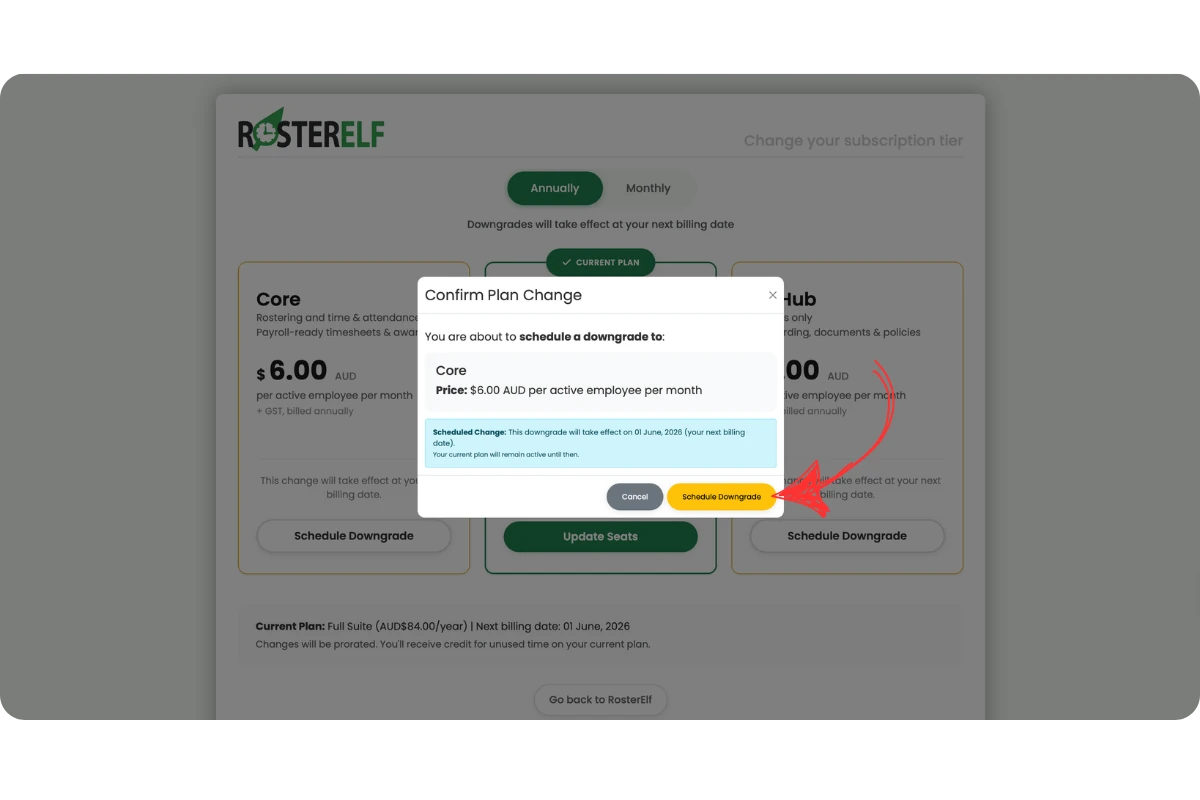
3.1.3 Click the yellow schedule downgrade button to confirm. Your current plan stays active until the date shown.
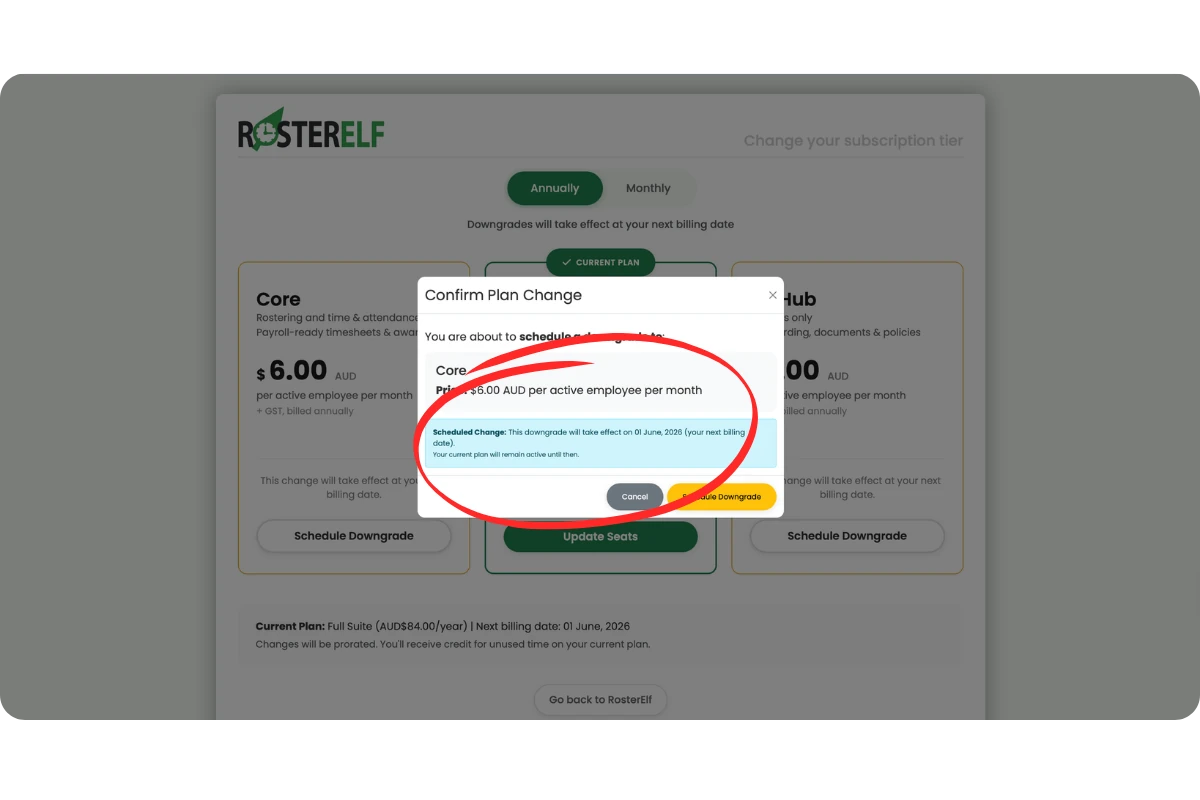
Your plan stays active
After confirming a scheduled downgrade, nothing changes right away. You keep full access to your current plan until the billing date shown in the confirmation dialog. The new lower plan becomes active automatically on that date.
4. Decrease annual plan seats (next billing date)
Reducing the number of seats on your annual plan is also a scheduled change. The lower seat count takes effect at your next billing date, not immediately. You must ensure your seat count does not go below your active staff count — archive any staff you no longer need before reducing seats.
Follow steps 1.1.1–1.1.4 above to open the subscription tier page, then continue below.
4.1 Schedule a seat count reduction on your annual plan
4.1.1 With the Annually tab selected, on your current plan card click the – button to reduce the number of seats.
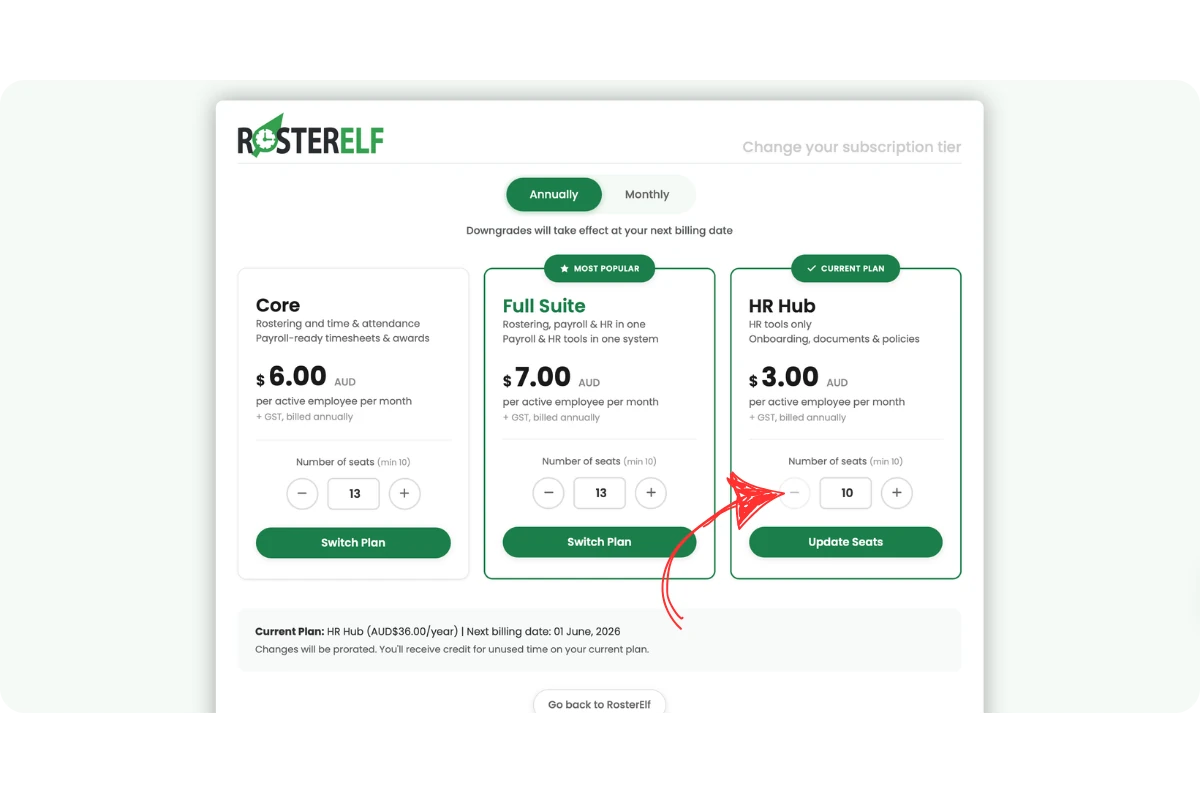
4.1.2 Click update seats on your current plan card.
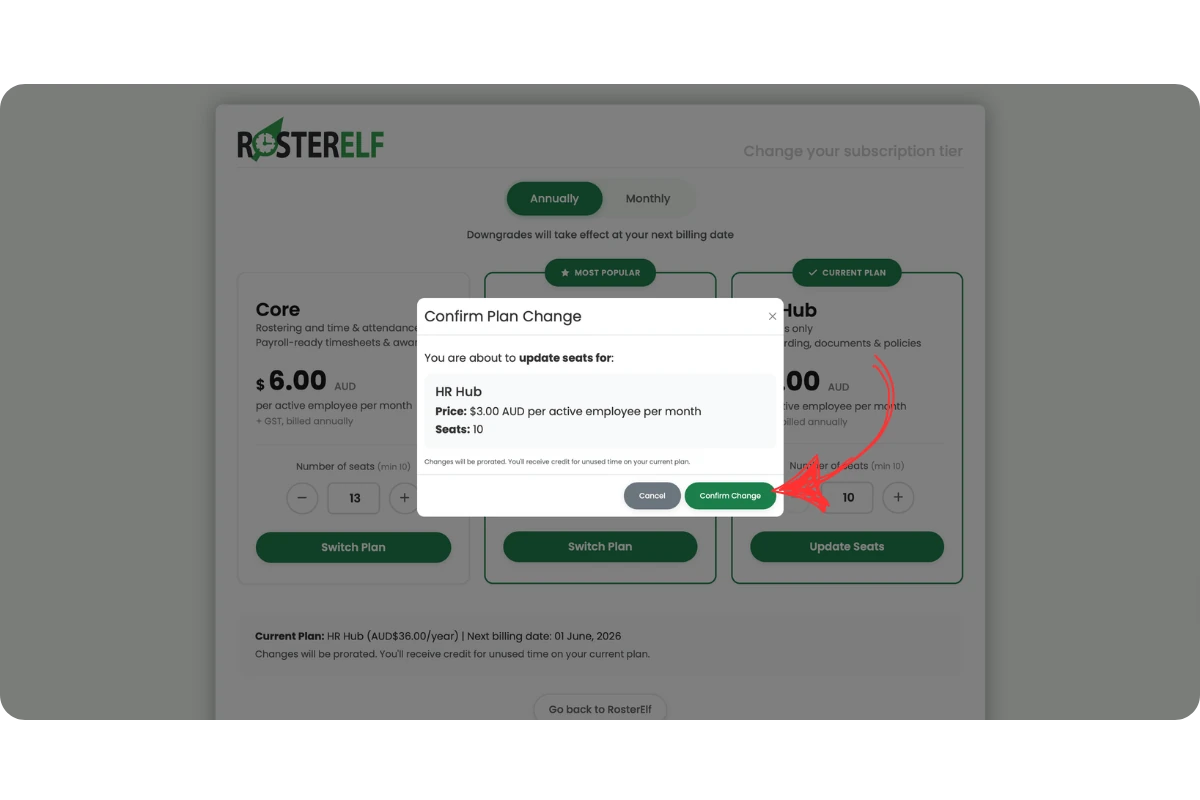
4.1.3 Review the scheduled change and click the yellow schedule downgrade button to confirm.
Minimum seat limits apply
You cannot reduce seats below your active staff count, and the minimum on any annual plan is 10 seats. Archive any staff you no longer need before attempting to reduce seats. See our guide on updating annual plan seats for more detail.
Frequently asked questions
1. Do annual plan changes take effect immediately?
It depends on the type of change. Upgrades — switching to a higher plan tier or adding more seats — take effect immediately. Downgrades — switching to a lower plan tier or reducing seats — are scheduled and take effect at your next billing date. Your current plan remains active until then.
2. What is a "Schedule Downgrade"?
A scheduled downgrade is a plan change that does not take effect immediately. Instead, it is queued to apply at the start of your next billing period. This means you retain full access to your current plan until the billing date, at which point the lower plan or reduced seat count becomes active. The confirmation dialog will always show the exact date the change will take effect.
3. When will I be charged for adding more annual seats?
If you increase seats through the subscription settings flow, you are charged immediately when you confirm the change. If a staff member becomes active on your annual plan without you first purchasing additional seats, the billing reconciliation runs 5 days after activation — staff who remain active after 5 days are charged for.
4. Can I downgrade my annual plan mid-term?
Yes, but the downgrade will not take effect until your next billing date. You can schedule a downgrade at any time from your subscription settings. Your current plan remains fully active until the scheduled date.
5. Can I switch from annual billing to monthly?
Not directly. To move from annual to monthly, you must first cancel your annual subscription, wait for the current annual term to end, then resubscribe on a monthly plan. Our customer success team can help you schedule this transition — contact us if you need assistance.
6. Is there a minimum number of seats on an annual plan?
Yes. Annual plans require a minimum of 10 seats regardless of your active staff count. You cannot reduce below 10 even if your team is smaller.
7. Can I have fewer seats than active staff on my annual subscription?
No. The number of seats on your annual subscription cannot be less than your active staff count, and the minimum is 10 seats. You must archive any staff you no longer need before reducing your seat count.
8. What happens to my access after a scheduled downgrade is confirmed?
Nothing changes immediately. You keep full access to your current plan until the scheduled billing date. On that date, the new lower plan or reduced seat count becomes active automatically.
9. Why can't I see the Upgrade Subscription button?
Only the account owner sees subscription settings. Admins, managers and staff don’t have access. To find the owner, open Staff and look for the card with the green OWNER ribbon.
10. Who can change the annual subscription plan?
Only the account owner can change the subscription plan in RosterElf. Admins, managers, and staff members do not have access to subscription settings. If you need to change the plan, ask the account owner: the staff member with the green OWNER ribbon on their card in Staff.