

Switch your monthly subscription plan in RosterElf
This article explains how to switch your monthly RosterElf subscription plan. You can move freely between Core, Full Suite, and HR Hub at any time — both upgrades and downgrades take effect immediately on monthly plans with prorated billing. No need to wait for a billing period to end.
RosterElf offers three monthly subscription tiers. Core includes rostering and time & attendance with payroll-ready timesheets. Full Suite adds payroll and HR tools in one system. HR Hub provides HR tools only, including onboarding, documents, and policies. You can review all plan options on the RosterElf pricing page.
Monthly plan changes are always immediate
Whether upgrading or downgrading a monthly plan, the change applies straight away. You receive a prorated credit for unused time on your current plan, and the new rate starts from the date of the change.
You can also switch to annual billing at any time to save 30%, or update your billing details if your payment information changes. If you are on an annual plan and want to switch tiers, see our guide on switching or downgrading your annual subscription plan. For a full overview of all plan change rules, see changing your subscription plan.
1. Upgrade your monthly subscription
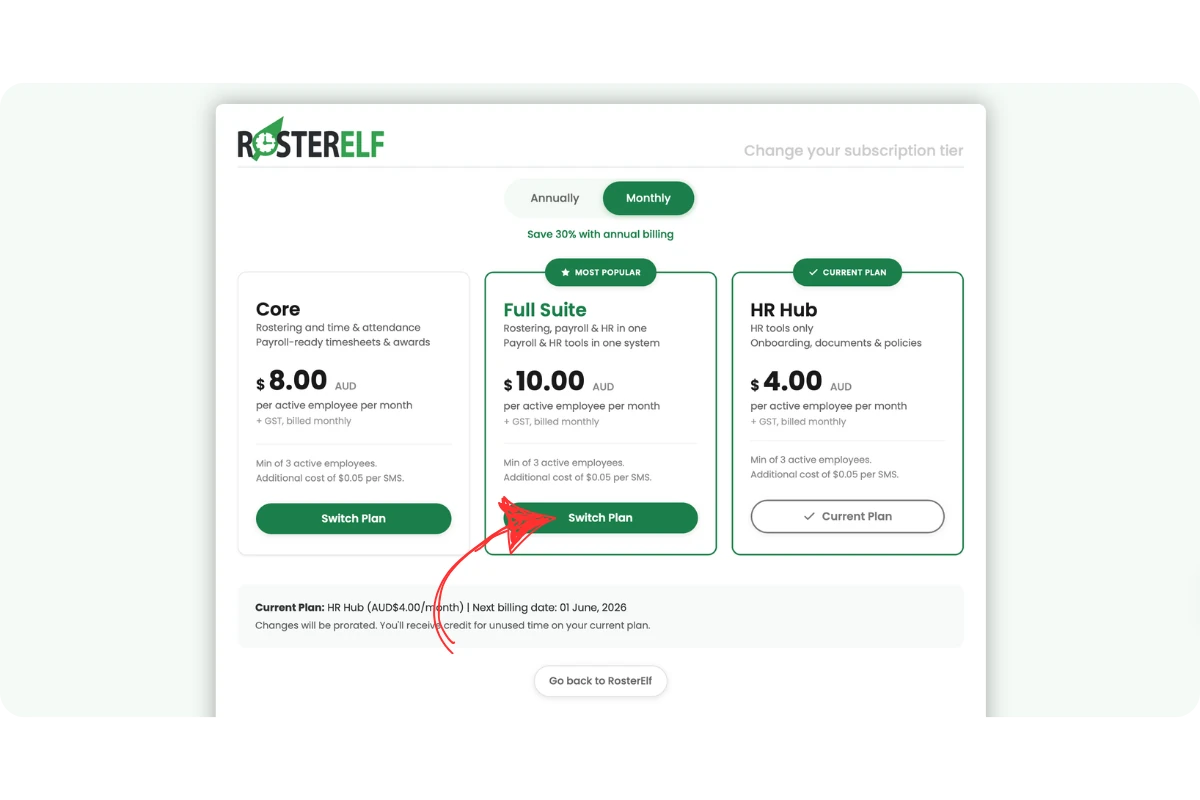
Upgrading your monthly plan gives you access to additional features immediately. Charges are prorated — you receive credit for unused time on your current plan, and the new rate applies from the date of the upgrade.
1.1 Upgrade your monthly plan in RosterElf
1.1.1 Open RosterElf in your web browser and click the profile icon in the top right corner.
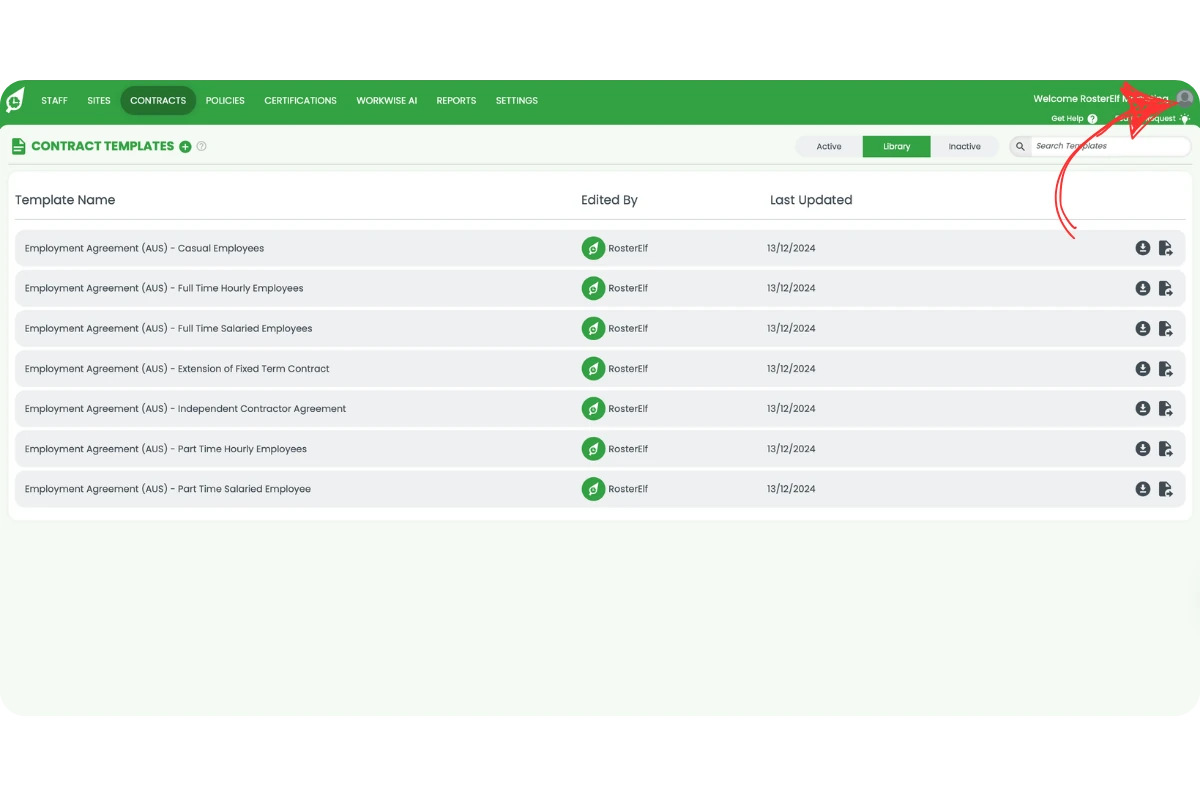
1.1.2 Click account overview from the dropdown menu.
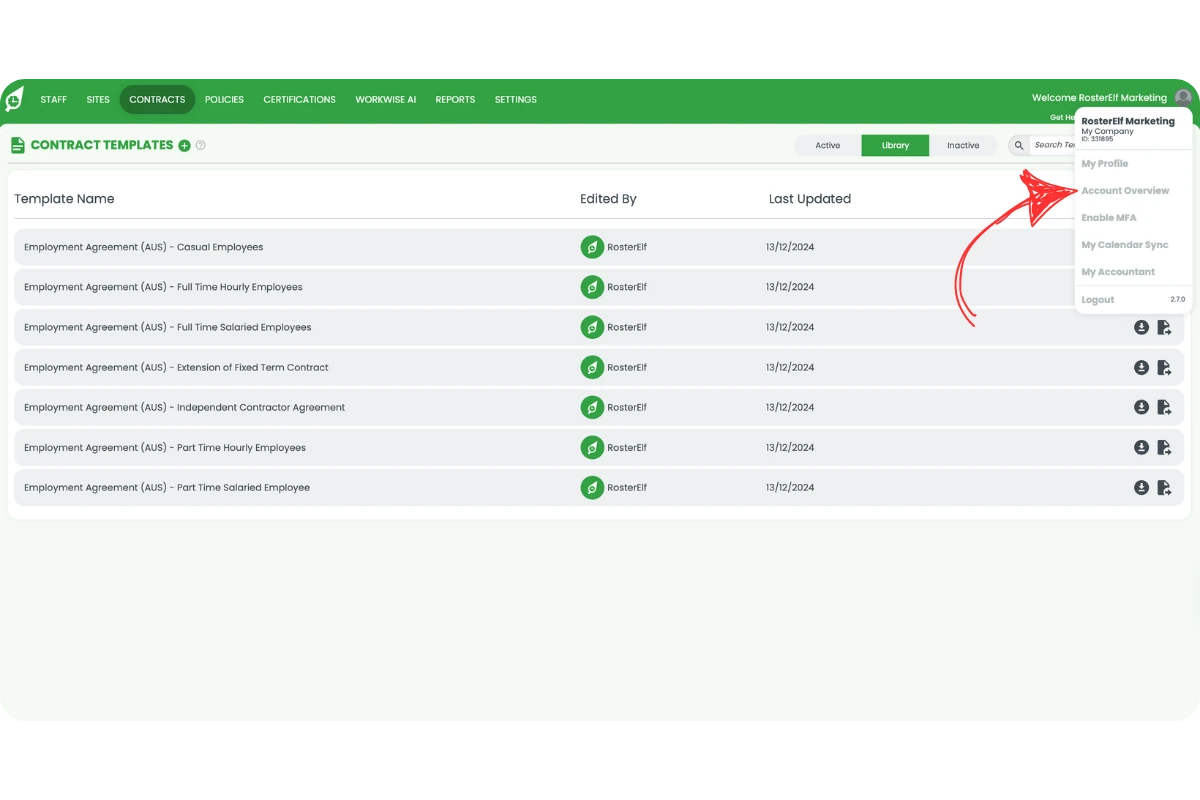
1.1.3 Click subscription settings in the account overview modal.
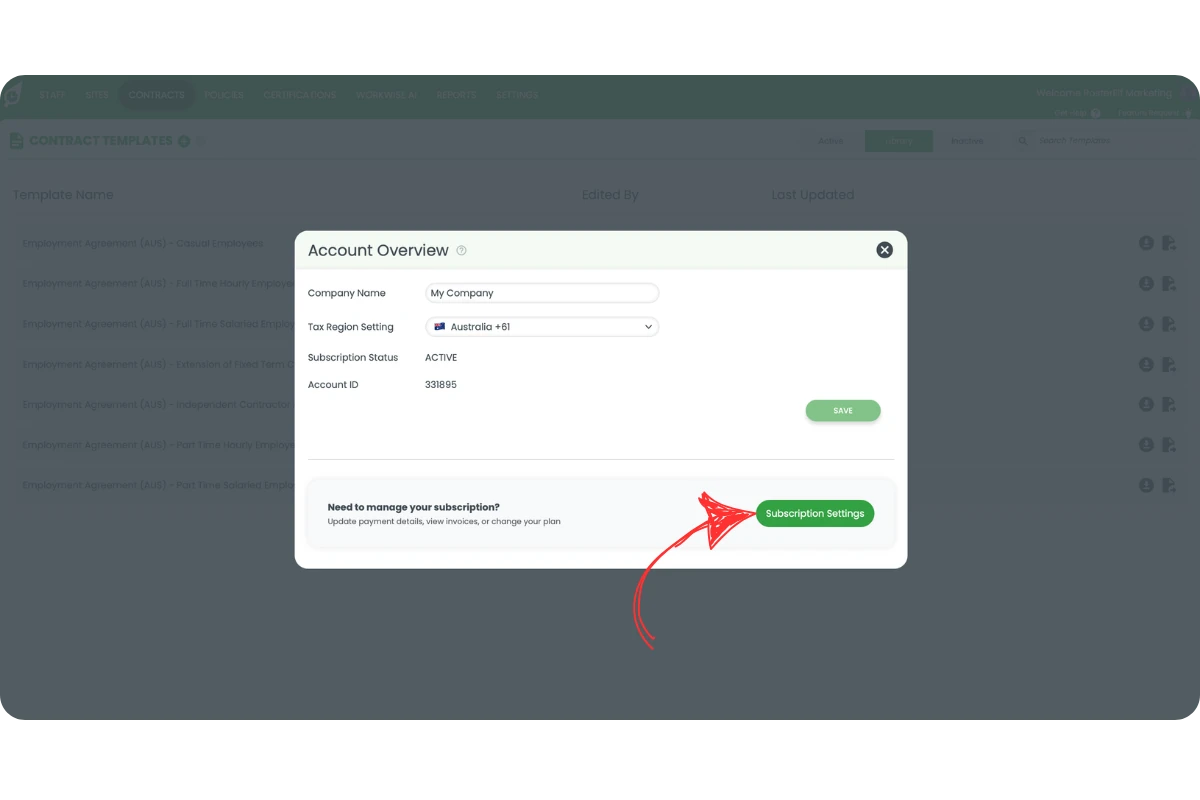
1.1.4 Click upgrade subscription.
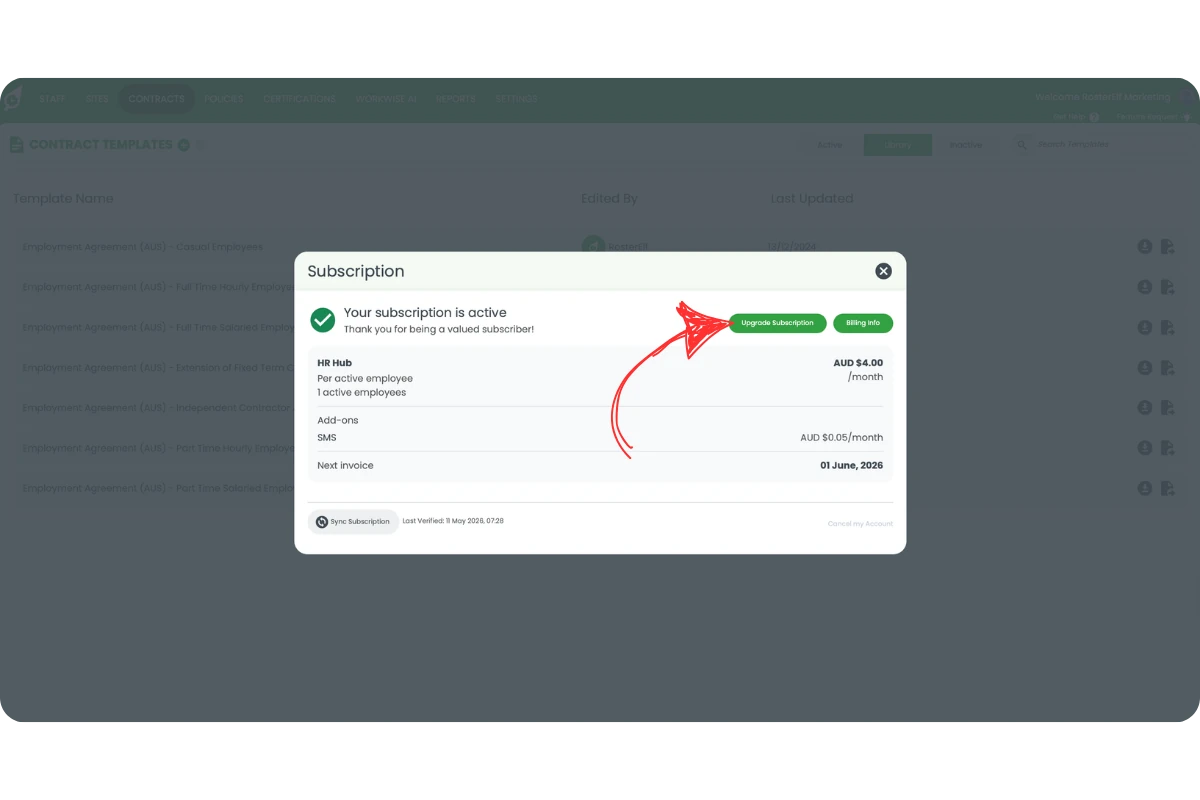
1.1.5 Make sure monthly is selected, then click switch plan on the higher tier you want to move to.
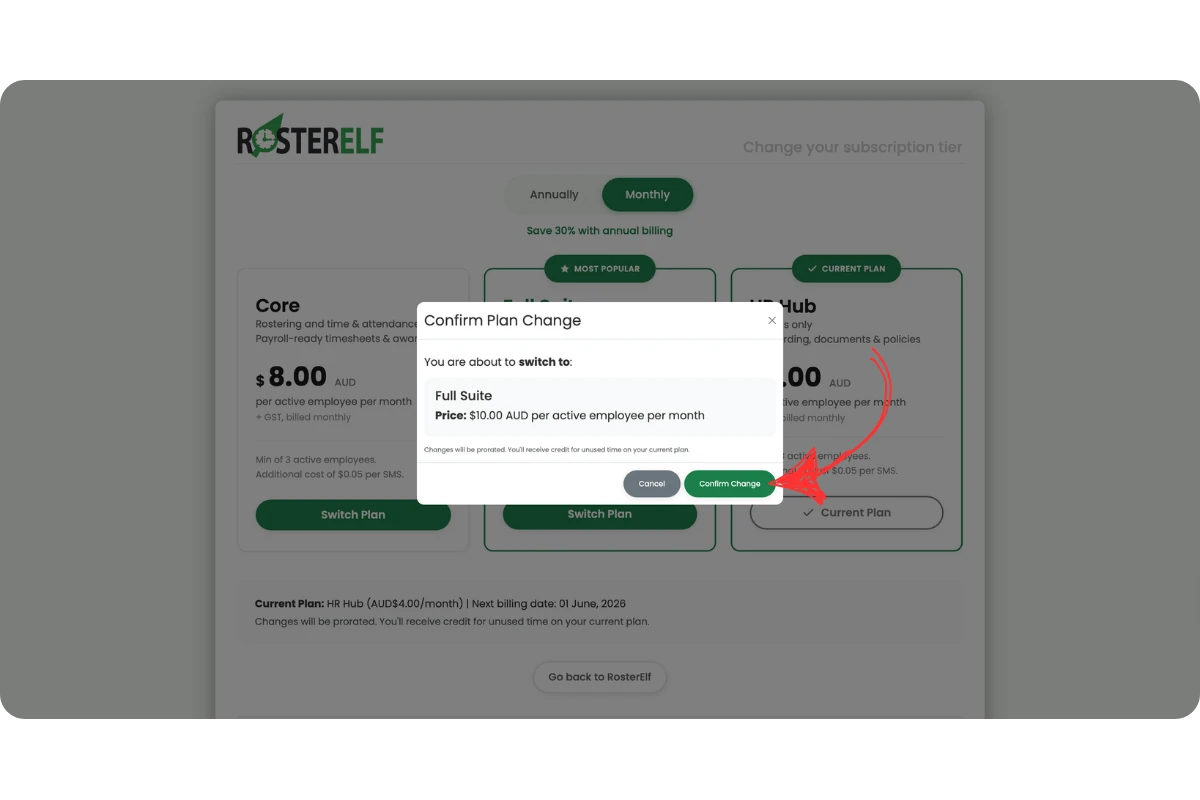
1.1.6 Review the plan details and click confirm change.
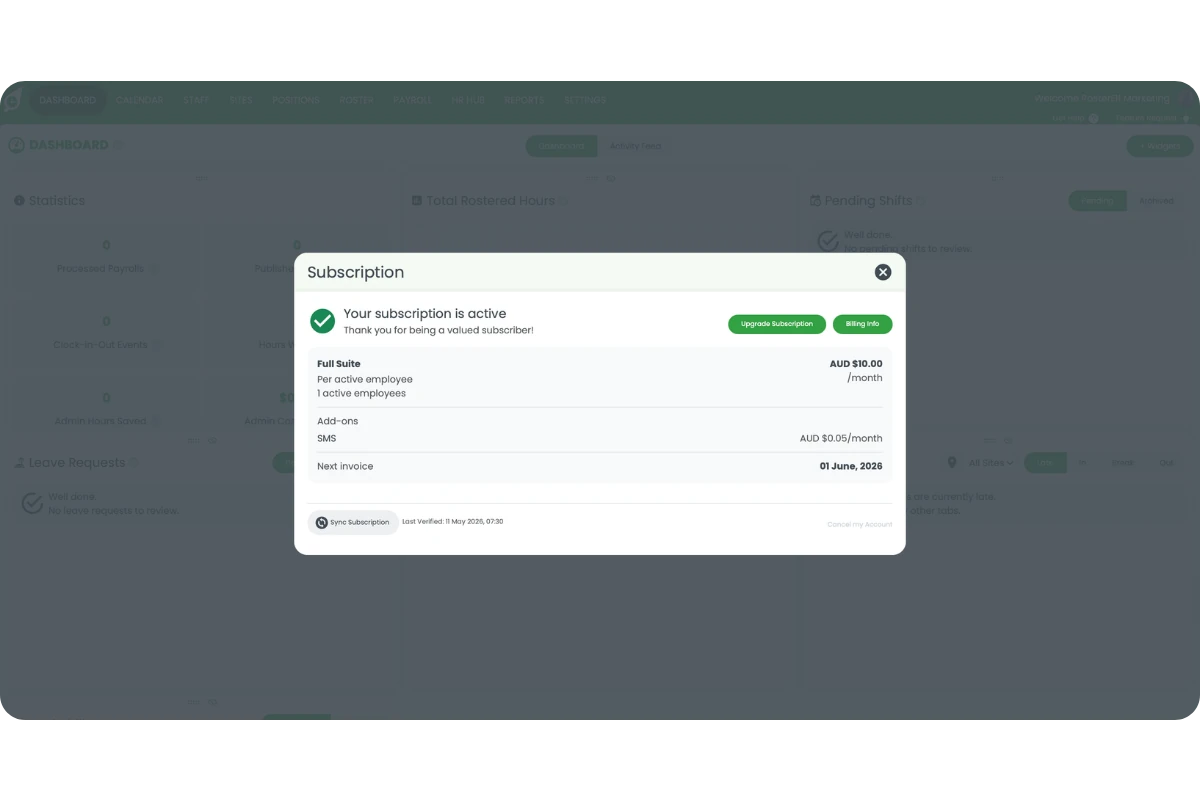
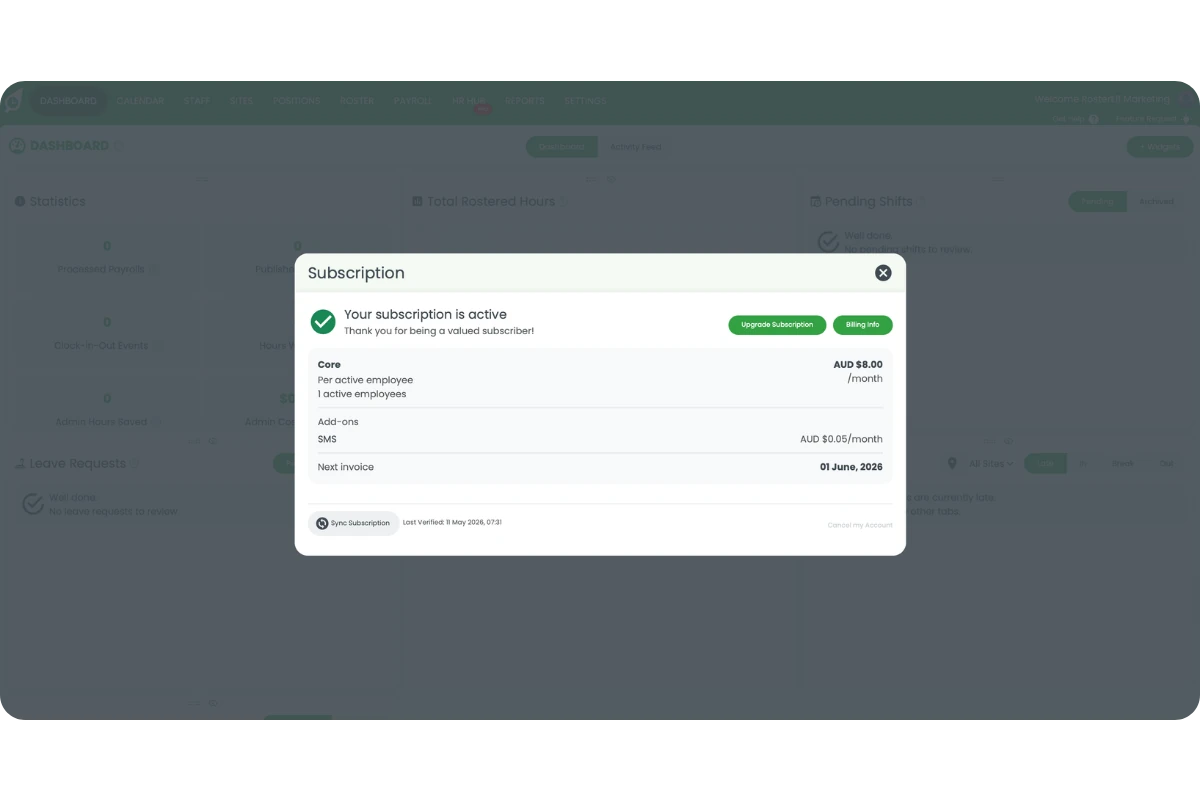
1.1.7 Your subscription is now updated. The Subscription modal will confirm your new plan.
Prorated billing
When you upgrade your monthly subscription, changes are prorated. You will receive credit for any unused time on your current plan, and the new rate applies from the date of the upgrade. Your next invoice will reflect the updated plan cost.
2. Downgrade your monthly subscription
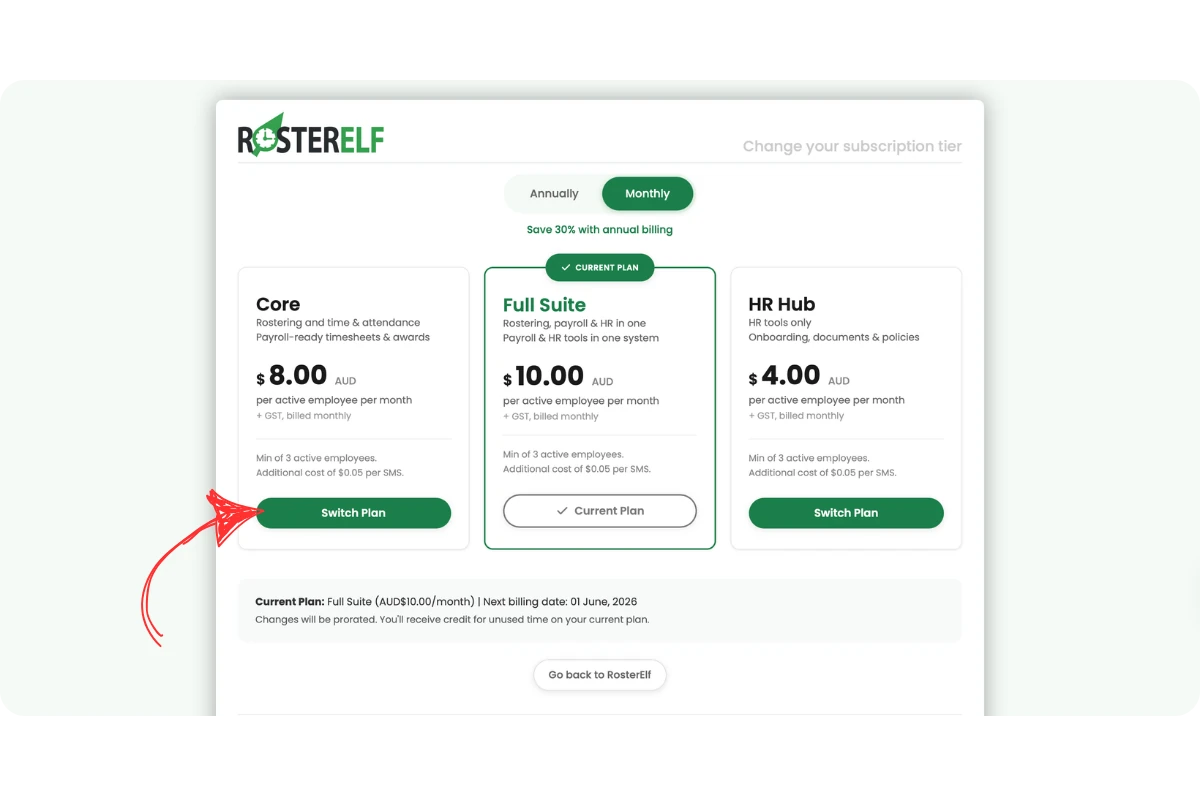
Downgrading to a lower monthly plan also takes effect immediately. As with upgrades, billing is prorated — you receive credit for unused time on your current plan, and the lower rate applies from the date of the change. There is no waiting period or scheduled change for monthly downgrades.
2.1 Downgrade your monthly plan in RosterElf
2.1.1 Follow steps 1.1.1–1.1.4 above to open your subscription settings and click upgrade subscription.
2.1.2 Make sure monthly is selected, then click switch plan on the lower tier you want to move to.
2.1.3 Review the plan details and click confirm change.
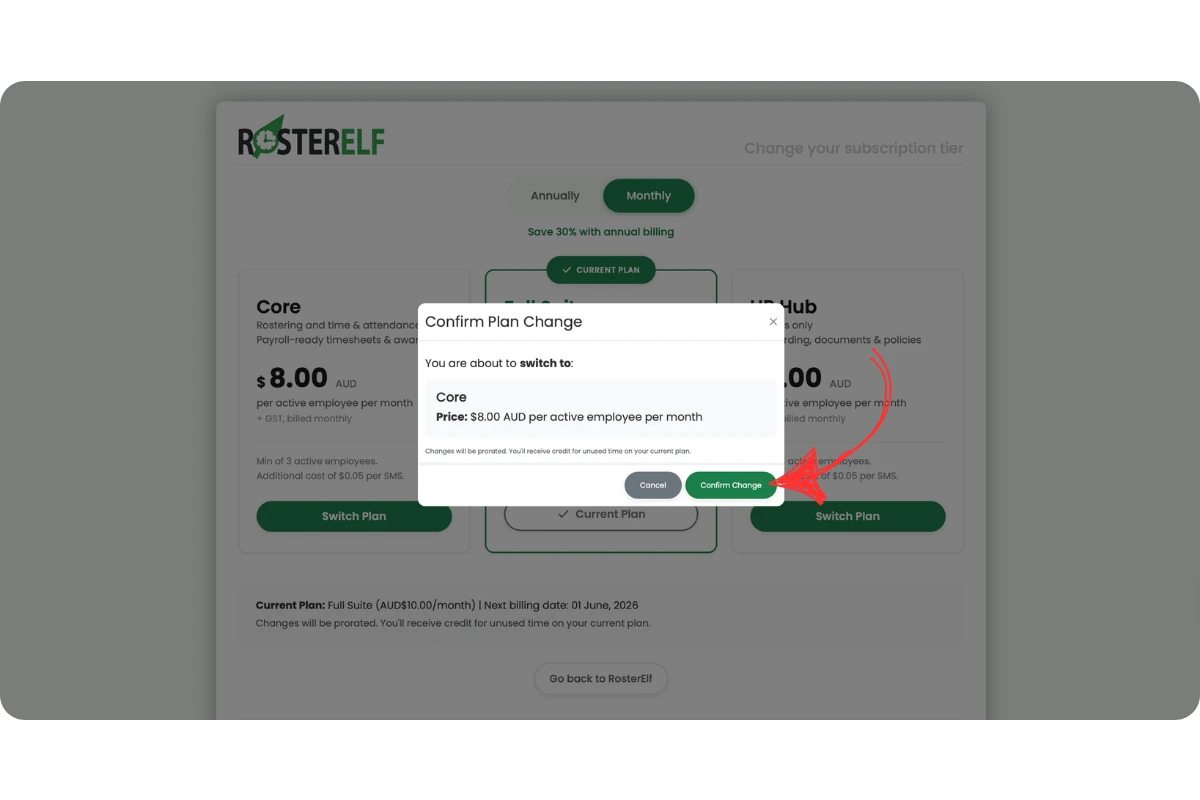
2.1.4 Your subscription is now updated. The Subscription modal will confirm your new plan.
Frequently asked questions
1. How do I switch my monthly subscription plan in RosterElf?
Click the profile icon in the top right corner, select account overview, click subscription settings, then click upgrade subscription. On the plan page, make sure monthly is selected, then click switch plan on the plan you want to move to and confirm the change.
2. What plans can I switch between on monthly billing?
You can switch freely between Core, Full Suite, and HR Hub on a monthly plan. Core includes rostering, time and attendance with payroll-ready timesheets, and leave management. Full Suite adds HR Hub — onboarding, documents, policies, and compliance tracking — on top of everything in Core. HR Hub provides HR tools only, including onboarding, documents, policies, and leave management, without rostering or time and attendance.
3. Does a monthly plan change take effect immediately?
Yes, all monthly plan changes — both upgrades and downgrades — take effect immediately after you click confirm change. Your account reflects the new plan straight away.
4. Will I be charged immediately when I change my monthly plan?
Changes are prorated. You will receive credit for any unused time on your current plan, and the new plan rate applies from the date of the change. Your next invoice will reflect the updated plan cost.
5. Can I downgrade my monthly plan at any time?
Yes, you can switch to a lower monthly plan at any time from subscription settings. The change takes effect immediately, and you will receive a prorated credit for unused time on your current plan.
6. Can I switch to annual billing instead of changing my monthly plan?
Yes — from the same plan page, select annually instead of monthly before clicking switch plan. This replaces your monthly subscription with an annual one. You cannot run both simultaneously. See our guide on changing your subscription to annual for the full steps.
7. Can I run an annual and a monthly subscription at the same time?
No. RosterElf subscriptions are either annual or monthly — not both at once. You can switch from monthly to annual at any time, but moving from annual back to monthly requires cancelling the annual plan, waiting for the current annual term to end, then resubscribing on a monthly plan.
8. Why can't I see the subscription settings option?
Only the account owner sees subscription settings. Admins, managers and staff don’t have access. To find the owner, open Staff and look for the card with the green OWNER ribbon.