Updating your payment method in RosterElf is simple and secure. RosterElf partners with Stripe for billing, so all payment updates are handled through the Stripe portal directly from your account
settings. Keeping your payment details current ensures uninterrupted access to all features.
You may need to update your payment method if your card has expired, been replaced, or if you want to switch to a different option such as a digital wallet or direct debit. To see all payment
options available in RosterElf (including Apple Pay, Google Pay, Link, BECS Direct Debit, Klarna, and other buy now pay later options), see accepted payment methods.
Account owner access required
Only the account owner can update payment details in RosterElf. Admins, managers, and staff members do not have access to this section. If you need to update the payment method, contact the
person who originally created the RosterElf account.
1. Update your payment method in RosterElf settings
Start by opening your account settings, then follow our update billing details guide to change your payment method through Stripe.
1.1 Access your account settings
1.1.1 Open RosterElf in your web browser.
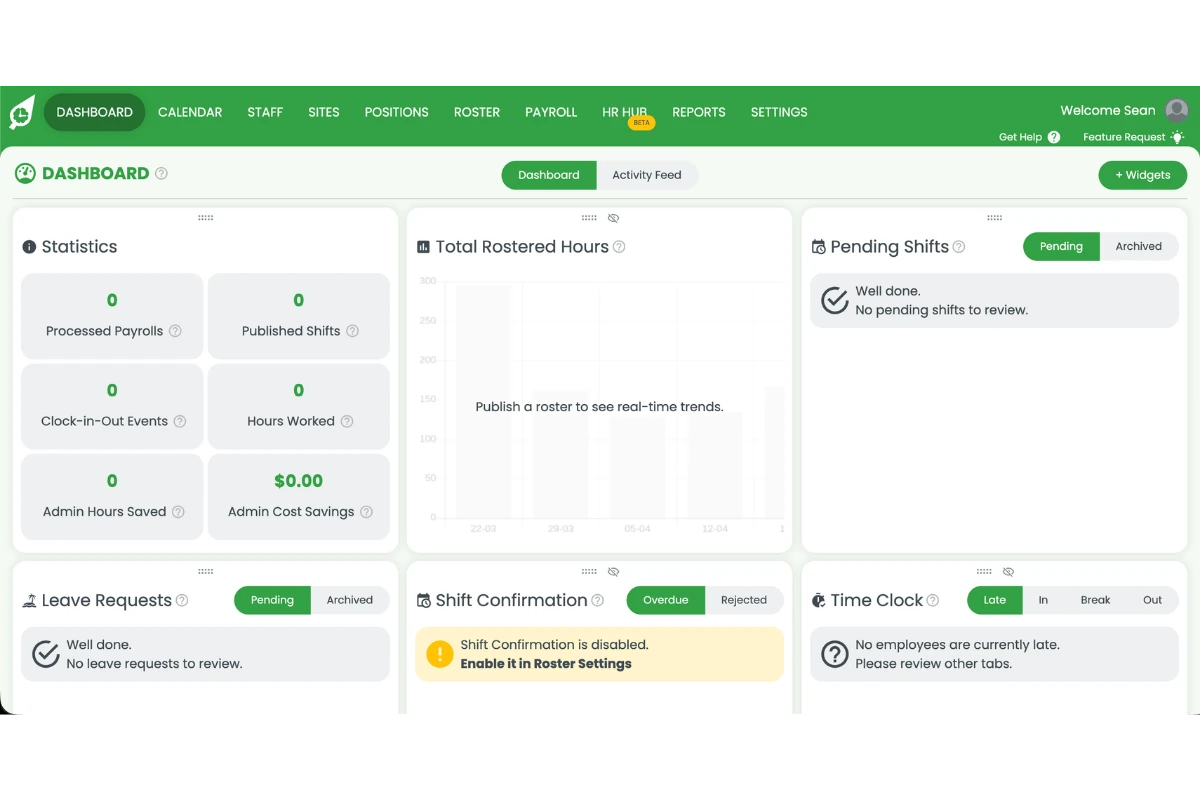
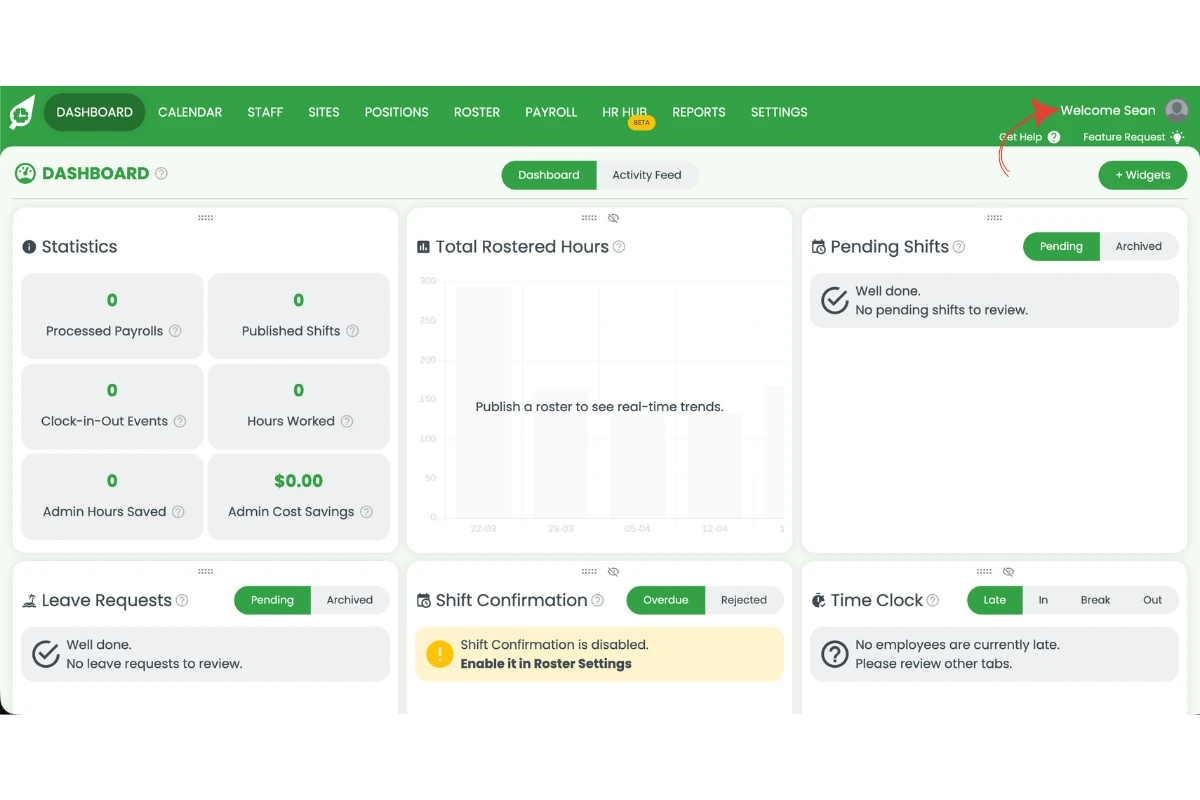
1.1.2 Press the welcome message in the top right corner of the screen.
1.1.3 From here, follow the steps in our update billing details guide to open subscription settings, access billing
info, and update your payment method through Stripe.
Never share your payment details over email. Always update your payment method through the secure RosterElf platform via Stripe.
Frequently asked questions
1. How do I update my payment method in RosterElf?
Press the welcome message in the top right corner and select account overview. From there, follow the update billing details guide to open subscription settings, access billing info, and update your payment method through Stripe.
2. Where do I find my payment details in RosterElf?
Your payment details are located in the billing info section of subscription settings. Access this by pressing the welcome message, selecting account overview, pressing subscription settings, and then pressing billing info.
3. What payment methods can I use in RosterElf?
RosterElf accepts credit and debit cards, Apple Pay, Google Pay, Link, BECS Direct Debit, SEPA Direct Debit, and buy now pay later via Afterpay/Clearpay, Klarna, and Zip. All payments are processed securely through Stripe. See the accepted payment methods guide for eligibility conditions.
4. What information do I need to update my card?
You will need your new card number, expiry date (MM/YY), and security code. You can also select the country associated with the card.
5. Can I update my payment method on my mobile device?
No, you will need to access RosterElf via a web browser on a computer or laptop to update your payment method and billing details.
6. Why do I have two invoices for my annual subscription?
The first invoice is a pro-rata charge for the remaining days in the current month. On the 1st of the following month, you will be charged for the full annual subscription.
7. Can I update my billing email in Stripe?
No. Currently, there is no option to update the billing email in Stripe.
8. Why am I charged GST if I am not in Australia?
The Stripe platform is identifying you as located in Australia. To change this and provide the correct Tax ID, you will need to update your billing information in Stripe.
Share this article
Still need help?
Our Australian-based support team is here to assist you.