

Requesting and managing leave in RosterElf
When you request leave in RosterElf, your manager receives an email and smartphone notification. Once the manager responds, RosterElf will notify you of the outcome through the same channels. This guide explains how to request leave, manage pending and approved leave, and access archived leave requests in RosterElf. By following these steps, you’ll be able to handle your leave requests efficiently and view their status at any time. You can also view your leave balance from the My Calendar tab.
Managers and admins: you request leave the same way
If you are a manager or admin and want to submit your own leave, go to the Calendar tab and click Request Leave. You do not need to create a leave position or add leave through the Staff tab — that is only for adding leave on behalf of someone else. To remove a staff member’s approved or archived leave, see edit or delete leave entries.
1. Requesting leave in RosterElf
When you need to request leave, RosterElf allows you to submit dates and reasons for the request through the My Calendar tab. This section guides you through submitting a leave request, which is then sent to a manager for approval.
1.1 Submitting a leave request
1.1.1 Click on the My Calendar tab.
Note: Employees only have access to the My Calendar tab, so you can skip this step if applicable.
1.1.2 Click Request Leave on the right-hand side of the screen.
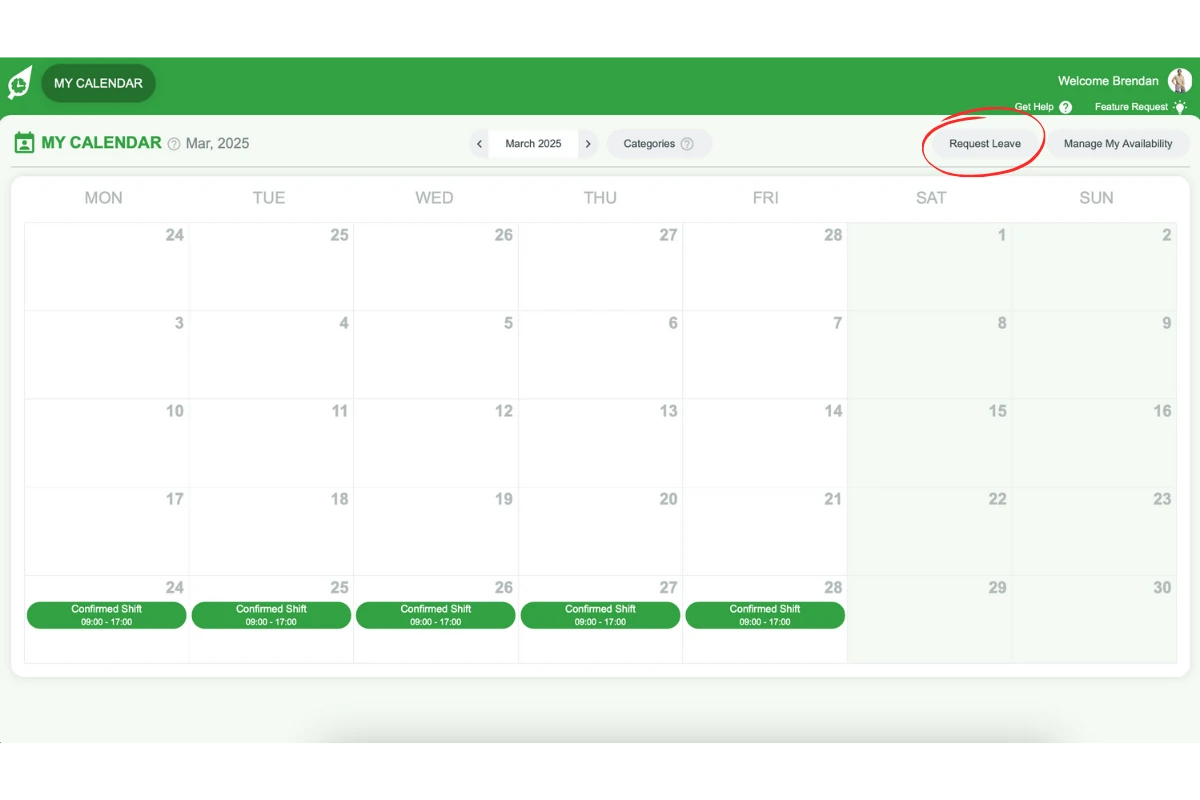
1.1.3 Pick the From and To dates from the calendar and press OK to confirm each one, choose a leave type from Select Leave Type, and enter a reason for your request.
1.1.4 Click Save.
Your employer's leave rules
Your employer can require notice for leave and block busy dates. Dates you can’t request are greyed out in the calendar, and Select Leave Type lists only the types your employer allows. If a request breaks a rule, RosterElf refuses it and says why, for example Leave must be requested at least 2 days in advance or Leave cannot be requested during the blackout period “Christmas Peak”.
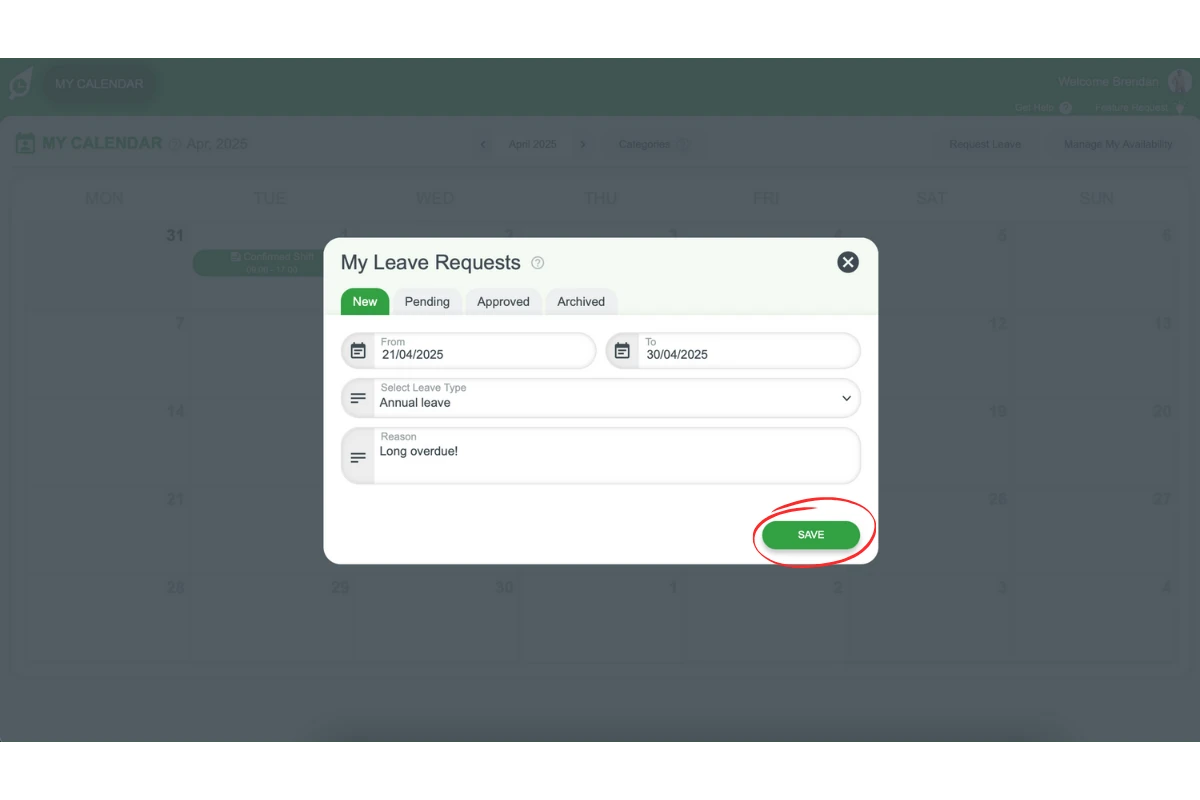
1.1.5 RosterElf will send the leave request to a manager for review and approval.
2. Managing and deleting leave requests
RosterElf provides two ways to view and manage your leave requests. You can find pending and approved leave on the calendar or use the Request Leave modal to view all leave requests, including denied ones.
2.1 Managing leave requests from the calendar
2.1.1 Go to the My Calendar tab.
2.1.2 Find the date of the leave request and click on it.
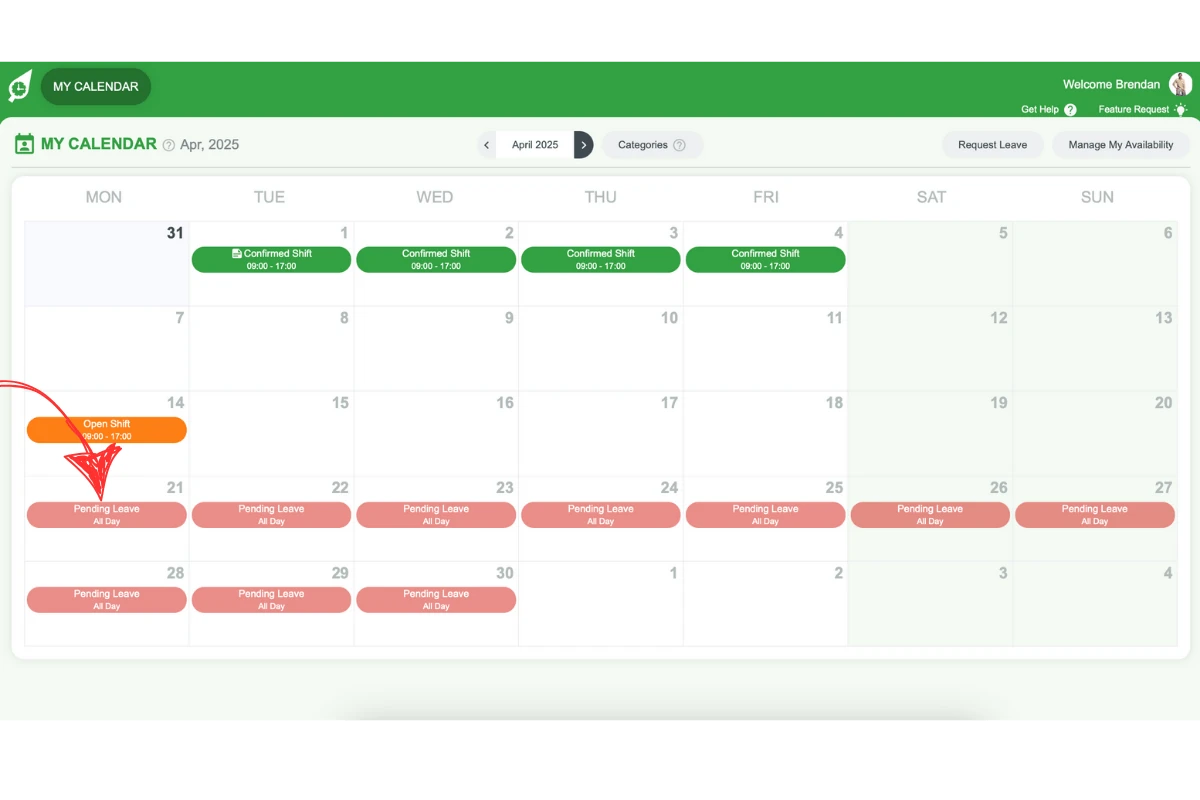
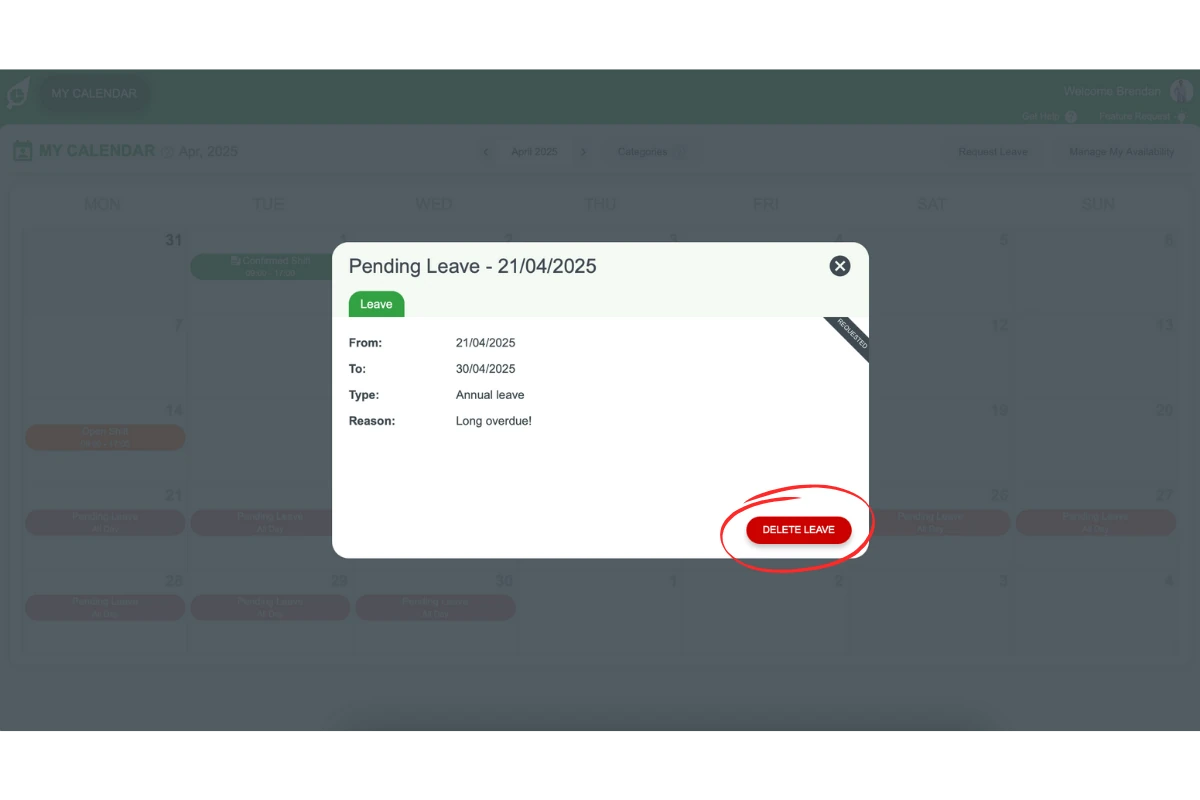
2.1.3 If the leave request status is Pending, click Delete Leave to remove the request.
2.2 Managing leave requests from the request leave modal
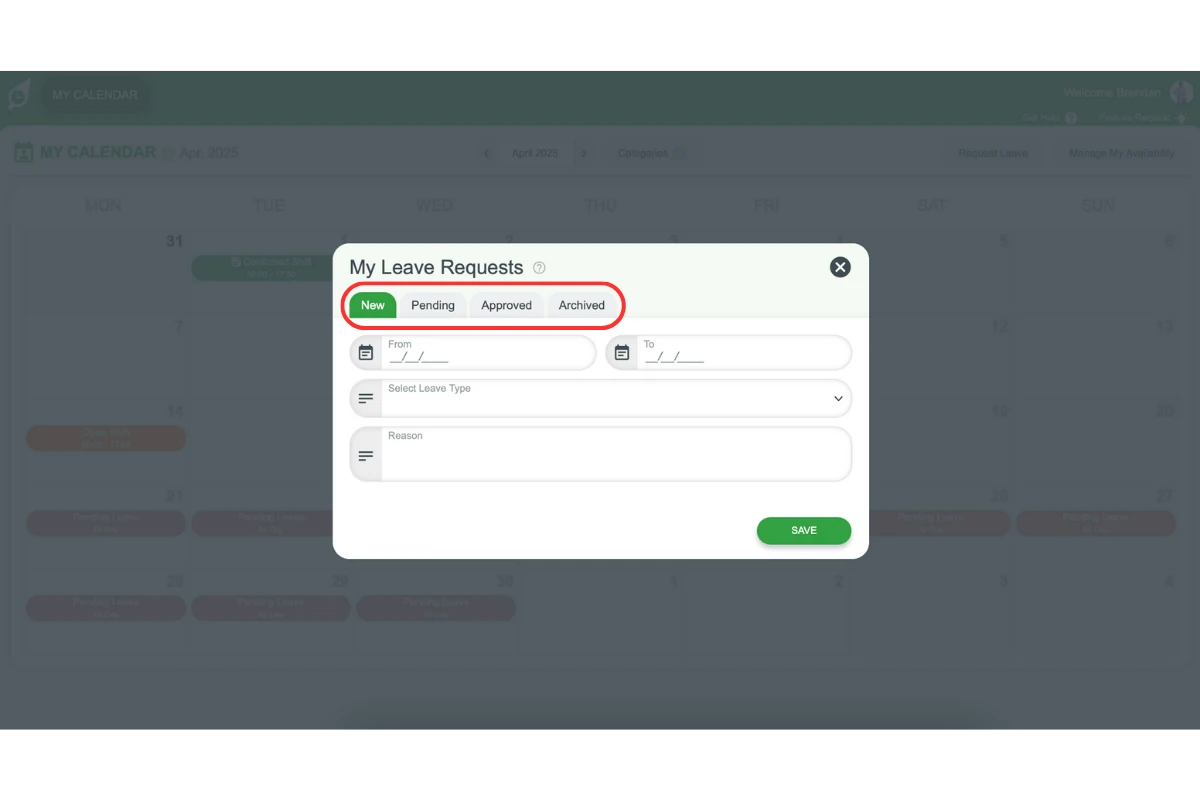
The Request Leave modal allows you to submit and manage all of your leave requests, including pending, approved, and archived requests.
2.2.1 Click on the Request Leave button on My Calendar.
2.2.1.1 Pending: Shows requests awaiting manager approval. To delete, press the X and confirm.
2.2.1.2 Approved: Displays approved leave requests scheduled in the future. To delete, press the X and confirm.
2.2.1.3 Archived: Contains all past requests, including approved, denied, and unaddressed requests past the leave date. Note: You cannot delete archived requests.
Frequently asked questions
1. Can managers and admins request their own leave in RosterElf?
Yes. Managers and admins request their own leave the same way staff do — go to the Calendar tab and click Request Leave. You do not need to use the Staff tab or create a leave position to submit your own leave.
2. How do I request leave in RosterElf?
To request leave, go to the My Calendar tab, click on Request Leave, pick the dates, choose a leave type, enter a reason, then click Save. Your manager will receive the request for approval.
3. What leave types are available?
Options include annual, personal, parental, unpaid and other custom types set by your employer. You see only the types your employer has switched on. See leave types in RosterElf for the full list.
4. Can I delete a leave request in RosterElf?
Yes, you can delete a pending leave request if it is for a future date. Go to the My Calendar tab, find the leave date, click on it, and select Delete Leave.
5. How does RosterElf notify me of my leave request status?
RosterElf notifies you via email and smartphone once your manager responds to your leave request. You’ll receive a notification for approval, denial, or if action is required.
6. Where can I view all my past leave requests in RosterElf?
You can view past leave requests, including approved, denied, and unaddressed requests, in the Archived section of the Request Leave modal.
7. Once my leave is approved, will it show on the roster?
Not automatically. A manager needs to click the Availability button on the roster to turn on the availability and leave overlay before approved leave becomes visible there — see view staff availability and leave on the roster.
8. Can staff amend a leave request in RosterElf?
No, once the request has been submitted, only Admins, Assistant Managers and Managers can amend the request.
9. How can I see exactly when a leave request was submitted?
Admins can check the Activity Feed (Dashboard → Activity Feed) and filter by Type of Activity: Leave — a Leave requested entry shows the date it was submitted. See activity log: what gets recorded and the activity feed browser guide for step-by-step filtering.
10. Why can't I pick some dates when I request leave?
Your employer has set a minimum notice period or blackout dates, such as a stocktake or a peak trading period. Those dates are greyed out, and a request that includes them is refused with the reason. Ask your manager if you need leave on those dates. Admins set these rules in leave and availability settings.