

RosterElf records a log of important actions taken in your account — from roster changes and leave approvals to payroll processing and HR Hub events. This is RosterElf’s audit log (sometimes called an audit trail or change history), and every entry shows who performed the action and when. So yes — you can see when a shift was added, edited or deleted, and by whom. This reference guide covers every action that gets recorded, who can see the log, and how to access it. For a step-by-step walkthrough of the Activity Feed UI, see the activity feed browser guide.
1. Who can access the activity log
The Activity Feed is accessible to all user types in RosterElf, but the scope of what each user sees depends on their permission level:
| Permission level | Access to activity log |
|---|---|
| Admin | Full account-wide activity — all categories, all staff, all sites |
2. How to open the activity log
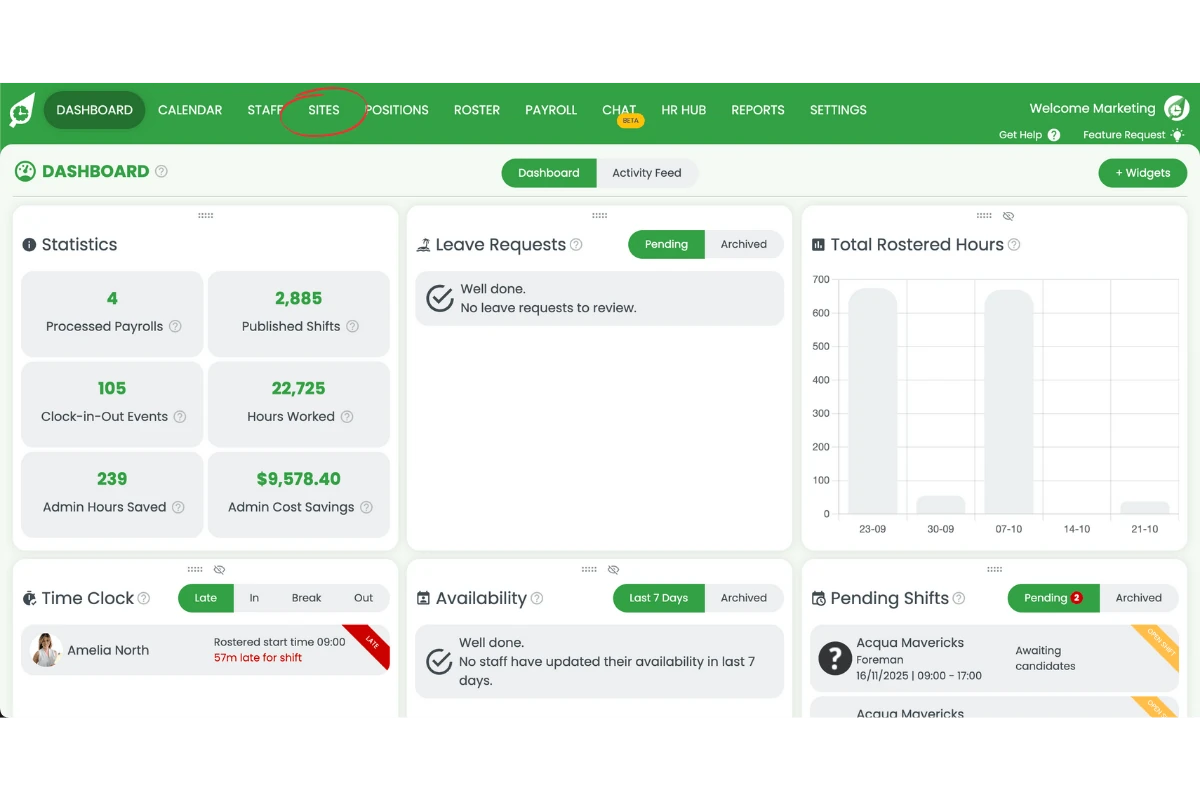
The Activity Feed is accessible from the main dashboard header:
2.1 Log in to RosterElf and navigate to the dashboard.
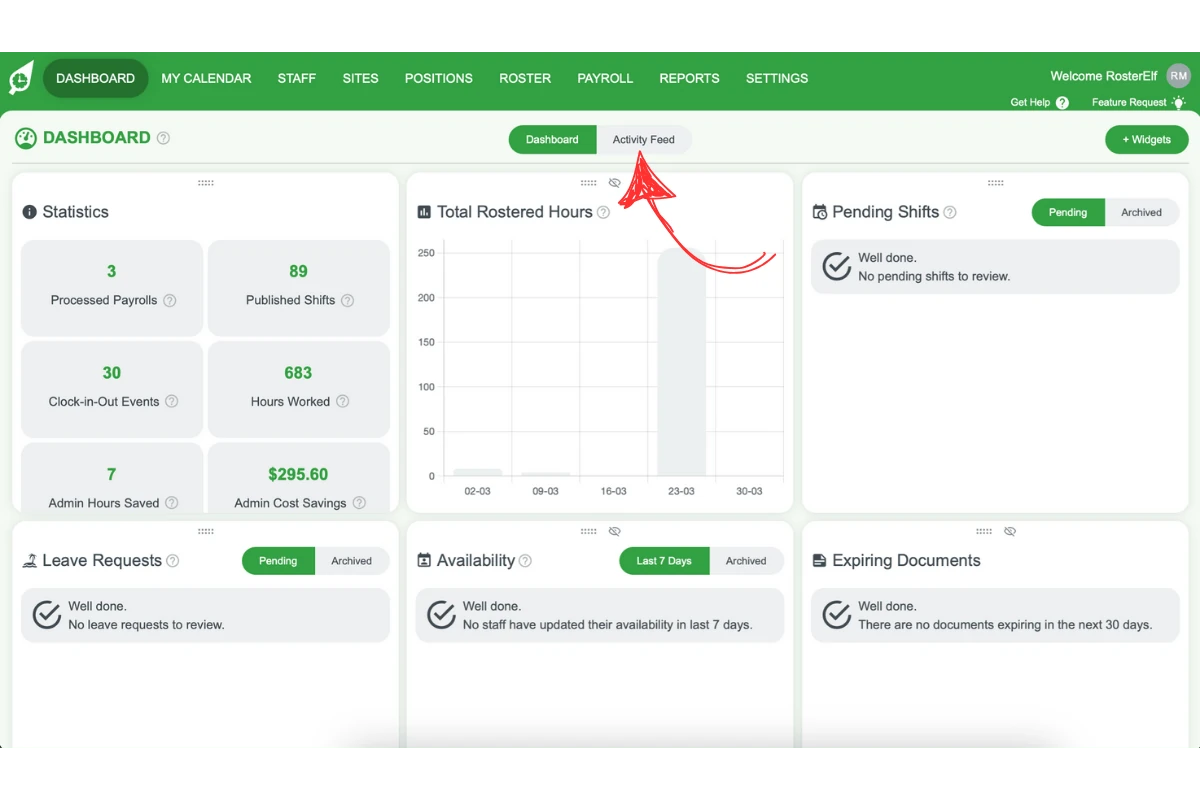
2.2 Click the toggle in the centre of the header to open the Activity Feed panel.
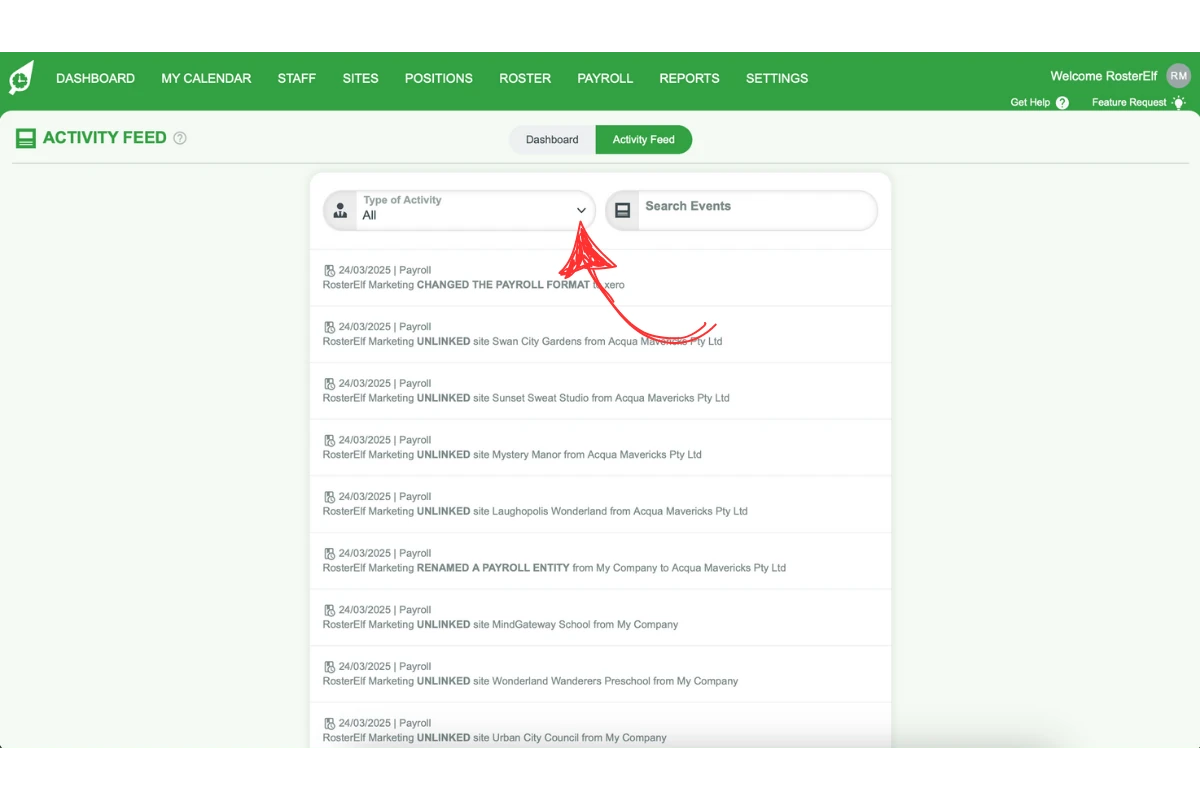
2.3 Use the Type of Activity dropdown to filter by category, or use the search bar to find a specific event.
3. What gets recorded
The following tables list every action logged in RosterElf, grouped by category. Each entry in the Activity Feed records the user who performed the action, the action itself, and the date.
3.1 Roster
| Action logged | What it means |
|---|---|
| Roster published | A roster was published and sent to staff |
| Roster deleted | A roster was permanently deleted |
| Roster updated | Changes were saved to an existing roster |
| Roster settings changed | Roster-level settings were modified |
| Break settings changed | Break rules on the roster were updated |
| Shift created | A new shift was added to the roster |
| Shift updated | An existing shift was edited |
| Shift deleted | A shift was removed from the roster |
| Past shift updated | A shift in a past roster was edited |
| Past shift deleted | A shift in a past roster was removed |
| Pending shift settings changed | Settings for pending (unconfirmed) shifts were updated |
| Open shift auto-published | An open shift was automatically published to eligible staff |
| Open shift auto-approved | A staff member's claim on an open shift was automatically approved |
| Pending shift published | A pending shift was published to staff |
| Pending shift accepted | A staff member accepted a pending shift offer |
| Pending shift rejected | A staff member declined a pending shift offer |
| Staff marked as sick | A staff member was marked as sick on a rostered shift |
3.2 Leave
| Action logged | What it means |
|---|---|
| Leave requested | A staff member submitted a leave request |
| Leave approved | A leave request was approved |
| Leave denied | A leave request was declined |
| Leave updated | An existing leave entry was edited |
| Leave deleted | A leave entry was removed |
3.3 Availability
| Action logged | What it means |
|---|---|
| Availability updated | A staff member's recurring availability was changed |
| Custom availability set | A one-off custom availability window was added |
3.4 Staff
| Action logged | What it means |
|---|---|
| Staff member added | A new staff member was created in the account |
| Staff member archived | A staff member was deactivated |
| Staff member reactivated | A previously archived staff member was restored |
| Permission level changed | A staff member's permission level was updated |
3.5 Sites and positions
| Action logged | What it means |
|---|---|
| Site added | A new site (location) was created |
| Site archived | A site was deactivated |
| Position added | A new role/position was created |
| Position archived | A role/position was deactivated |
3.6 Payroll
| Action logged | What it means |
|---|---|
| Payroll processed | Payroll was run and finalised for a pay period |
| Payroll saved | A payroll run was saved without finalising |
| Shift approved in payroll | A shift was approved during the payroll process |
| Timesheet shift edited | A timesheet shift was manually edited in the payroll tab |
| Timesheet review added | A note or review was added to a timesheet entry |
| Timesheet review approved | A timesheet review was approved |
| Timesheet review rejected | A timesheet review was rejected |
| Payroll template created | A new payroll template was created |
| Payroll template updated | An existing payroll template was edited |
| Payroll template deleted | A payroll template was removed |
| Pay template activated | A pay template was activated for use |
| Pay entity added | A payroll entity (e.g. Xero organisation) was connected |
| Pay entity updated | A connected payroll entity's settings were changed |
| Pay entity deleted | A payroll entity was disconnected |
| Pay entity linked to site | A payroll entity was assigned to a site |
| Pay entity unlinked from site | A payroll entity was removed from a site |
| Payroll format updated | The export format for payroll was changed |
| Payroll calendar updated | The payroll calendar (pay periods) was updated |
| Public holidays updated | The public holiday schedule used for payroll was changed |
| Payroll rounding updated | Time rounding settings for payroll were changed |
3.7 Shift swaps
| Action logged | What it means |
|---|---|
| Shift swap requested | A staff member submitted a shift swap request |
| Shift swap approved | A shift swap request was approved |
| Shift swap denied | A shift swap request was declined |
3.8 Chat
| Action logged | What it means |
|---|---|
| Chat channel created | A new chat channel was set up |
| Chat channel deleted | A chat channel was removed |
| Staff added to channel | A staff member was added to a chat channel |
| Staff removed from channel | A staff member was removed from a chat channel |
| Chat message deleted | A message was deleted from a chat channel |
3.9 HR Hub
| Action logged | What it means |
|---|---|
| HR Hub settings changed | HR Hub account settings were updated |
| HR document approved | A staff HR document was approved |
| HR document denied | A staff HR document was declined |
| HR data exported to Xero | HR Hub data was exported to Xero |
| Staff file uploaded | A file was uploaded to a staff member's HR profile |
| Staff file downloaded | A file was downloaded from a staff member's HR profile |
| Staff file deleted | A file was removed from a staff member's HR profile |
| File expiry reminder sent | An automated reminder was sent about an expiring document |
| Contract uploaded | An employment contract file was uploaded |
| Contract downloaded | An employment contract was downloaded |
| Contract template enabled | A contract template was activated for use |
| Custom contract added | A custom contract template was created |
| Contract edited | An existing contract template was modified |
| Contract inactivated | A contract template was deactivated |
| Contract reactivated | A previously deactivated contract template was restored |
| Contract sent to staff | A contract was sent to a staff member for signing |
| Contract duplicated | A contract template was copied |
| Policy created | A new HR policy was created |
| Policy enabled | An HR policy was activated |
| Policy edited | An HR policy was modified |
| Policy downloaded | An HR policy document was downloaded |
| Policy duplicated | An HR policy was copied |
| Policy inactivated | An HR policy was deactivated |
| Policy reactivated | A previously deactivated HR policy was restored |
| Policy reminder sent | A reminder was sent to staff about a policy requiring acknowledgement |
| Policy required signing turned off | The required acknowledgement setting was disabled for a policy |
| Certificate created | A certificate/compliance requirement was added |
| Certificate edited | A certificate requirement was modified |
| Certificate inactivated | A certificate requirement was deactivated |
| Certificate reactivated | A previously deactivated certificate requirement was restored |
| Performance review created | A manager or admin created a performance review for a staff member |
| Performance review sent | A performance review was sent to the staff member to complete their part |
3.10 Newsfeed
| Action logged | What it means |
|---|---|
| Newsfeed post created | A new post was published to the team newsfeed |
| Newsfeed post deleted | A newsfeed post was removed |
3.11 System
| Action logged | What it means |
|---|---|
| Staff password reset | A password reset was triggered for a staff member |
| Welcome email resent | The welcome/invite email was resent to a staff member |
4. What is not recorded in the activity log
Some automated background processes run internally and do not appear in the customer-facing Activity Feed. These include:
- Staff data sync — automatic background syncs of staff profile data
- Xero export jobs — the underlying API calls when RosterElf pushes data to Xero
- Other payroll export processes — automated export jobs for non-Xero integrations
These are system-level operations that happen behind the scenes. The actions that trigger them (such as processing payroll or manually exporting to Xero) are still logged under the Payroll category.
Frequently asked questions
1. Can I see when a shift was added, edited or deleted, and who did it?
Yes. RosterElf logs shift created, shift updated and shift deleted actions (including changes to past shifts) in the Activity Feed — also known as the audit log or audit trail. Each entry records the staff member who made the change and the date. Open the Activity Feed from the centre toggle in the dashboard header and filter by Roster to find shift changes.
2. Does RosterElf have an audit log or audit trail?
Yes. The Activity Feed is a full audit log of account actions — roster and shift changes, leave, payroll, HR Hub, chat and more. Each entry shows the action, who performed it, and when. Only admins can view the complete account-wide log.
3. Who can see the activity log in RosterElf?
All users can access the Activity Feed, but what they see is scoped to their permission level. Admins see all account activity. Managers see activity relevant to their sites and staff. Staff members see their own actions.
4. How far back does the activity log go?
The activity log retains a rolling history of account actions. Scroll or filter the Activity Feed to go further back in time. Contact support if you need to retrieve historical data beyond what is visible.
5. Can I export the activity log?
The Activity Feed is currently a read-only view inside RosterElf. There is no direct export button for the log itself, though many individual records (payroll, leave, shifts) can be exported via their respective reports.
6. Does the activity log show who made a change?
Yes. Each entry shows the name of the user who performed the action, the action taken, and the date. Click More Info on any entry for a full summary.
7. Are internal system events shown in the activity log?
No. Automated background processes — such as staff data syncs and Xero export jobs — are handled internally and do not appear in the customer-facing Activity Feed.
8. Can I filter the activity log by type?
Yes. Use the Type of Activity dropdown in the Activity Feed to filter by category — Roster, Leave, Payroll, HR Hub, and so on. See the activity feed browser guide for step-by-step filtering instructions.
Frequently asked questions
1. Can I see when a shift was added, edited or deleted, and who did it?
Yes. RosterElf logs shift created, shift updated and shift deleted actions (including changes to past shifts) in the Activity Feed — also known as the audit log or audit trail. Each entry records the staff member who made the change and the date. Open the Activity Feed from the centre toggle in the dashboard header and filter by Roster to find shift changes.
2. Does RosterElf have an audit log or audit trail?
Yes. RosterElf’s Activity Feed is a full audit log of account actions — roster and shift changes, leave, payroll, HR Hub, chat and more. Each entry shows the action, who performed it, and when. Only admins can view the complete account-wide log.
3. Who can see the activity log in RosterElf?
Only admins can access the Activity Feed and view the full account-wide activity log.
4. How far back does the activity log go?
The activity log retains a rolling history of account actions. Scroll or filter the Activity Feed to go further back in time. Contact support if you need to retrieve historical data beyond what is visible.
5. Can I export the activity log?
The Activity Feed is currently a read-only view inside RosterElf. There is no direct export button for the log itself, though many individual records (payroll, leave, shifts) can be exported via their respective reports.
6. Does the activity log show who made a change?
Yes. Each entry in the Activity Feed shows the name of the user who performed the action, the action taken, and the date. Click More Info on any entry for a full summary.
7. Are internal system events shown in the activity log?
No. Automated background processes — such as staff data syncs and Xero export jobs — are handled as internal events and do not appear in the customer-facing Activity Feed.
8. Can I filter the activity log by type?
Yes. Use the Type of Activity dropdown in the Activity Feed to filter by category — Roster, Leave, Payroll, HR Hub, and so on. See the activity feed browser guide for step-by-step filtering instructions.