

1. Access the dashboard
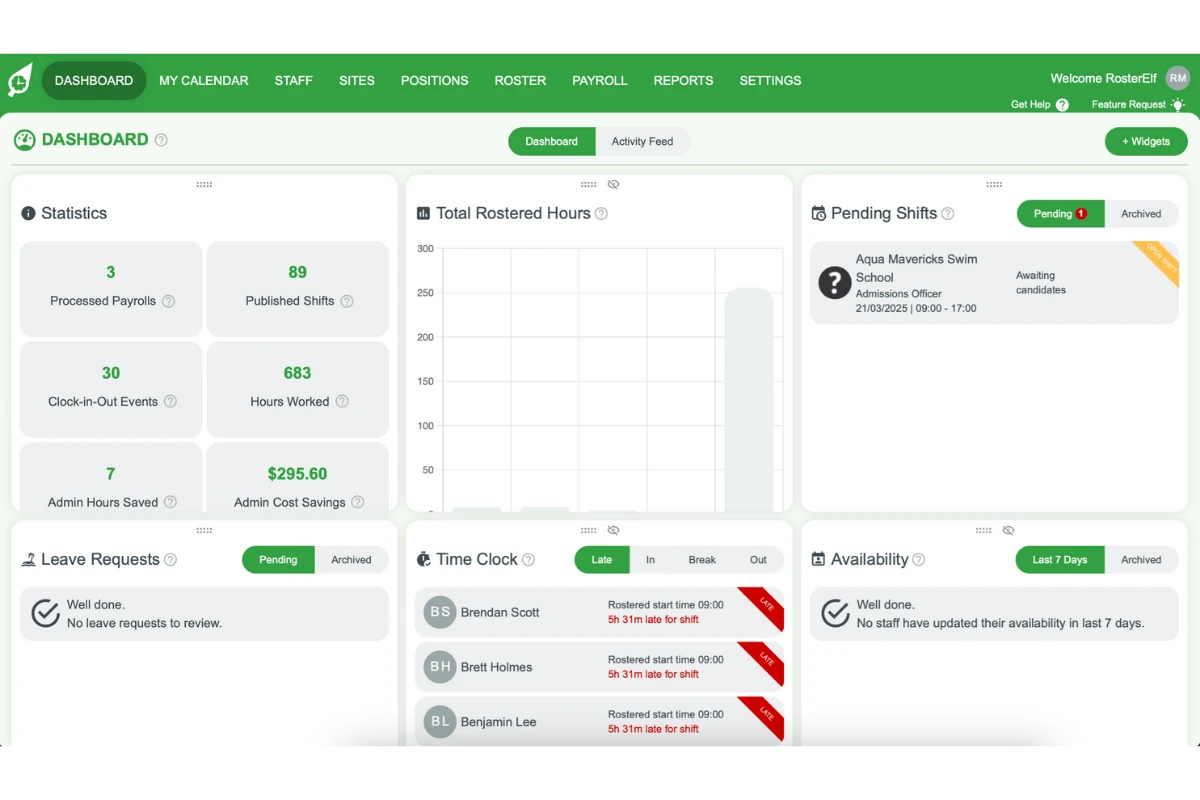
To start, you’ll need to access the dashboard where you can manage and add widgets. This section explains how to locate and open the dashboard.
1.1. Open your account and navigate to the Dashboard.
2. Add a new widget
This section guides you through adding a new widget to your dashboard. You’ll learn how to access the widget options and add the one you need.
2.1 select the add widget option
2.1.1 Locate the ”+ Widgets” symbol on your dashboard, in the top right of the screen.
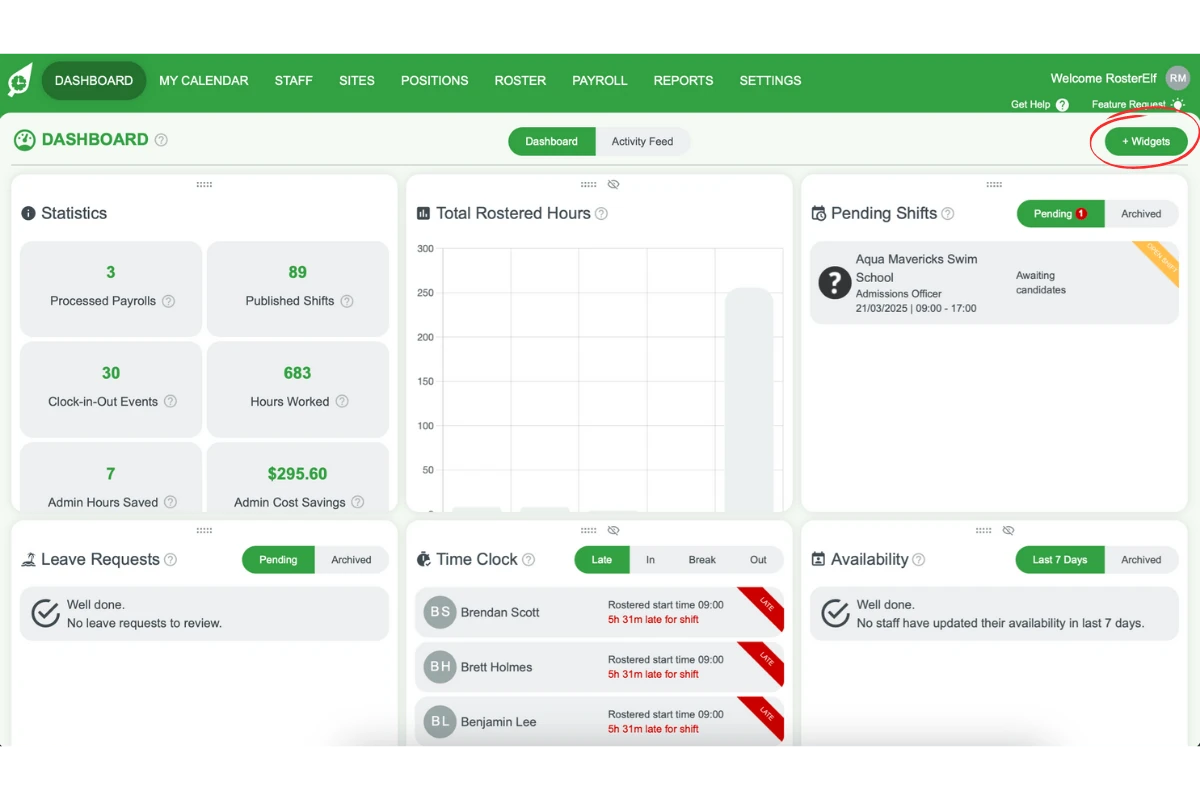
2.1.2 Click the ”+ Widgets” symbol to open the Widget Manager.
2.2 Choose the Expiring Documents widget
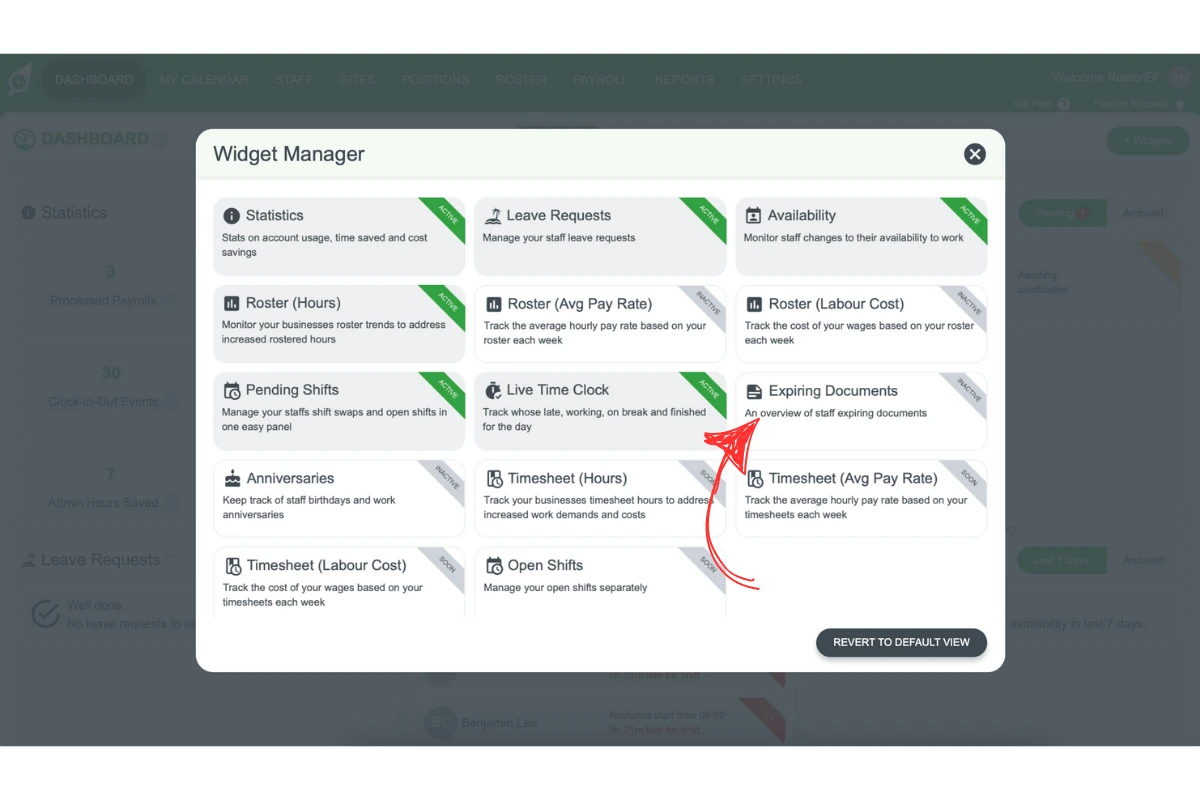
2.2.1 Scroll through the list of available widgets.
2.2.2 Click the Expiring Documents tile. Clicking it adds the widget and saves your dashboard layout.
3. Finalise the widget setup
3.1. Once you click the tile, its corner banner changes from “Inactive” to “Active”.
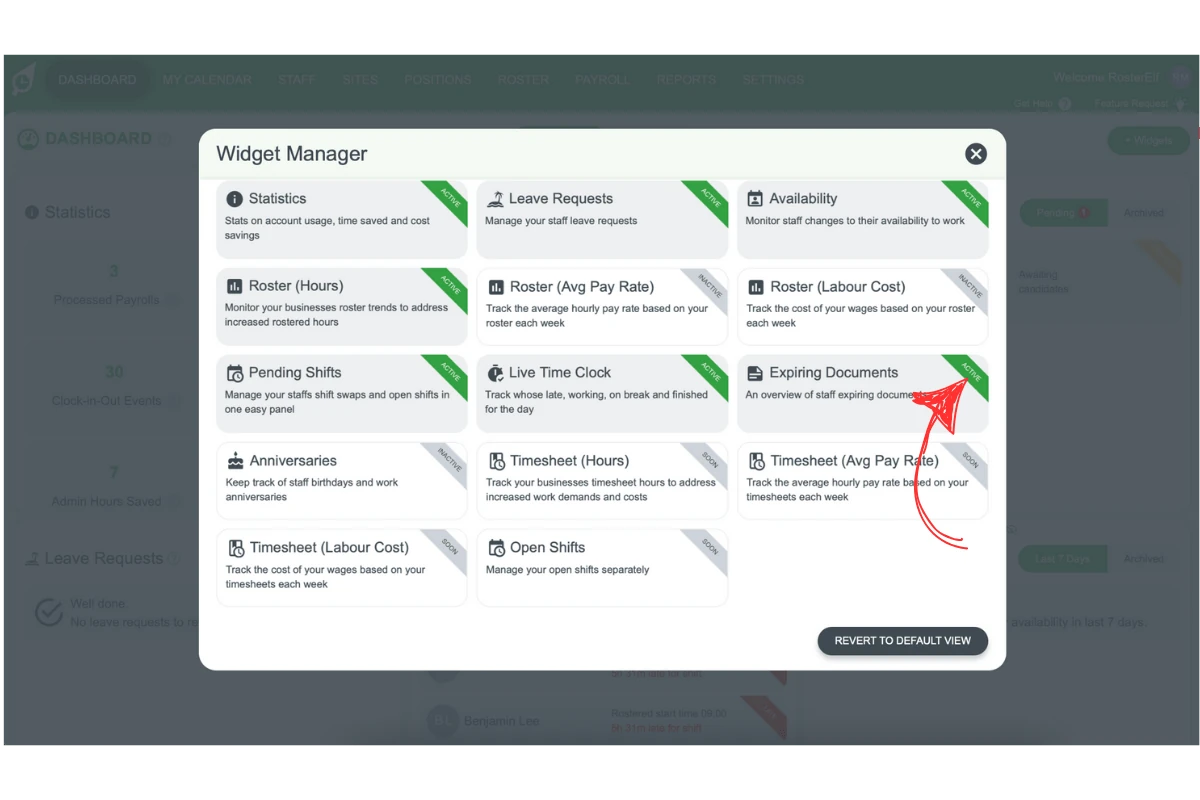
3.2.1 Close the Widget Manager with the cross and check your dashboard to ensure the Expiring Documents widget appears.
Frequently asked questions
1. How do I access the dashboard to manage widgets?
To access the dashboard, open your account and navigate to the main menu. From there, select Dashboard from the available options.
2. Where can I find the option to add a new widget?
Locate the ”+ Widgets” symbol on your dashboard. Clicking it opens the Widget Manager, where you can add new widgets.
3. How do I add the Expiring Documents widget to my dashboard?
To add the Expiring Documents widget, click + Widgets to open the Widget Manager and click the Expiring Documents tile. Clicking the tile adds the widget and saves your dashboard layout; there is no separate Add button.
4. What should I do after selecting a widget?
The tile’s corner banner changes from “Inactive” to “Active”. Close the Widget Manager with the cross and check your dashboard to ensure the widget appears as expected.
5. Can I customise the widgets on my dashboard?
Yes, you can customise your dashboard by selecting, adding, and arranging widgets according to your preferences. Use the ”+ Widgets” symbol to access and manage widgets.
6. Can I track already expired documents?
No, the widget will only show documents expiring in the next 30 days.