

This article explains how to generate a roster and payroll report. Running this report allows you to view worked hours, track clock-in and clock-out times, and more. This guide will help you find and export the data you need to manage staff records efficiently.
1. Accessing the complete shift report
In this section, you’ll learn how to locate the Complete Shift Report. This report helps you view detailed data on employee work hours, sites, and dates, providing valuable insights into your roster and payroll information.
1.1 steps to access the complete shift report
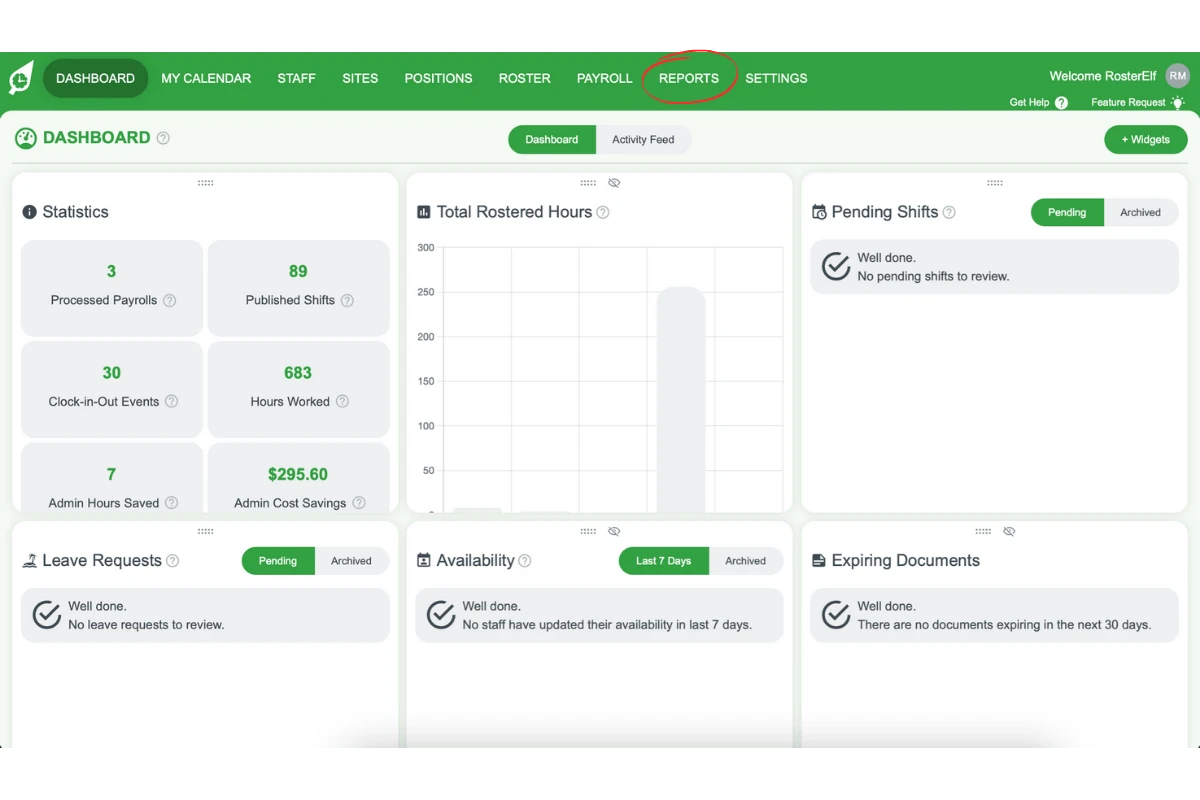
1.1.1 Click the Reports tab in the main menu.
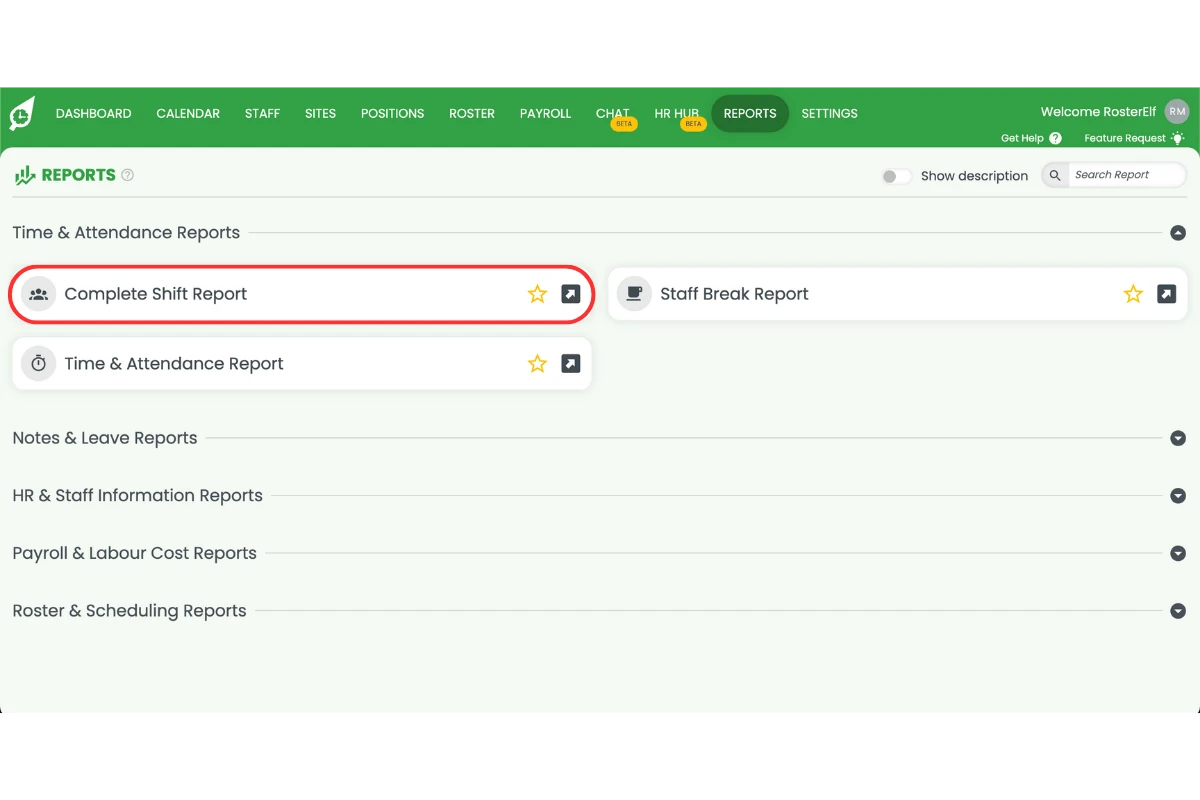
1.1.2 Select the Complete Shift Report from the list of available reports.
2. Filtering data by Employee, Site, and date
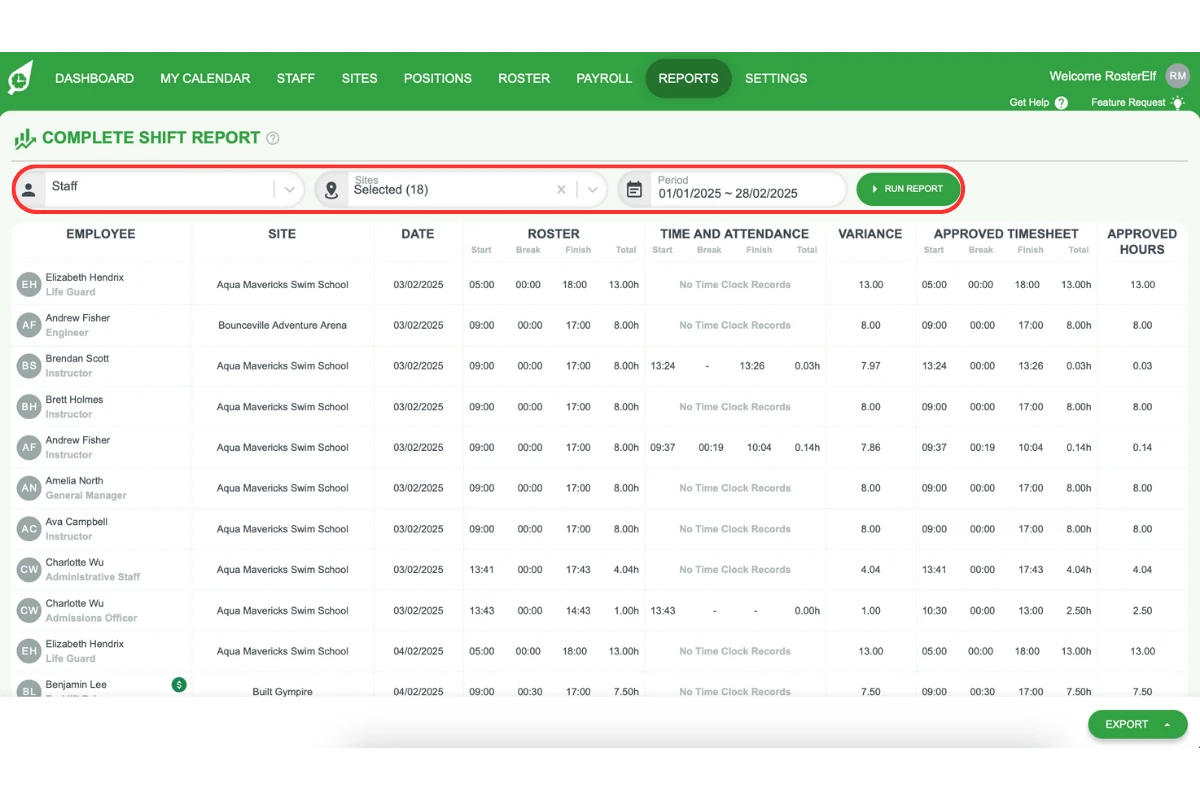
This section explains how to apply filters to customise your report. Filtering by employee, site, and date range ensures you get the exact data you need for payroll and roster tracking.
2.1 setting report filters
2.1.1 Use the search bar to find specific employees.
2.1.2 Apply site filters to narrow the report by location.
2.1.3 Select the required date range to define the period you want to review.
3. Updating and exporting the report
Once you’ve applied your filters, update the report and export it to a preferred format. This section covers how to finalise your data selection and export the report.
3.1 finalising and exporting the report
3.1.1 Click Run Report on the far right to refresh the report with your selected filters.
3.1.2 To export, click Export and select CSV or PDF.
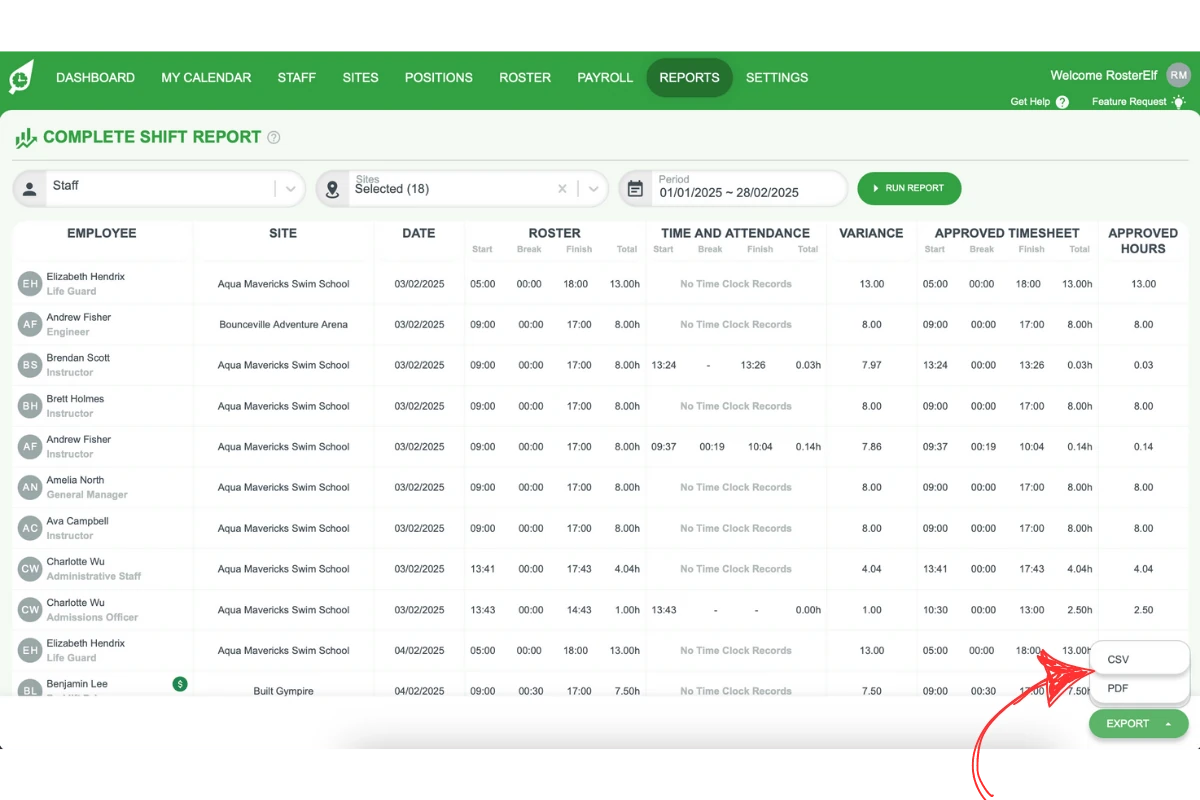
3.1.3 The exported file will be automatically emailed to you.
Frequently asked questions
1. How can I access the Complete Shift Report?
Access the Complete Shift Report by clicking on the Reports tab in the main menu, then selecting Complete Shift Report from the available options.
2. How do I filter the roster and payroll report by date, employee, or site?
Use the search bar to locate specific employees, apply site filters for location-based data, and set a date range to focus on a particular period.
3. How can I export the roster and payroll report to a file?
After applying filters and updating the report, select Export and choose either CSV or PDF format. This allows you to save the report for offline access or share it with your team.
4. What information is included in the Complete Shift Report?
The Complete Shift Report provides details on employee work hours, clock-in and clock-out times, locations, and dates, offering comprehensive roster and payroll insights.
5. Why should I Run the Report before exporting it?
Updating the report ensures that any applied filters are reflected in the data, giving you the most accurate and relevant information before exporting.