

Delete a sick leave request in RosterElf
This article explains how to undo sick leave in RosterElf. Occasionally, a leave request may be submitted by mistake or needs to be removed after circumstances change. When this happens, managers can undo sick leave by deleting the request from the archived leave records.
Undoing sick leave ensures that staff leave balances remain accurate and that rosters reflect the correct working hours. Removing the request helps maintain clean and reliable records across your account.
In this guide, you will learn how to open the dashboard, access archived leave requests, locate the sick leave entry, and delete the request. Following these steps ensures your leave records stay accurate and up to date.
1. Undo sick leave from archived leave
This section explains how to undo sick leave in RosterElf using the archived leave records in the dashboard. Once a leave request has been processed, it moves to the archived tab within the leave widget. Follow the steps below to locate the archived leave request and delete it.
1.1 undo sick leave from archived tab
1.1.1 Open the dashboard in RosterElf.
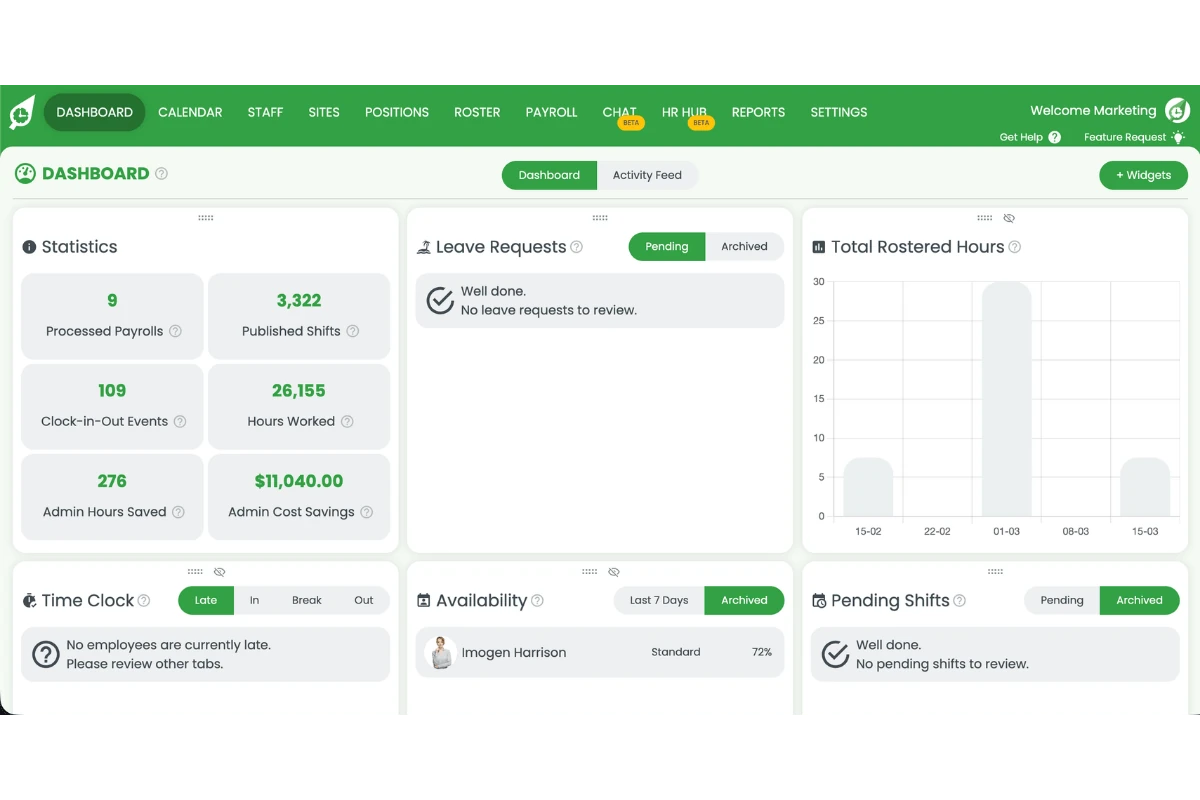
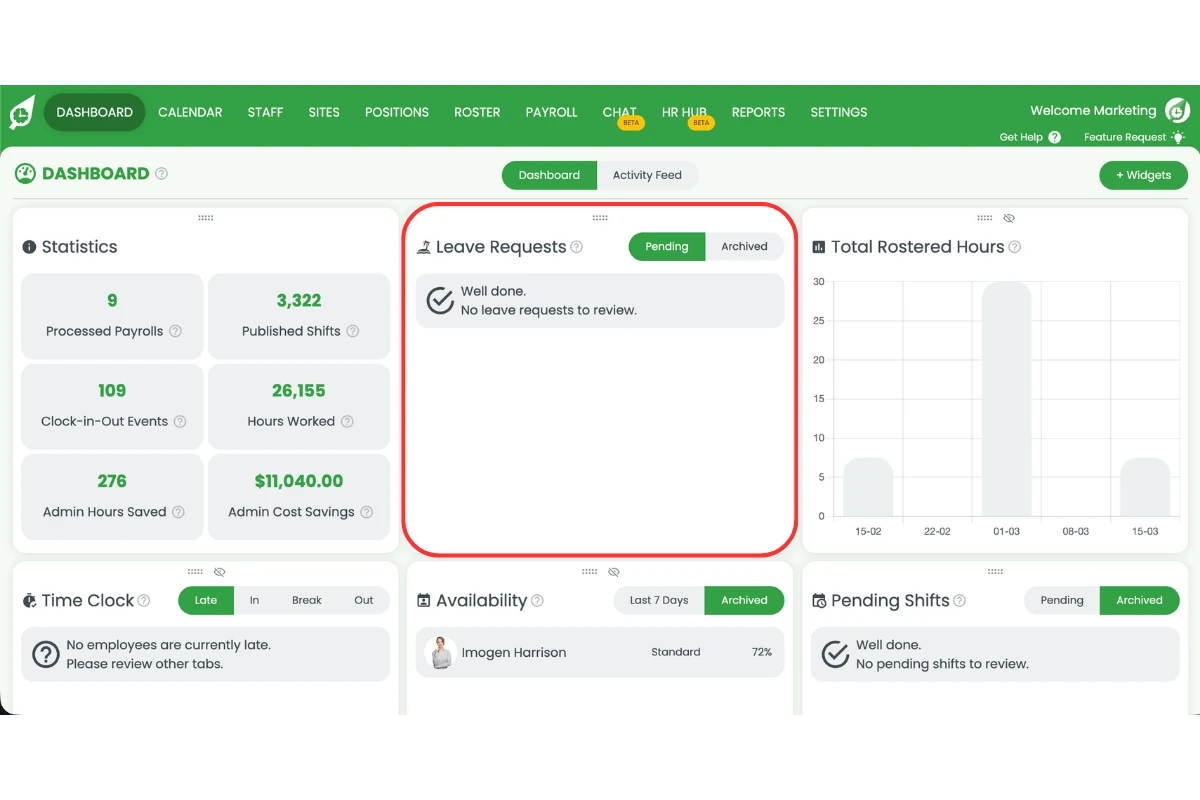
1.1.2 Locate the leave widget.
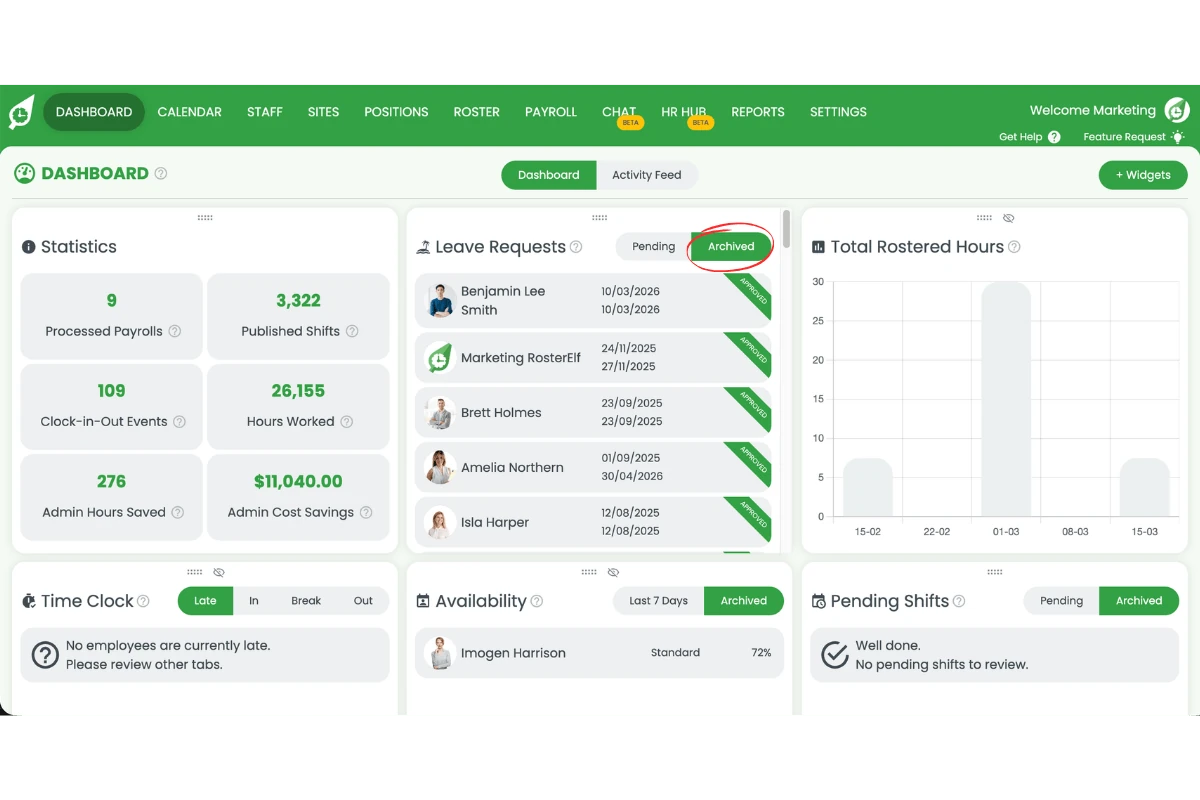
1.1.3 Select the Archived tab.
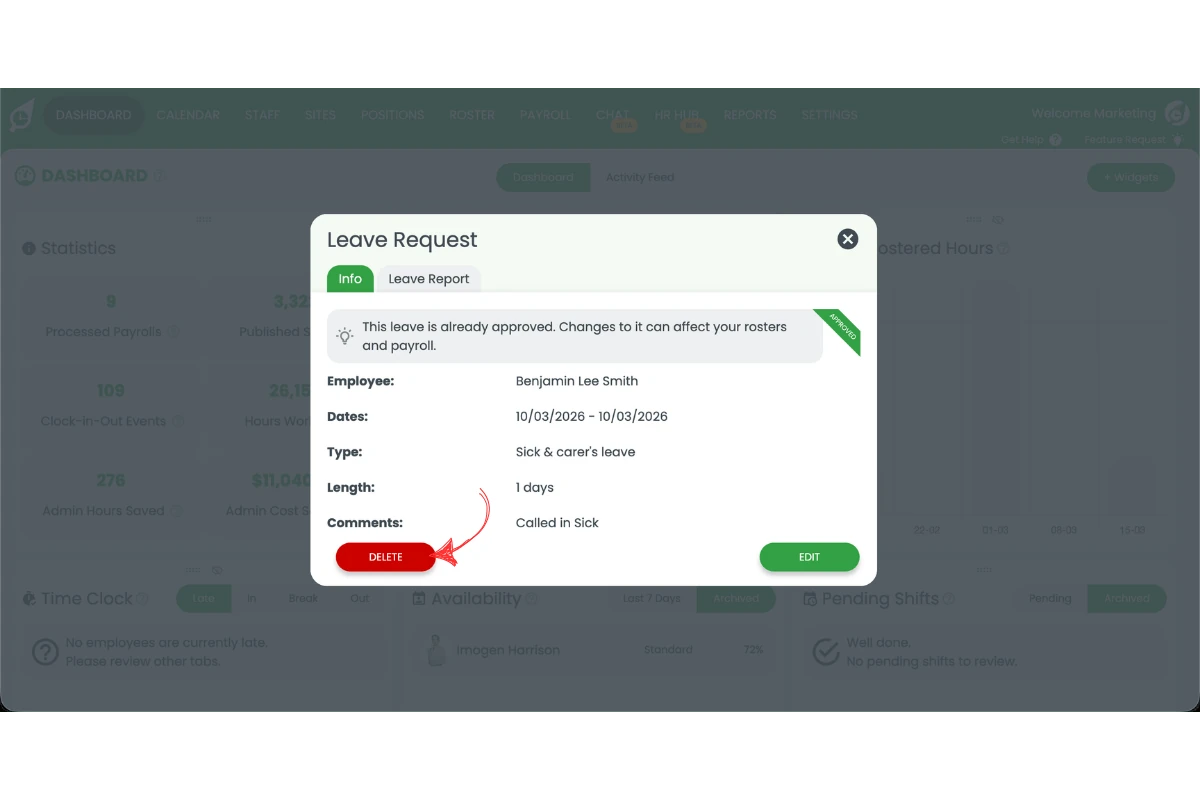
1.1.4 Find the sick leave request you want to undo.
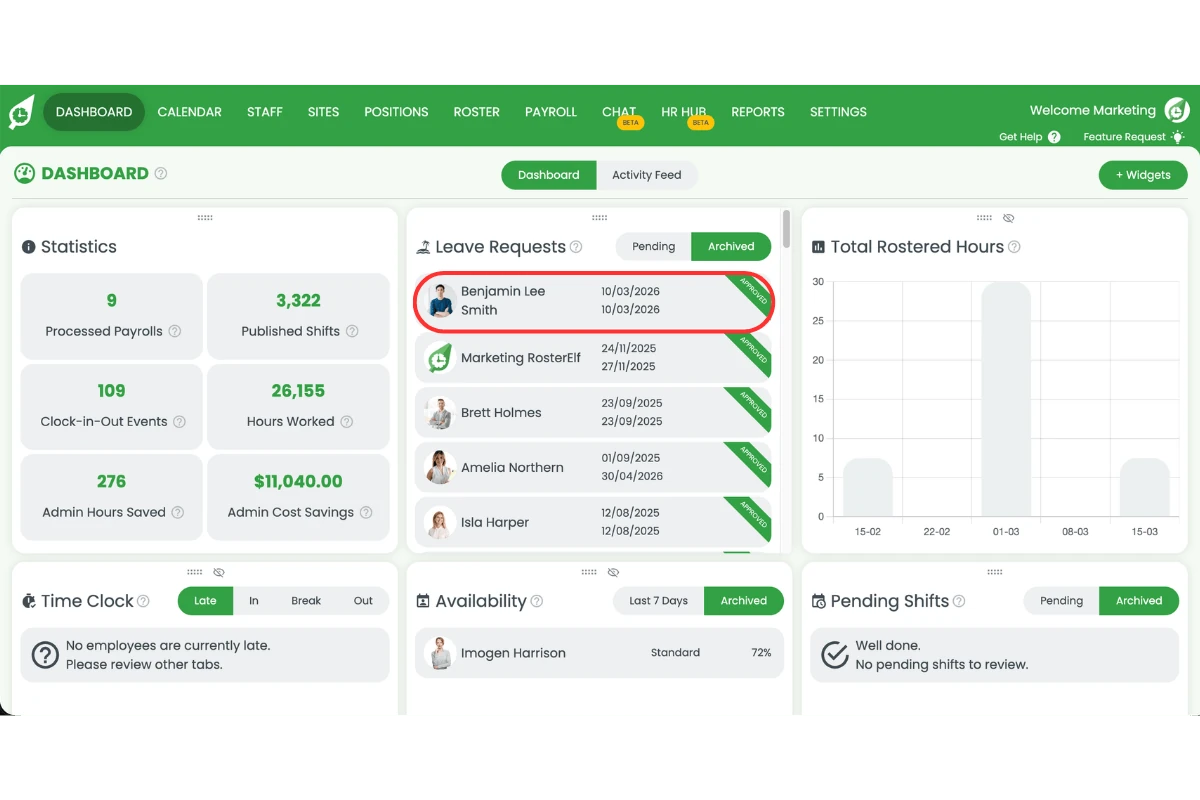
1.1.5 Click Delete to remove the sick leave request.
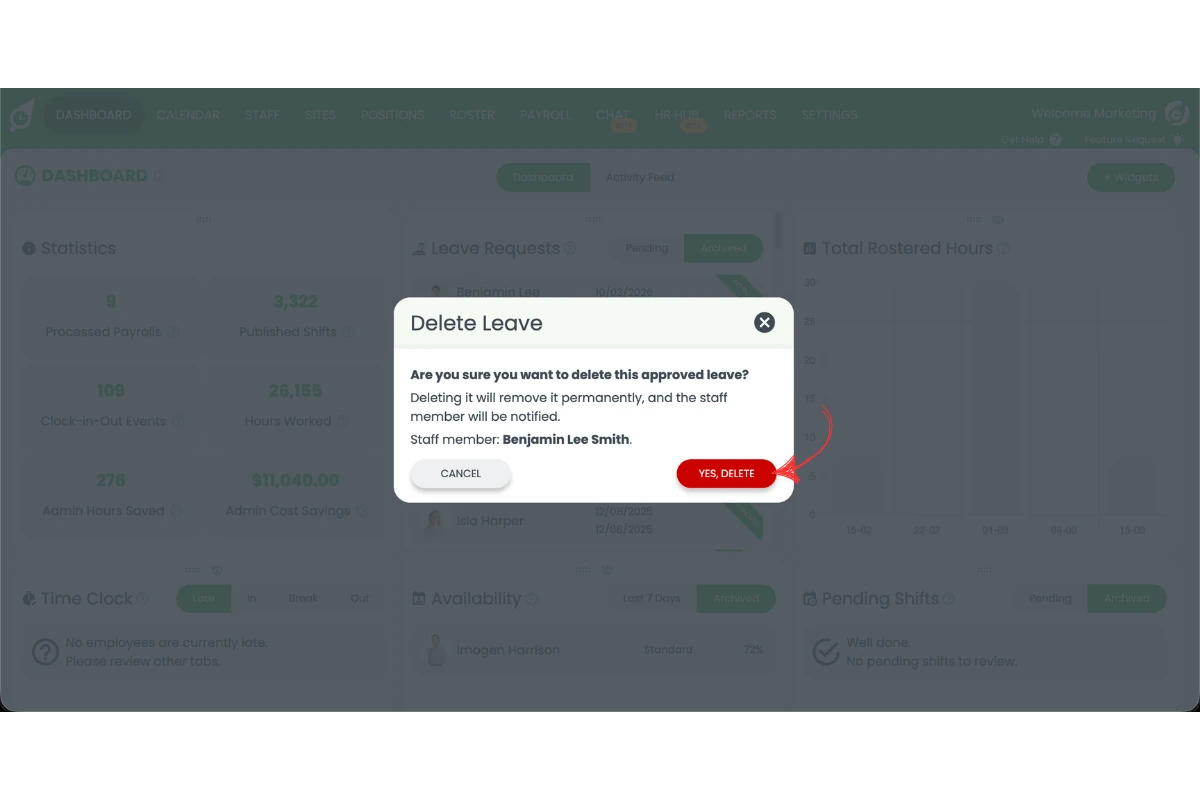
1.1.6 Confirm by pressing Yes, Delete.
Frequently asked questions
1. How do I undo sick leave in RosterElf?
You can undo sick leave in RosterElf by deleting the leave request from the archived leave records. Open the dashboard, locate the leave widget, select the Archived tab, find the sick leave request, and click Delete.
2. Where can I find archived sick leave requests in RosterElf?
Archived sick leave requests are stored in the Archived tab inside the leave widget on the dashboard. Once a leave request has been processed, it moves to this section for record keeping.
3. Can I restore a sick leave request after deleting it in RosterElf?
No. When you delete a sick leave request from the archived tab, it is permanently removed. Make sure you are deleting the correct leave request before confirming the action.
4. Why would I need to undo sick leave in RosterElf?
You may need to undo sick leave if the request was submitted by mistake or if the employee’s situation changed. Removing the leave request helps keep staff leave balances and roster records accurate.
5. Does undoing sick leave affect leave balances?
No, if the leave has been exported to MYOB or Xero, you will need to adjust the request there.