

Direct message staff with RosterElf chat
Direct messaging in RosterElf helps you stay connected with your team. You can send quick, private messages to staff either on your desktop browser or in the mobile app. This feature makes communication simple and direct, without needing external apps or emails.
1. Direct message in browser (desktop)
You can use RosterElf chat on a desktop browser to send private messages when working from your computer.
1.1 start a direct message in browser
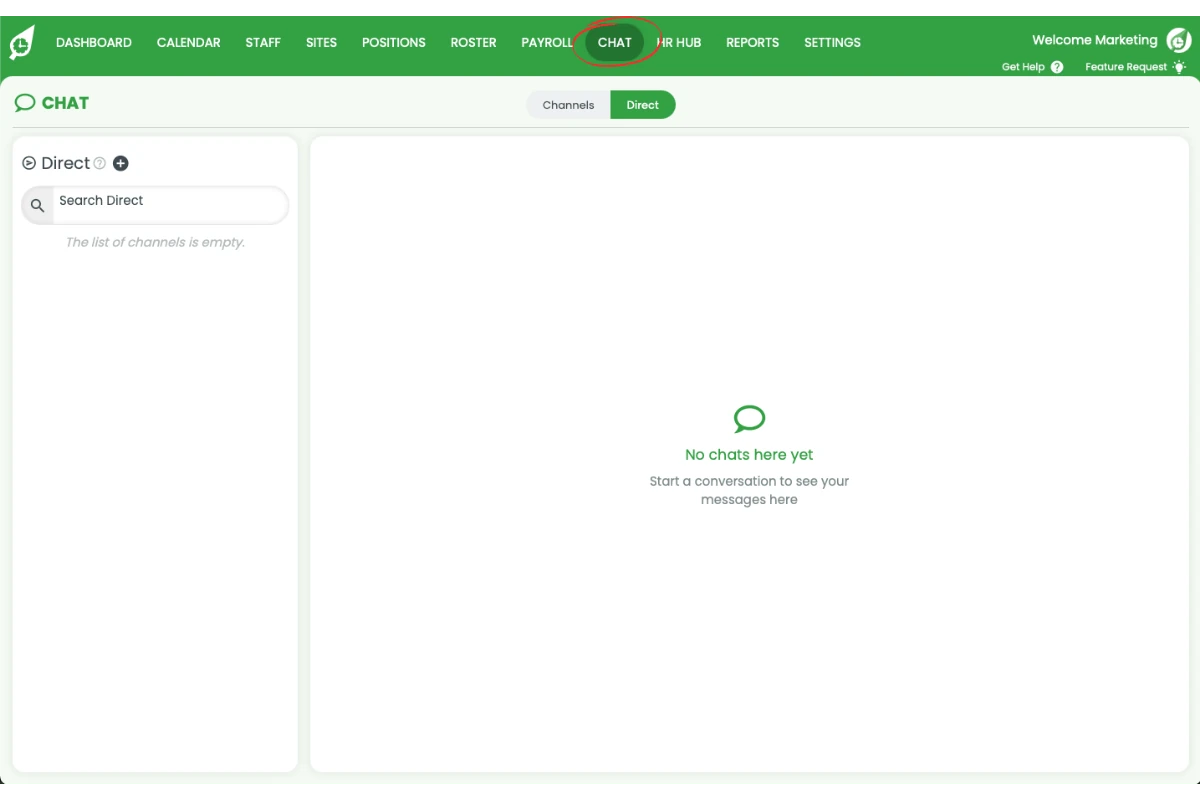
1.1.1 Click on Chat in the top menu.
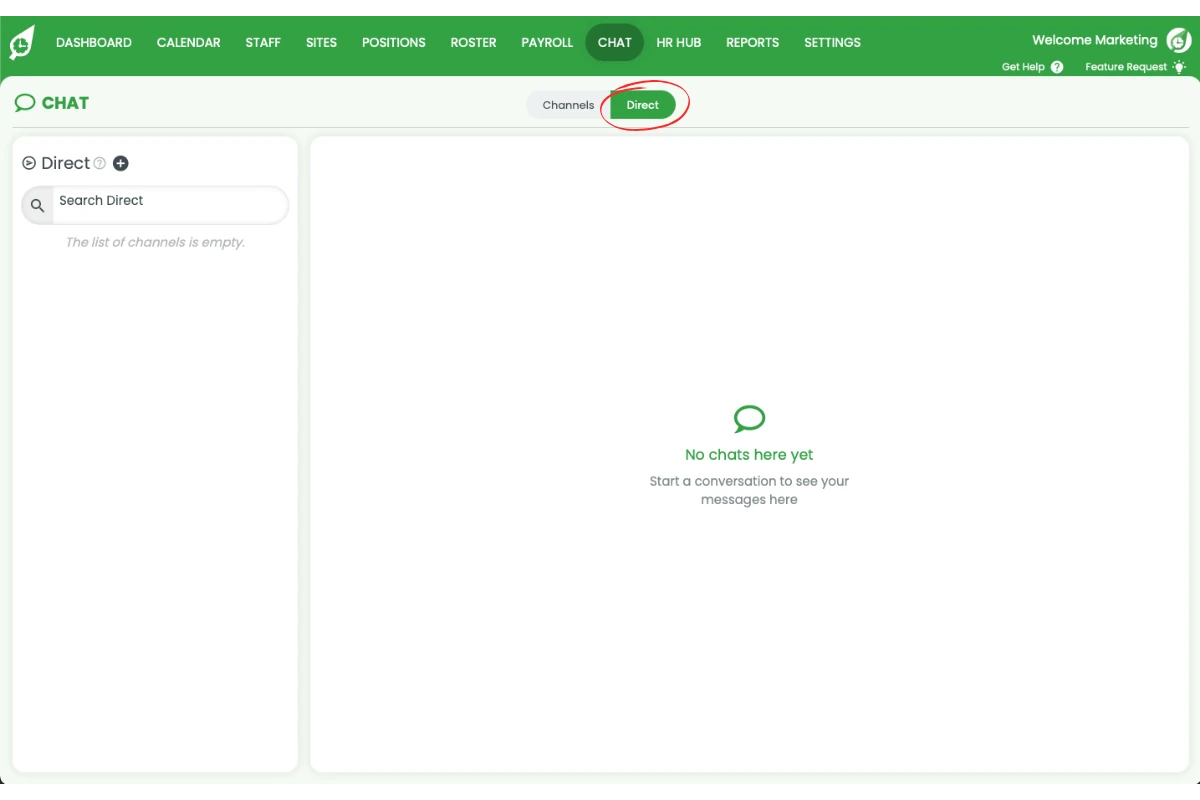
1.1.2 Click on Direct from the chat top menu.
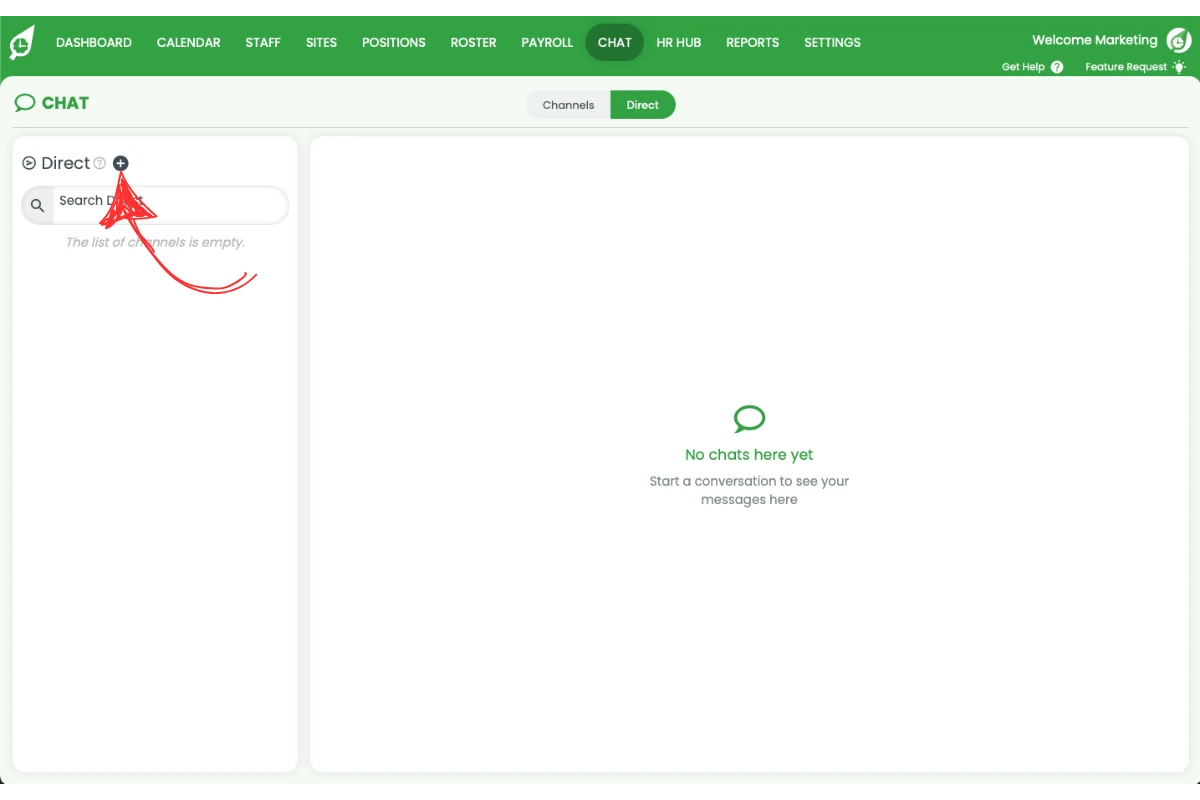
1.1.3 Click on the + symbol on the top left.
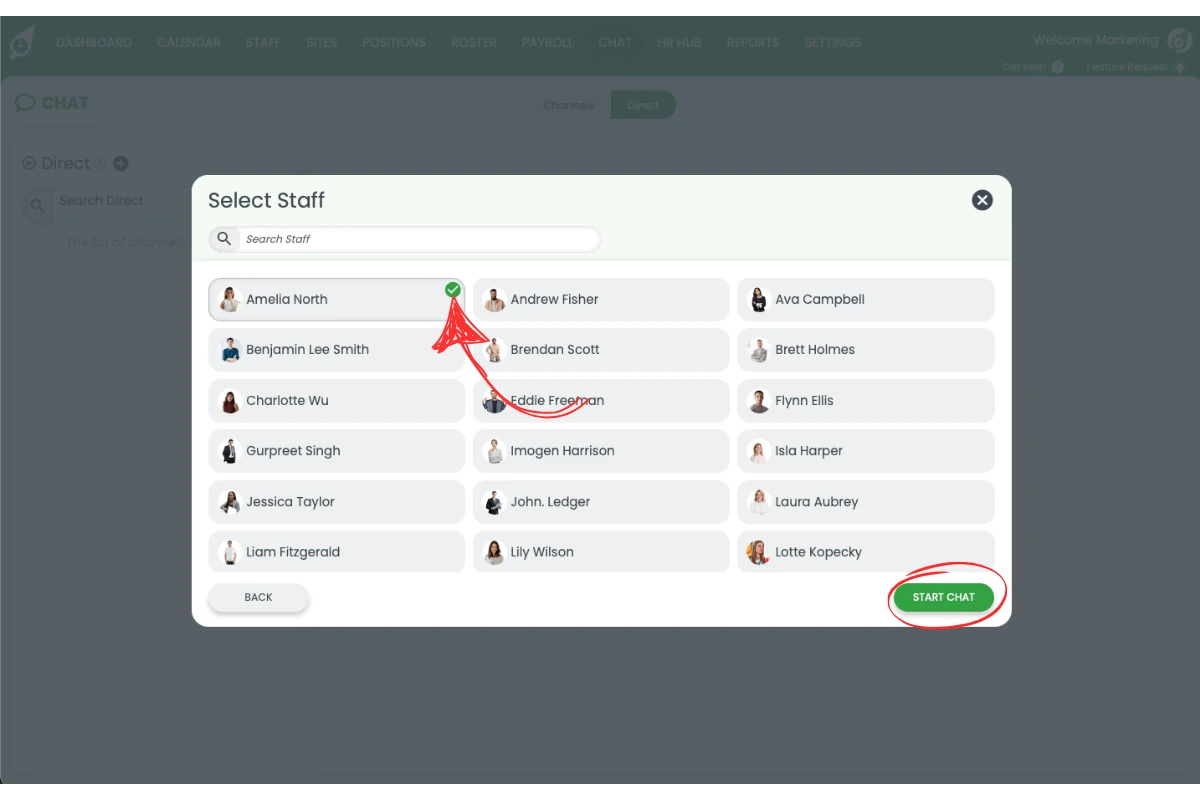
1.1.4 Select the staff member you want to message and click Start Chat.
1.1.5 Type your message and click the send arrow, or press Enter.
1.2 delete a direct chat in browser
1.2.1 Hover over the chat in the left menu.
1.2.2 Click the x icon (delete).
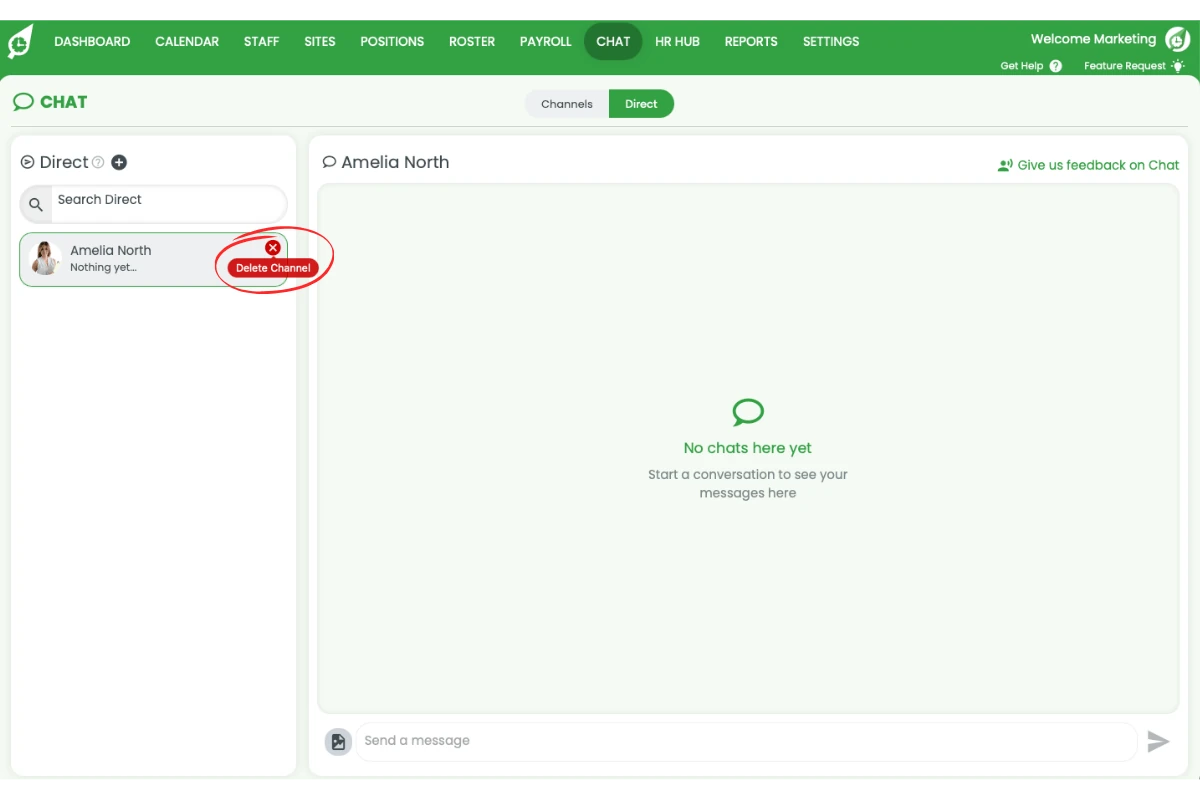
1.2.3 Confirm deletion.
2. Direct message in mobile app
The mobile app lets you direct message staff while on the go.
2.1 start a direct message in mobile app
2.1.1 Tap on Chat in the bottom menu.

2.1.2 Tap on Direct from the chat top menu.

2.1.3 Tap on the + symbol on the top right.

2.1.4 Select the staff member you want to message.

2.1.5 Type your message and tap Send.
2.2 delete a direct chat in mobile app
2.2.1 Tap the Delete icon in the top right.
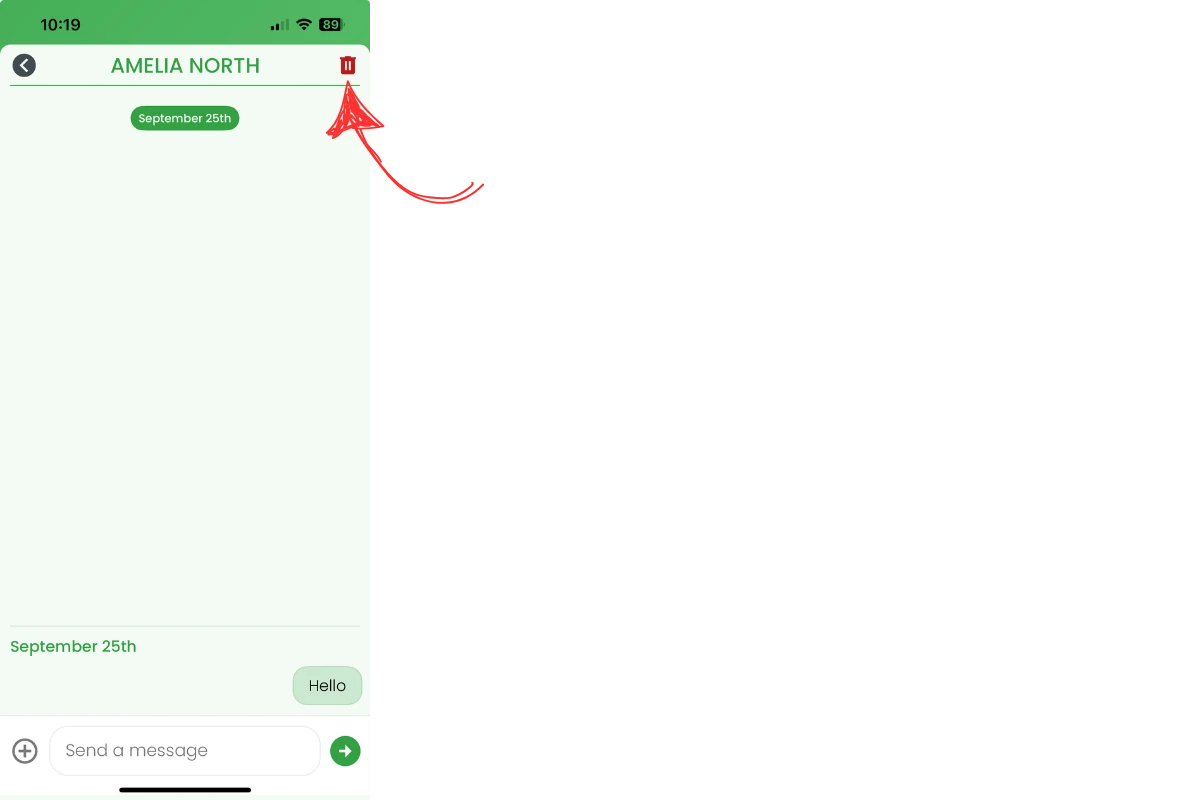
2.2.2 Confirm deletion.
Note
Direct messaging keeps your team communication clear, private, and efficient without needing external apps.
Frequently asked questions
1. How do I send a direct message in RosterElf chat on desktop?
Click on Chat in the top menu, select Direct, then click the + symbol. Choose the staff member you want to message, type your message, and click the send arrow (or press Enter).
2. How do I delete a direct message chat in RosterElf on desktop?
Hover over the chat in the left menu, click the x icon, then confirm deletion to remove the chat.
3. How do I send a direct message in RosterElf chat on mobile?
Tap Chat in the bottom menu, select Direct, then tap the + symbol. Choose the staff member, type your message, and tap Send.
4. How do I delete a direct message chat in RosterElf on mobile?
Tap the Edit icon in the top right, select the Delete icon, and confirm deletion.
5. Can I use RosterElf chat for private staff communication?
Yes, RosterElf chat allows you to send private direct messages to staff members. This makes it easy to share information quickly and keep conversations separate from group chats.