

How to download chat files, images and videos
This article explains how to download images, files, and videos shared in RosterElf chat channels. Chat attachments make it easy for managers and employees to share important documents, photos, and videos within their team.
Downloading chat attachments lets staff save important content directly to their device for future reference. This is useful when viewing policies, training materials, site photos, or operational videos outside the app. The process differs slightly between Apple and Android devices, particularly when saving videos and documents.
This guide explains how to access a chat channel and download attachments on Apple devices, Android devices, and the web browser. You will learn how to save images, documents, and videos so they can be accessed from your device whenever needed.
1. Download chat attachments on Apple devices
This section explains how to download images, files, and videos from a chat channel on an Apple device. Once you open the relevant channel, you can select the attachment and follow the steps for the file type you want to save.
Safari required for files and videos
On Apple devices, downloading videos and files from RosterElf chat requires Safari to be set as your default browser. If another browser is set as the default, the download option may not appear. Images can still be downloaded normally.
1.1 Open the chat channel
1.1.1 Open the RosterElf smartphone app.
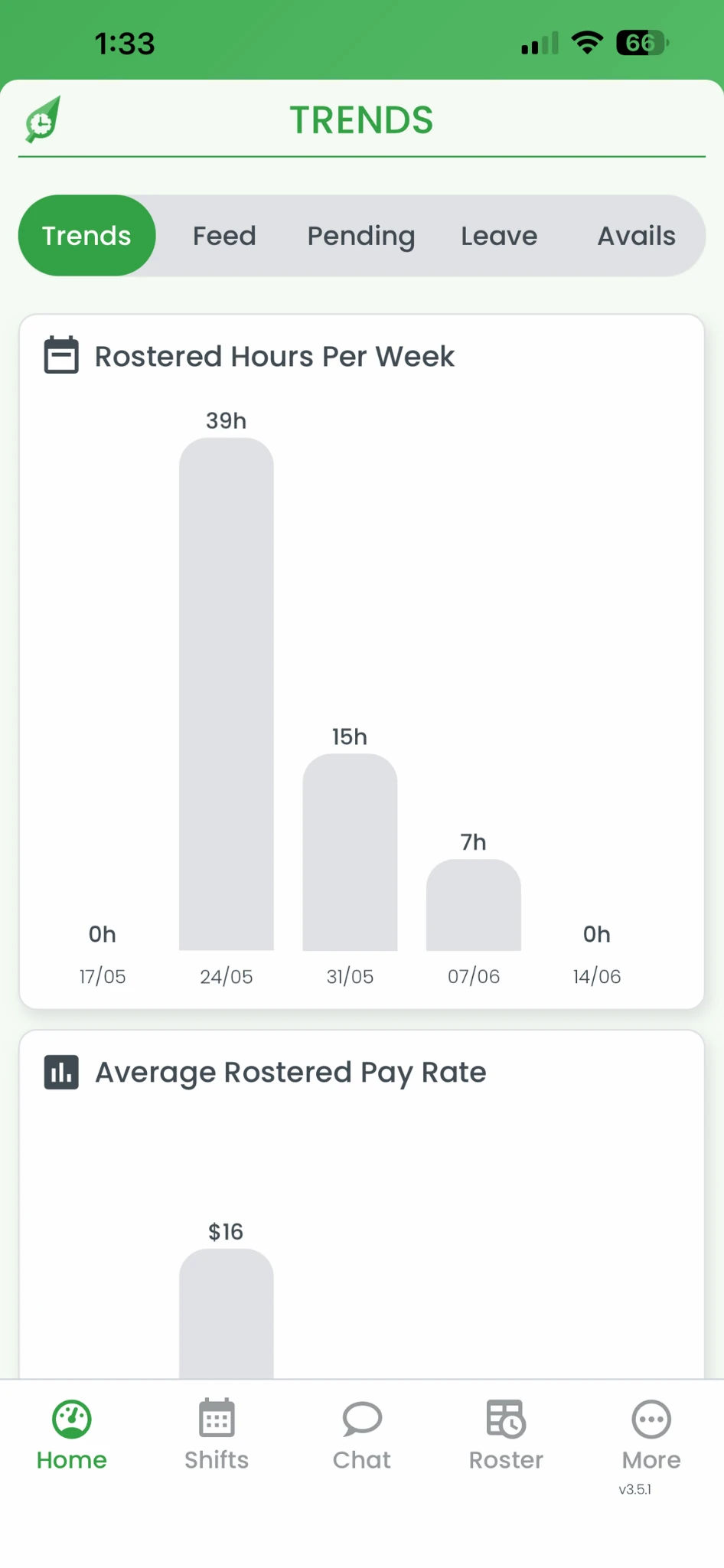
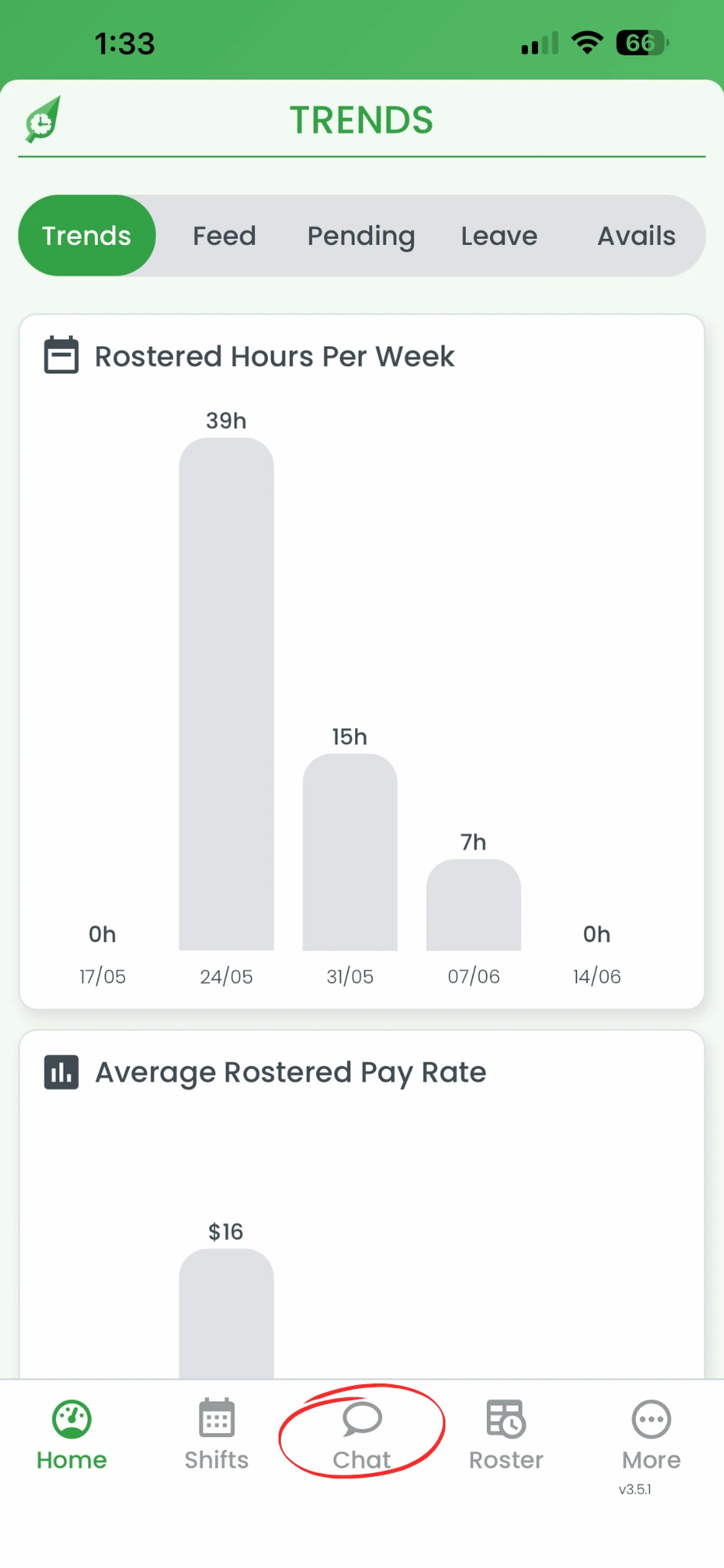
1.1.2 Tap Chat.
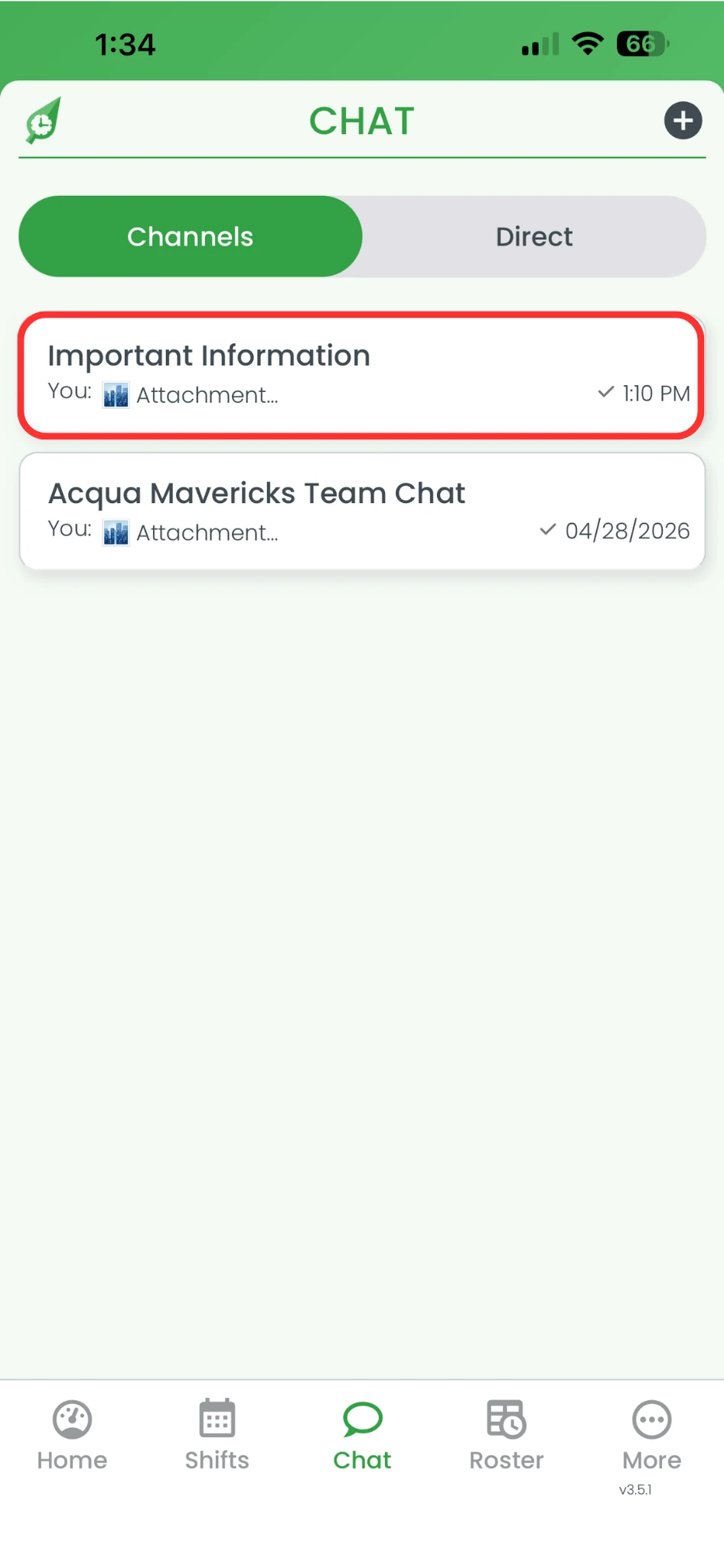
1.1.3 Select the required channel.
1.2 Download image attachments
Images shared in chat can be saved directly to your photo library. Tap the image in the channel and use the download option to save it to your device.
1.2.1 Tap the image.
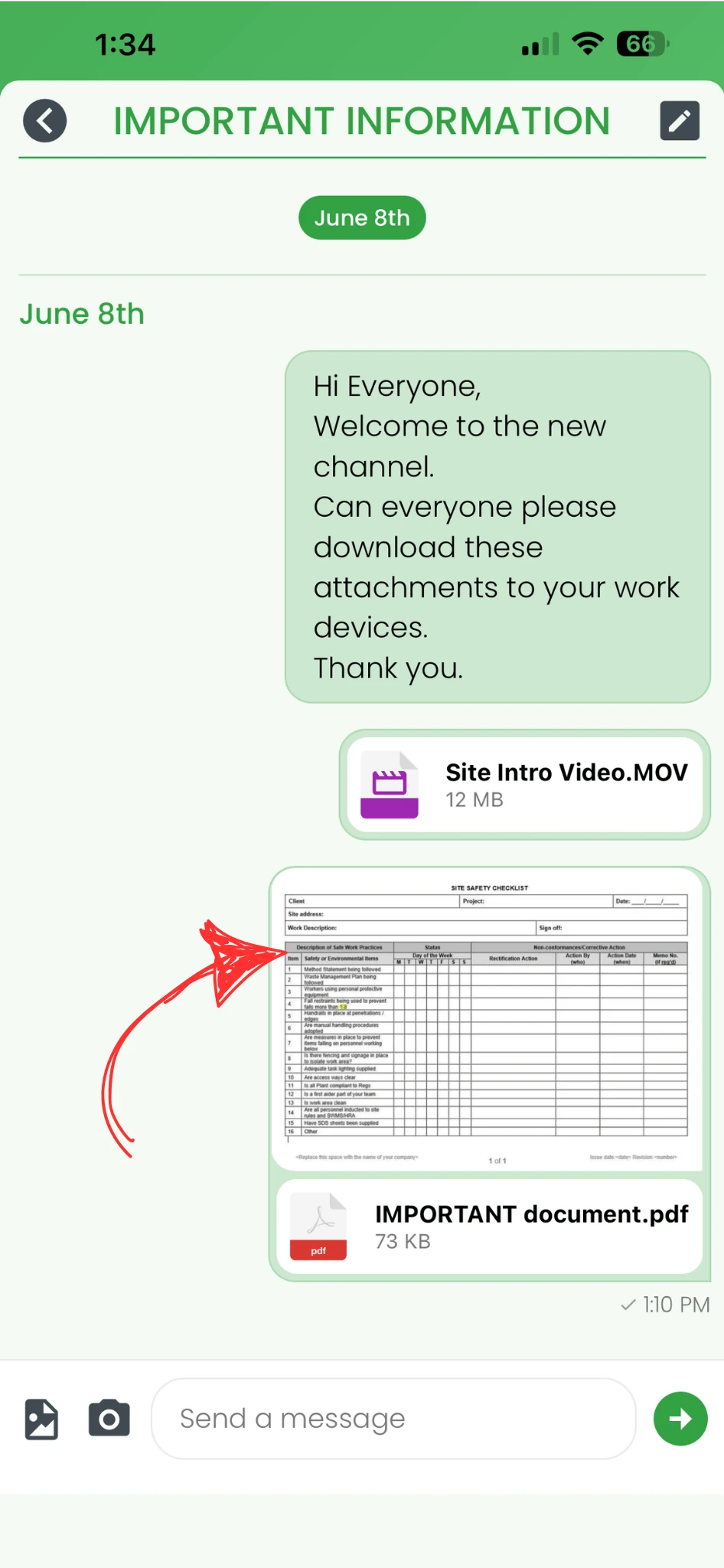
1.2.2 Tap Download.
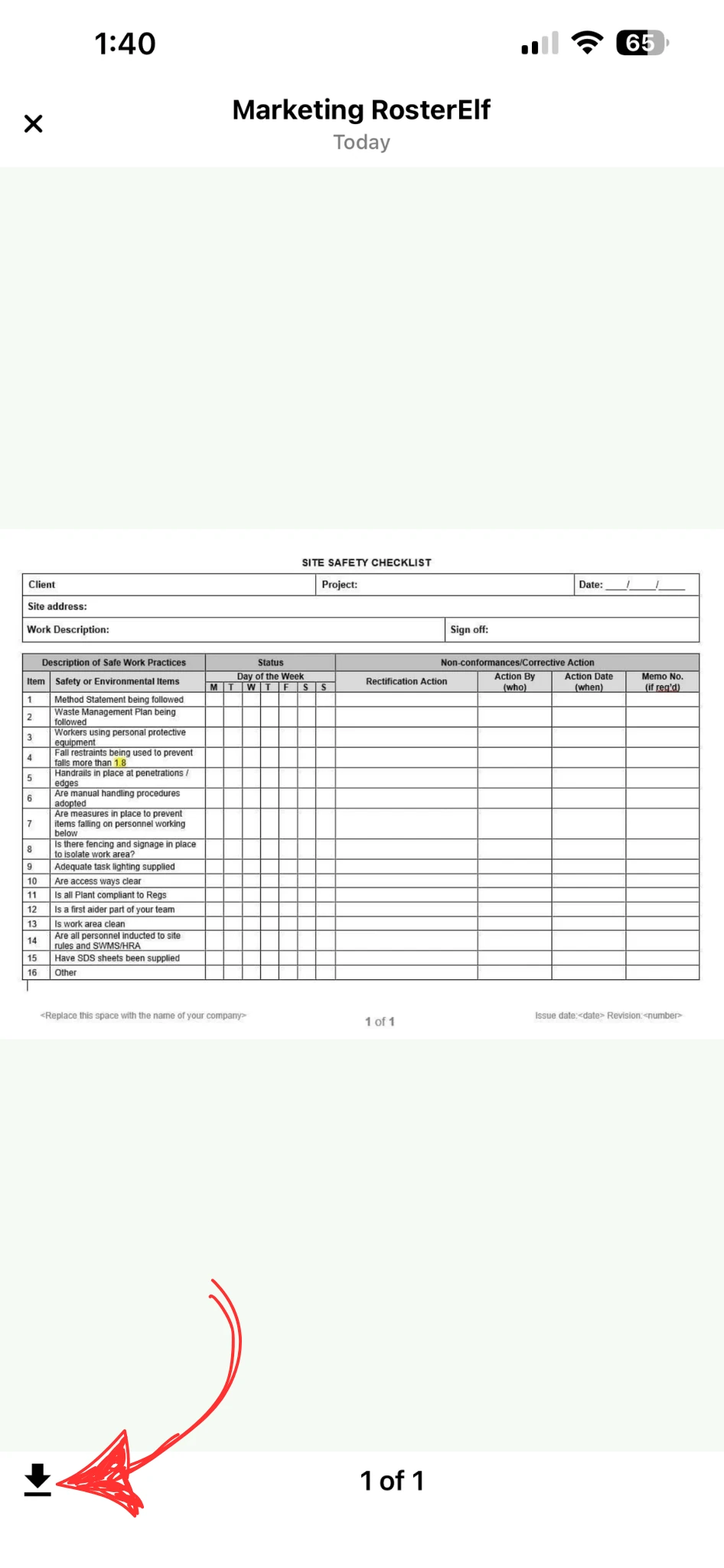
1.3 Download file attachments
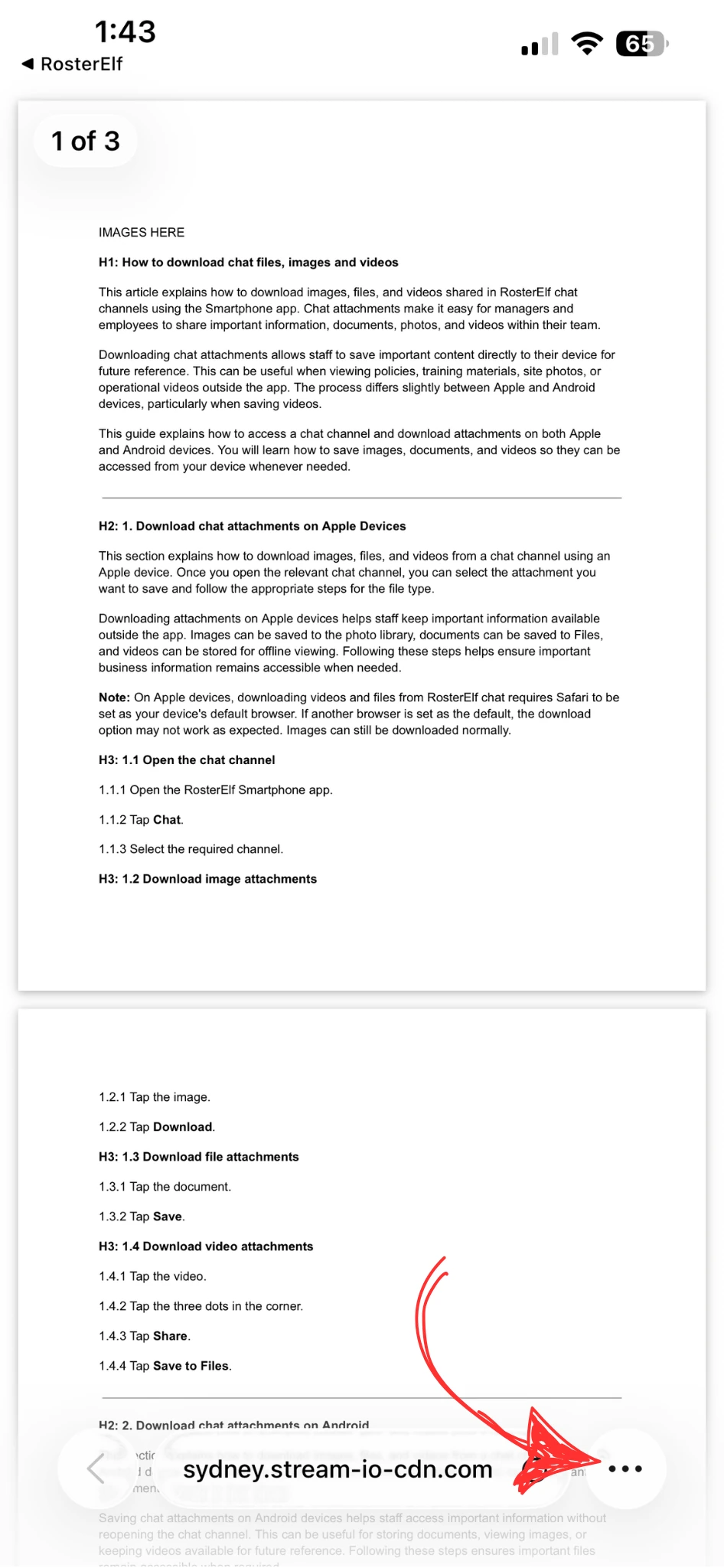
Documents shared in chat open in Safari when tapped. From there you can share the document to the Files app to save it to your device. Make sure Safari is set as your default browser before following these steps.
1.3.1 Tap the document. It will open in Safari.
1.3.2 Tap the … (More options) button in the browser bar.
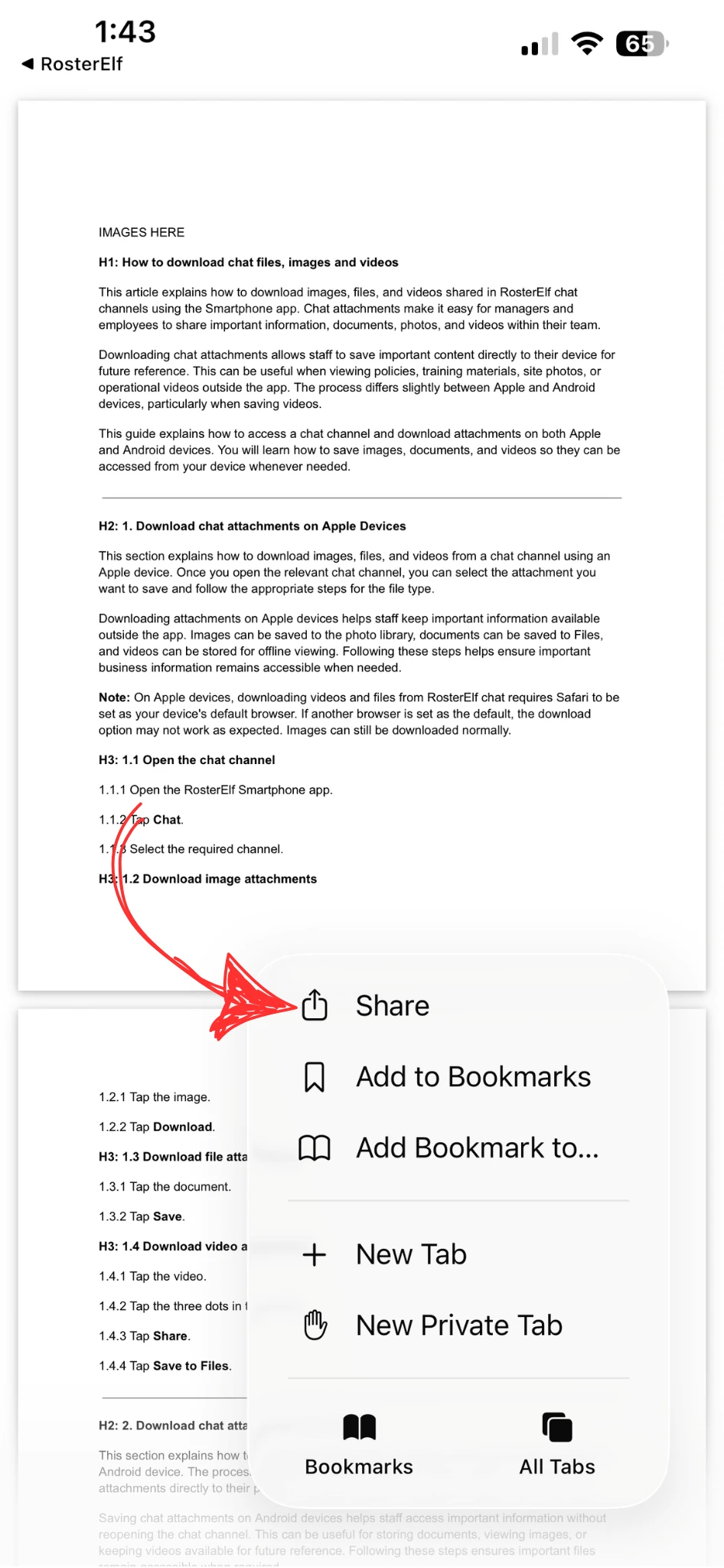
1.3.3 Tap Share.
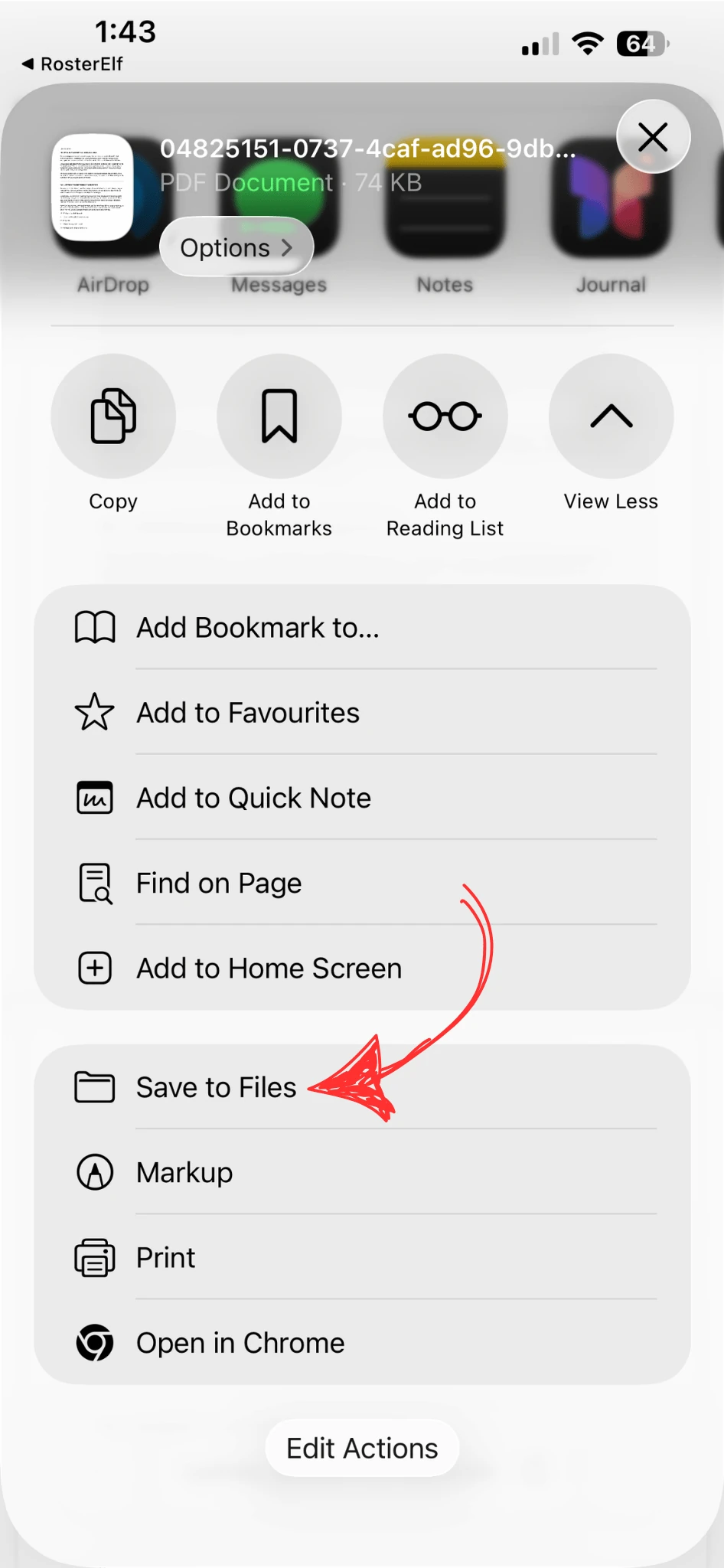
1.3.4 Tap Save to Files.
1.4 Download video attachments
Videos open in Safari when tapped. Use the player’s options menu to share the video to Files. Make sure Safari is set as your default browser before following these steps.
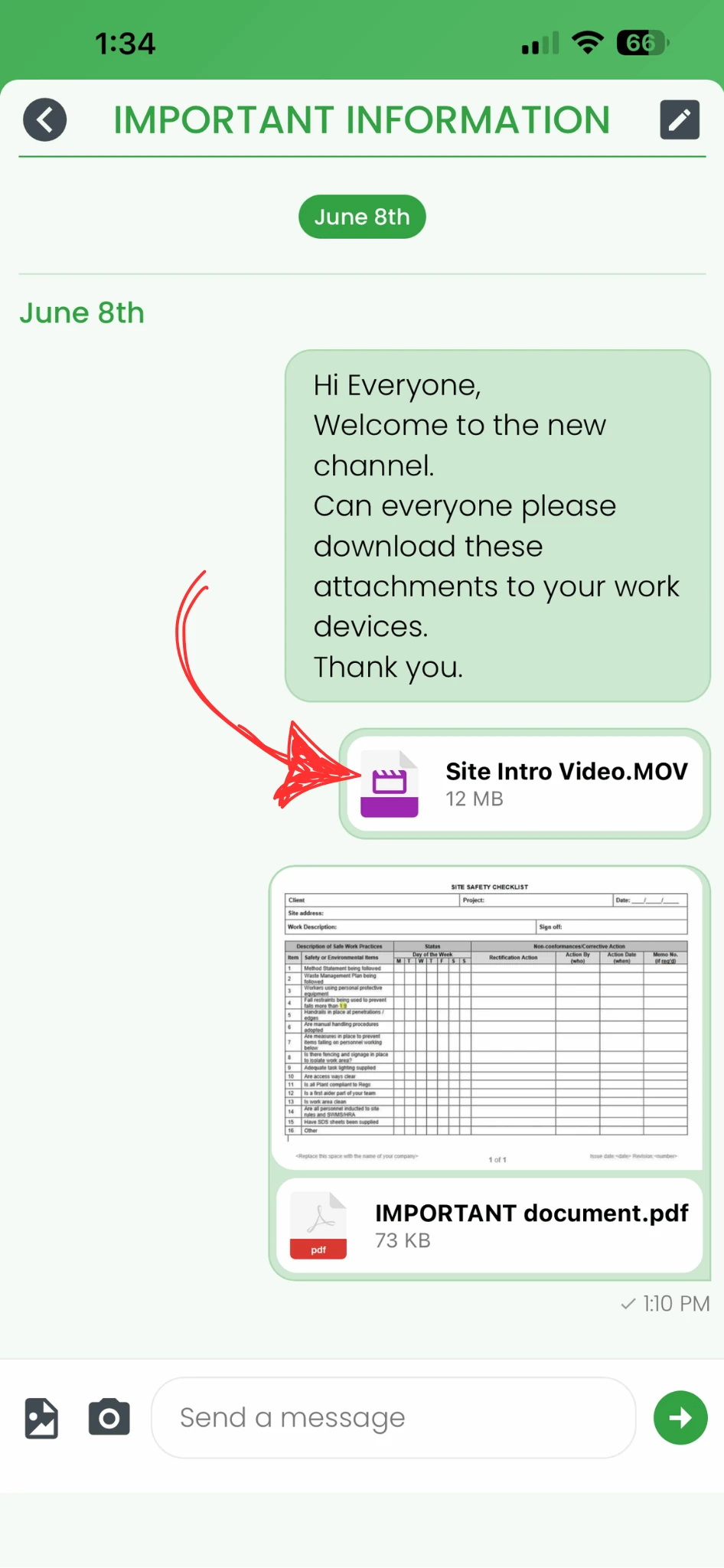
1.4.1 Tap the video.
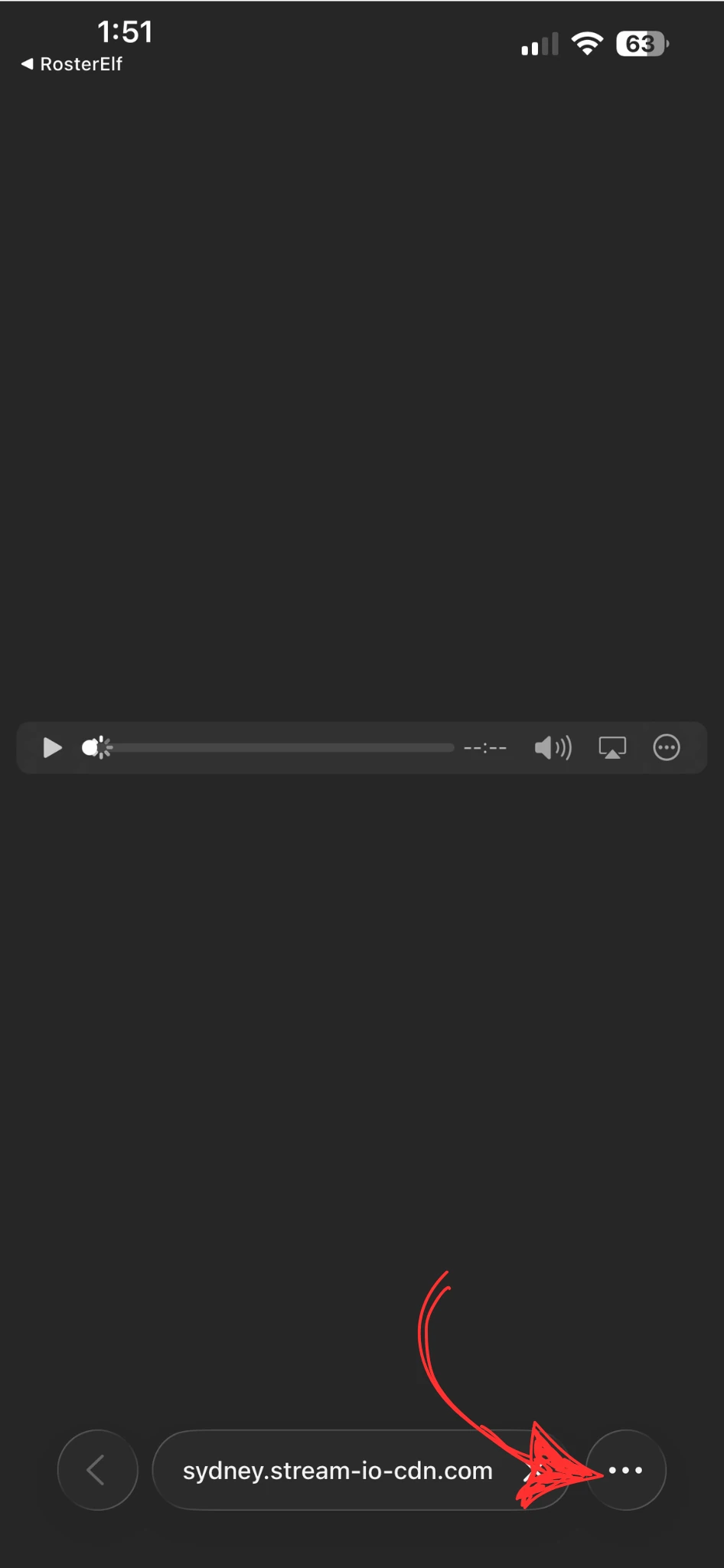
1.4.2 Tap the … (three dots) in the video player.
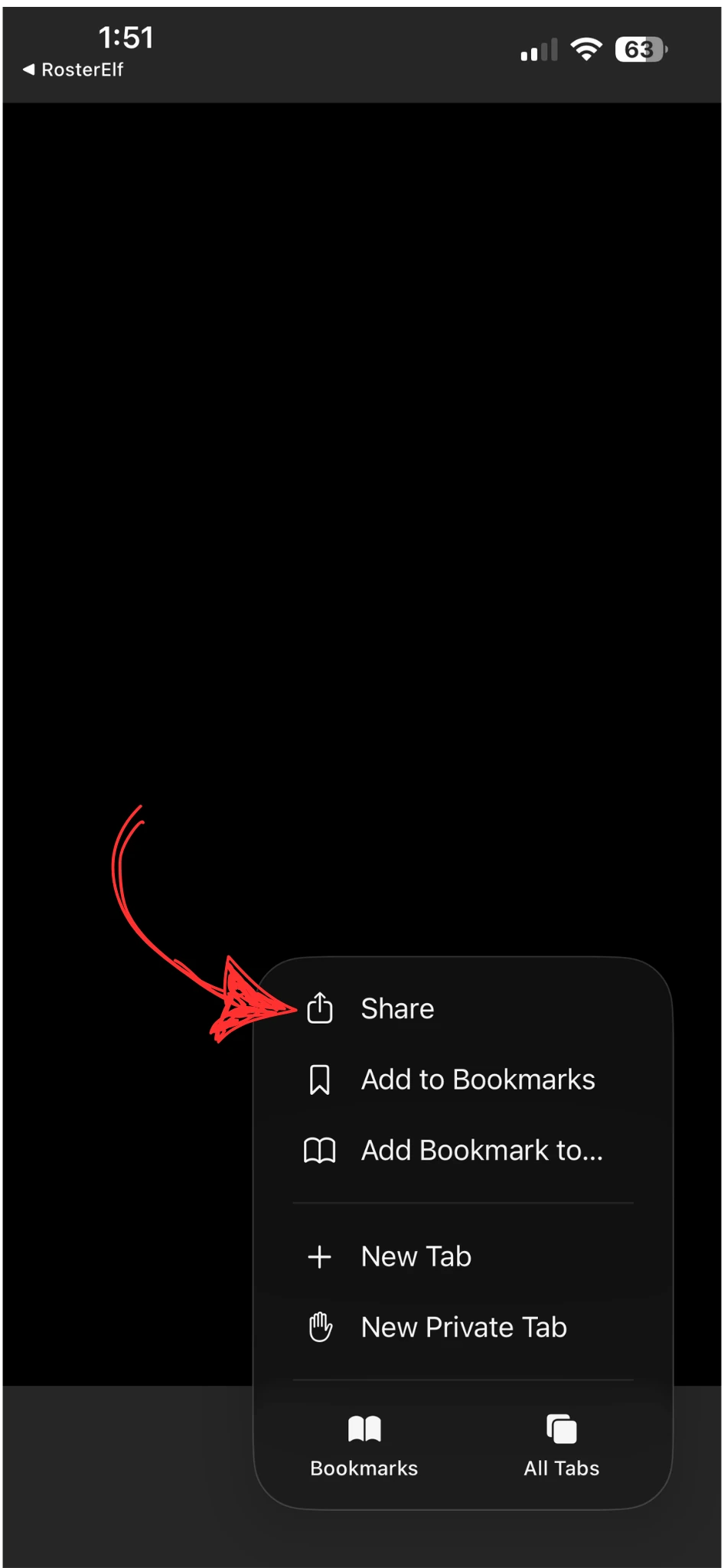
1.4.3 Tap Share.
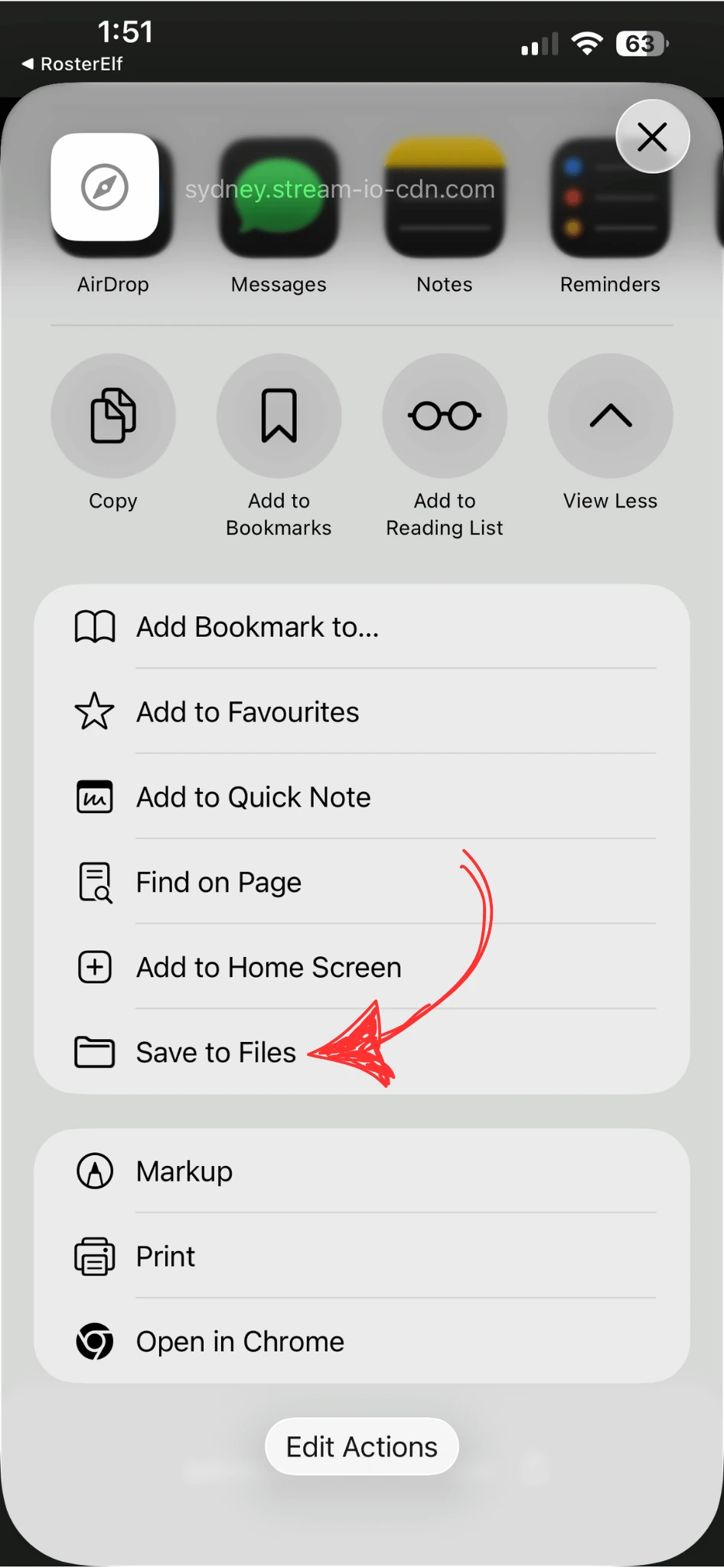
1.4.4 Tap Save to Files.
2. Download chat attachments on Android
This section explains how to download images, files, and videos from a chat channel on an Android device. The process for opening the chat channel is the same as on Apple devices. Downloading attachments on Android is generally simpler — tapping most file types starts the download automatically.
2.1 Open the chat channel
2.1.1 Open the RosterElf app.
2.1.2 Tap Chat.
2.1.3 Select the required channel.
2.2 Download image attachments
2.2.1 Tap the image.
2.2.2 Tap Download. The image will be saved to your device.
2.3 Download file attachments
2.3.1 Tap the document. The file will begin downloading to your device automatically.
2.4 Download video attachments
2.4.1 Tap the video. The video will begin downloading to your device automatically.
3. Download chat attachments in a web browser
This section explains how to download images, videos, and documents from chat channels using the RosterElf web browser application. Staff and managers can save shared attachments directly to their computer for future reference.
3.1 Open the chat channel
3.1.1 Open RosterElf in your web browser.
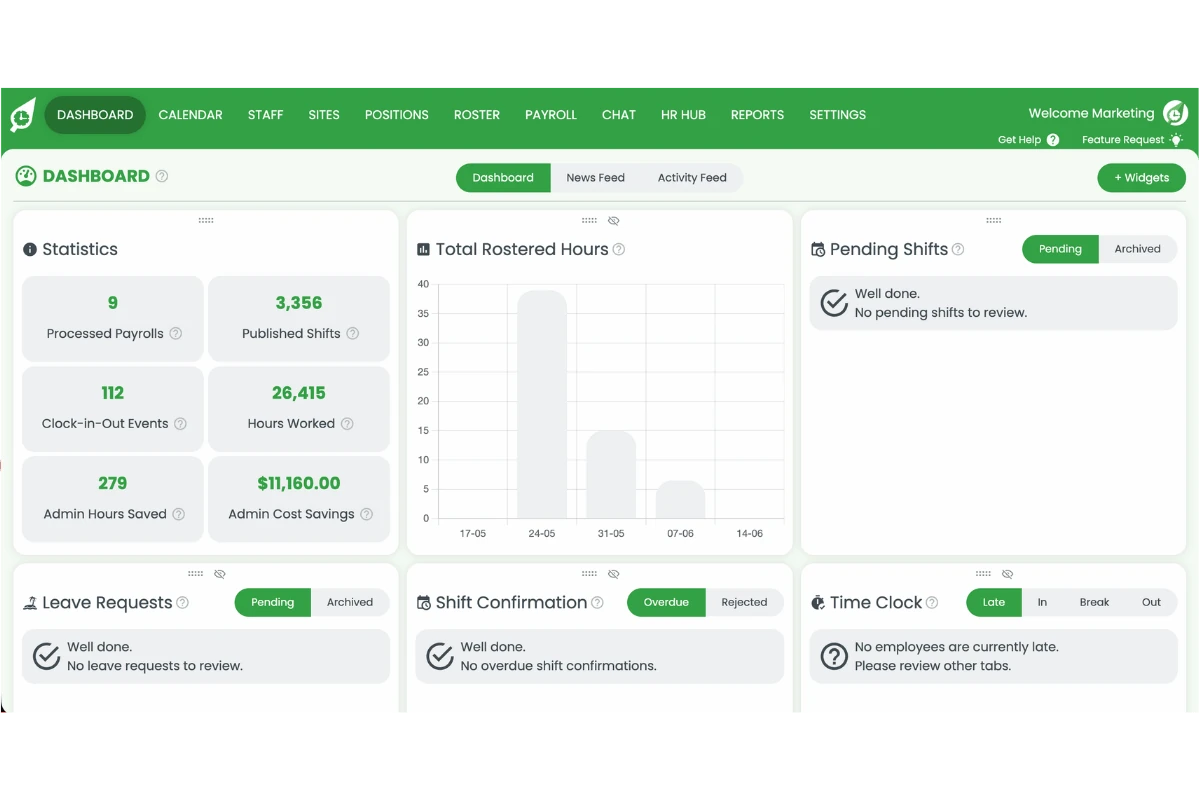
3.1.2 Click Chat in the top navigation.
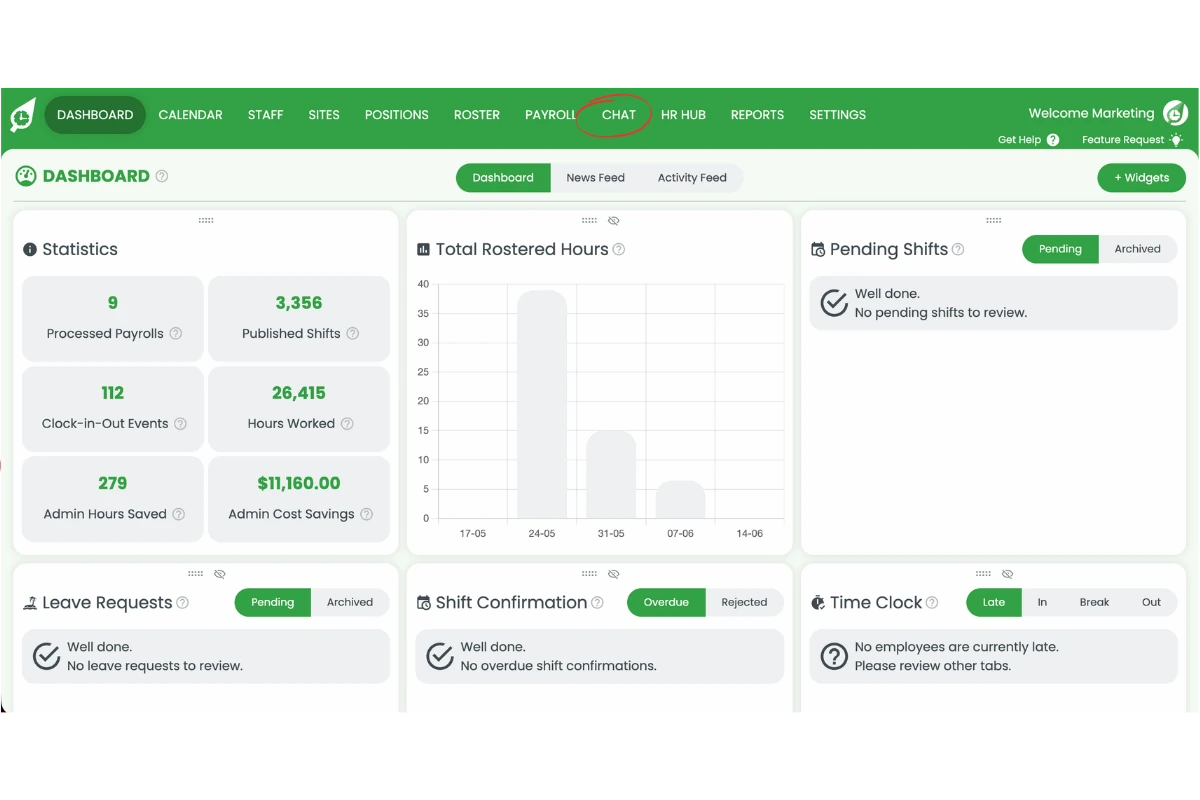
3.1.3 Select the required channel.
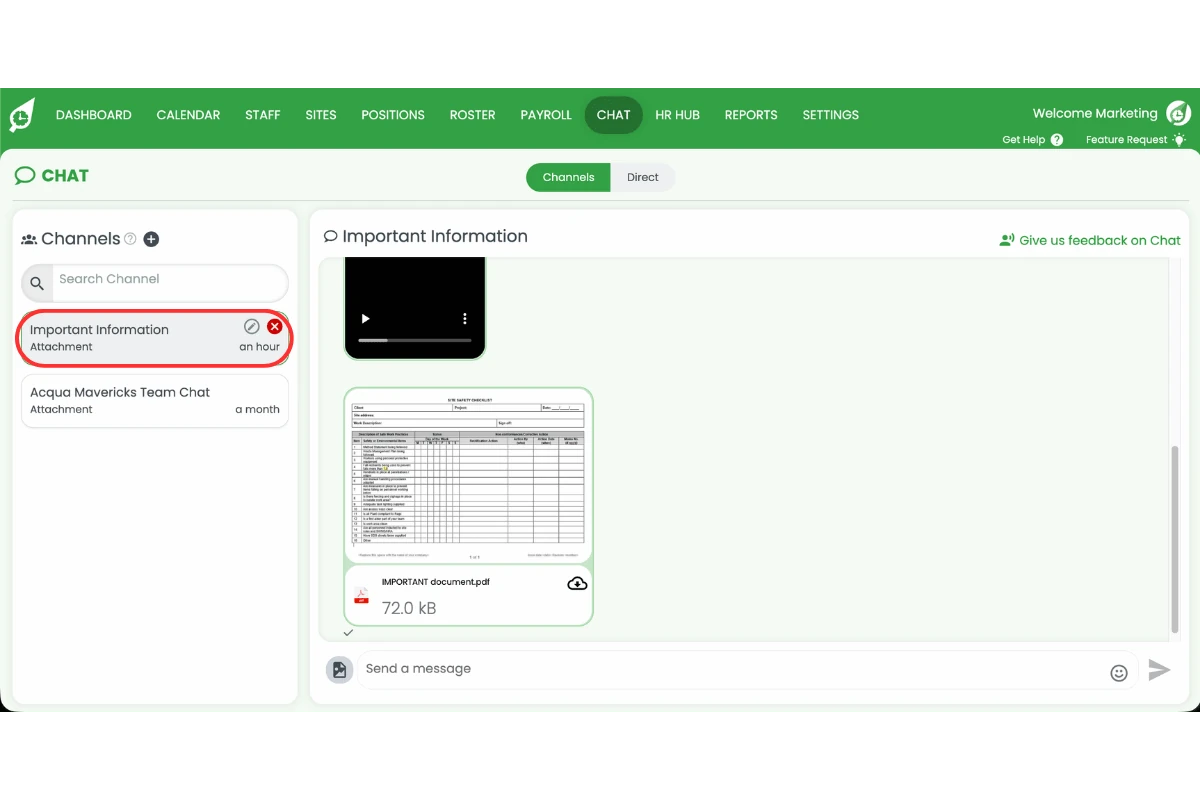
3.2 Download image attachments
Images can be saved directly from the chat window using your browser’s right-click menu.
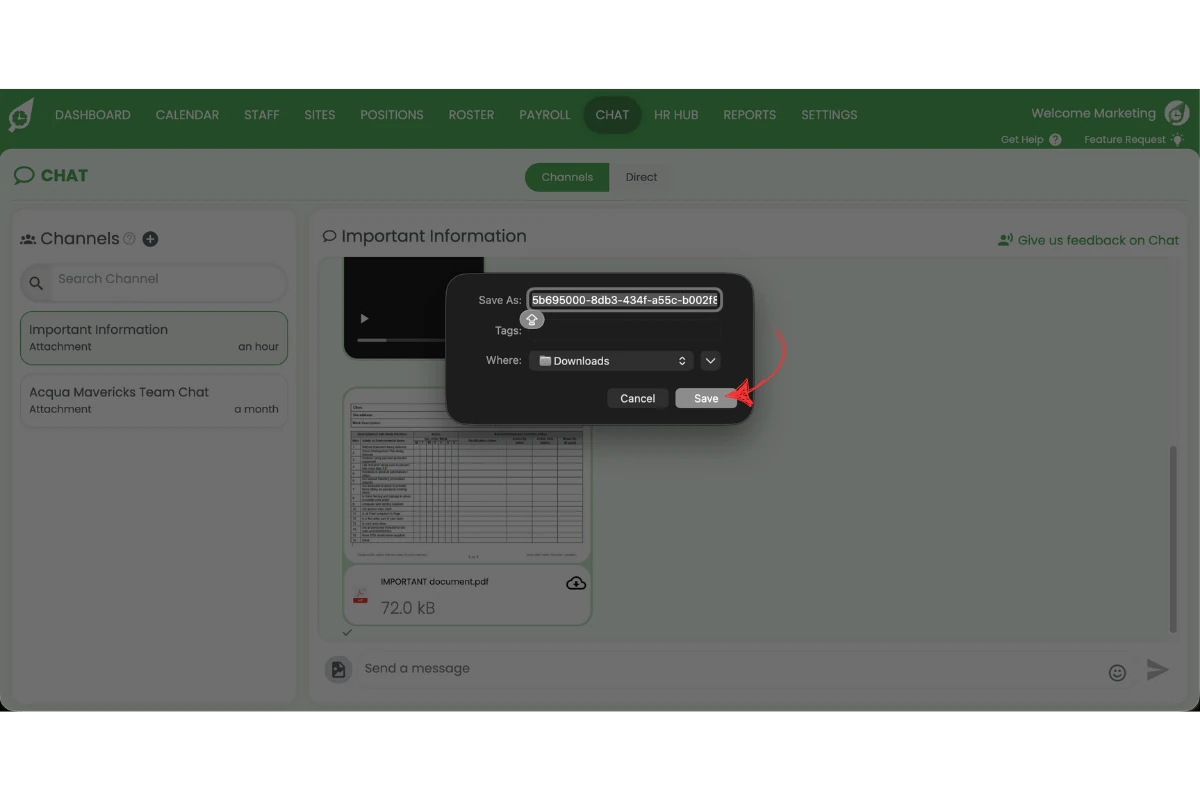
3.2.1 Right-click the image and select Save image as.
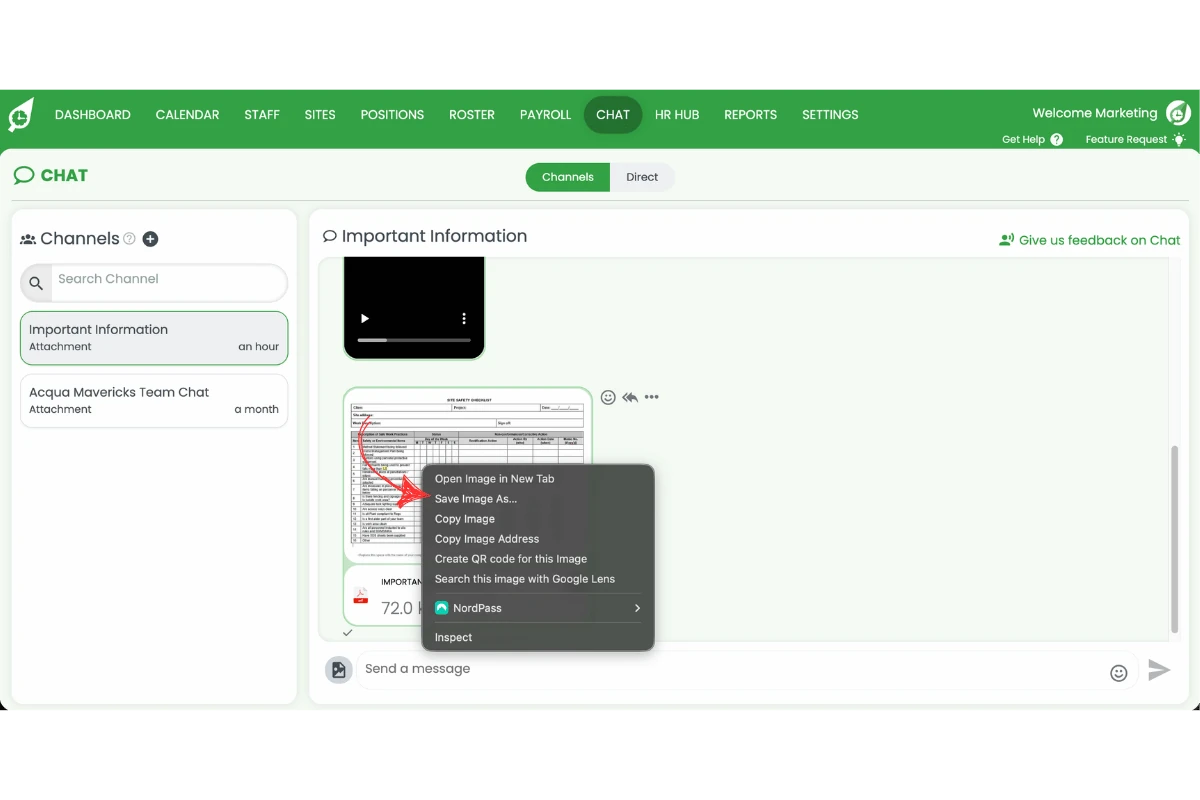
3.2.2 Select a save location and rename the file if needed.
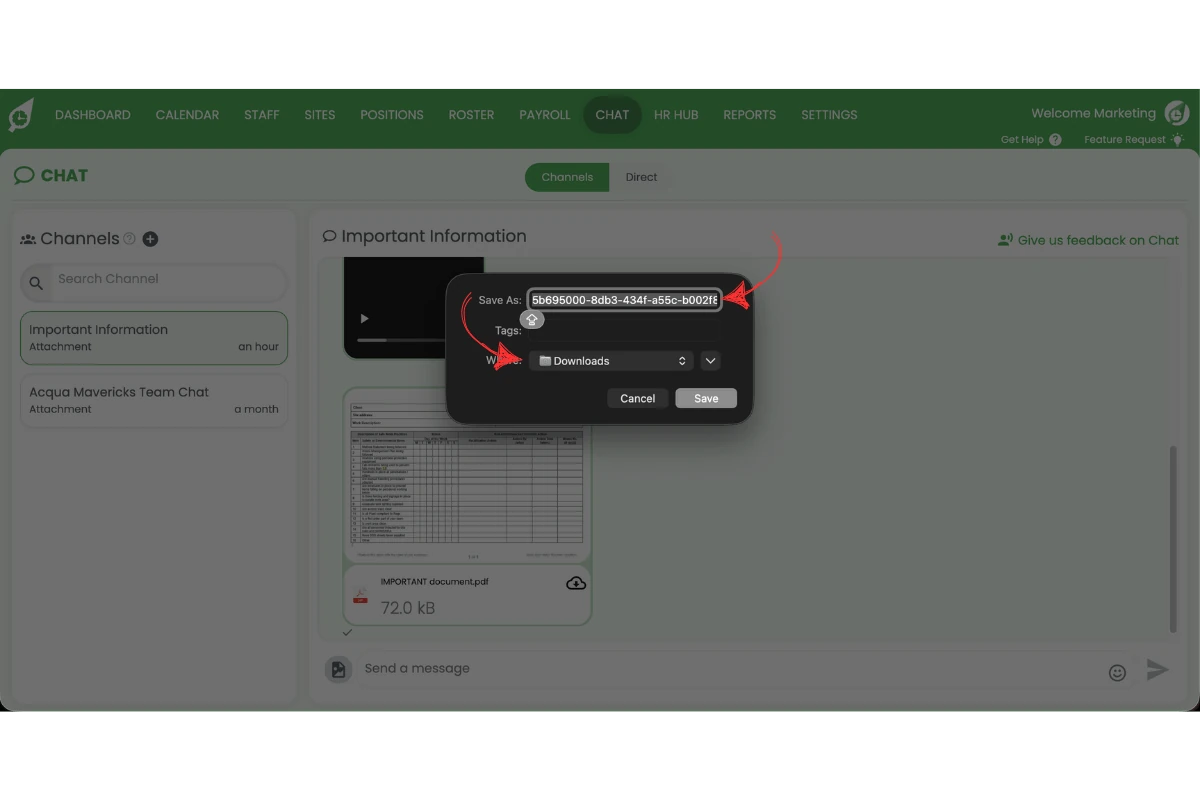
3.2.3 Click Save.
3.3 Download video attachments
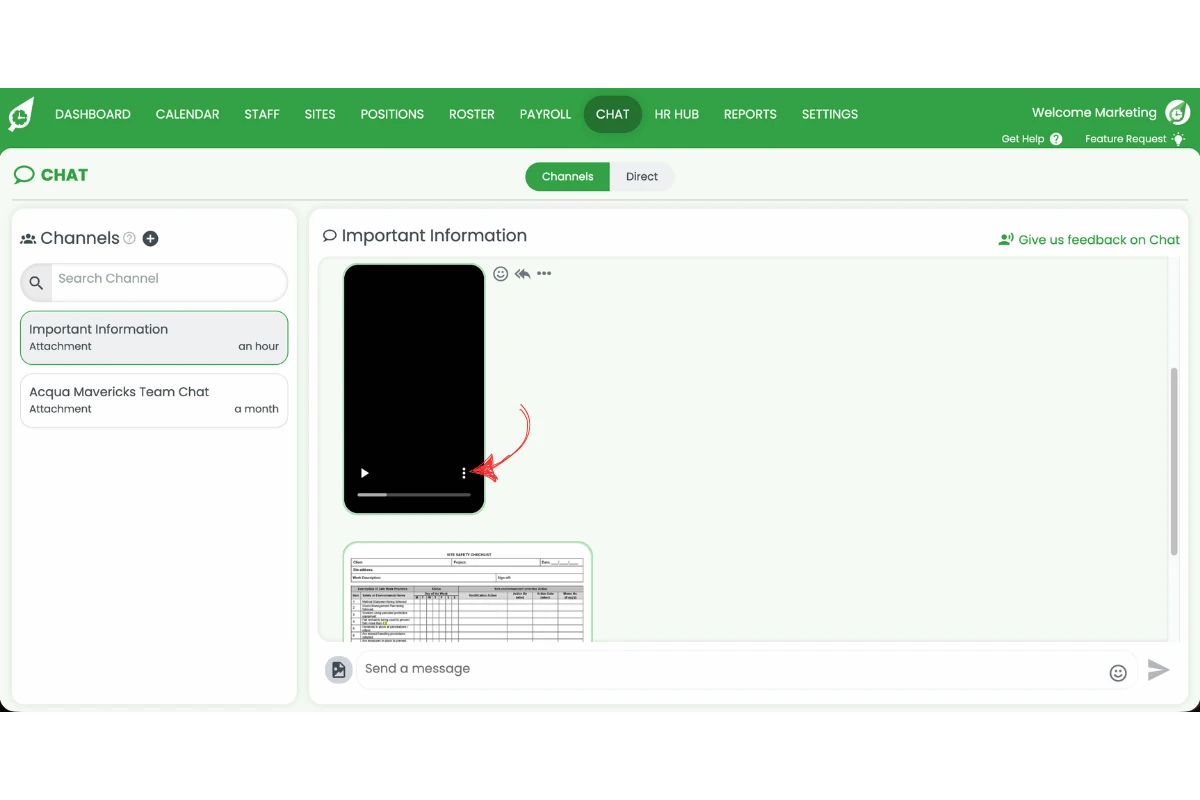
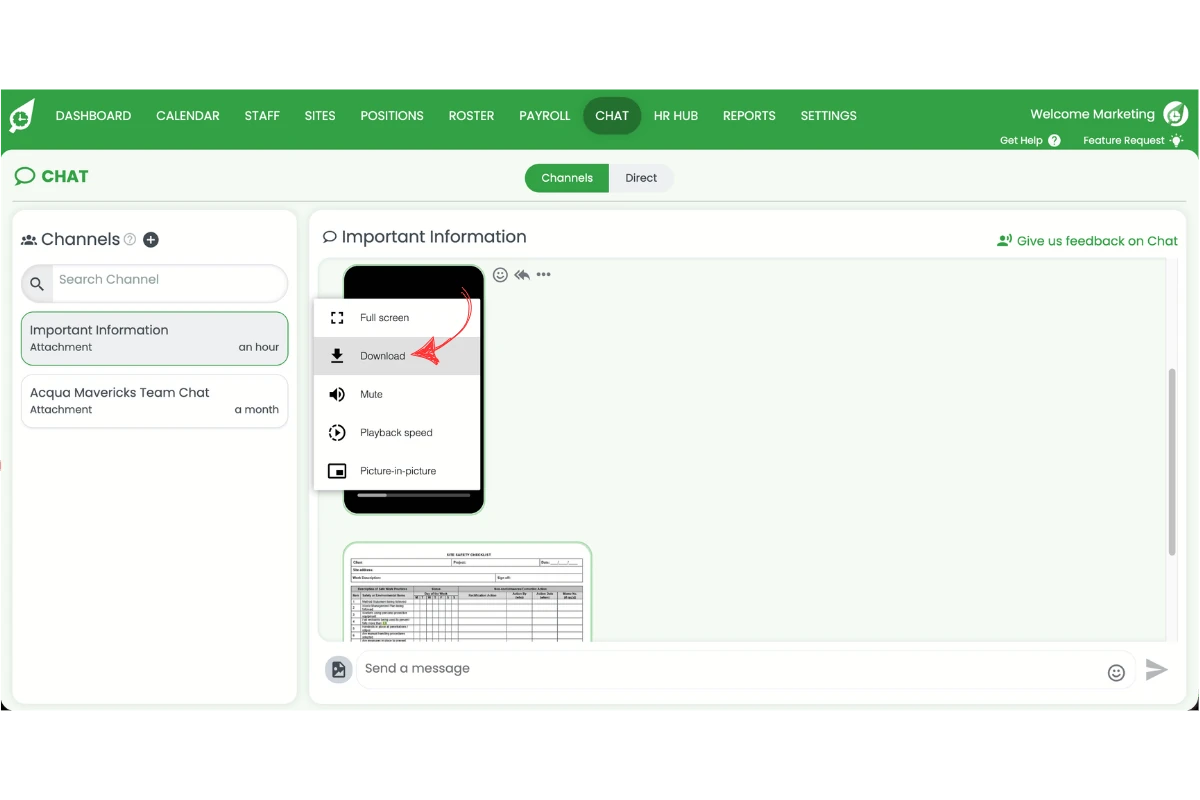
Videos in the chat window have a built-in download option accessible from the player controls.
3.3.1 Click the … (three dots) on the video.
3.3.2 Click Download.
3.4 Download document attachments
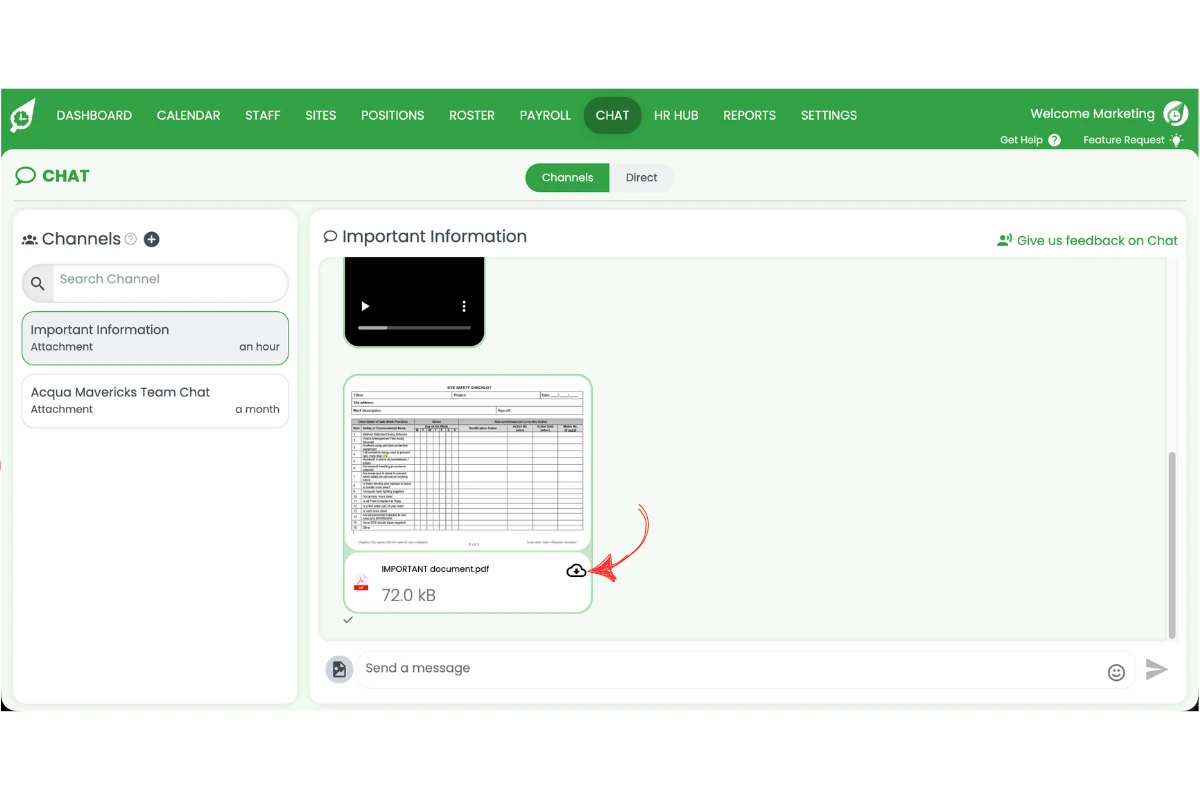
Documents in the chat window have a cloud download icon that saves the file directly to your computer.
3.4.1 Click the cloud download icon on the document.
Tip
If you need to set up or manage your chat channels, see how to enable and use chat in RosterElf or how to use chat in the smartphone app.
Frequently asked questions
1. How do I download chat files, images and videos in RosterElf?
Open the Chat section and select the required channel. Tap or click the attachment and use the available download or save option. Steps vary slightly between Apple devices, Android devices, and the web browser.
2. Why can't I download videos or files on my Apple device?
To download videos and files from RosterElf chat on an Apple device, Safari must be set as your default browser. If another browser is set as the default, the download option may not appear. Image downloads are not affected.
3. Can I download chat attachments from the RosterElf web browser?
Yes. You can download images, videos, and documents from chat channels in the web browser. Right-click images and select Save image as. Click the three dots on a video and select Download. Click the cloud icon next to a document to save it.
4. Where are downloaded chat attachments saved?
Downloads are saved based on your device settings. Images are typically saved to your photo library or downloads folder. Documents and videos may be saved to Files, Downloads, or a location you select when prompted.
5. What types of chat attachments can I download in RosterElf?
RosterElf allows you to download images, documents, and video attachments shared in chat channels. This keeps training materials, policies, site photos, and operational videos accessible outside the app.