

Mute a channel in RosterElf chat
This article explains how to mute a channel in RosterElf Chat. Muting channels helps you manage notifications and reduce distractions while keeping important updates available when you need them. By turning on the mute option, you can choose which channels send alerts and which remain silent.
1. Open RosterElf chat
This section explains how to open RosterElf Chat on your smartphone app.
1.1 access chat from the app
1.1.1 Open the smartphone app.

1.1.2 Tap the chat icon on the home screen.

2. Mute a channel in RosterElf chat
Muting a channel stops notifications but keeps all messages available for you to view later.
2.1 select and mute channel
2.1.1 Tap on the channel you want to mute.
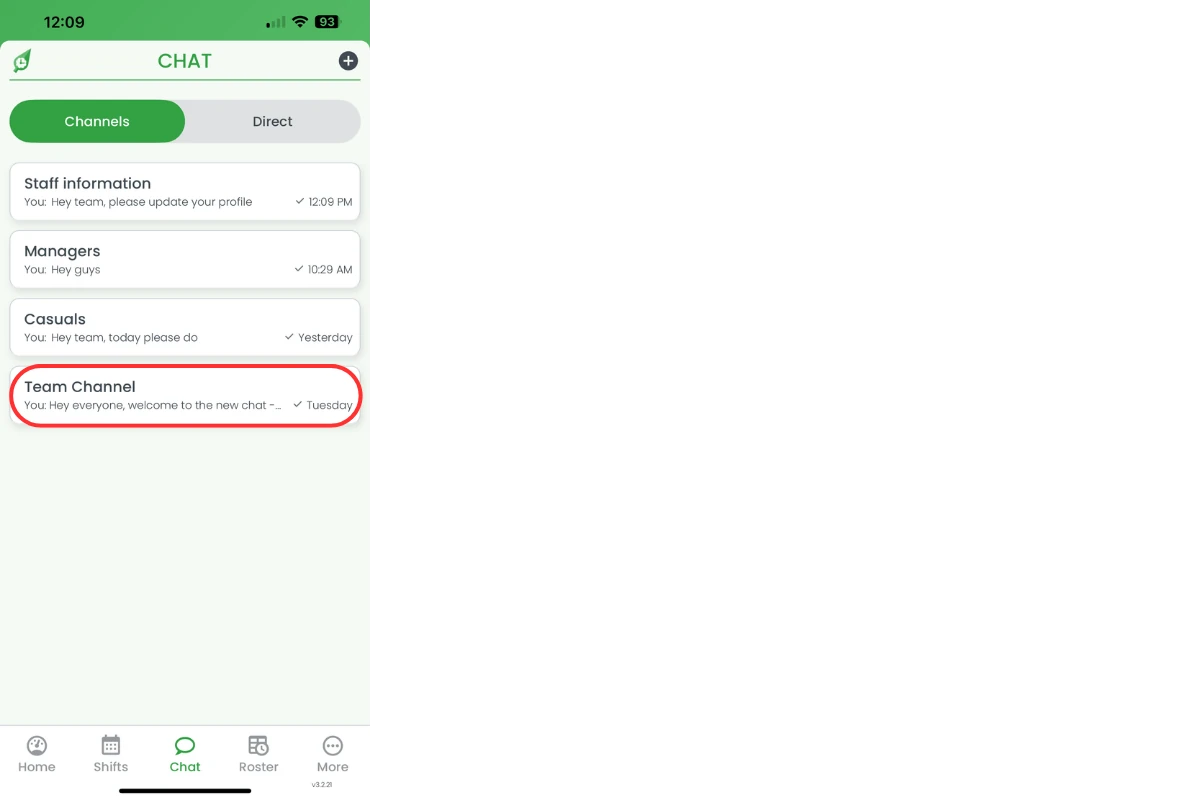
2.1.2 Press the settings icon in the channel.

2.1.3 Toggle on the mute option.

2.1.4 Press Save to confirm.

Note
Muting only affects your notifications. Other channel members will continue to receive notifications as usual.
Frequently asked questions
1. How do I mute a channel in RosterElf Chat?
Open the RosterElf smartphone app, tap the chat icon, select the channel, press the settings icon, toggle on the mute option, and press Save.
2. What happens when I mute a channel in RosterElf Chat?
When you mute a channel, notifications stop but all messages remain available. You can still open the channel anytime to read updates without receiving alerts.
3. Can I unmute a channel in RosterElf Chat later?
Yes. Return to the same channel settings, toggle off the mute option, and press Save to restore notifications for that channel.
4. Will muting a channel affect other channels?
No. Muting only applies to the specific channel you select. Other channels continue to send notifications as usual.
5. Why should I mute a channel in RosterElf Chat?
Muting helps reduce distractions by silencing less important channels. It allows you to focus on key conversations while keeping all messages accessible when needed.