

Create a channel for a site or position in RosterElf chat
This article explains how admins create a site or position specific channel in RosterElf Chat. Only admins can create or edit channels. Channels help you organise communication across your business, and by setting up channels linked to a site or position, staff can receive updates that are relevant to where they work or the role they perform. This ensures messages go to the right people and helps reduce confusion.
1. Start a new channel in RosterElf chat
This section explains how to open RosterElf Chat and begin creating a new channel.
1.1 open RosterElf chat
1.1.1 As an admin, open RosterElf.
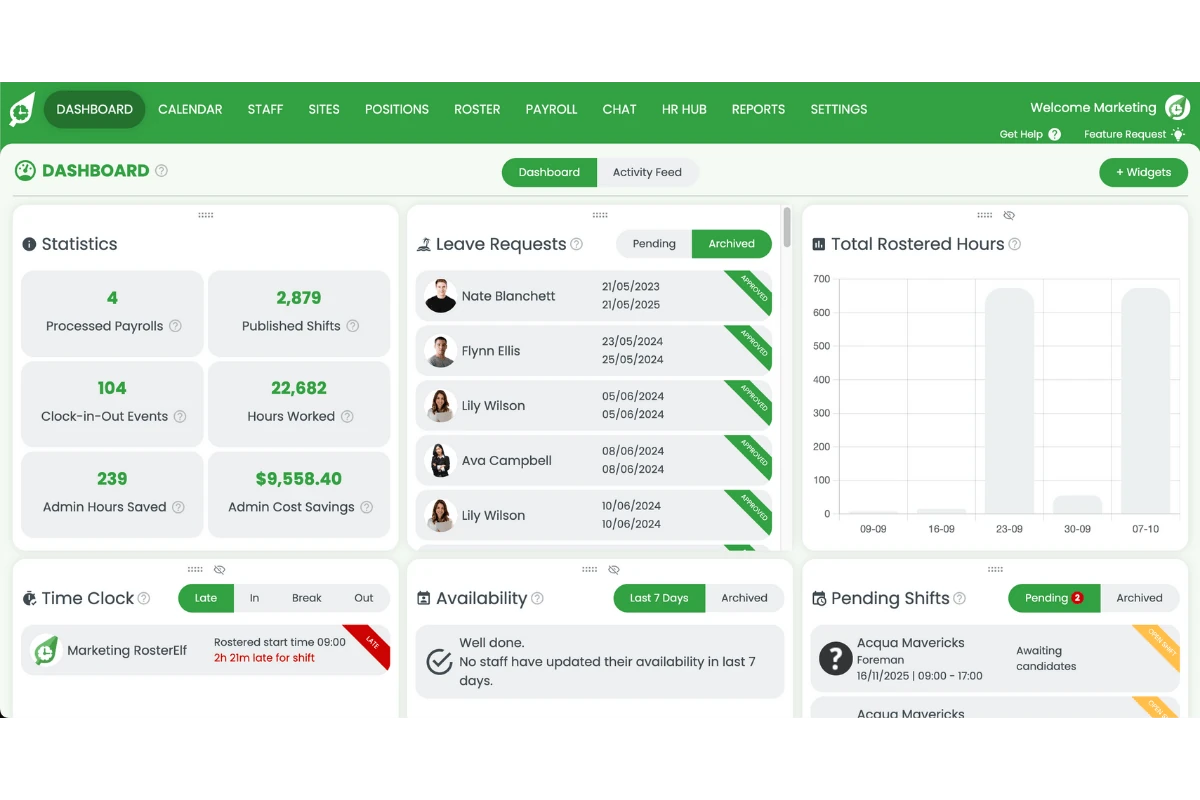
1.1.2 Press Chat on the menu.
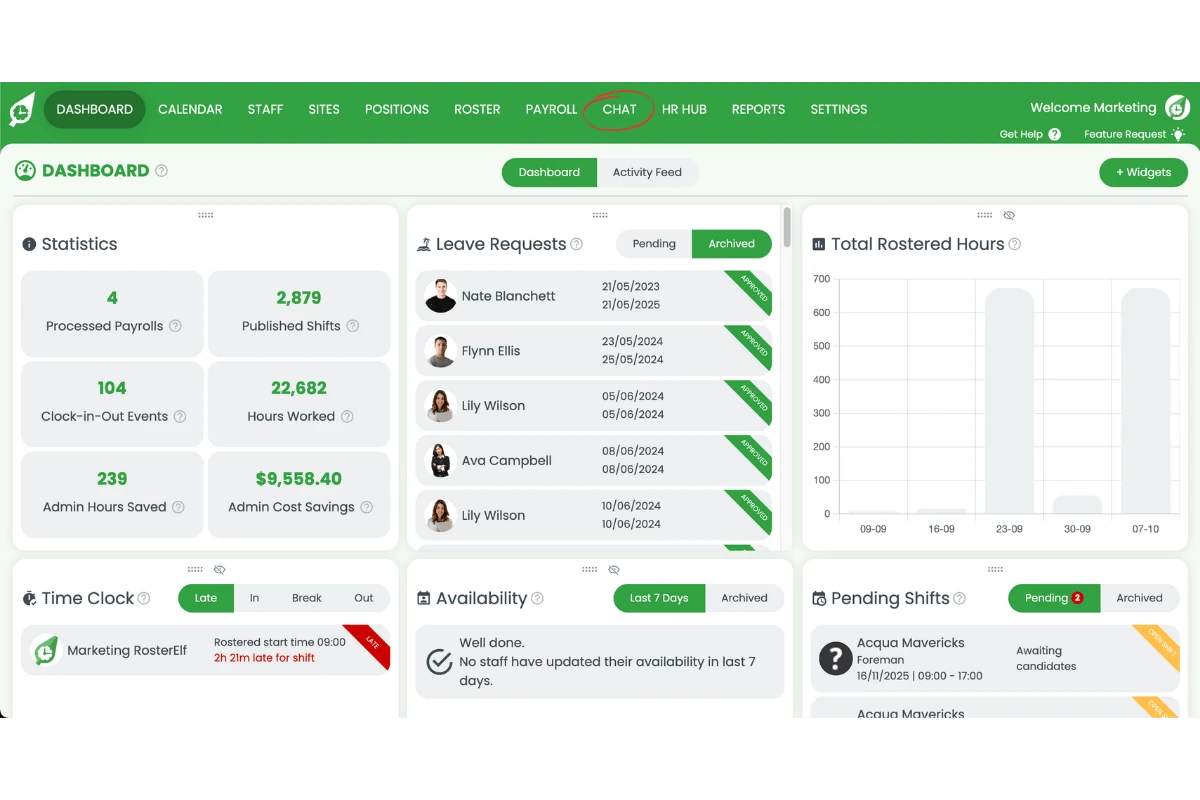
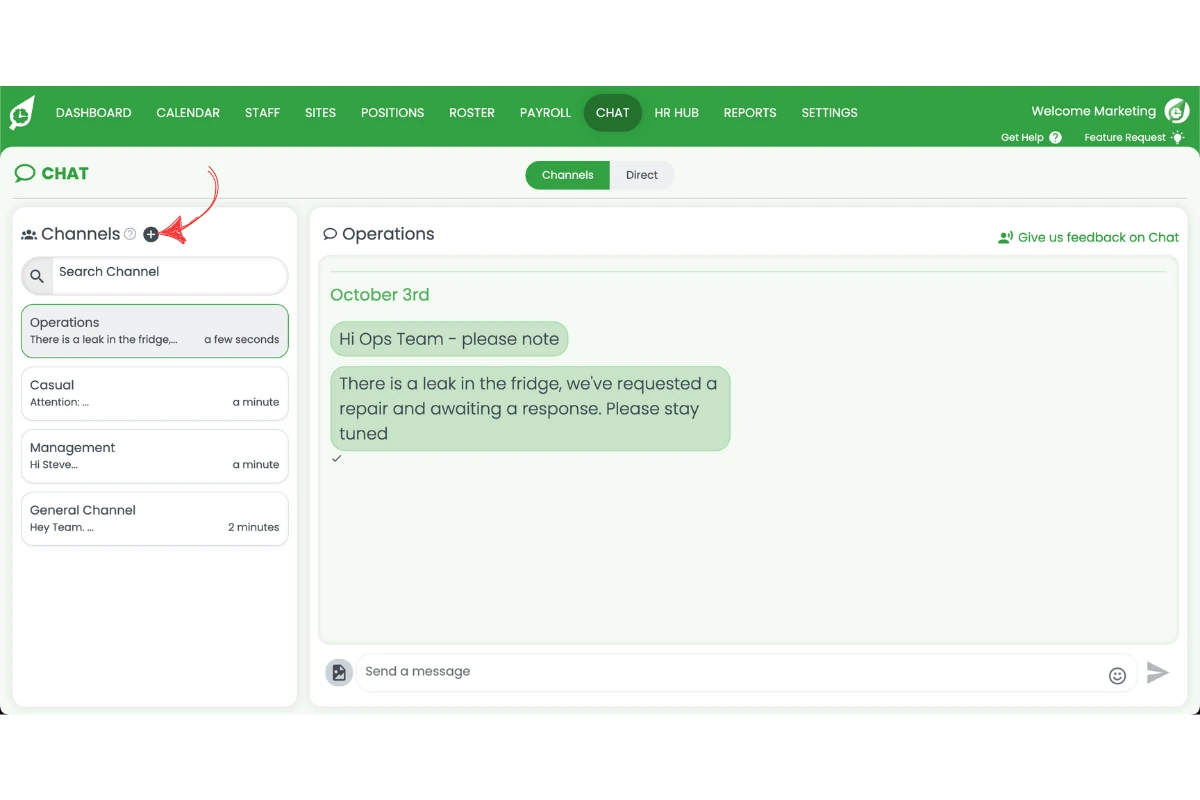
1.2 create a new channel
1.2.1 Press the plus symbol to start a new channel.
2. Add channel details for site or position
This section explains how to add the channel name and description, and choose whether the channel is for a site or a position.
2.1 enter channel name and description
2.1.1 Add a channel name.
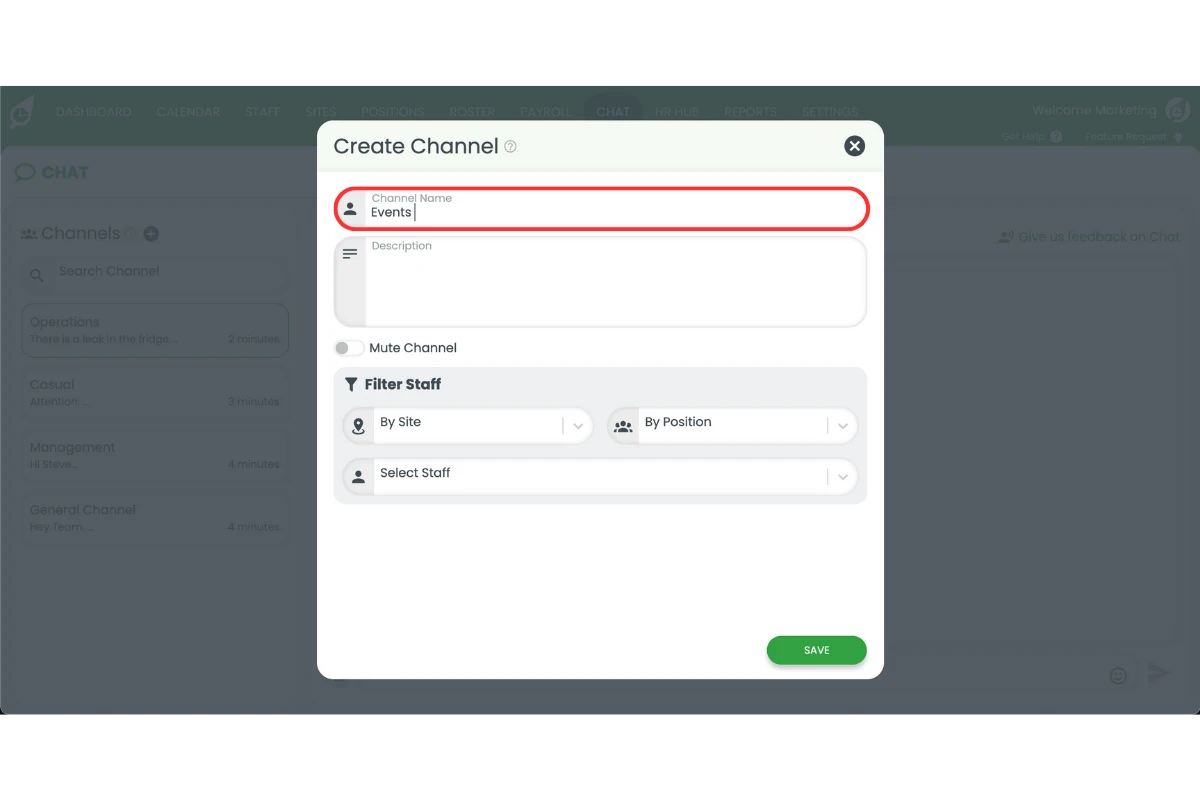
2.1.2 Add a channel description.
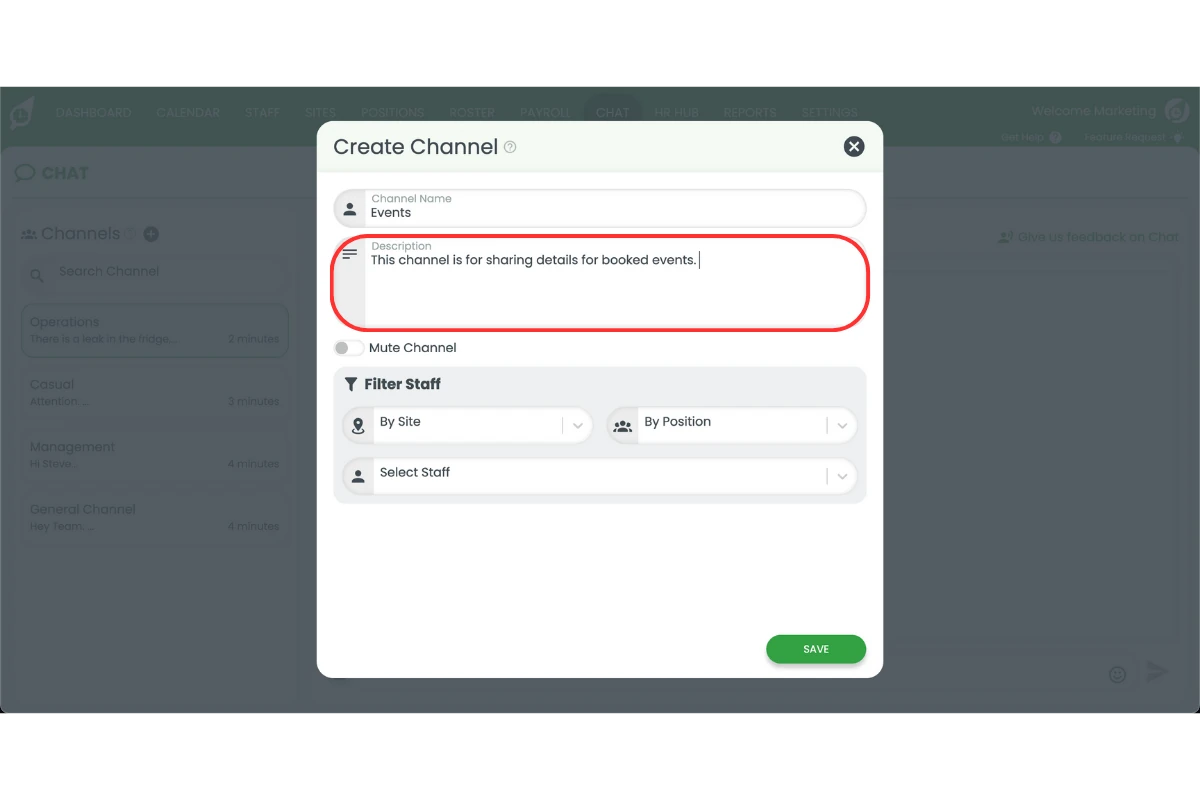
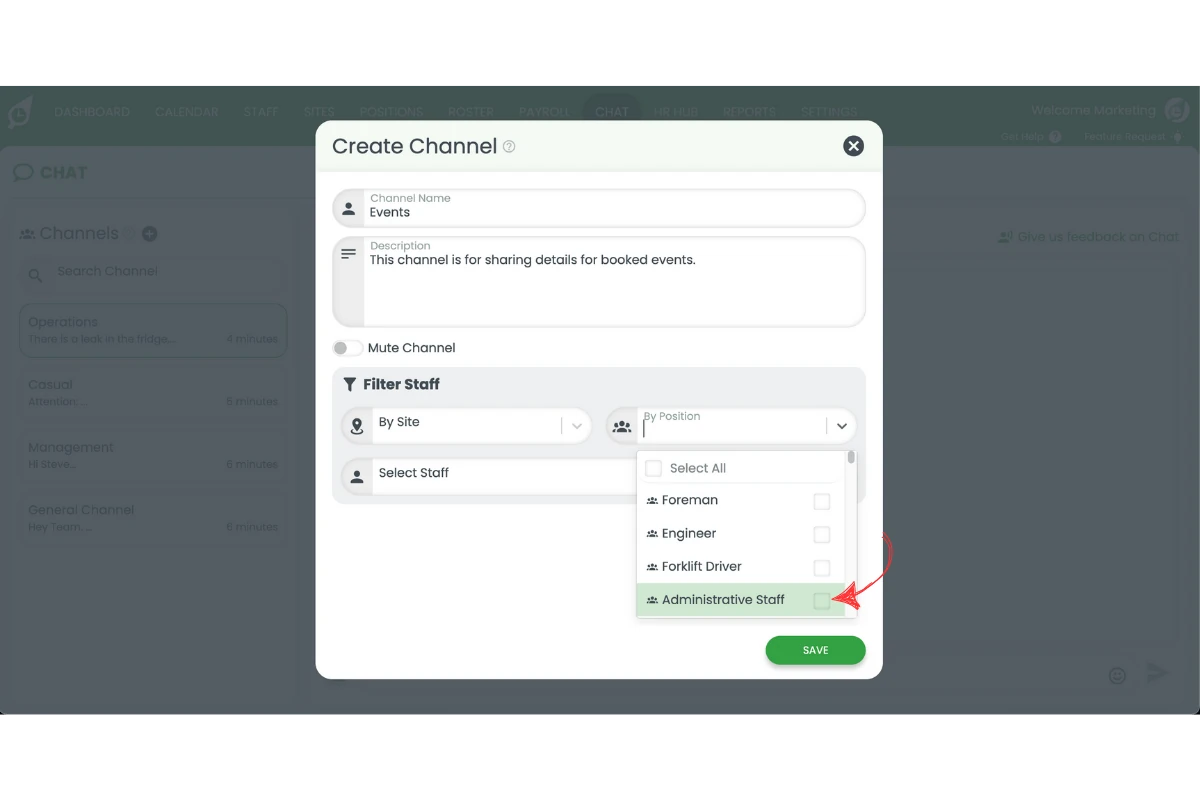
2.2 select channel type and staff
2.2.1 Select either your site or position.
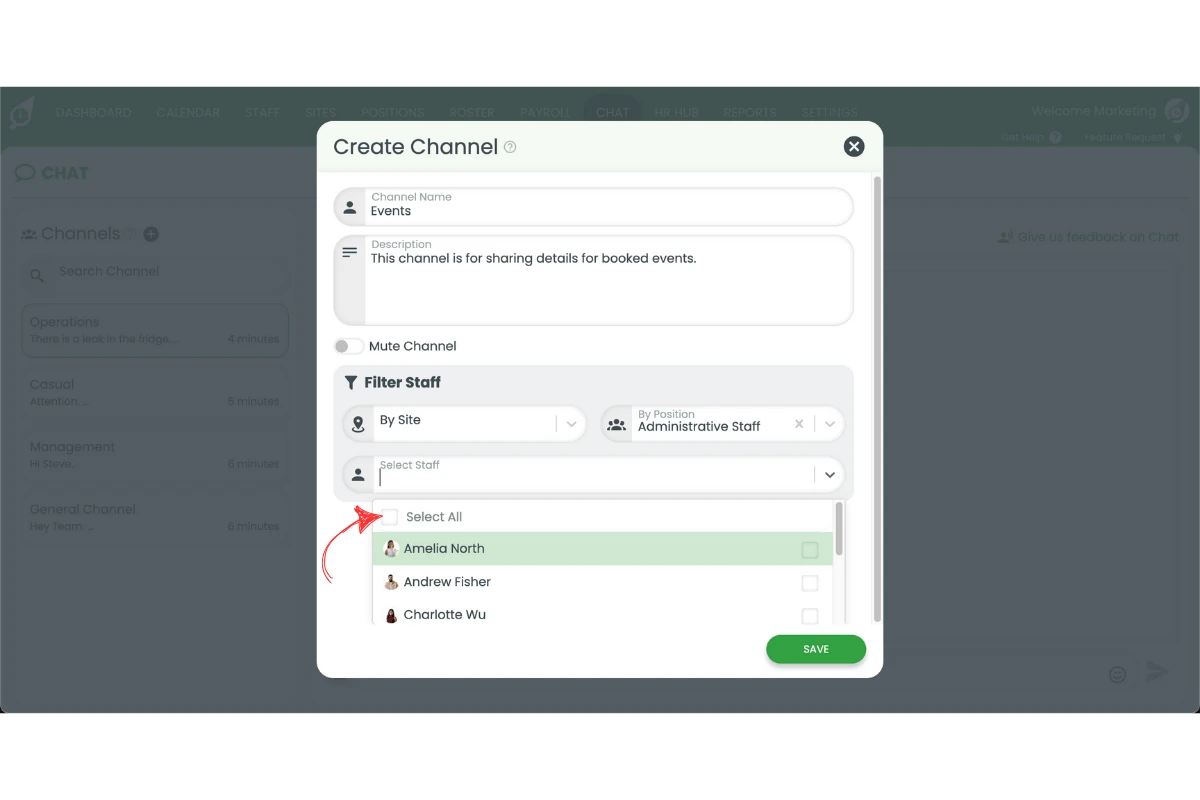
2.2.2 Select staff to include in the channel.
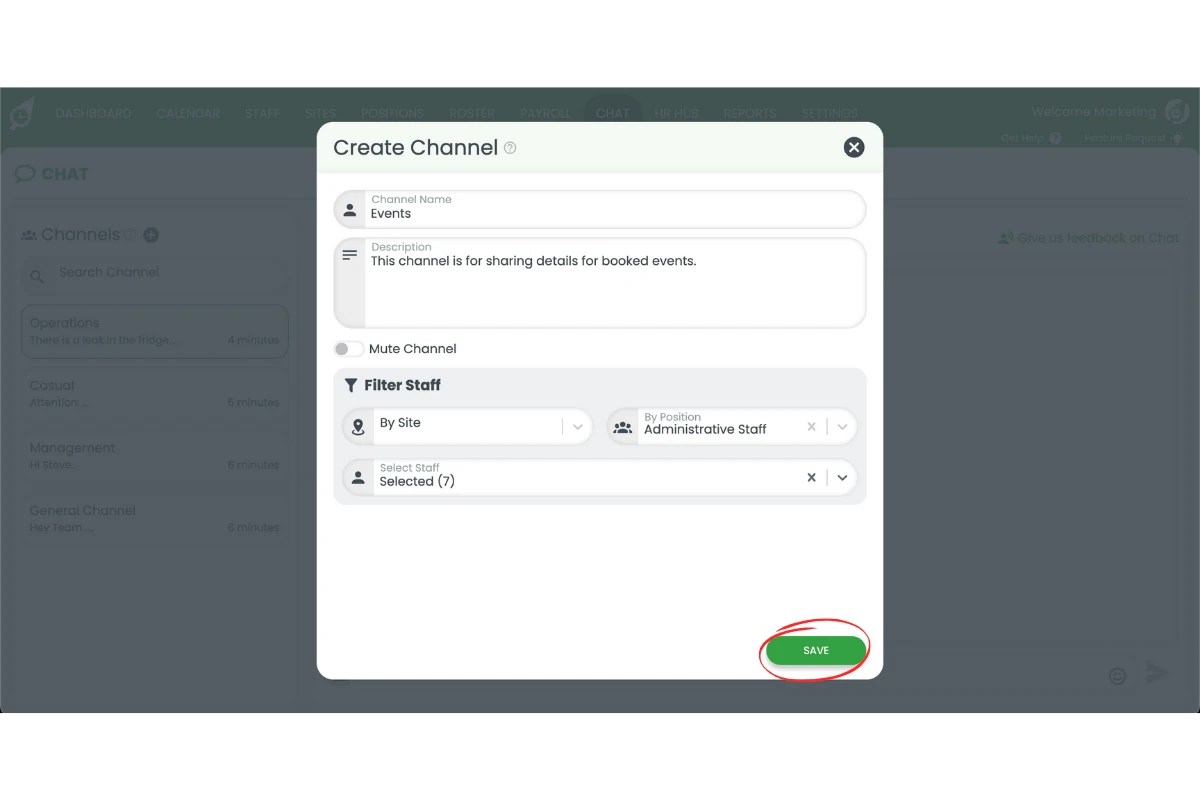
2.2.3 Press Save to finish creating the channel.
Note
Site or position channels ensure staff only receive communication relevant to their location or role, improving team efficiency.
Related guides: Enable team chat, How to use chat in the smartphone app.
Frequently asked questions
1. How do I create a site specific channel in RosterElf Chat?
Only admins can create channels. As an admin, open RosterElf, press Chat, and tap the plus symbol. Enter the channel name and description, then select Site as the channel type. Choose the staff linked to that site and press Save.
2. How do I create a position specific channel in RosterElf Chat?
Follow the same steps as creating a site channel but select Position as the channel type. This ensures only staff in that role receive relevant updates.
3. Why should I use site or position specific channels in RosterElf Chat?
Using site or position specific channels helps keep communication targeted. Staff only receive updates relevant to their location or role, which reduces confusion and improves team coordination.
4. Can I edit the details of a channel in RosterElf Chat after creating it?
Yes. Admins can update the channel name, description, or staff included at any time. Editing ensures the channel stays accurate as your business needs change.
5. Who can create new channels in RosterElf Chat?
Admins can only create new channels. This ensures only authorised staff set up communication groups for sites or positions.
6. I'm an Admin but I don't see the pencil (edit) icon on a channel — what should I check first?
Only Admins can edit channels, so confirm you’re logged in as an Admin and are on Chat → Channels (not Direct). If you are an Admin and it’s still not showing, try maximising your browser window to full size and setting your browser zoom to 100%, then hover over the channel again. If the icon is still missing after that, contact support so we can check your account.