

This guide explains how to prepare your RosterElf account for the upcoming festive season. It helps ensure public holidays, pay templates, open shifts, and staff availability are correctly set up for smooth operations during this busy period.
By following this guide, you can avoid rostering errors, maintain compliance with public holiday pay rules, and manage staff flexibility with ease. Setting up these key features before the festive rush will save time and reduce payroll issues, helping your team stay organised and your business run efficiently through the holidays.
1. Check public holidays are standard
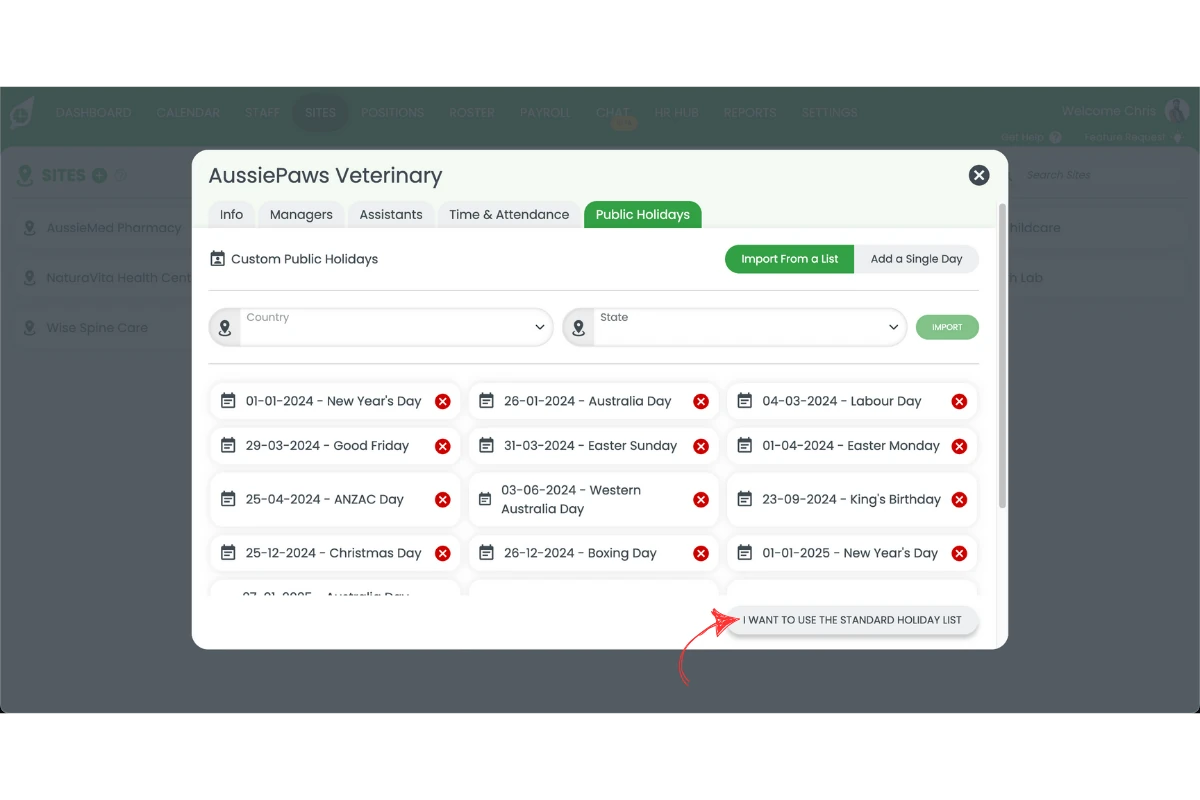
This section explains how to confirm your public holidays are set to RosterElf’s standard list. If your holidays are not standard, they won’t automatically update with next year’s dates, so you’ll need to add these manually. Even on the standard list, next year’s dates can take a little while to appear — check back closer to the date if you don’t see them yet.
Learn more about managing public holidays.
1.1 Use standard public holidays
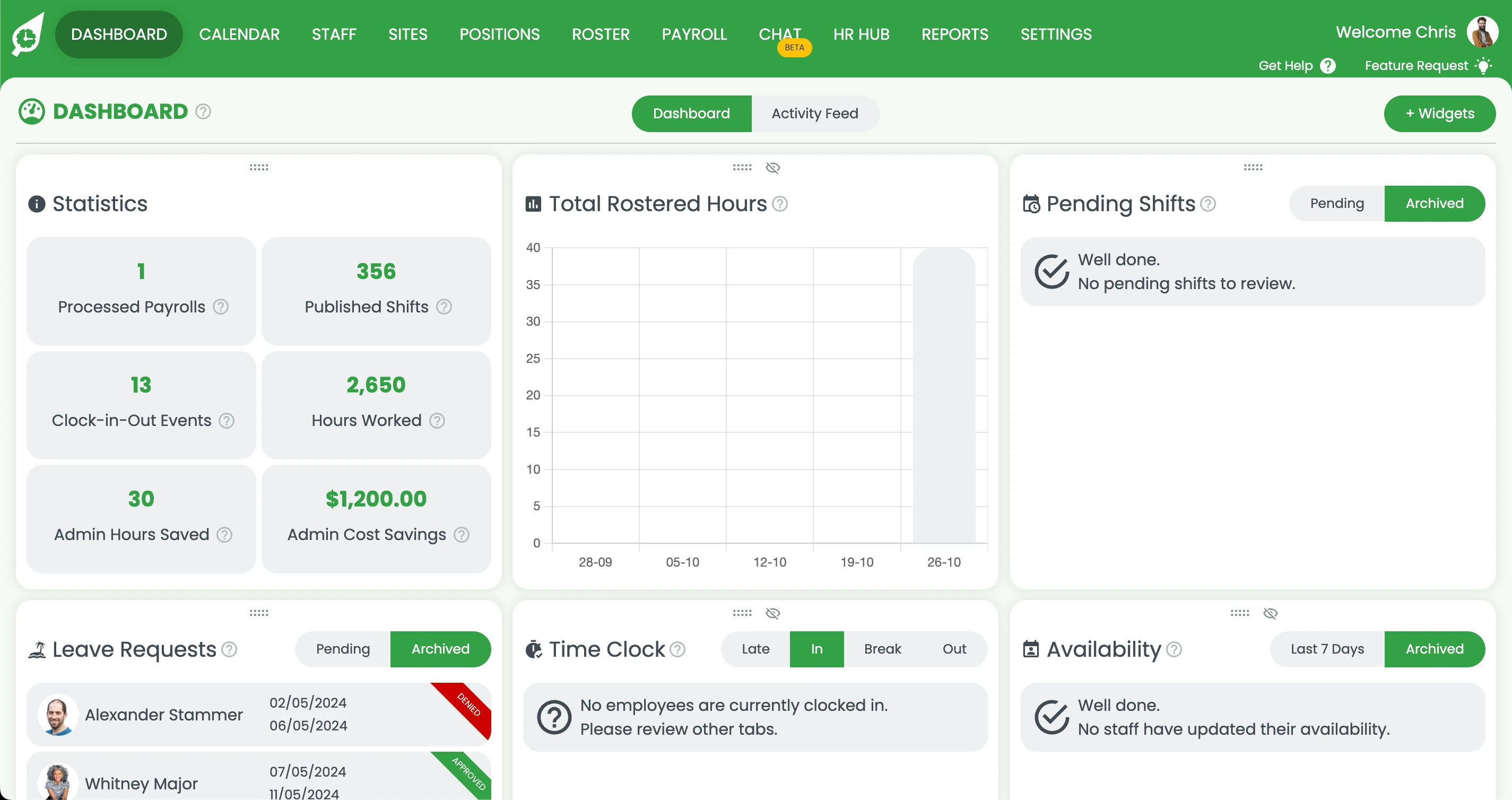
1.1.1 Open RosterElf.
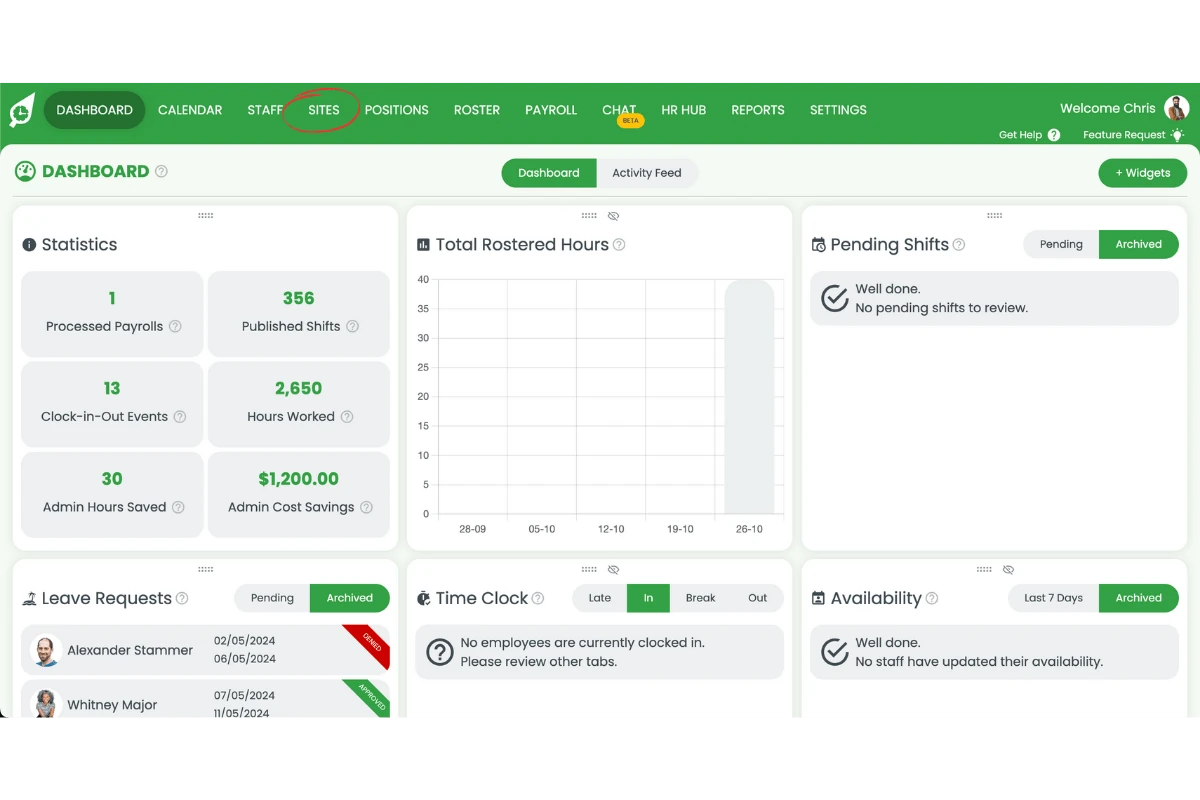
1.1.2 Select the sites tab.
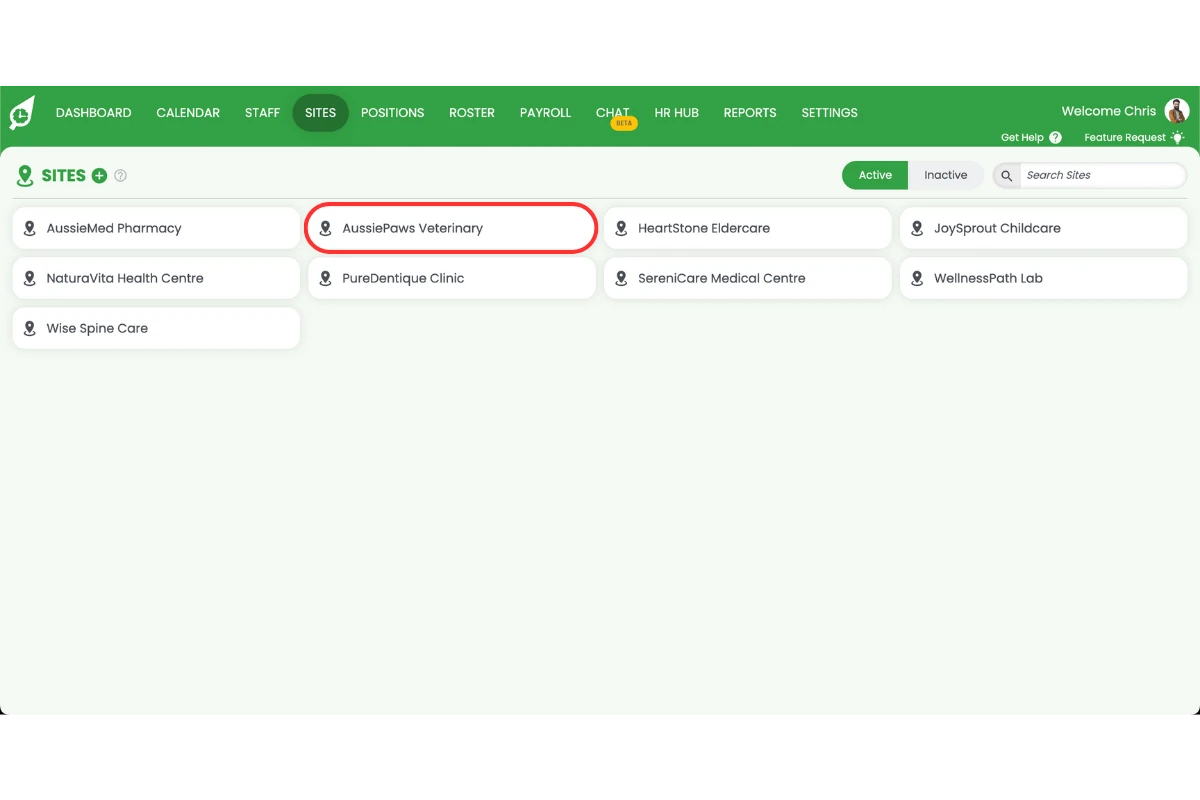
1.1.3 Select your site
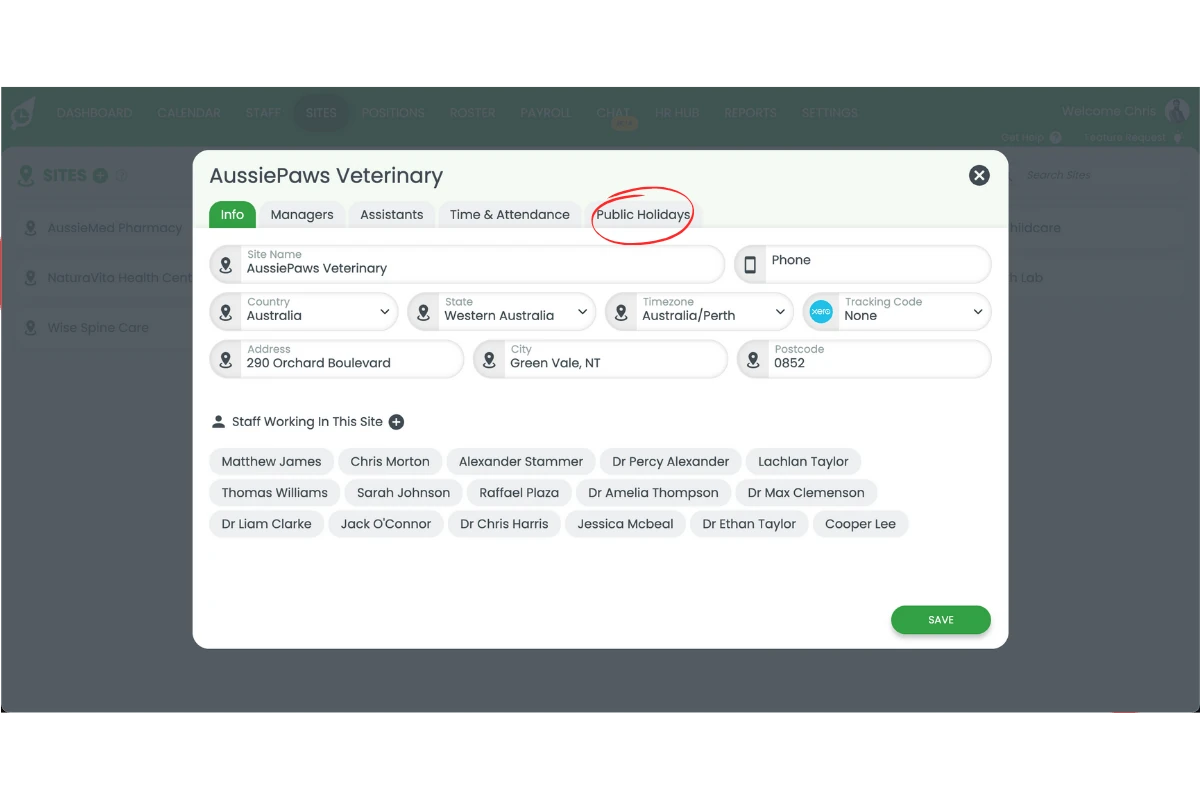
1.1.4 Press Public holidays.
1.1.5 Select I want to use standard holidays.
2. Review pay templates for public holidays
This section explains how to check and update your pay templates to ensure public holiday rules are correctly applied. This ensures staff are paid the right rates when working or taking public holidays.
Learn more about pay templates.
Please see our specific guide for requirements for Queensland, South Australia and Northern Territory: How to create a pay template for Christmas Eve & New Years Eve public holidays (QLD, SA & NT)
2.1 Check existing pay rules
2.1.1 Go to Settings > Payroll.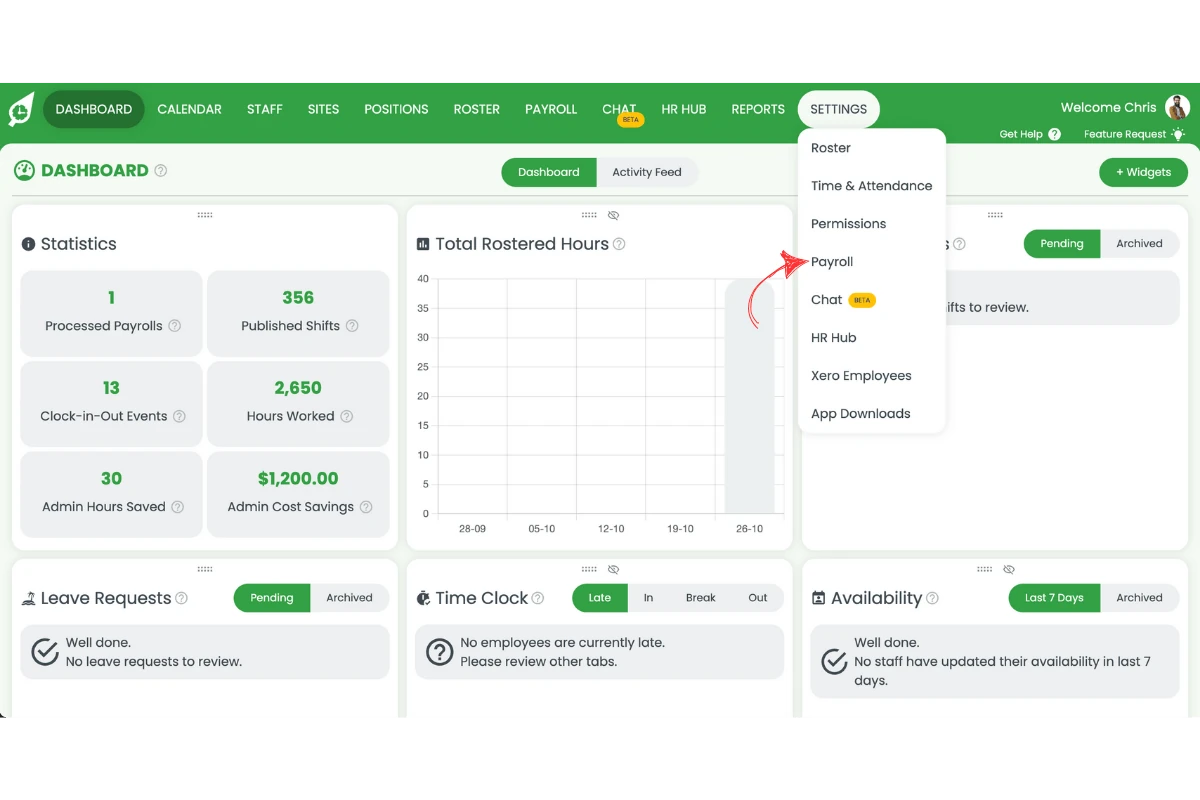
2.1.2 Select your pay template.
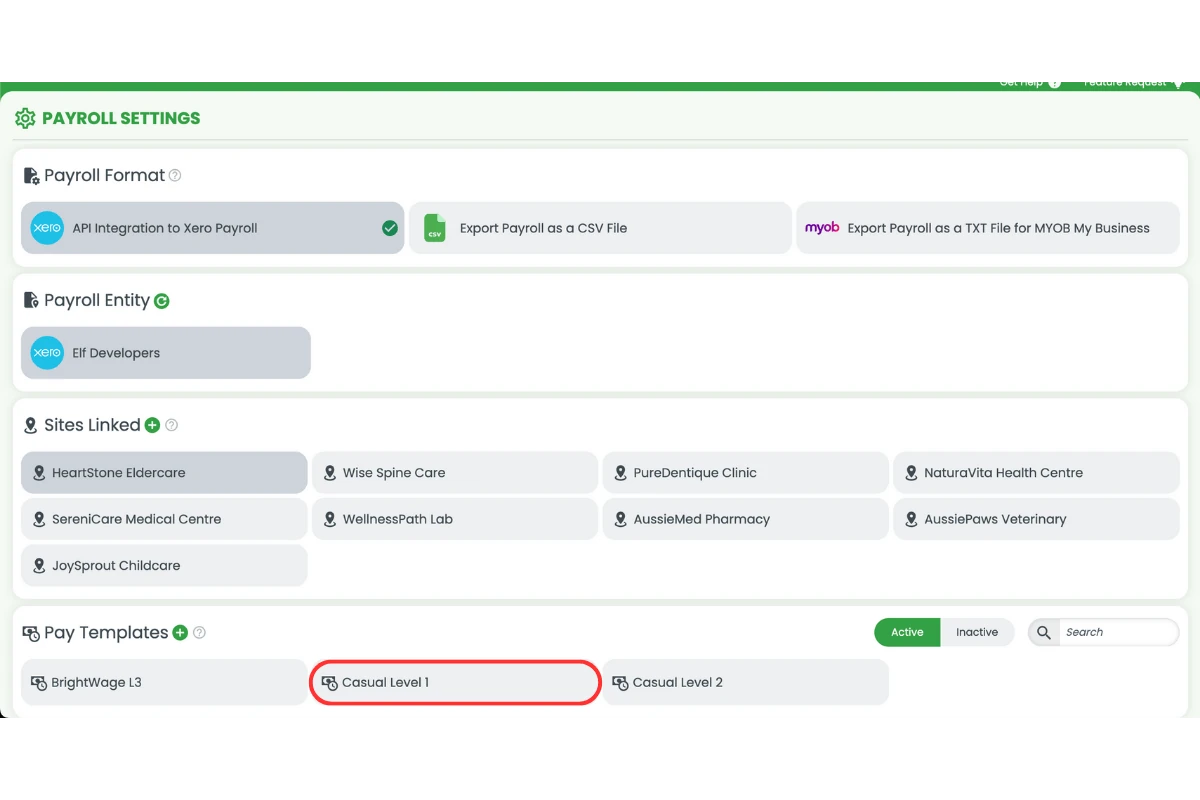
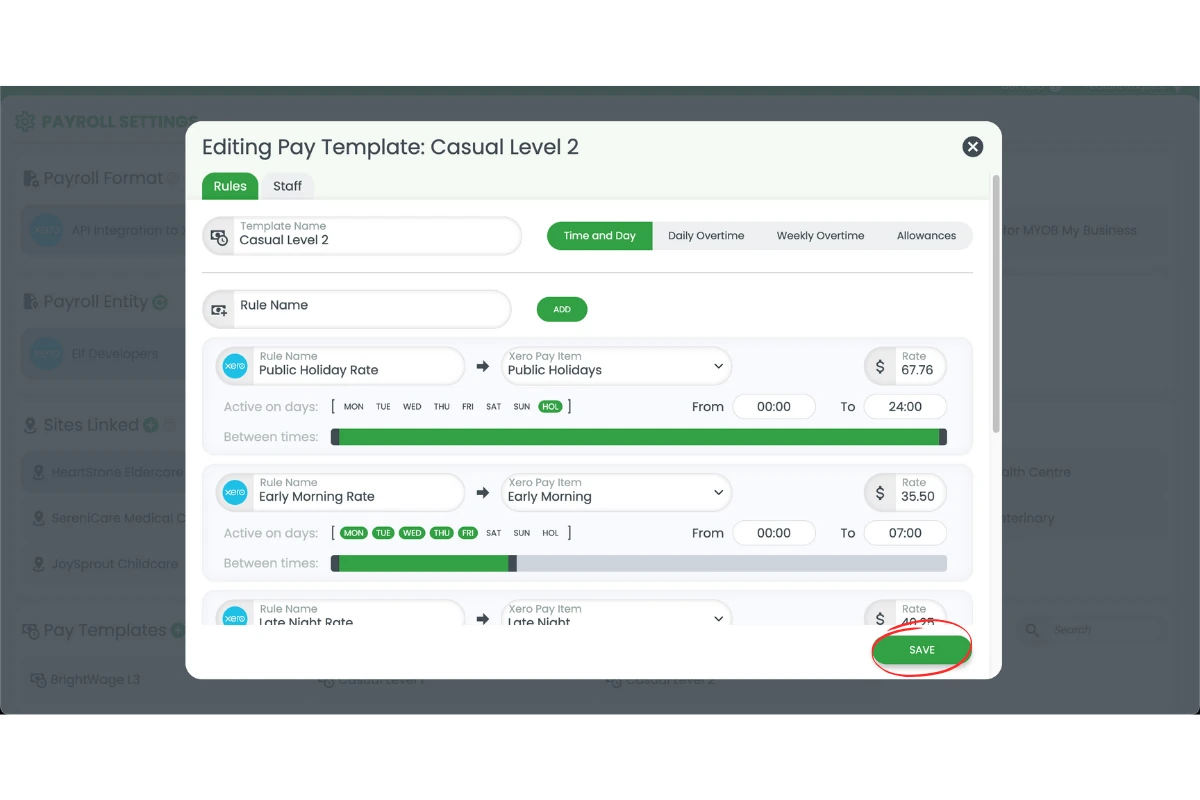
2.1.3 Check if a Public holiday rule exists.
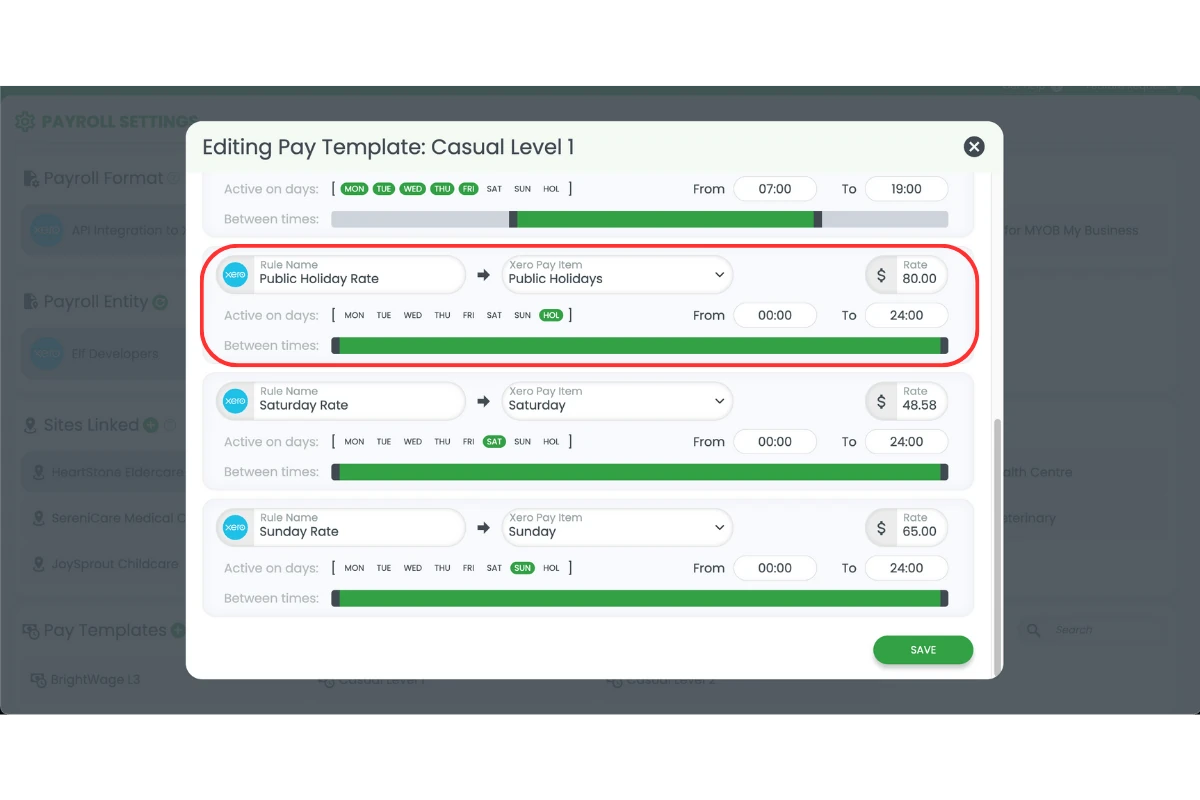
2.2 Add a public holiday pay rule
2.2.1 Add PublIC Holiday rate and press Add rule.
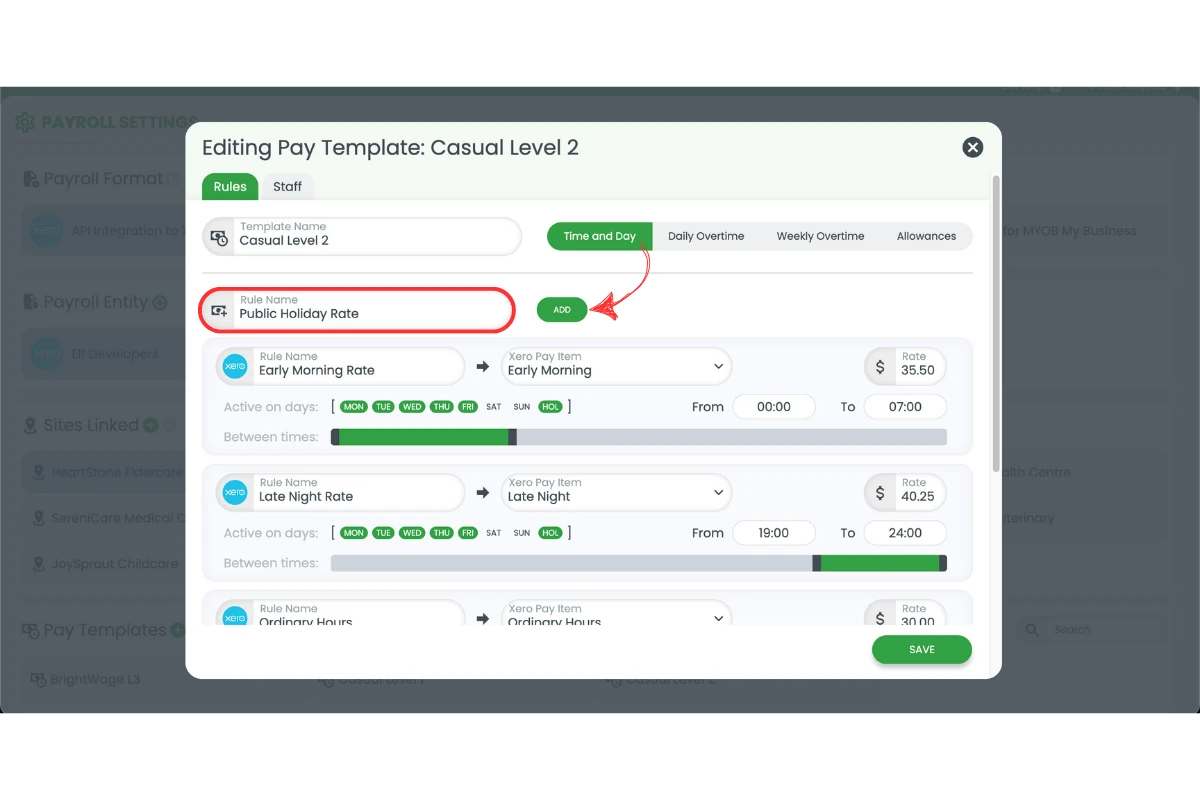
2.2.2 Set the rule to All day and tick HOL.
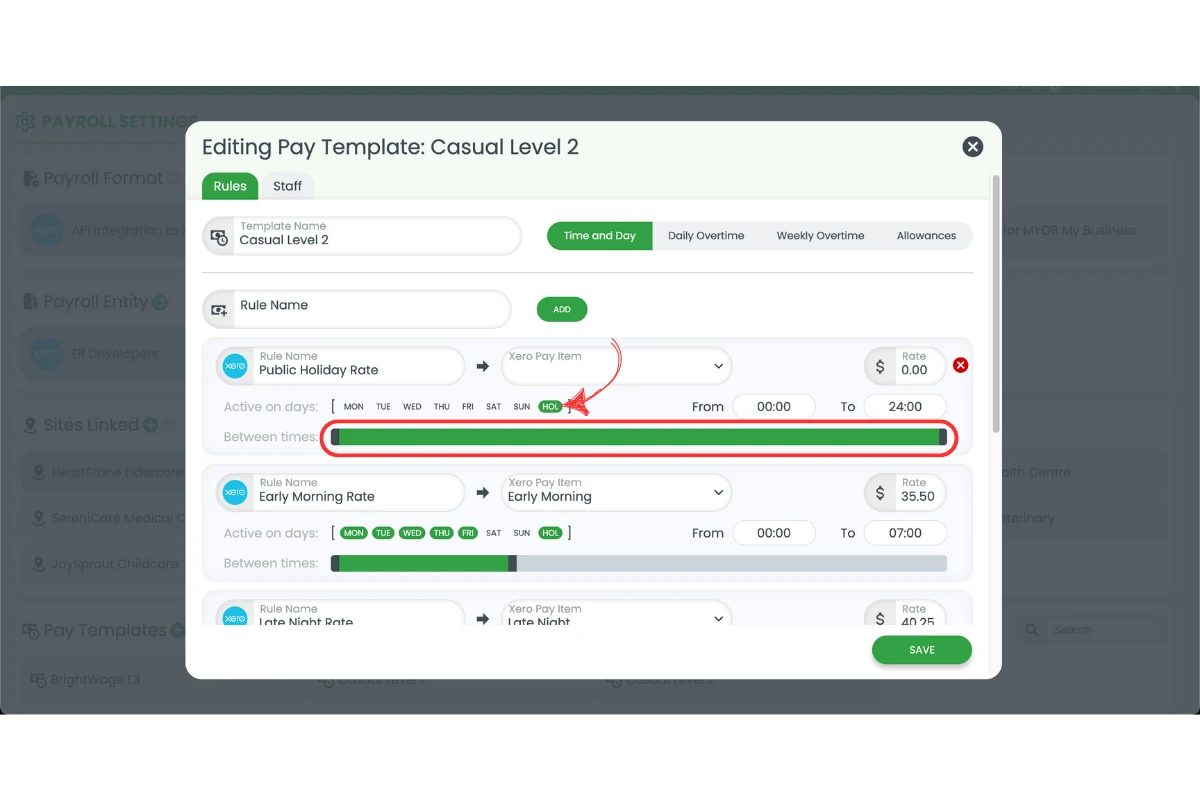
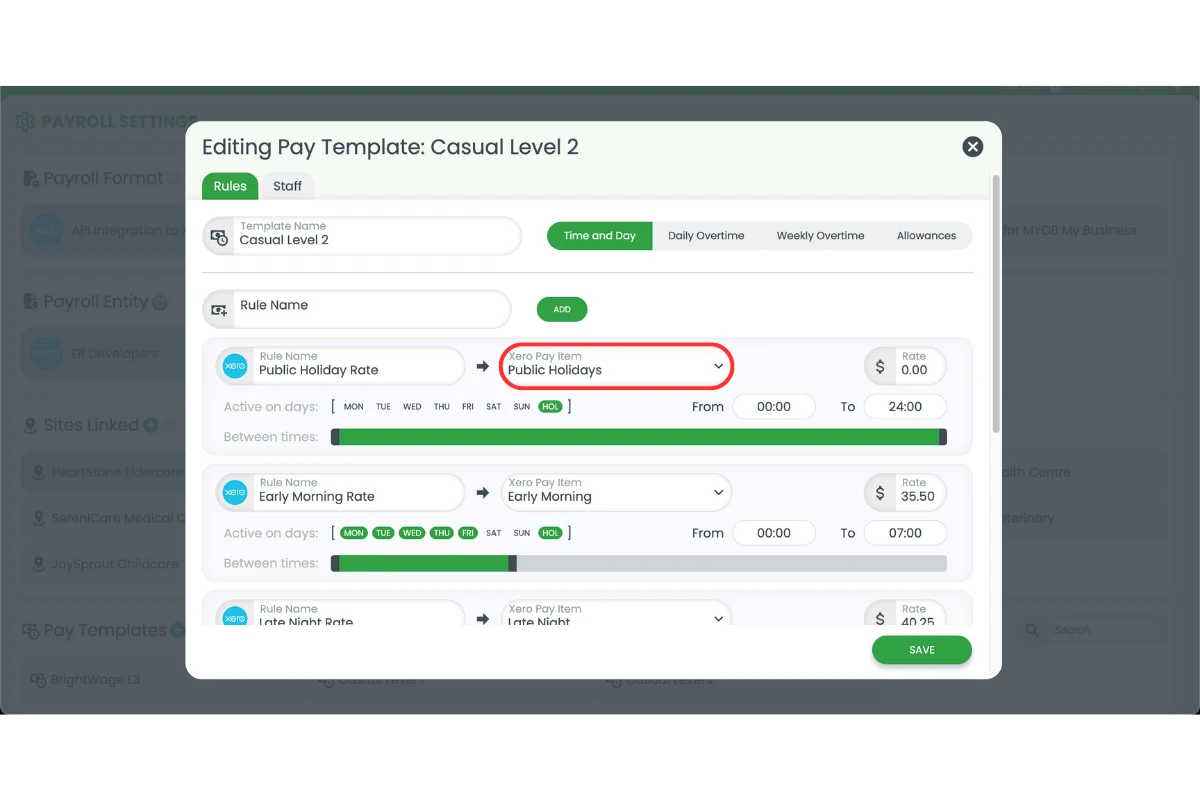
2.2.3 Assign your pay item if applicable and set your rate.
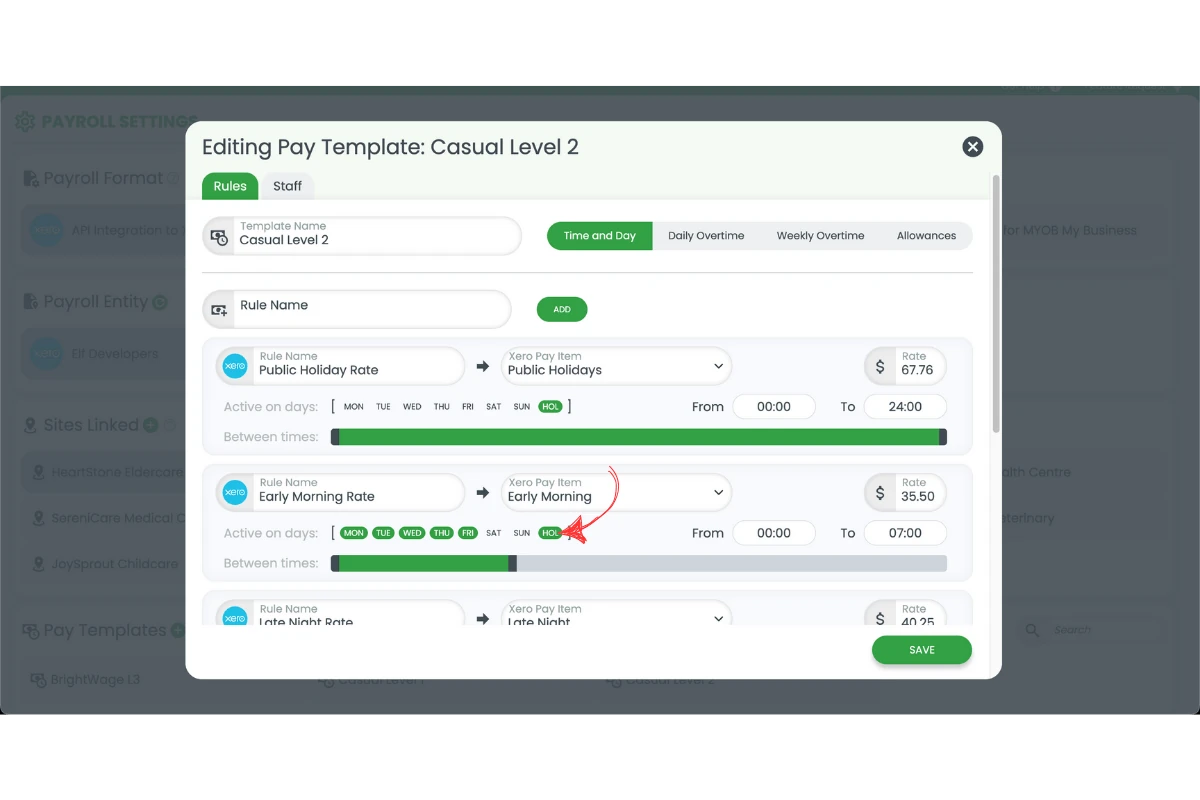
2.2.4 Untick any previous HOL rules to avoid overlapping rules.
2.2.5 Press Save.
3. Enable and use open shifts
Open shifts help you fill last-minute or extra shifts quickly. Staff can see open shifts in the app and pick them up as needed, helping maintain full coverage during the busy season.
Learn more about enabling and creating open shifts.
3.1 Enable open shifts
3.1.1 Go to Settings > Roster.
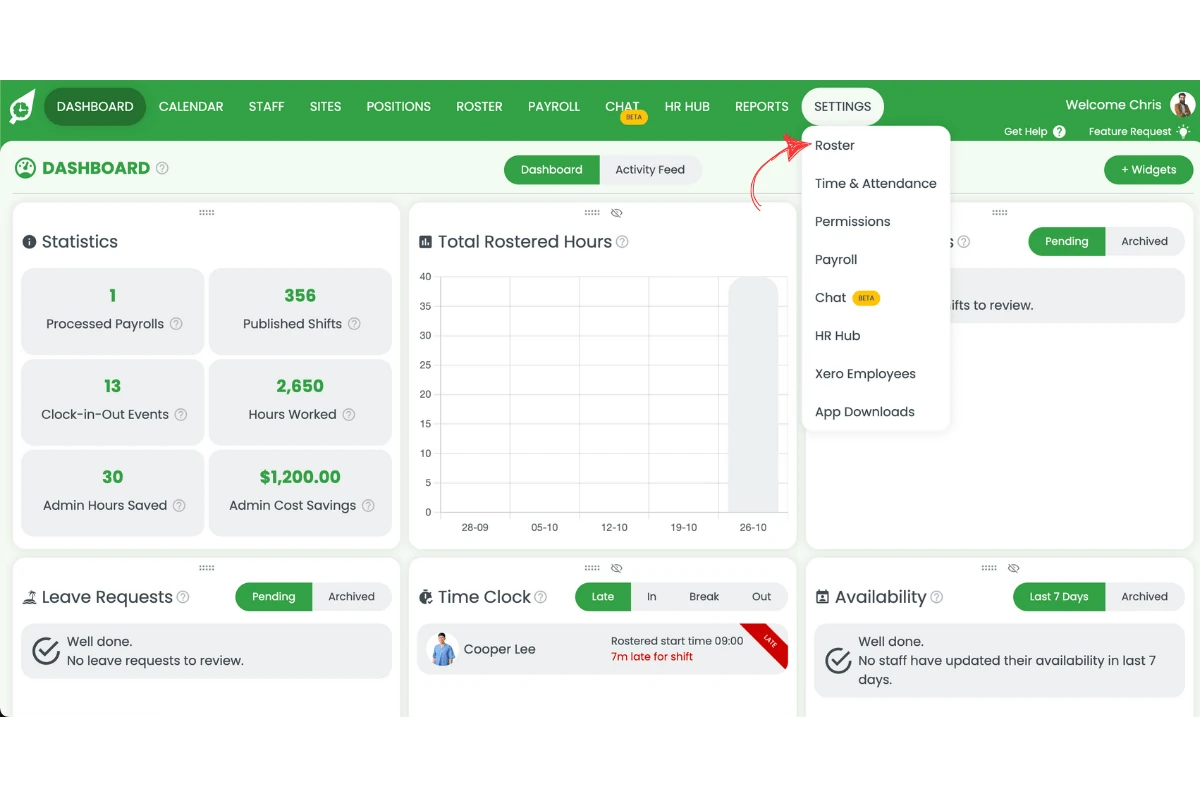
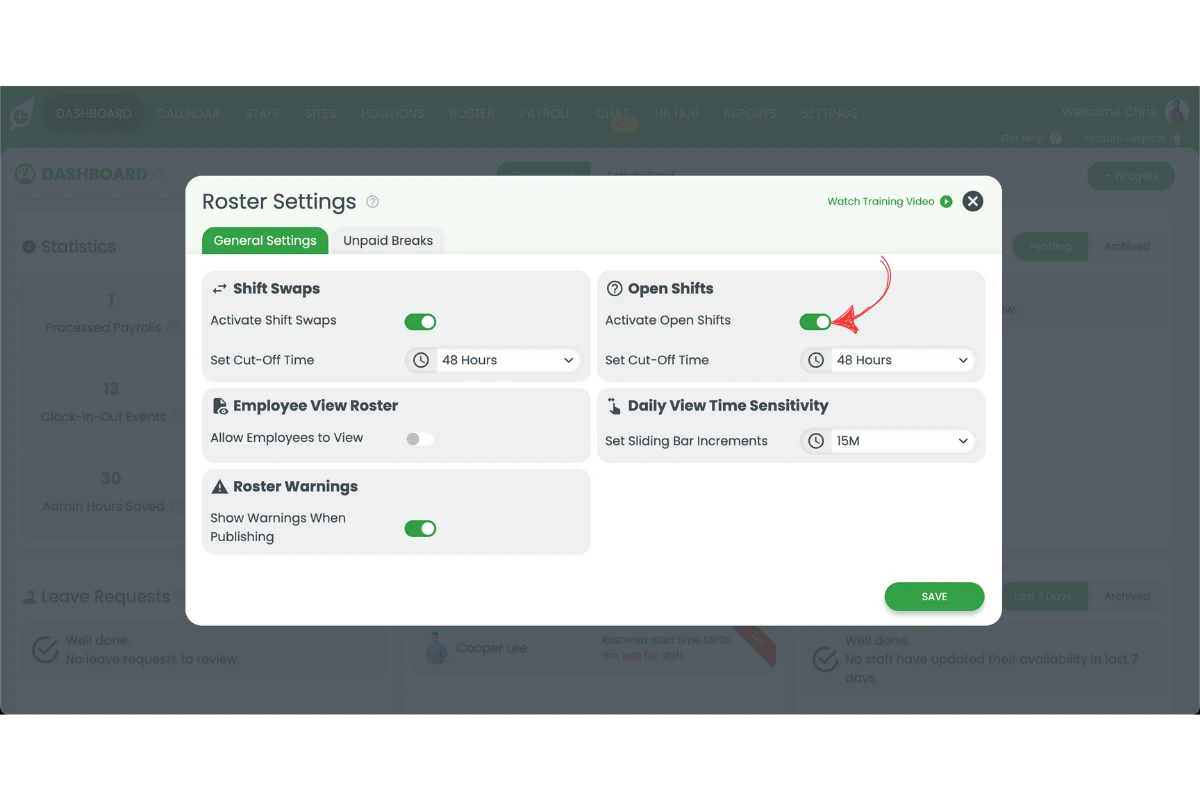
3.1.2 Toggle on Open shifts.
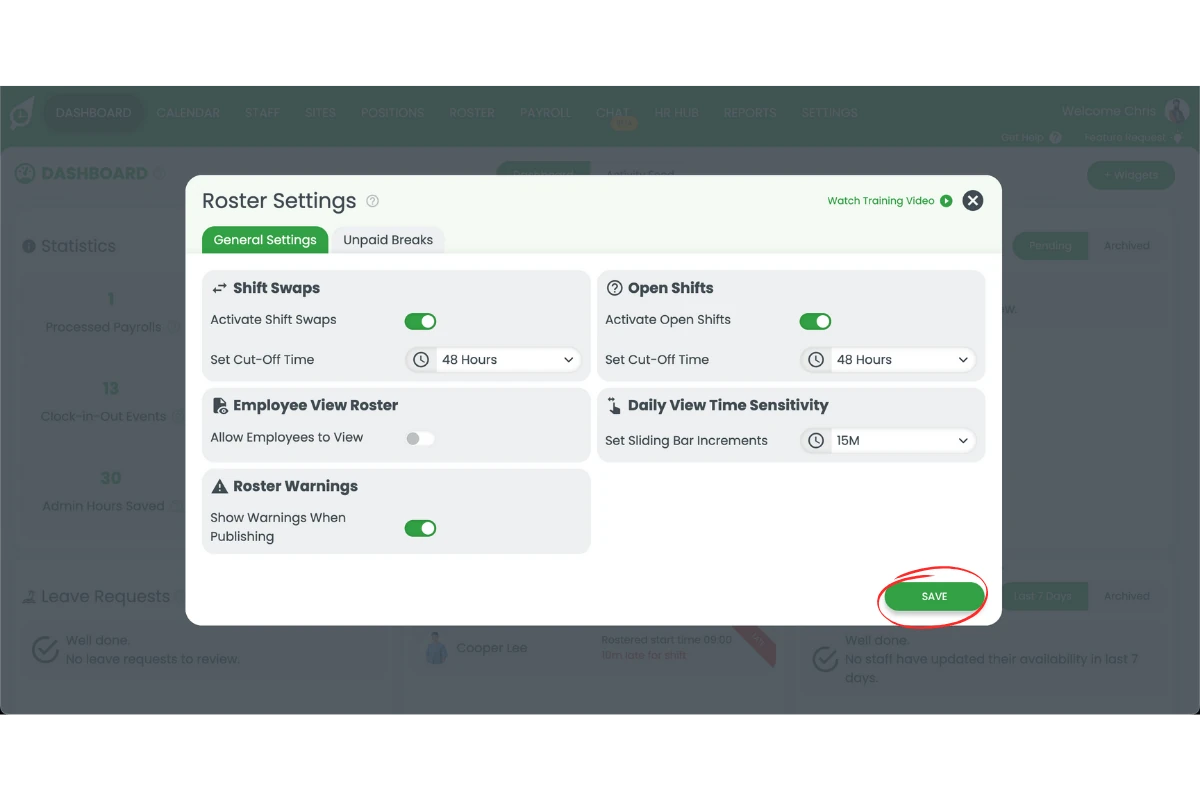
3.1.3 Press Save.
3.2 Post a new open shift
3.2.1 Go to the Roster.
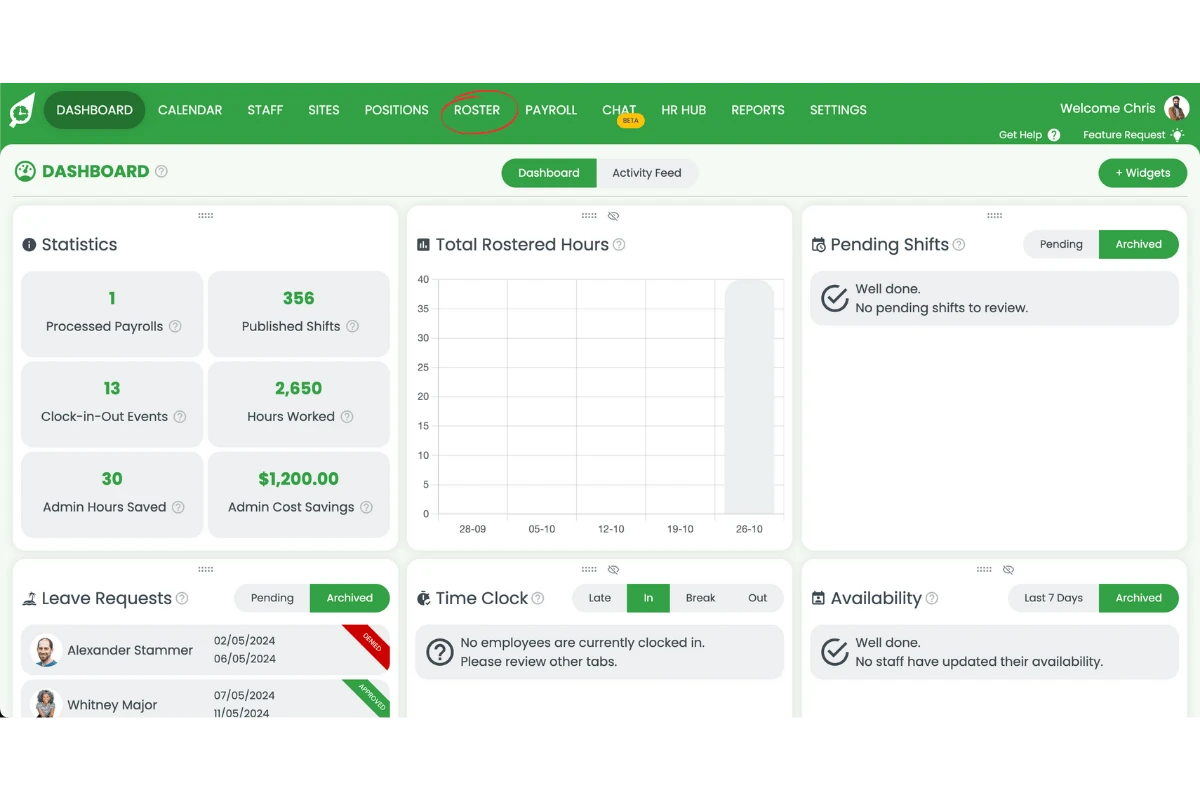
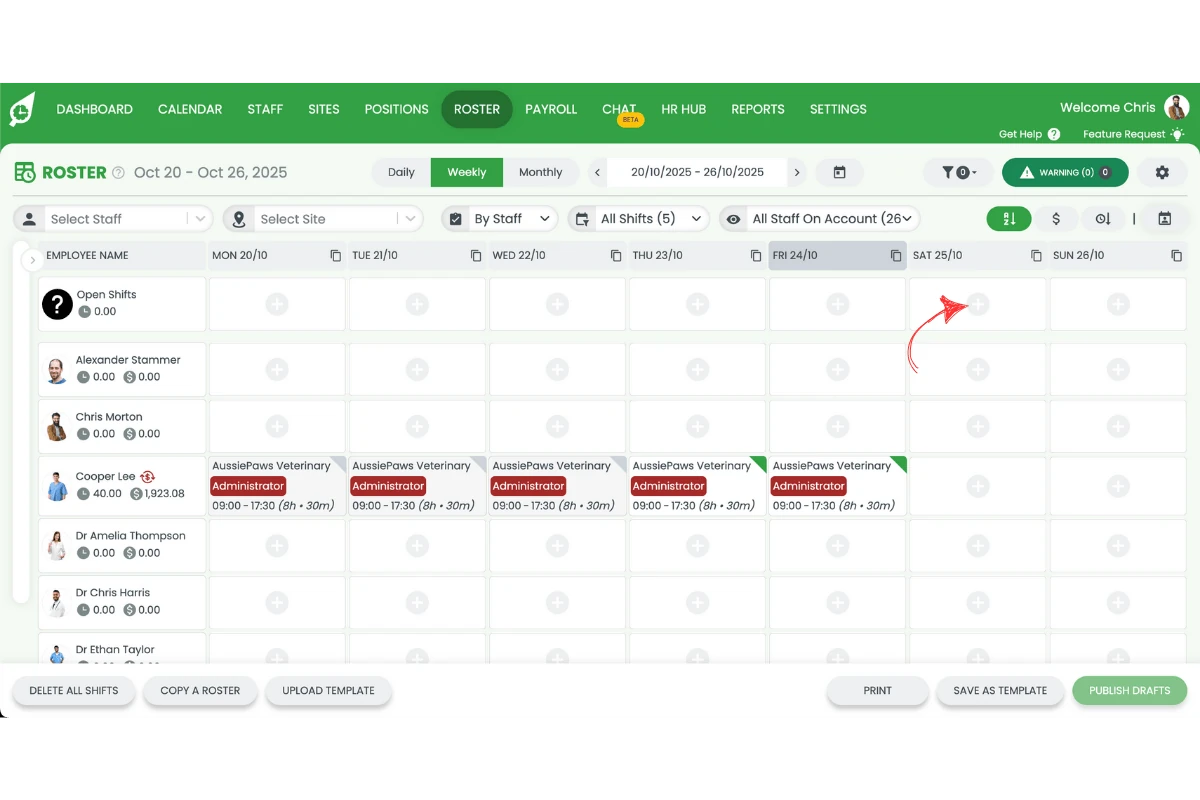
3.2.2 Press Add a shift under the open shift section.
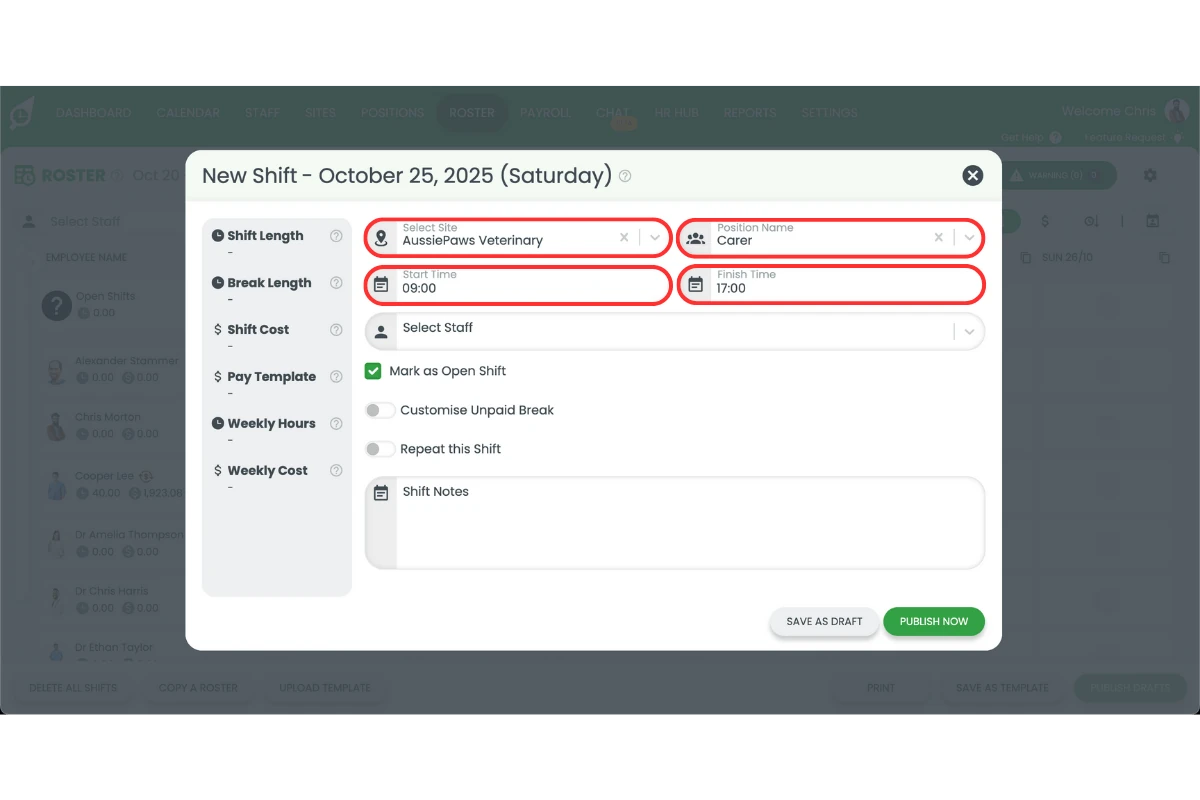
3.2.3 Enter the shift details.
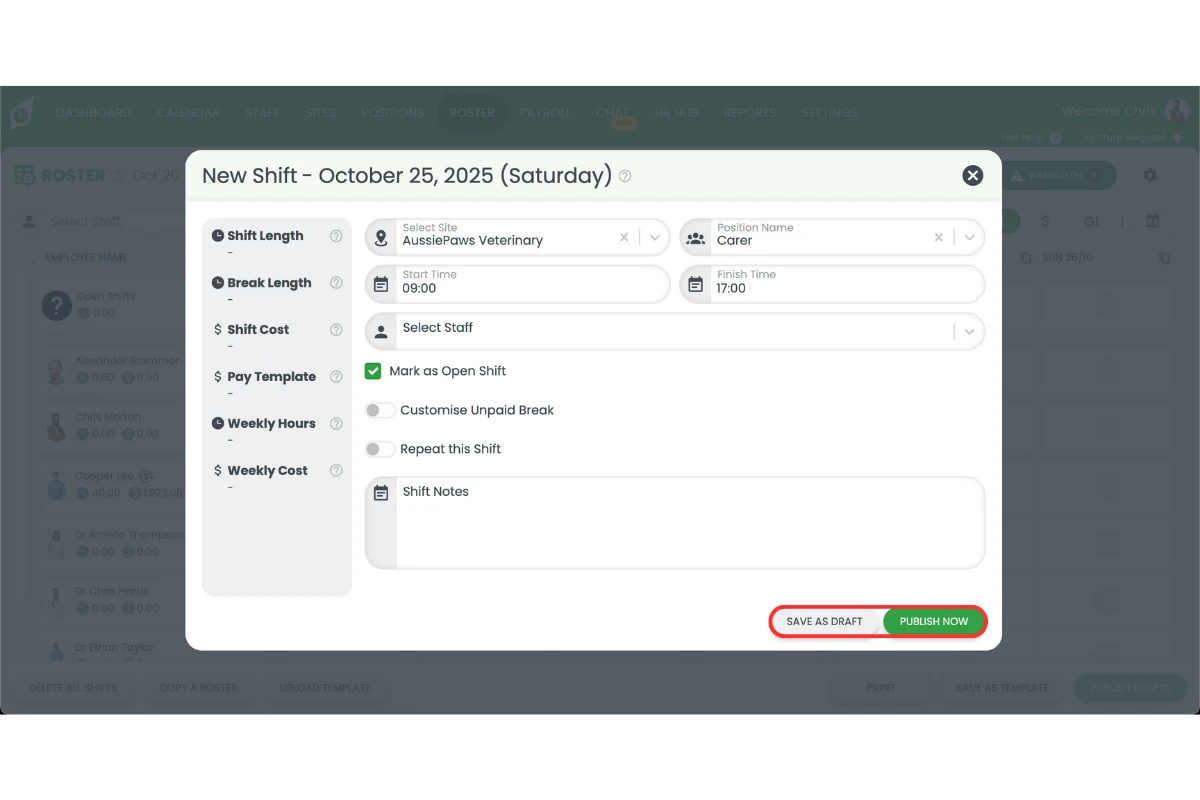
3.2.4 Save as a draft or publish.
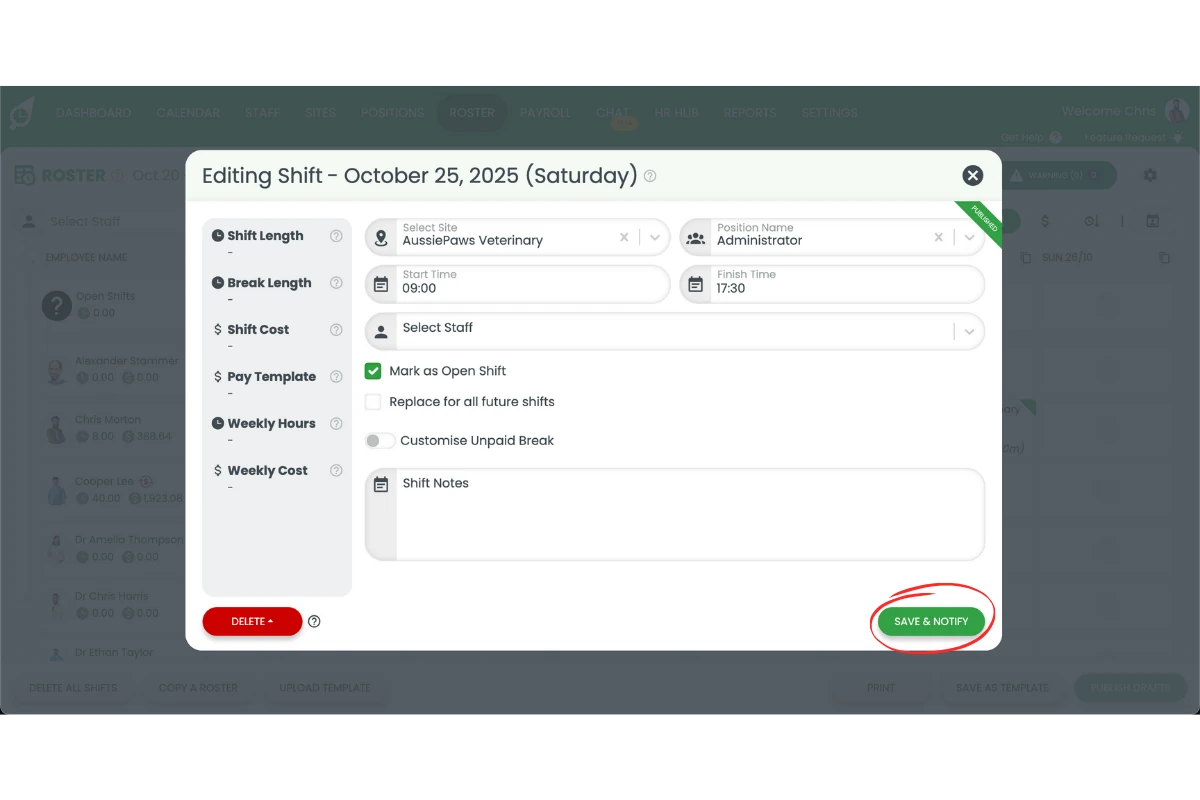
3.3 Mark an existing shift as open
3.3.1 Press Edit on the shift.
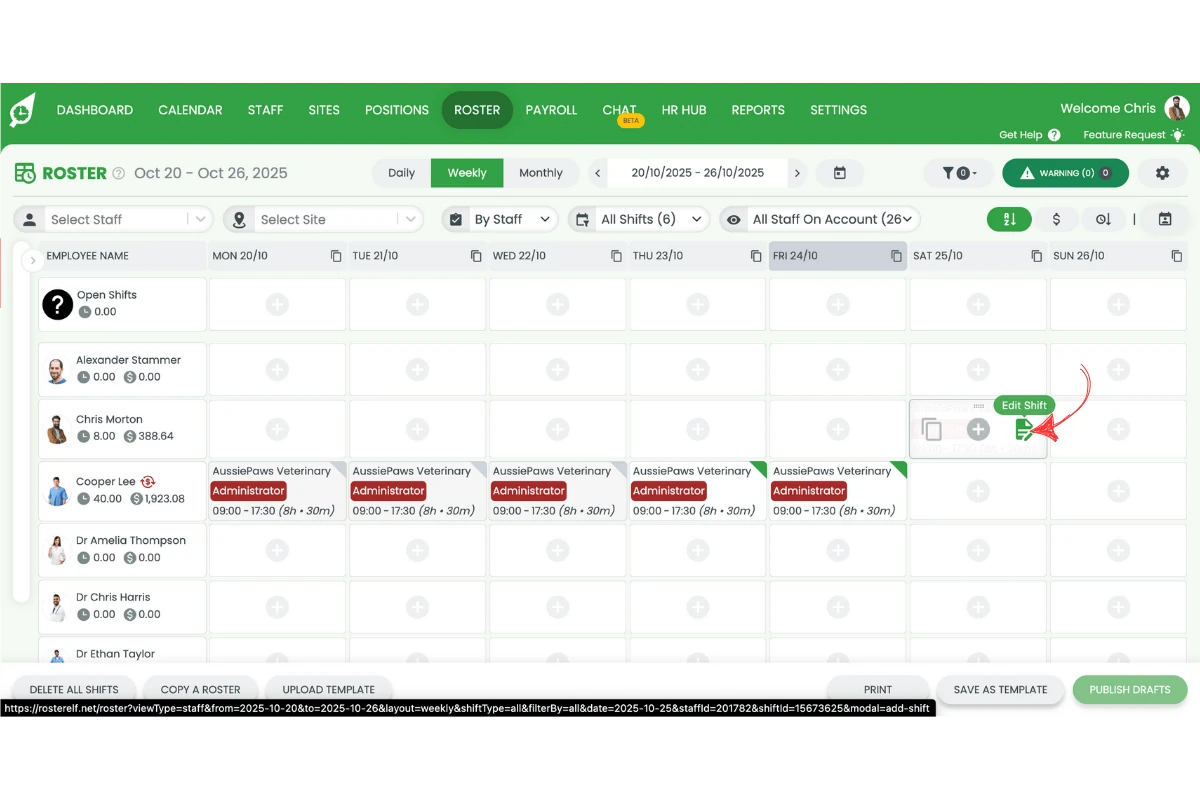
3.3.2 Tick Mark as open.
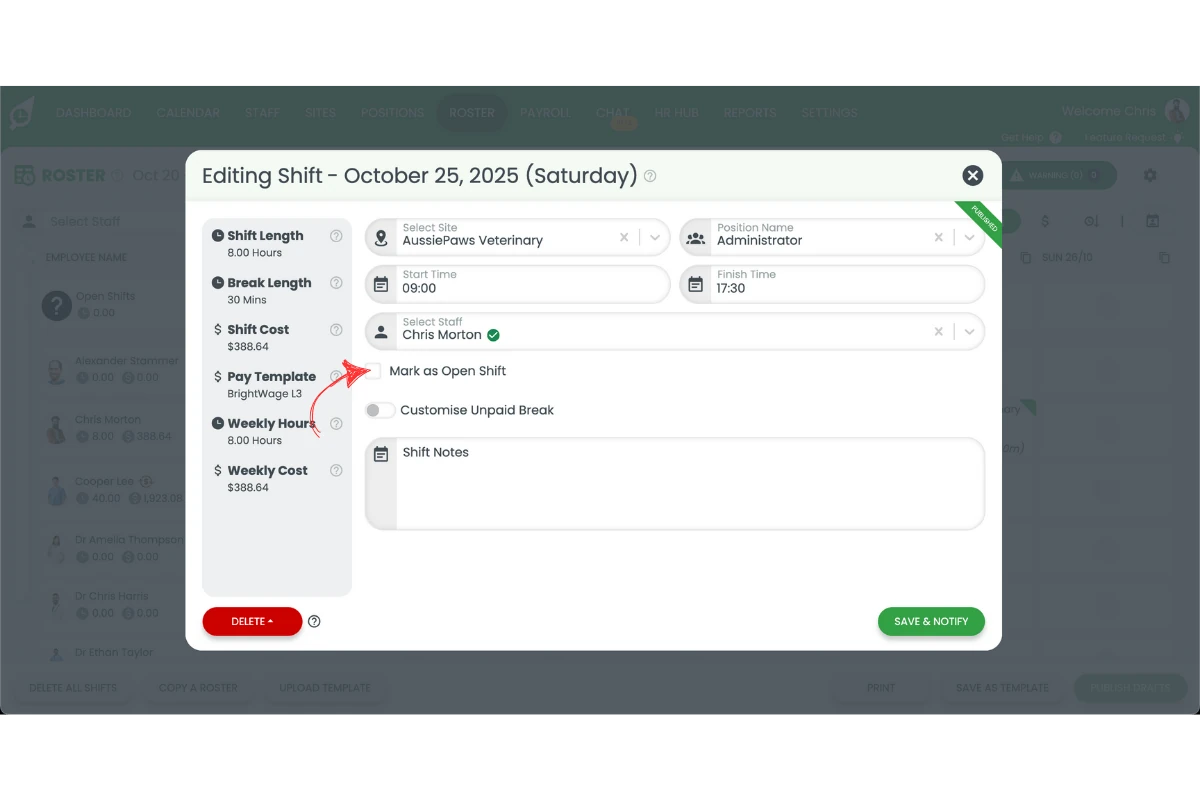
3.3.3 Press Save and Notify.
4. Update staff availability
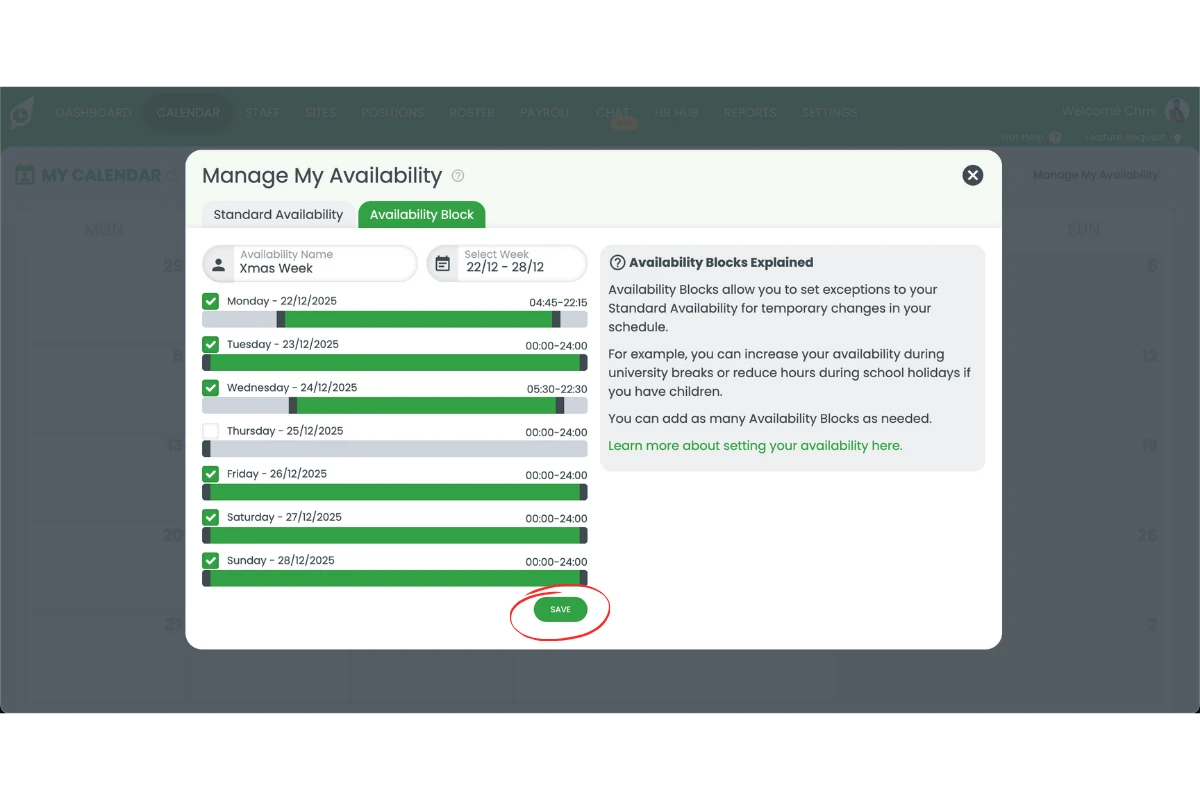
This section explains how staff can update their availability blocks in RosterElf. Keeping availability up to date helps managers plan rosters that match staff preferences and business needs.
Learn more in our leave and availability guides.
4.1 Set availability blocks
4.1.1 Open RosterElf.
4.1.2 Press Calendar.
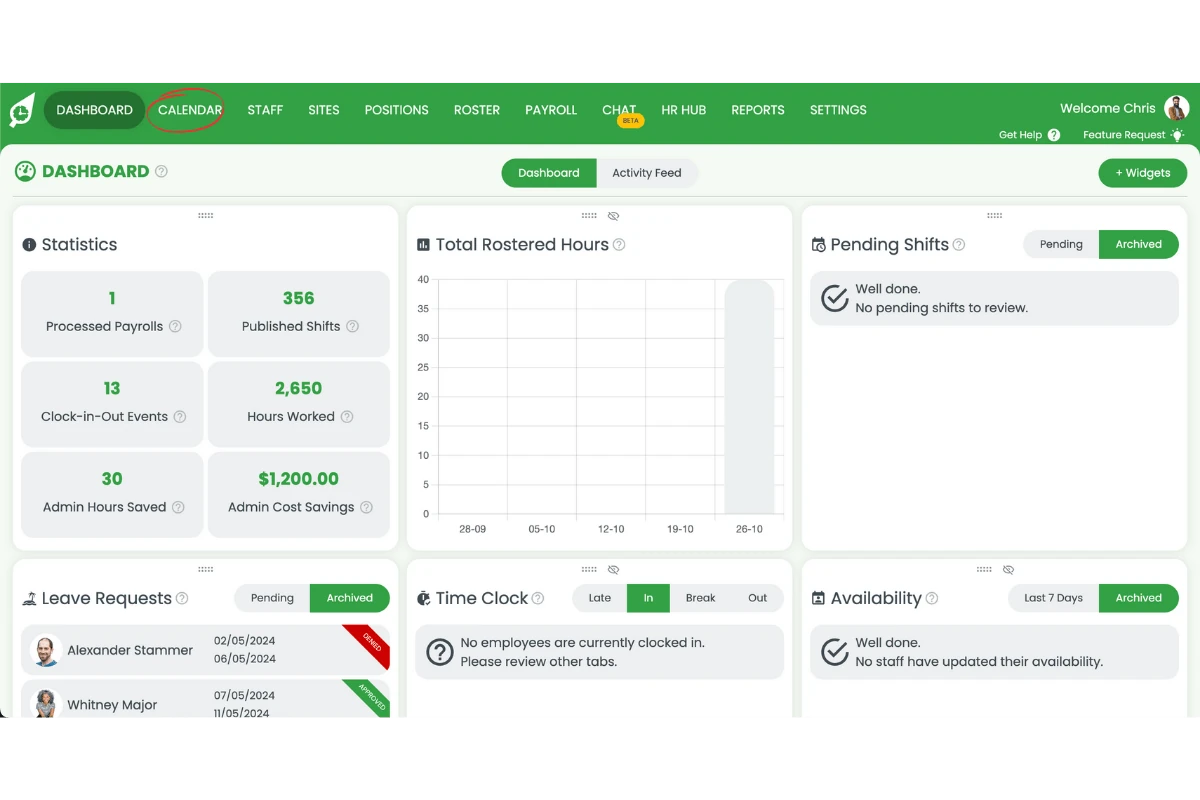
4.1.3 Select Manage availability.
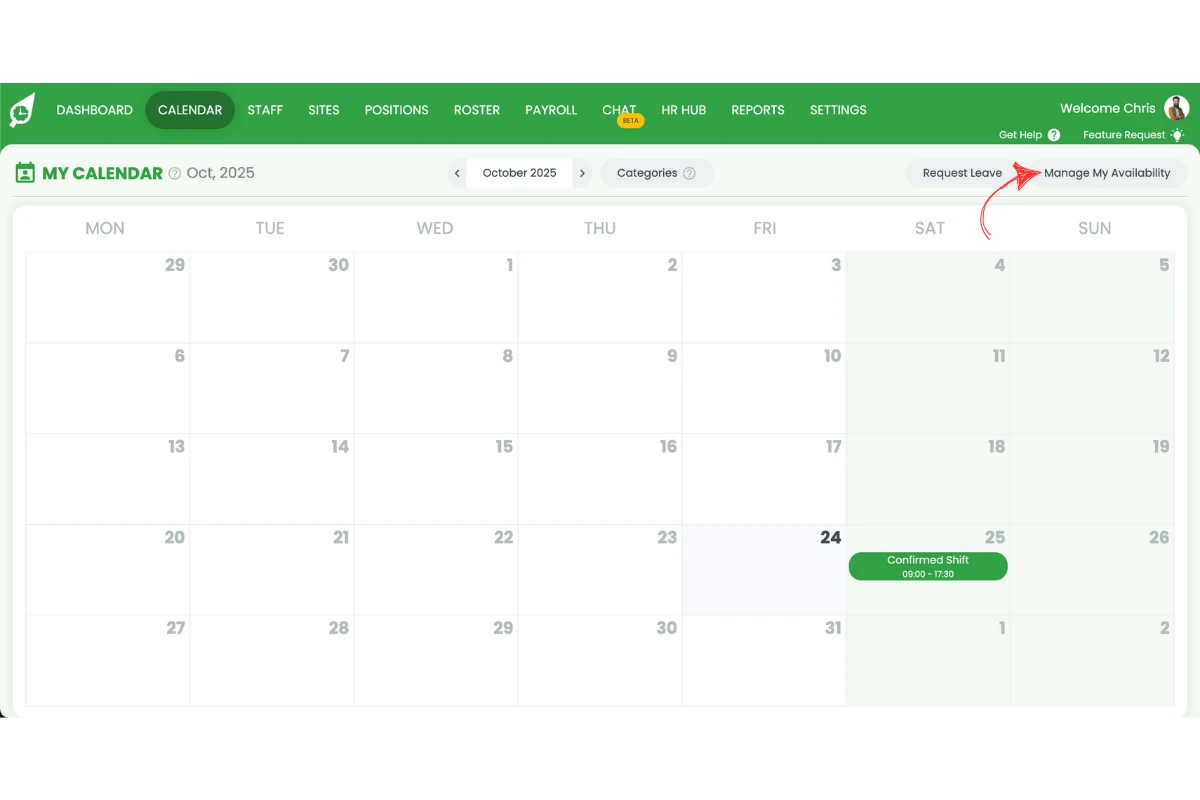
4.1.4 Choose an availability block.
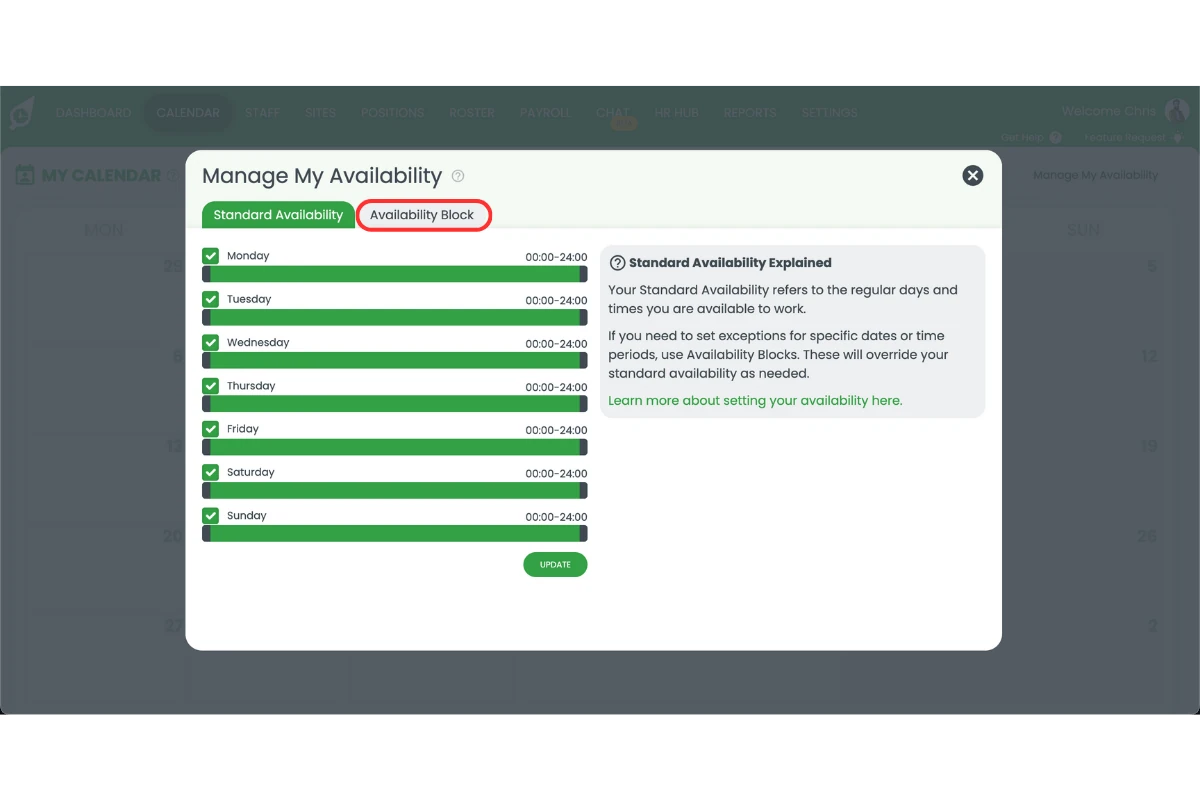
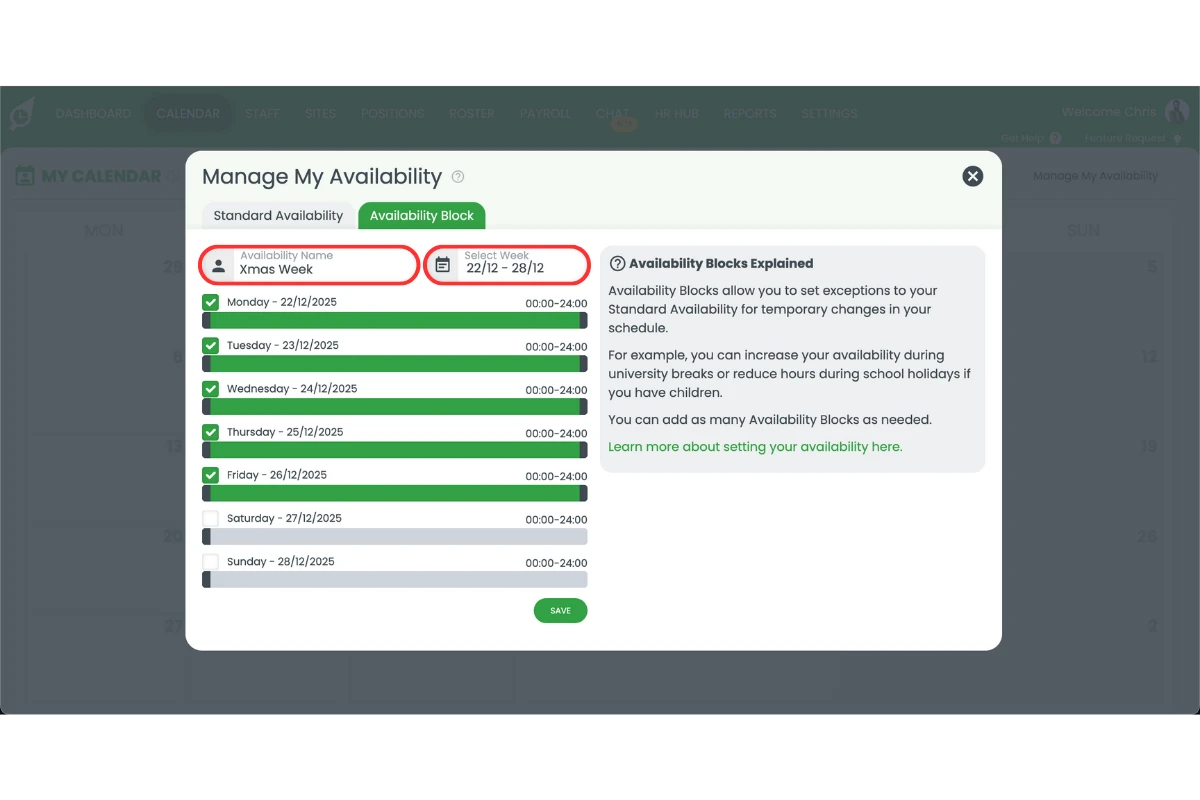
4.1.5 Set your week and name the block.
4.1.6 Update availability times.
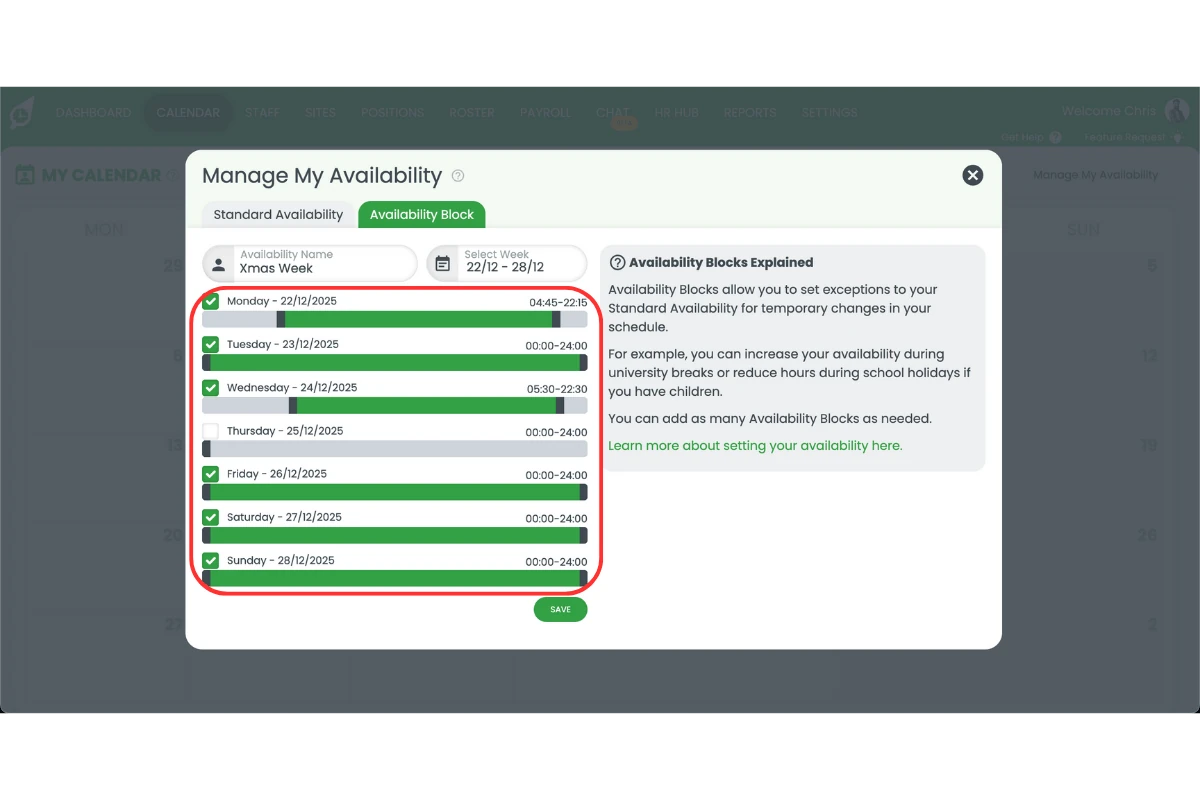
4.1.7 Press Save.
Frequently asked questions
1. How do I make sure my public holidays are set correctly in RosterElf?
To confirm your public holidays are set to RosterElf’s standard list, open your RosterElf account, select your site, and go to Public holidays. Choose “I want to use standard holidays”. RosterElf refreshes the standard list ahead of each new year, but if next year’s dates aren’t showing yet, check back closer to the date or add the missing date manually as a single day.
2. What should I check in my pay templates for public holidays?
Review your pay templates by going to Settings > Payroll. Select your pay template and ensure a Public holiday rule is applied. This ensures your staff are paid correctly for working or taking public holidays. If missing, you can add one by pressing Add rule, setting it to All day, ticking HOL, assigning your pay item, and saving.
3. How do open shifts help during the busy season?
Open shifts make it easy to fill last-minute or extra shifts. When enabled, staff can view and claim open shifts directly through the RosterElf app. This keeps rosters full, reduces last-minute scheduling stress, and ensures consistent coverage during the festive period.
4. How do I enable and post open shifts in RosterElf?
To enable open shifts, go to Settings > Roster and toggle on Open shifts. To post a new open shift, go to the Roster, click Add a shift in the open shift section, enter your details, and save or publish. You can also mark an existing shift as open by editing it, selecting Mark as open, and saving.
5. How can staff update their availability for the festive season?
Staff can update their availability by opening RosterElf, selecting Calendar, and choosing Manage availability. From there, they can create or edit an availability block, set the week, name the block, adjust available times, and press Save. Keeping availability current ensures rosters align with both staff preferences and business needs.