

Adding pay rates to salary staff in RosterElf ensures accurate budgeting when creating rosters and allows seamless payroll exports to various software providers. Assigning a pay rate standardises payroll data for salaried employees, making it easier to manage wages, verify work hours, and streamline payroll processes. This guide will walk you through setting up a fixed salary, standard hours, and auto-roster options for salaried employees in RosterElf.
For information on assigning pay templates to hourly wage staff, see our guide on Assign pay templates to hourly staff.
1. Assign pay rates to salary staff
Adding pay rates to salary staff in RosterElf supports accurate payroll data and budget forecasting. Follow these steps to assign pay rates to a salaried employee, including configuring employment type, salary, and hours for seamless roster integration.
1.1 select staff for pay rate assignment
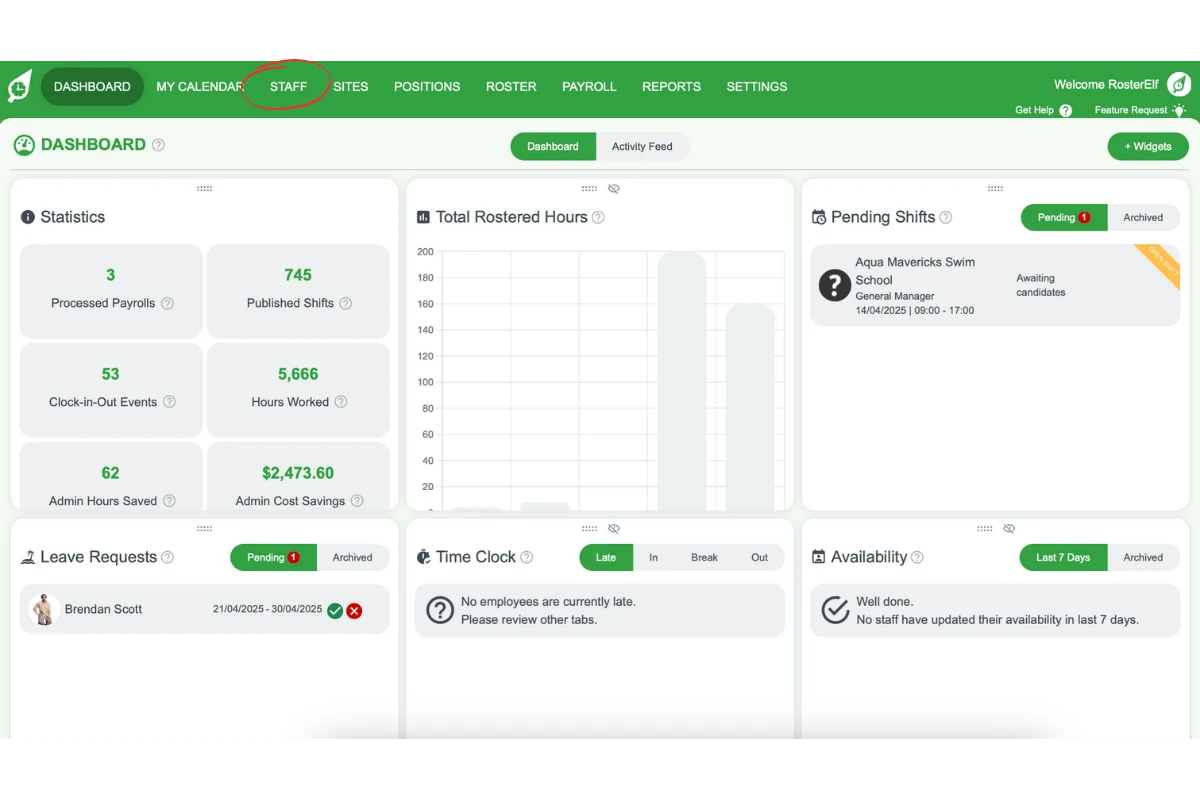
1.1.1 Click the Staff tab in the top menu.
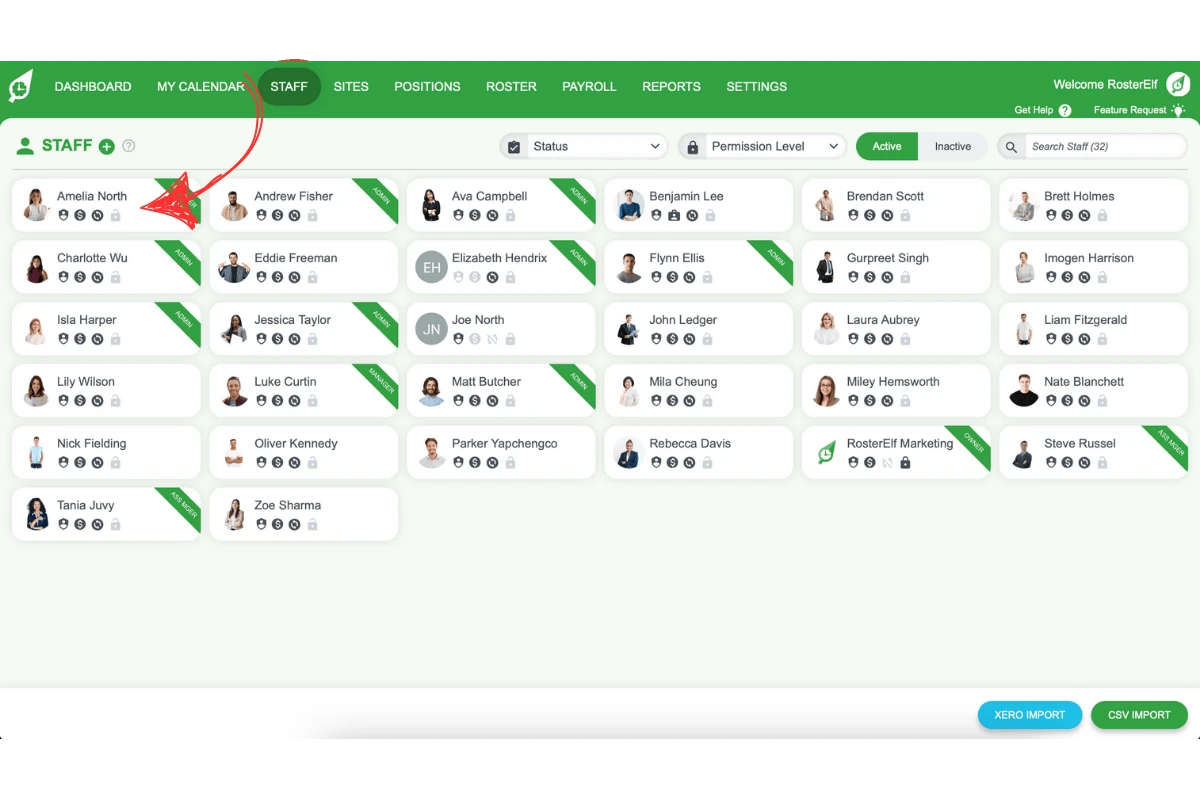
1.1.2 Select the staff member to assign a pay rate.
1.2 enter payroll details for salary staff
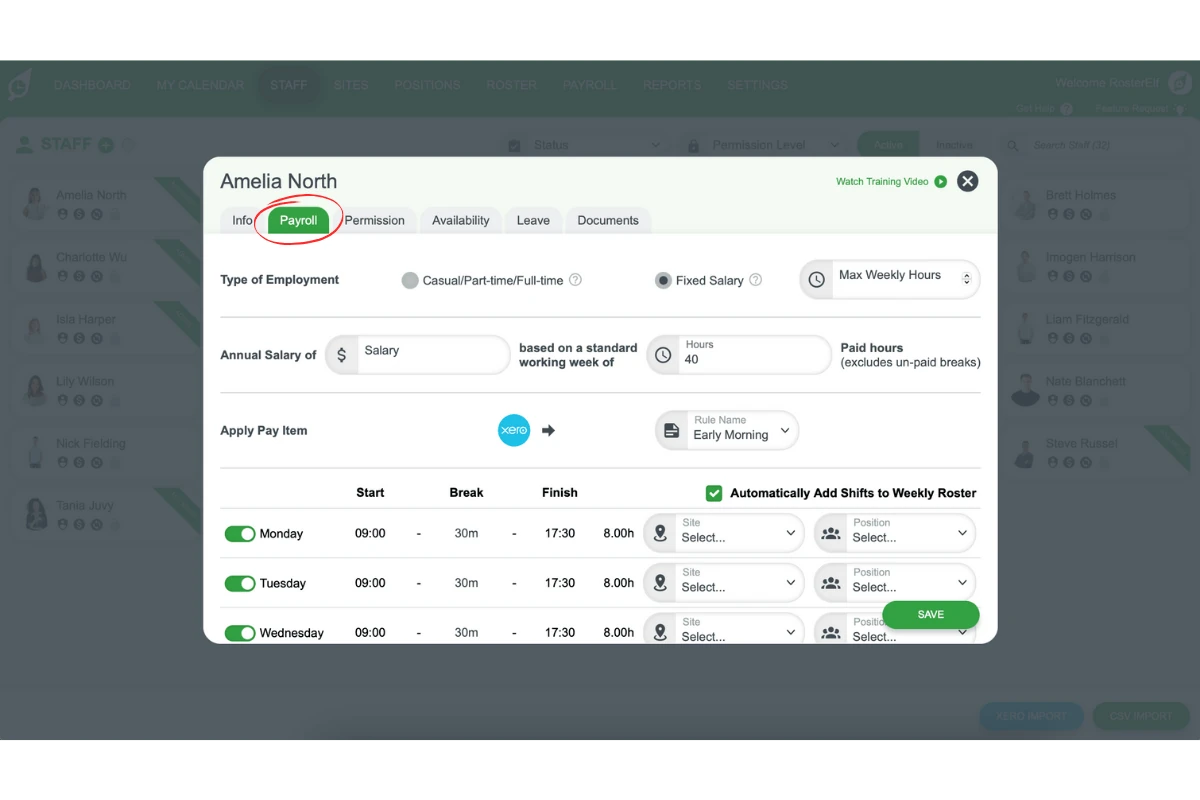
1.2.1 Go to the Payroll tab.
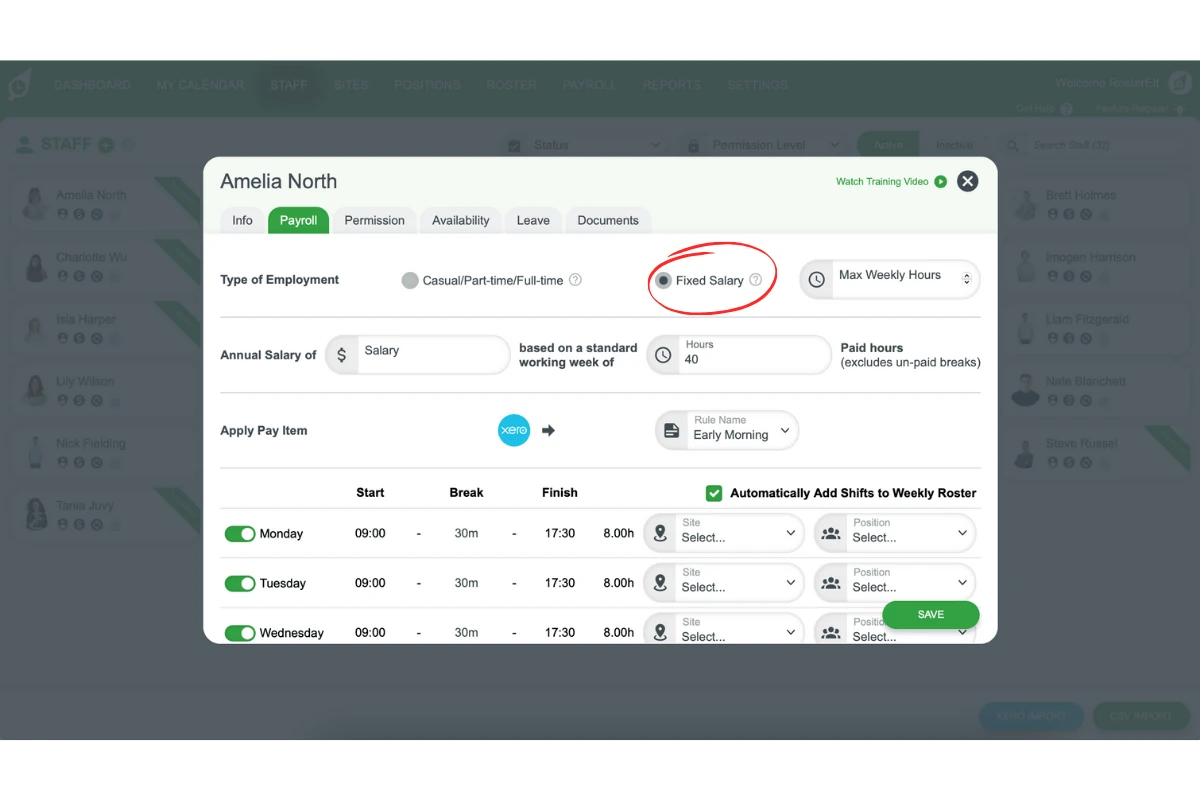
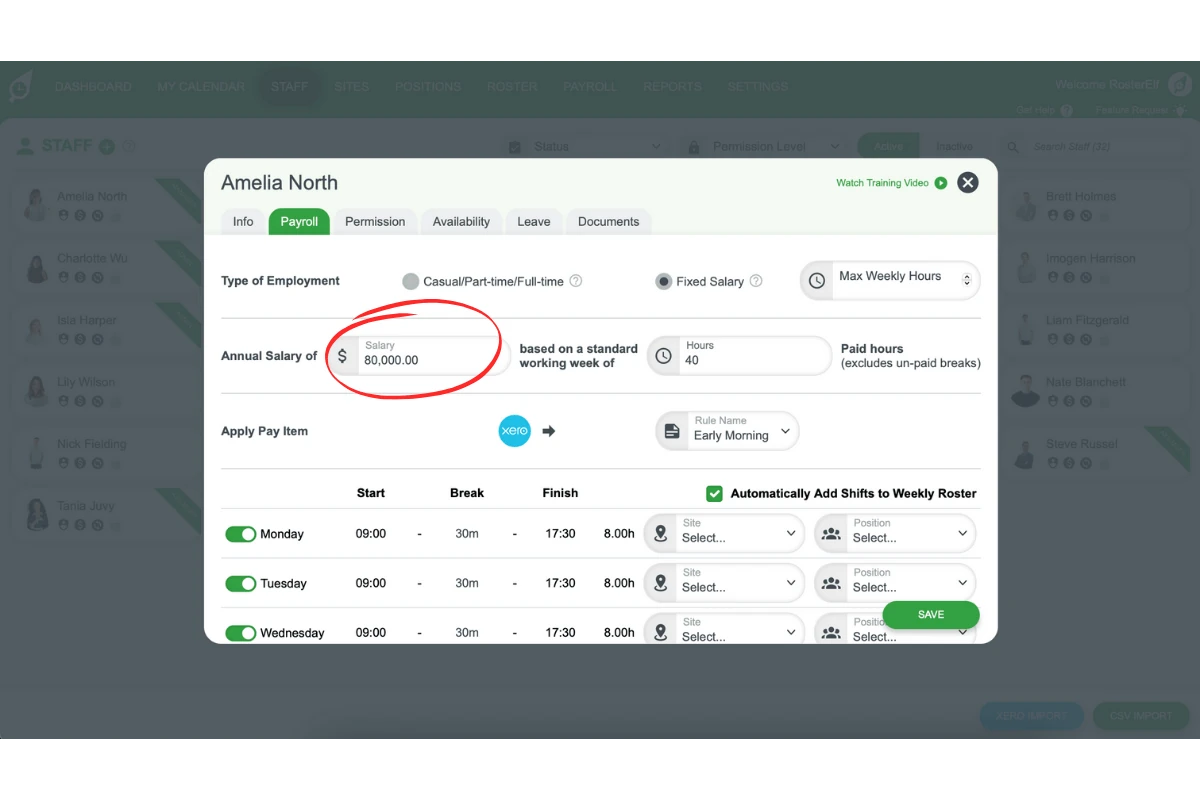
1.2.2 For Type of Employment, select Fixed Salary.
1.3 set salary, hours, and pay items
1.3.1 Enter the Annual Salary for the employee. The hours field beside it can’t be edited: RosterElf works the hours out from each day’s Start, Break and Finish times, which you set in step 1.3.3.
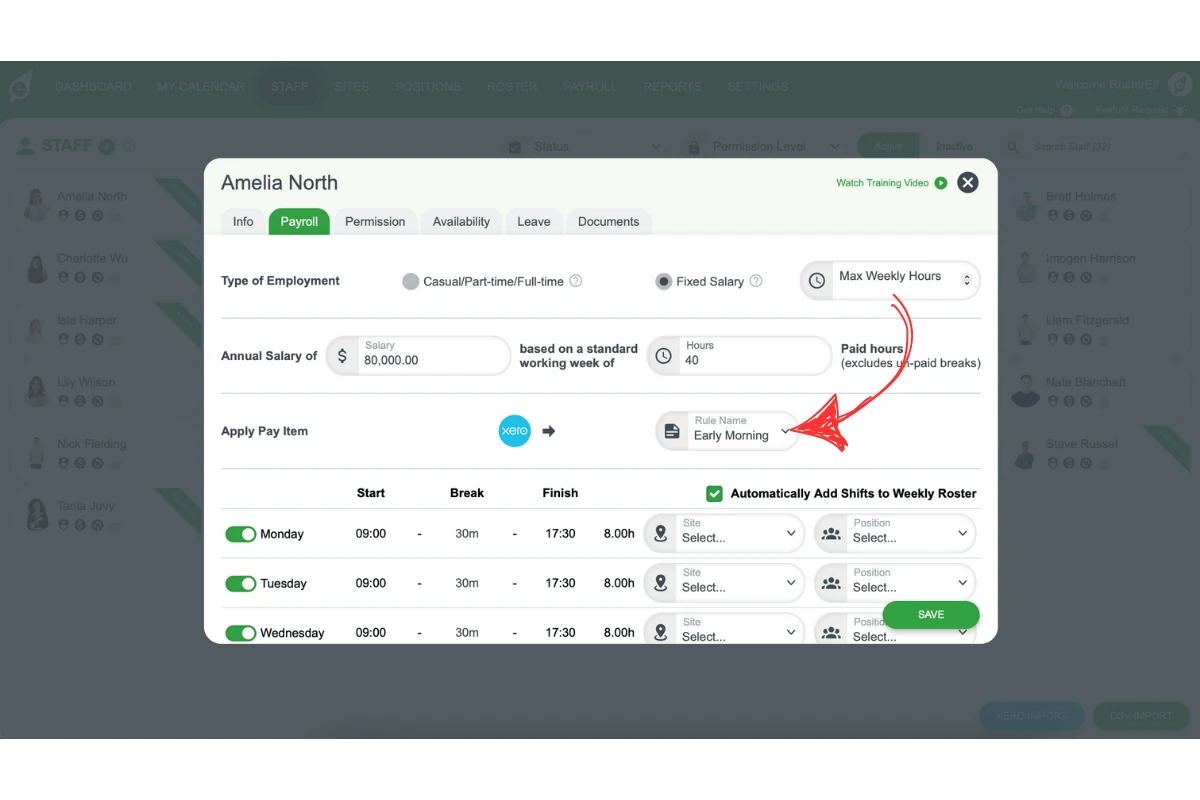
1.3.2 Select the Xero Pay Item or enter the Pay Item as listed in your payroll software.
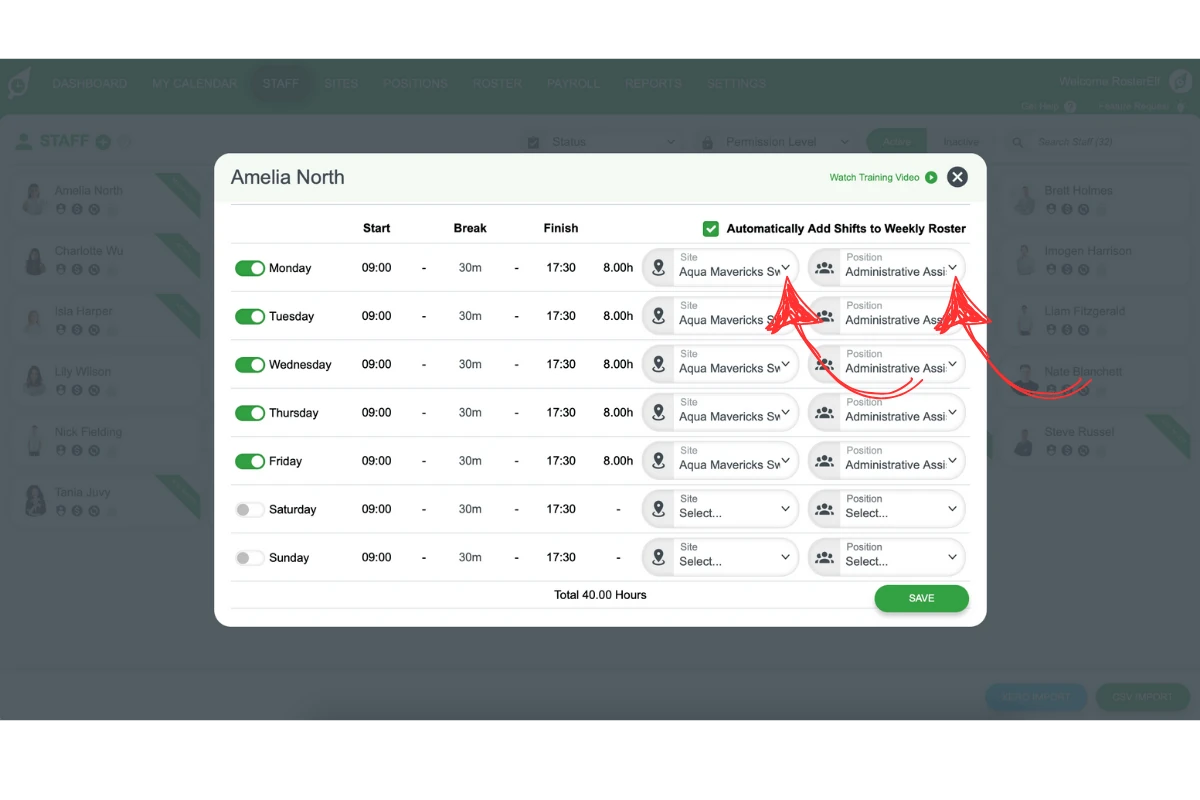
1.3.3 Add their Standard Hours by setting each day’s Start, Break and Finish times, along with the Site and Position for each day.
1.4 enable auto-roster (optional)
1.4.1 To automatically display these hours on the weekly roster, tick Automatically Add Shifts to Weekly Roster.
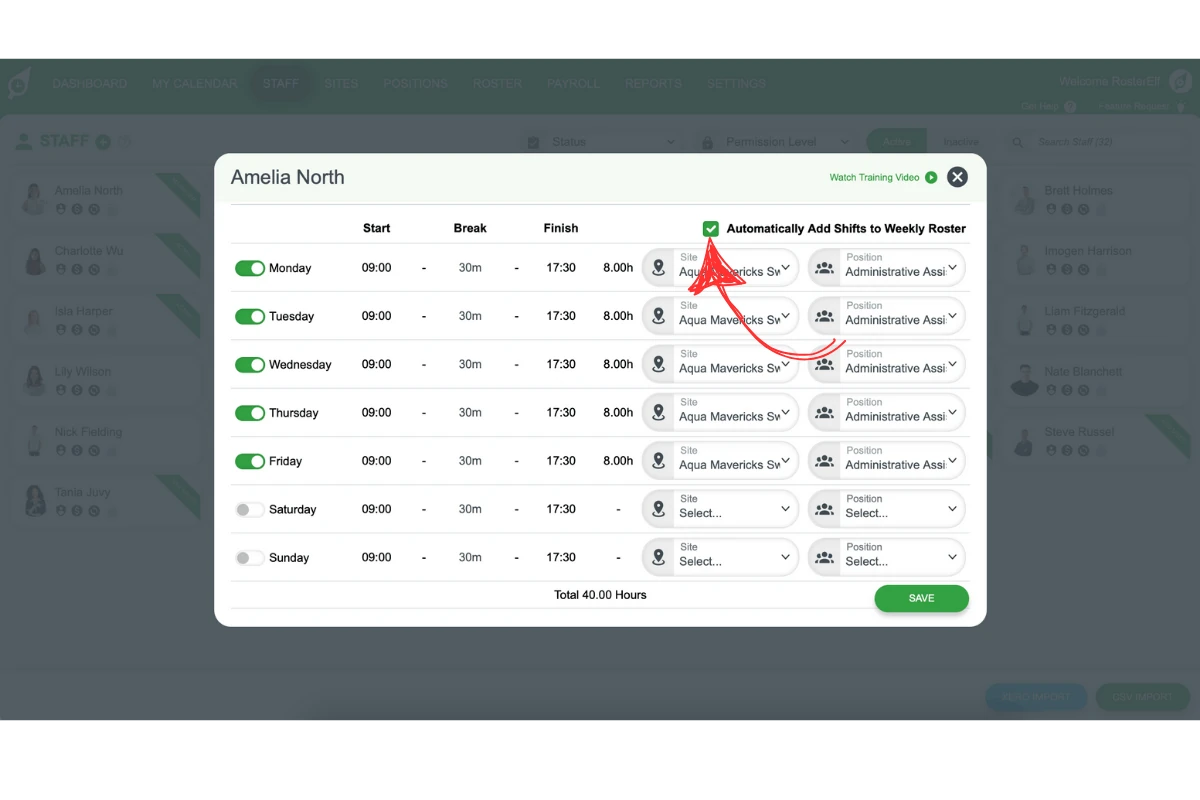
1.4.2 The staff member will appear on the roster with the set site and position.
2. Additional information on salary staff display
Salary staff are marked with a green dollar symbol ($) on each shift to make them easily identifiable on the roster. You can remove or add extra shifts as necessary. This section provides details on how salary hours display on the roster and what happens when assigned hours differ from actual rostered hours.
2.1 differentiating salary staff on the roster
2.1.1 Salary staff shifts display a green dollar symbol ($) to indicate they are salaried. Shifts can still be deleted or added as needed.
2.2 displaying matched or unmatched roster hours
2.2.1 Explanation:
- Matched hours: The rostered hours appear in black when they align with the assigned hours on the staff card.
- Unmatched hours: Edited shifts with hours that differ from those assigned display in red. Regardless of rostered hours, RosterElf will push the assigned hours from the staff card to payroll.
- Example: If the staff card lists 40 hours as per contract, only these 40 hours are sent to payroll even if 45 hours were worked.
2.3 Auto-rostered salary staff and leave periods
Salary staff with auto-assigned hours will not appear on the roster during approved leave periods, ensuring leave is accurately recorded in RosterElf.
Frequently asked questions
1. How do I assign a pay rate to salaried staff in RosterElf?
To assign a pay rate, go to the Staff tab, select the employee, then navigate to the Payroll tab. Choose Fixed Salary under the Type of Employment section, enter their salary details, and set their standard hours.
2. Can I enable automatic rostering for salaried employees?
Yes, you can enable automatic rostering by ticking Automatically Add Shifts to Weekly Roster. This will display the employee’s scheduled hours on the weekly roster with their set site and position.
3. How does RosterElf display salaried staff on the roster?
RosterElf marks salaried employees with a green dollar symbol ($) on each shift to easily differentiate them. You can add or remove shifts as needed.
4. What happens if rostered hours differ from assigned hours?
If rostered hours differ from the hours set in the staff card, the displayed hours appear in red. RosterElf will still send the assigned hours from the staff card to payroll, ensuring payroll consistency.
5. Will salary staff hours auto-roster during leave periods?
No, if a salaried staff member has approved leave, their hours won’t appear on the roster during that period, ensuring accurate leave tracking in RosterElf.