

Award templates are pre-built pay templates that RosterElf provides to help you set up pay rules faster. Instead of building every rate and rule from scratch, you can activate a ready-made template for a specific award classification and use it as a starting point for your own setup.
This guide explains where to find award templates, how to activate one, how to tell your custom templates apart from RosterElf templates, and how to delete or hide templates you no longer use. Award templates pair well with RosterElf's automated award interpretation to keep payroll accurate across complex rosters. For a quick overview of the feature, see the award templates announcement.
What are award templates?
An award template is a pay template that already contains the pay rules for a single classification under a modern award — for example a casual general level or a full-time manager grade. RosterElf maintains these templates so you can activate them in a few clicks rather than setting up payroll and entering every weekday, weekend, public holiday and late-night rate by hand.
RosterElf currently provides templates for the Registered Clubs Award [MA000058]. Packs for the Hospitality Award [MA000009], Restaurant Award [MA000119] and Fast Food Award [MA000003] are in build. If the award you need isn't on that list, you can vote on which awards we build next on our feature requests board.
Where to find award templates
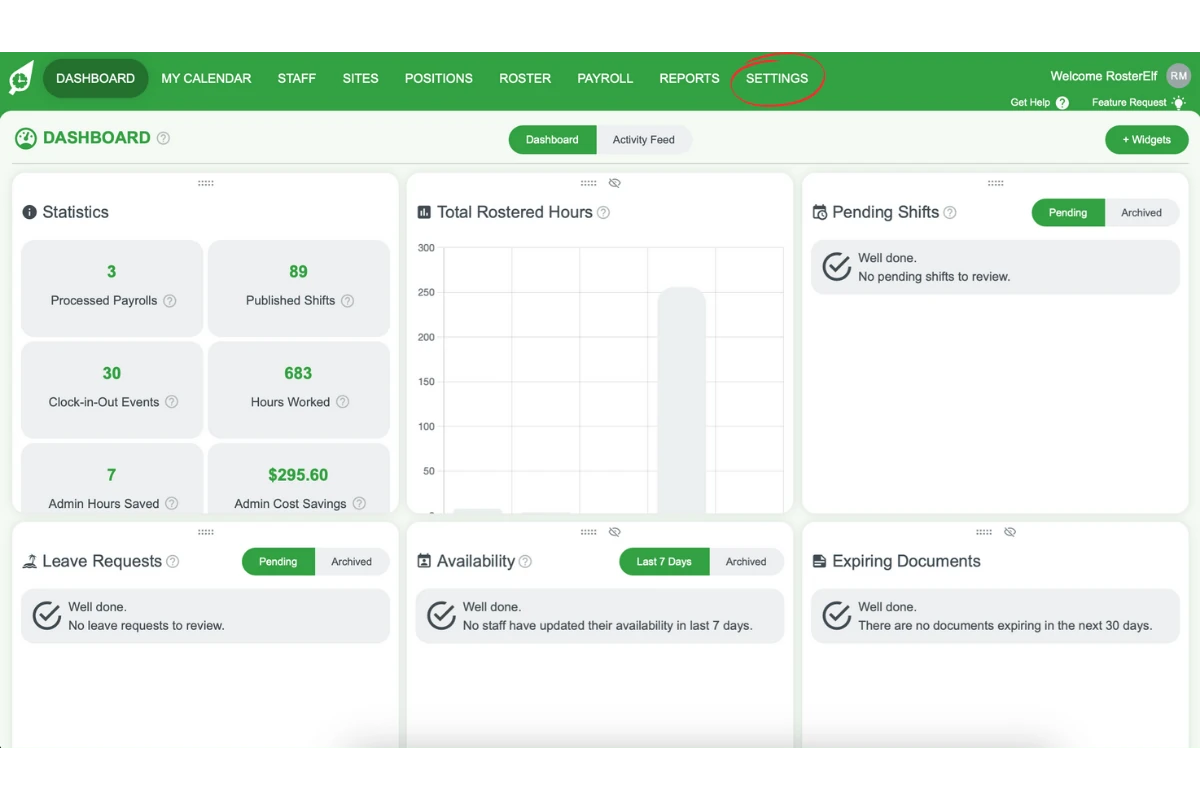
1.1 Log in to RosterElf and click the Settings tab.
1.2 Select Payroll from the dropdown options.
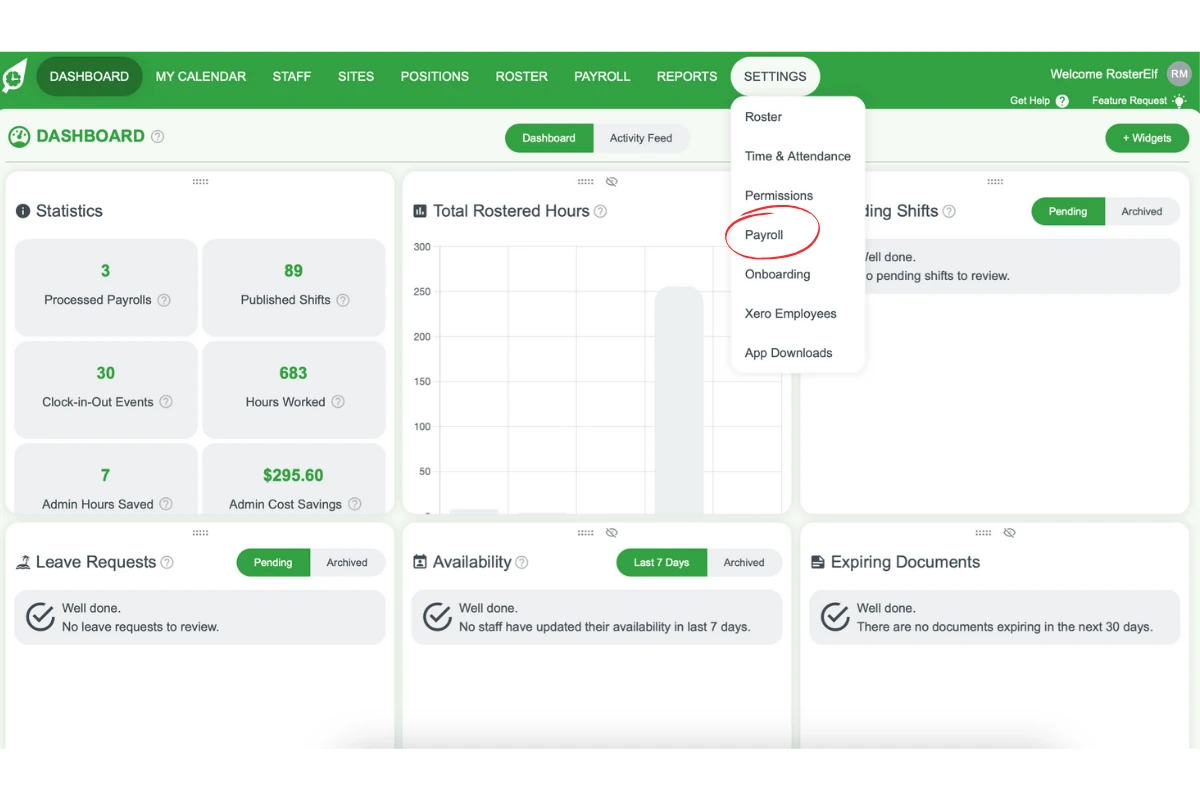
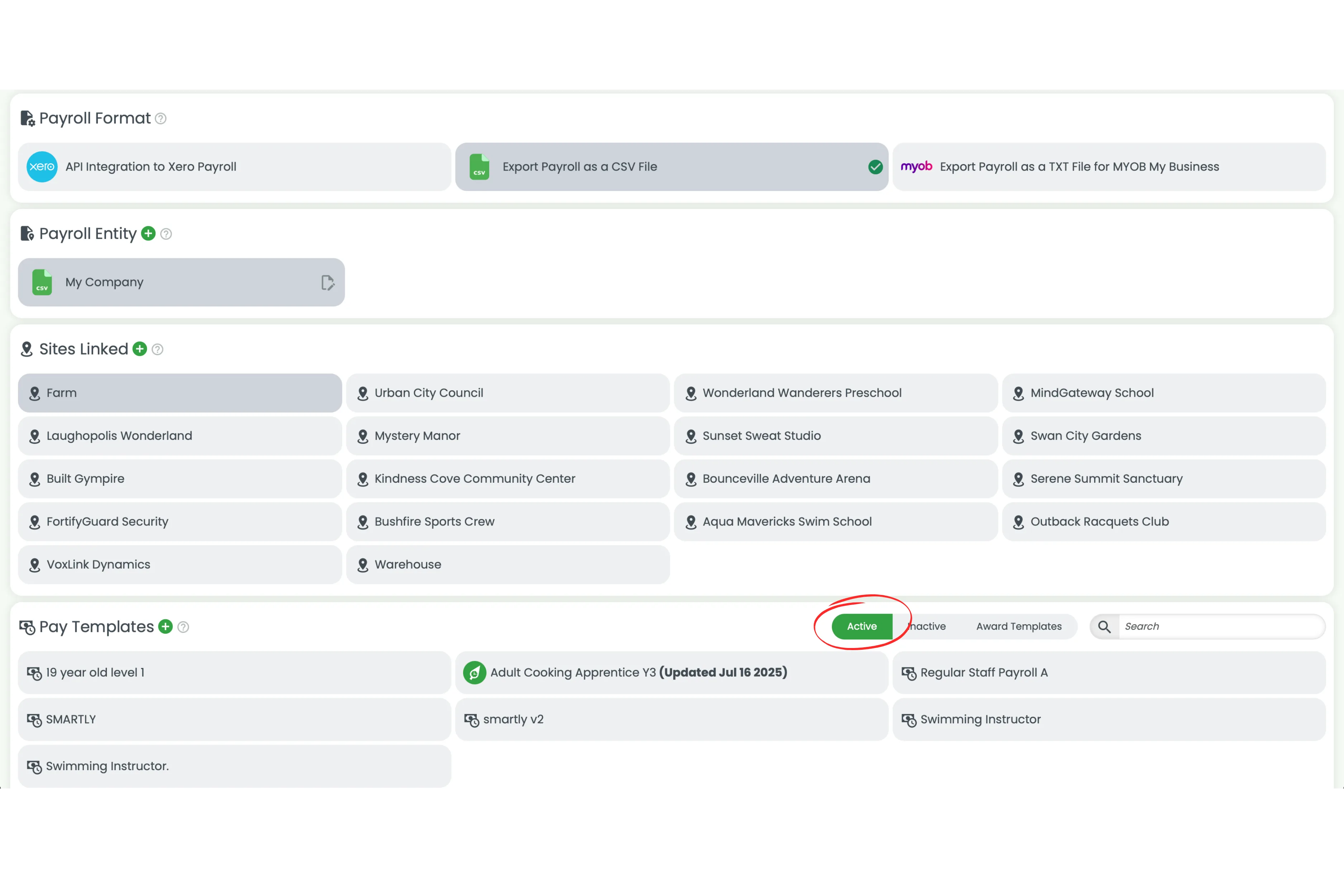
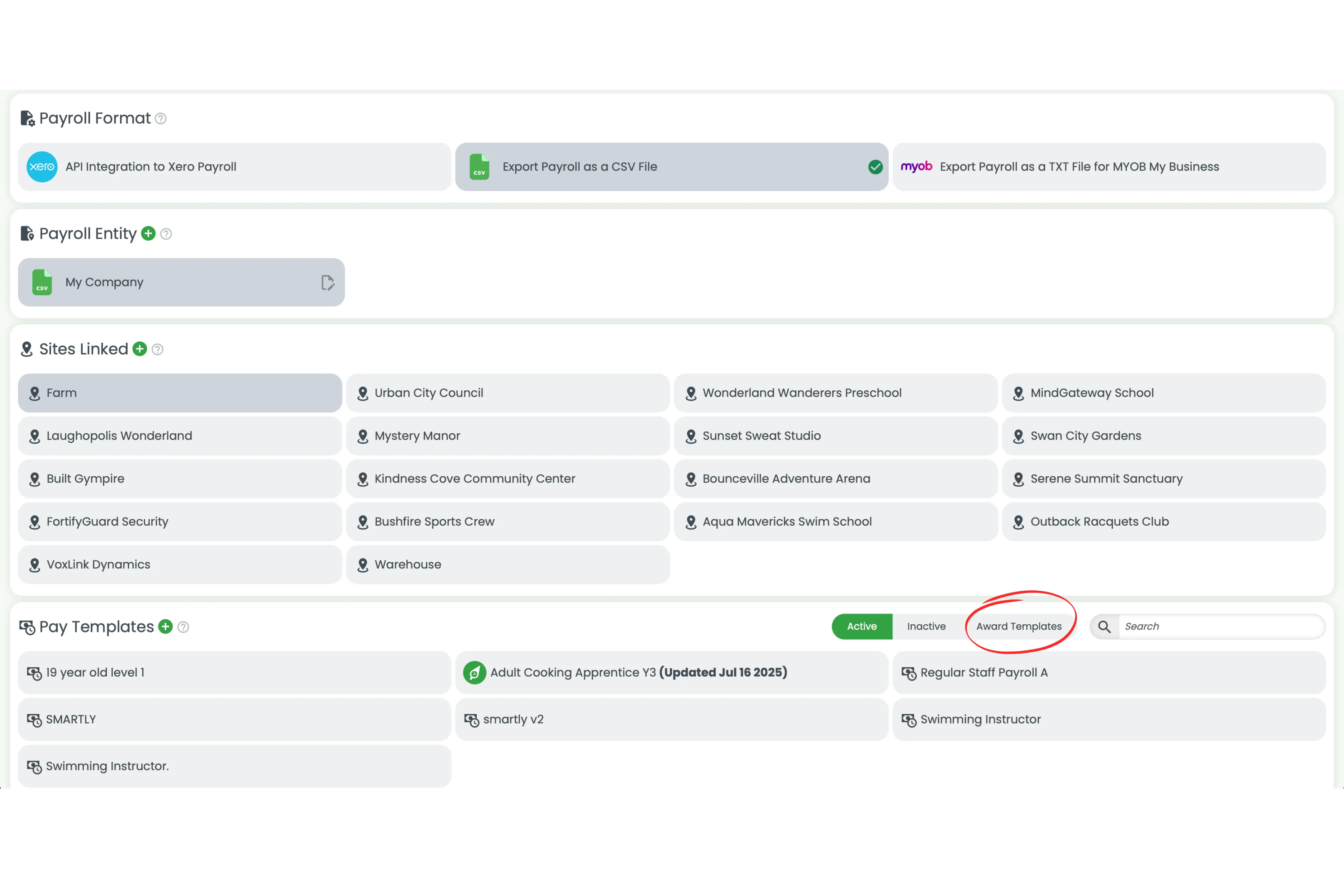
1.3 Scroll down to the Pay Templates section, where you'll find three tabs.
Active, inactive and Award templates
The Pay Templates section is organised into three tabs:
- Active — the templates you are currently using to pay staff.
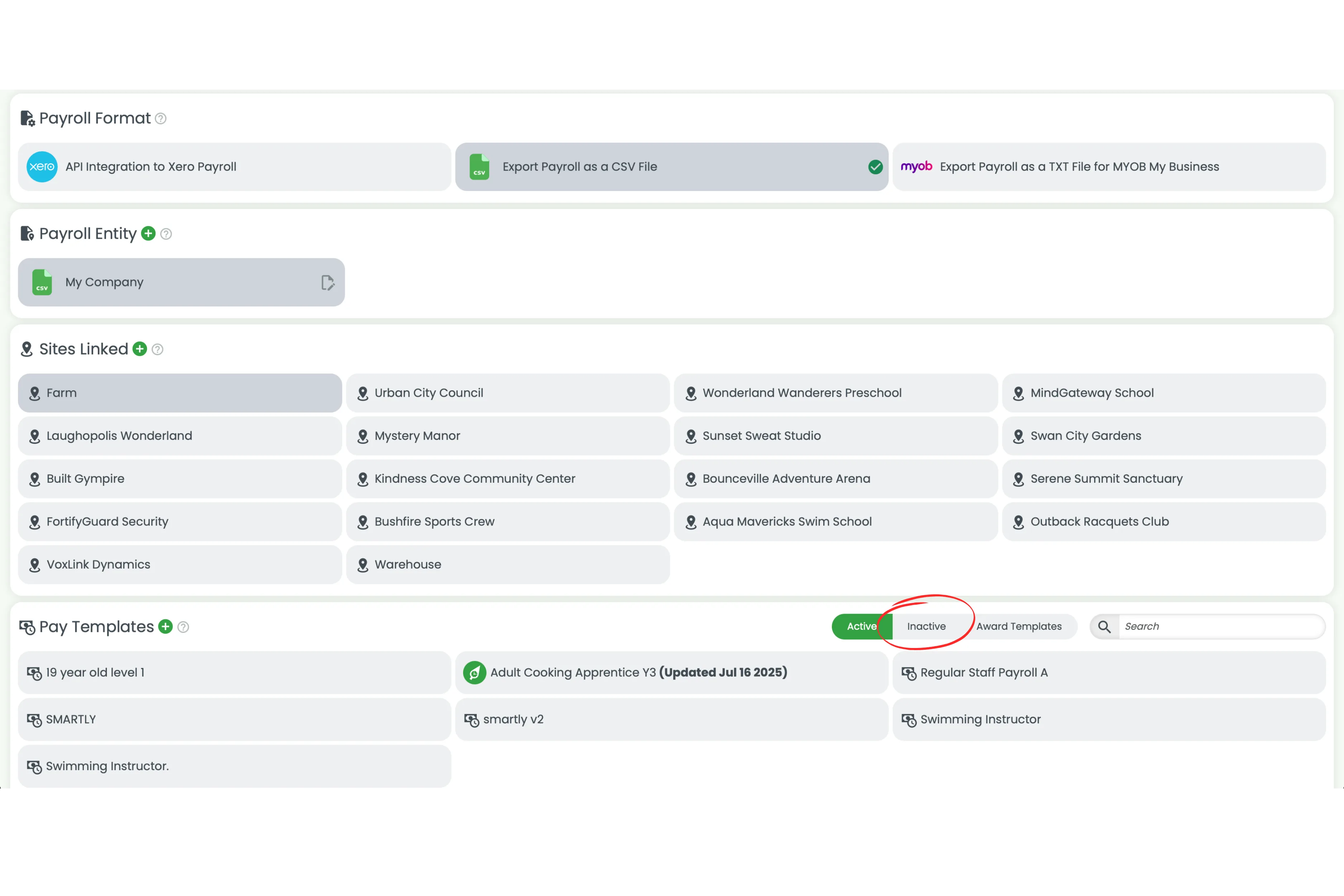
- Inactive — your custom templates that you've hidden and are not currently using.
- Award Templates — the pre-built templates RosterElf provides, ready for you to activate.
Active tab
The Active tab lists every template currently in use across your business.
Inactive tab
The Inactive tab holds custom templates you've hidden. They stay available so you can reactivate them later without rebuilding them.
Award templates tab
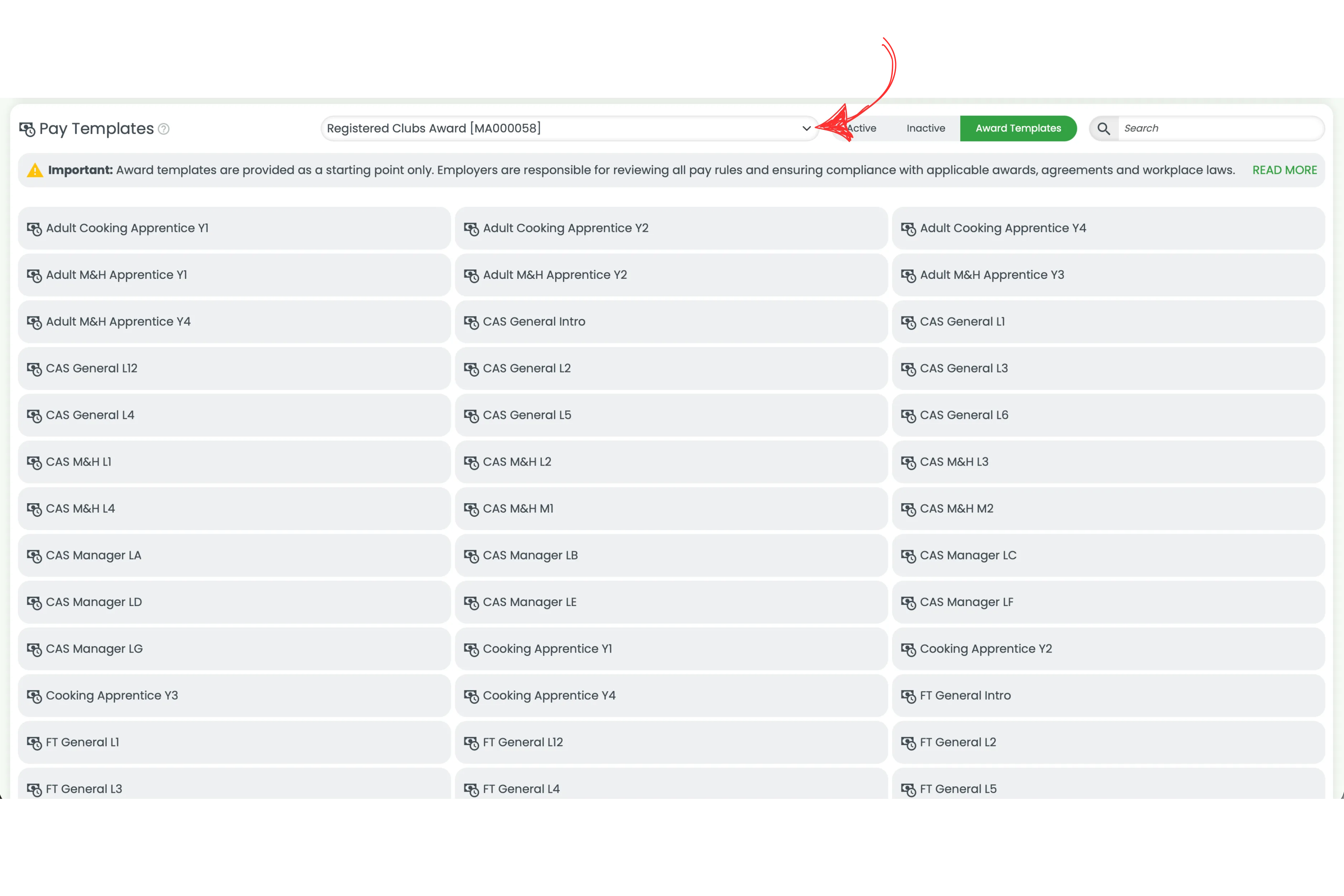
The Award Templates tab shows the templates RosterElf provides, grouped by award. Use the dropdown menu at the top to choose the award you need.
How to activate an award template
Activating an award template copies it into your Active tab so you can review it and assign it to staff on wages.
2.1 Open the Award Templates tab and select your award from the dropdown — for example Registered Clubs Award [MA000058]. You'll see the available classifications, along with a banner reminding you that templates are a starting point only.
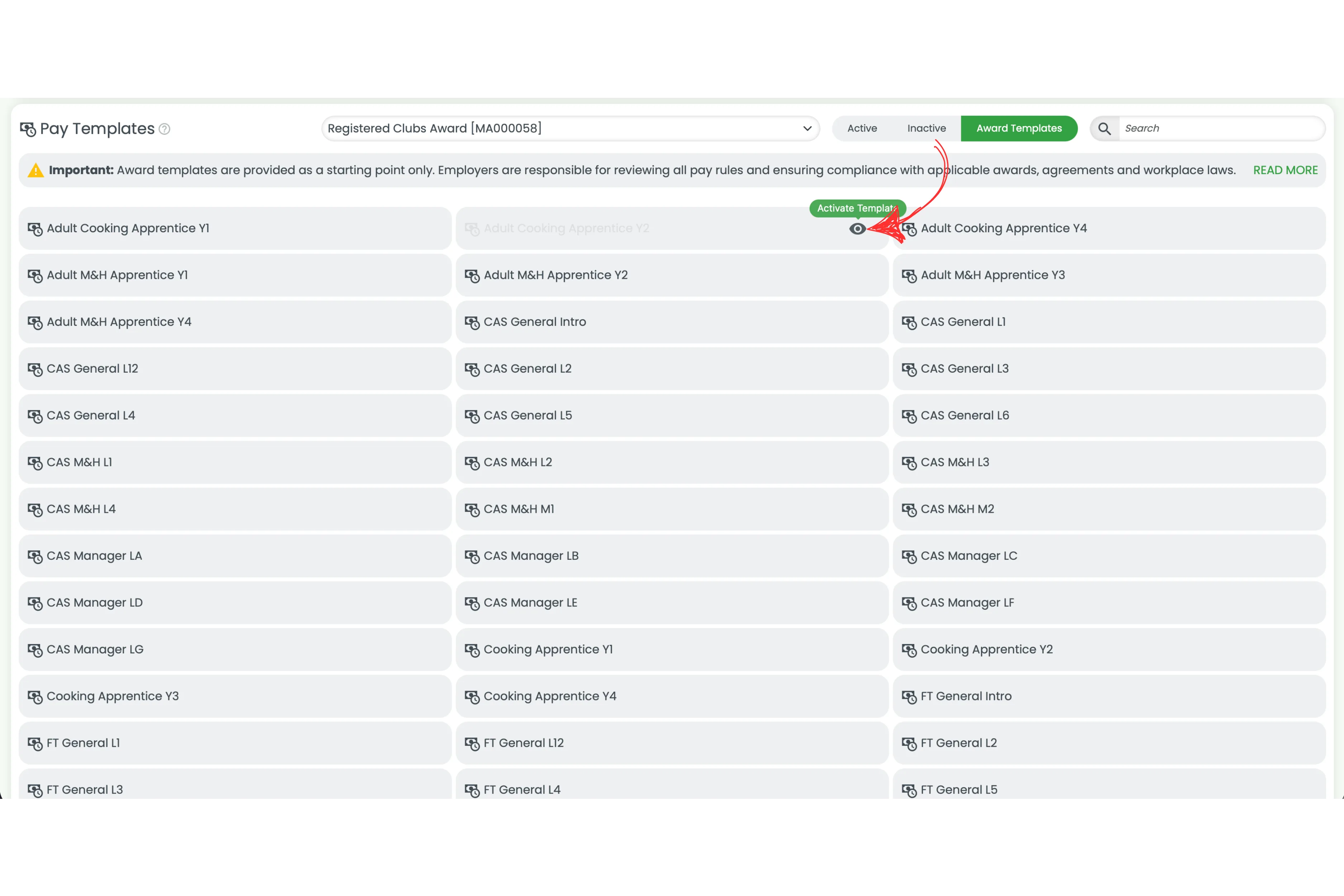
2.2 Hover over the template you want to use and click Activate template.
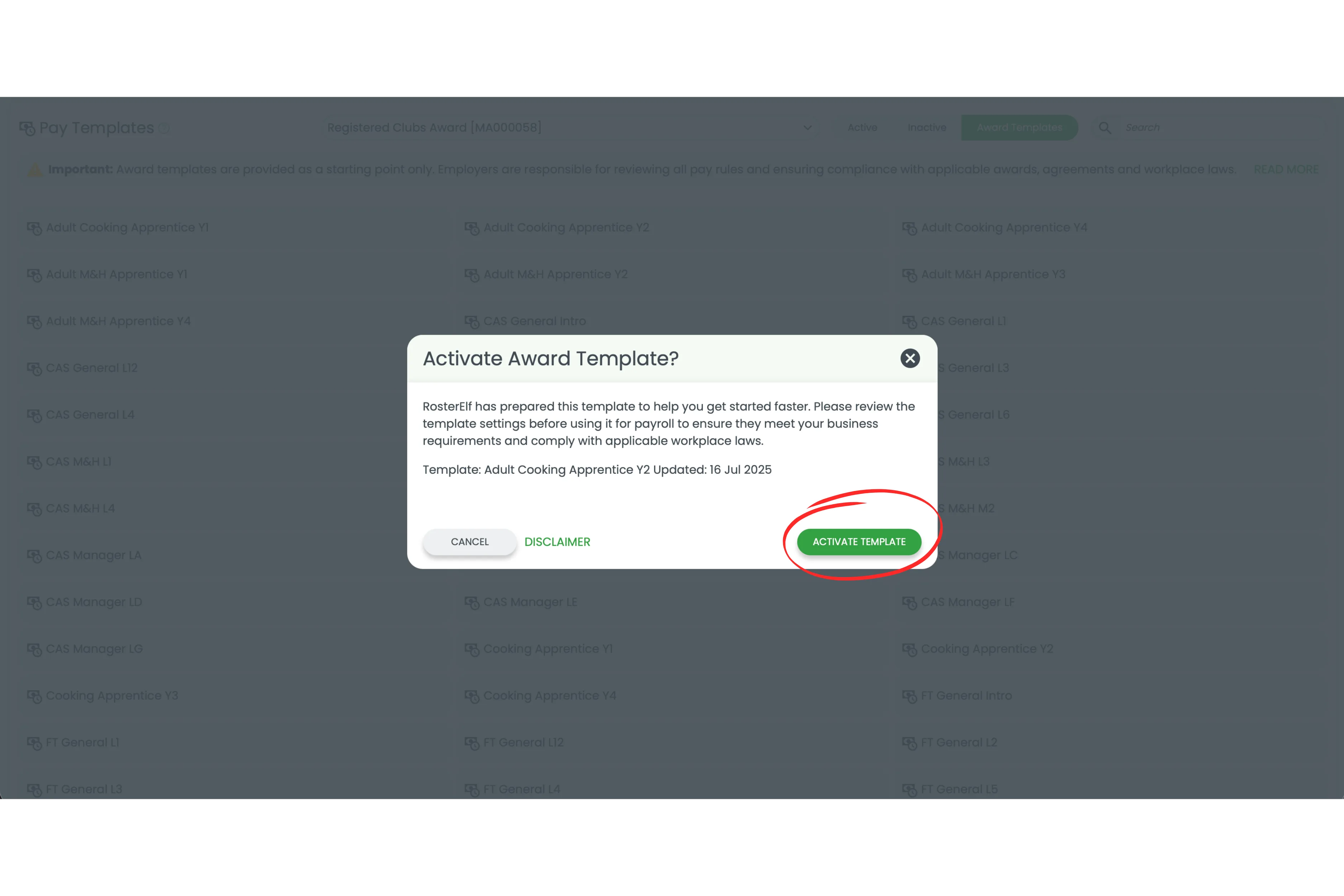
2.3 Review the details in the Activate Award Template? window, then click Activate template to confirm. The template now appears in your Active tab.
Custom vs as-is templates
In the Active tab you can tell at a glance which templates come from RosterElf and which your team has changed. Templates supplied by RosterElf show the green elf logo on the left. Templates without the elf logo are custom — they've been created or modified by your team.
This distinction matters because RosterElf award templates can be deleted (and re-activated later), while your custom templates can be hidden and reused.
How to delete an award template
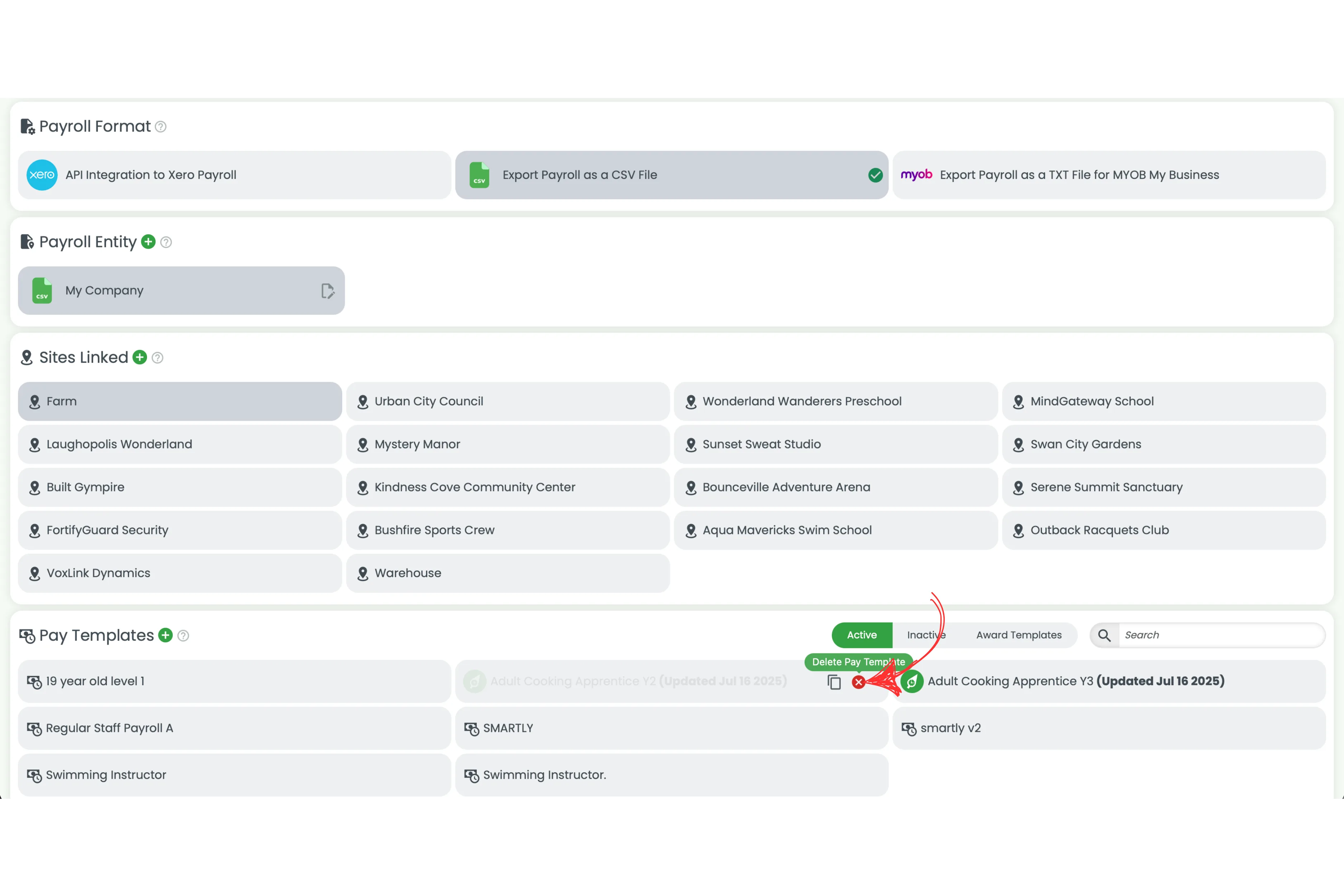
You can delete RosterElf award templates from the Active tab when you no longer need them. Deleting only removes the template from your Active list — the original stays available under the Award Templates tab, so you can re-activate it whenever you like.
3.1 In the Active tab, hover over the template and click the delete icon.
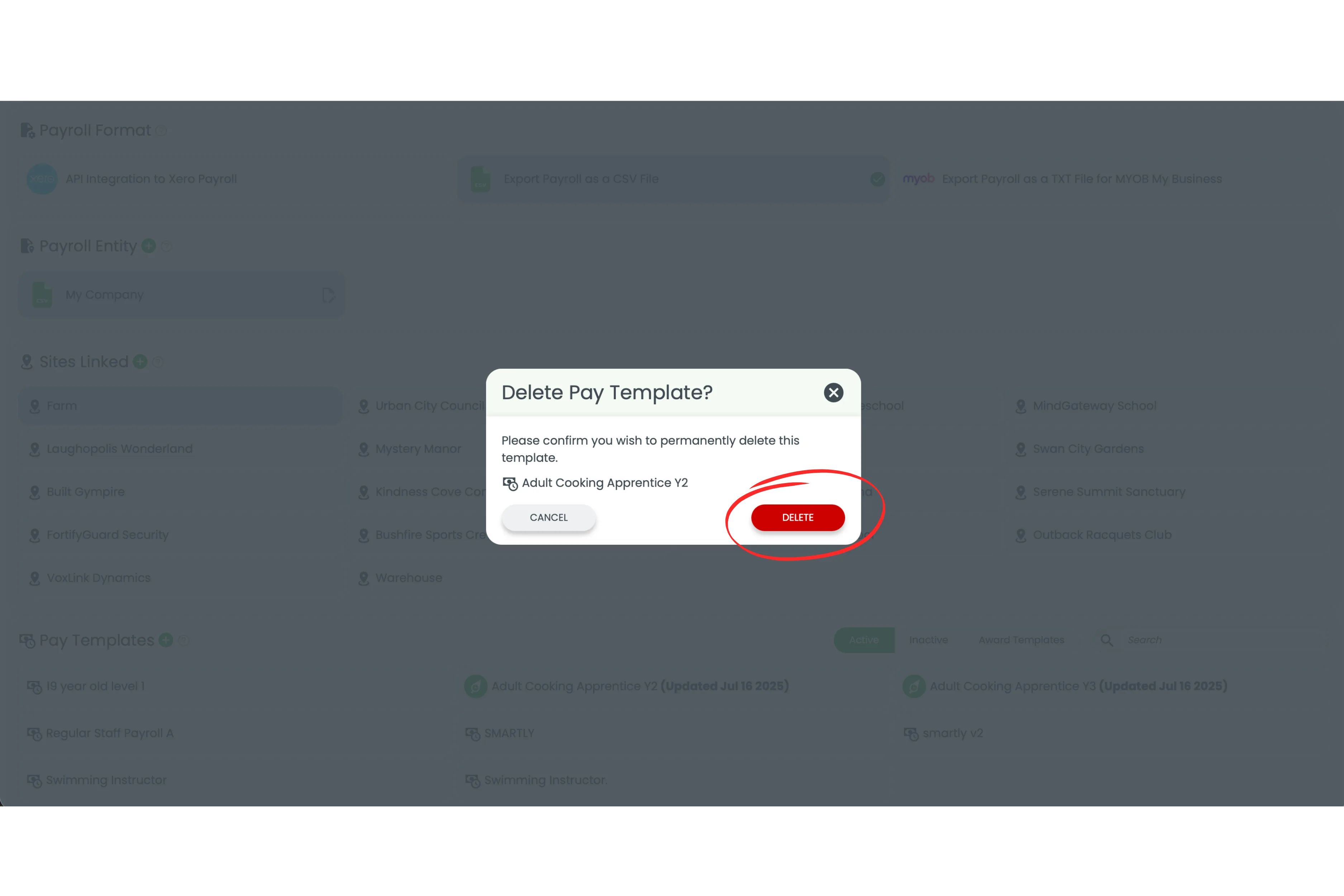
3.2 Confirm by clicking Delete in the Delete Pay Template? window.
How to hide a custom template
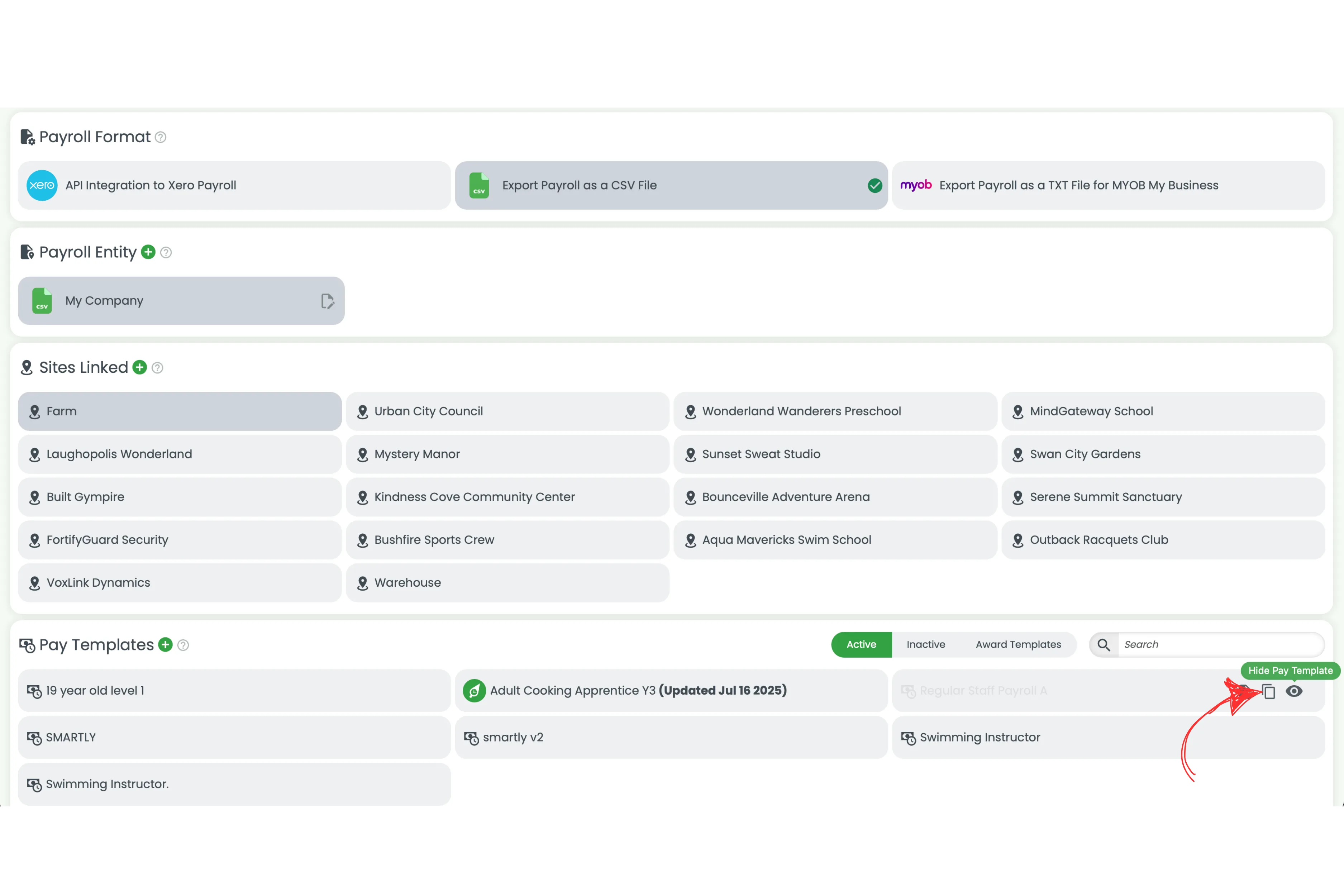
For your own custom templates, use hide instead of delete. Hiding moves the template to the Inactive tab so you can bring it back later without rebuilding it.
4.1 In the Active tab, hover over the custom template and click the hide icon.
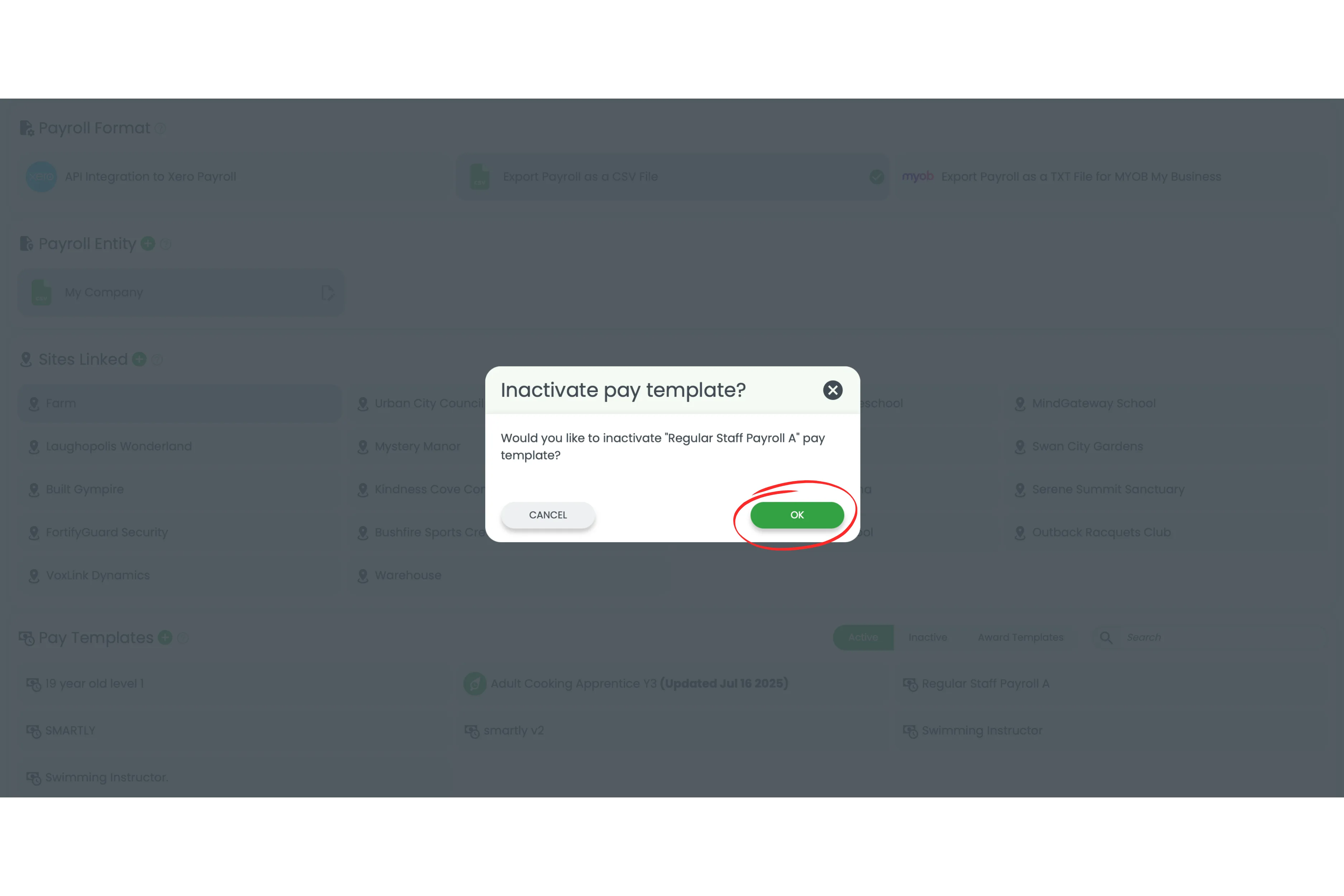
4.2 Click OK in the Inactivate pay template? window. The template moves to the Inactive tab.
Registered clubs Award templates
The following templates are currently available for the Registered Clubs Award [MA000058]. Template names follow the classifications in the award — for example CAS for casual, FT for full-time and PT for part-time.
View all Registered Clubs Award [MA000058] templates
Casual (CAS)
- CAS General Intro
- CAS General L1
- CAS General L2
- CAS General L3
- CAS General L4
- CAS General L5
- CAS General L6
- CAS General L12
- CAS M&H L1
- CAS M&H L2
- CAS M&H L3
- CAS M&H L4
- CAS M&H M1
- CAS M&H M2
- CAS Manager LA
- CAS Manager LB
- CAS Manager LC
- CAS Manager LD
- CAS Manager LE
- CAS Manager LF
- CAS Manager LG
Part-time (PT)
- PT General Intro
- PT General L1
- PT General L2
- PT General L3
- PT General L4
- PT General L5
- PT General L6
- PT General L12
- PT M&H L1
- PT M&H L2
- PT M&H L3
- PT M&H L4
- PT M&H M1
- PT M&H M2
- PT Manager LA
- PT Manager LB
- PT Manager LC
- PT Manager LD
- PT Manager LE
- PT Manager LF
- PT Manager LG
Full-time (FT)
- FT General Intro
- FT General L1
- FT General L2
- FT General L3
- FT General L4
- FT General L5
- FT General L6
- FT General L12
- FT M&H L1
- FT M&H L2
- FT M&H L3
- FT M&H L4
- FT M&H M1
- FT M&H M2
- FT Manager LA
- FT Manager LB
- FT Manager LC
- FT Manager LD
- FT Manager LE
- FT Manager LF
- FT Manager LG
- FT Manager LA +20%
- FT Manager LB +20%
- FT Manager LC +20%
- FT Manager LD +20%
- FT Manager LE +20%
- FT Manager LF +20%
- FT Manager LG +20%
- FT Manager L6 +20%
- FT Manager LA +50%
- FT Manager LB +50%
- FT Manager LC +50%
- FT Manager LD +50%
- FT Manager LE +50%
- FT Manager LF +50%
- FT Manager LG +50%
- FT Manager L6 +50%
Apprentices
- Cooking Apprentice Y1
- Cooking Apprentice Y2
- Cooking Apprentice Y3
- Cooking Apprentice Y4
- Adult Cooking Apprentice Y1
- Adult Cooking Apprentice Y2
- Adult Cooking Apprentice Y3
- Adult Cooking Apprentice Y4
- M&H Apprentice Y1
- M&H Apprentice Y2
- M&H Apprentice Y3
- M&H Apprentice Y4
- Adult M&H Apprentice Y1
- Adult M&H Apprentice Y2
- Adult M&H Apprentice Y3
- Adult M&H Apprentice Y4
Hospitality, Restaurant and Fast Food packs are in build. To request a different award, vote on our feature requests board.
A starting point only
Important: Award templates are provided as a starting point only. They are not complete and are not intended to be used as-is. You are responsible for reviewing every pay rule — including pay rates, penalty rates, overtime, loadings, allowances and classifications — against the current applicable award or agreement before you rely on it. See our award and pay templates disclaimer for full details.