

Delete and reactivate a site
Learn how to delete and reactivate a site. This guide will help you manage sites by removing them when they are no longer needed and recovering them if required. Deleted sites are not permanently removed and can be reactivated later, allowing you to regain access to their historical and future rosters.
Deleting a site makes it inactive, but it remains recoverable. Reactivating a site restores access to all its previous and upcoming rosters, ensuring that no data is lost in the process.
1. How to delete a site
Deleting a site is useful when it is no longer in use, but you want to retain the ability to restore it later. This process makes the site inactive, but it does not erase any associated data.
1.1 steps to delete a site
1.1.1 Click on the Sites tab at the top of your screen.
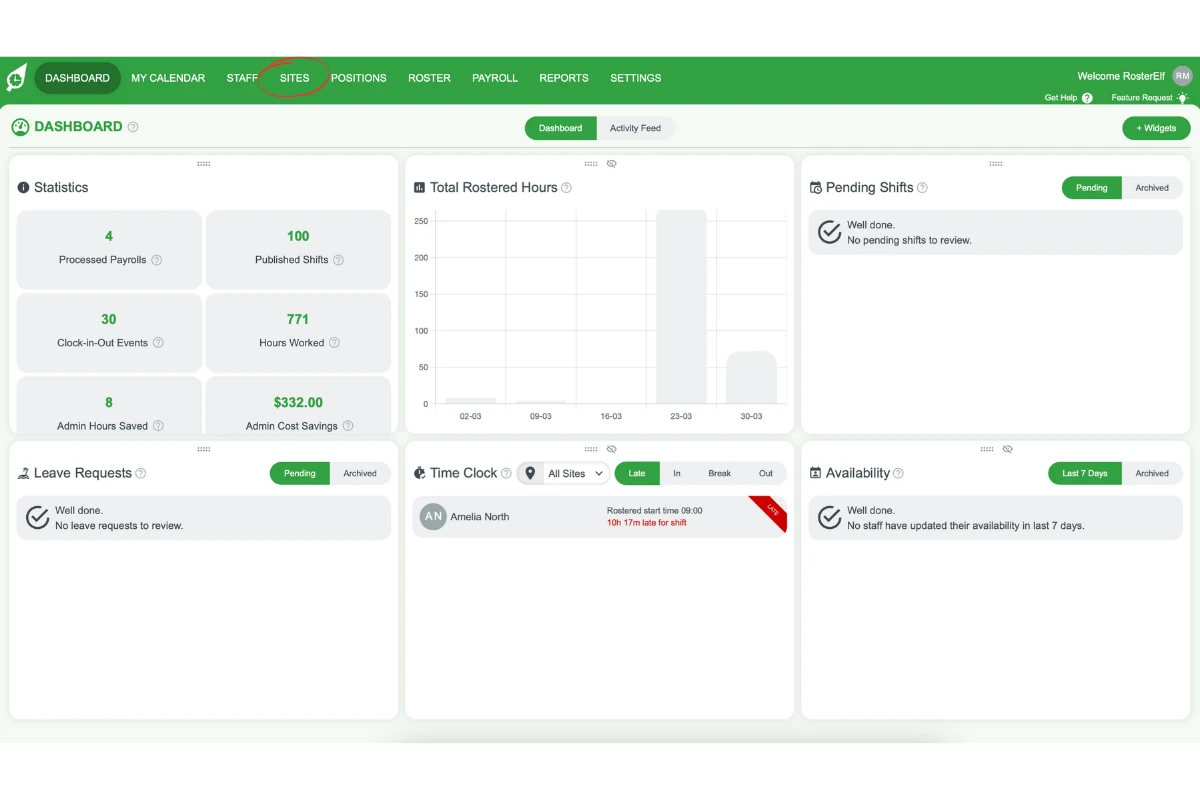
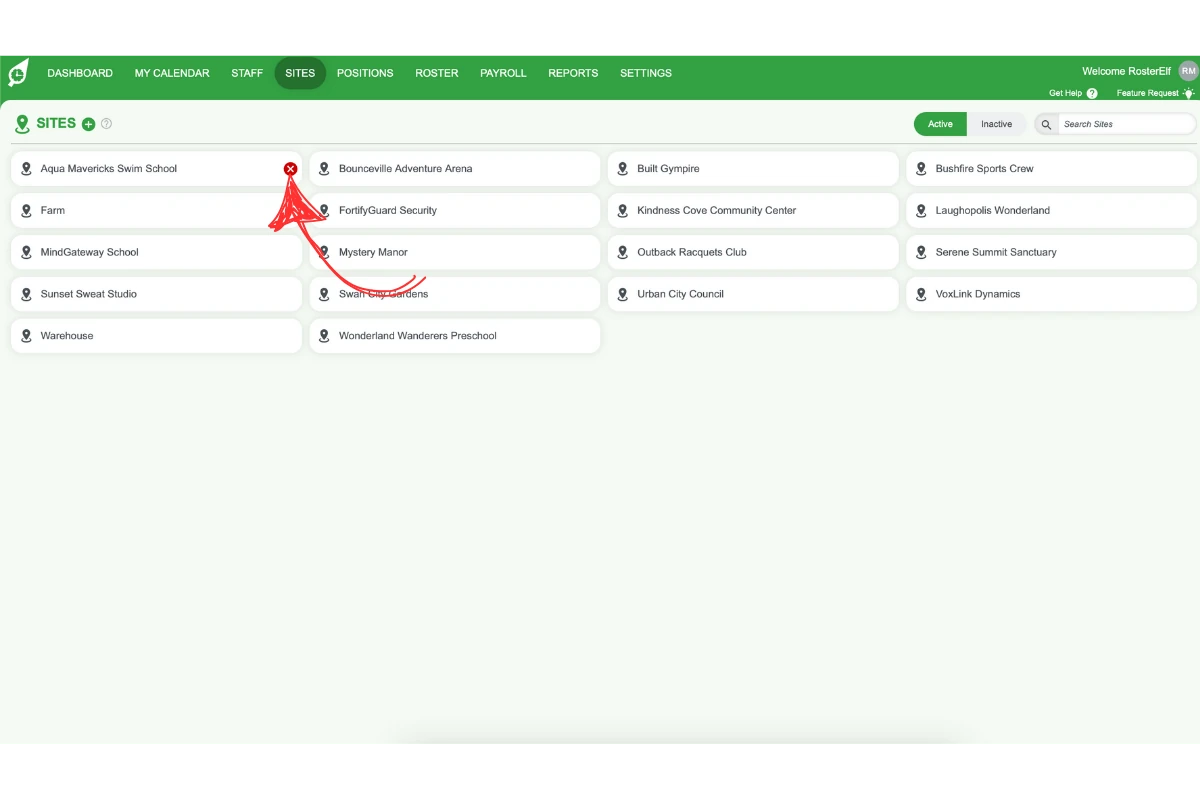
1.1.2 Hover over the site you wish to delete. A red X will appear. Click the red X to initiate the deletion process.
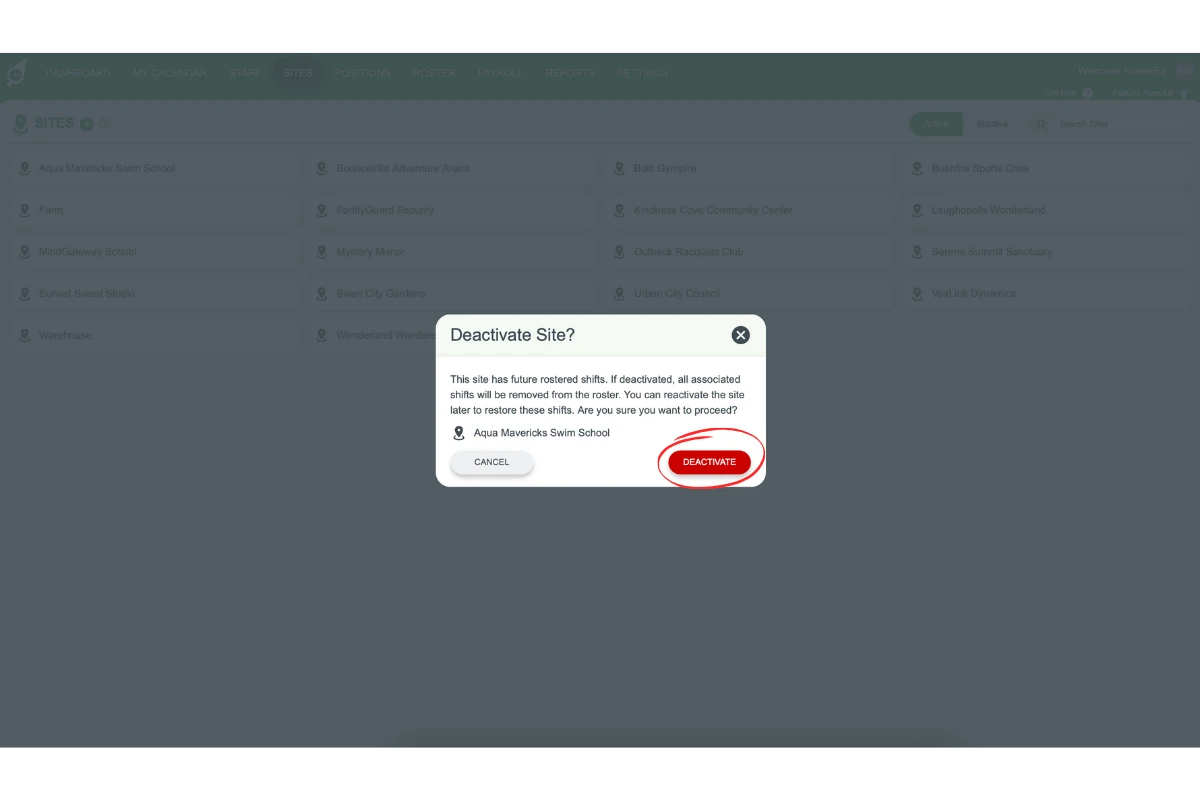
1.1.3 A confirmation window will appear. Click DEACTIVATE to make the site inactive.
2. How to reactivate a site
Reactivating a site allows you to recover access to its historical and future rosters, ensuring no data is permanently lost. This process is quick and helps you restore any sites you may have made inactive.
2.1 steps to reactivate a site
2.1.1 Click on the Sites tab from the menu at the top of your screen.
2.1.2 Click on the Inactive option on the screen’s right-hand side.
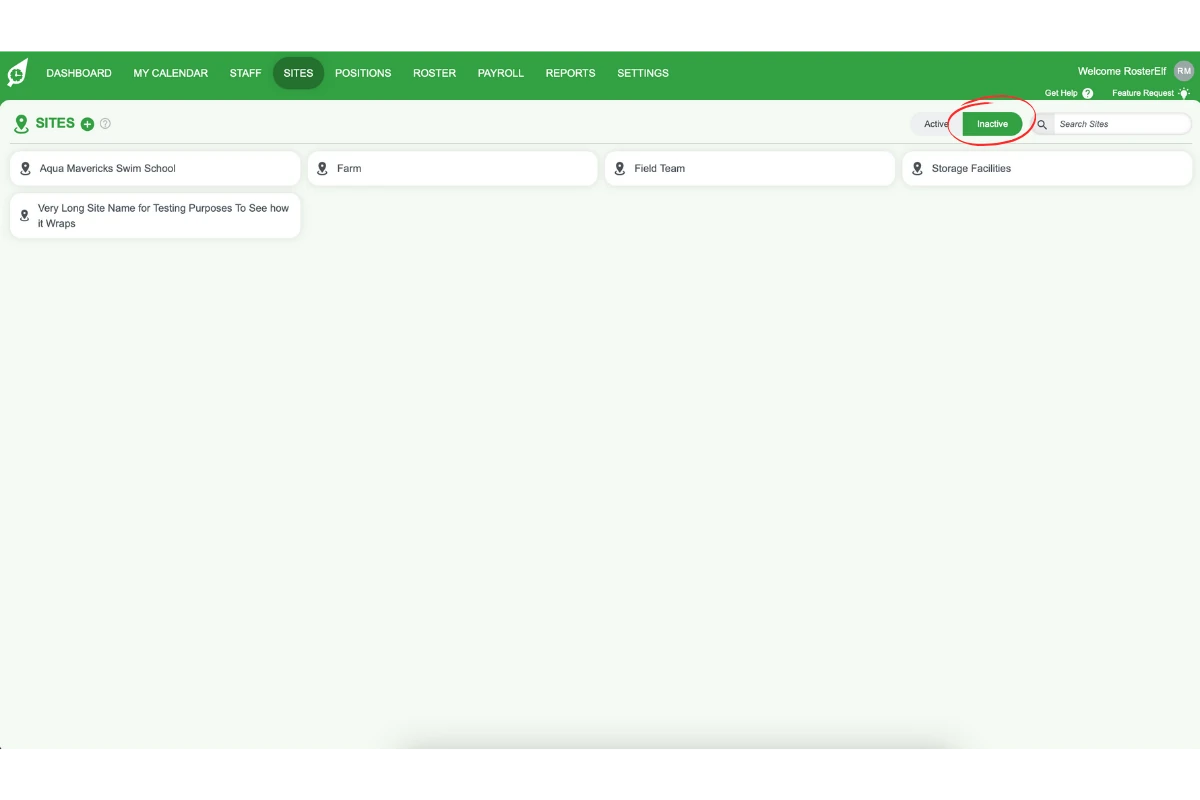
2.1.3 Hover over the inactive site. Click the green tick that appears.
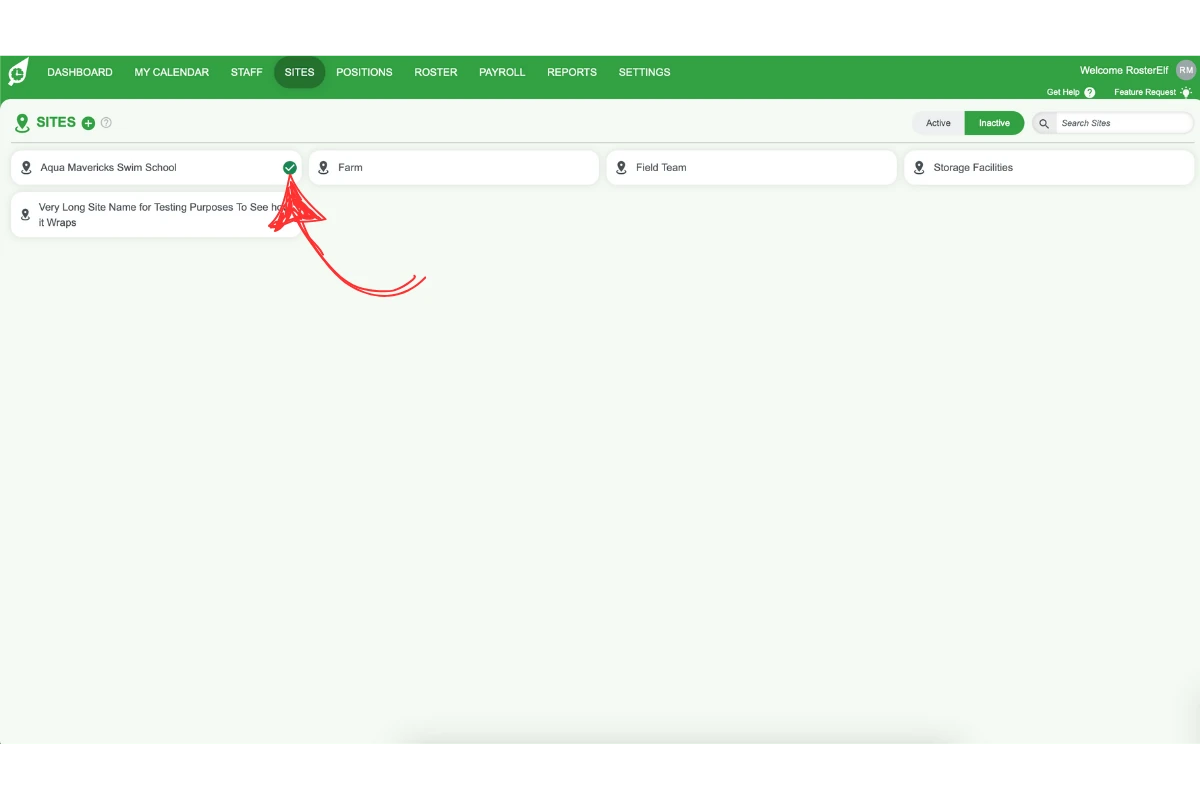
2.1.4 Click the Reactivate button to restore the site.
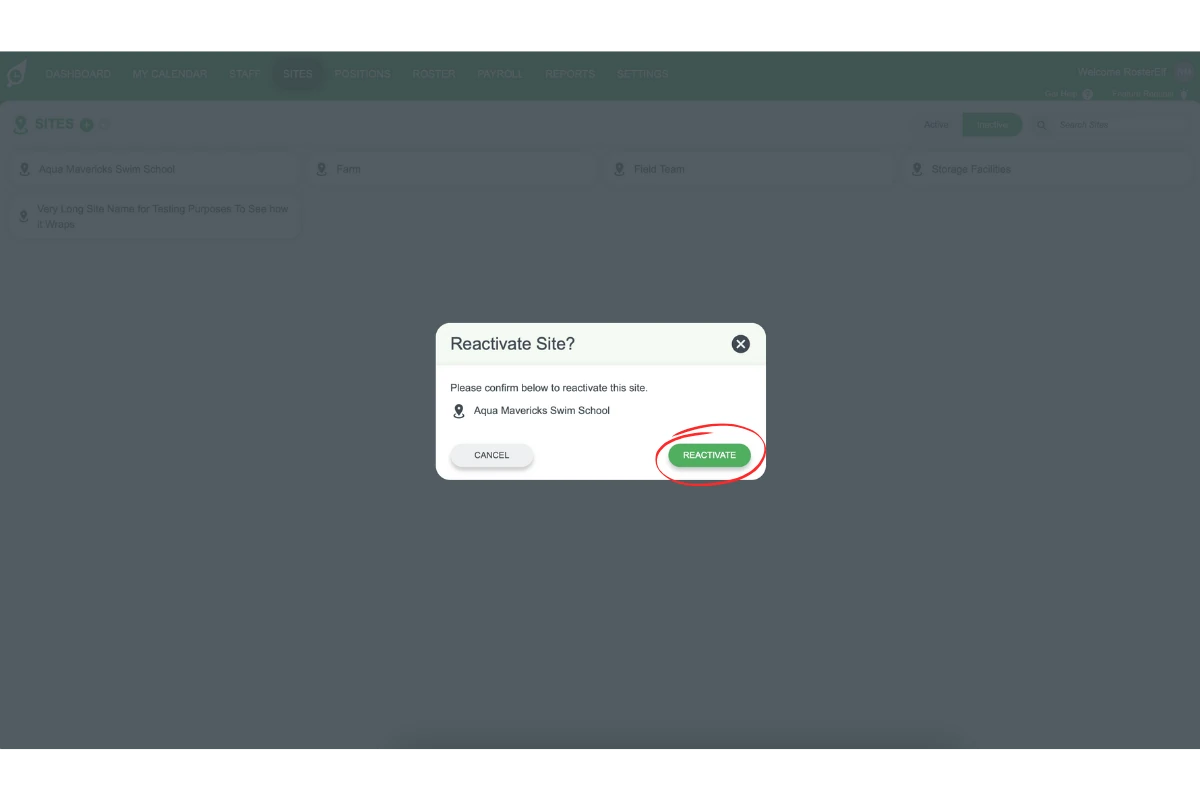
Once reactivated, the site will be fully accessible, including all past and upcoming rosters, ensuring seamless continuity in your site management.
Related guide: see Sites introduction for an overview of managing multiple sites.
Frequently asked questions
1. Can I recover a site after deleting it?
Yes, deleted sites are not permanently removed. You can reactivate them through the Sites tab, restoring access to all past and future rosters without losing any data.
2. What happens to the data when I delete a site?
When you delete a site, it becomes inactive, but no data is erased. All historical and future rosters remain intact, allowing you to restore the site when needed.
3. How do I find inactive sites for reactivation?
Go to the Sites tab and click the Inactive option on the right-hand side of the screen. This will display all sites that can be reactivated.
4. Is there a time limit for reactivating a deleted site?
No, there is no time limit for reactivating a deleted site. You can reactivate the site anytime, allowing you to manage your sites according to your needs.
5. Can I delete the head office site?
No, the head office site cannot be deleted. This site is protected to ensure core account functionality remains intact.