

Assigning staff to sites in RosterElf
This guide explains how to assign employees to specific sites in RosterElf. Properly assigning staff to the sites they are qualified and available to work at is essential for using RosterElf’s perfect match algorithm. This process helps managers find the right employees when creating rosters, ensuring that the staff available match the needs of each site. There are two methods to assign employees to sites: bulk assignment via the Sites tab and individual assignment via the Staff tab.
1. Assigning staff via the sites tab
The Sites tab allows you to quickly assign multiple employees to a site. This is the fastest way to add staff to sites, making it ideal when you need to update several staff assignments at once.
1.1 add staff to a site
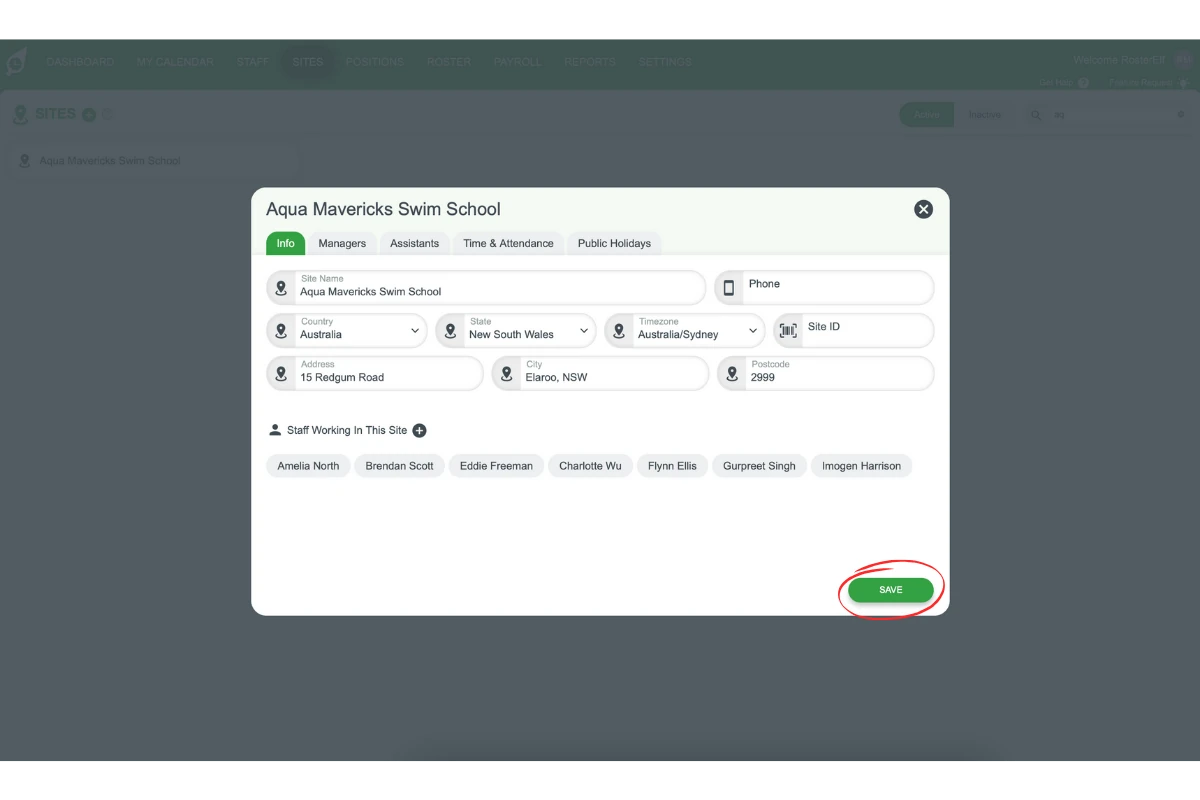
1.1.1 Click the Sites tab and select the site where you want to assign staff.
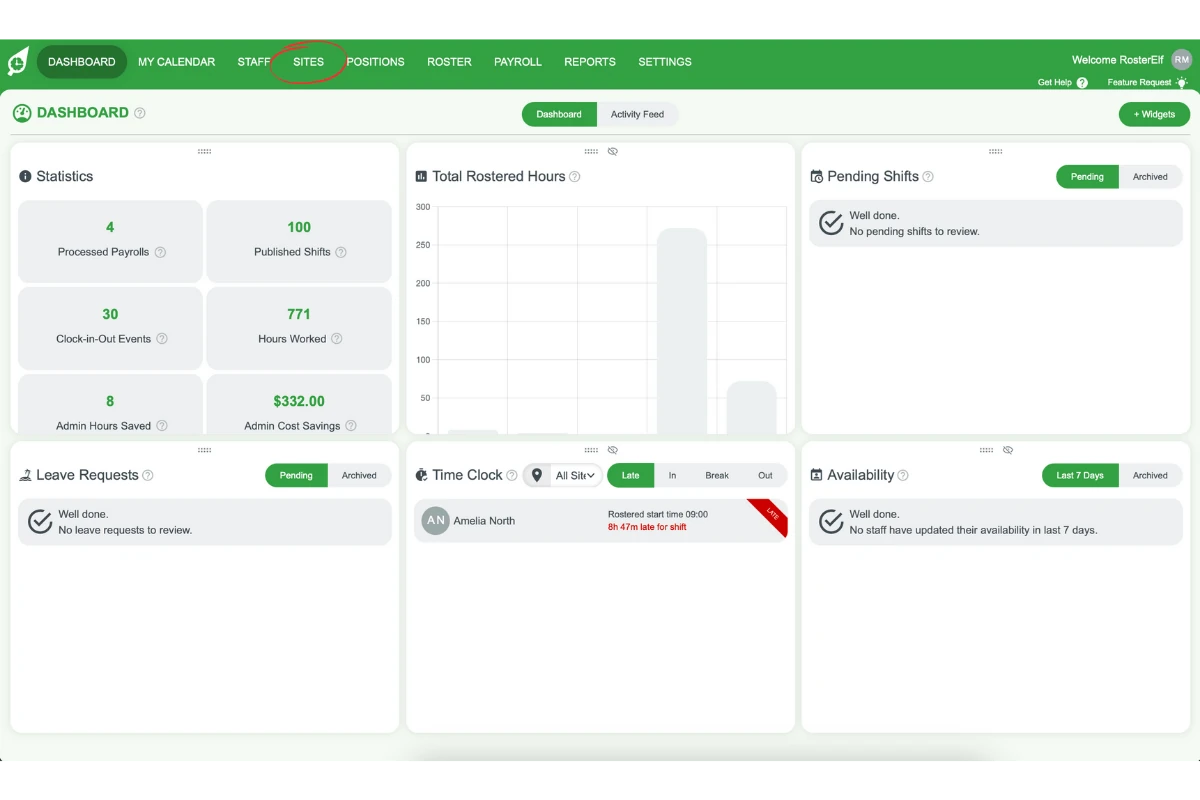
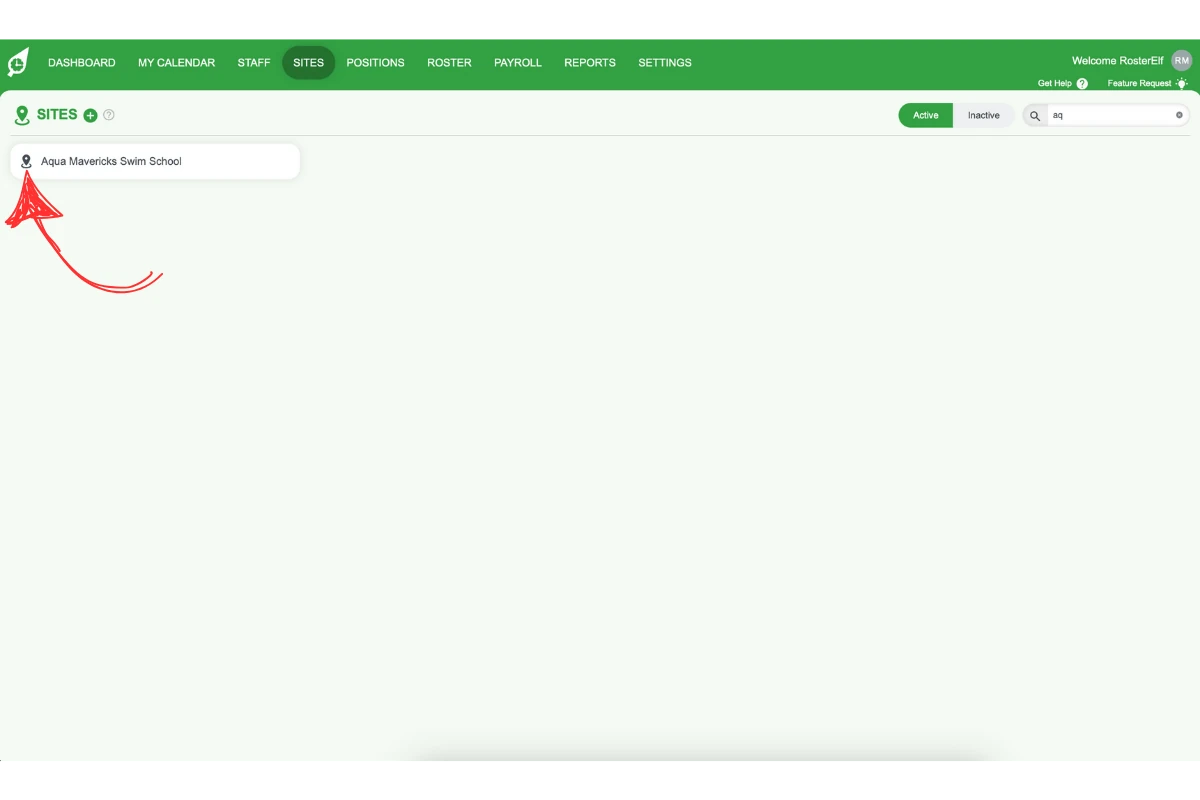
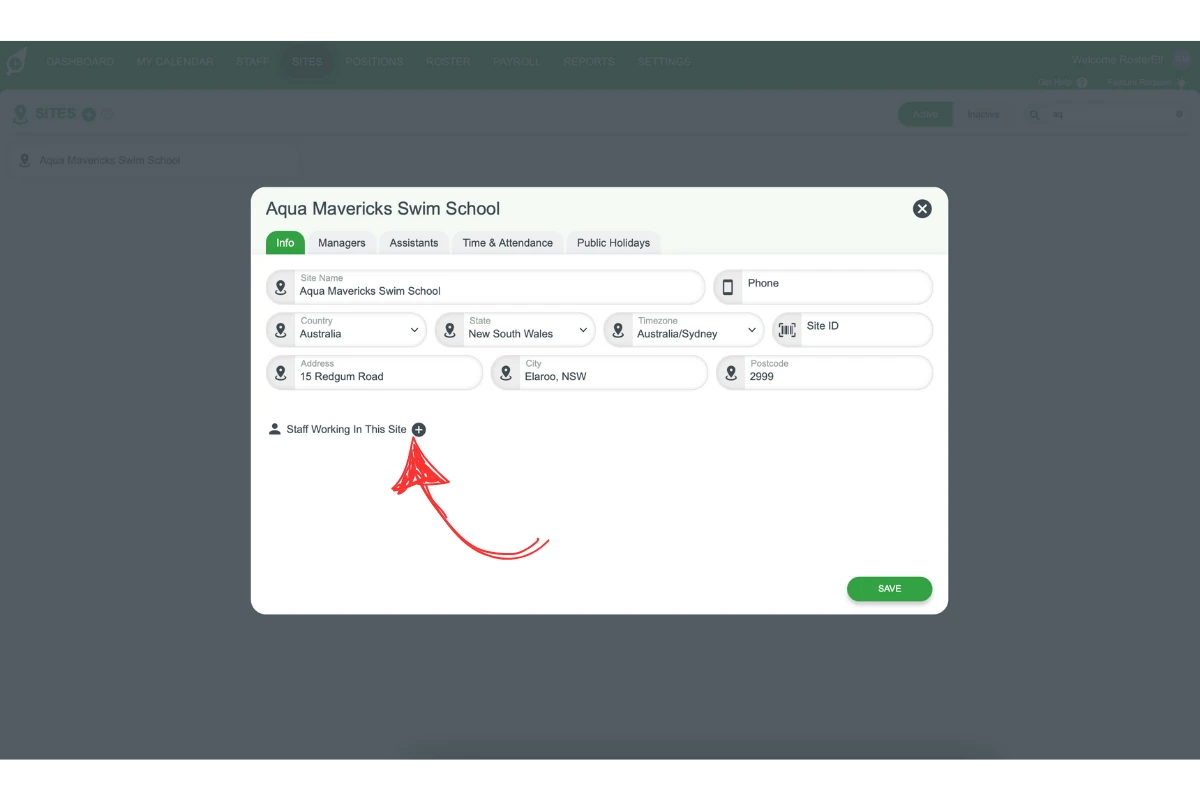
1.1.2 Click Staff Working in this Site (+) to add employees who can work at the selected location or department.
1.1.3 Choose Select All to assign all employees or manually select individual staff members from the list.
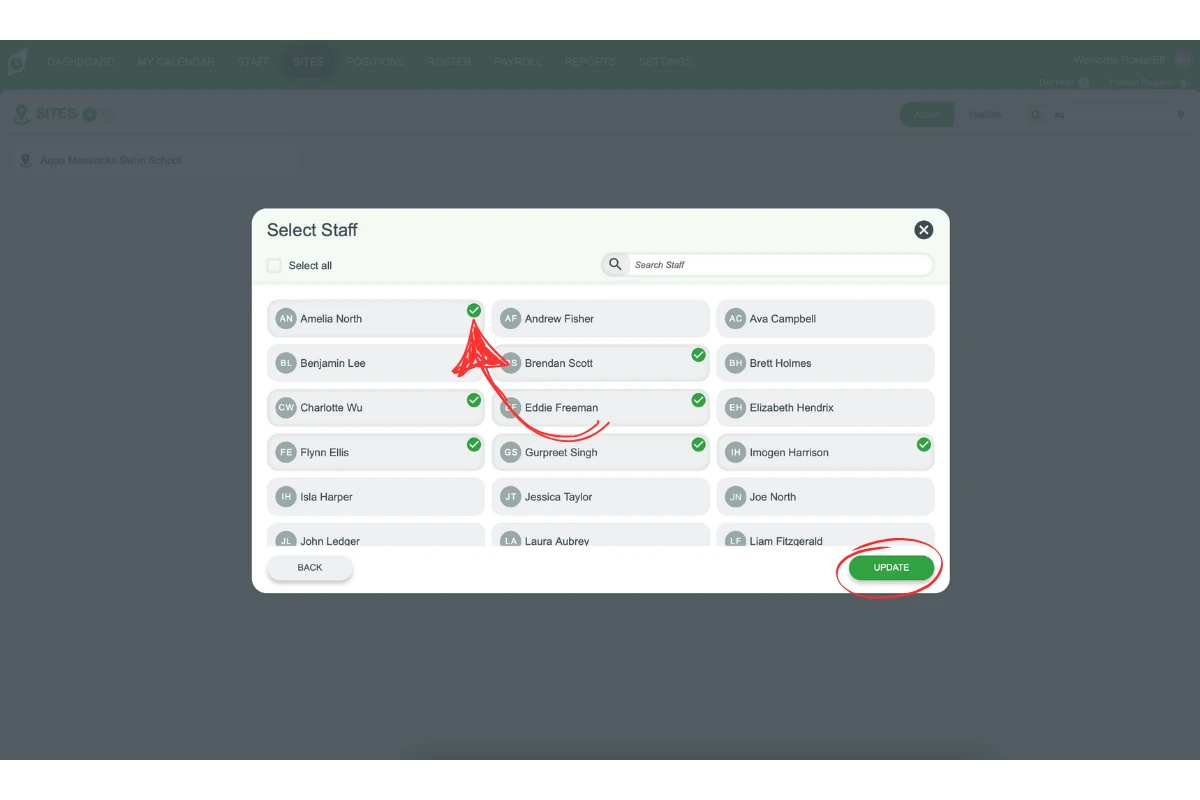
1.1.4 Press Save/Update in the bottom right-hand corner to save your changes.
2. Assigning staff via the staff tab
The Staff tab lets you assign an individual employee to specific sites. This method is ideal when you need to update the site assignments for one or a few staff members.
2.1 assign sites to a staff member
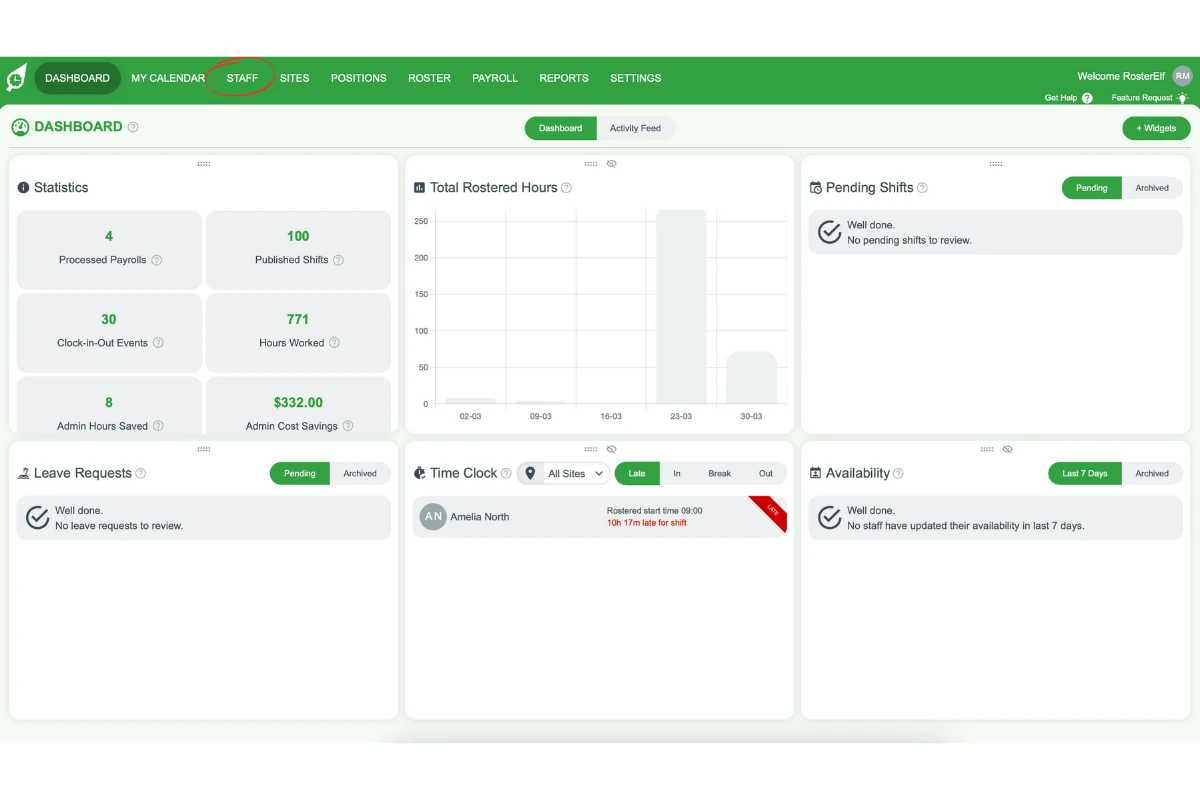
2.1.1 Click the Staff tab.
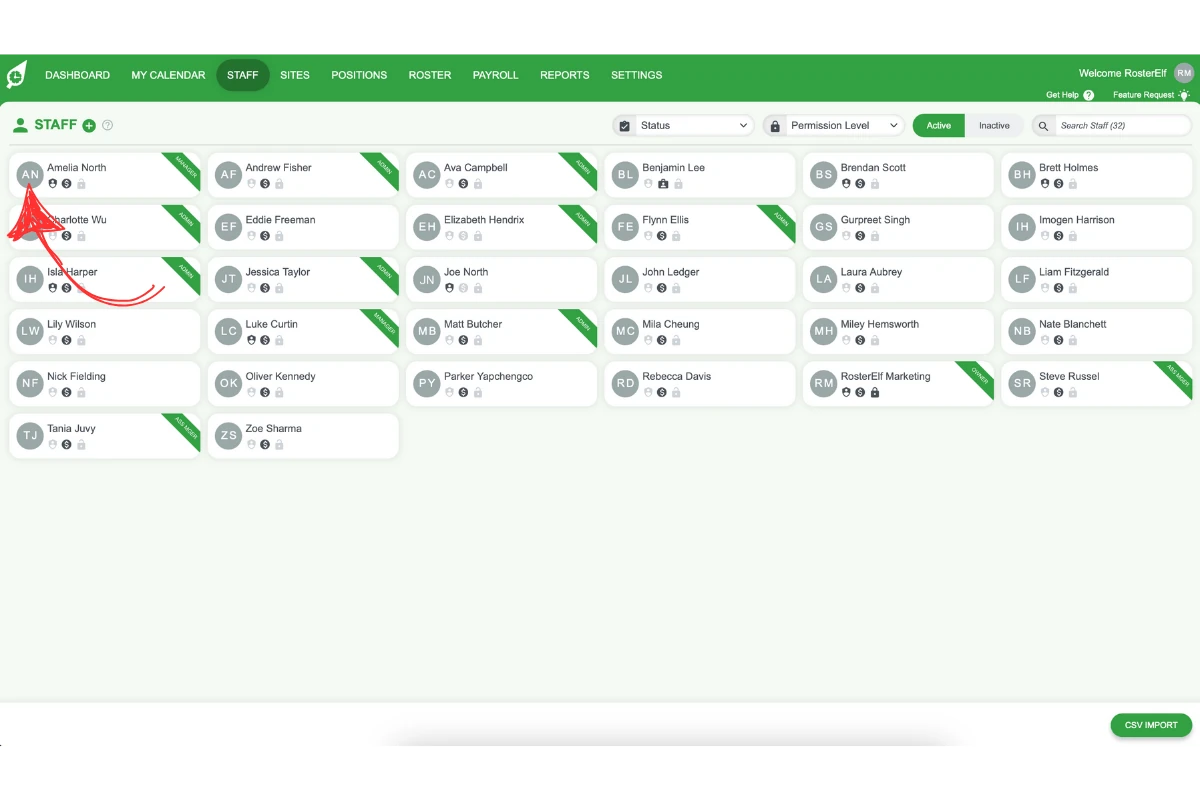
2.1.2 Select an employee from the list of available staff.
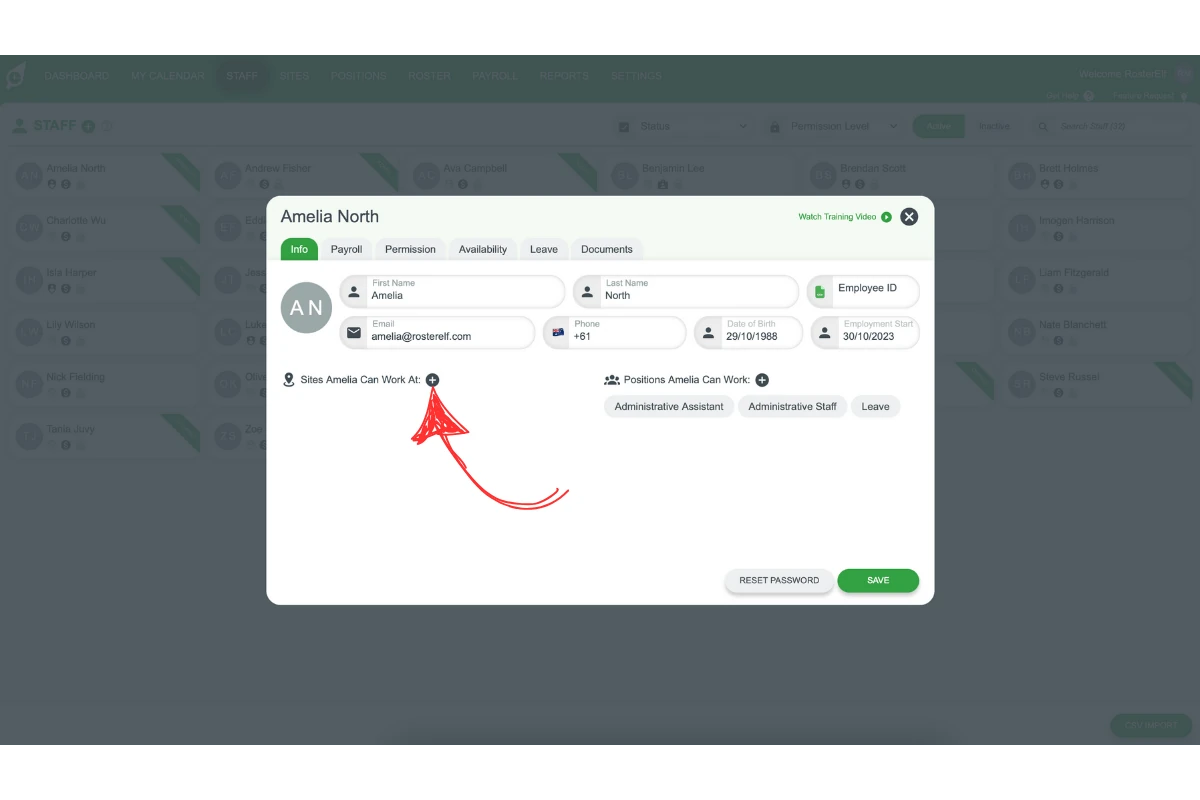
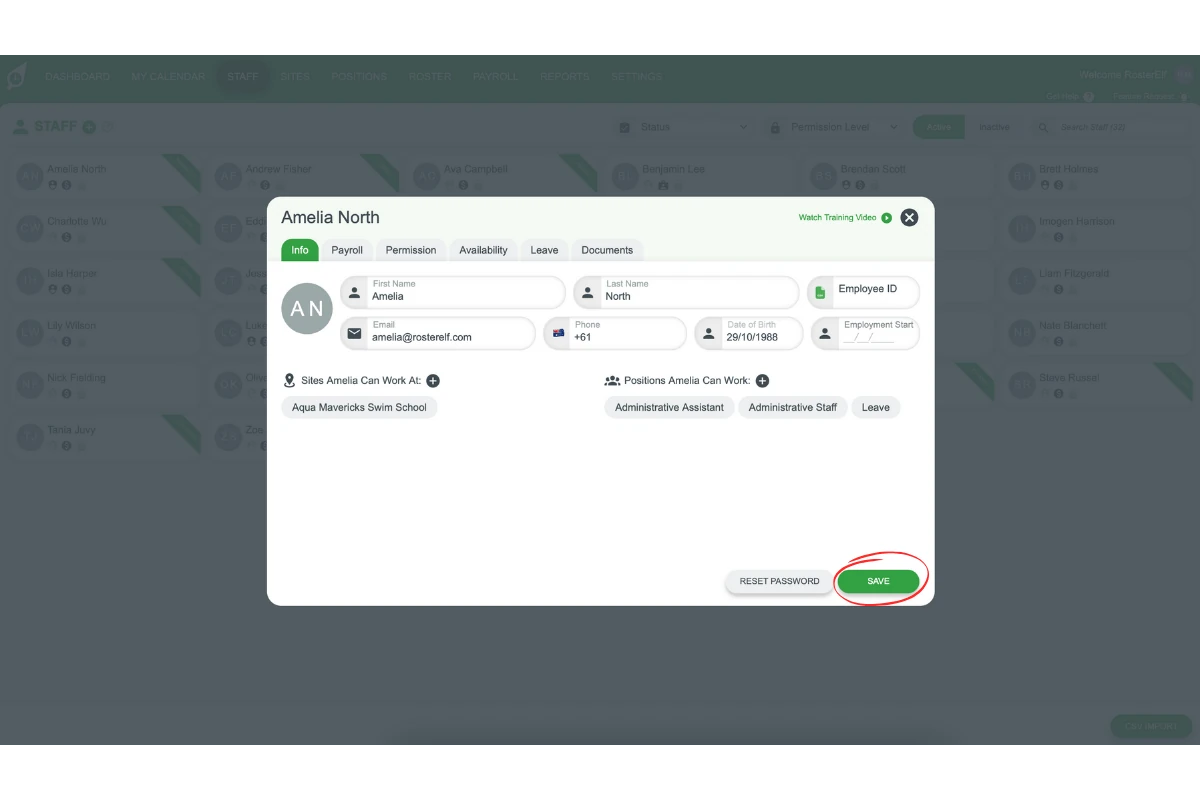
2.1.3 Click the Sites Can Work At (+) button to choose the sites where this employee can work.
2.1.4 Select the sites you want to assign to the staff member and click Update on the bottom right.
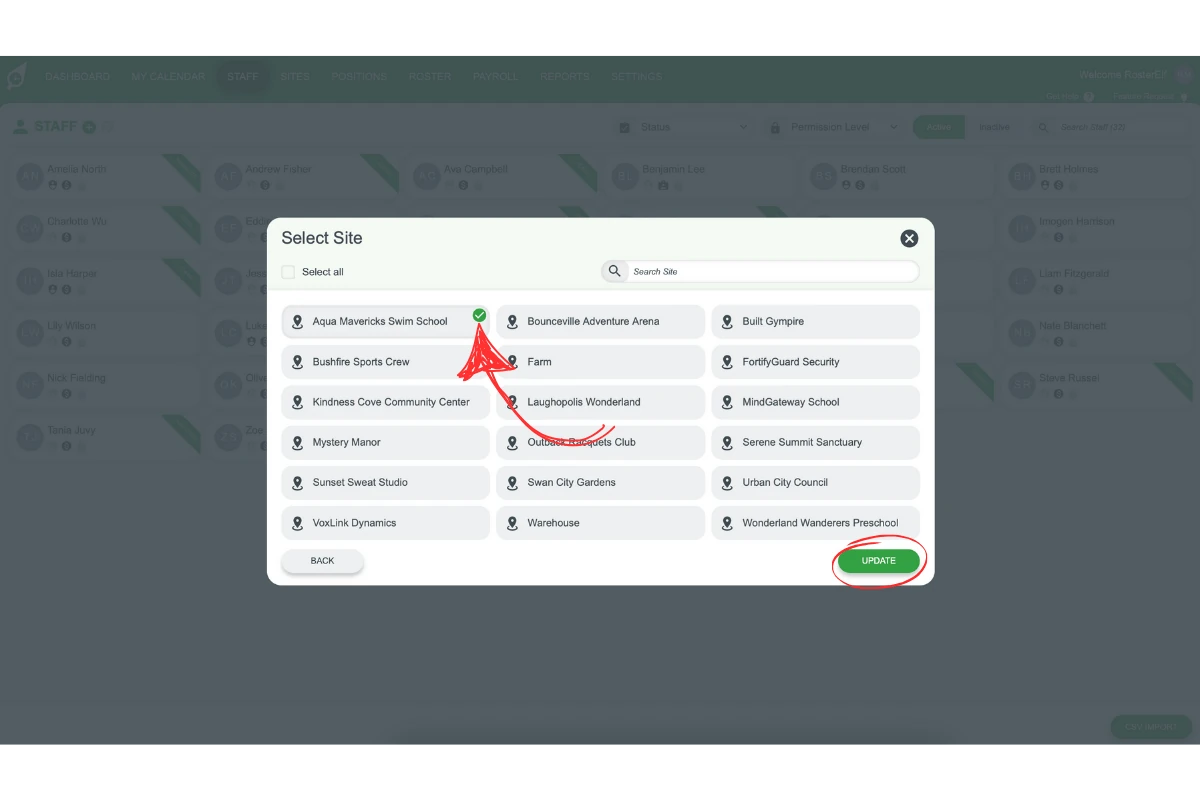
2.1.5 Click Update in the bottom right corner, then click Save again to close the site selection window.
By following these steps, you can easily manage staff assignments for each site, ensuring that your rosters match available and qualified staff to the right locations.
Related guide: for creating and editing the sites themselves, see Add and manage sites.
Frequently asked questions
1. How do I assign multiple staff members to a site in RosterElf?
Use the Sites tab for bulk assignment. Click the Sites tab, select the desired site, and add employees under Staff Working in this Site. You can select all employees or choose individuals, then click Update to save changes.
2. Can I assign a staff member to more than one site?
Yes, you can assign a staff member to multiple sites. Use the Staff tab, select the employee, and add the sites where they are eligible to work. Save the changes by clicking Update.
3. What is the fastest way to assign staff to sites in RosterElf?
The quickest method is through the Sites tab. It allows you to assign multiple employees to a site simultaneously, making it ideal for bulk updates.
4. How do I update an individual employee's site assignments?
To update a single employee’s site assignments, go to the Staff tab. Select the staff member, click Sites Can Work At, choose the desired sites, and click Update to save.
5. Why is assigning staff to sites important in RosterElf?
Assigning staff to the right sites ensures that the RosterElf perfect match algorithm can find suitable employees for each location. This helps create efficient rosters and match available, qualified staff to the needs of each site.