

How to customise staff order in RosterElf
This guide explains how to customise the order in which staff members appear in RosterElf. By adding number prefixes to staff names, you can control their display order on rosters and make shift management easier.
1. Open the staff tab
1.1 Log in to your RosterElf account.
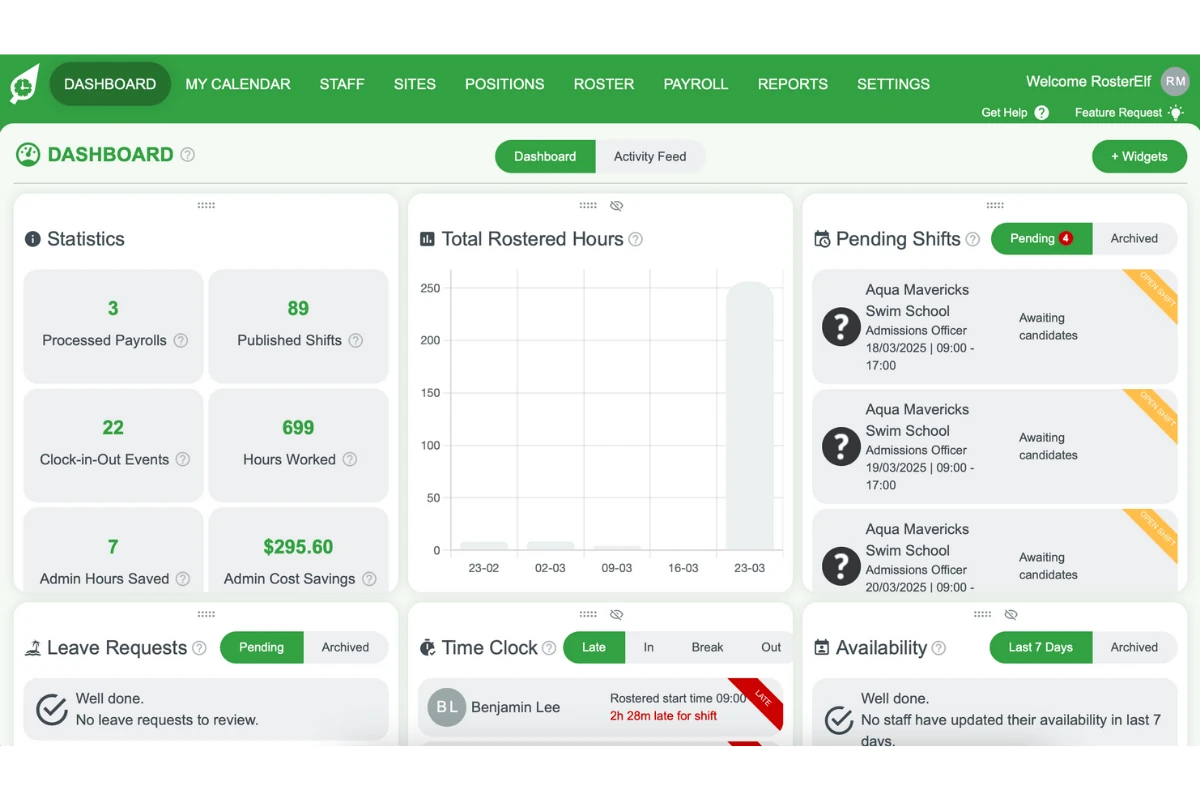
1.2 Navigate to the Staff tab.
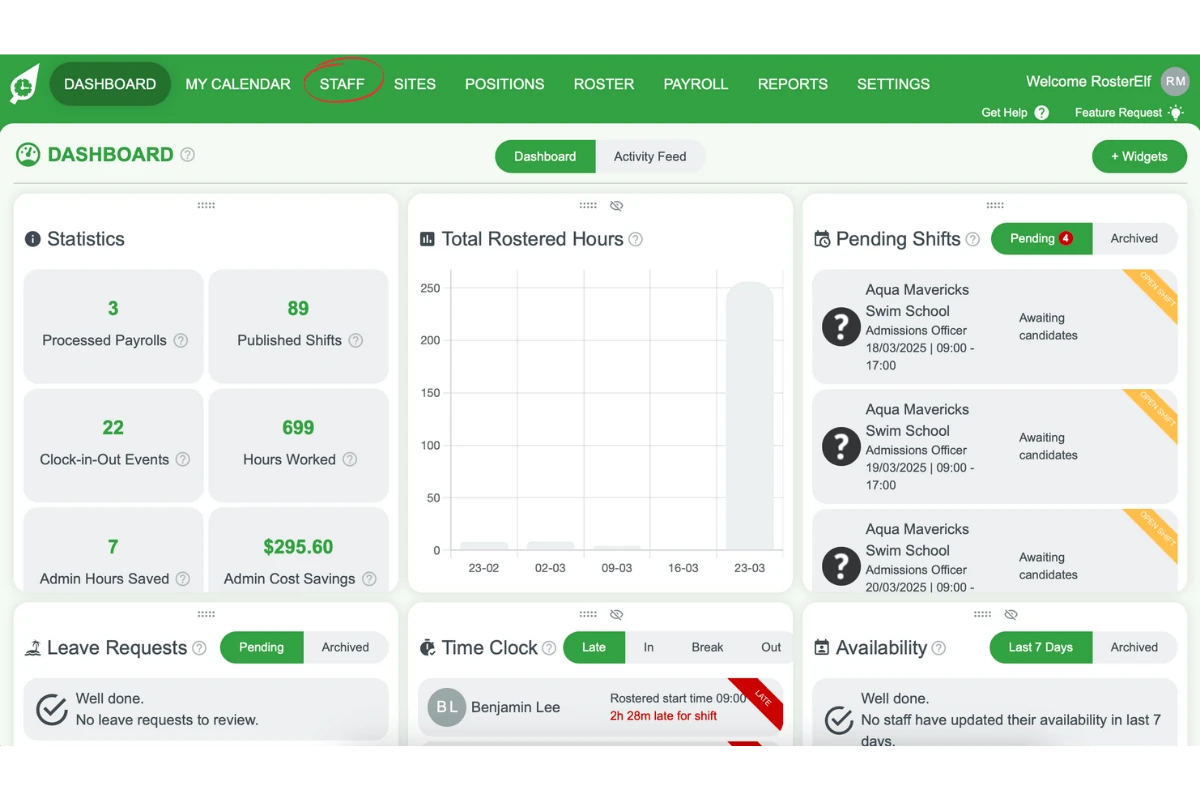
2. Select the first person
2.1 Find the first staff member you want to appear in your custom order.
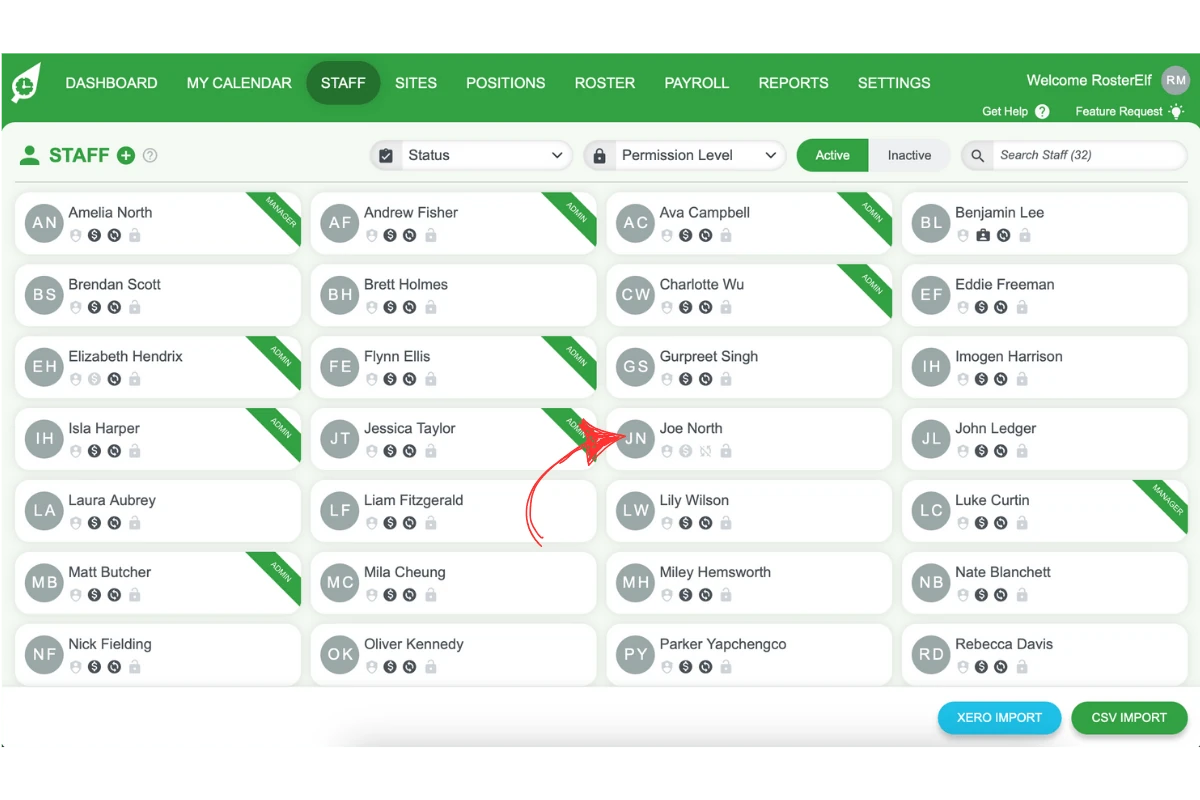
2.2 Click on their name to edit.
3. Rename with a number prefix
3.1 Add 10. in front of their first name.
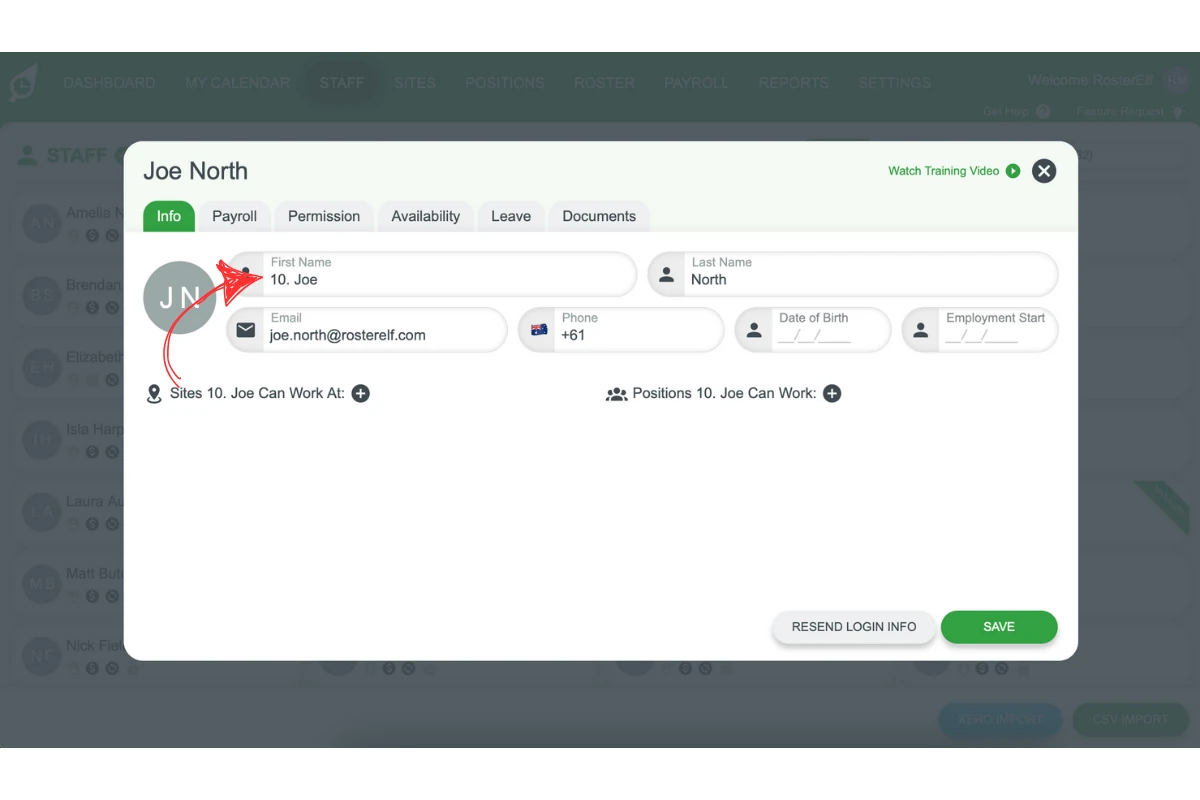
3.2 Click Save.
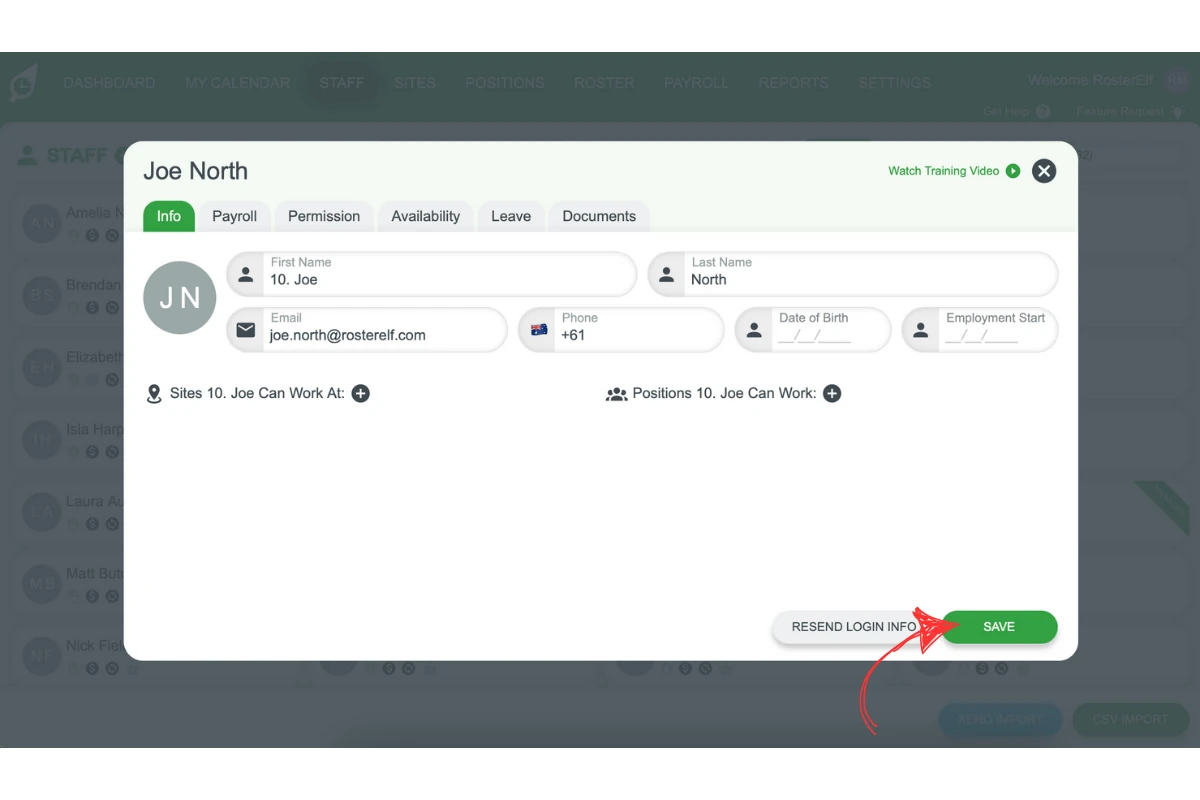
4. Repeat for other staff
4.1 Select the next staff member.
4.2 Add 11. in front of their name.
4.3 Continue numbering (12, 13, etc.) for each staff member in order.
Frequently asked questions
1. How do I change the order of staff in RosterElf?
You can customise the staff order by renaming each staff member with a number prefix. Start with 10. for the first person, 11. for the second, and continue sequentially.
2. Where do I go to customise staff order in RosterElf?
Log in to your RosterElf account and go to the Staff tab. From there, you can edit each staff member’s name to set a custom order.
3. Why should I add a number prefix to staff names?
Adding a number prefix (e.g., 10., 11.) allows RosterElf to sort staff in a customised order. This helps with roster organisation and makes it easier to manage shifts.
4. What happens if I skip a number when renaming staff?
If you skip a number, the order may not be as structured, but RosterElf will still sort staff based on the numerical prefixes. Follow a consecutive sequence for best results.
5. Can I change the custom staff order later?
Yes, you can change the staff order at any time by editing their names and updating the number prefixes. The new order will be reflected immediately.