

Not what you're looking for?
This article is about adding an existing employee to today’s roster so they can clock in. To add a brand-new employee to your account, see Add staff manually.
Add employees to the roster using RosterElf time clock
Managers can quickly add employees to the roster with RosterElf’s Time Clock app, which is particularly helpful for last-minute staffing needs. This feature ensures that new staff can clock in and out without the need to edit and republish the existing roster. In this guide, you will learn how to add employees efficiently using the Time Clock app, complete with clear steps and tips for a seamless experience.
By following these instructions, you can maintain accurate shift records and respond to changing circumstances in real time. Whether you manage a single site or multiple locations, the Time Clock app simplifies your workflow, helping you keep up with daily staffing requirements. Read on to find out exactly how to add new employees to your roster at a moment’s notice.
1. Steps to add an employee
1.1 Click the + button at the top right of the screen.
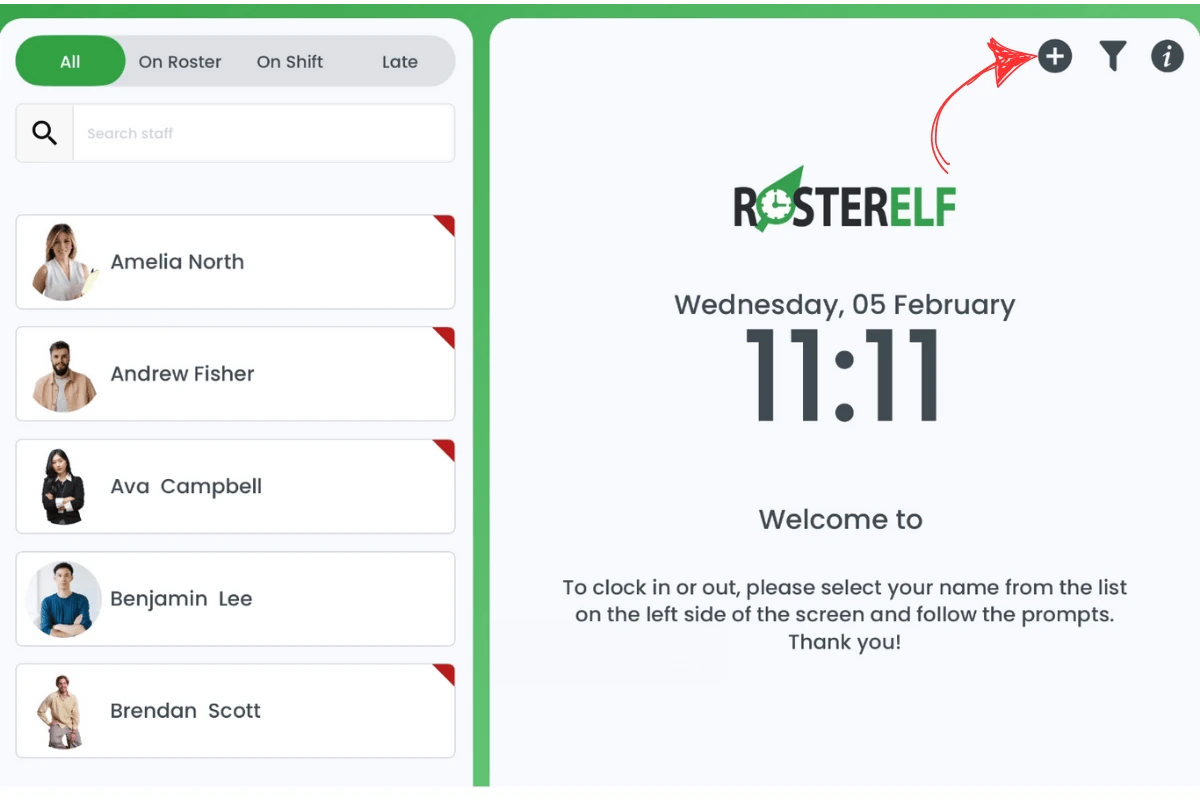
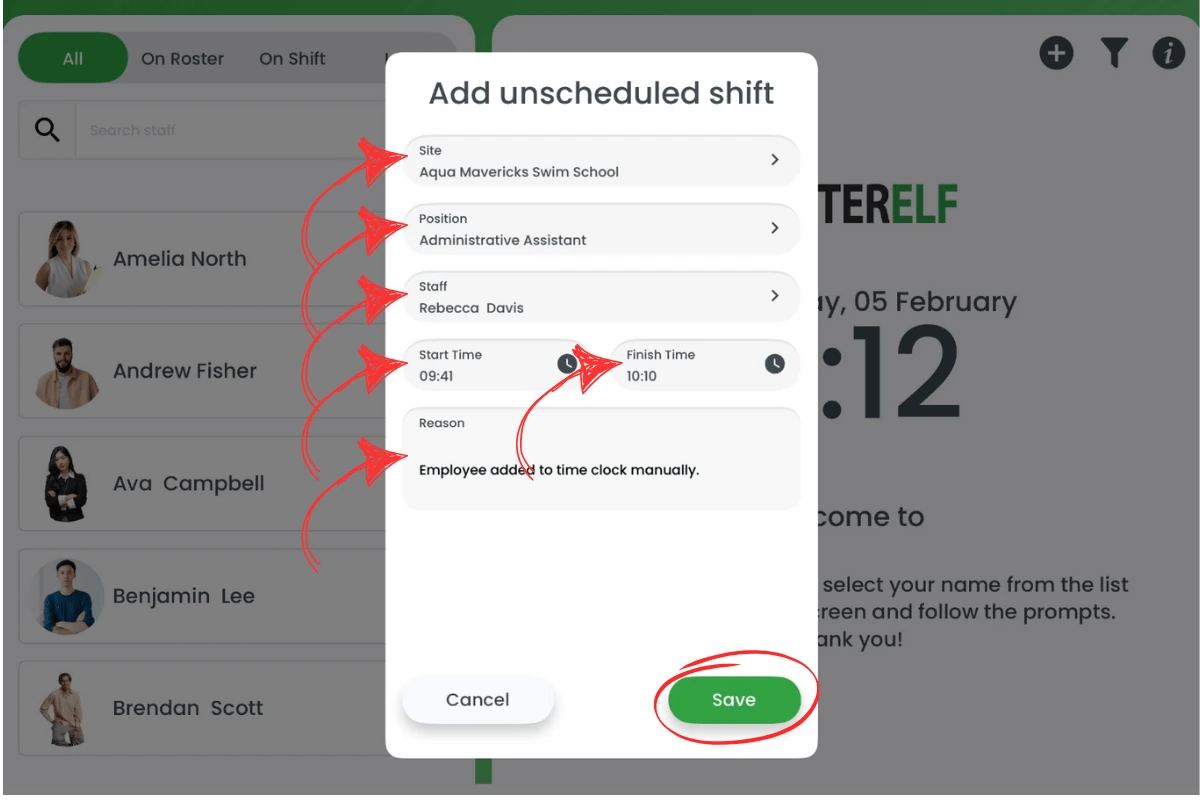
1.2 Choose the site from the drop-down menu if you have multiple locations.
1.3 Select the position that applies to the staff member.
1.4 Add the staff member from the list.
1.5 Enter the start time and finish time for the shift.
1.6 Provide the reason why the shift is being added on the day.
1.7 Click save to finalise the shift.
Frequently asked questions
1. Will the new shift appear in the main roster automatically?
Yes, once saved in the Time Clock app, it integrates with the main roster without requiring you to republish.
2. Can I add multiple employees at once using the Time Clock app?
No, each shift must be added individually for one staff member at a time to ensure accuracy.
3. Do I need manager access to add employees?
Yes, only users with managerial or admin privileges can add shifts in the Time Clock app.
4. Can the newly added employee clock in straight away?
Yes, once the shift is saved, the staff member can immediately clock in for that shift.
5. How do I edit a shift after I add it?
You can edit the shift details through the main roster or via your admin dashboard if changes are needed.
6. Can I clock a staff member in myself, on their behalf?
There’s no action that clocks someone in for you in real time. Instead, add them to today’s roster using the steps above so they can clock in themselves, or if a shift has already happened and the recorded hours are wrong, correct them afterwards from the Payroll tab’s Custom column — see manually adjust shift hours.