

A Plus Code helps accurately define your location for time and attendance tracking in RosterElf. This ensures that employees clock in and out at the correct site. This guide explains how to find your Plus Code and add it to RosterElf.
1. Find your plus code
A Plus Code is a digital address provided by Google Maps. Follow these steps to get your Plus Code.
1.1. Open Google plus codes
1.1.1. Go to Google Plus Codes.
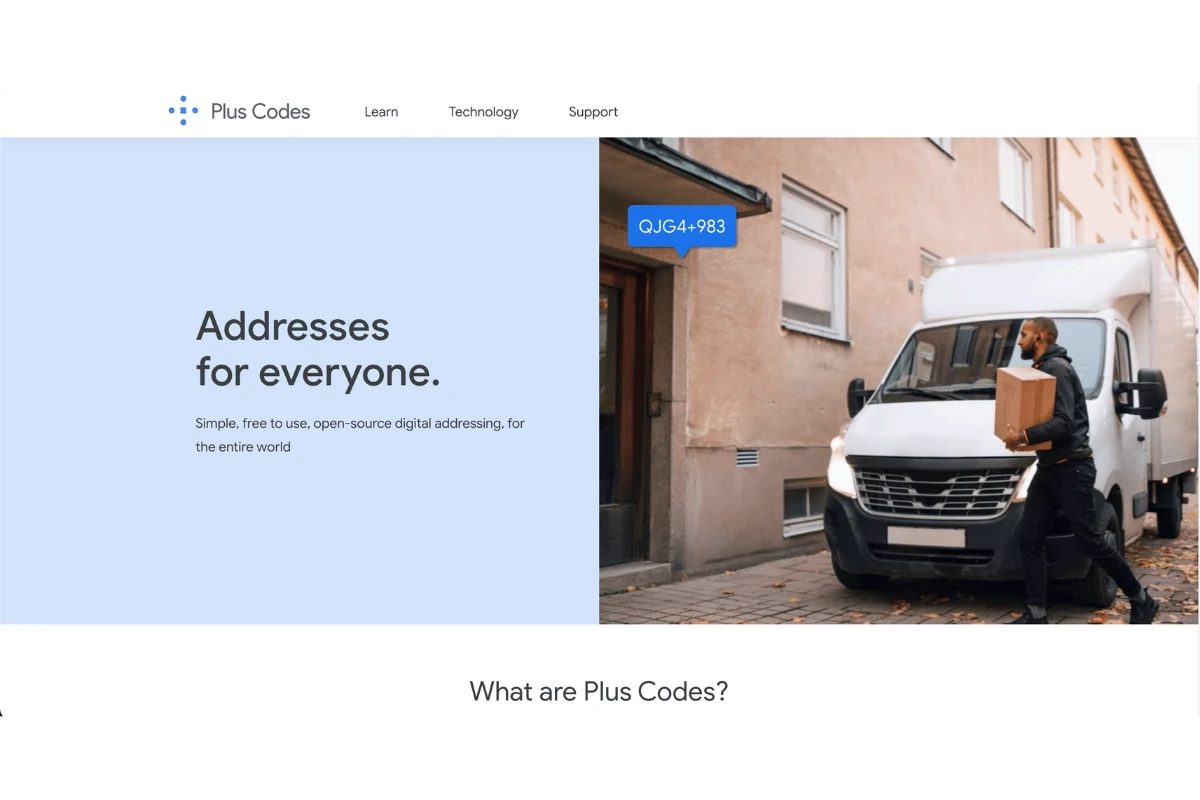
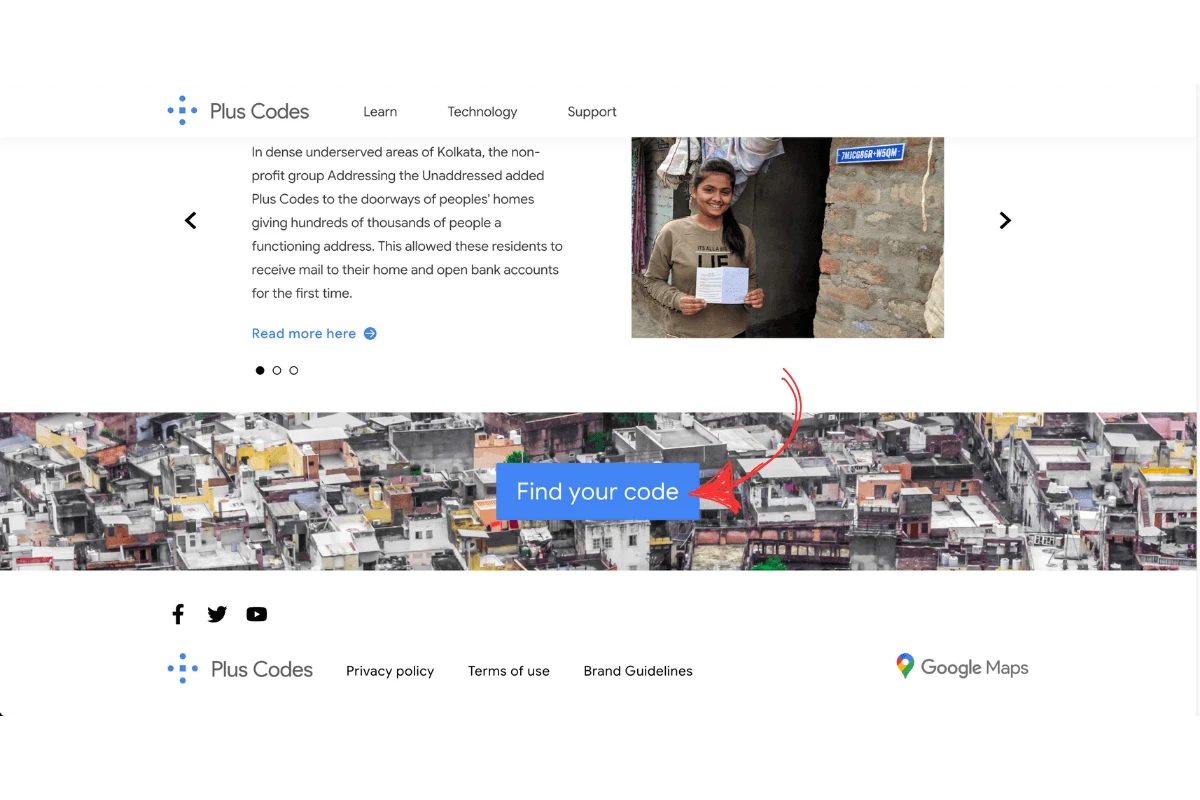
1.1.2. Scroll down and click Find your code.
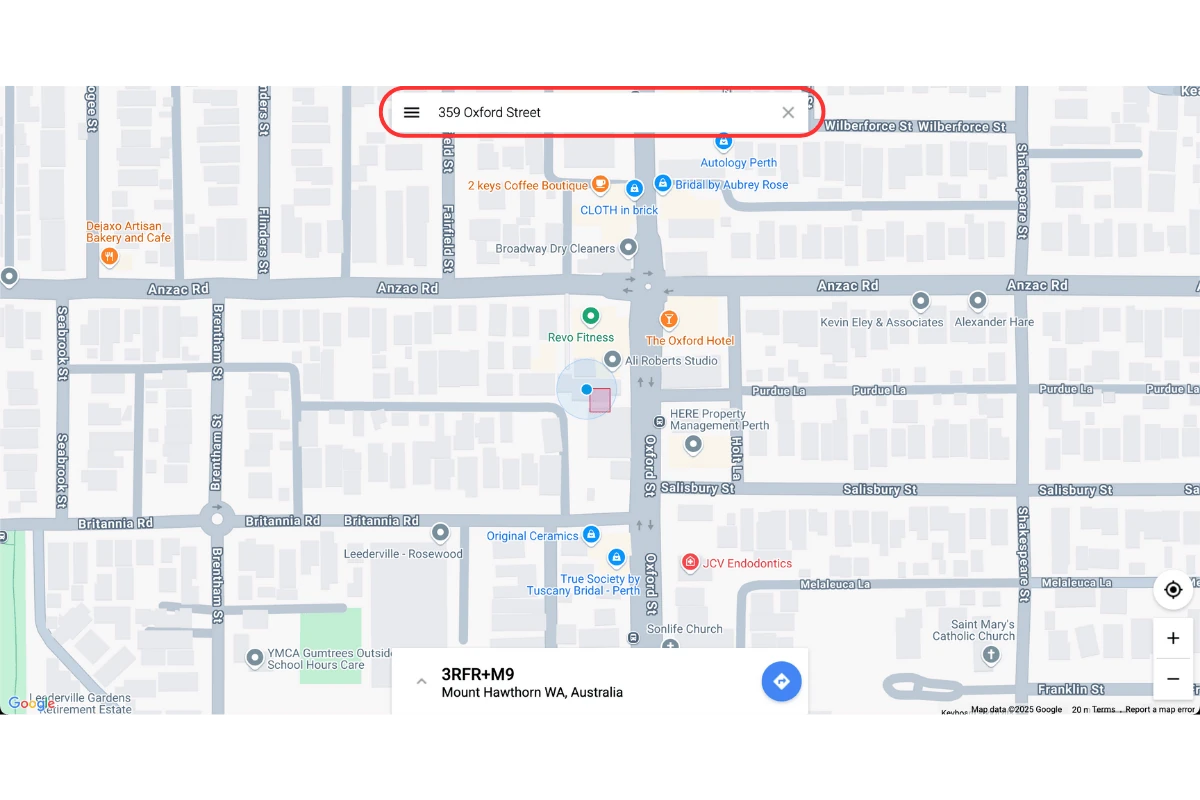
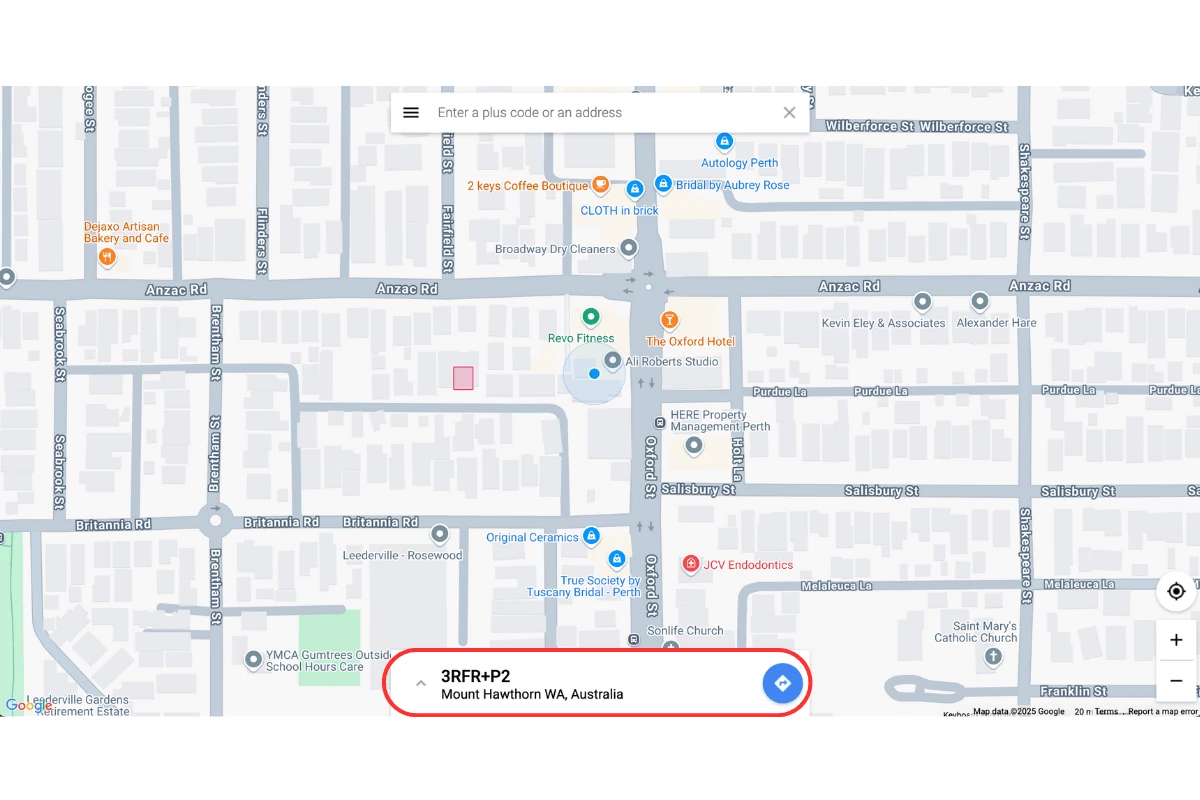
1.2. Get your location’s plus code
1.2.1. Enter your address in the search bar.
1.2.2. Click on the map to adjust your location if needed.
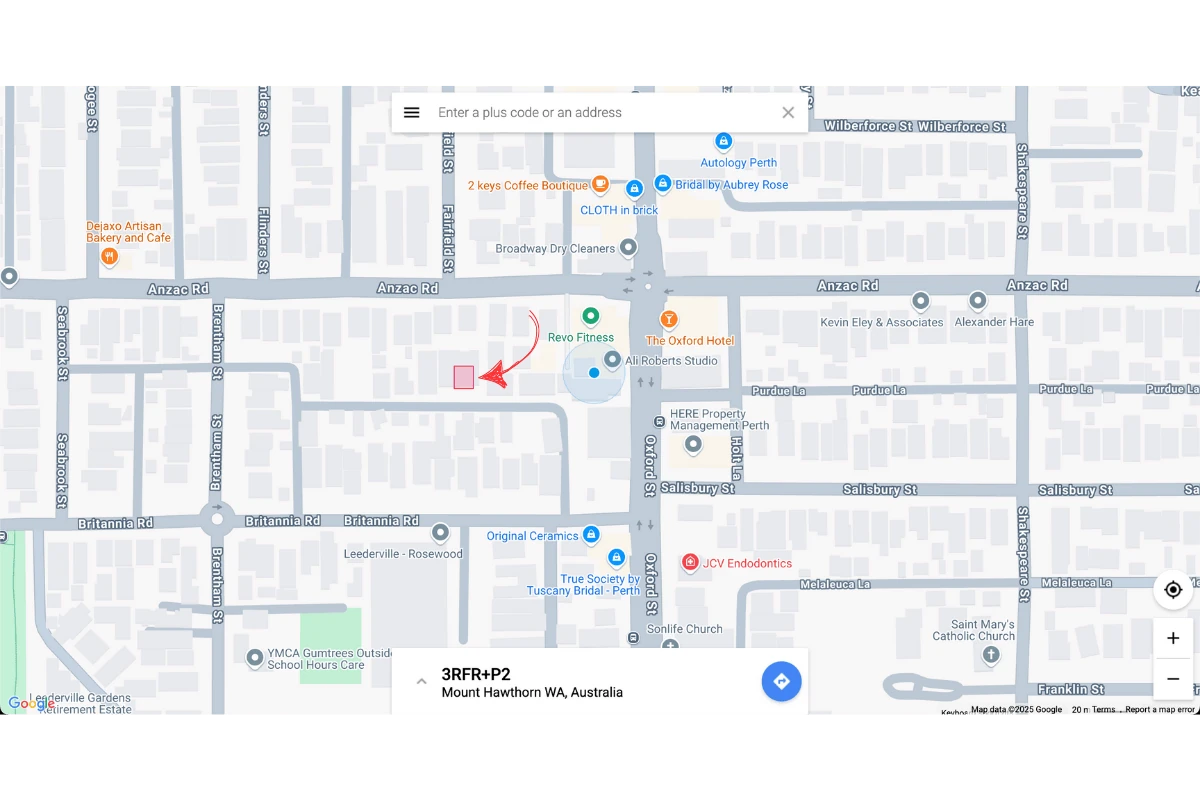
1.2.3. Copy the Plus Code, including the suburb and country.
2. Add your plus code to RosterElf
Once you have your Plus Code, add it to RosterElf to link it to your site for a precise location.
2.1. Open RosterElf and go to sites
2.1.1. Log in to RosterElf.
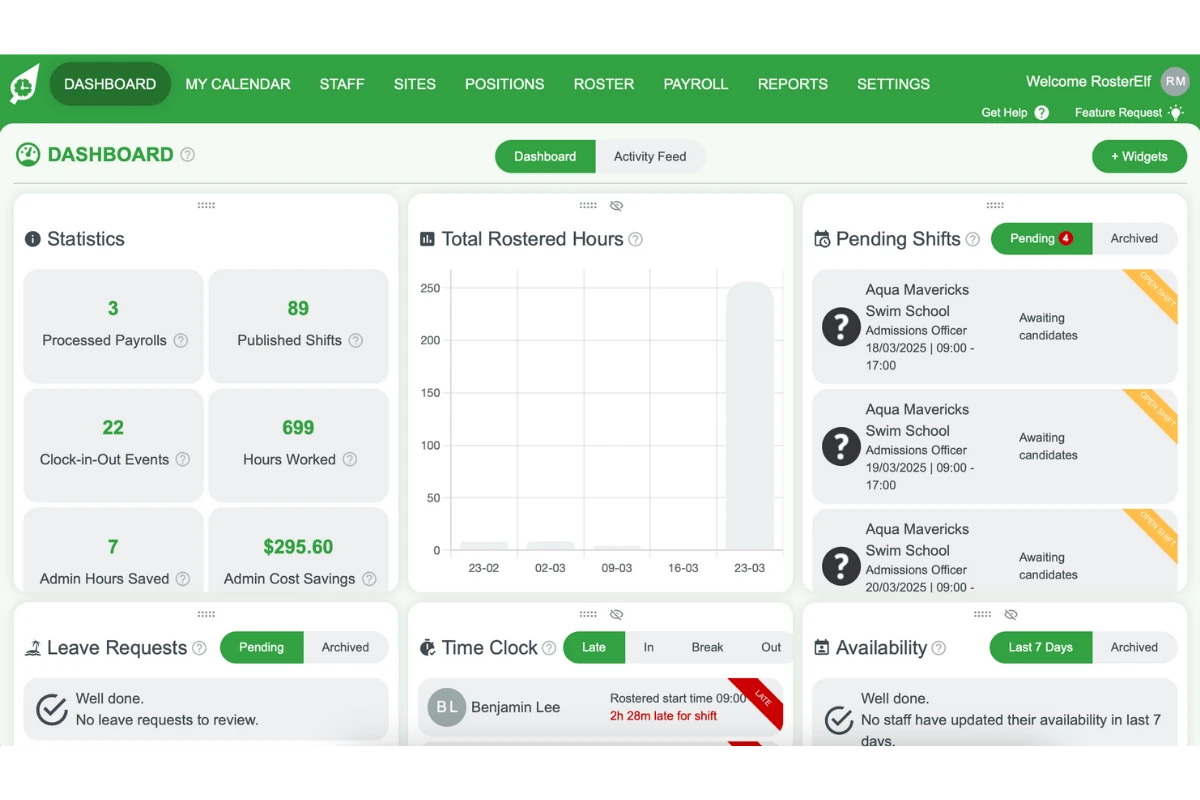
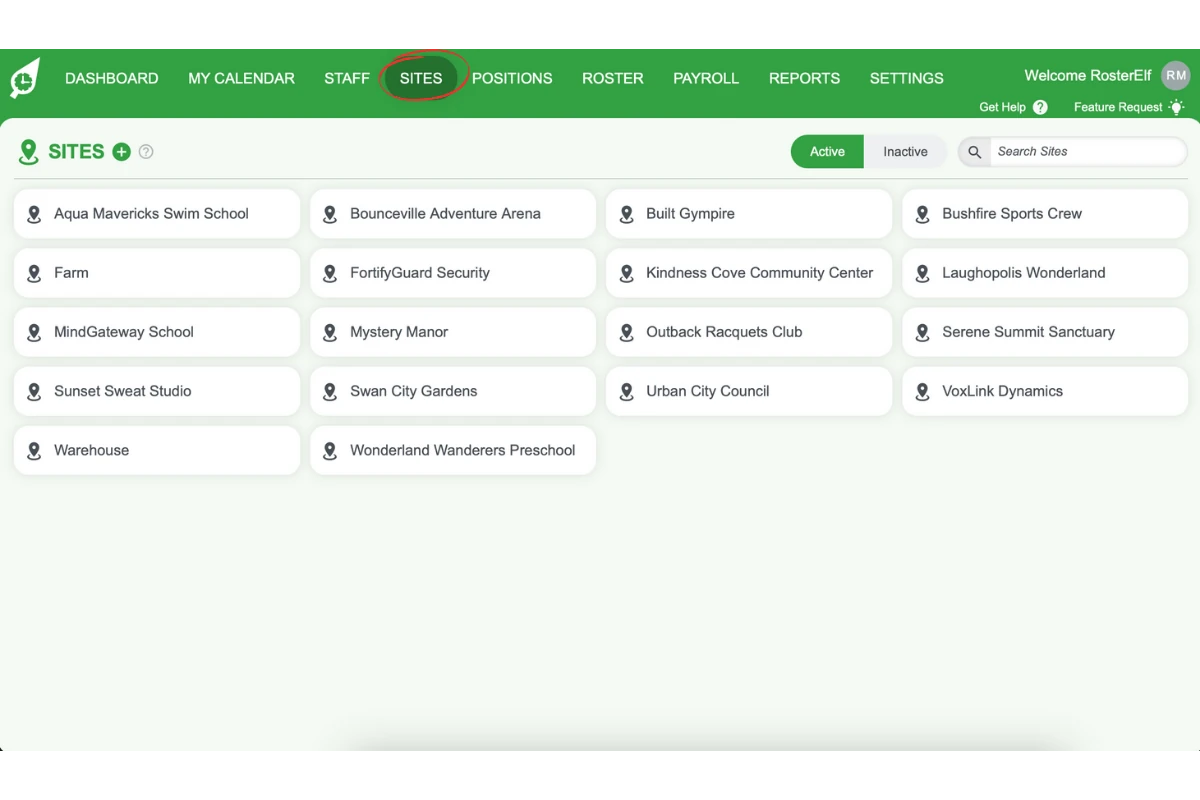
2.1.2. Click on the Sites tab.
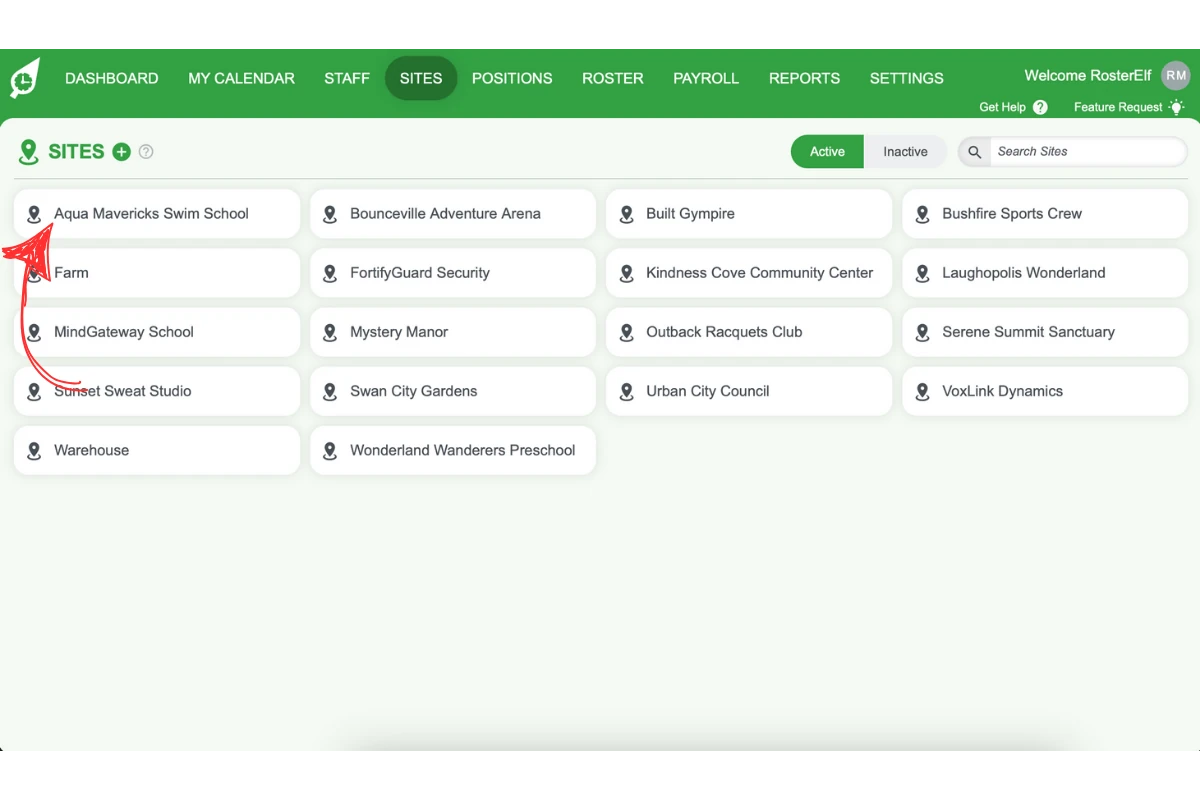
2.1.3. Select your site from the list.
2.2. Update time and attendance settings
2.2.1. Click the Time & Attendance tab in the site window.
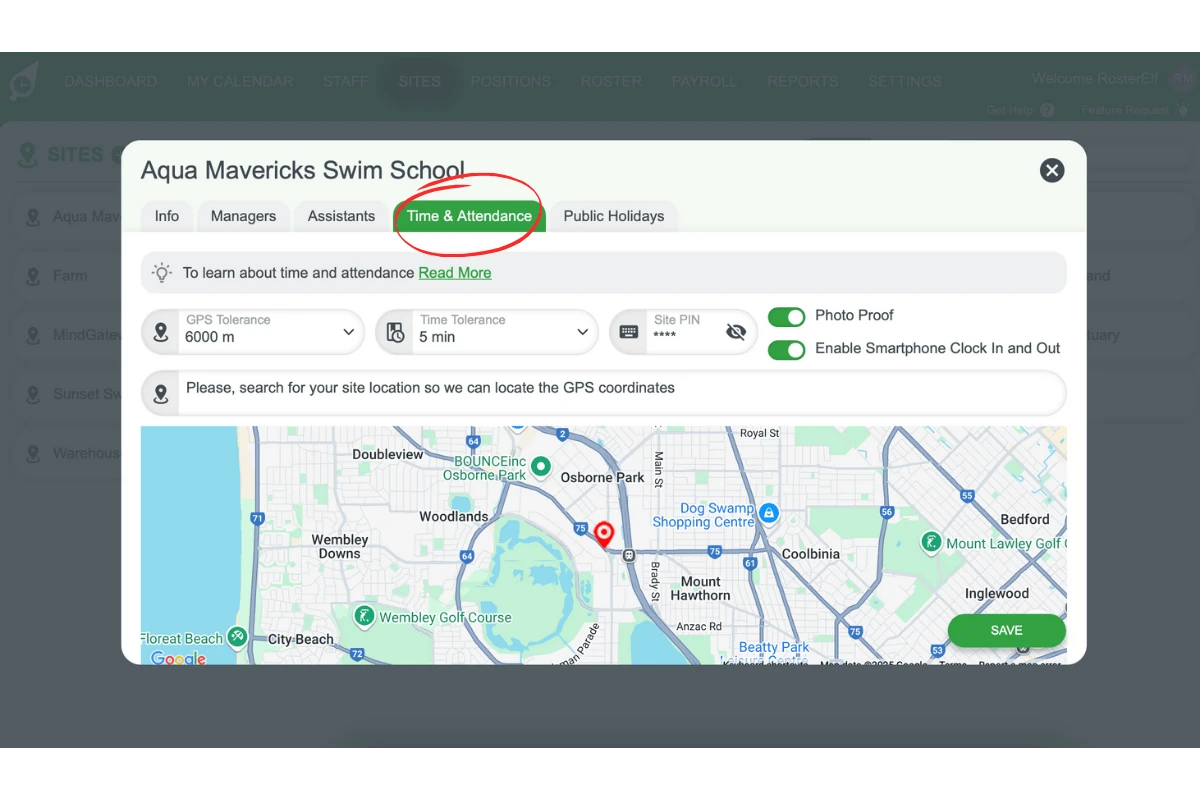
2.2.2. Paste the copied Plus Code into the location search box (Please, search for your site location so we can locate the GPS coordinates). There is no separate Plus Code field.
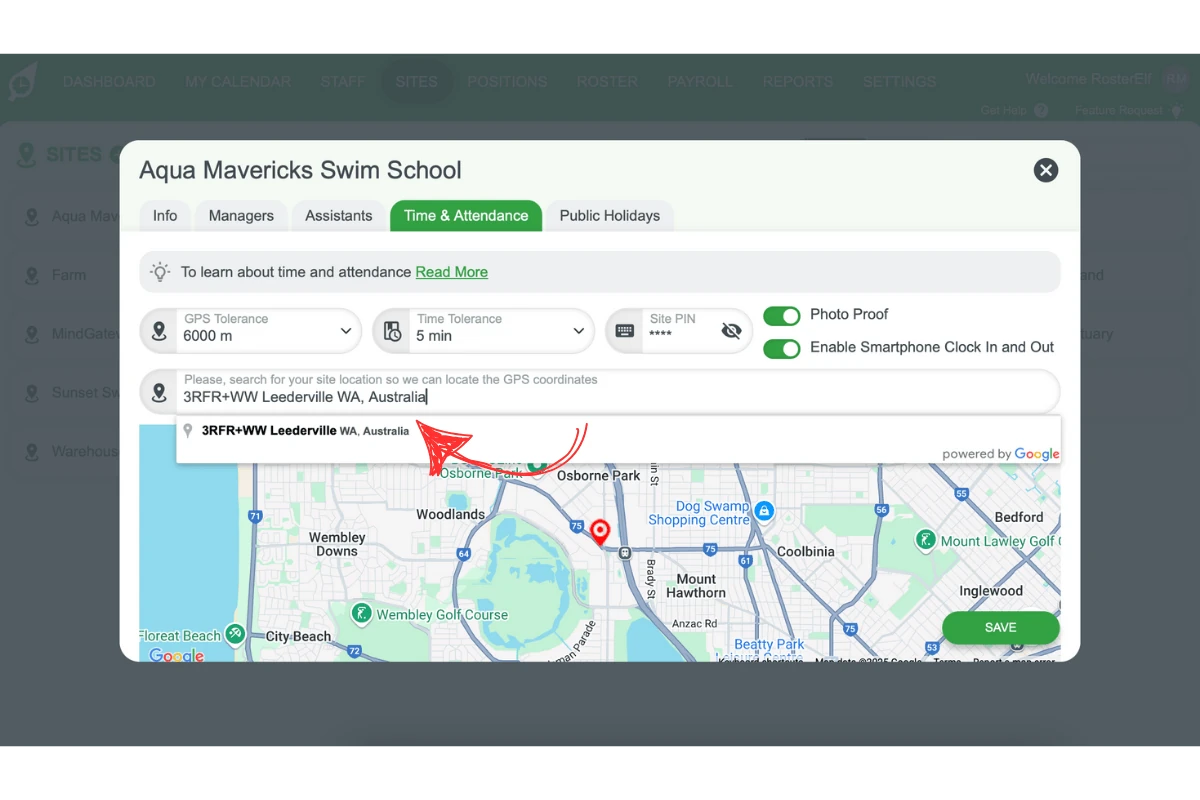
2.2.3. Select the matching suggestion from the Google list below the box.
2.2.4. Click Save to confirm the update.
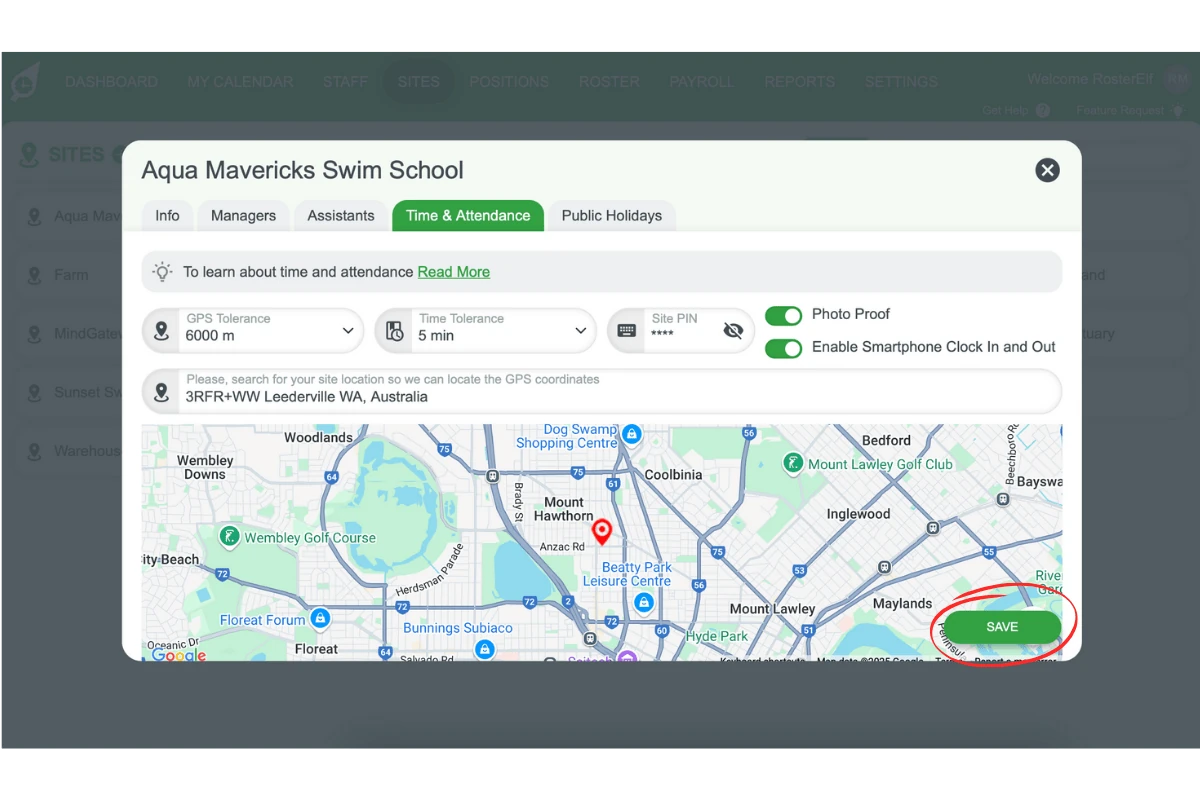
Your site now has an accurate Plus Code, ensuring proper time tracking for employees.
Frequently asked questions
1. What is a Plus Code in RosterElf?
A Plus Code is a unique digital address provided by Google Maps. In RosterElf, it ensures employees clock in and out at the correct location for accurate time and attendance tracking.
2. How do I find my Plus Code on Google Maps?
To find your Plus Code, visit Google Plus Codes, enter your address in the search bar, and click on the map to adjust your location if needed. Copy the Plus Code, including the suburb and country.
3. Where do I add my Plus Code in RosterElf?
Log in to RosterElf, go to the Sites tab, select your site, then open its Time & Attendance tab. Paste the copied Plus Code into the location search box, select the matching suggestion from Google and click Save to confirm the update.
4. Why is my Plus Code important for time tracking?
A Plus Code ensures employees clock in and out at the correct location. This prevents time fraud and improves payroll accuracy by linking attendance records to a verified site.
5. Can I update my Plus Code in RosterElf later?
Yes, you can update your Plus Code anytime by following the same steps on the site’s Time & Attendance tab. Simply replace the old Plus Code with the new one and save the changes.