

Add unscheduled shifts on mobile
This guide shows how to add unscheduled shifts with the RosterElf iPhone and Android apps. The feature lets you capture extra hours that were not planned on the roster—perfect for emergency cover, overtime or last-minute jobs. You will learn to enable the option, open the unscheduled shift form, enter site, position and times, then publish the record so the employee can clock in. Clear screenshots highlight every button and a success banner confirms the shift has been saved. With this quick workflow you keep payroll accurate, record compliance hours and avoid missing ad-hoc work that happens outside the roster, all without returning to the office.
1. Enable unscheduled shift feature
Before you can add extra shifts, the unscheduled shift setting must be switched on by an administrator. If you do not see the green button described in section 2, follow the instructions in How to enable the unscheduled shift feature. Once active, the button appears for all eligible staff and you can record work that was not rostered in advance.
2. Create an unscheduled shift
This section guides you from the Shifts tab to the unscheduled shift form. You will tap the green button, enter all required details and prepare the record for publication. Screenshots display the exact menu, helping you avoid common data-entry mistakes.
2.1 open new shift form
2.1.1 Go to the Shifts tab and tap Add unscheduled shift.

2.2 enter shift details
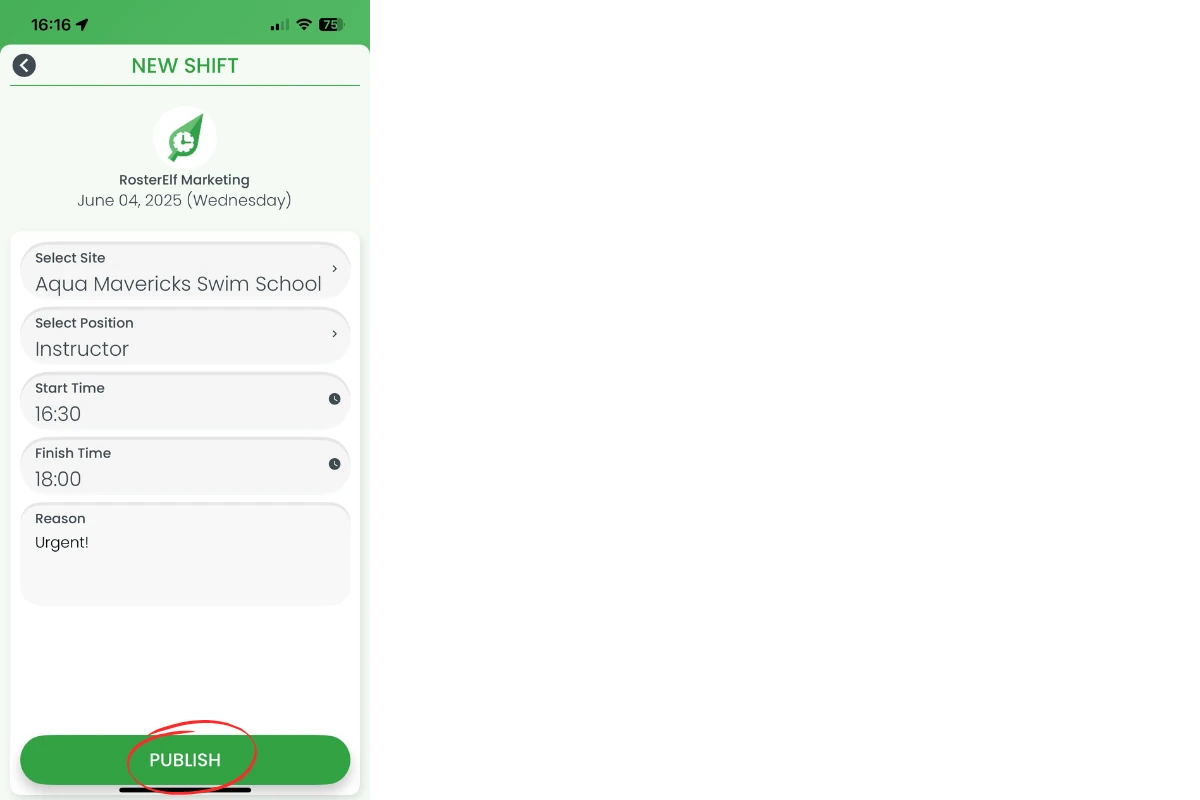
2.2.1 Select Site, Position, Start and Finish times. Add a reason.
3. Publish and confirm shift
After entering details, publish the shift so the employee can clock in. The app displays a green success banner and the shift appears on the Today feed, ready for time tracking. This keeps payroll and compliance data complete.
3.1.1 Tap Publish at the bottom of the form to save the shift.
Frequently asked questions
1. Why can't I see the Add unscheduled shift button?
An administrator must enable the feature first. See the set-up guide in How to enable the unscheduled shift feature.
2. Do unscheduled shifts sync to the web roster?
Yes. Once published, the shift appears in the web roster and payroll exports.
3. Can staff clock in to an unscheduled shift?
Staff can clock in after you publish the shift, provided they are within the geo-fence or allowed clock-in area.
4. How do I edit or delete an unscheduled shift?
Managers can tap the shift card on the Today feed, choose Edit or Delete, then press Save.
5. Will the employee receive a notification?
Yes. RosterElf sends a push notification so the employee knows an extra shift is available.