

This article explains how to close the payroll pop-up banner in RosterElf. When RosterElf releases updates, a pop-up banner appears in the app to highlight new features and improvements. This banner helps you stay informed, but it can sometimes block important areas of the screen.
In some cases, the banner may cover key functions in the roster or payroll sections. This can make it difficult to process payroll or complete tasks efficiently. Closing the banner allows you to return to your normal workflow without interruptions.
RosterElf makes it simple to remove the banner in just one step. Once closed, you can continue accessing payroll, rostering, and other features without obstruction. Following this guide ensures you can quickly remove the banner and continue processing payroll with ease.
1. Close payroll pop-up banner in RosterElf
This section explains how to close the payroll pop-up banner in RosterElf. You will learn how to locate the banner and remove it from your screen. This process helps restore full visibility of your roster and payroll functions.
Closing the banner ensures you can access all areas of the platform without interference. It also helps you continue processing payroll and managing shifts without delays. This step is quick and does not affect your settings or data.
1.1 Close payroll pop-up banner
1.1.1 Open RosterElf in your web browser and log in to your account.
1.1.2 Locate the pop-up banner at the bottom of the screen.
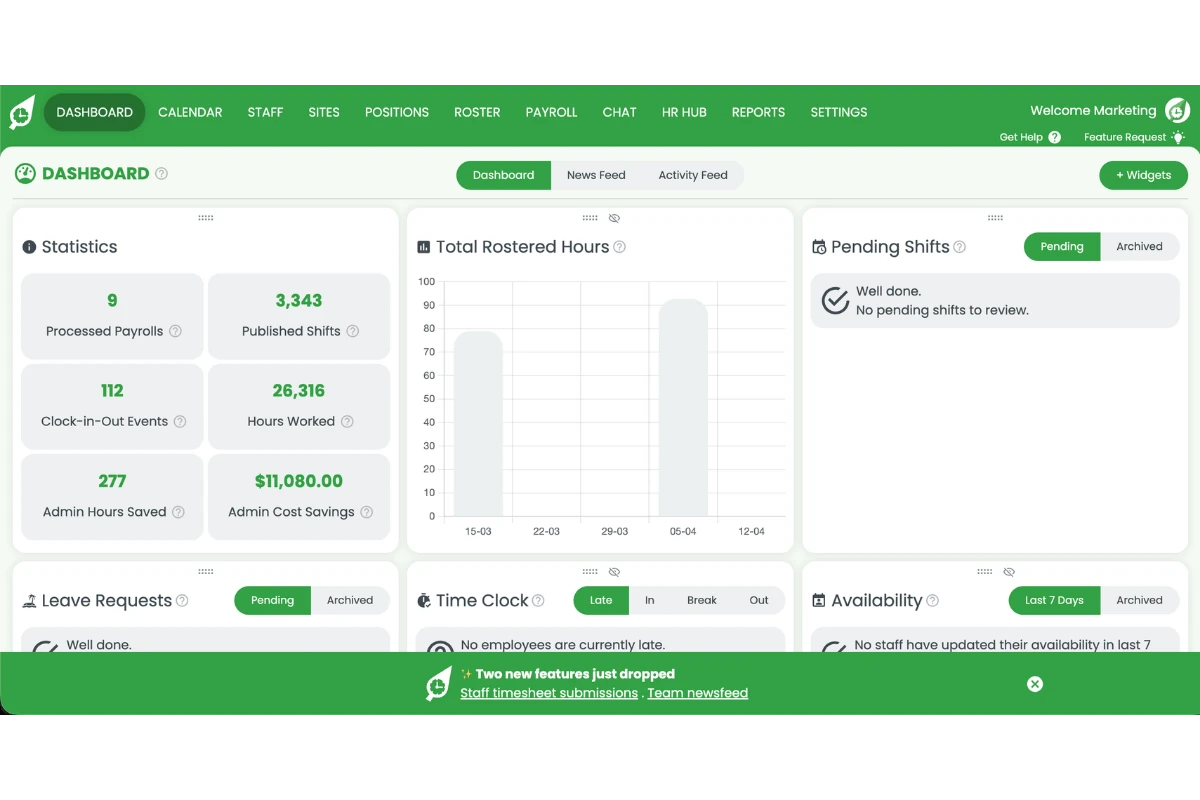
1.1.3 Click the X on the banner to close it.
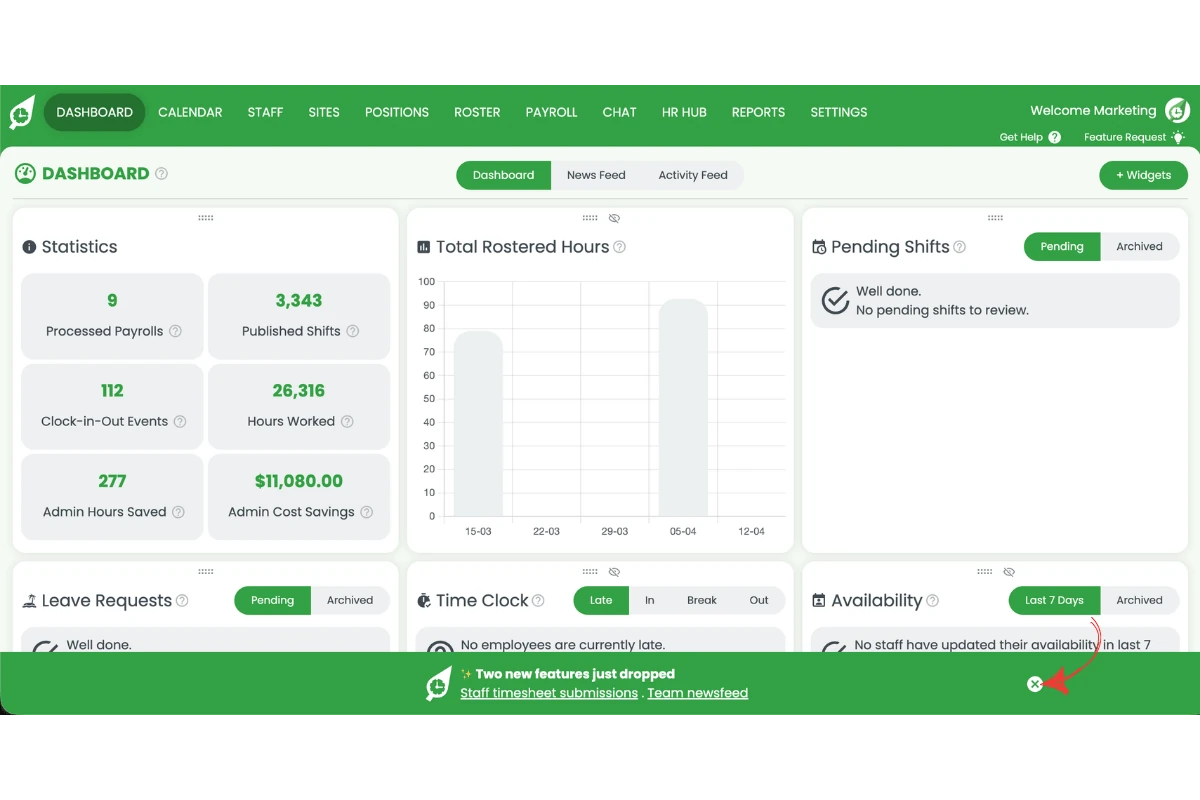
The banner will immediately disappear. You can now access all functions in the roster and payroll sections without obstruction. If you need help with payroll after closing the banner, see setting up payroll or adjusting payroll approval settings. For other browser and display issues, see our general troubleshooting guide.
Frequently asked questions
1. What is the payroll pop-up banner in RosterElf?
The payroll pop-up banner in RosterElf appears when new updates or features are released. It displays at the bottom of the screen to keep you informed. While useful, it can sometimes block parts of the roster or payroll view.
2. How do I close the payroll pop-up banner in RosterElf?
To close the payroll pop-up banner in RosterElf, open the platform and locate the banner at the bottom of the screen. Click the X on the banner. The banner will immediately disappear from your view.
3. Why should I close the payroll pop-up banner?
You should close the payroll pop-up banner if it is blocking key areas of the system. Removing it restores full visibility of payroll and roster functions. This helps you complete tasks without interruptions.
4. Does closing the payroll pop-up banner affect my data?
No, closing the payroll pop-up banner does not affect your data or settings. It only removes the banner from your screen. All payroll and roster information remains unchanged.
5. Can I reopen the payroll pop-up banner after closing it?
No, once you close the payroll pop-up banner, it will not reappear unless a new update is released. Future updates may trigger a new banner with different information.