

If a RosterElf update notification is blocking your payroll screen before you begin, see how to close the pop-up banner in RosterElf first.
This article explains how to turn off automatically approved payroll in RosterElf. By default, payroll hours may be auto approved when staff submit timesheets. While this feature speeds up payroll processing, it can also create risks if hours need checking before approval.
Disabling automatic approval ensures managers review and approve timesheets manually before they go through to payroll. This process improves accuracy, prevents errors, and ensures your business remains compliant with wage and award requirements. Following the steps in this guide, you will learn how to adjust your payroll settings to turn off auto approvals. This gives you greater control over staff hours, reduces the risk of incorrect payments, and helps maintain accurate payroll records.
1. Open payroll settings in RosterElf
This section explains how to access payroll settings in RosterElf. You need to reach this area to turn off automatic approvals. Accessing payroll settings gives you control over how staff timesheets are handled before they are processed.
1.1 Access payroll settings
1.1.1 Open RosterElf.
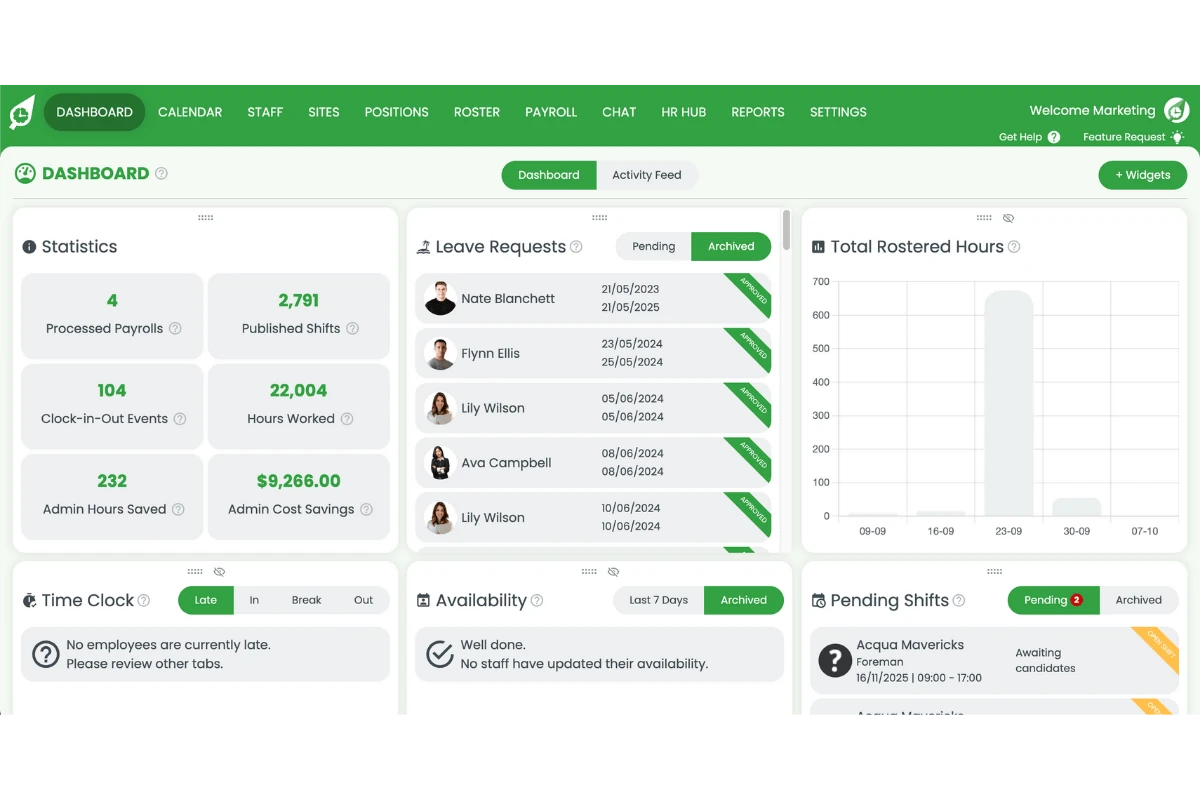
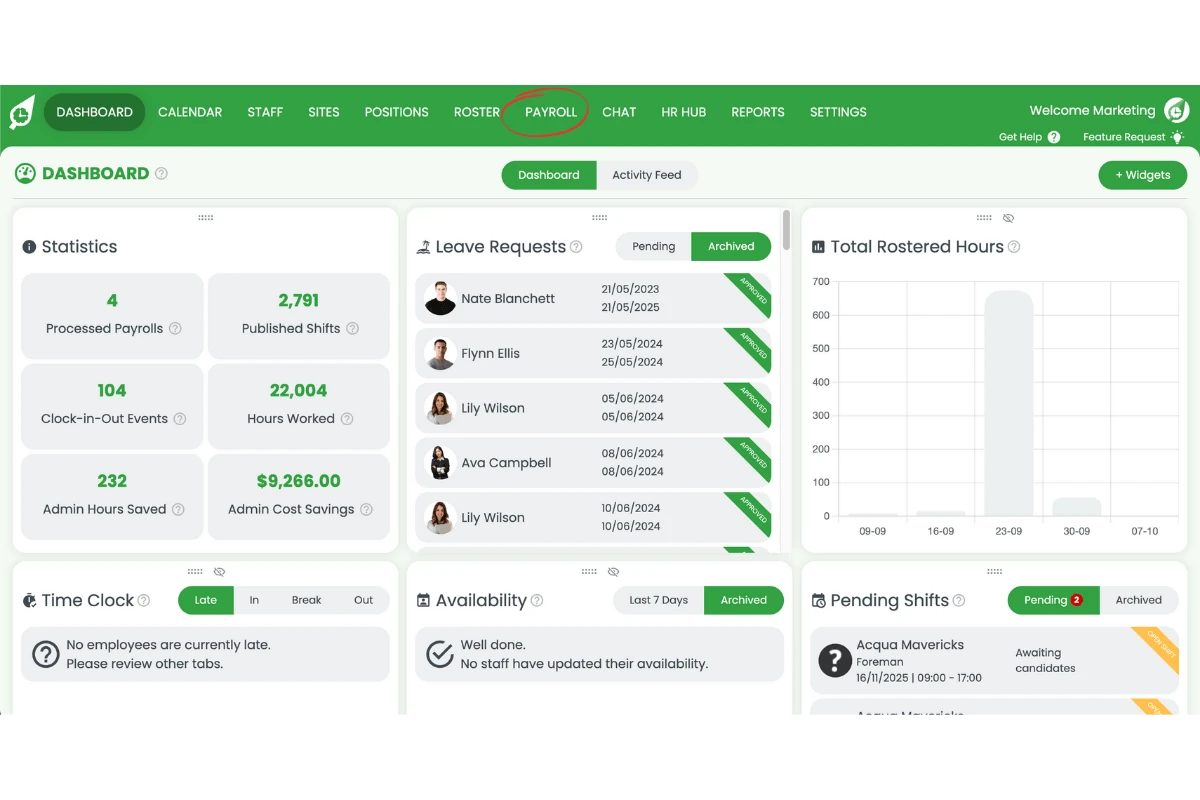
1.1.2 Press Payroll.
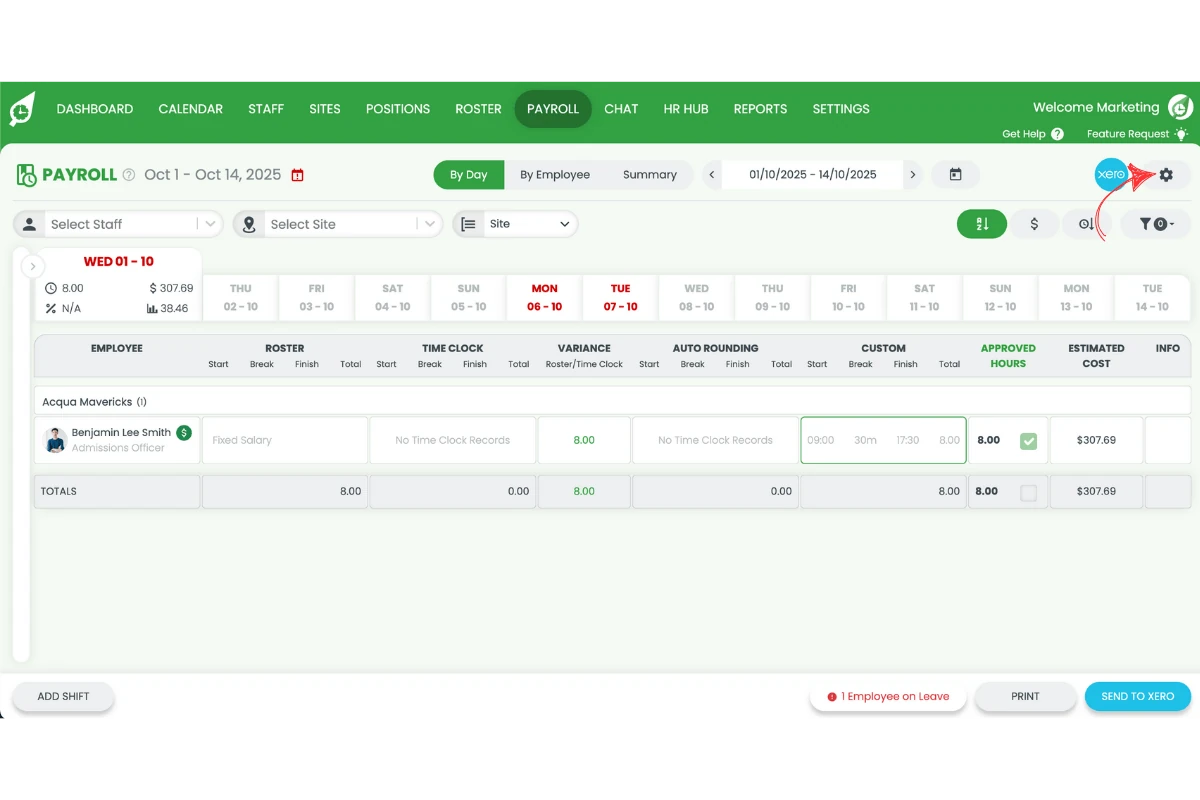
1.1.3 Press the settings cog.
2. Turn off automatically approved payroll
This section explains how to disable the auto approve feature for payroll hours. Turning this off ensures managers review each timesheet before approval, improving accuracy and compliance.
2.1 Disable auto approve payroll hours
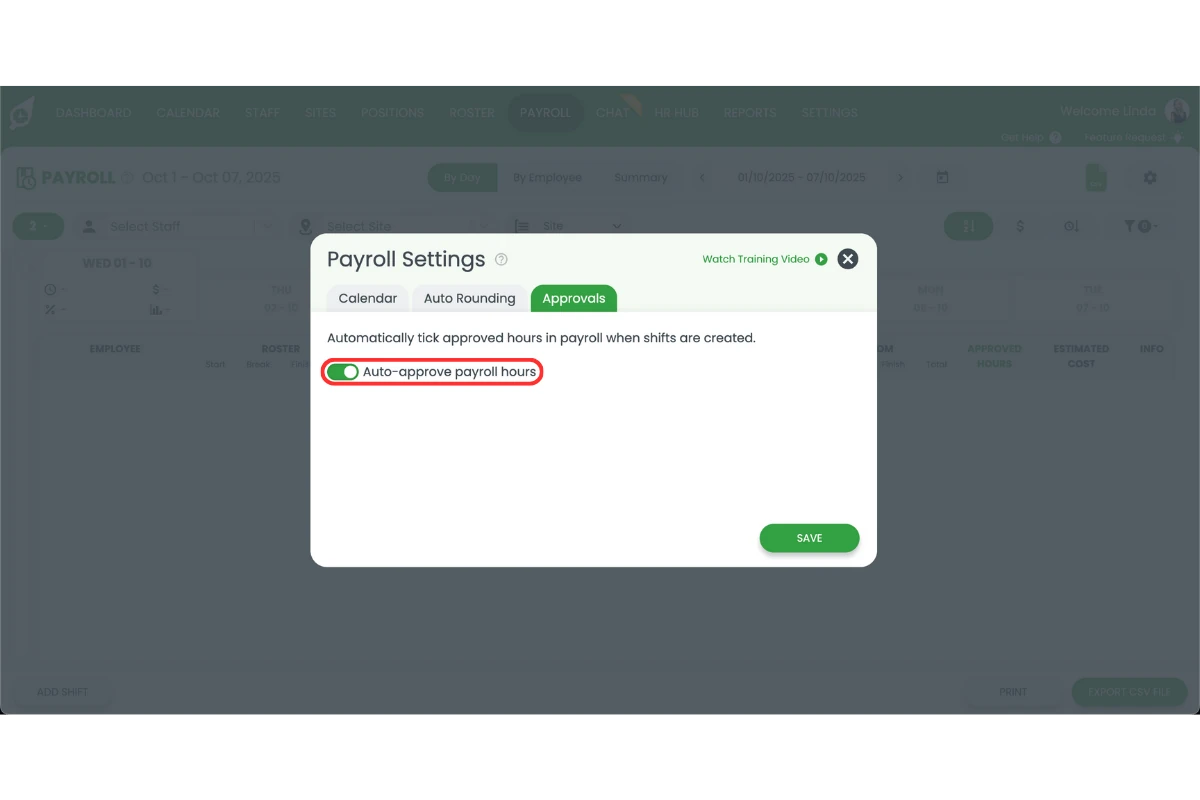
2.1.1 Click Approvals.
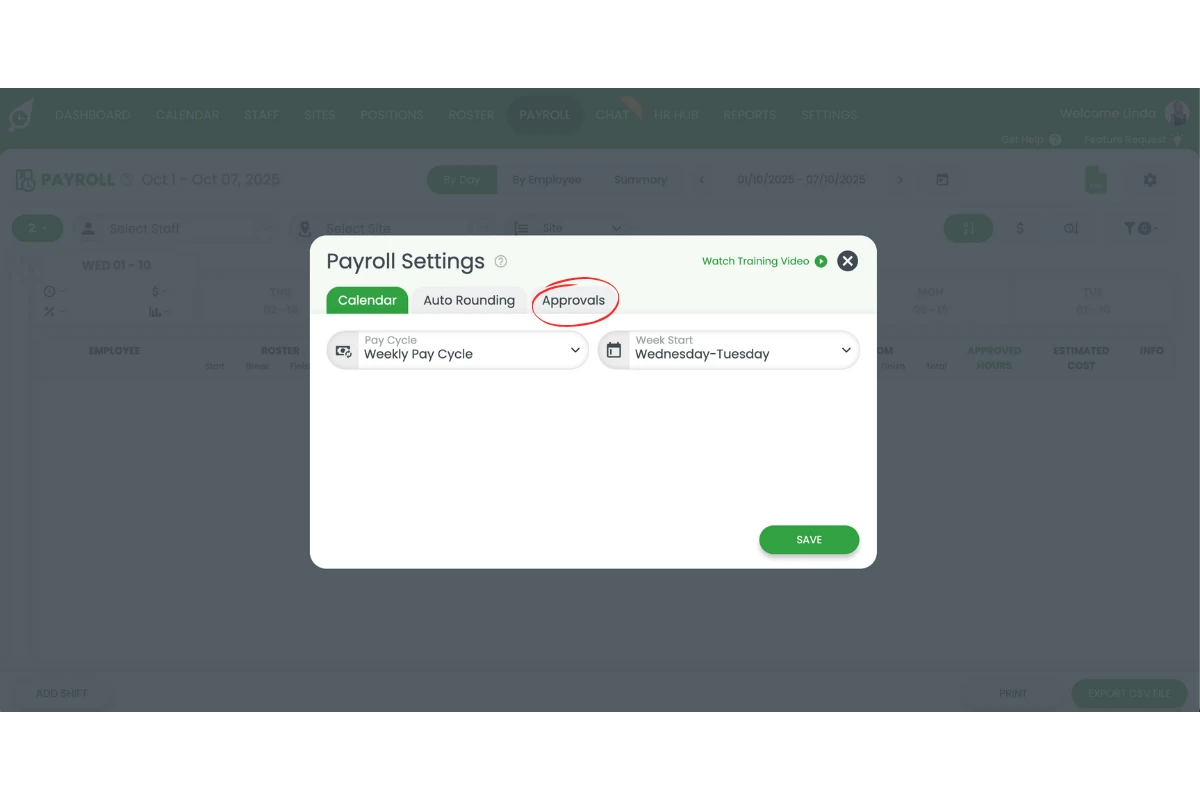
2.1.2 Toggle off Auto-approve payroll hours.
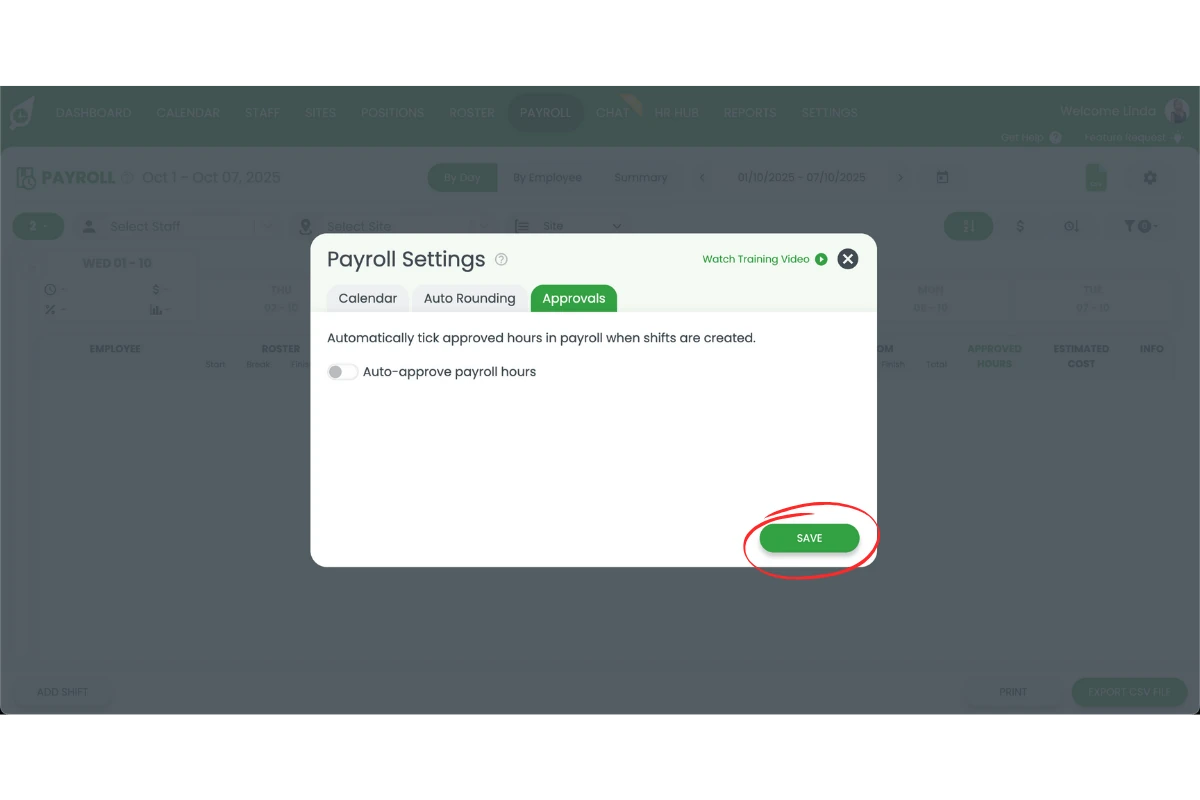
2.1.3 Hit Save.
FAQs about turning off auto approved payroll
1: What does automatically approved payroll mean in RosterElf?
Automatically approved payroll means staff timesheets are sent straight to payroll without manager review. This speeds up processing but can increase the risk of errors or incorrect payments.
2: Why should I turn off auto approved payroll in RosterElf?
Turning off auto approved payroll ensures managers review every timesheet before it goes to payroll. This improves accuracy, prevents errors, and helps your business support your compliance efforts with wage and award requirements.
3: How do I disable automatically approved payroll in RosterElf?
To disable auto approvals, open RosterElf, go to Payroll, click the settings cog, select Approvals, toggle off Auto approve payroll hours, and press Save.
4: Can I turn auto approved payroll back on later?
Yes. You can go back to payroll settings at any time, toggle Auto approve payroll hours back on, and save your changes.
5: Does turning off auto approved payroll delay payroll processing?
It may add a small step, as managers must review and approve timesheets first. However, this process helps ensure payroll accuracy and prevents costly mistakes.
6: Will changing automatically approved payroll off change my historical shifts?
Once the setting is changed and saved, this will only apply to any future shifts published in the roster.