

Assigning pay templates to staff allows for accurate budgeting when rostering and streamlines payroll exports to supported software providers, including Xero. Before assigning templates, ensure they are created in the payroll settings — or activate an award template if your award is supported — and that positions and sites are assigned to each staff member. Follow the steps below to assign pay templates, making it easy to apply specific pay rates based on location or position.
For more information, see Introduction to pay templates. If assigning pay rates to fixed salary staff, refer to Assigning pay rates to fixed salary staff.
1. Access staff payroll settings
To begin, access the payroll settings for the staff member you want to assign pay templates to. Ensure each relevant setting aligns with the intended employment and pay structure for accurate payroll processing.
1.1.1. Go to the Staff tab – Click the Staff tab and select the staff member you want to assign pay templates to.
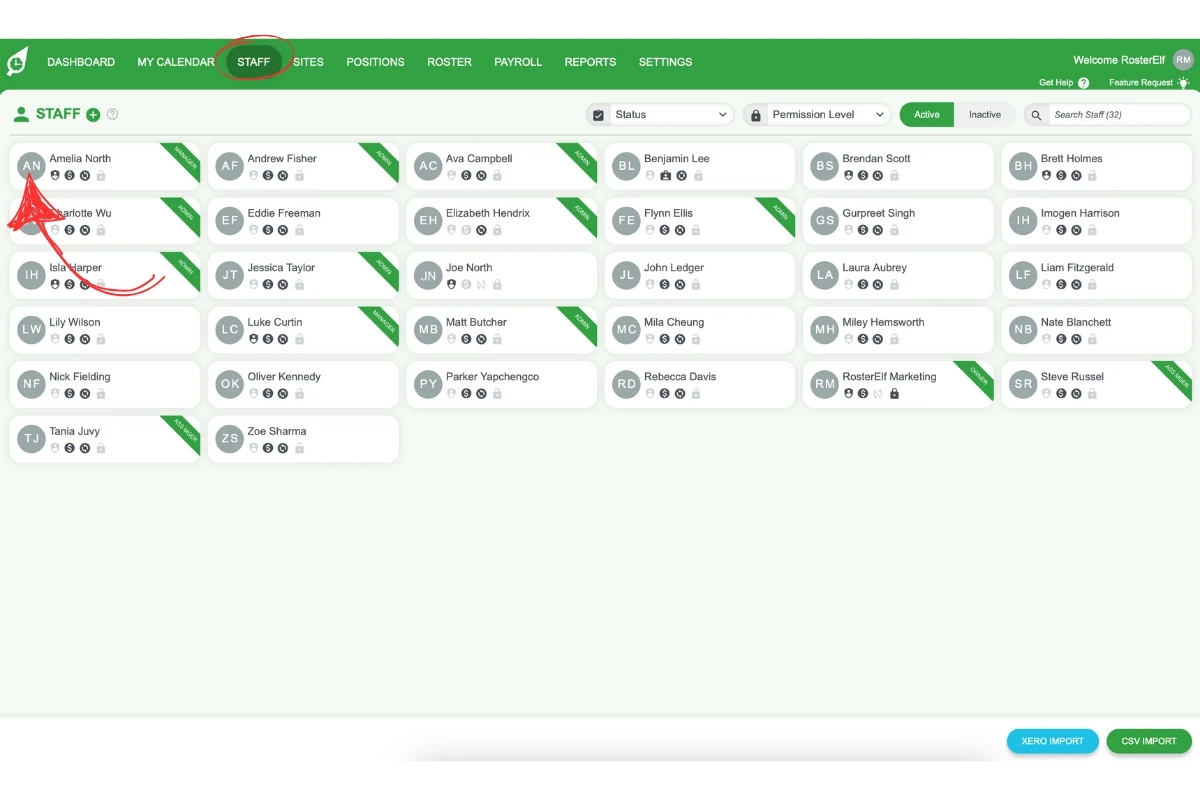
1.1.2. Navigate to the Payroll tab within the staff card – Click on the Payroll tab.
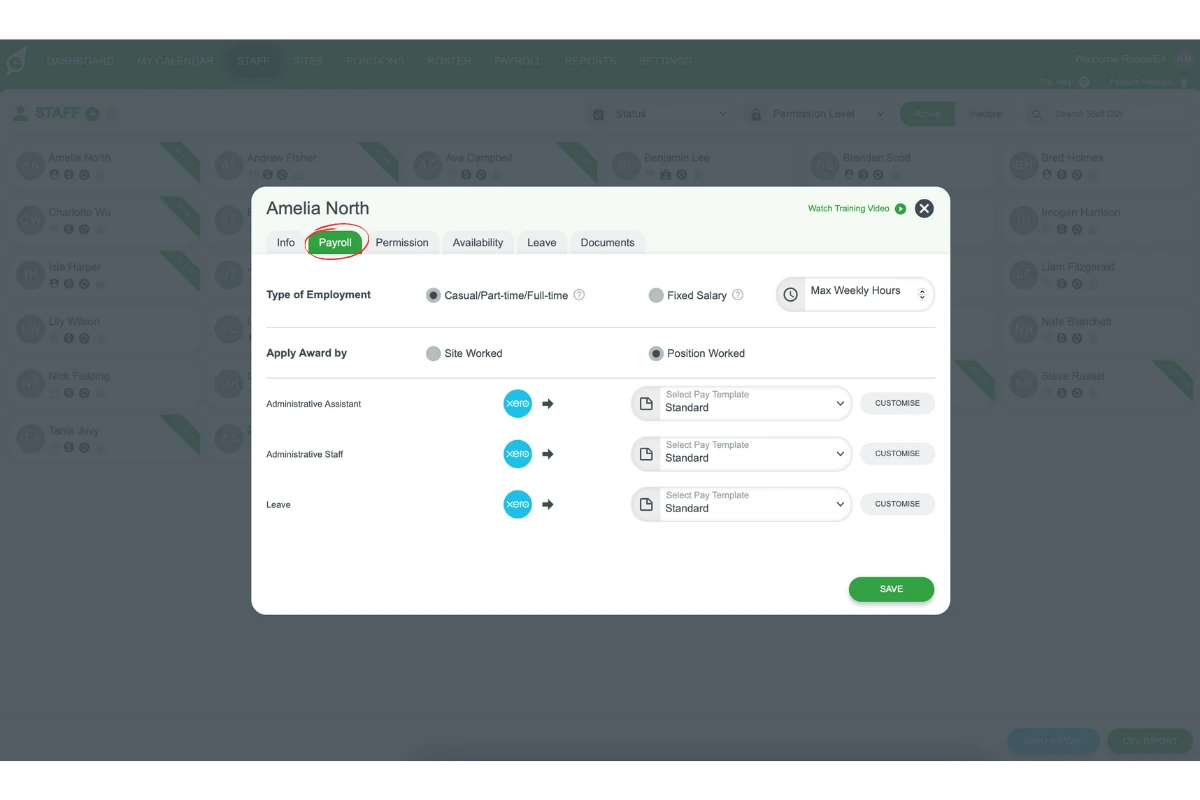
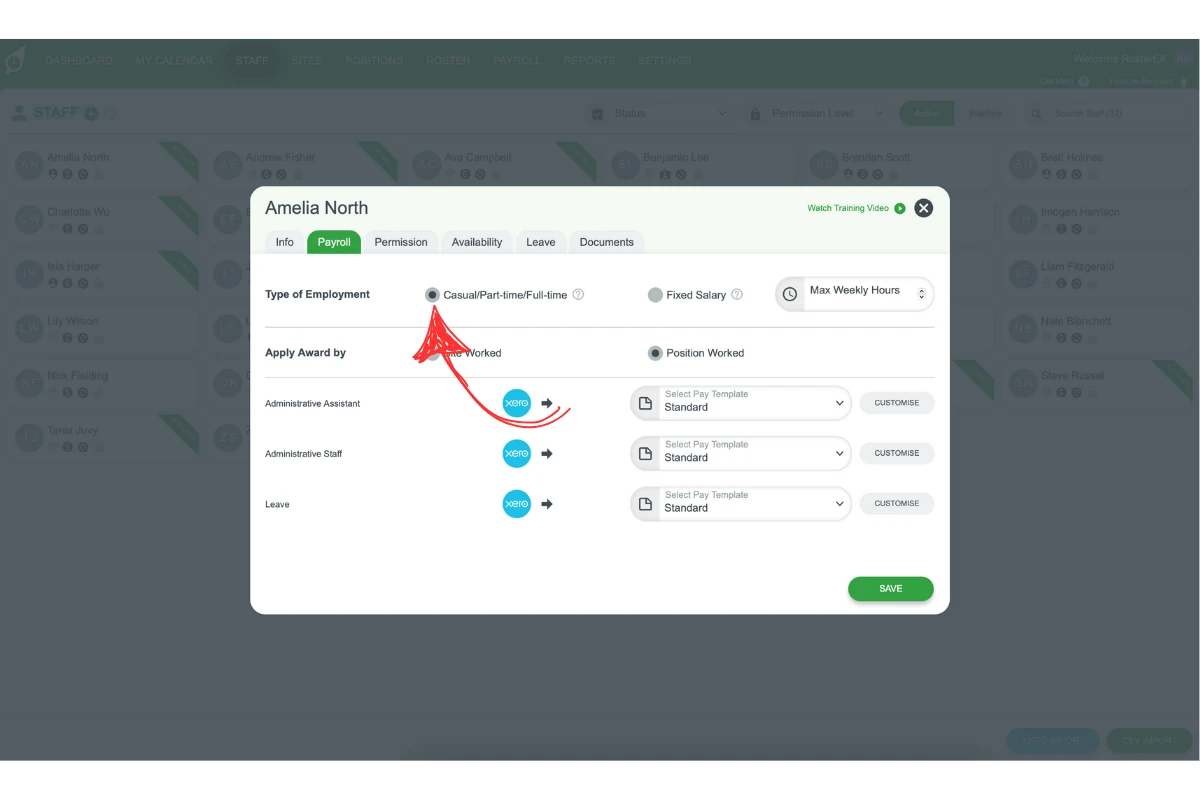
1.1.3. Set employment type – Ensure Type of Employment is set to Casual/Part-time/Full-time.
1.1.4. Select template application method – Choose whether to apply the pay template by Site Worked or Position Worked.
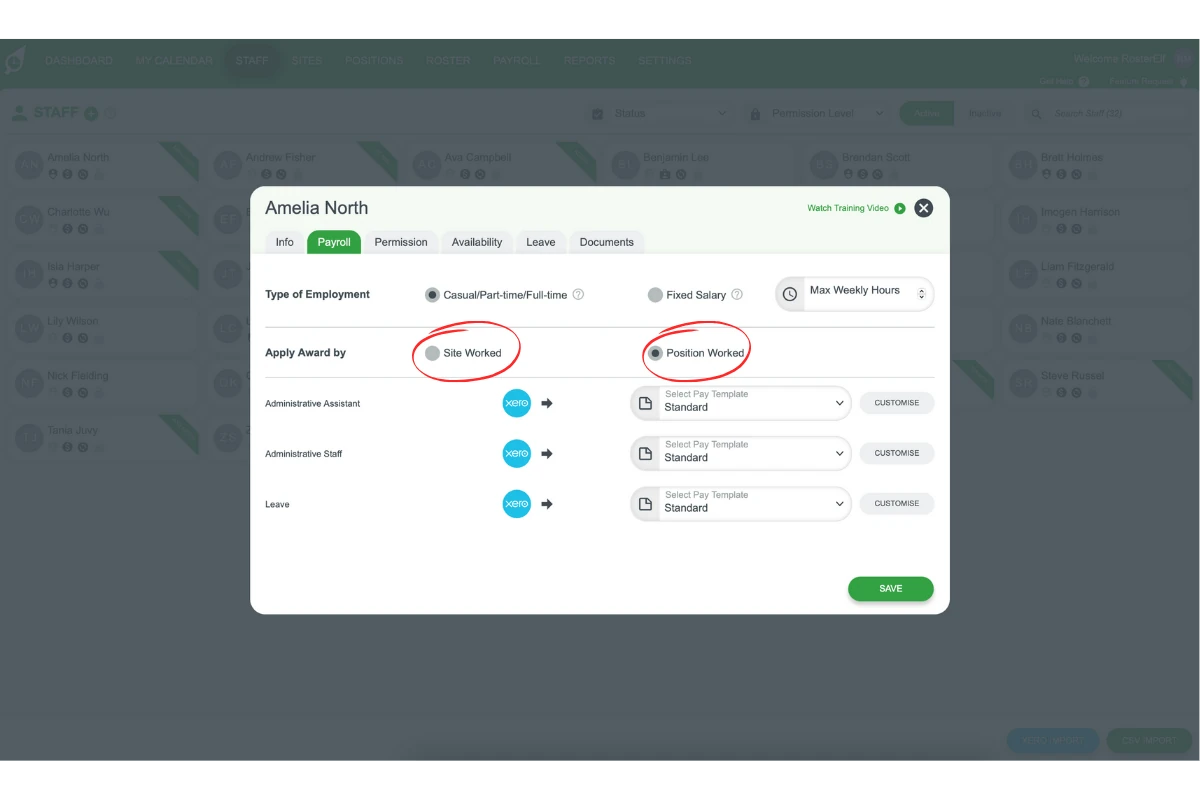
2. Choose template application method
Choosing the correct application method for pay templates lets you apply distinct pay rates based on the site or position, supporting varied roles or industry awards.
2.1 apply pay templates by site
Use this option to apply different pay templates according to the staff member’s assigned site. This setup is useful for businesses with varied industry awards across locations.
2.1.1. Select Site Worked in the Apply Award by field.
2.1.2. For each site, click the dropdown and select the relevant pay template.
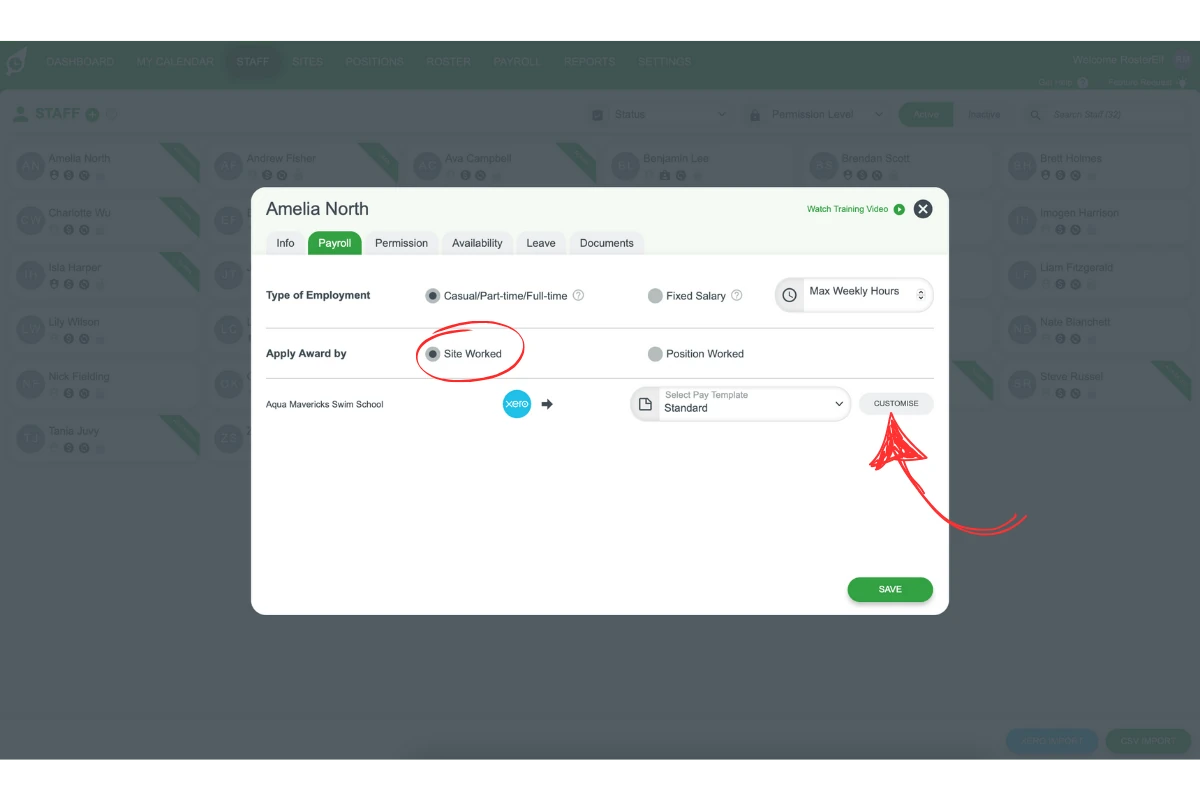
2.1.3. Staff will be paid the site-specific award rate depending on where they work.
2.2 apply pay templates by position
This option enables different pay templates for staff working in multiple positions, like managerial roles with different pay rates.
2.2.1. Select Position Worked in the Apply Award by field.
2.2.2. For each position, click the dropdown and select the appropriate pay template.
2.2.3. Staff will receive position-specific pay rates based on the role they work.
3. Save assigned pay templates
Ensure all pay templates are correctly assigned to each position or site.
3.1. Review selections for each site or position.
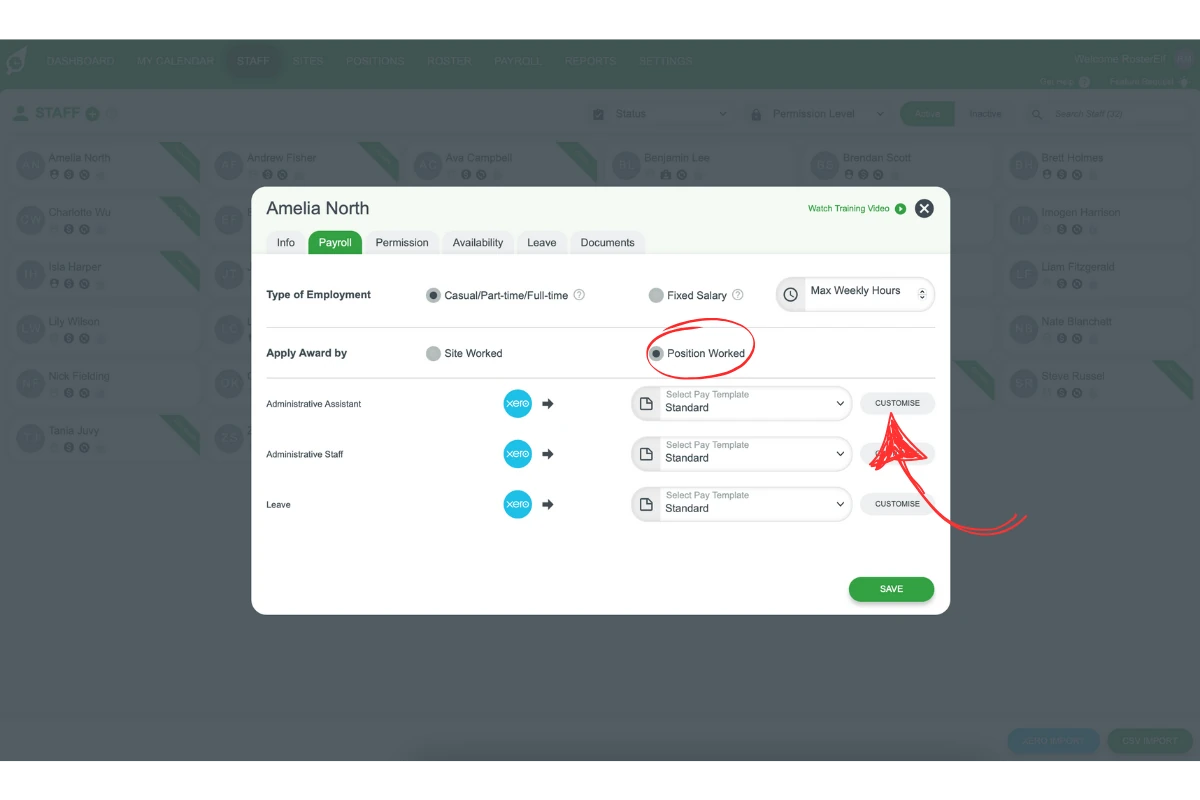
3.2. Click Save to save the assigned templates.
Frequently asked questions
1. How do I assign a pay template to a staff member?
Go to the Staff tab, select the staff member, navigate to the Payroll tab, and choose a pay template application method by Site Worked or Position Worked. Then, assign the relevant pay template to each site or position as needed.
2. What is the difference between applying pay templates by site or position?
Applying pay templates by Site means pay rates are set based on the staff member’s location, ideal for businesses with location-specific awards. Applying by Position assigns rates based on roles, suited for varied responsibilities or pay rates within one location.
3. Can I assign different pay rates to a staff member working in multiple positions?
Yes, select Position Worked in the Apply Award by field. This enables you to assign distinct pay templates for each position a staff member may work, ensuring accurate pay rates based on their role.
4. What do I need to do before assigning pay templates?
Ensure that pay templates are created in payroll settings and that each staff member has their sites and positions assigned. This setup is essential for accurate pay rate allocation based on location or role.
5. How do I save the pay templates assigned to a staff member?
After selecting the correct templates for each site or position, click Save to save your assignments. This step finalises the pay rate setup, readying it for payroll export.