

How to create a pay template for Xero integration
This guide walks you through setting up a basic pay template using RosterElf’s Xero Payroll integration. This template is suitable for companies that apply a single daily pay rate without overtime or allowances, typically for roles that do not fall under complex award structures or trading hours that require overtime payments.
With this setup, you’ll establish pay rules for ordinary hours, Saturdays, Sundays, and public holidays to ensure accurate payroll processing through Xero. By the end of this guide, you’ll have a complete pay template ready for staff assignment, covering every day of the week seamlessly.
1. Prerequisites for setting Up a pay template
Before creating a pay template, you must ensure your Xero integration is correctly set up in RosterElf. This is essential as it ensures all relevant pay items are available when configuring your pay rules. Set up Xero integration here.
2. Steps to create a pay template in RosterElf
This section provides a step-by-step guide to creating a basic pay template in RosterElf. We’ll cover naming the template, configuring daily rates, and assigning rules for weekdays, weekends, and public holidays to streamline payroll for your team.
2.1 accessing payroll settings
2.1.1. If you are not already on the Payroll Settings screen, click Settings, then select Payroll.
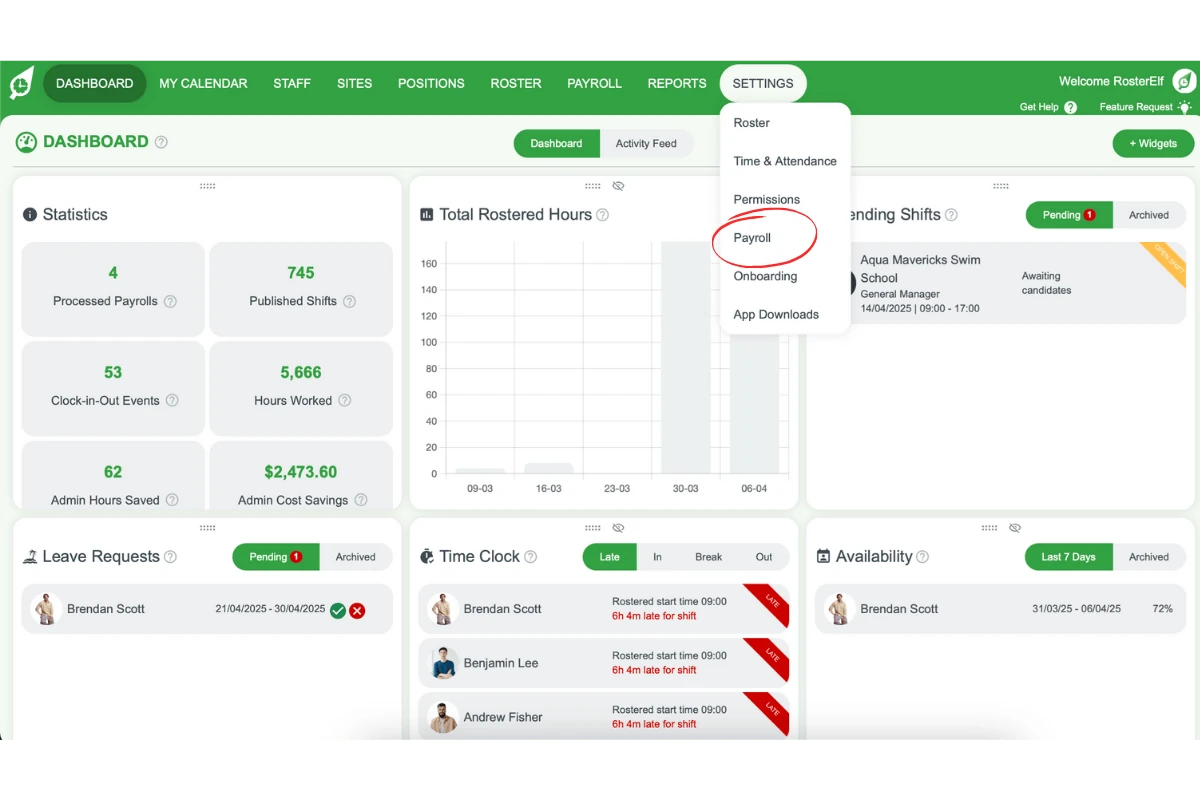
2.1.2. Click the Plus (+) beside Pay Templates to create a new template. You will see a pre-configured pay template with basic rules.
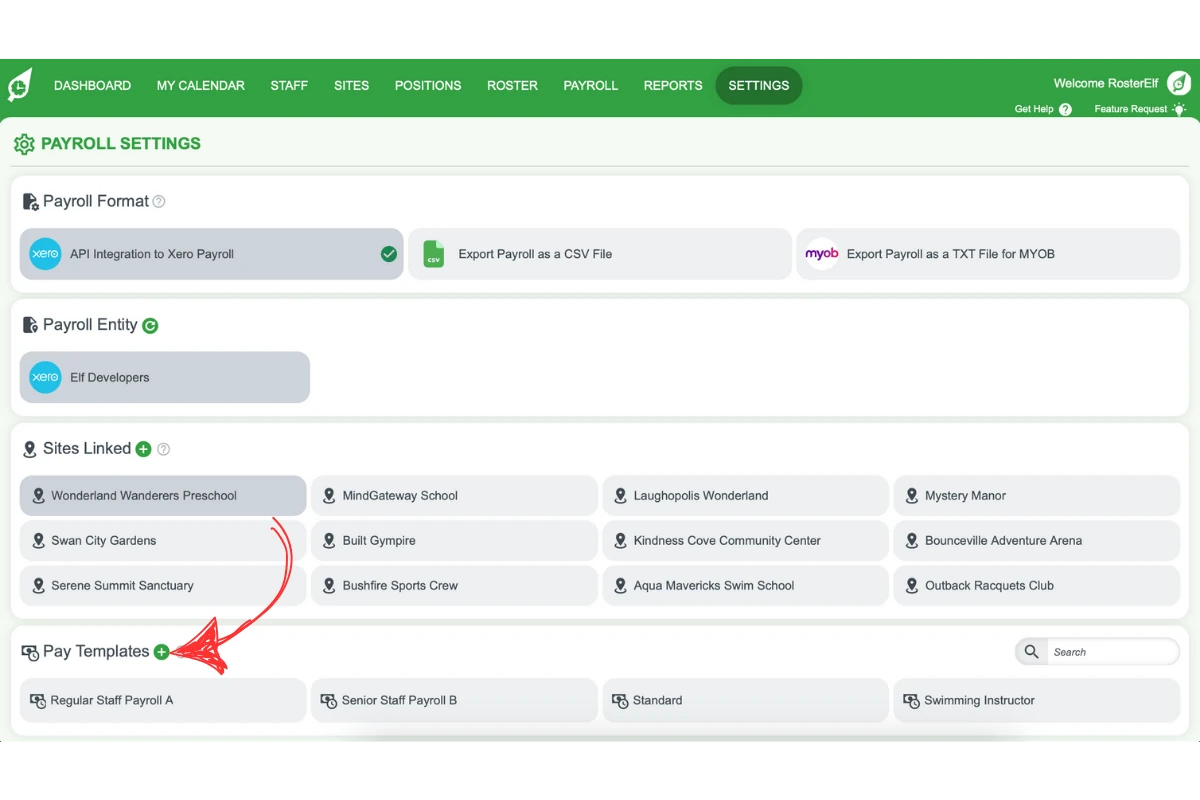
2.2 naming your pay template
2.2.1. In the Pay Template Name field, enter a unique name that describes the template, e.g., Swimming Instructor.
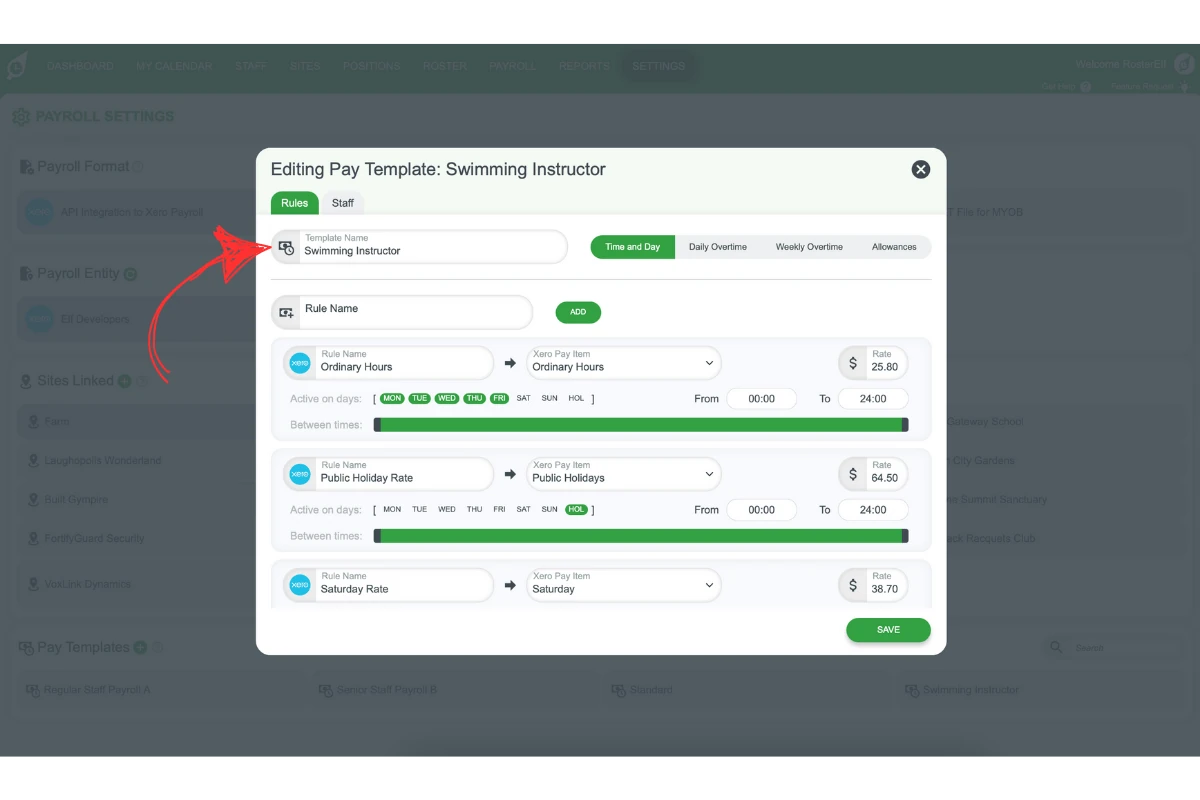
2.2.2. Delete any unnecessary rates (e.g., Early Morning, Late Night Rates) by hovering over the rule and clicking the red X.
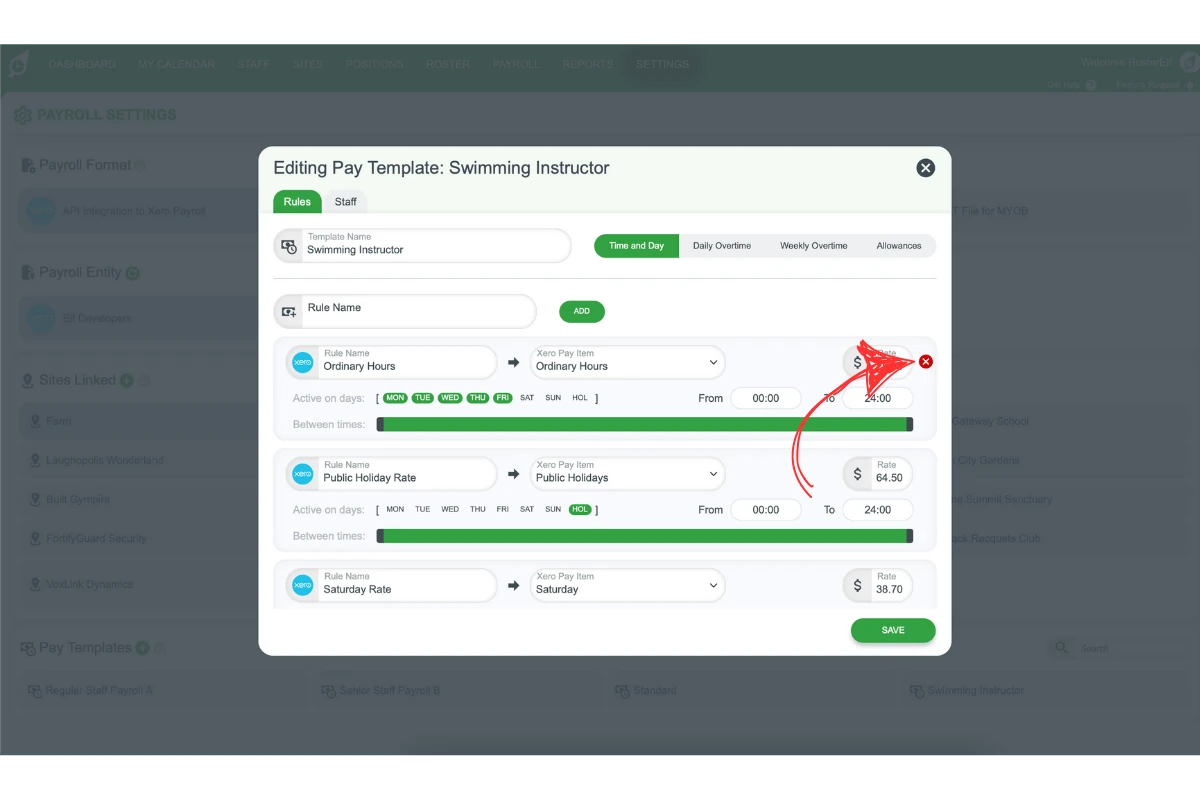
2.3 configuring pay rules
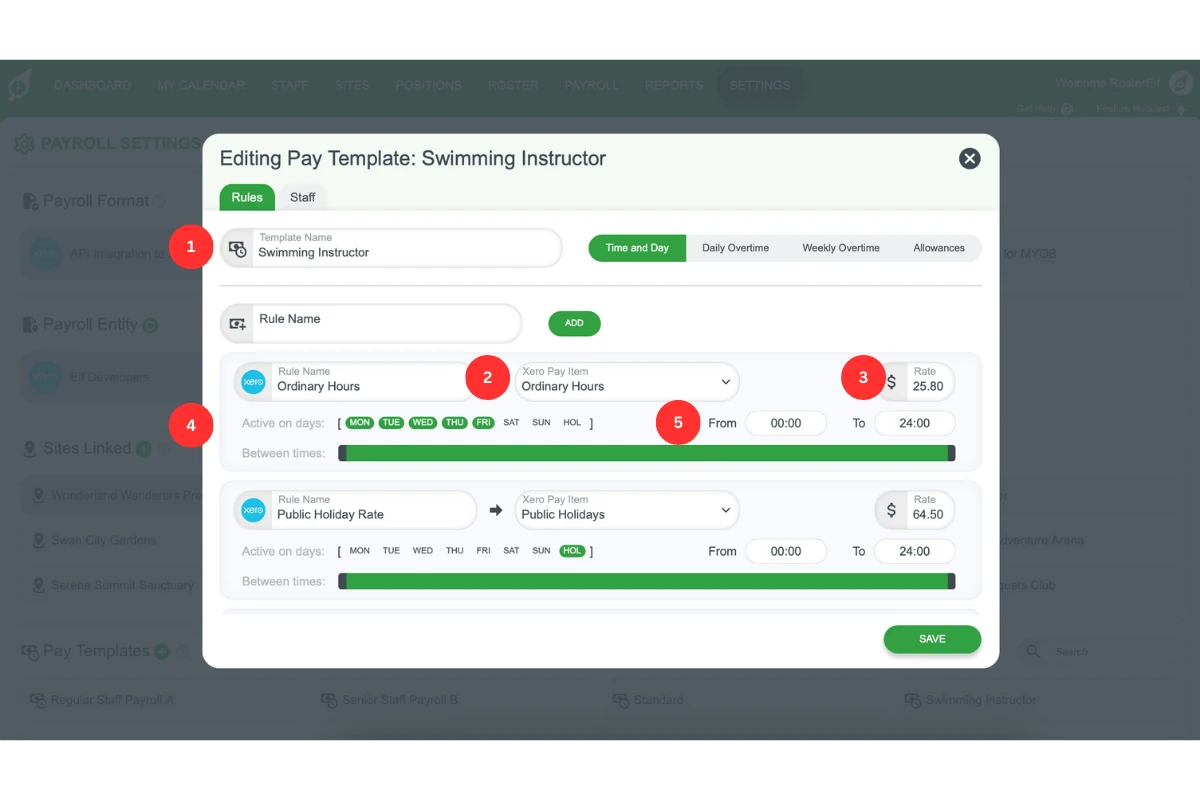
2.3.1. Pay Template Rule Name: Assign a name for internal reference in RosterElf.
2.3.2. Xero Pay Item: Choose a pay item from the dropdown list, which includes all active items from Xero. (If items aren’t visible, log out and back in.)
2.3.3. Budgeting Rate: Set a budgeting rate for internal budgeting. This does not impact Xero but should align with your budgeting setup if desired.
2.3.4. Active on Days: Select the days when each rule applies. Mon-Sun are self-explanatory, and Hol applies to public holidays.
2.3.5. Relevant Hours: Define the time range for each rule using the slider or by entering specific start and end times.
3. Example pay rules
The following example rules cover typical hourly rates across weekdays, weekends, and public holidays. These rates ensure there are no time gaps across the week.
3.1 Monday to friday – ordinary hours
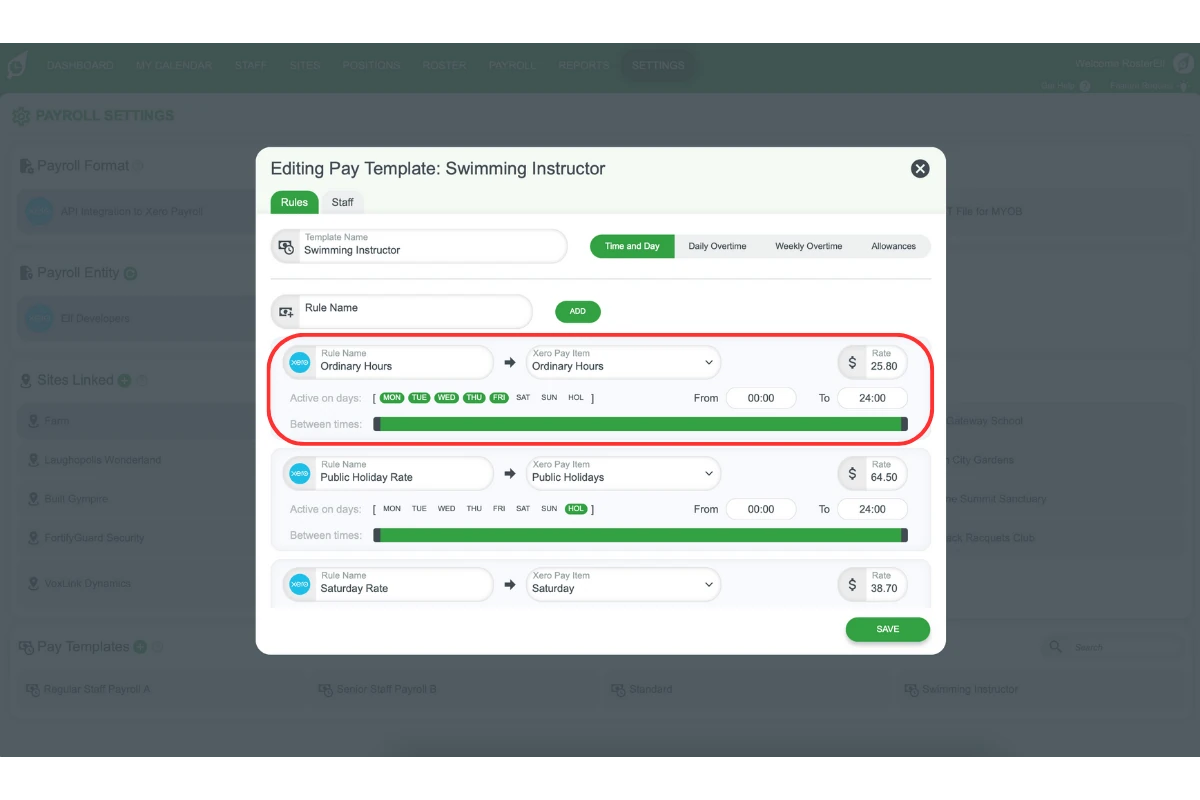
- Rule Name: Ordinary Hours
- Rate: $25.80
- Active Days: Monday through Friday
- Hours: 00:00 to 24:00
3.2 Saturday all day rate
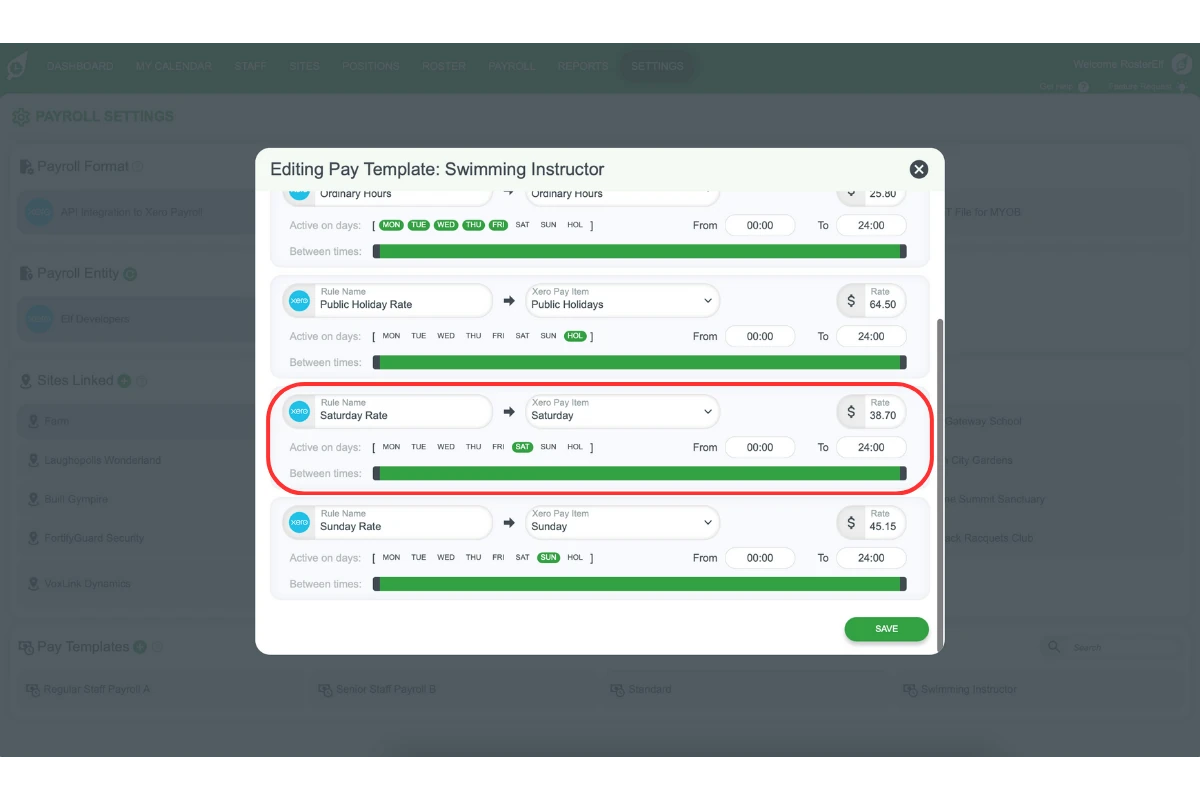
- Rule Name: Saturday Rate
- Rate: $38.70
- Active Days: Saturday
- Hours: 00:00 to 24:00
3.3 Sunday all day rate
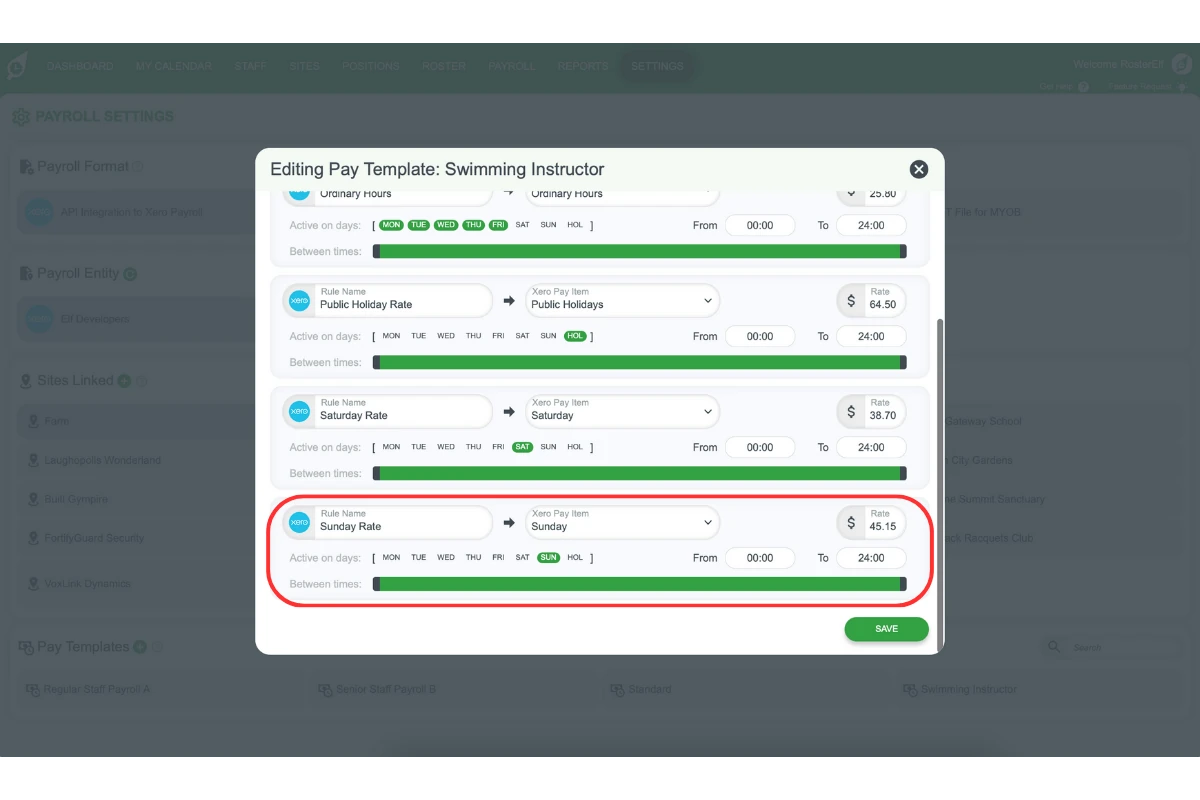
- Rule Name: Sunday Rate
- Rate: $45.15
- Active Days: Sunday
- Hours: 00:00 to 24:00
3.4 public holiday all day rate
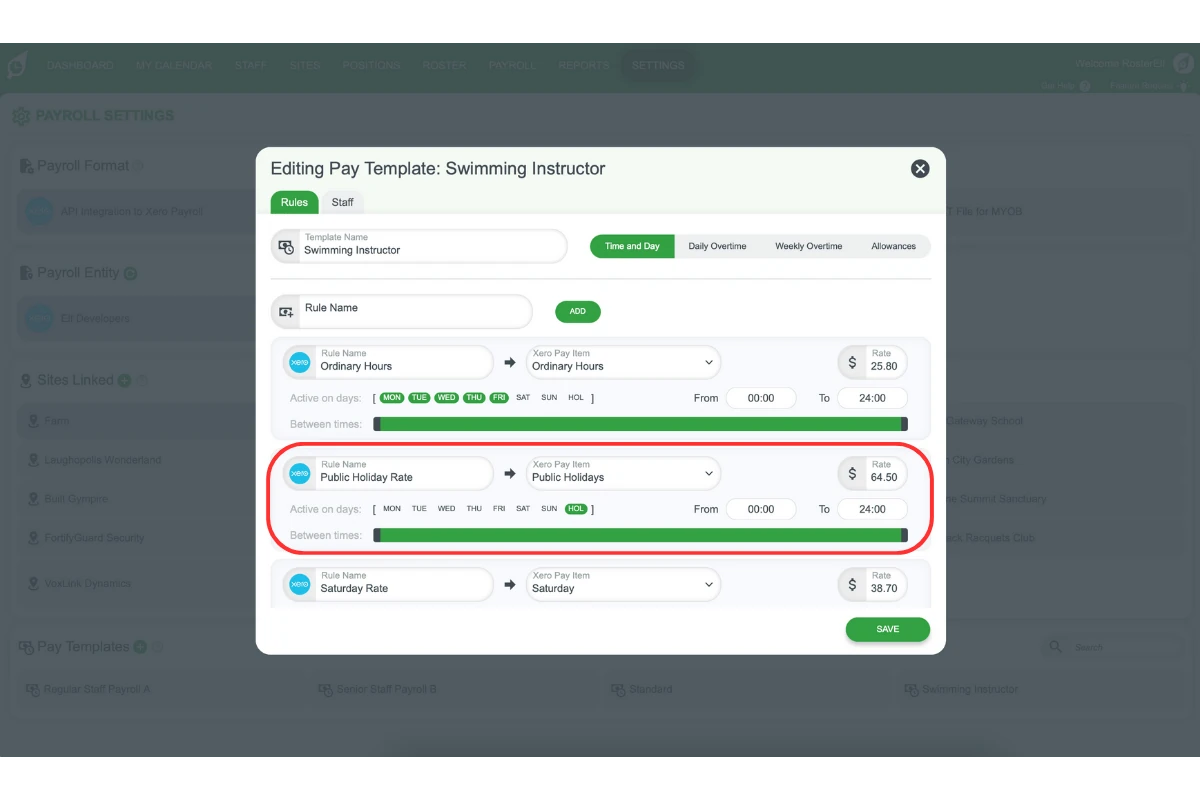
- Rule Name: Public Holiday Rate
- Rate: $64.50
- Active Days: Public Holidays (Hol)
- Hours: 00:00 to 24:00
4. Finalising and saving the pay template
Once you’ve set up the rules, it’s time to save your template. This final step completes your pay template, allowing you to return anytime to edit or add new templates as required.
4.1.1. Click Save.
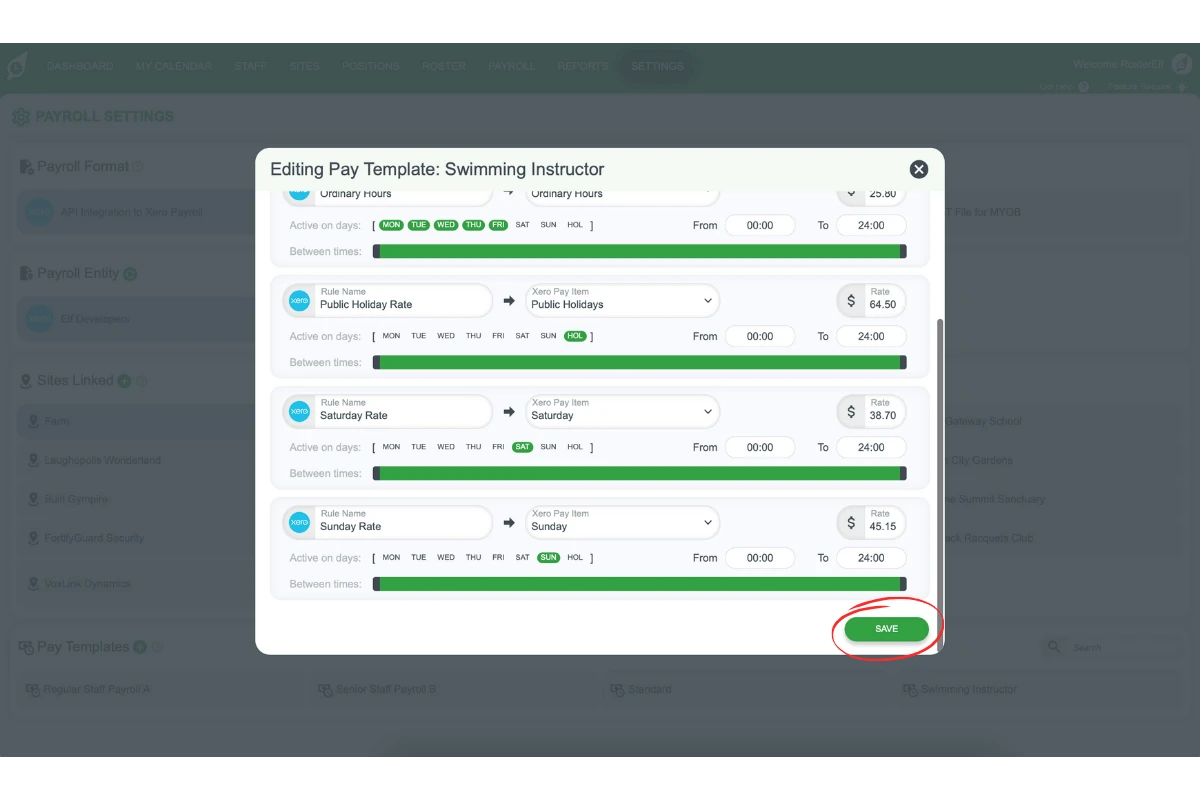
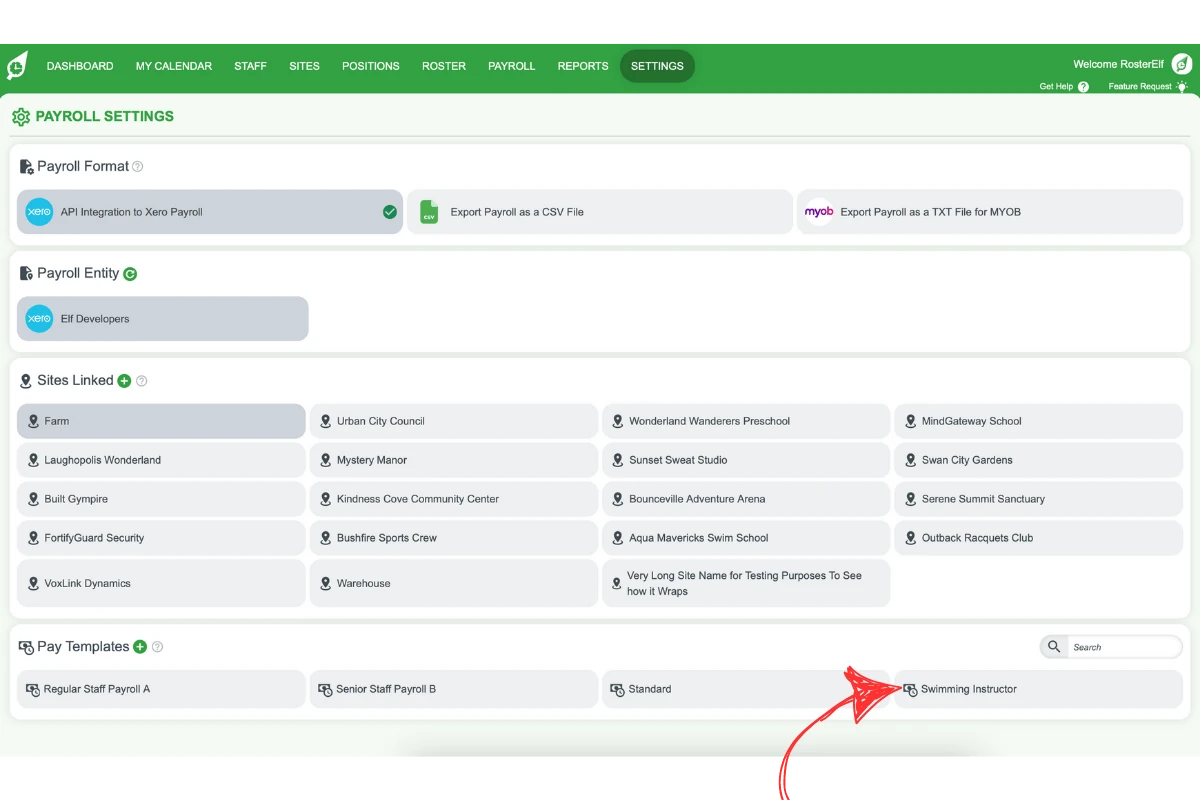
4.1.2. The template now appears under the Pay Templates tab, ready for assignment.
To assign pay templates to staff, refer to this guide on assigning pay templates to staff on wages.
Frequently asked questions
1. How do I create a basic pay template in RosterElf?
To create a basic pay template in RosterElf, go to Payroll Settings in the Settings menu, click the Plus (+) beside Pay Templates, name the template, and configure rules for weekdays, weekends, and public holidays. Ensure Xero integration is active for accurate payroll processing. Learn more about Xero payroll integration.
2. What are the prerequisites for setting up a pay template in RosterElf?
Before creating a pay template, confirm that your RosterElf account is integrated with Xero. This setup is essential for importing pay items from Xero, allowing seamless configuration of payroll settings.
3. How do I configure pay rates for weekends and public holidays in RosterElf?
In your pay template, add rules for Saturday, Sunday, and public holidays. Assign specific rates and active days for each rule, ensuring coverage across all days without gaps in time settings.
4. Can I edit or delete rates in an existing pay template?
Yes, you can edit or delete pay rates in RosterElf pay templates. Simply open the pay template, hover over a rate to delete it, or click the rate field to make edits. Remember to save changes once completed.
5. If I increase the Budgeting Rate in a pay template, will that change my pay rates in Xero?
No. RosterElf doesn’t overwrite or update the pay rates in your Xero payroll. The Budgeting Rate is only used by RosterElf for internal roster cost estimates, so you can set it higher than the mapped Xero pay item — for example, to include superannuation — giving you a more accurate roster budget without affecting what’s actually paid through Xero.
6. How do I assign a pay template to an employee in RosterElf?
Once a pay template is saved, go to the employee’s profile in RosterElf and select the pay template from the options available. This action applies the configured pay rules to the employee’s schedule.
7. My public holiday Xero pay item doesn't appear or won't export — what's wrong?
This is usually caused by how the pay item is set up in Xero. In Xero, check that the earnings rate used for your public holiday rule is set to Rate per unit with the units set to Hours, is marked Active, and is attached to the employee’s pay template. Once corrected, reconnect or refresh the integration and the pay item should appear.