

This article explains how to create pay templates in RosterElf. Pay templates are essential for accurate staff budgeting and payroll compliance. They group multiple pay rules, covering different days and hours to ensure correct payment for all shifts.
You’ll learn how to name a template, add pay rules, set hours, and save your template for use. This guide is beneficial for businesses managing complex rosters, such as hospitality, ensuring compliance with industry standards and simplifying payroll processes.
Understanding pay templates
Pay templates group pay rules to define hourly rates for different shifts, ensuring accurate staff payment. They are vital for budgeting and payroll exports. Templates can include rules for regular hours, weekends, public holidays, and late shifts. If your award is supported, you can skip the manual setup and start from a ready-made template — see using award templates in RosterElf.
This section introduces the concept of pay templates and their flexibility to handle varied industry requirements. For a practical example of how pay templates are used to manage public holiday pay, see our guide on how to pay staff for public holidays in RosterElf. You can also set up allowances for staff in RosterElf within pay templates to ensure accurate entitlements are applied to payroll.
What is a pay Template?
1.1.1 A pay template groups multiple pay rules into one system.
1.1.2 It defines specific pay rates for days, times, and shifts.
1.1.3 Common rules include standard weekday, weekend, and holiday rates.
1.1.4 Pay templates can handle shifts like after 9 pm or late-night.
Steps to create a pay template
This section walks you through the process of creating a pay template in RosterElf. You’ll learn how to set pay rules for all hours of the week.
Access payroll settings
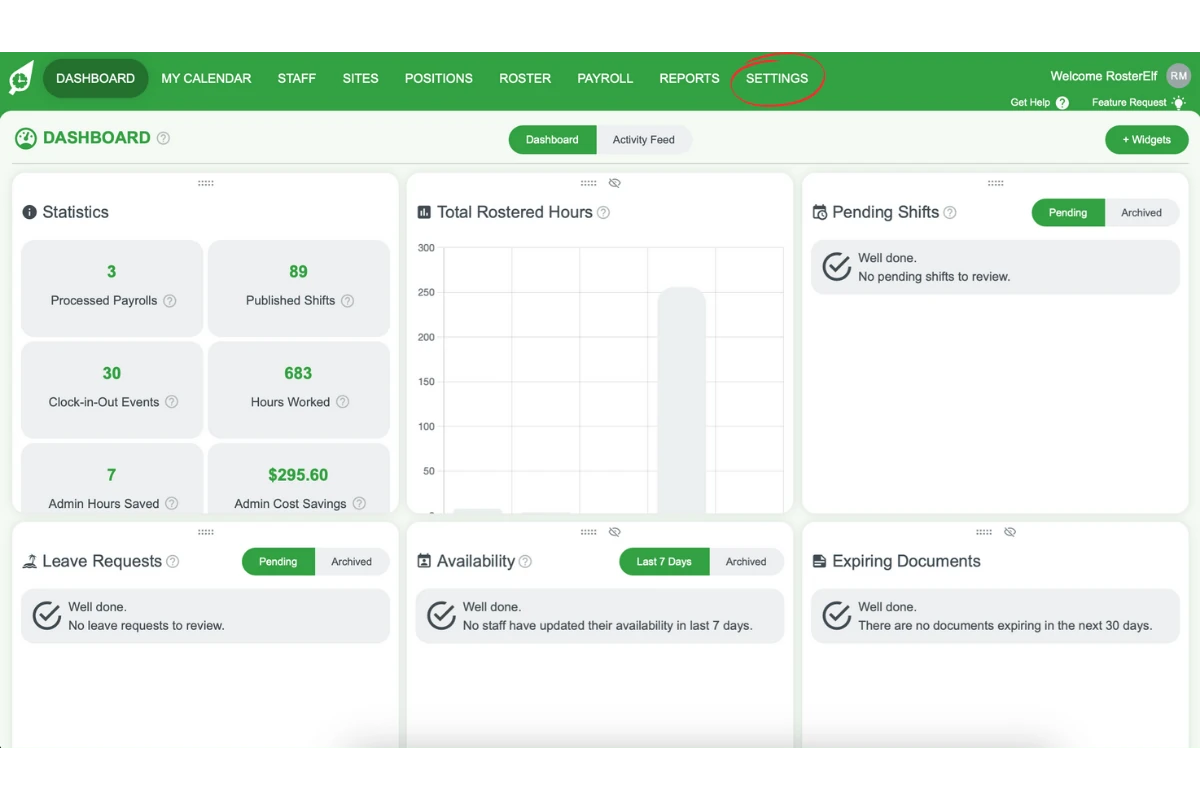
2.1.1 Log in to RosterElf and click the Settings tab.
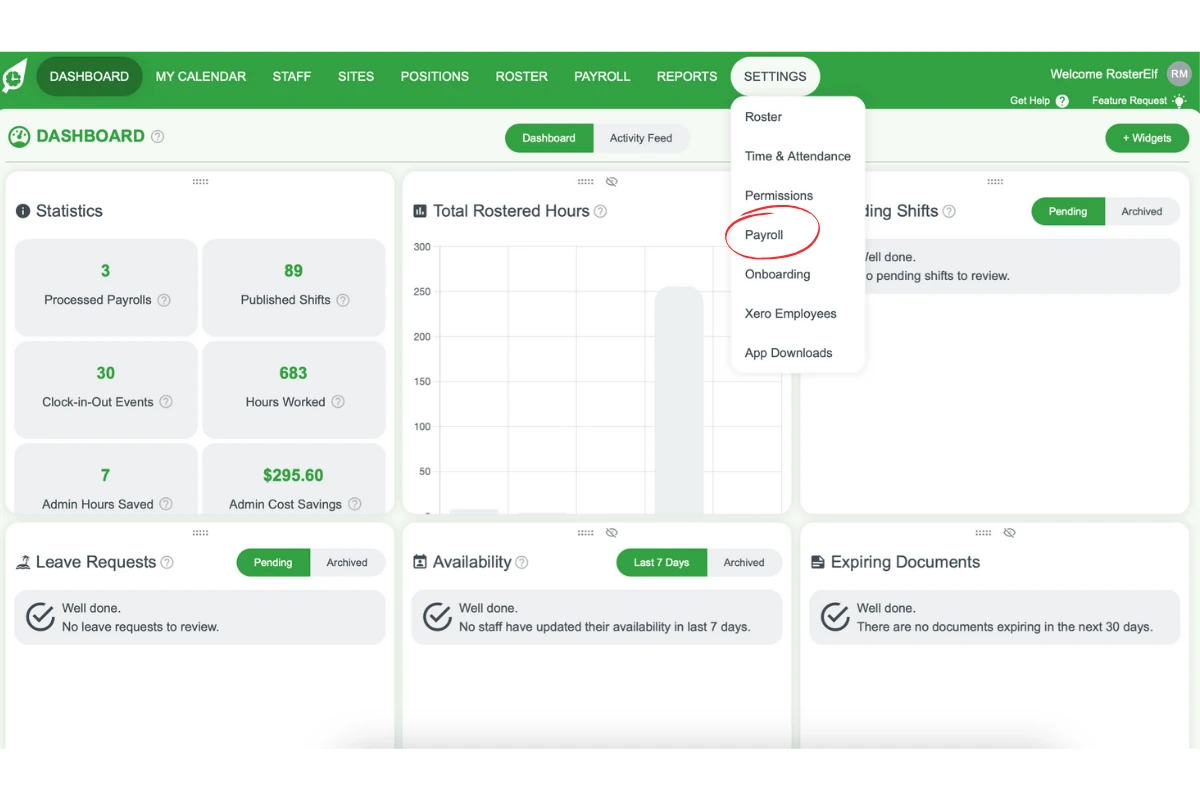
2.1.2 Select Payroll from the dropdown options.
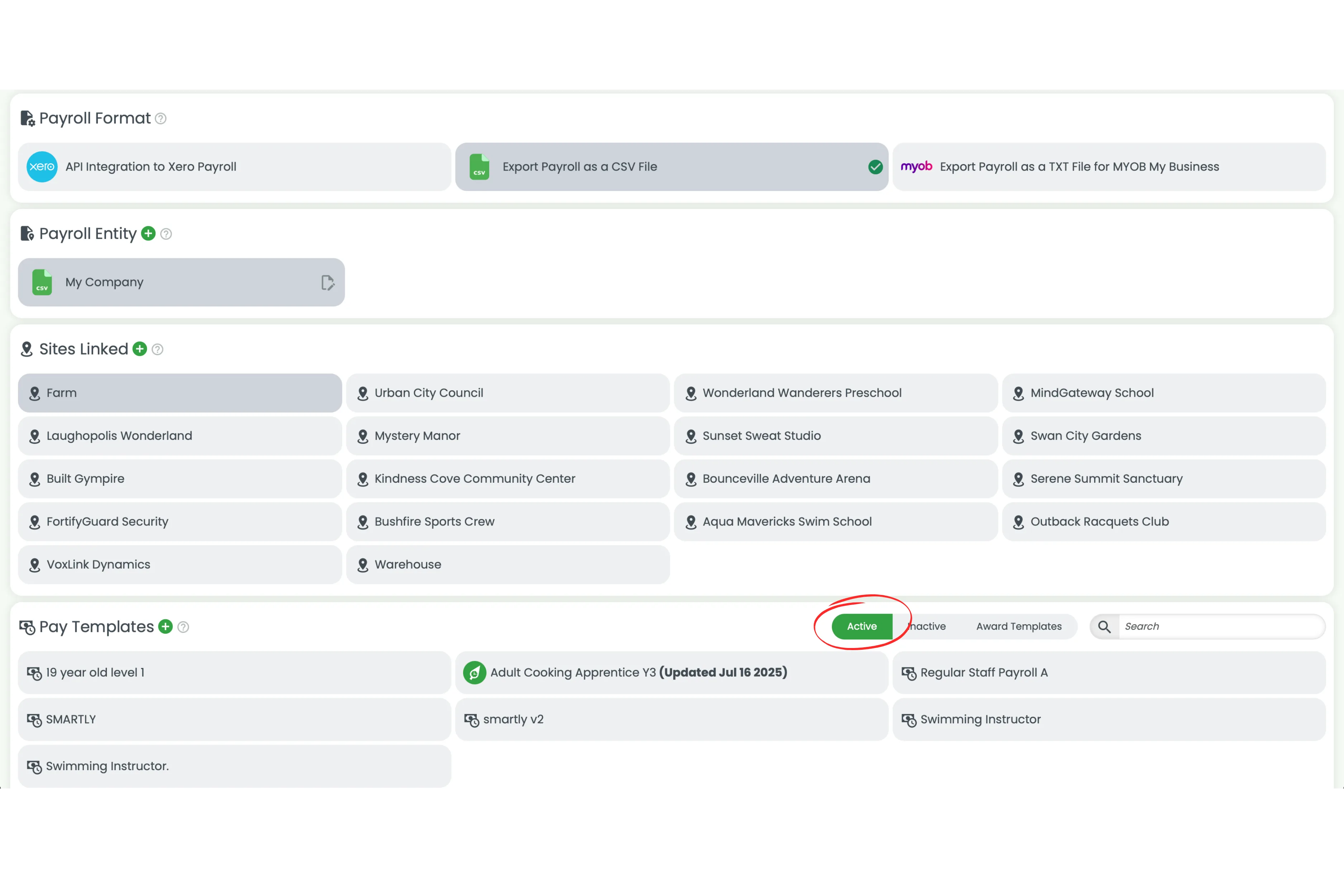
2.1.3 Click the green Plus (+) button next to the Pay Templates heading.
Name the template and add pay rules
2.2.1 Give the template a clear name, e.g., 19-Year-Old Level 1.
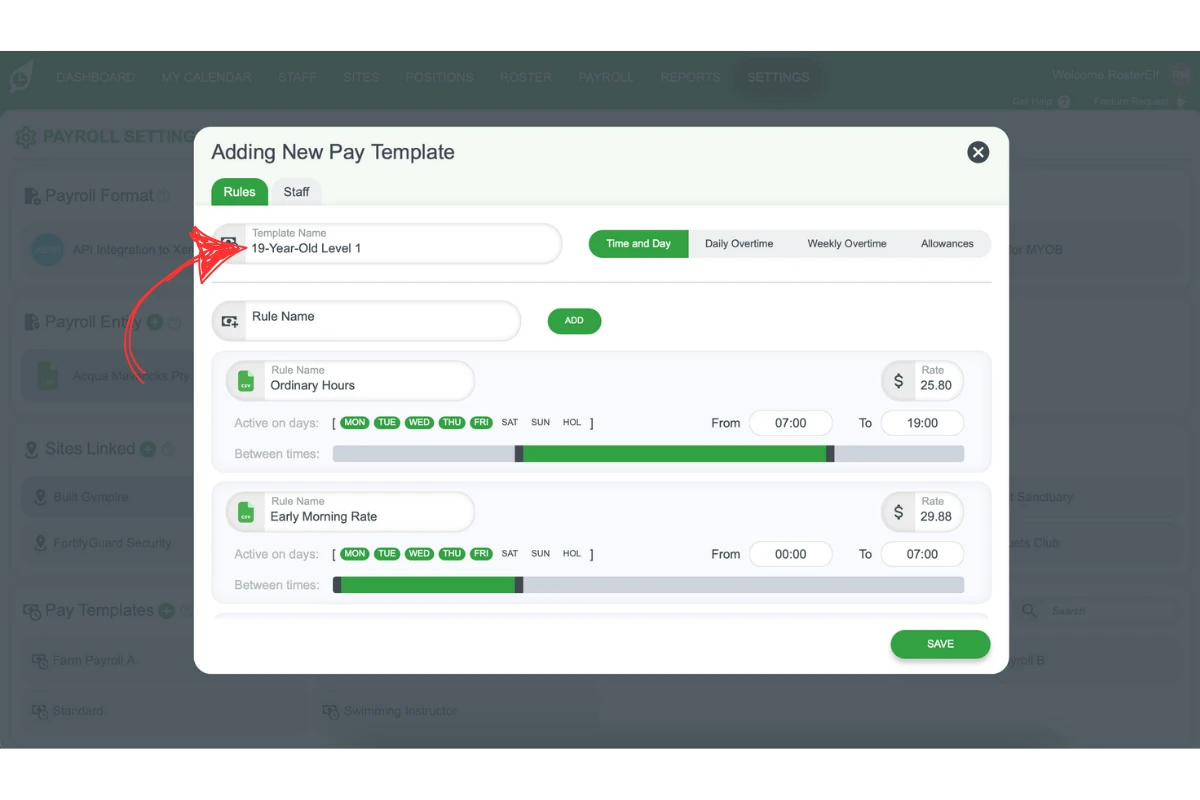
2.2.2 Type in the name of the first pay rule, e.g., Ordinary hours (Monday - Friday).
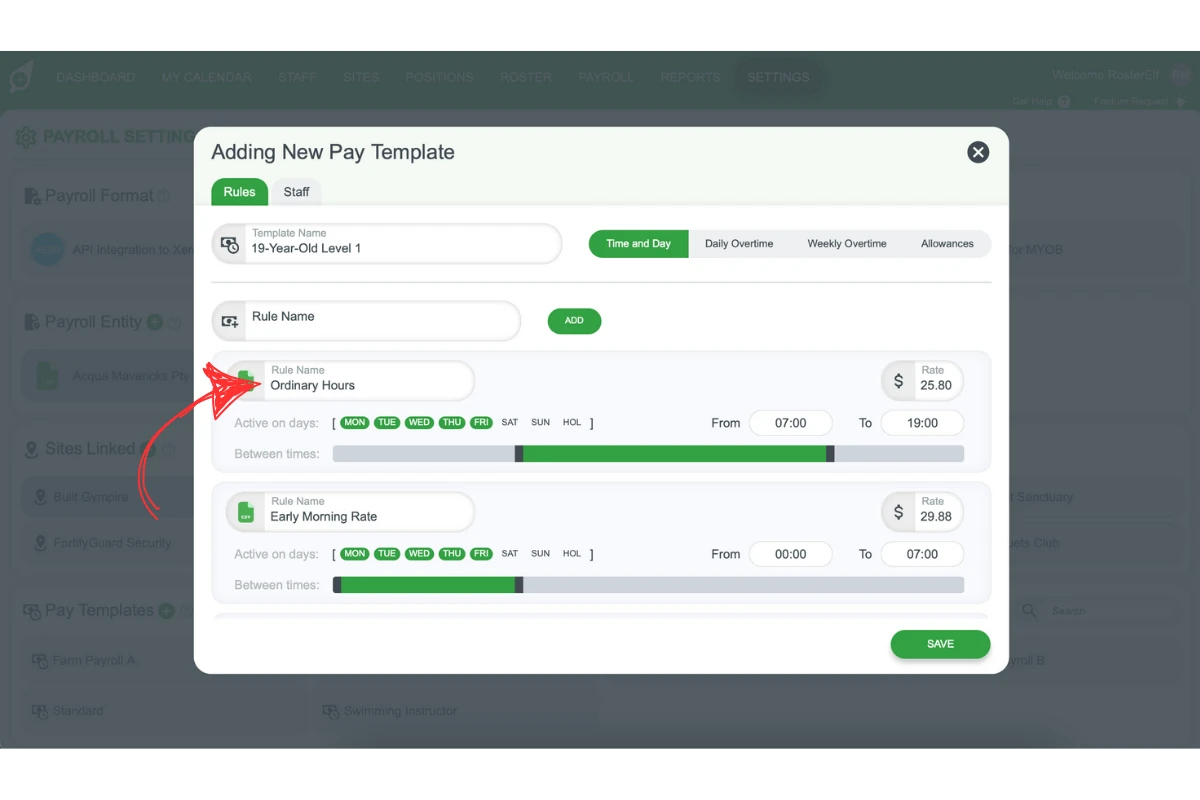
2.2.3 Add a Rule Name and click Add to include a new rule in the template.
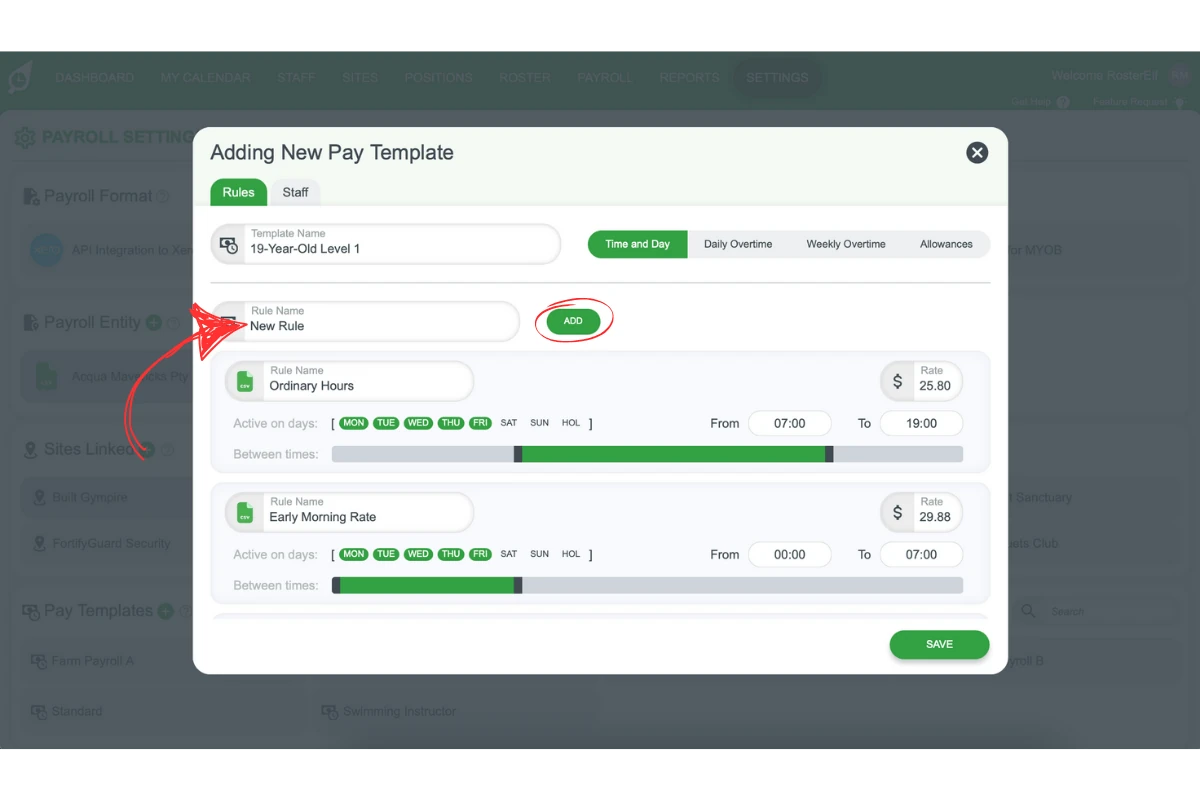
Configure pay rules
2.3.1 Select the days the rule applies, e.g., Monday to Friday.
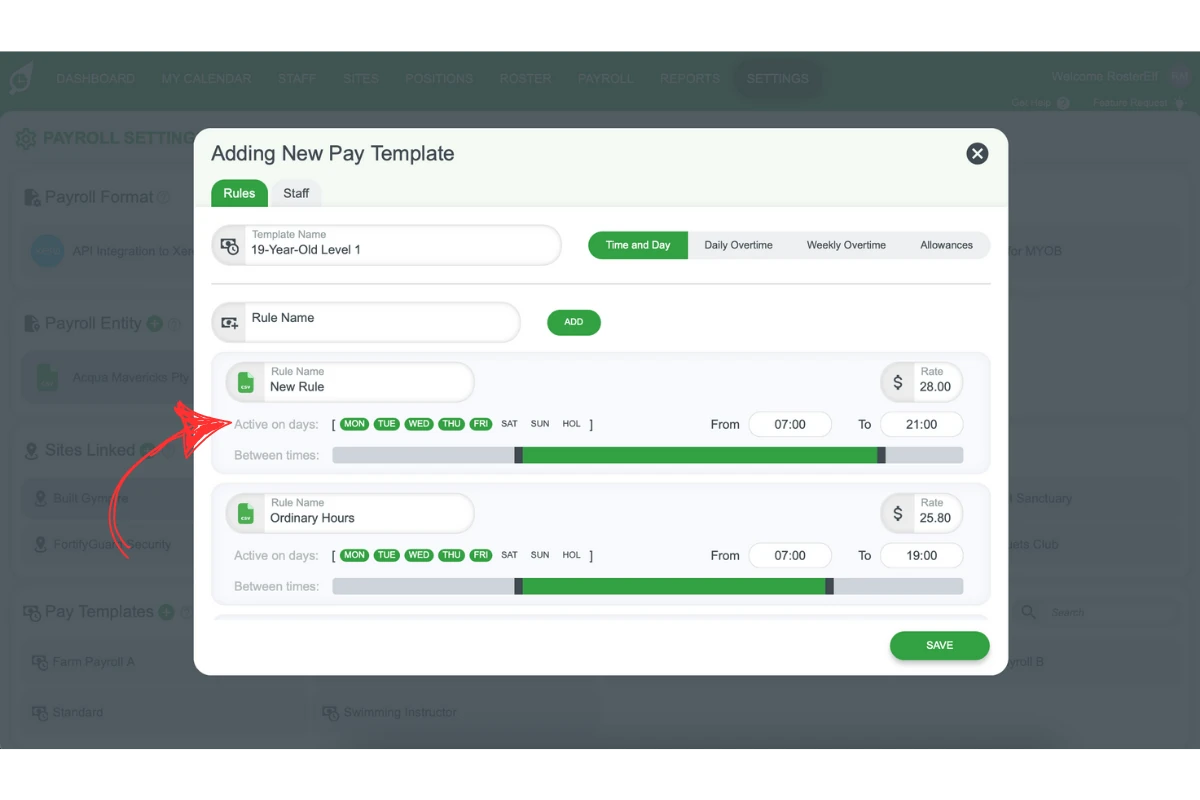
2.3.2 Adjust the sliding bar to define rule hours, e.g., 7 am to 9 pm.
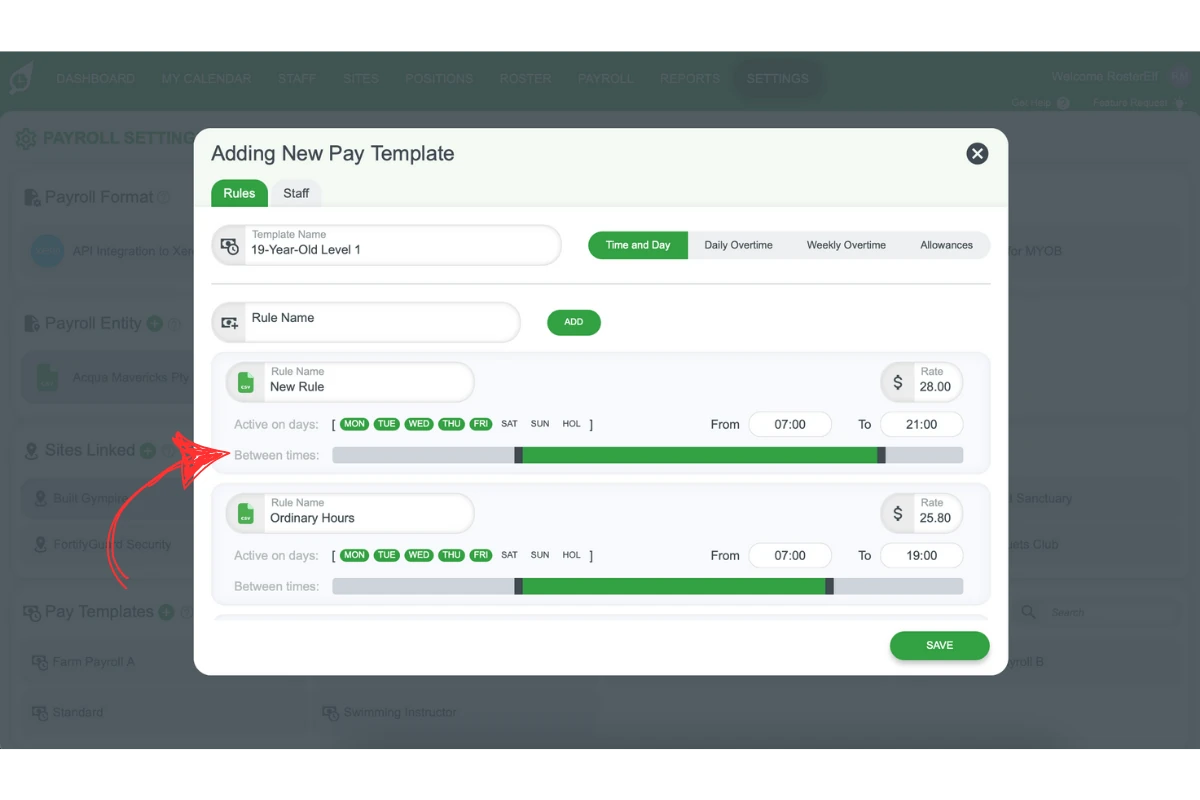
2.3.3 Enter the hourly pay rate for the rule.
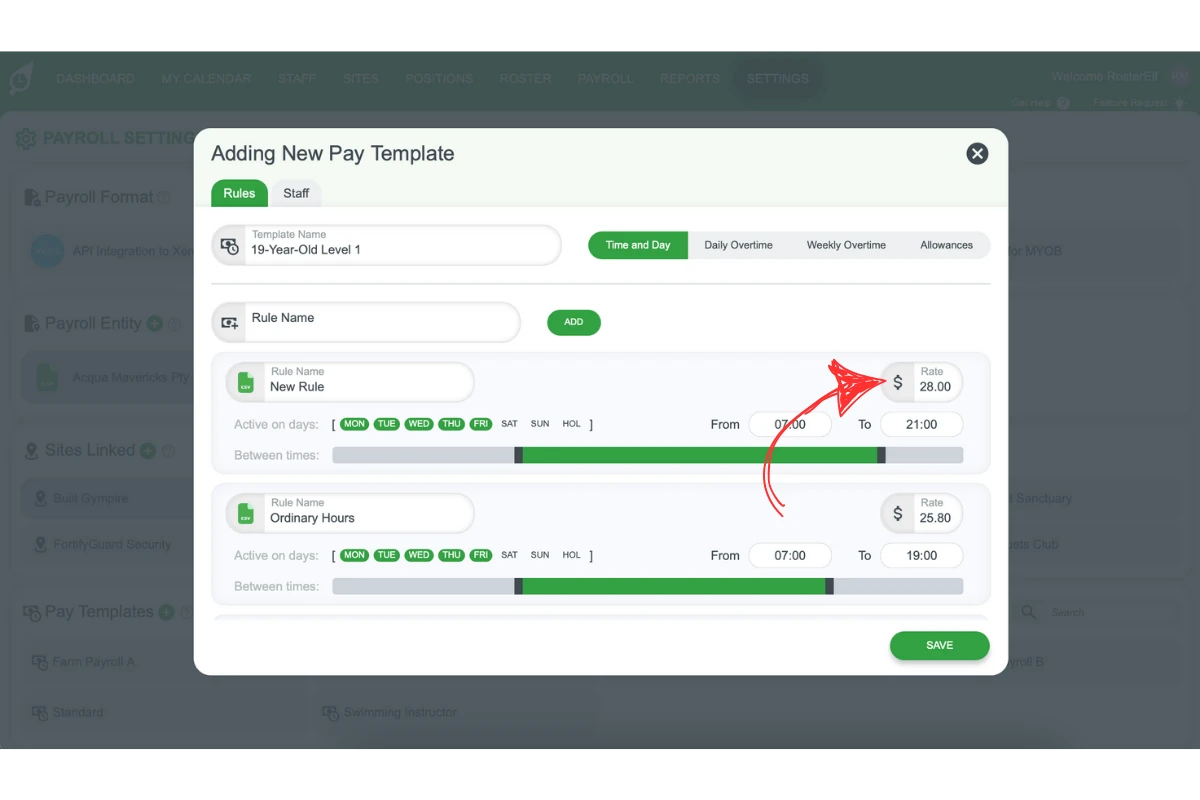
2.3.4 Add early or late rules if required by sliding the bar to the appropriate times.
Save and finalise the pay template
2.4.1 Ensure pay rules cover all hours of the week.
2.4.2 Click Save in the popup window.
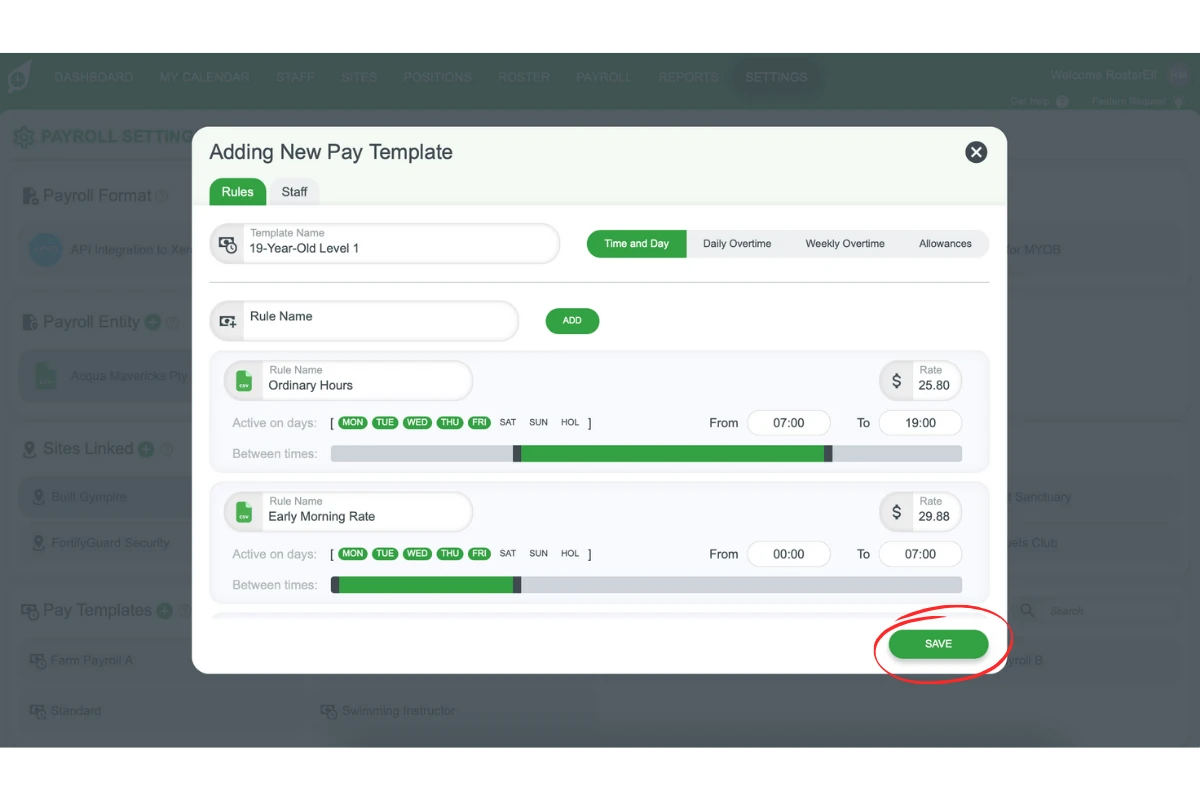
2.4.3 Review any warnings for incomplete hours and adjust rules as needed.
How weekly overtime works
Overtime is set up as a Weekly Overtime rule inside a pay template. Instead of a time of day, you define it as hour bands — for example, hours 38 to 41 at time-and-a-half, then 41 onwards at double time. Once an employee’s ordinary hours for the week reach your first band, everything after that pays automatically at the overtime rate and appears as a separate overtime line in your payroll, CSV and Xero exports.
Overtime always runs on a rolling 7-day week
Overtime bands accrue in a 7-day block from your account’s Week Start Day, and this period is fixed — it does not change if you set your pay cycle to fortnightly or monthly. A fortnightly pay run is still calculated as two separate weekly periods internally.
This means RosterElf cannot apply a fortnightly threshold (for example, “overtime after 76 hours per fortnight”) automatically. If your award or agreement calculates overtime this way, you have two options:
- Set weekly overtime at half the fortnightly threshold (e.g. 38 hours) — fully automatic, but can overpay against your agreement in an uneven fortnight where hours are split unevenly across the two weeks.
- Leave weekly overtime off and adjust hours manually each pay run using the Custom column in Payroll — matches your agreement exactly, but is a manual step every pay run. See adjust shift hours in payroll.
Frequently asked questions
1. What is a pay template in RosterElf?
A pay template in RosterElf is a system that groups multiple pay rules for accurate staff payment. It defines specific pay rates for different shifts, such as weekdays, weekends, public holidays, or late nights.
2. How do I create a pay template in RosterElf?
To create a pay template, log in to RosterElf and go to Settings > Payroll. Click the green Plus (+) button under Pay Templates. Name the template, add pay rules, define rule hours and pay rates, and save.
3. Can I include late-night or public holiday rules in a pay template?
Yes, RosterElf allows you to include rules for late-night shifts, public holidays, or any other specific conditions. Use the sliding bar to set hours and apply relevant pay rates.
4. How do I ensure all weekly hours are covered in a pay template?
Ensure every hour of the week has a pay rule assigned. RosterElf will notify you of incomplete hours when you try to save the template, so you can adjust the rules accordingly.
5. Why are pay templates important for payroll compliance?
Pay templates ensure staff receive the correct pay rates for all shifts, including special conditions like public holidays. They simplify payroll exports and help businesses comply with industry standards.
6. Can I export a pay template as a CSV file?
No — a pay template only defines your wage rules; it isn’t a file you export on its own. What you export to CSV (or Xero/MYOB) is your processed payroll — the actual hours worked, calculated using those templates, for a given pay period. See Process payroll to CSV for that guide.
7. Can overtime be calculated per fortnight instead of per week (e.g. after 76 hours)?
No. Weekly Overtime rules always accrue in a rolling 7-day block from your Week Start Day, and that period stays fixed even if your pay cycle is set to fortnightly or monthly — a fortnightly pay run is still calculated as two separate weeks. There’s no setting to apply a fortnightly threshold instead. If your award or agreement uses a fortnightly cap, you have two options: set weekly overtime at half the fortnightly threshold (simple, but can overpay in an uneven fortnight), or leave weekly overtime off and adjust hours manually each pay run using the Custom column in Payroll — see adjust shift hours in payroll.