

This article explains how to set rostered hours as the default hours in payroll. By doing this, you ensure payroll reflects the exact hours you have rostered, rather than clock in and out times or manual adjustments. This can save time when processing pay runs, reduce errors, and create consistency across your workforce.
When rostered hours are the default, managers no longer need to manually edit start, break, and end times for each staff member. The system automatically uses the rostered schedule for payroll calculations. This feature is useful for businesses that want payroll to match their roster directly, without variance from actual attendance.
Following this guide, you will learn how to adjust the settings in payroll so that start, break, and end times default to rostered hours. Once set, these preferences apply across your payroll system, making it easier to manage wages and maintain compliance.
1. Set rostered hours in payroll settings
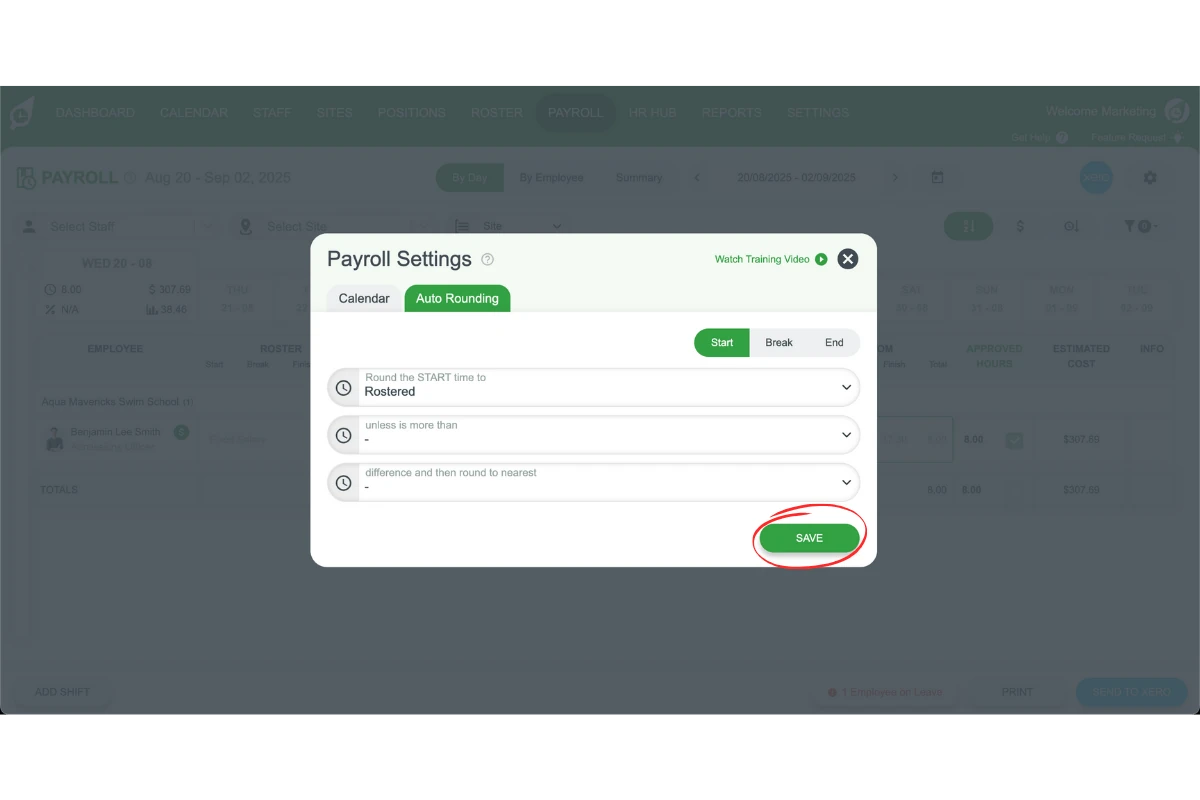
This section explains how to update payroll settings so that rostered hours become the default hours. By changing the auto rounding options, you can make sure that start, break, and end times are based on the roster instead of attendance records. This helps reduce manual editing and ensures payroll runs faster and more accurately.
1.1 Update auto rounding to rostered hours
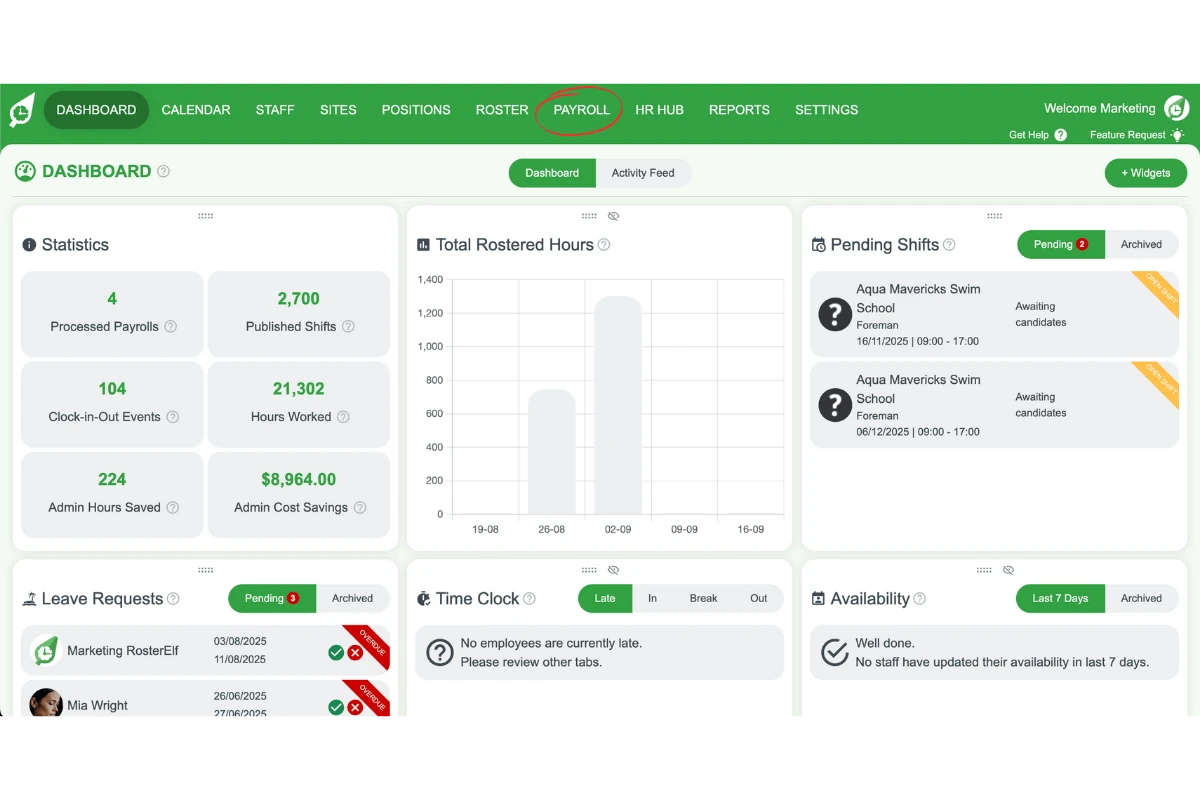
1.1.1 Open payroll.
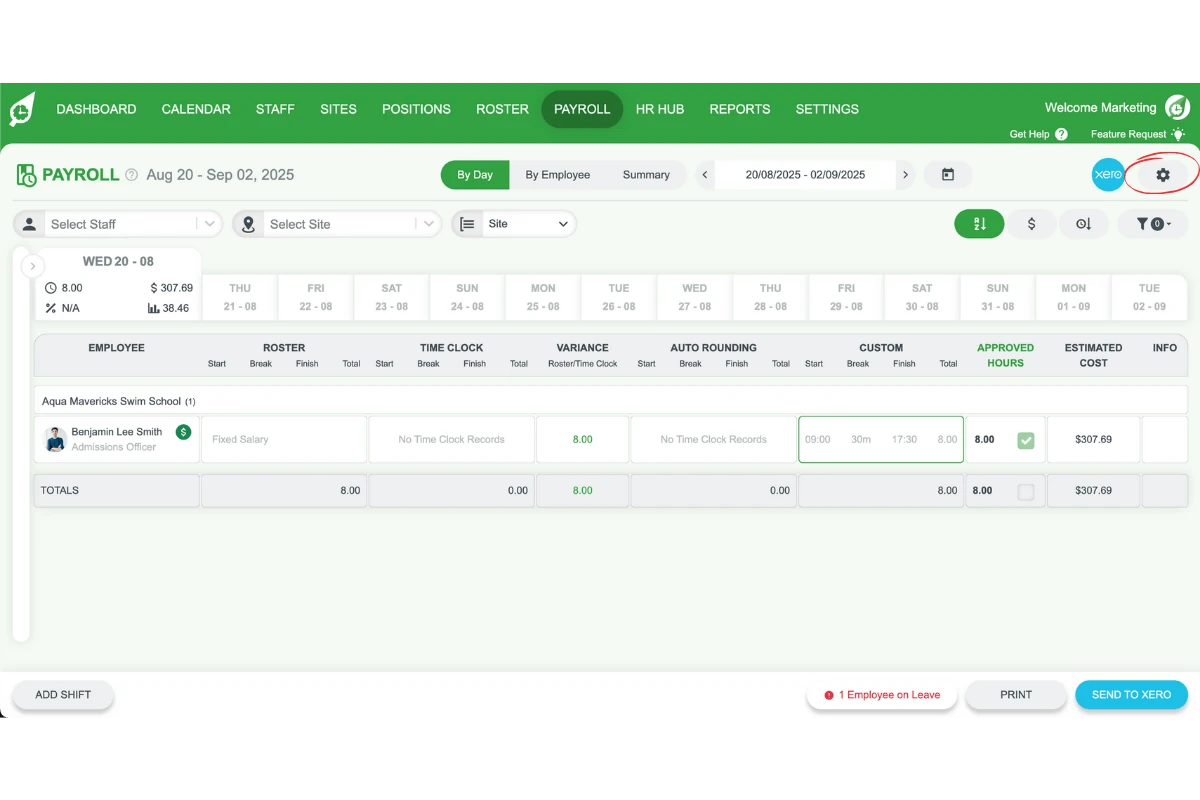
1.1.2 Press the settings cog.
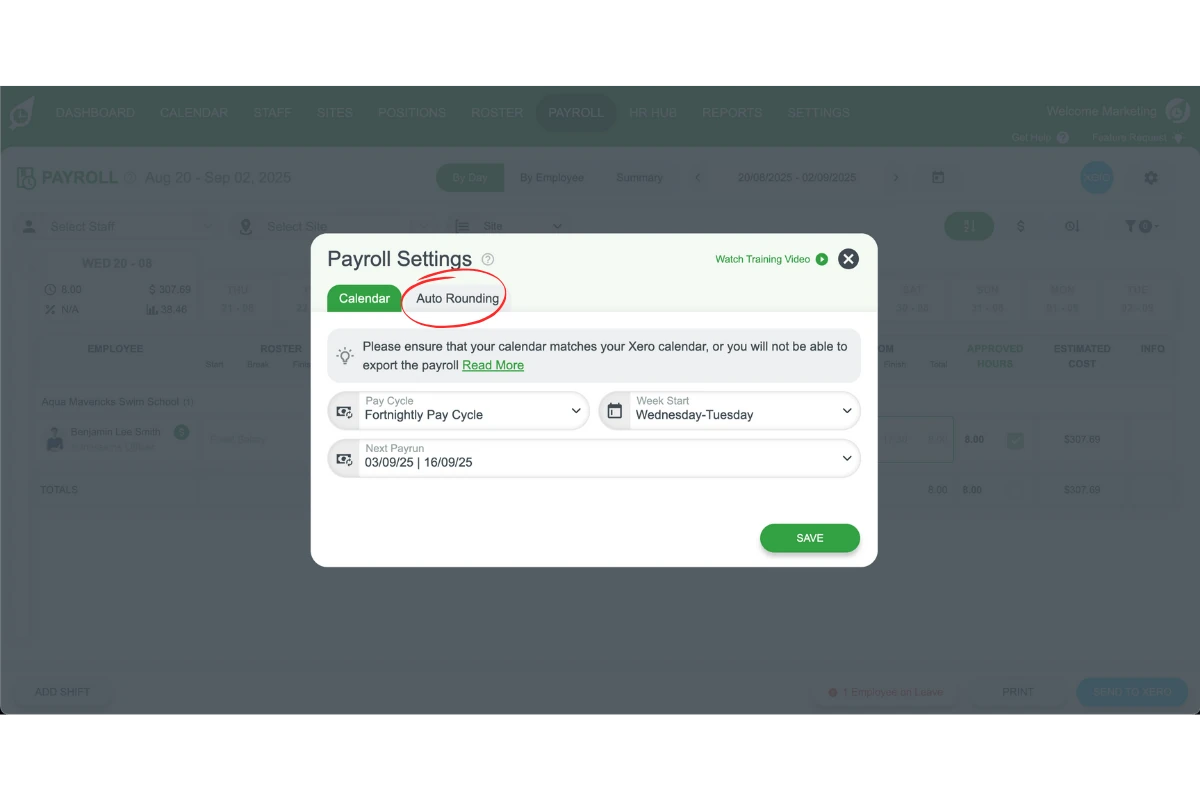
1.1.3 Click Auto rounding.
1.1.4 Under Auto Rounding, open Start, Break and End in turn and set “Round the … time to” Rostered, then turn off the other parameters.
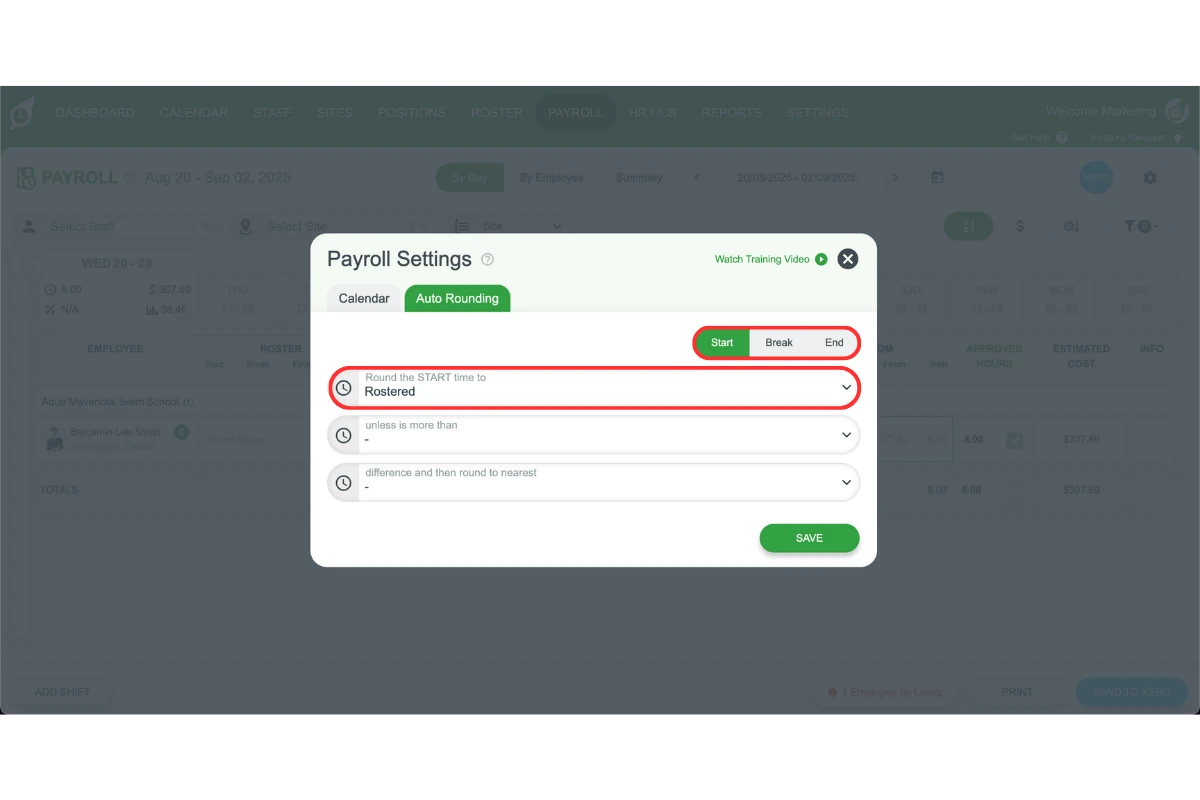
1.1.5 Press Save.
FAQs about setting rostered hours in payroll
1. What does setting rostered hours as default in payroll mean?
It means payroll will automatically use the rostered start, break, and end times instead of clock in and out records or manual changes. This keeps payroll consistent with your roster.
2. Why should I set rostered hours as the default in payroll?
Setting rostered hours as default saves time, reduces payroll errors, and ensures consistency across your workforce. It also removes the need for managers to manually edit shift times.
3. How do I set rostered hours as the default in payroll?
Open payroll, go to the settings cog, click Auto rounding, adjust start, break, and end times to Rostered, and then press Save. These settings will then apply across all payroll runs.
4. Will actual clock in and out times still show if I use rostered hours?
Yes. Clock in and out records remain available for reporting and attendance tracking, but payroll calculations will be based on rostered hours.
5. Can I change back from rostered hours to actual hours later?
Yes. You can return to payroll settings and adjust the auto rounding options back to actual clock in and out times whenever you need.