

This article explains how to report on staff break times in RosterElf. The Staff Break Report helps managers review when employees are taking breaks, supporting compliance with workplace regulations and improving payroll accuracy.
With this guide, you’ll learn how to open the Reports tab, access the Staff Break Report, apply filters, and generate results. Following these steps helps you monitor staff break behaviour, verify adherence to scheduled breaks, and maintain fair work practices.
Learn more about staff breaks here: Setting standard unpaid breaks
1. Generate a staff break report
This section explains how to generate the Staff Break Report from the RosterElf web app. Use this report to review actual break durations and times across your workforce. Applying filters ensures you get accurate insights based on sites, staff, or time periods.
1.1 open reports tab
1.1.1 Log in to your RosterElf account.
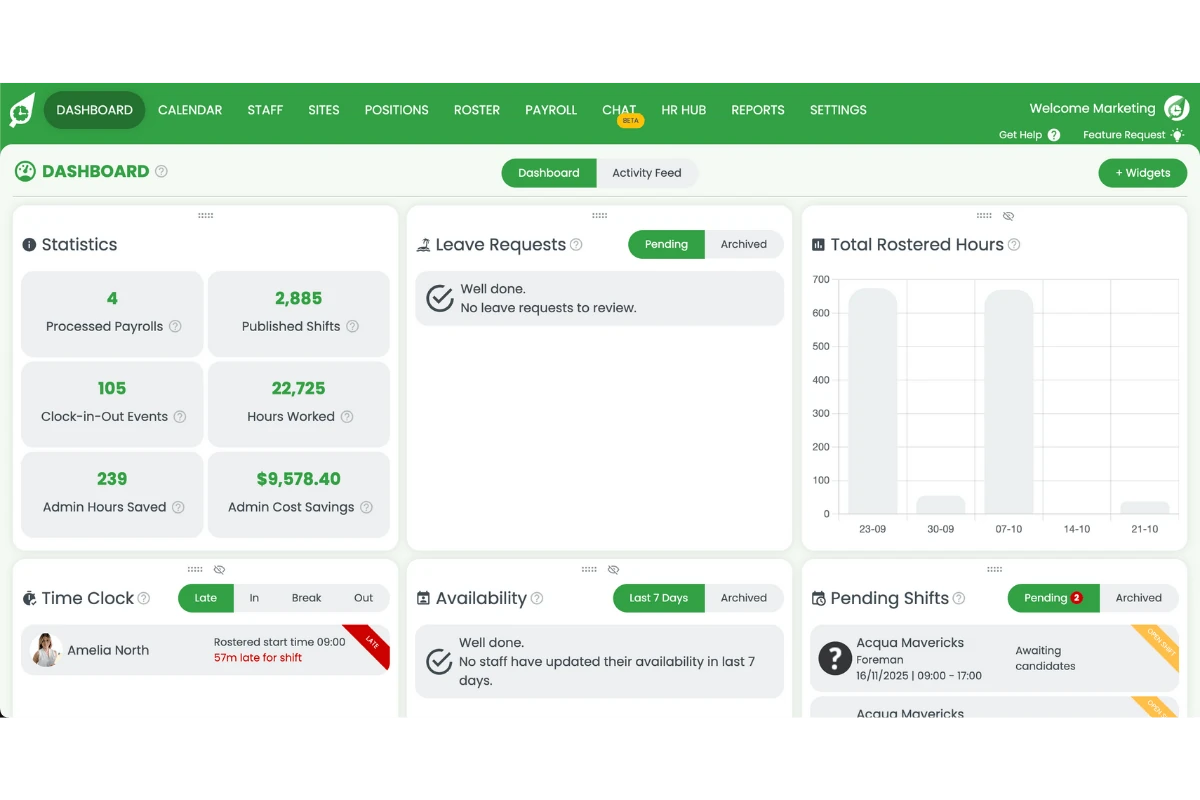
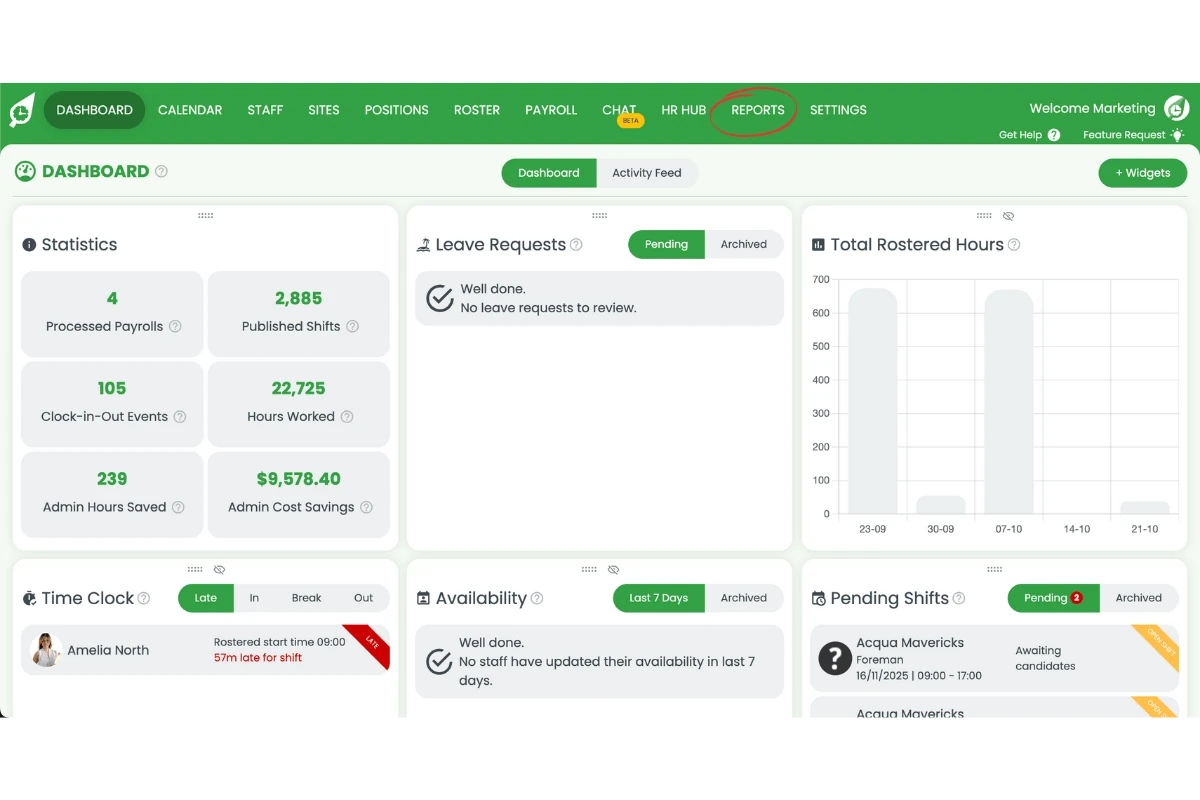
1.1.2 Click the Reports tab on the top menu.
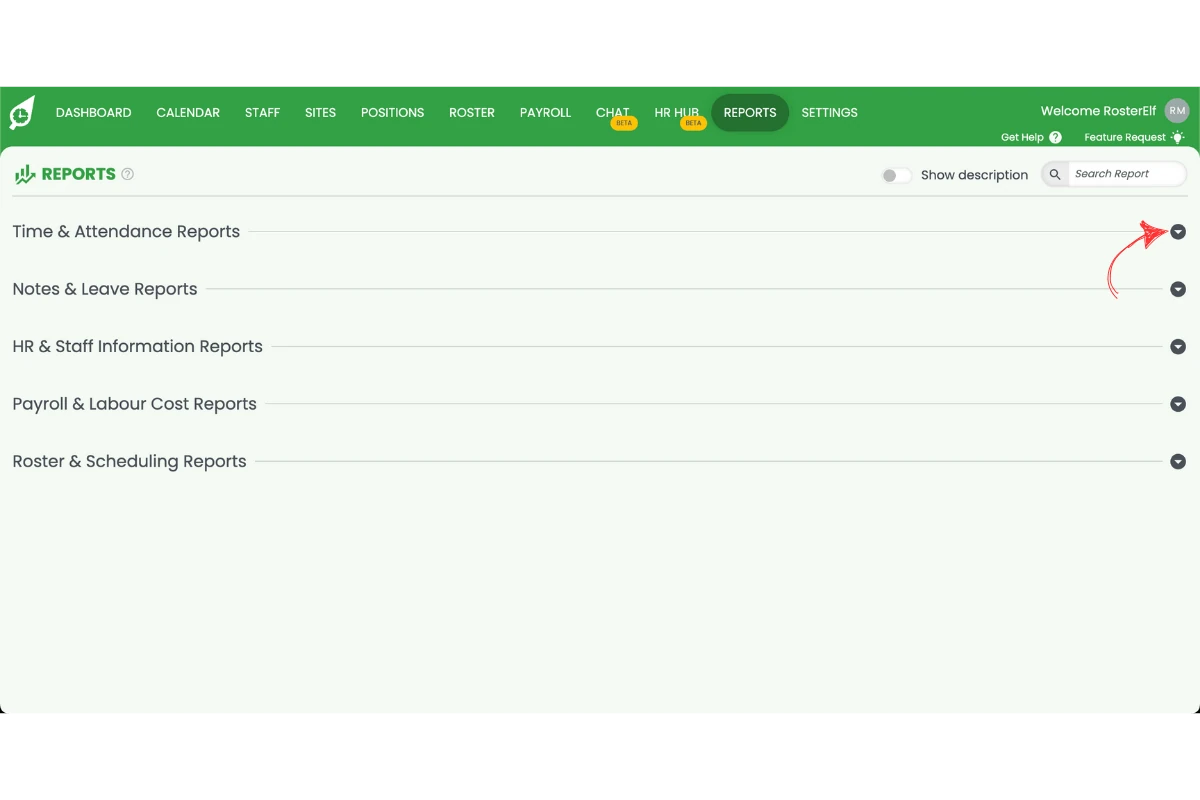
1.2 access the staff break report
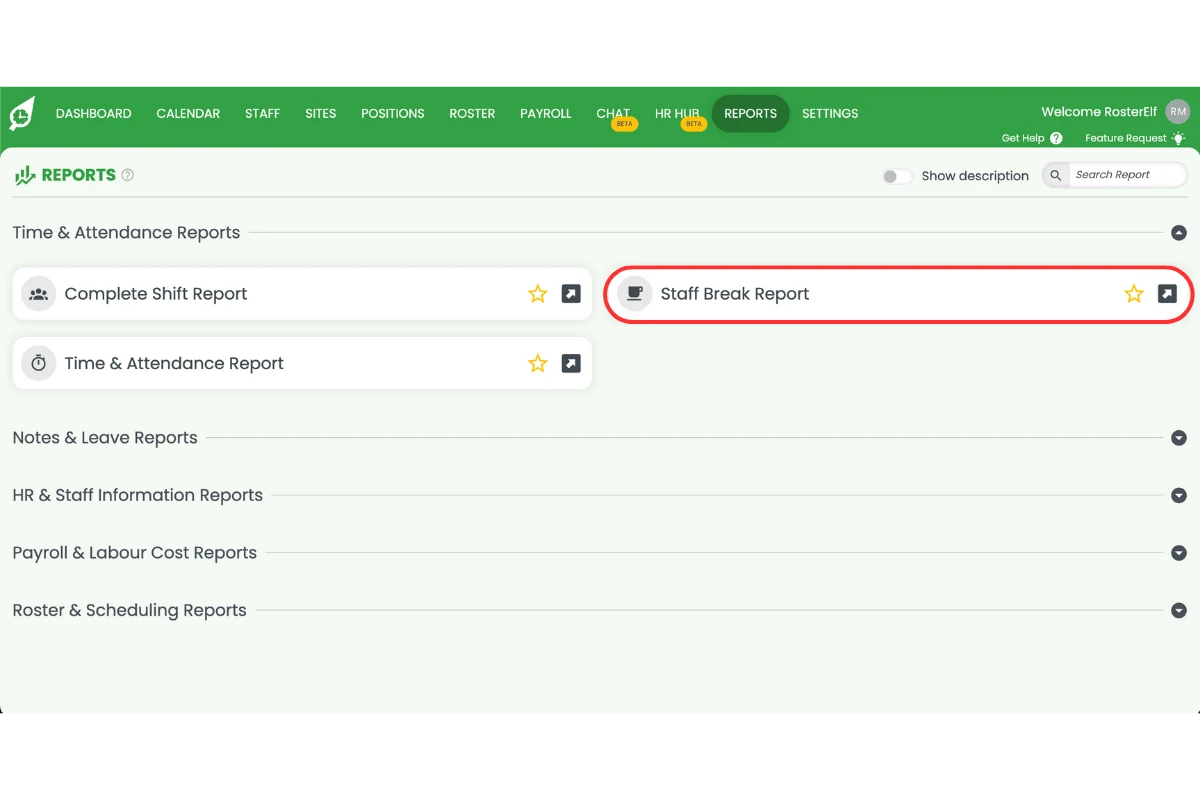
1.2.1 Find Staff Break Report in the report list — reports sit in collapsed groups, so expand the group that holds it.
1.2.2 Click to open the report page.
1.3 apply filters and run the report
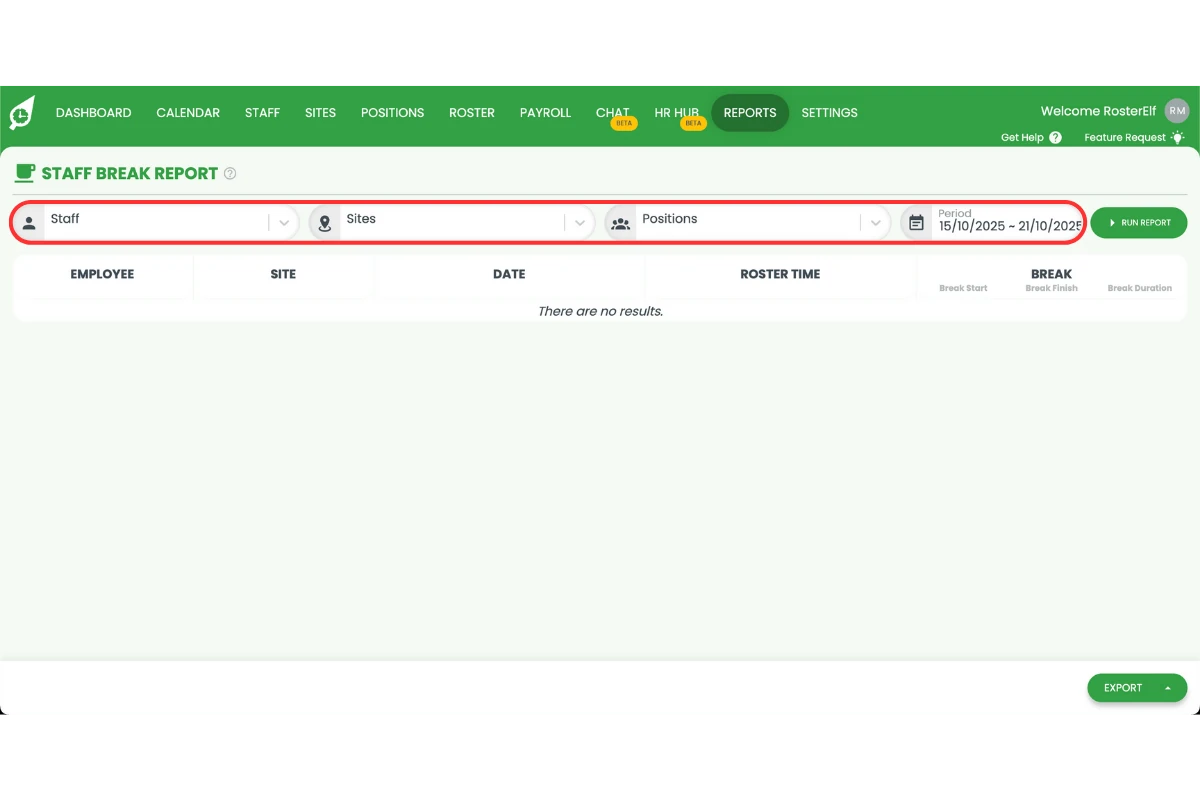
1.3.1 Select your preferred filters, such as date range, site, or staff member.
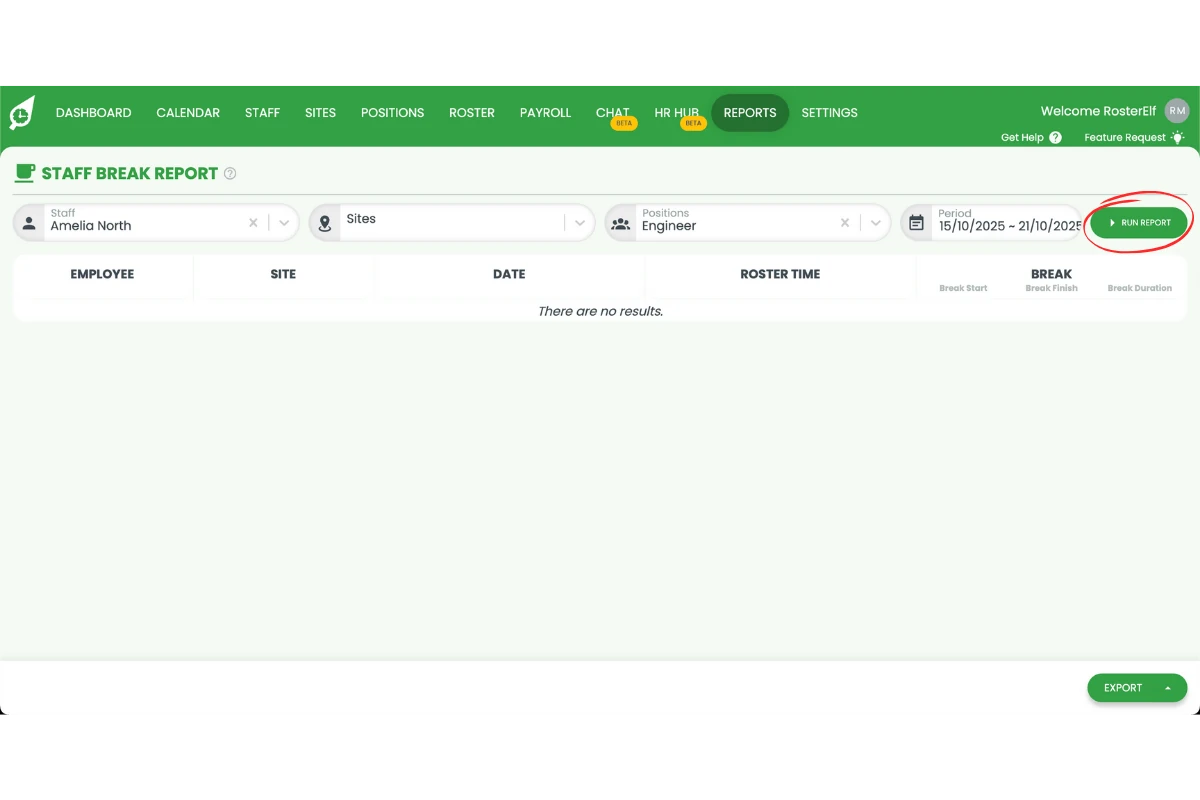
1.3.2 Click Run Report to generate results.
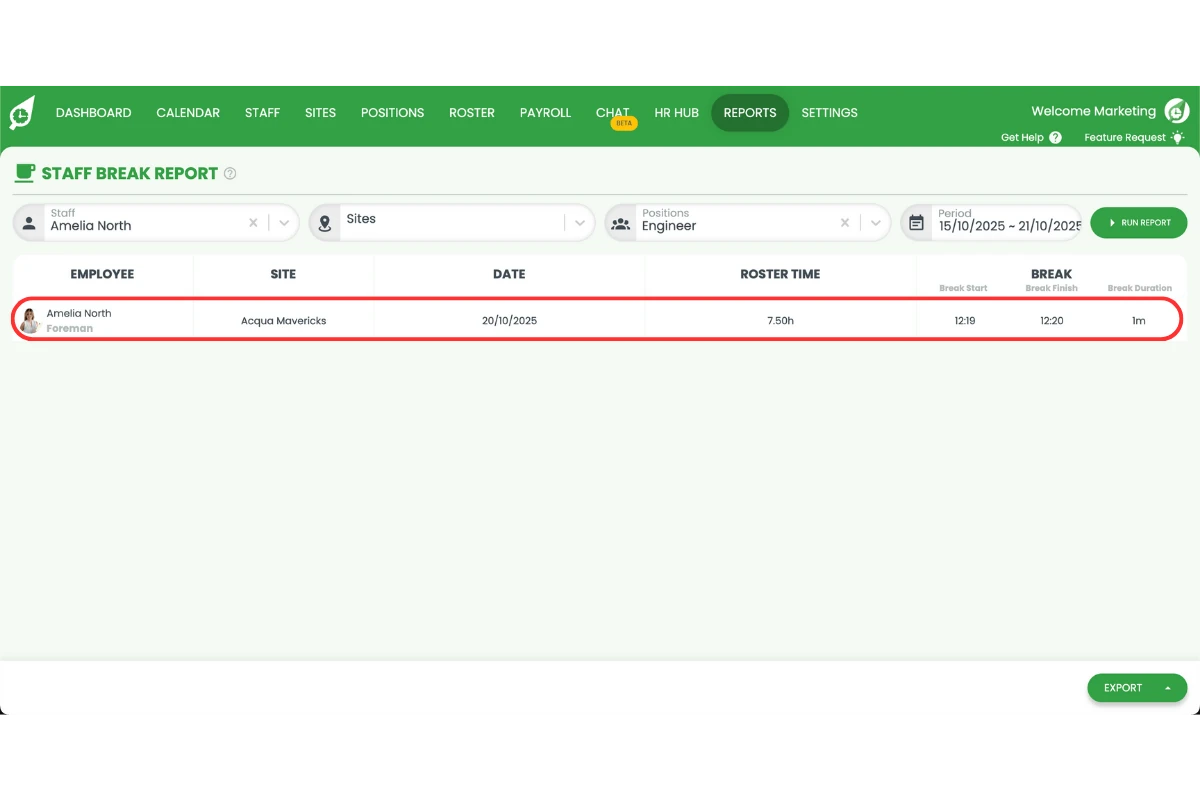
1.3.3 Review the break data shown, including start and end times for each staff member.
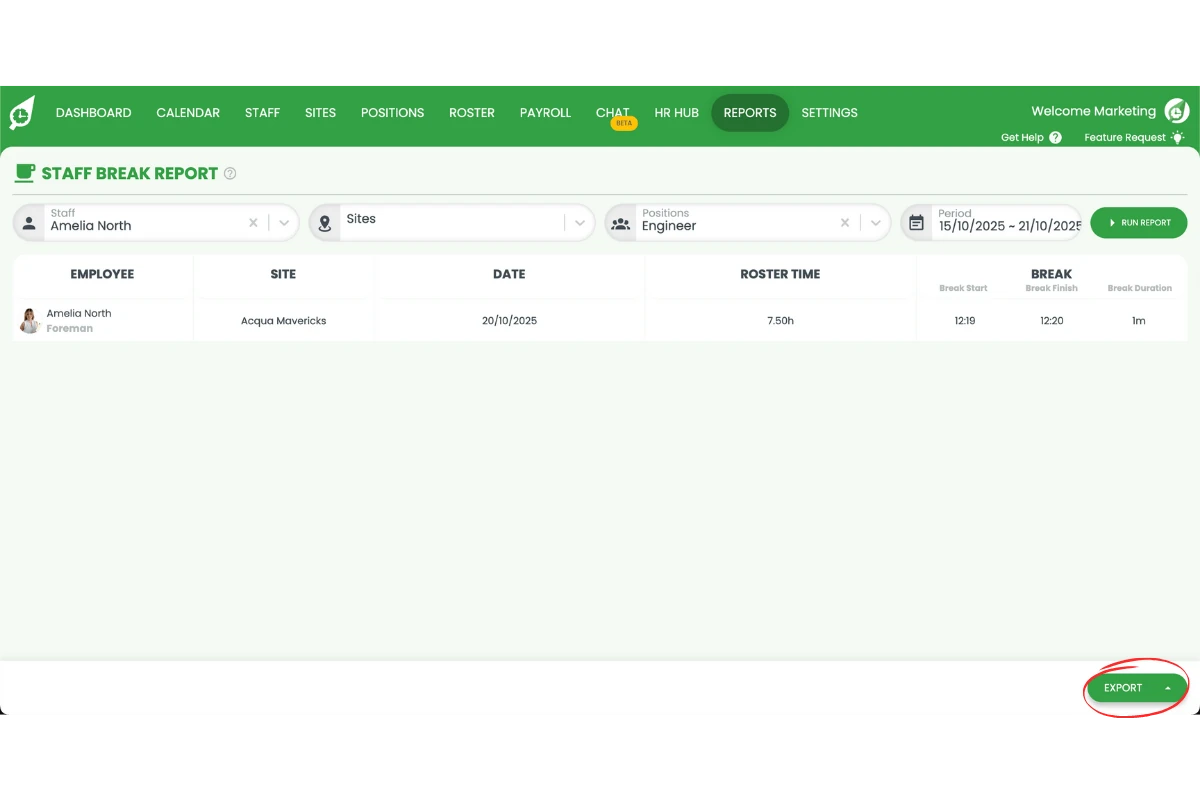
1.3.4 Export the report if needed.
Frequently asked questions
1. What is the Staff Break Report in RosterElf?
The Staff Break Report is a tool in RosterElf that allows managers to track when employees take their breaks. It provides detailed information on break start and end times, helping ensure compliance with workplace rules and accurate payroll processing.
2. How do I access the Staff Break Report?
Log in to your RosterElf account, click the Reports tab on the top menu, and scroll to find Staff Break Report. Click to open it and view your reporting options.
3. Can I filter the Staff Break Report by date or staff member?
Yes. You can filter the Staff Break Report by date range, site, or staff member. This lets you focus on specific timeframes or employees to analyse break patterns more accurately.
4. Why should I use the Staff Break Report?
Using the Staff Break Report helps you confirm that staff are taking their scheduled breaks, meet compliance requirements, and maintain fair work practices. It also improves payroll accuracy by verifying actual break durations.
5. Can I export the Staff Break Report?
Yes. After running the report, you can export the results for recordkeeping or further analysis. This makes it easier to share data with payroll or compliance teams.
6. Is there a limit to how far back I can run the Staff Break Report?
Yes, the Staff Break Report can cover a maximum of 3 months in a single report. If you need break data spanning more than 3 months, generate multiple reports in 3-month intervals and export each one separately. This helps maintain accurate reporting and optimal system performance.