

Add an accountant, bookkeeper, or advisor to RosterElf
RosterElf allows you to invite an Accountant, Bookkeeper, or Advisor to your account at no cost. Once added, they receive admin-level view access, enabling them to assist with payroll setup, compliance, and ongoing account management — without being counted towards your invoiced staff total.
Note
You can add only one accountant to your RosterElf account. Multiple accountants are not supported.
1. Adding an accountant to your account
Follow the steps below to add an Accountant, Bookkeeper, or Advisor to your RosterElf account. Once added, they will have admin-level view access to help manage your payroll compliance and business requirements.
1.1 Steps to add an accountant
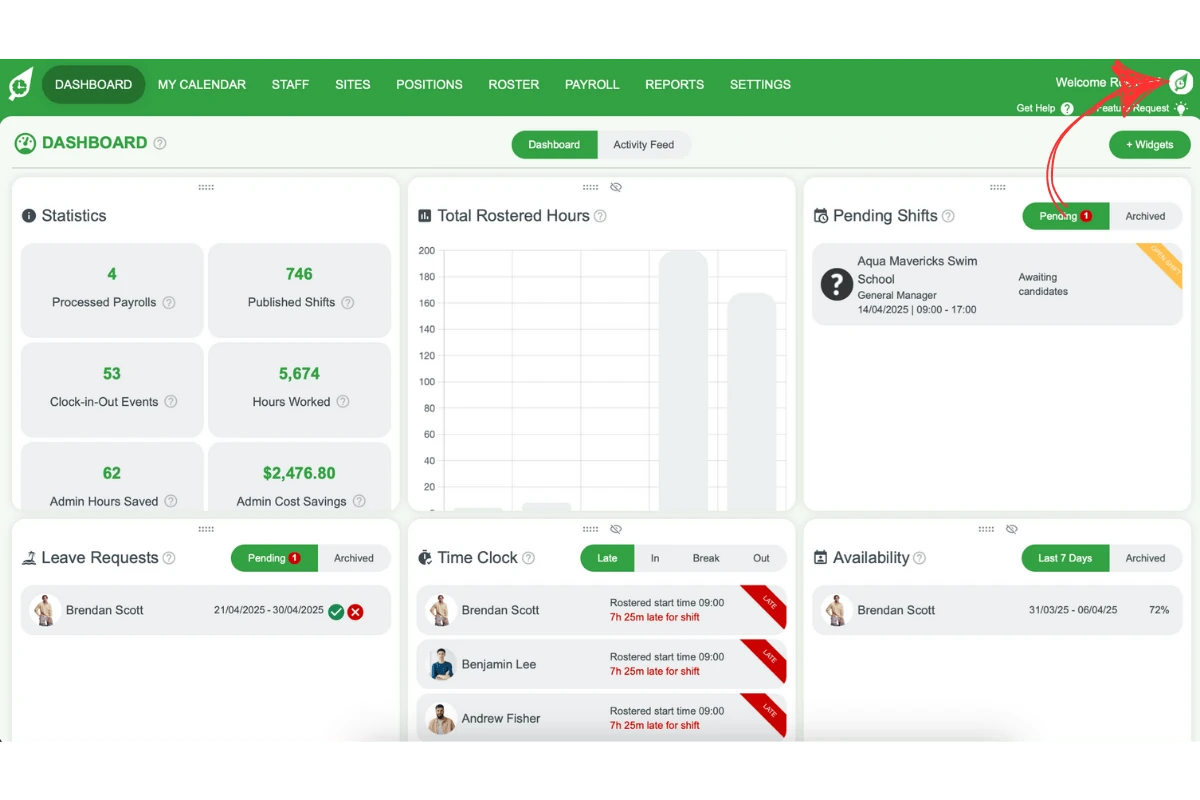
1.1.1 Click on your avatar in the top right corner of RosterElf.
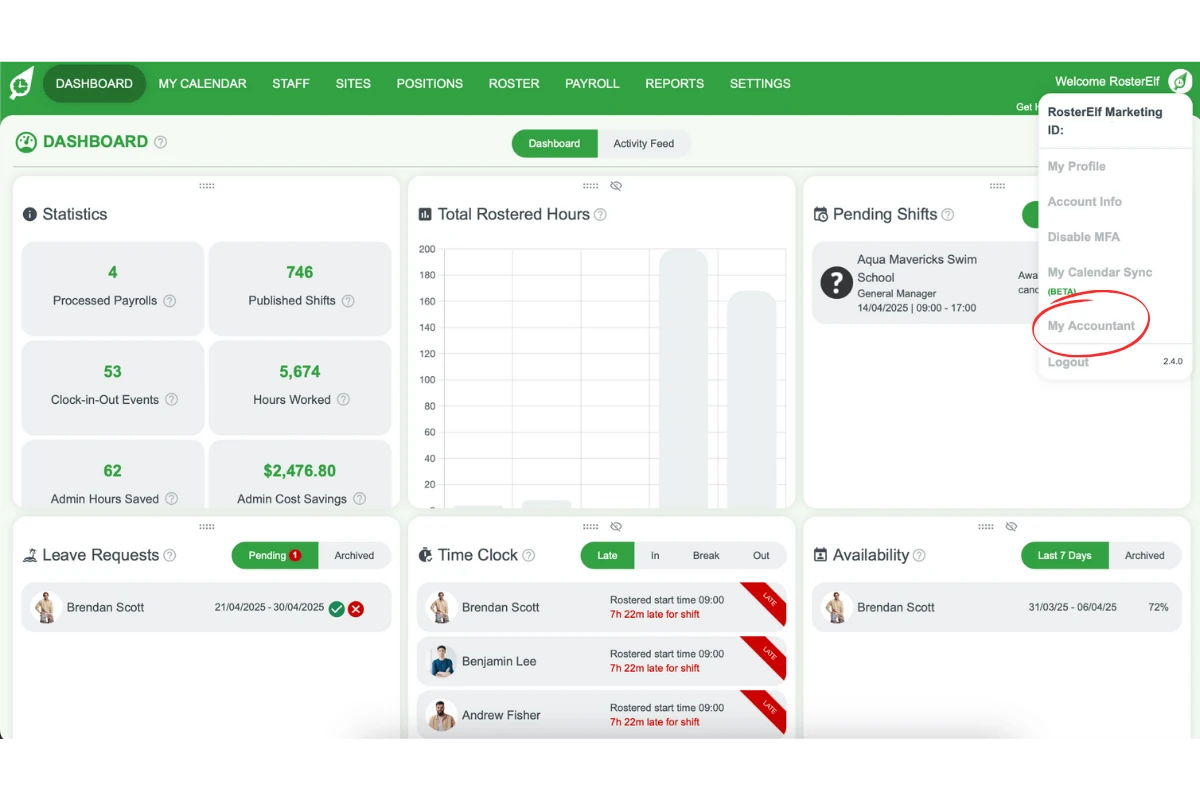
1.1.2 Select My Accountant from the drop-down menu.
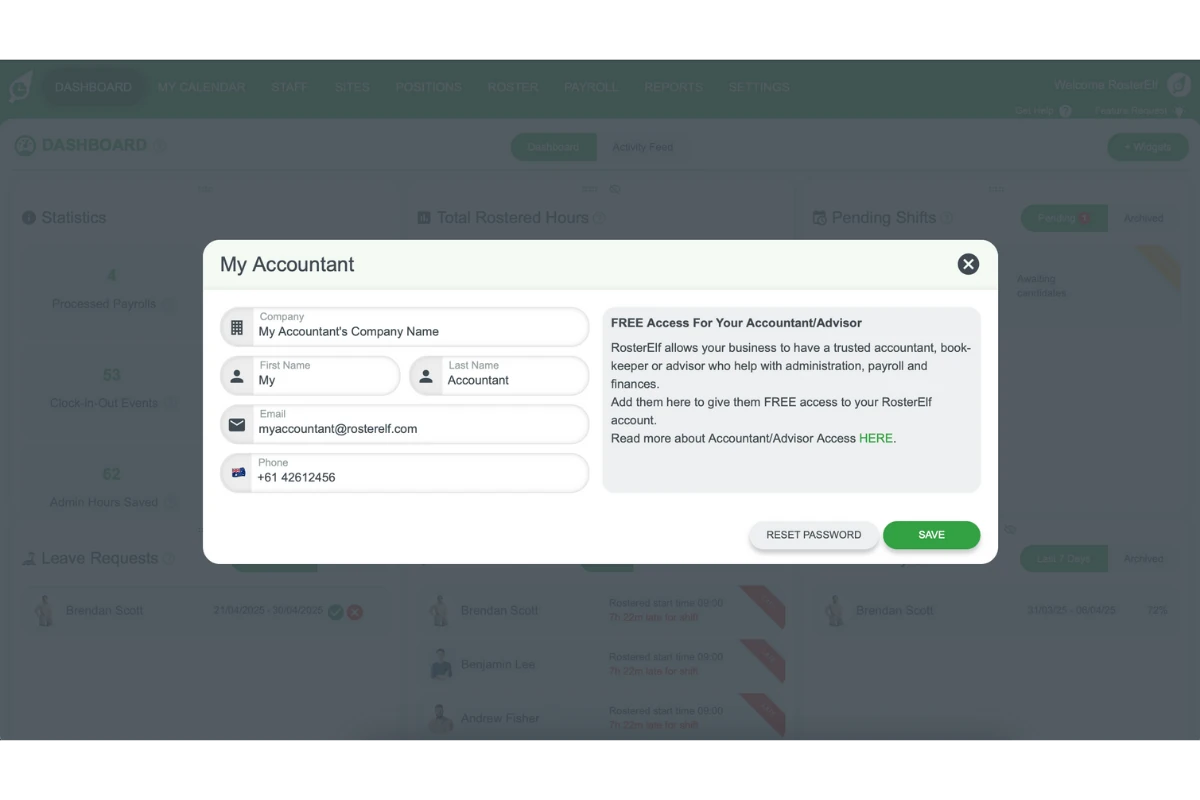
1.1.3 Fill in the accountant’s details.
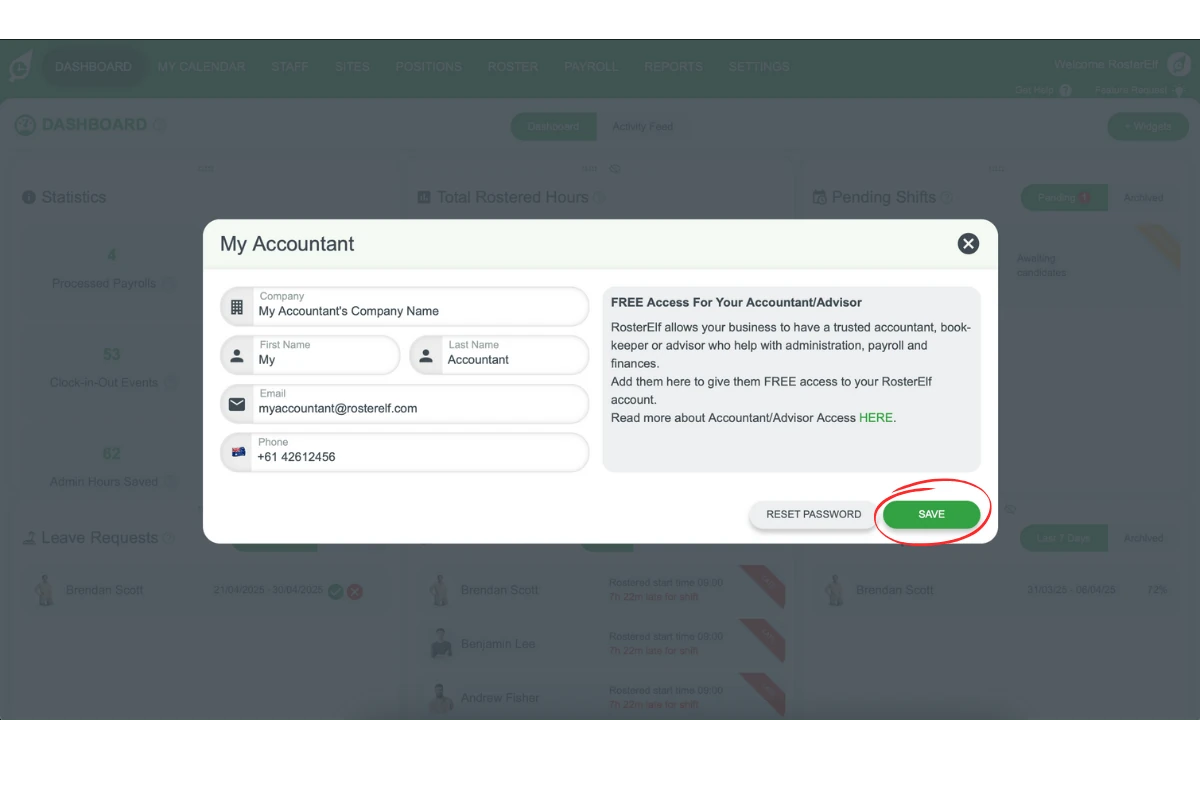
1.1.4 Click Save to grant them access.
1.1.5 The accountant now has full admin-level view access to help manage your payroll compliance.
2. Accountant access differences
Accountant access is distinct from standard staff or admin access. While accountants share similar admin privileges (view only), they are not treated as staff members. Understanding these differences helps you make the most of this feature.
2.1 Key differences for accountant access
2.1.1 Accountants have the same access as an admin but cannot be a staff member.
2.1.2 Accountants cannot be rostered, request leave, or adjust their availability.
2.1.3 Accountants are free users and do not count towards your invoiced staff count.
2.1.4 Accountants cannot be added to the roster or assigned to sites and positions.
2.1.5 Accountants do not appear in the Staff tab.
2.1.6 Accountants do not receive shift requests, such as shift swaps or open shifts.
2.1.7 Accountants cannot change their own permission level.
2.1.8 Accountants cannot add a site.
Is this the same as the Advisor Centre?
No. This adds one accountant, bookkeeper or advisor as a free, admin-level view user on your own single RosterElf account. If you’re an accredited RosterElf partner managing many client businesses from one login instead, see Get started with the RosterElf Advisor Centre.
Frequently asked questions
1. How do I add an accountant to my RosterElf account?
Click your avatar in the top right corner of RosterElf, select My Accountant from the drop-down menu, fill in the accountant’s details, and click Save. The accountant will then have admin-level view access.
2. What access does an accountant have in RosterElf?
An accountant has similar access to an admin (view only) but cannot be rostered, request leave, or adjust availability. They also do not count towards your invoiced staff count.
3. Can accountants be added to the roster in RosterElf?
No, accountants cannot be added to the roster or assigned to any sites and positions in RosterElf. They are not considered standard staff members.
4. Are accountants counted in my invoiced staff count in RosterElf?
No, accountants in RosterElf are considered free users and do not count towards your invoiced staff count. This allows you to invite them without any additional charges.
5. Why should I add an accountant to my RosterElf account?
Adding an accountant helps ensure payroll compliance and efficient management of staff wages. They have admin-level view access to assist with payroll setup and ongoing business needs at no extra cost.