

Assigning staff to a position in RosterElf
This article explains how to assign staff to positions in RosterElf. You can either bulk assign employees through the Positions tab or assign them individually through the Staff tab. By following these steps, you’ll be able to easily manage staff assignments, ensuring they are placed in the correct positions.
1. Bulk assigning via the positions tab
This section explains how to assign multiple staff members to a position simultaneously via the Positions tab. This is the quickest method for assigning several employees to one position.
1.1 how to bulk assign staff
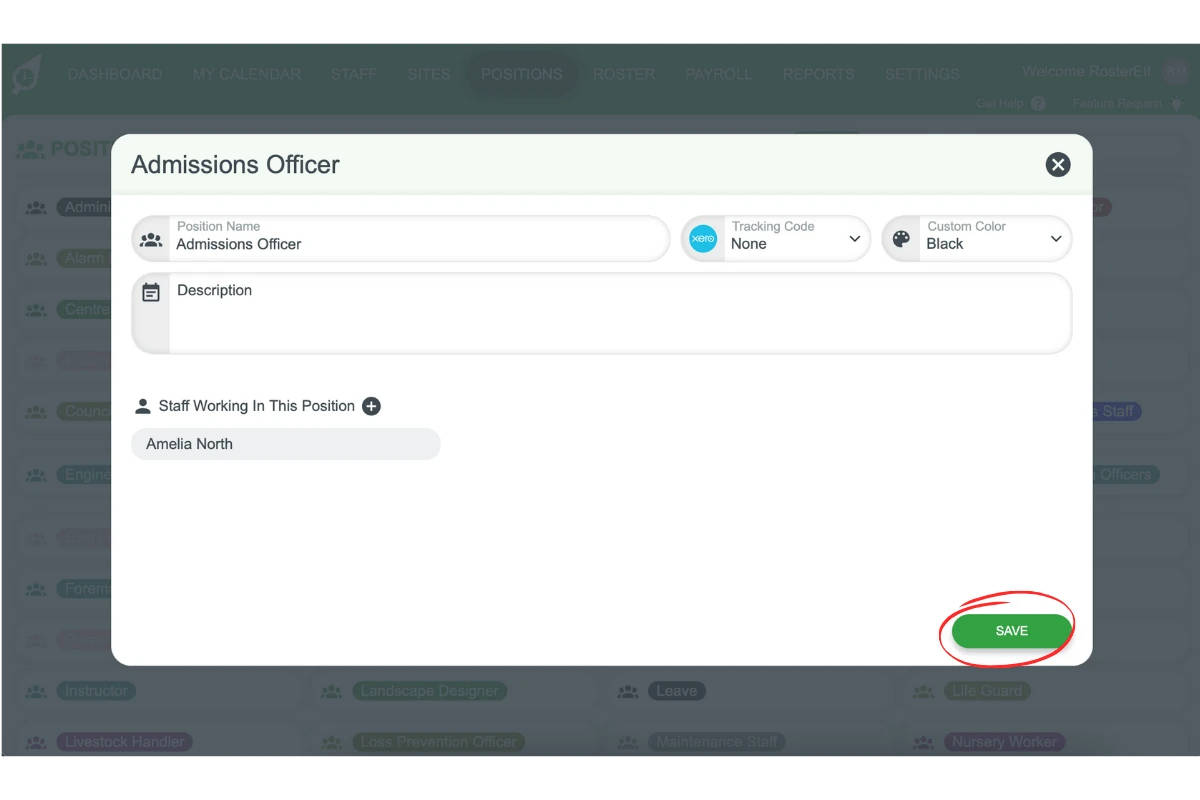
1.1.1 Click the Positions tab.
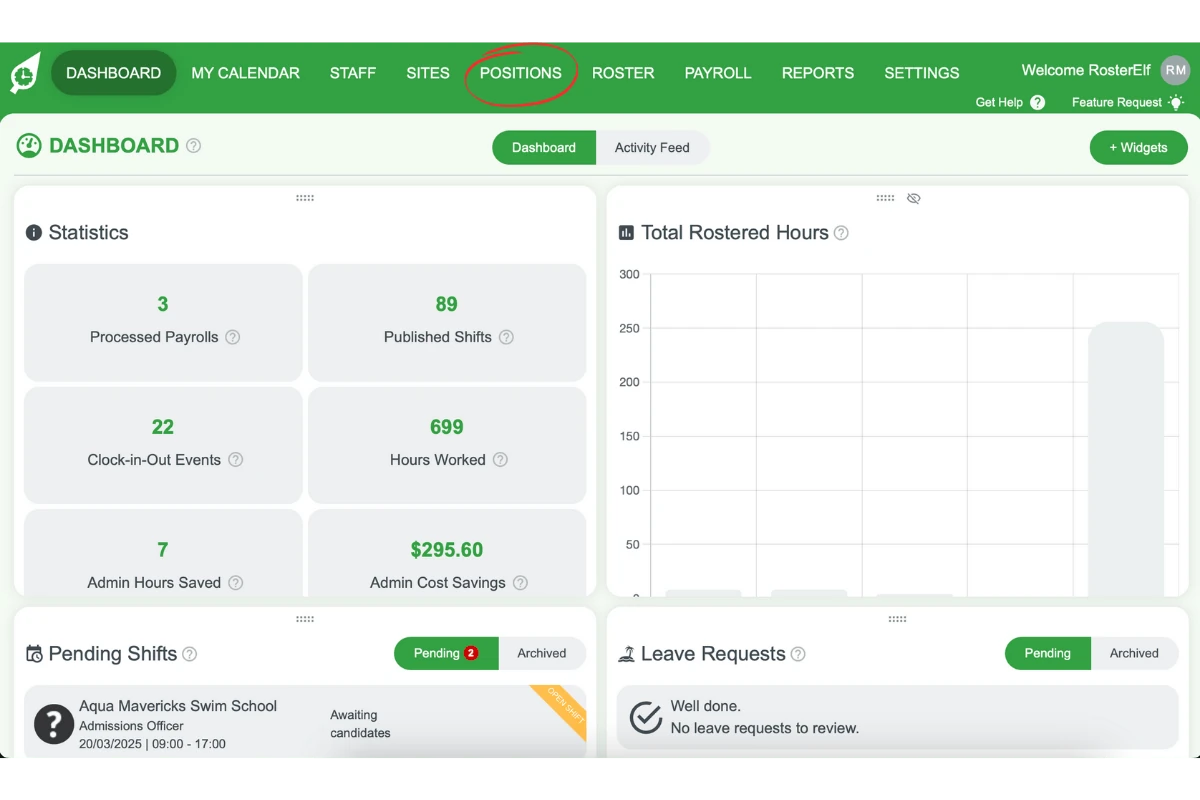
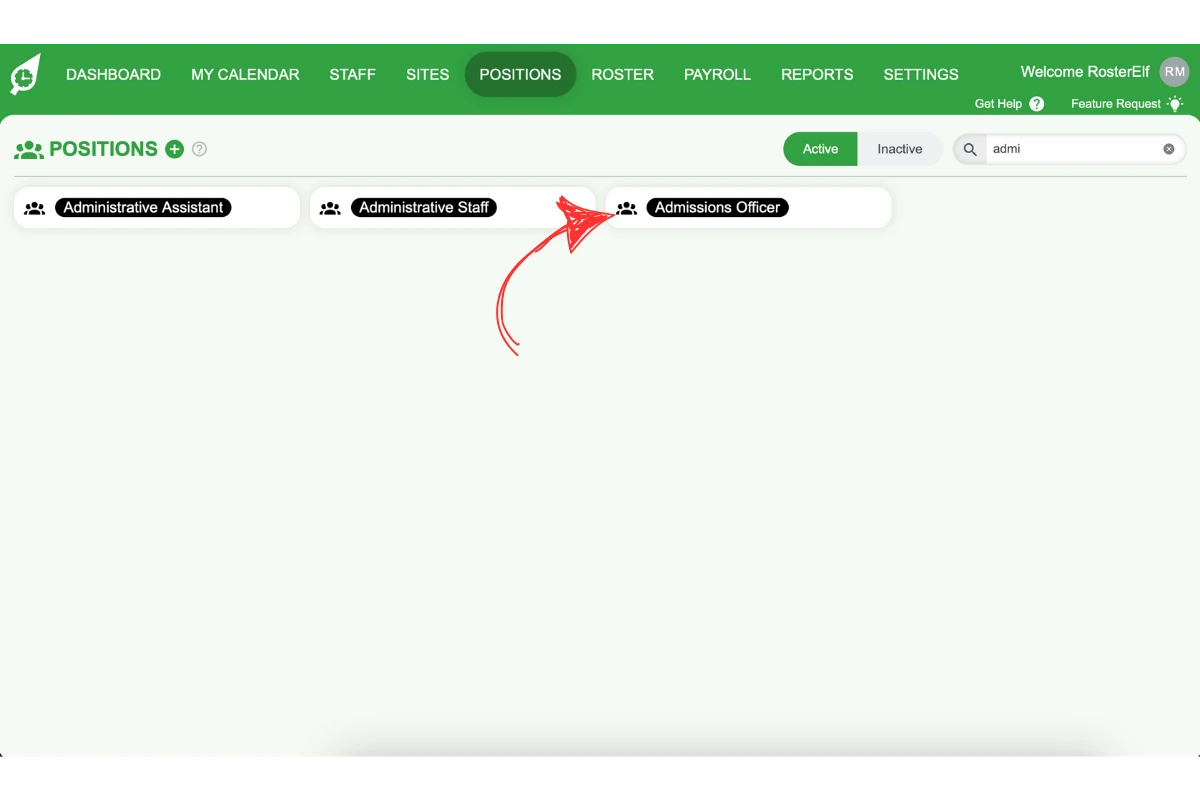
1.1.2 Choose the position you want to assign staff to.
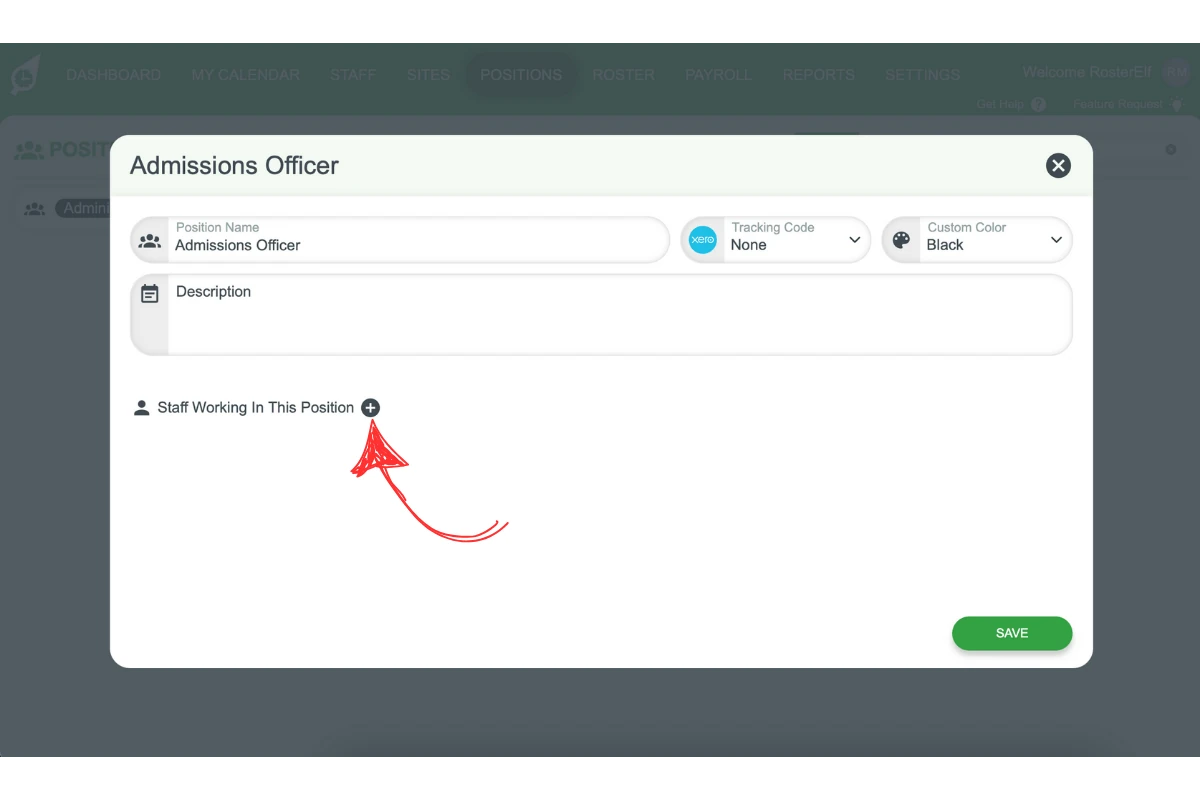
1.1.3 Click the Staff Working in This Position (+) button.
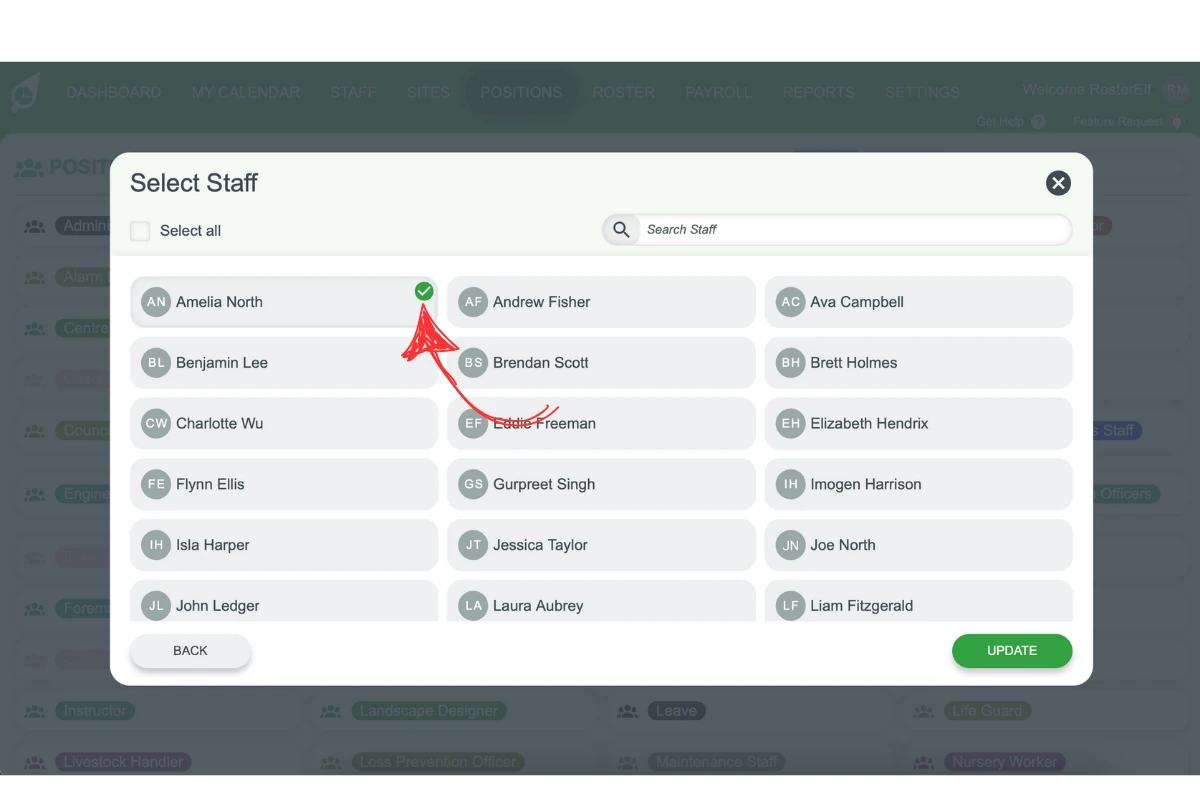
1.1.4 Select the staff members you want to assign. To assign all staff, click the Select All button.
1.1.5 Click Update at the bottom right to save the staff assignments.
1.1.6 Finally, click Save to save the position.
2. Assigning staff via the staff tab
This section explains how to assign positions to staff members individually through their staff cards. This method is ideal when you need to assign multiple positions to one staff member.
2.1 how to assign positions through the staff tab
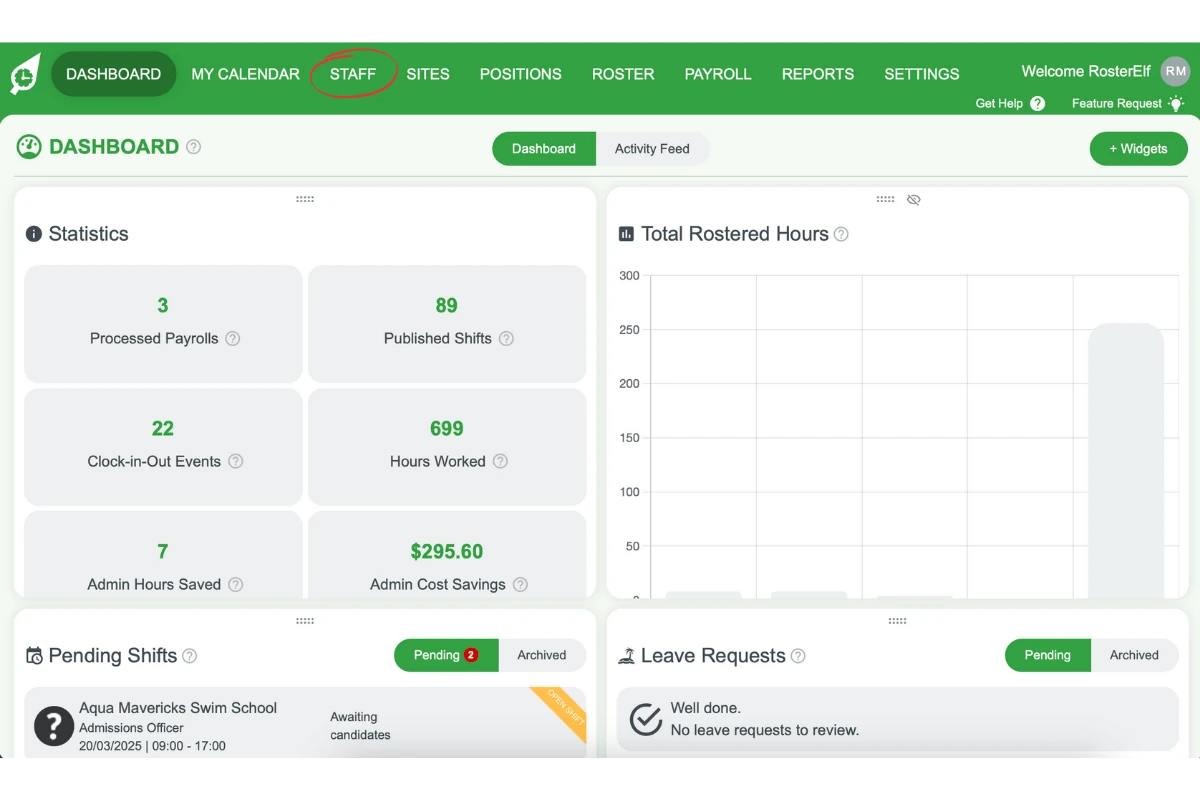
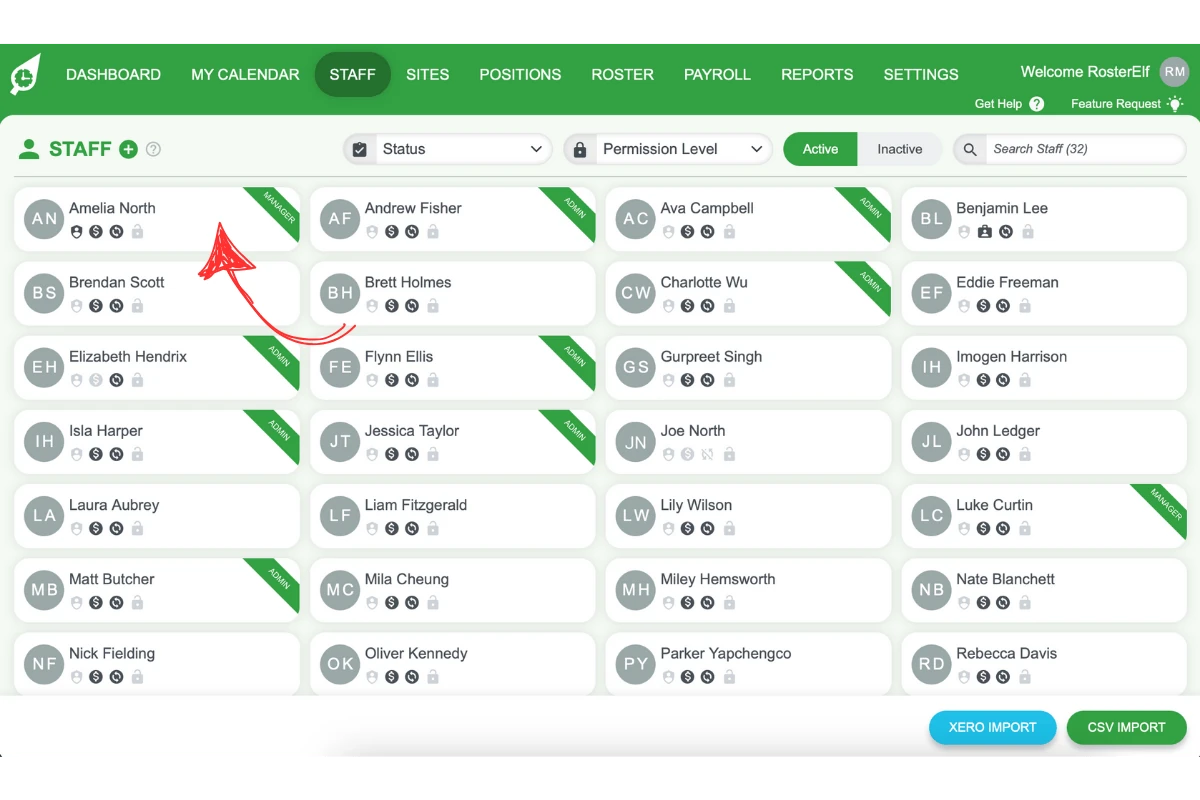
2.1.1 Click the Staff tab and select an employee from the list.
2.1.2 Click the Positions Can Work (+) button.
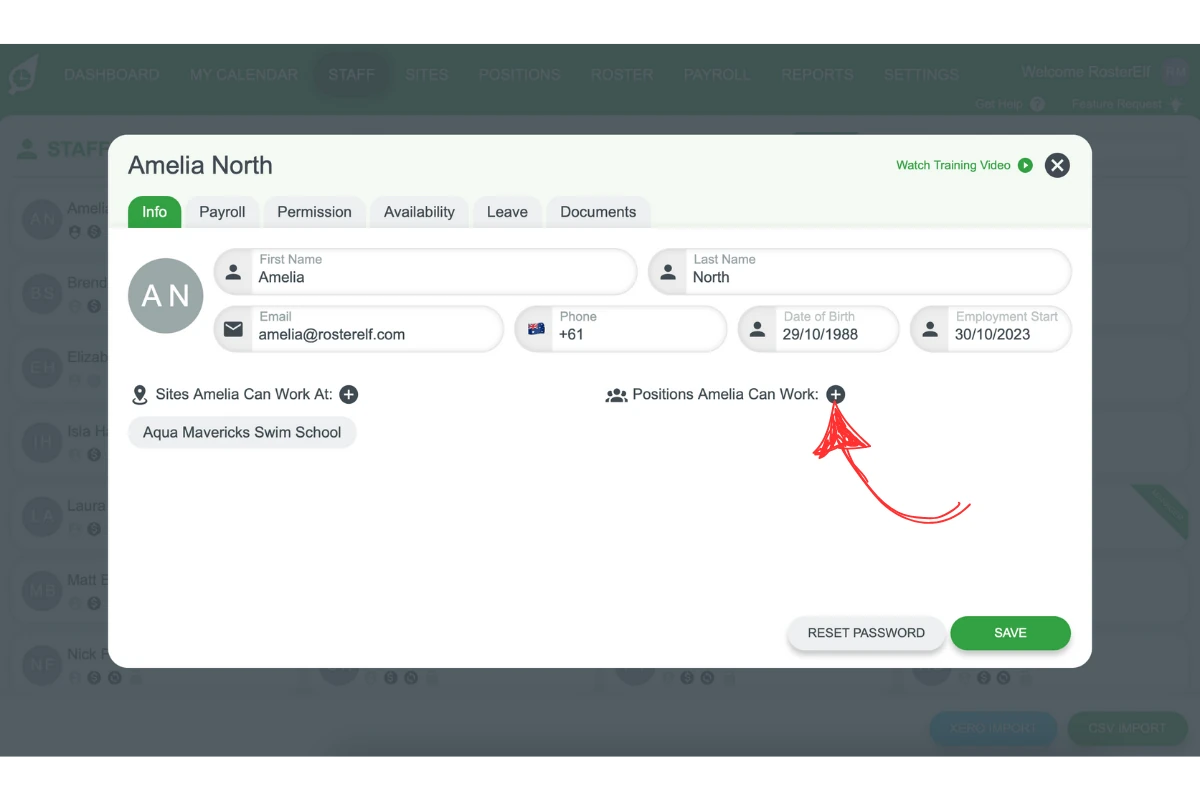
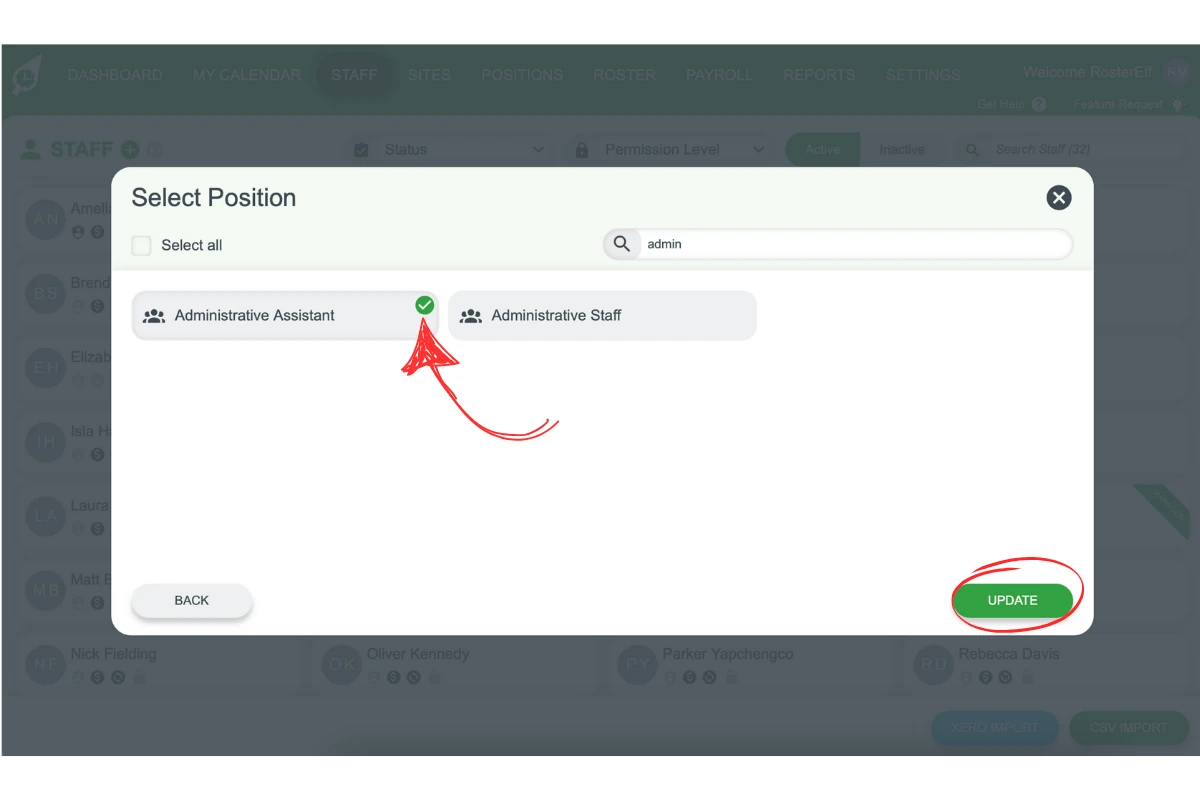
2.1.3 A pop-up window will show the available positions. Select the positions you want to assign to the staff member.
2.1.4 Click Update to save the assigned positions.
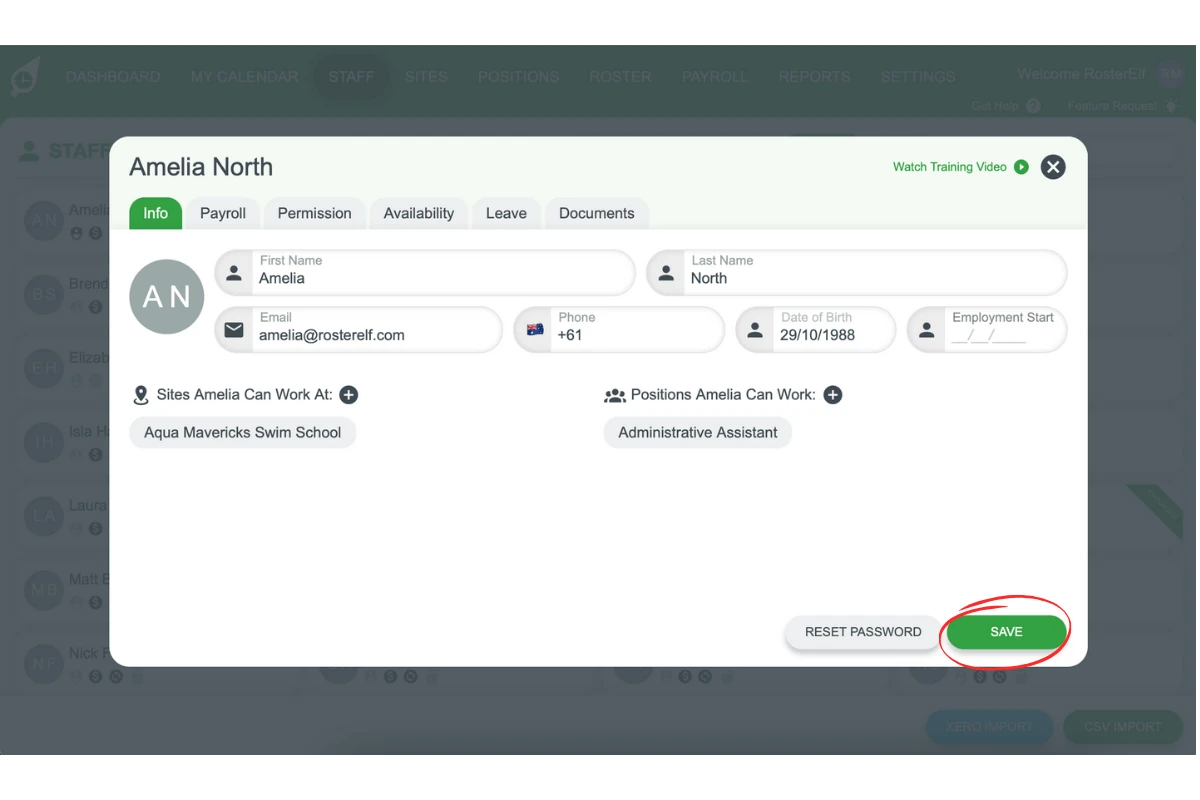
2.1.5 Click Save on the staff card. The staff member will now appear as a qualified employee when rostering for the assigned positions.
Frequently asked questions
1. How do I bulk assign staff to a position in RosterElf?
Go to the Positions tab, choose a position, and click Staff Working in This Position (+). Select the staff members you want to assign, then click Update and Save.
2. Can I assign all staff to a position at once in RosterElf?
Yes, use the Select All Staff button in the Positions tab when bulk assigning staff to quickly assign everyone to a position.
3. How can I assign multiple positions to one staff member?
Use the Staff tab, select an employee, and choose the positions they can work under the Positions Can Work (+) button. Click Update and Save to confirm.
4. What is the quickest way to assign staff to a position?
The fastest method is through the Positions tab, where you can bulk assign multiple staff members in just a few steps.
5. How do I remove a staff member from a position?
Navigate to the Positions tab, select the position, click Staff Working in This Position (+), deselect the employee, and click Update and Save.