

Adding positions to manage roles in your business
Positions are the names you give to the roles in your business, based on skill, qualification, and responsibility. For example, a restaurant may have positions like manager, head chef, or waiter. You can add each role into your account and assign skilled and qualified employees for those positions. This guide explains how to add positions to your account, assign staff to them, and save those changes.
Positions aren’t limited to job roles — you can also create a non-working position to track something specific, such as leave or paid breaks.
1. Adding a new position to your account
This section will walk you through how to add new positions in your business system. This process will help you organise and manage different roles and responsibilities for your staff.
1.1 steps to add a new position
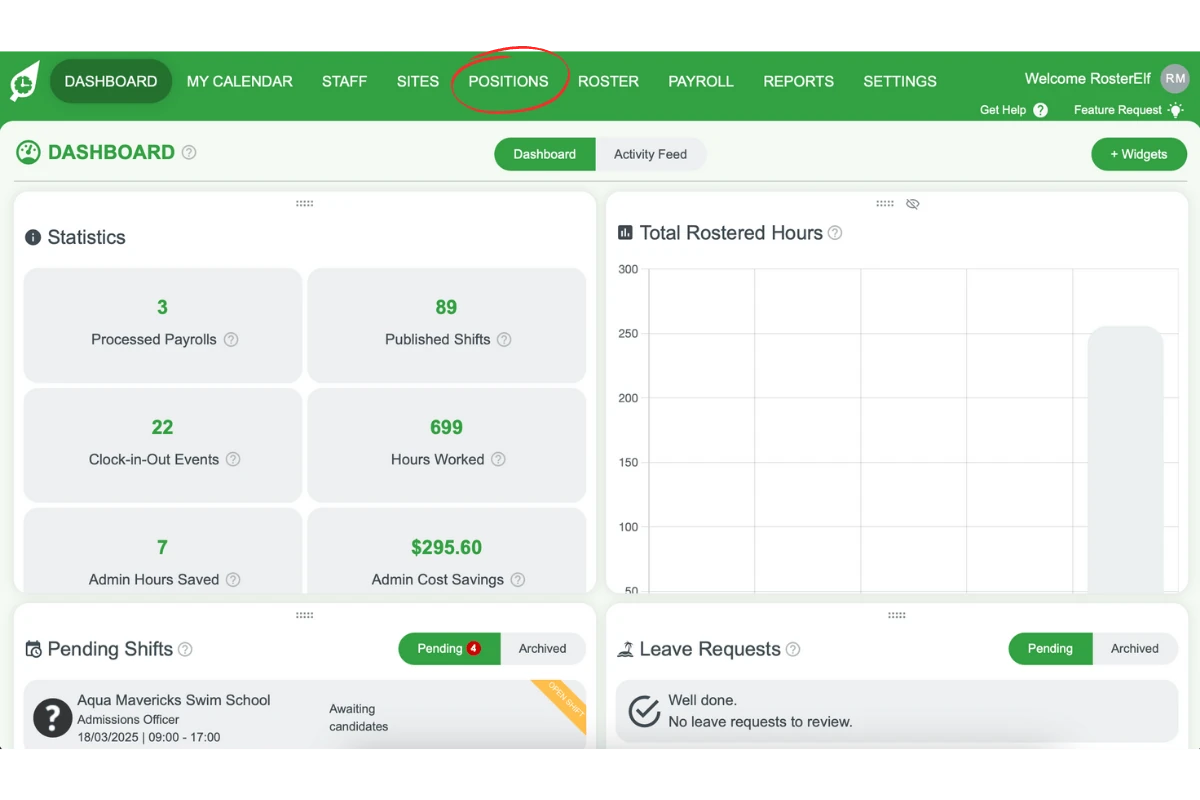
1.1.1 Click on the Positions tab in your account.
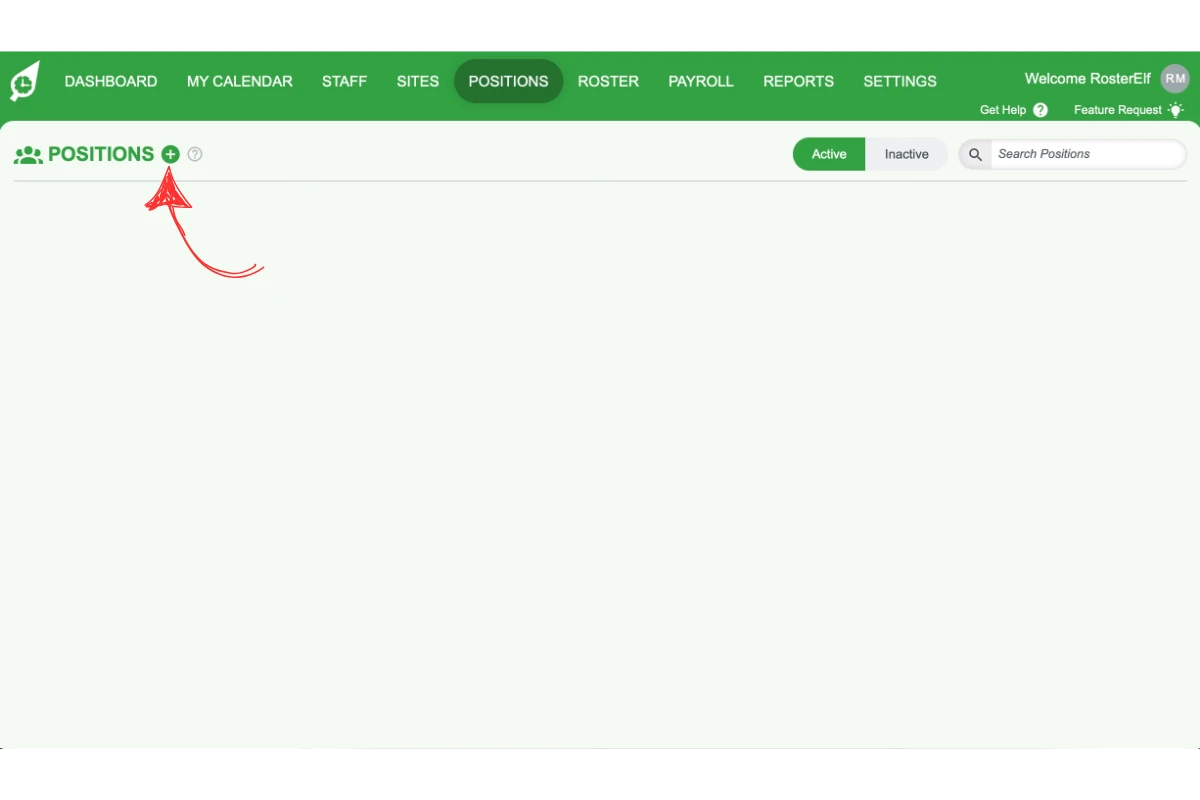
1.1.2 Click the Plus (+) button next to the Positions heading.
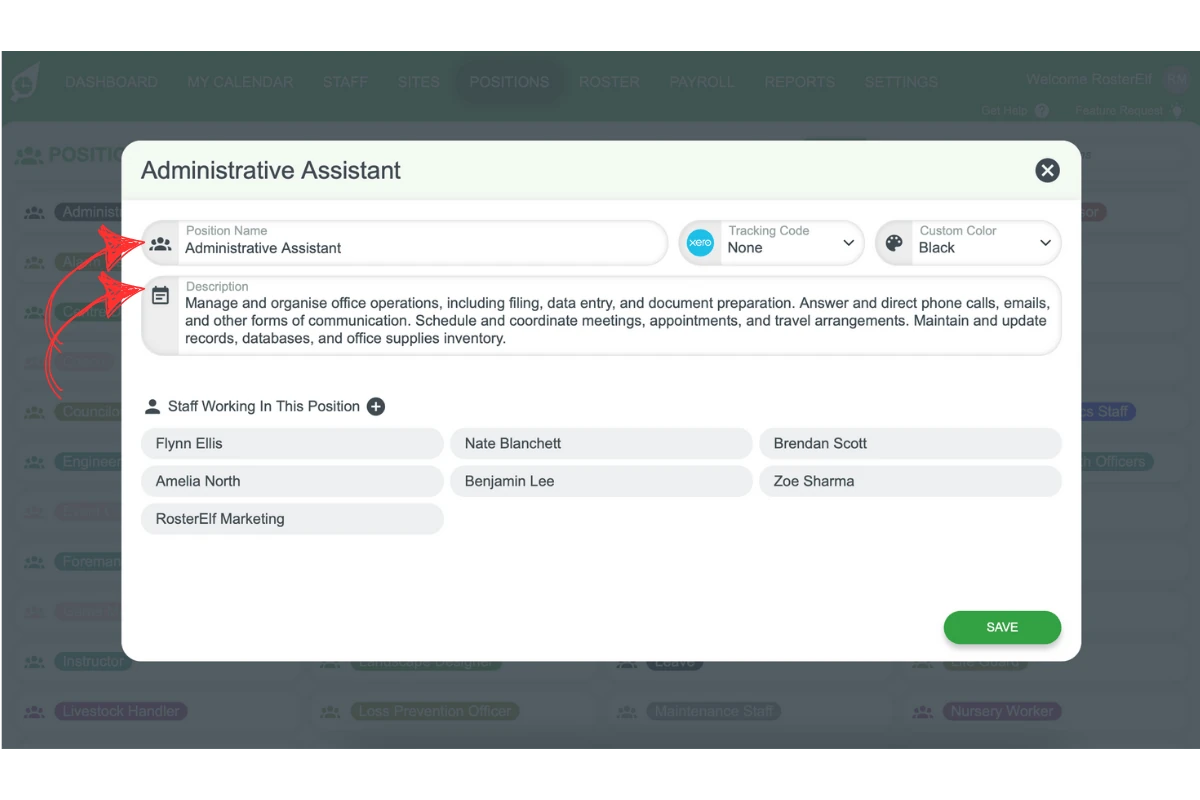
1.1.3 Enter the position name and, if you want, a brief description.
1.1.4 To colour code the position, click the drop-down and select a colour. This helps with visualising staff coverage on the roster.
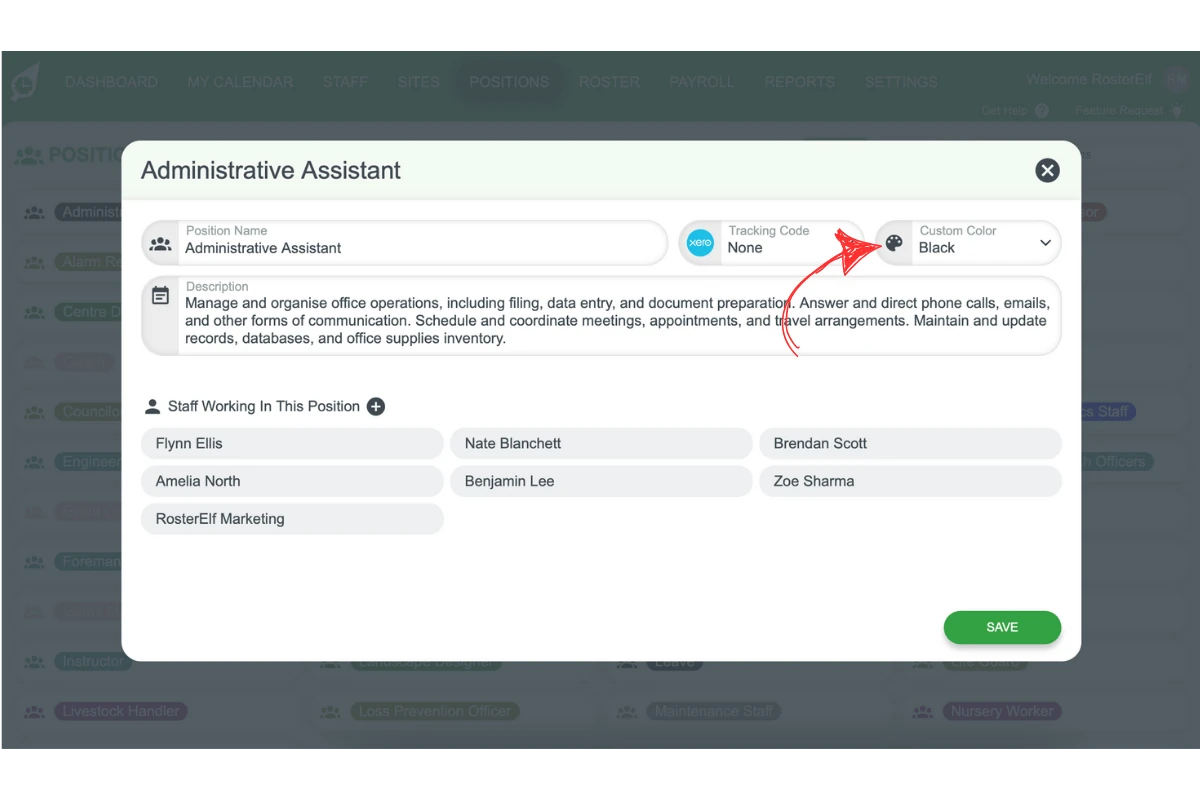
1.1.5 If your payroll software requires a custom code, enter it in the Custom Code field.
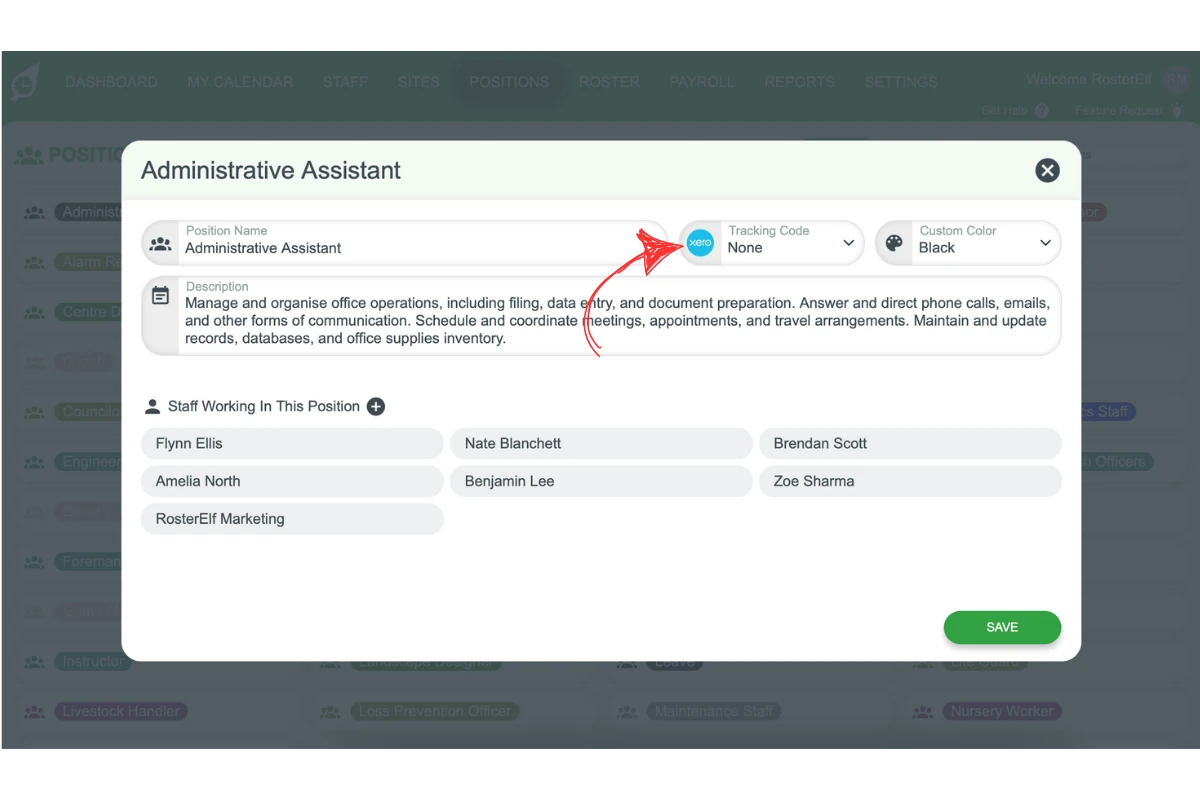
1.1.6 Click Staff Working in this Position (+) to assign qualified staff to this position.
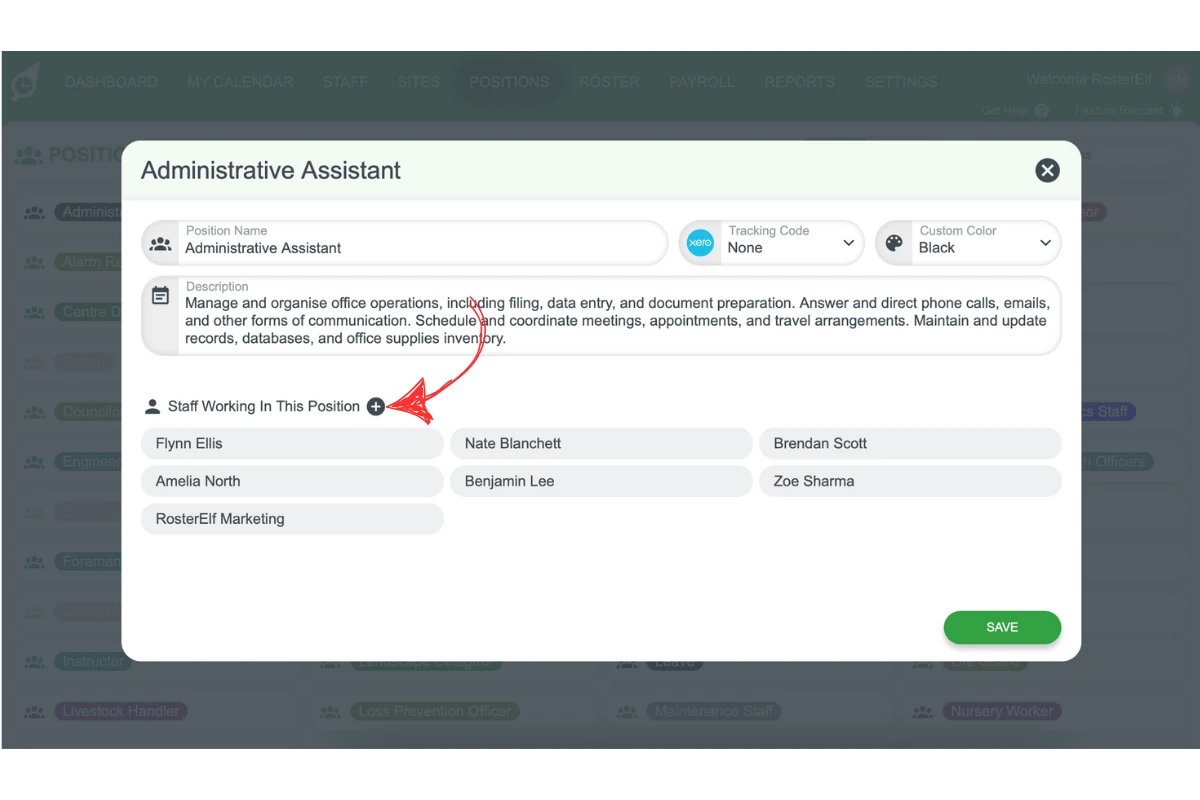
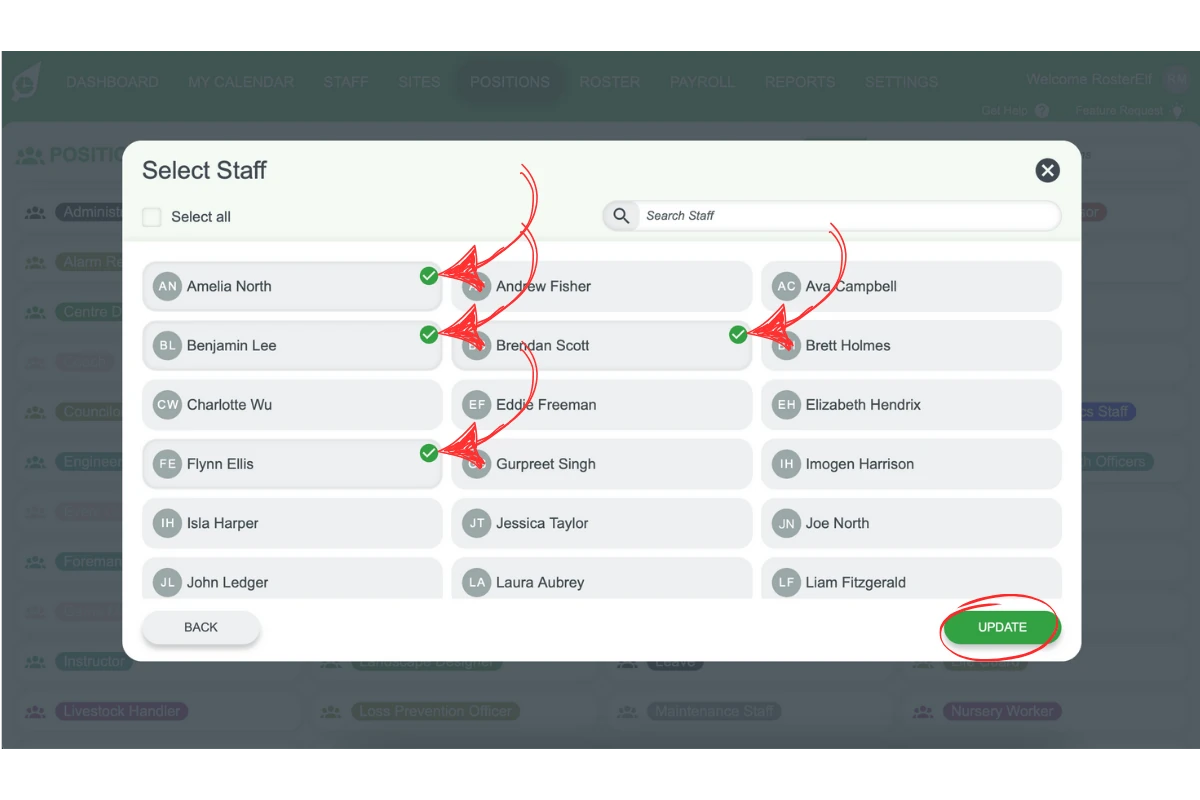
1.1.7 The staff entered here will be available when rostering for this position.
1.1.8 Click Update to save staff to the position.
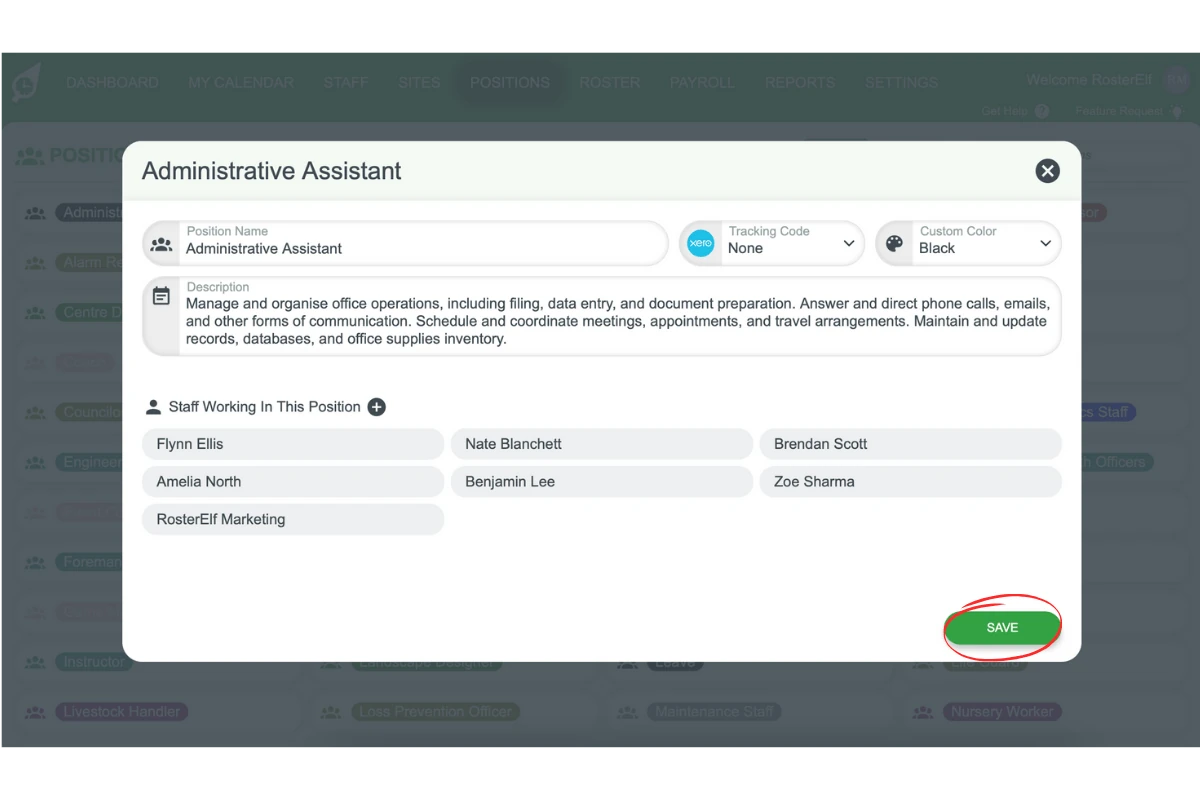
1.1.9 Click Save to save the new position.
Frequently asked questions
1. How do I add a new position to my account?
Go to the Positions tab, click the Plus (+) button, enter the position name, and provide a brief description if needed. Assign a colour code, enter a custom code if required, assign staff, and save.
2. Can I assign staff to multiple positions?
Yes, you can assign staff to multiple positions. Click Staff Working in this Position (+) to select and assign qualified employees to each role.
3. How do I colour code positions for easy identification?
When adding a new position, select the colour from the drop-down menu under the Colour Code section. Colour coding helps you visually organise staff roles on your roster.
4. What is the custom code field used for?
The custom code field is optional and is typically used if your payroll software requires specific codes for positions. Enter the relevant code if needed for payroll integration.
5. How do I save the new position after assigning staff?
Once you have entered the position name, colour, and assigned staff, click Update to save staff to the position, and then click Save to finalise the new position.