

How to change a shift date in RosterElf
This article explains how to change the date of a shift in RosterElf. Occasionally, a shift may be scheduled on the wrong day or needs to be moved due to operational changes. When this happens, Admins, Managers, and Assistant Managers can quickly edit the shift and update the date directly from the roster — see Add shifts to your roster if you’re setting up a shift for the first time.
Changing the shift date helps keep rosters accurate and ensures staff receive the correct schedule. It also prevents confusion, missed shifts, and unnecessary roster edits. Instead of deleting and recreating a shift, editing the existing shift allows you to keep the same shift details while simply updating the date.
In this guide, you will learn how to open the roster, locate the shift you want to change, update the shift date, and save the updated shift. Following these steps ensures your roster stays accurate and up to date.
1. Change shift date in the roster
This section explains how to change the shift date directly from the roster in RosterElf. By updating the shift date, you ensure staff are scheduled on the correct day and notified of any changes. Admins, Managers, and Assistant Managers can complete this process directly from the roster screen by opening the shift editor and selecting a new date. The change can then be saved and optionally sent to staff as a notification.
1.1 Change shift date using the shift editor
1.1.1 Open the roster in RosterElf.
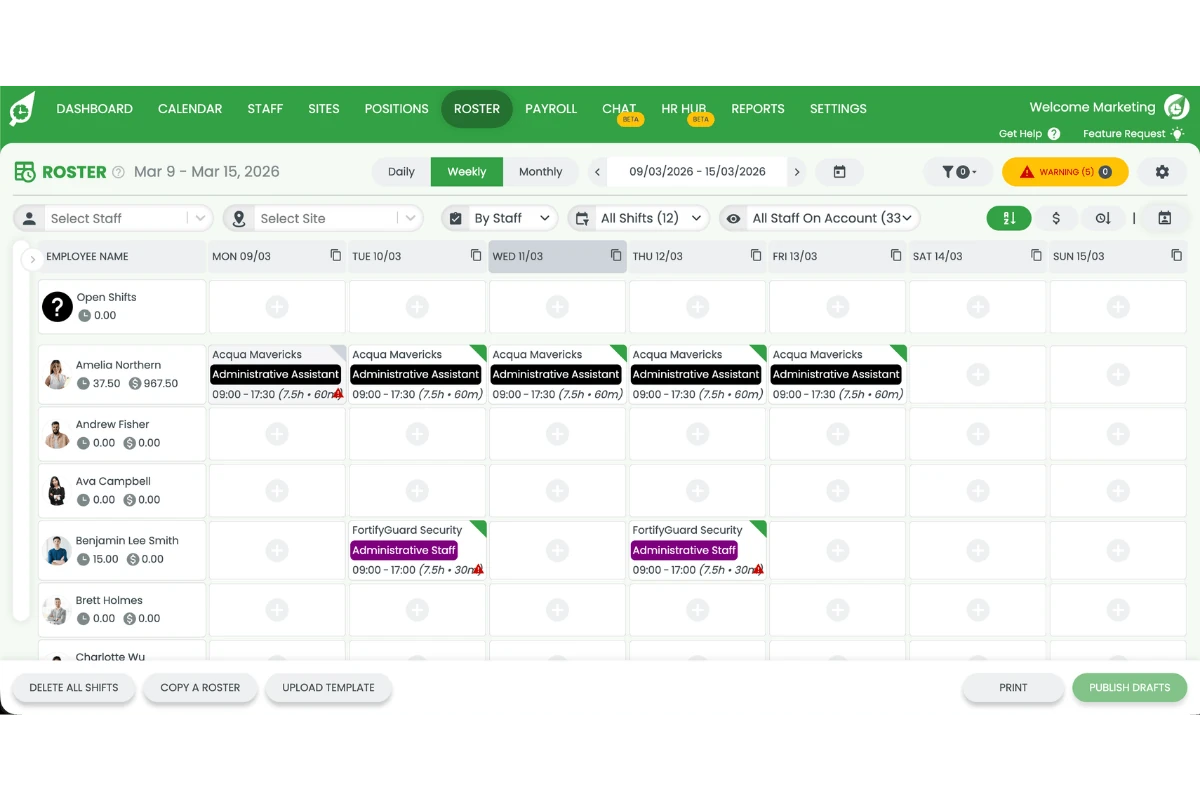
1.1.2 Find the shift you want to edit.
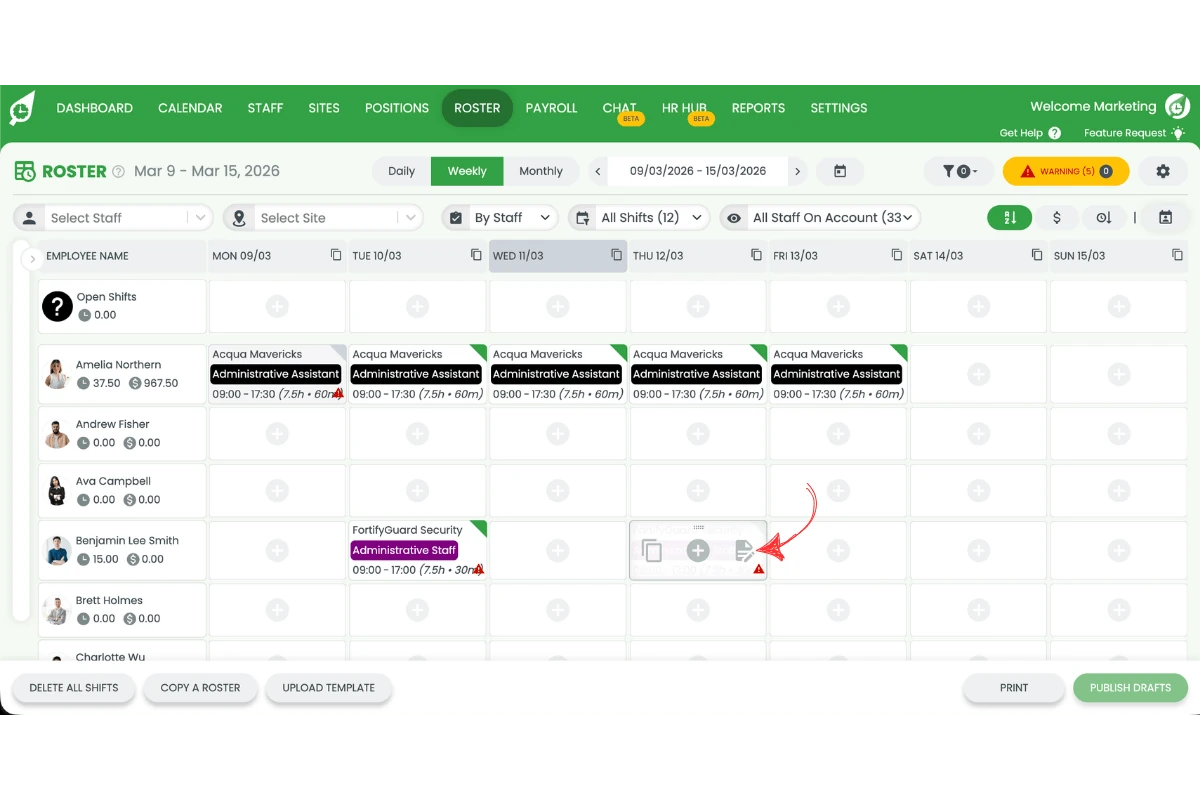
1.1.3 Hover over the shift and select the edit icon. The date can be changed from the pencil in the window title, on shifts that have not yet been worked.
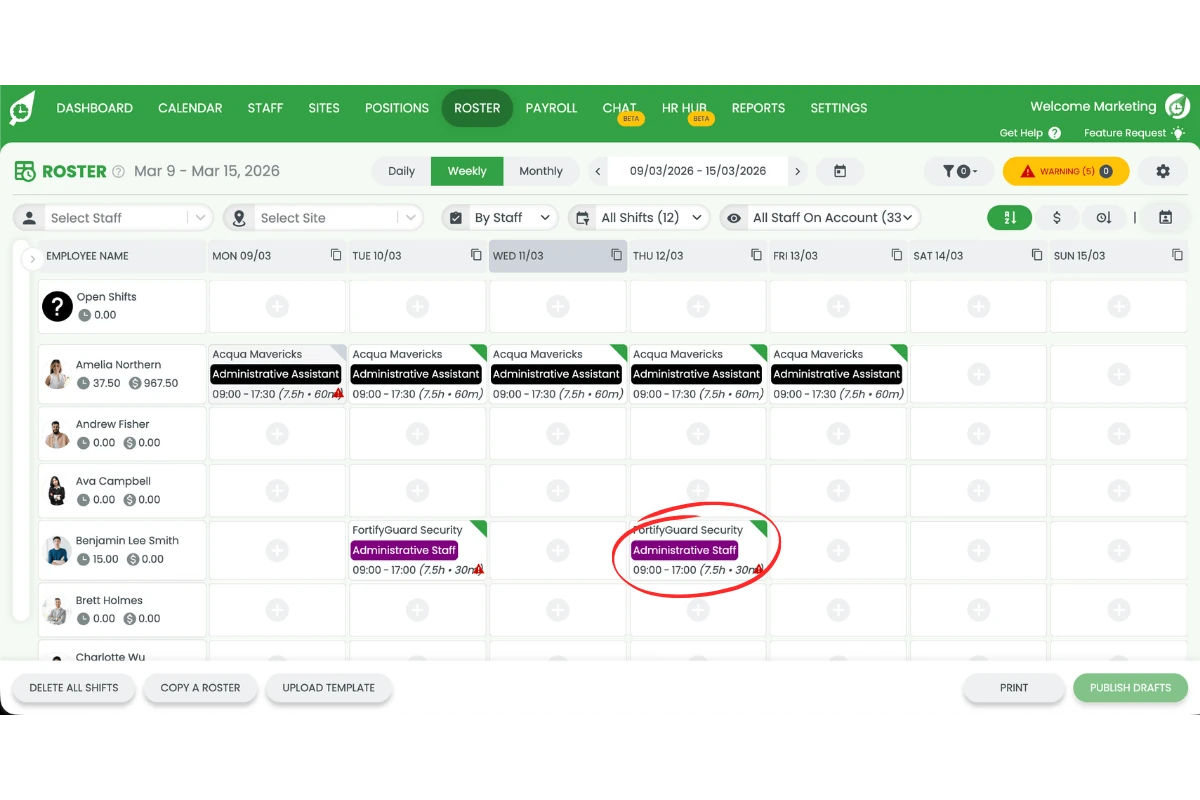
1.1.4 Select the pencil icon next to the shift date.
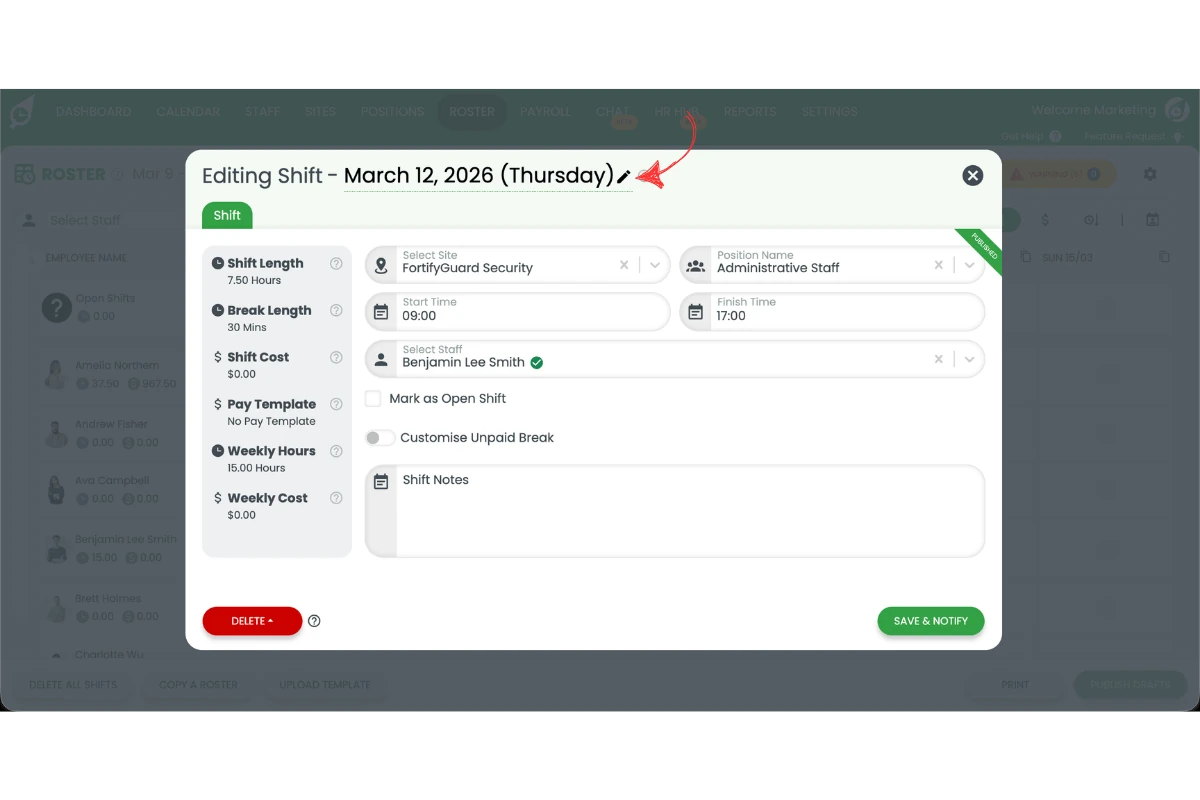
1.1.5 Choose the new shift date from the date picker.
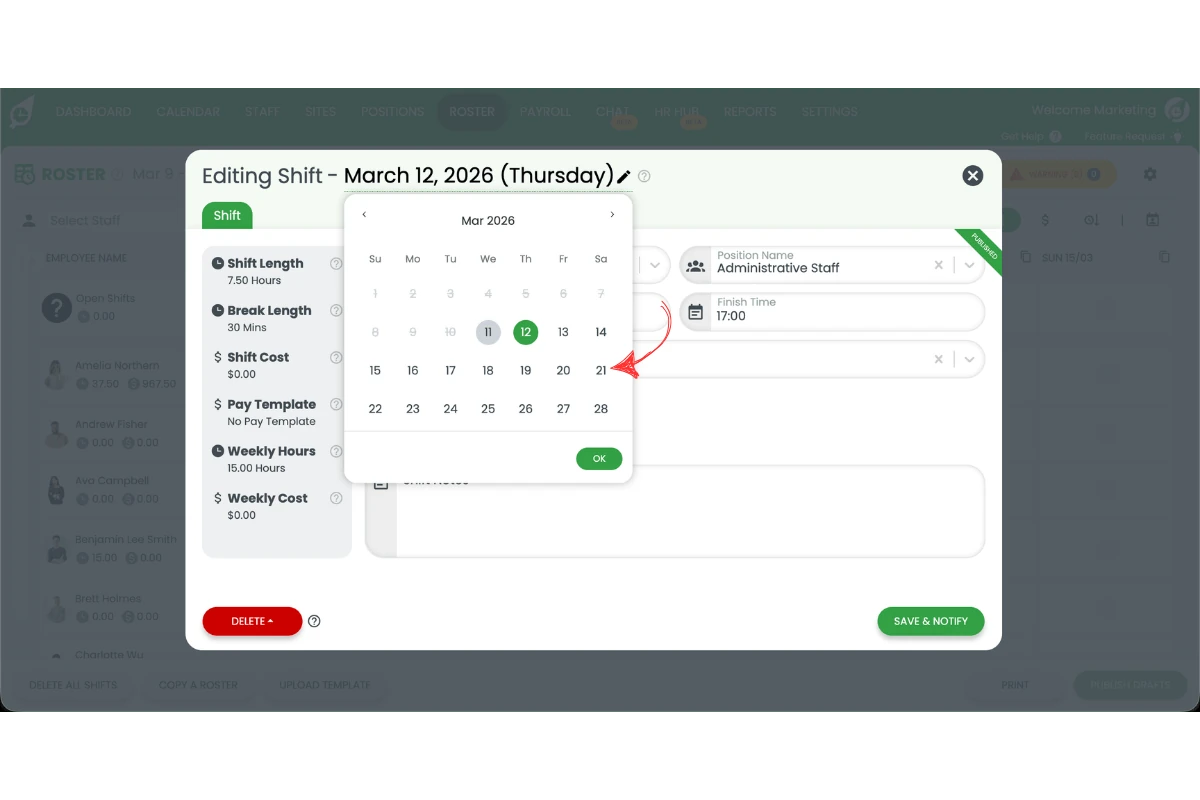
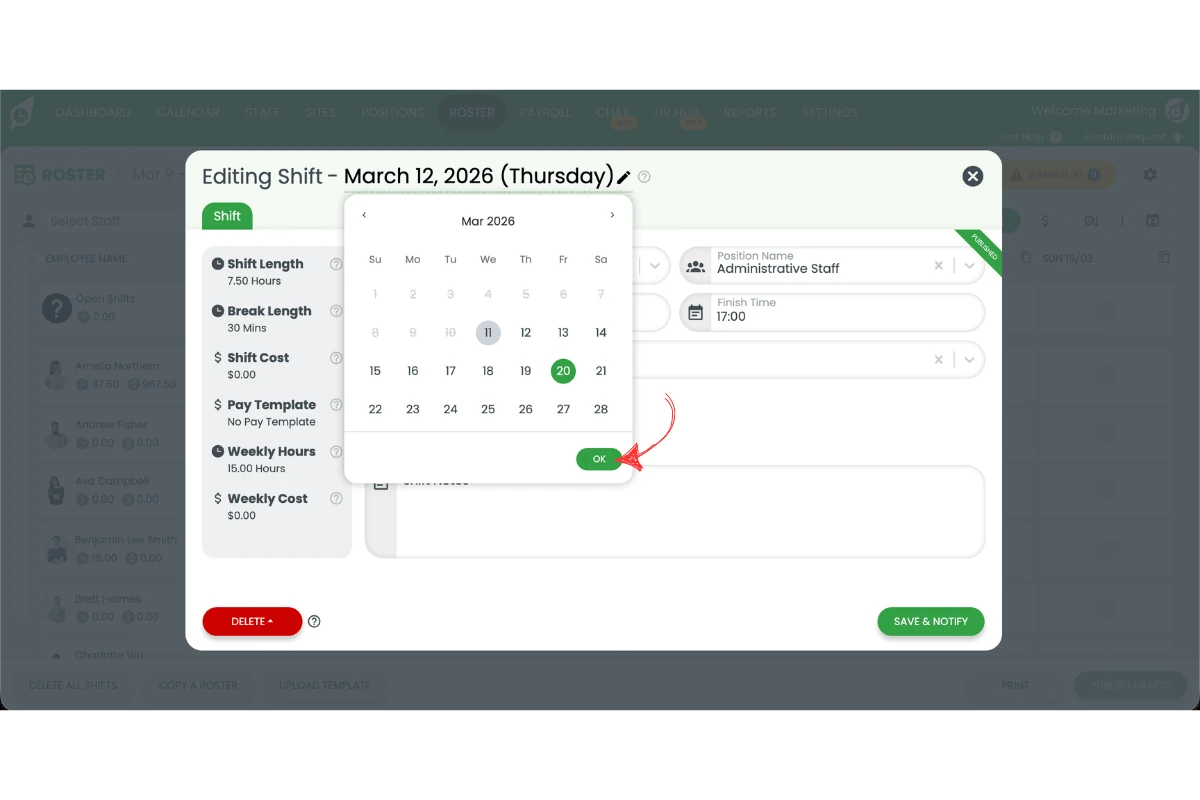
1.1.6 Press OK to confirm the date.
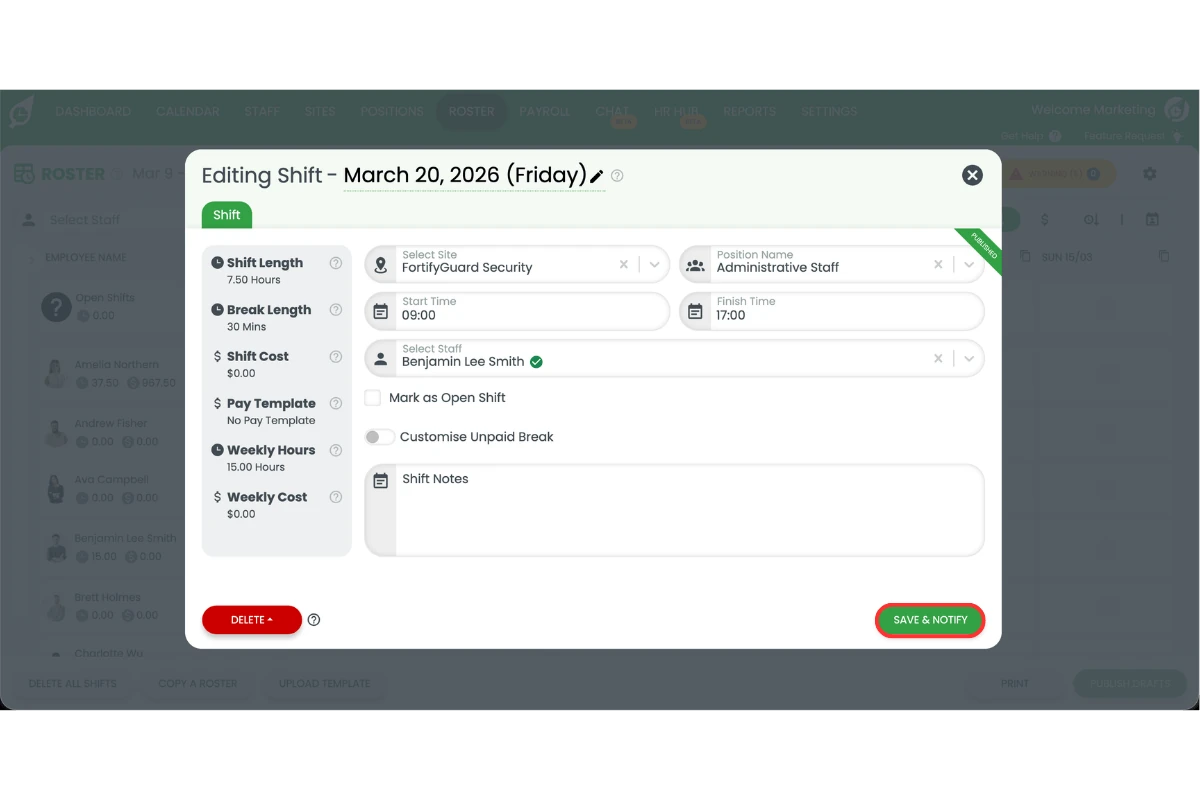
1.1.7 Select Save and notify or Save as draft.
Frequently asked questions
1. How do I change the shift date in RosterElf?
To change the shift date in RosterElf, open the roster and locate the shift you want to edit. Select Edit on the shift, then select the pencil icon next to the shift date. Choose the new date and press OK to confirm, then select Save and notify or Save as draft. This updates the shift without needing to delete and recreate it.
2. Can I move a shift to another day without deleting it in RosterElf?
Yes. You can move a shift to another day by editing the shift and changing the shift date. RosterElf allows Admins, Managers, and Assistant Managers to update the date directly from the shift editor. This keeps the original shift details while simply moving the shift to a new day.
3. Will staff be notified when I change a shift date in RosterElf?
Yes, staff can be notified when a shift date changes. After updating the shift date, select Save and notify to send the update to the staff member. If you do not want to notify staff yet, select Save as draft instead.
4. Where do I edit the shift date in RosterElf?
You can edit the shift date from the roster screen in RosterElf. Open the roster, select the shift you want to edit, and open the shift editor. Then select the pencil icon next to the date to update the shift date.
5. Why should I change the shift date instead of creating a new shift?
Changing the shift date keeps the existing shift details such as staff assignment, position, and times. This saves time and prevents duplicate shifts. Editing the shift ensures the roster stays accurate while maintaining the original shift information.
6. Why can't I see the save as draft button?
You will only see the Save as draft option if the shift is still a draft. Once a shift has been published, the only option available is Save and notify.