

Editing a shift in RosterElf, whether it’s published or in draft, can be done quickly and easily. This guide provides step-by-step instructions for editing shifts, saving changes, and notifying staff when necessary. You can edit past shifts if needed, ensuring that records remain accurate. If actual work times differ from the scheduled shift, make adjustments in the payroll screen and leave a payroll note. For shifts worked by different staff, you can add a shift directly in Payroll.
1. Access the shift editing option
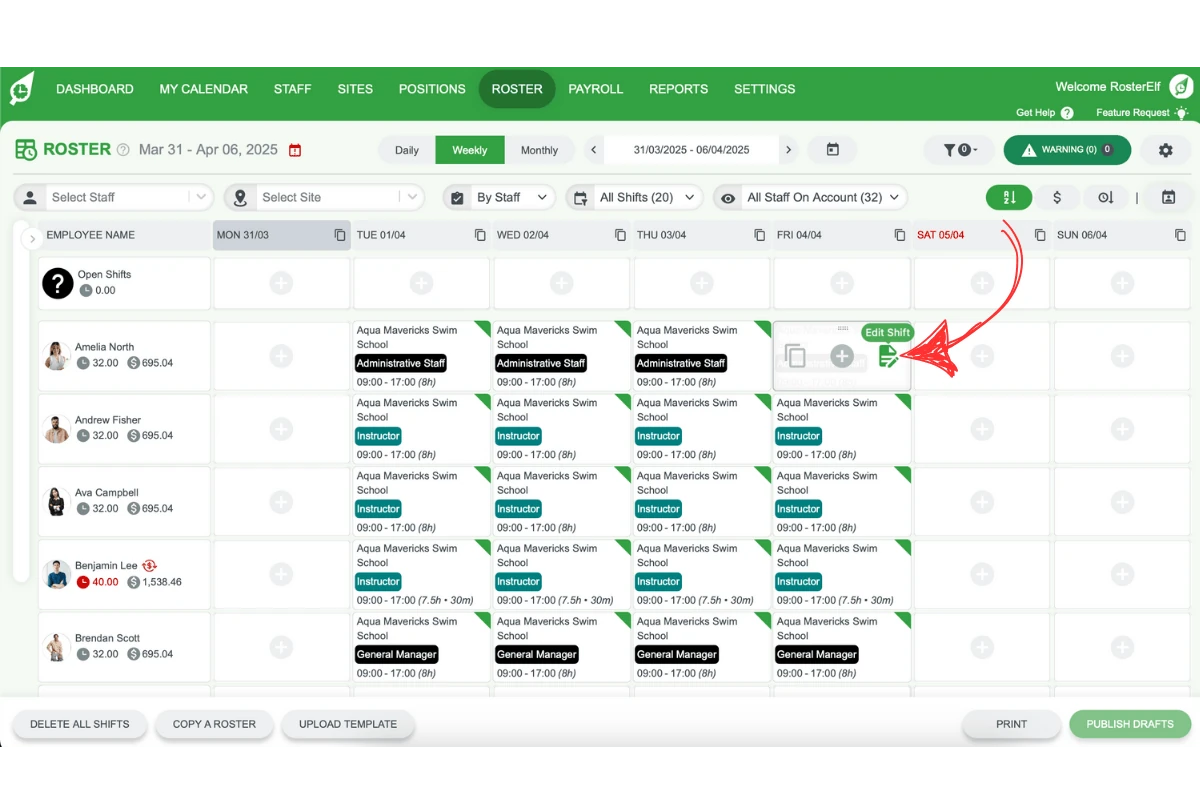
To begin editing, hover over the shift you wish to modify.
1.1 Edit button for shift
1.1.1. Hover over the shift you want to edit.
1.1.2. Click the Edit button.
2. Update shift details
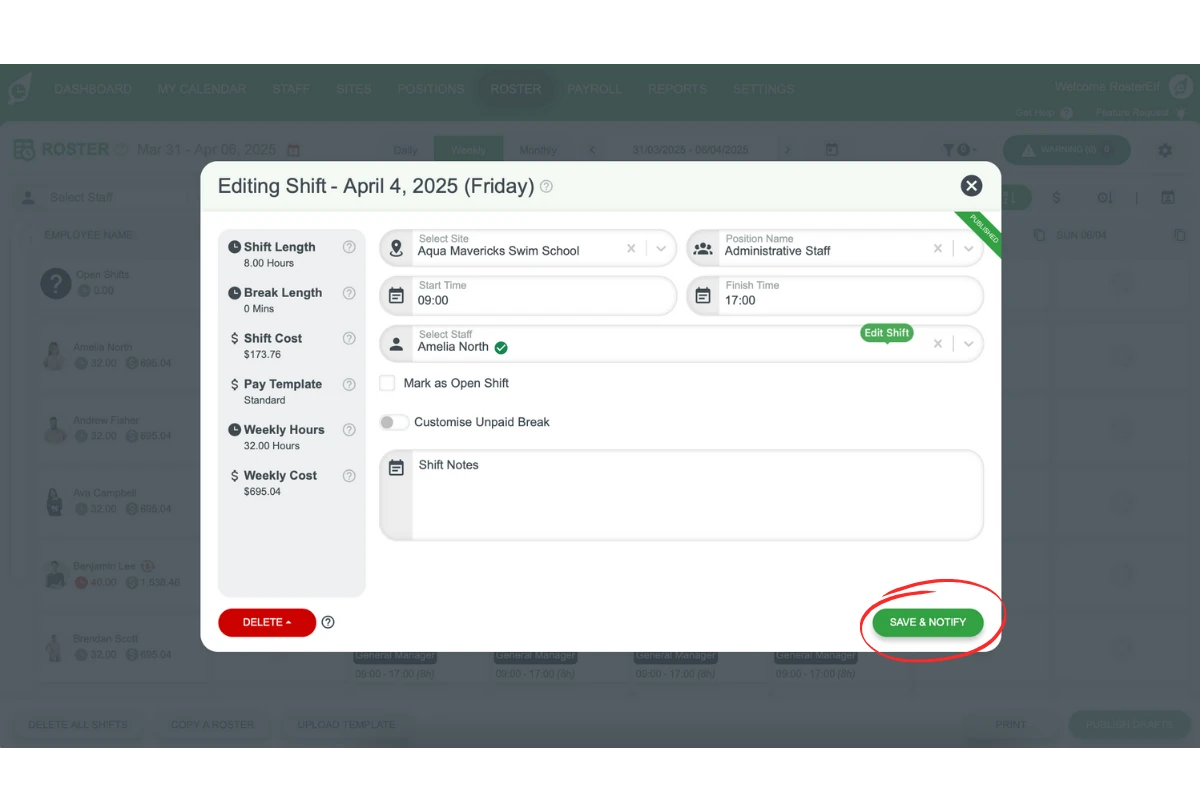
The Edit Shift modal allows you to make any required changes to the shift details.
2.1 Edit shift modal
2.1.1. Make the necessary adjustments in the Edit Shift modal.
2.1.2. Proceed to save your changes.
3. Save your changes
Saving options vary based on the shift’s publication status.
3.1 Draft shifts
3.1.1 Save the updated shift as a draft or publish it directly.
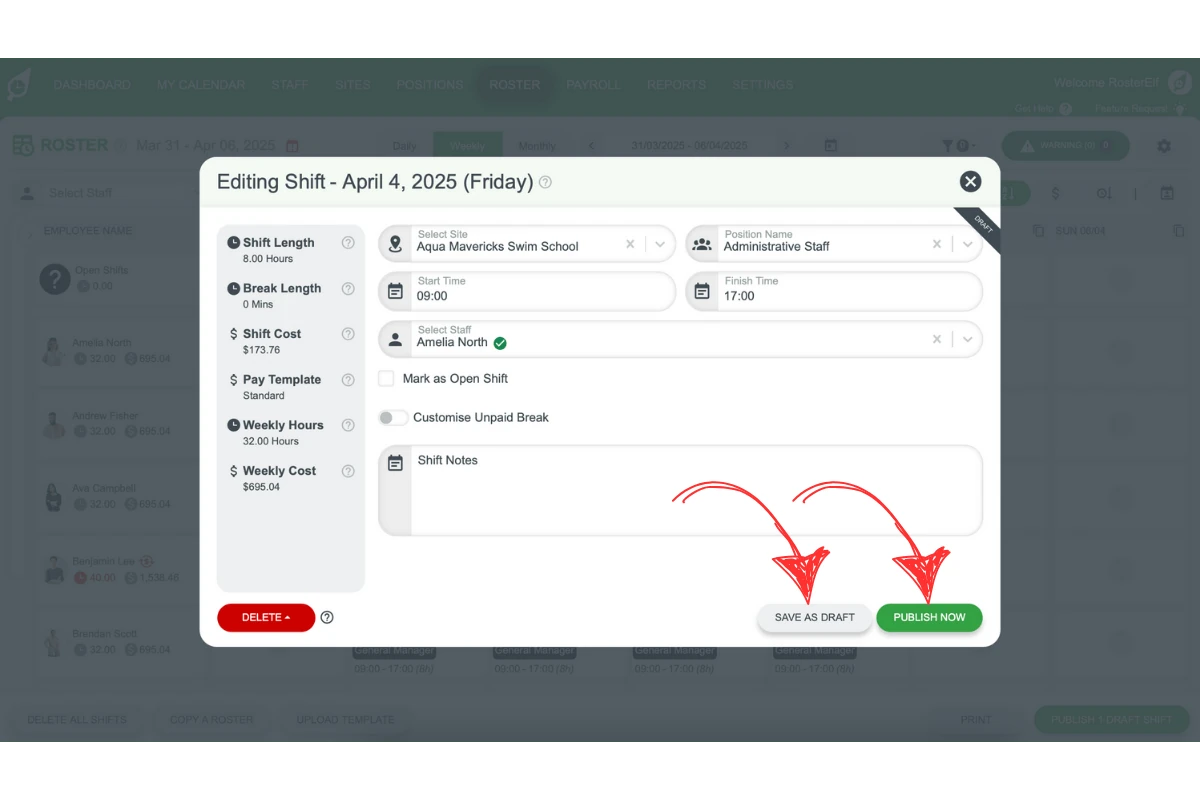
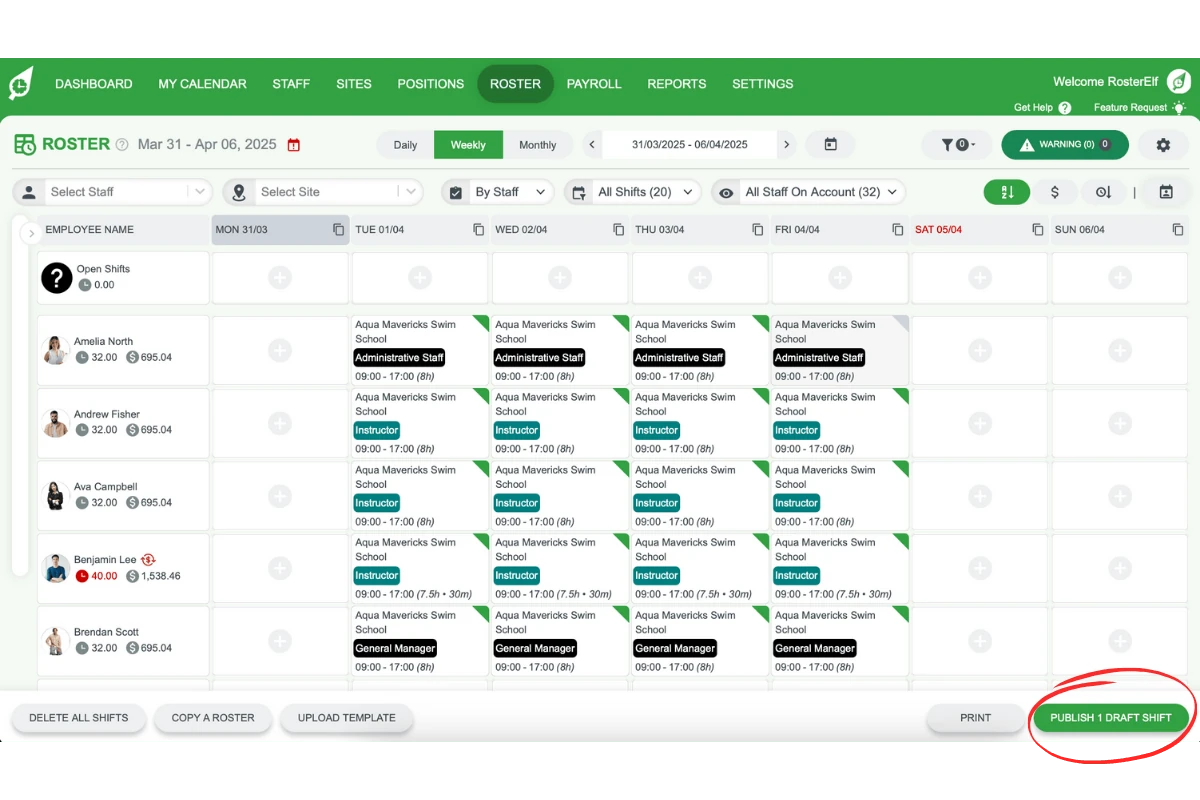
Note: To publish all shifts at once, save them as drafts and use the publish all drafts option in the roster to send one collective notification.
3.2 Published shifts
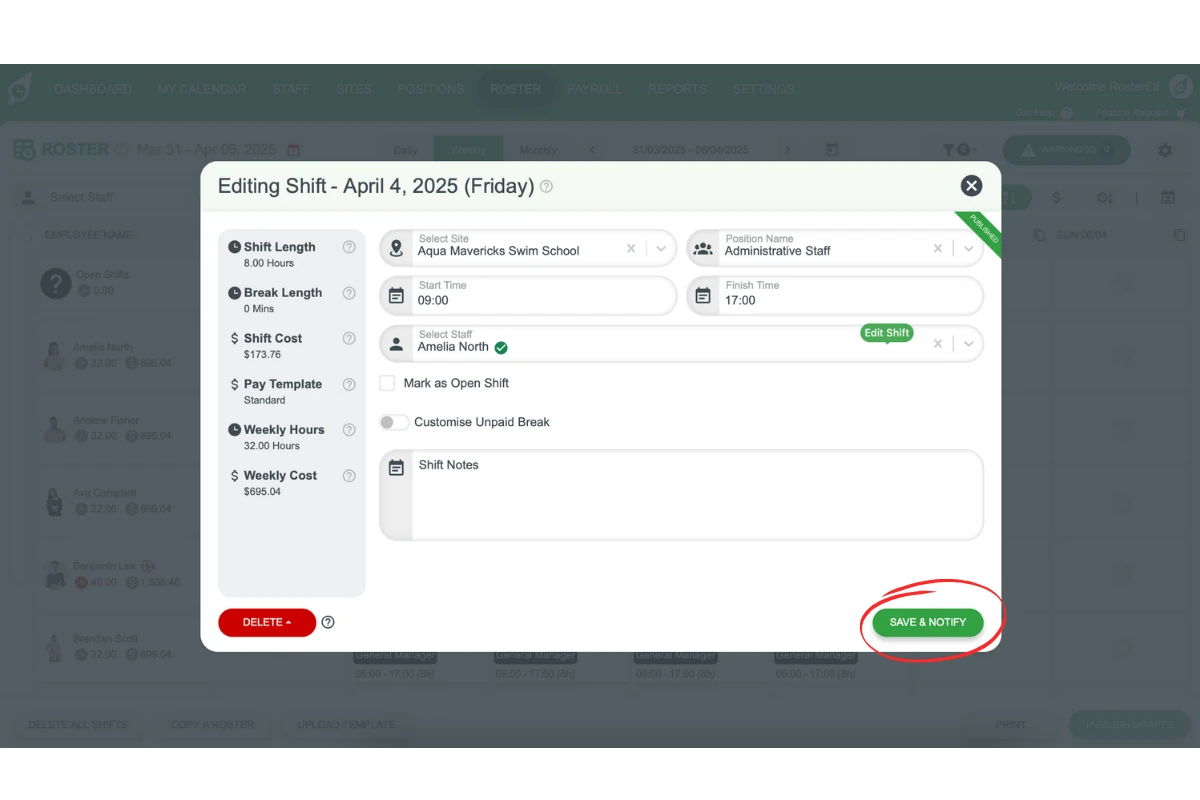
3.2.1 When editing a published shift, staff must be notified of any changes.
3.2.2 Click Save & Notify to alert staff to the modifications.
FAQs on editing shifts in RosterElf
1. How do I start editing a shift in RosterElf?
To edit a shift, simply hover over the desired shift in your roster and click the Edit button to access the editing options.
2. Can I edit a shift that’s already been published?
Yes, you can edit a published shift. However, be sure to use the Save & Notify option to alert staff about the changes.
3. What details can I update in the Edit Shift modal?
In the Edit Shift modal, you can modify shift start and end times, assigned staff, and any other relevant details. Ensure to save your changes once done.
4. How do I save a shift as a draft instead of publishing it immediately?
For draft shifts, you can save changes as drafts, allowing you to make further edits before publishing. You can also publish all drafts simultaneously using the publish all drafts option in the roster.
5. Can I edit shifts in the past?
Yes, past shifts can be edited if needed to ensure accurate records. Note that for a published past shift, you can update details like times or roles, but you can’t reassign it to a different staff member — see Manage and edit past rosters for the full rules. For adjustments to worked hours, use the payroll screen and leave a note for payroll adjustments.
6. Can I delete a shift in the RosterElf mobile app?
Yes, in the mobile app (iOS/Android) swipe left on the shift to display the delete button.