

This article explains how to create a leave position which you can apply to staff. By setting up a leave position, you can easily view the staff on leave by position. This ensures leave requests are properly tracked and assigned.
This is one of two ways to see leave on the roster. The other is the availability and leave overlay, which you switch on with the Availability button rather than setting up in advance — use whichever suits how you work.
You can use the same approach to track other non-working time — see manage paid breaks in RosterElf for a paid-break position set up the same way.
1. Log into RosterElf
To create a leave position, you must first log into your RosterElf account. Follow these steps to access your dashboard.
1.1 open RosterElf and sign in
1.1.1. Go to the RosterElf website.
1.1.2. Click on Login in the top-right corner.
1.1.3. Enter your email address and password.
1.1.4. Click Login to access your account.
2. Add a leave position
Once you’re logged in, you can create a leave position and choose its staff in the same form, then save it.
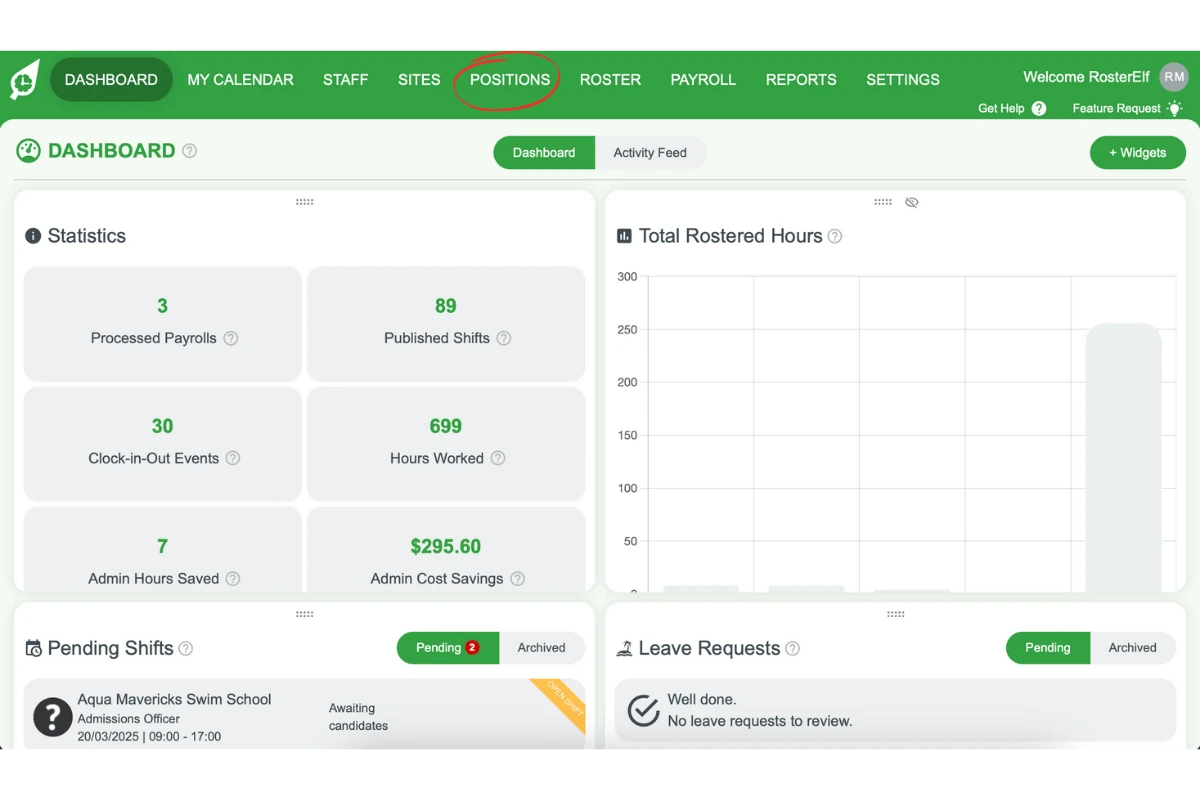
2.1 open the positions tab
2.1.1. Click on the Positions tab in the main menu.
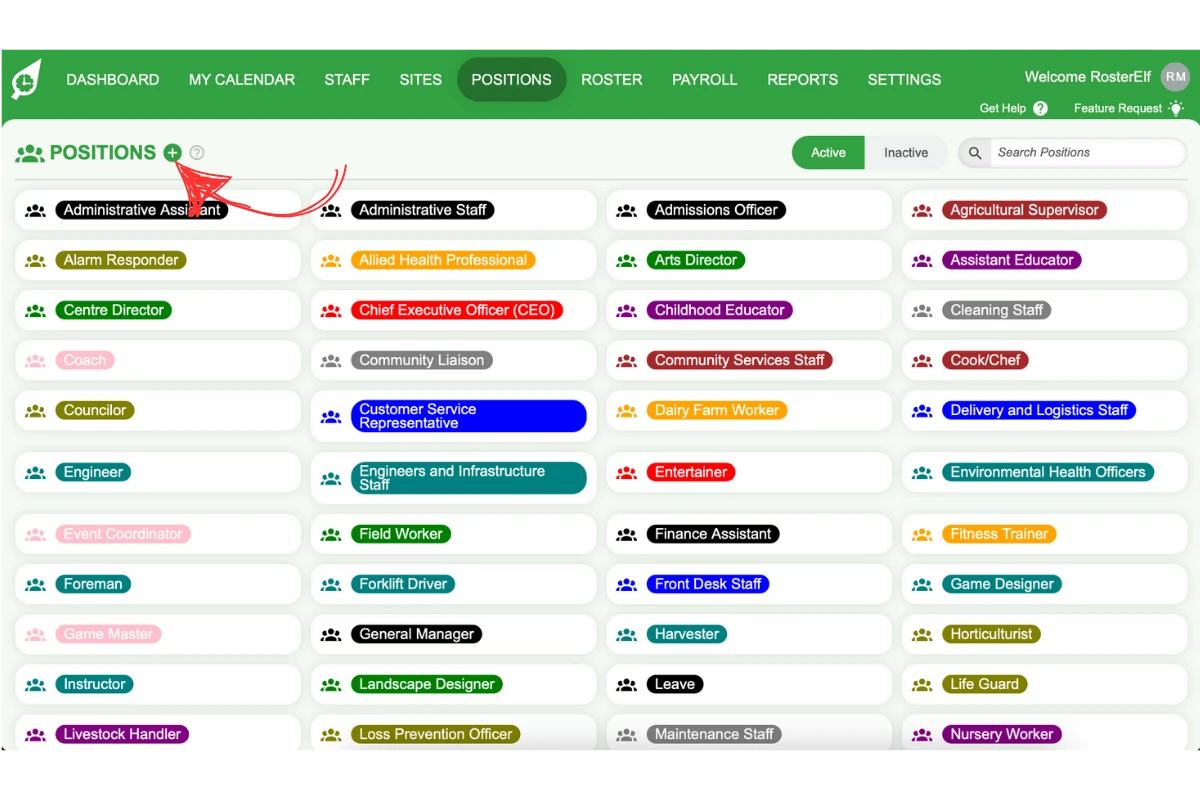
2.2 create a new position
2.2.1. Click the + (plus) symbol to add a new position.
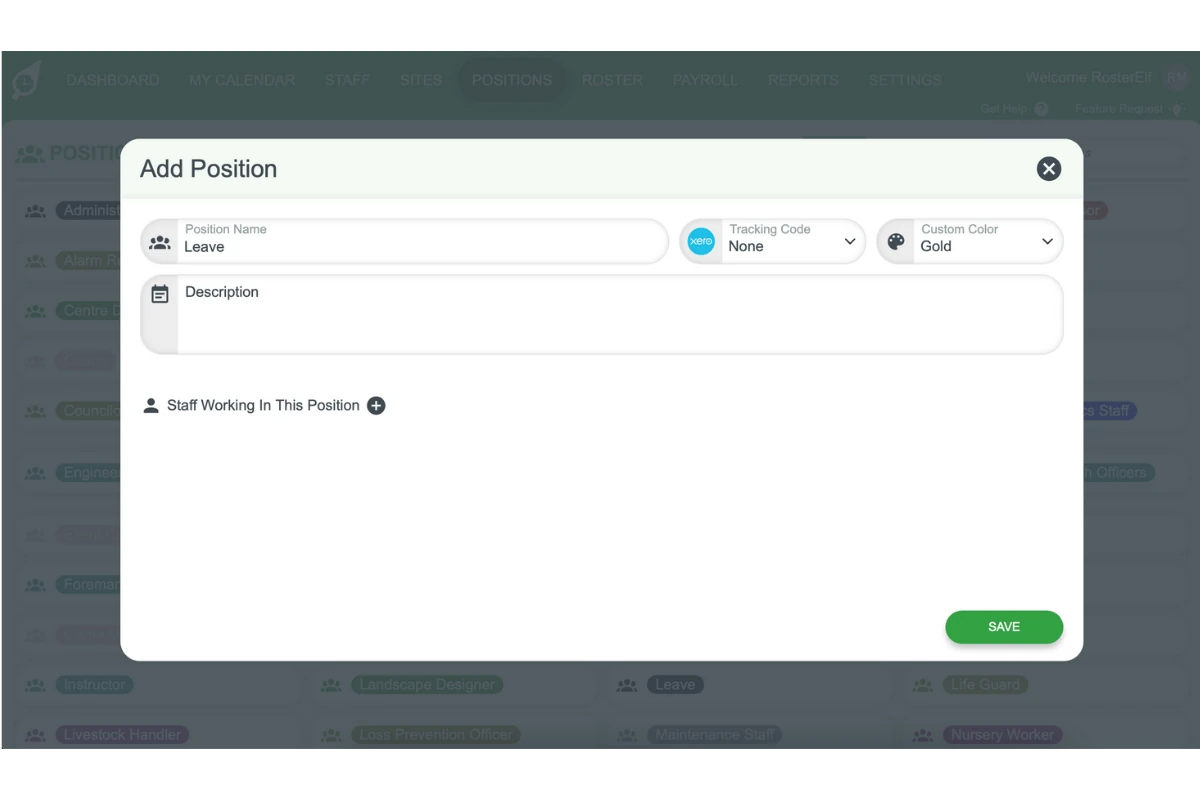
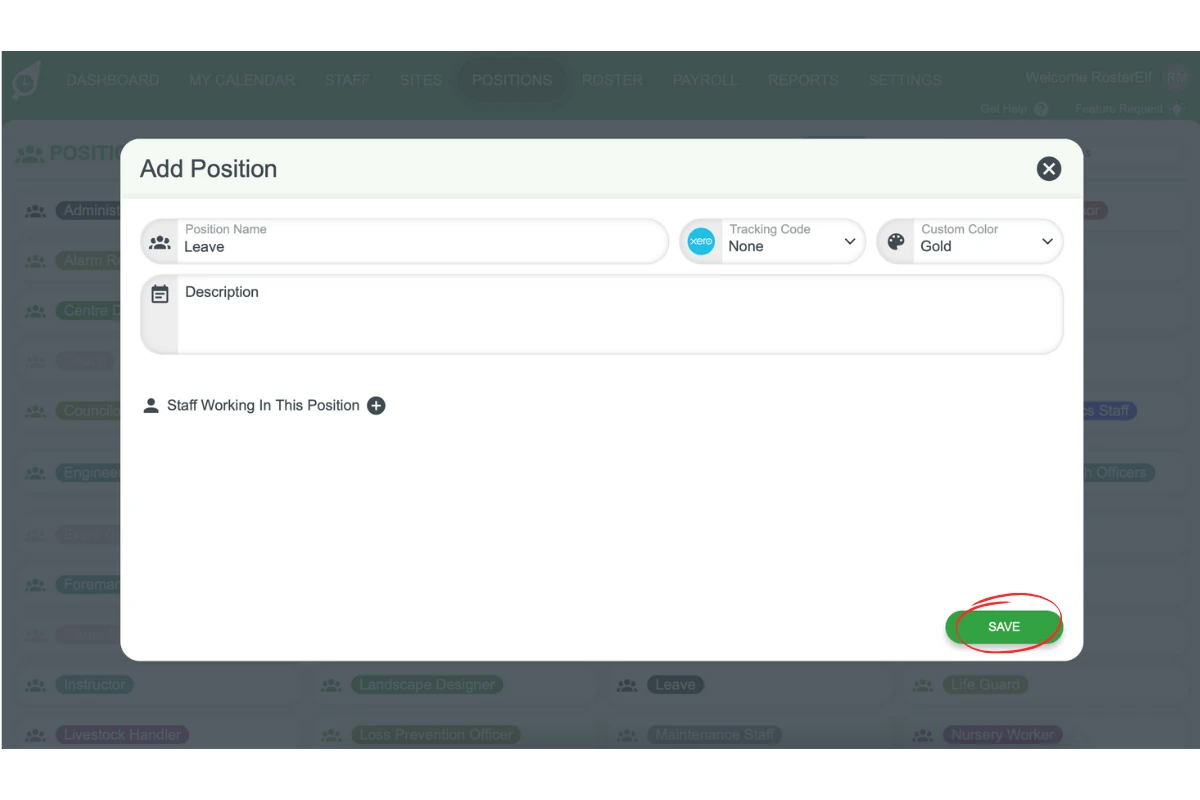
2.2.2. Enter Leave as the Position Name and choose a colour from Custom Color.
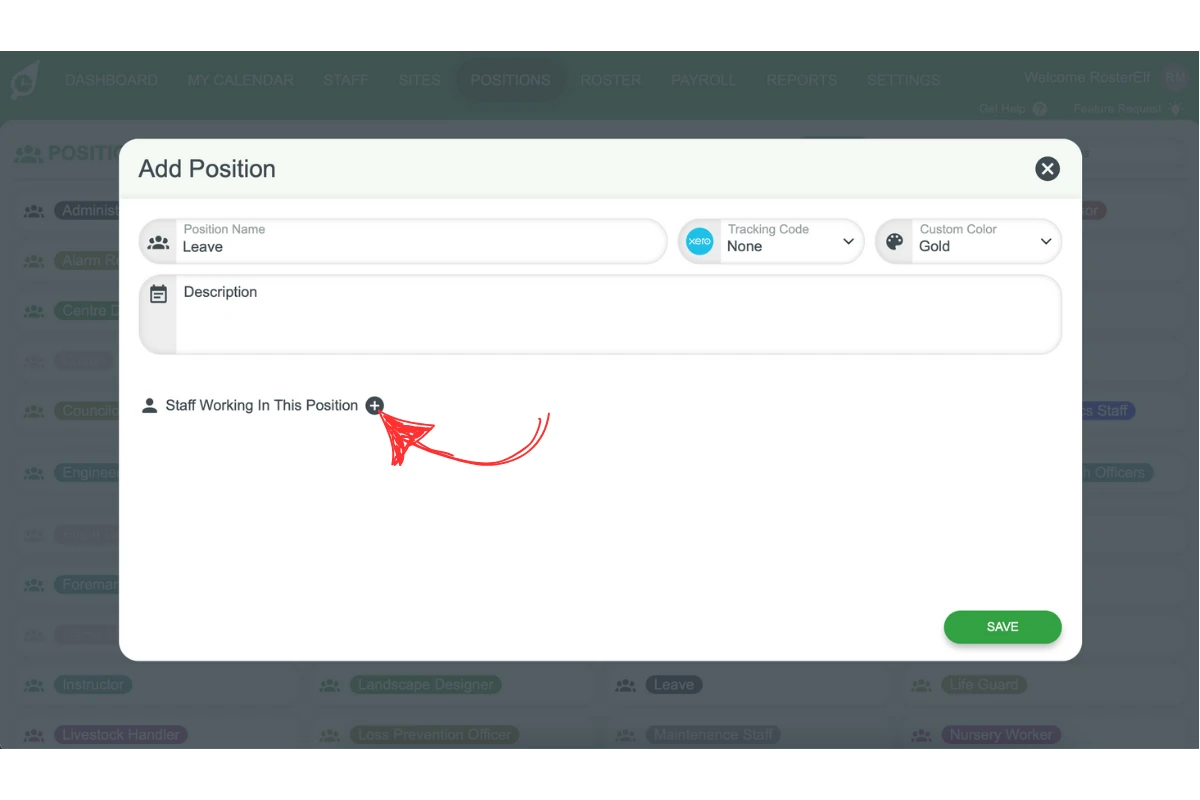
2.3 assign staff to the leave position
2.3.1. Before saving, click the + beside Staff Working In This Position in the same form.
2.3.2. Select the staff for the leave position.
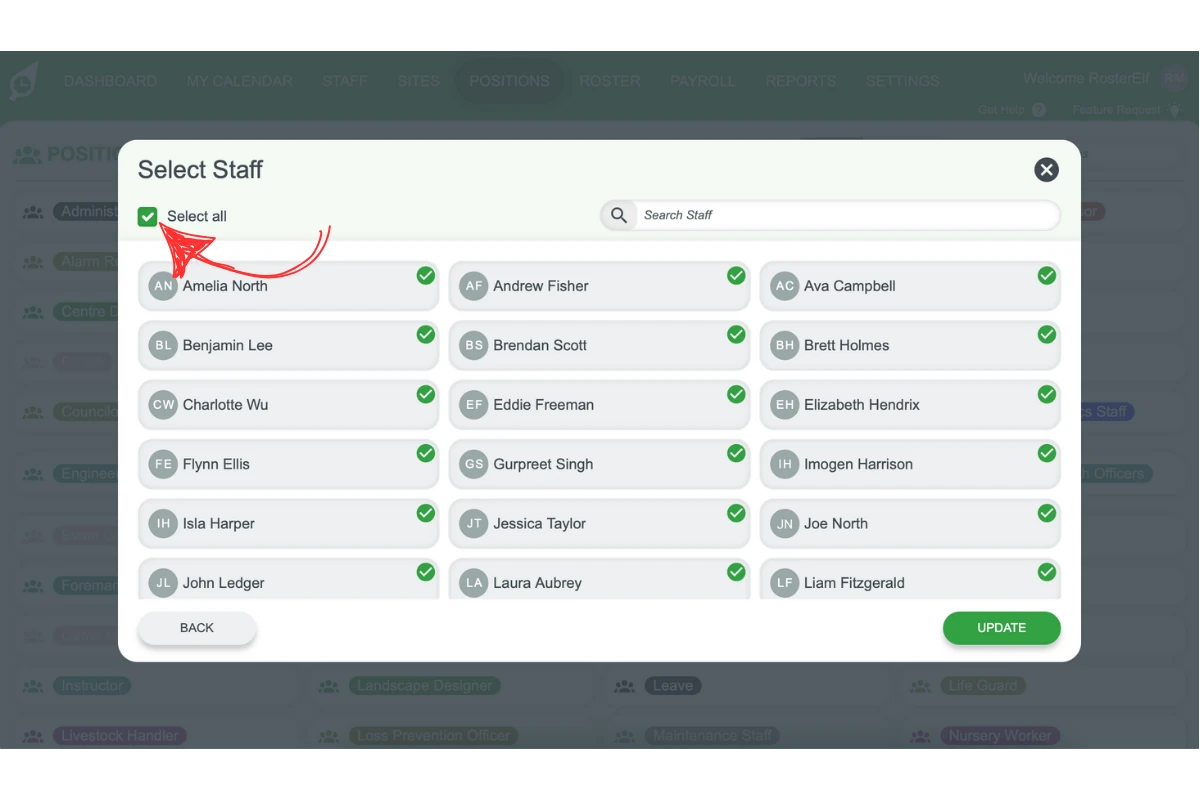
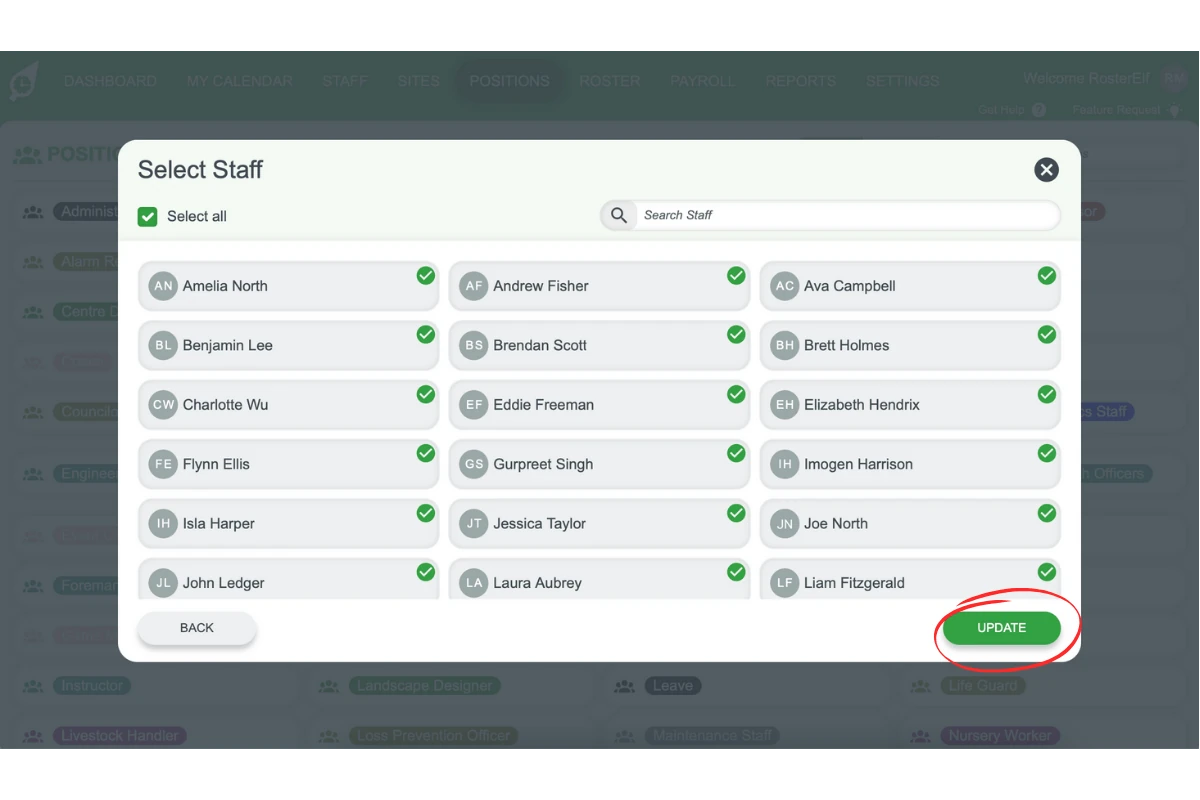
2.3.3. Press UPDATE to return to the form.
2.3.4. Click SAVE to create the leave position.
Frequently asked questions
1. How do I add a leave position in RosterElf?
Click POSITIONS in the top menu, click the + to add a new position, give it a name like ‘Annual Leave’ or ‘Sick Leave’, choose the staff under Staff Working In This Position, then click SAVE. You can then assign this position to shifts to track leave on your roster.
2. Can I create different types of leave positions?
Yes. You can create multiple leave positions such as Annual Leave, Sick Leave, Personal Leave, or any other leave type your organisation uses.
3. Will leave positions appear in reports?
Yes. Leave positions will appear in roster reports and can be filtered separately to track leave usage across your team.
4. How do I assign a leave position to a staff member?
When creating or editing a shift, select the leave position from the position dropdown menu instead of a regular work position.
5. Can I set pay rates for leave positions?
No. A position has no pay rate settings. Pay is calculated from the pay templates assigned to each staff member, so leave pay is handled through pay templates and payroll rather than the position.