

This article explains how to bulk remove shifts before archiving a staff member in RosterElf. If a staff member has shifts on the roster, you need to clear them first. Removing these shifts ensures they don’t appear in future rosters and avoids confusion for managers. By following this guide, you will learn how to reactivate the staff member, remove their shifts in bulk, and then archive them again. This process keeps your roster clean, accurate, and ready for scheduling active staff only.
1. Reactivate staff member
To remove shifts, you must first reactivate the staff member. This allows you to access and manage their future shifts. Once reactivated, you can adjust the roster before archiving them again.
1.1 Open staff tab
1.1.1 Log in to RosterElf.
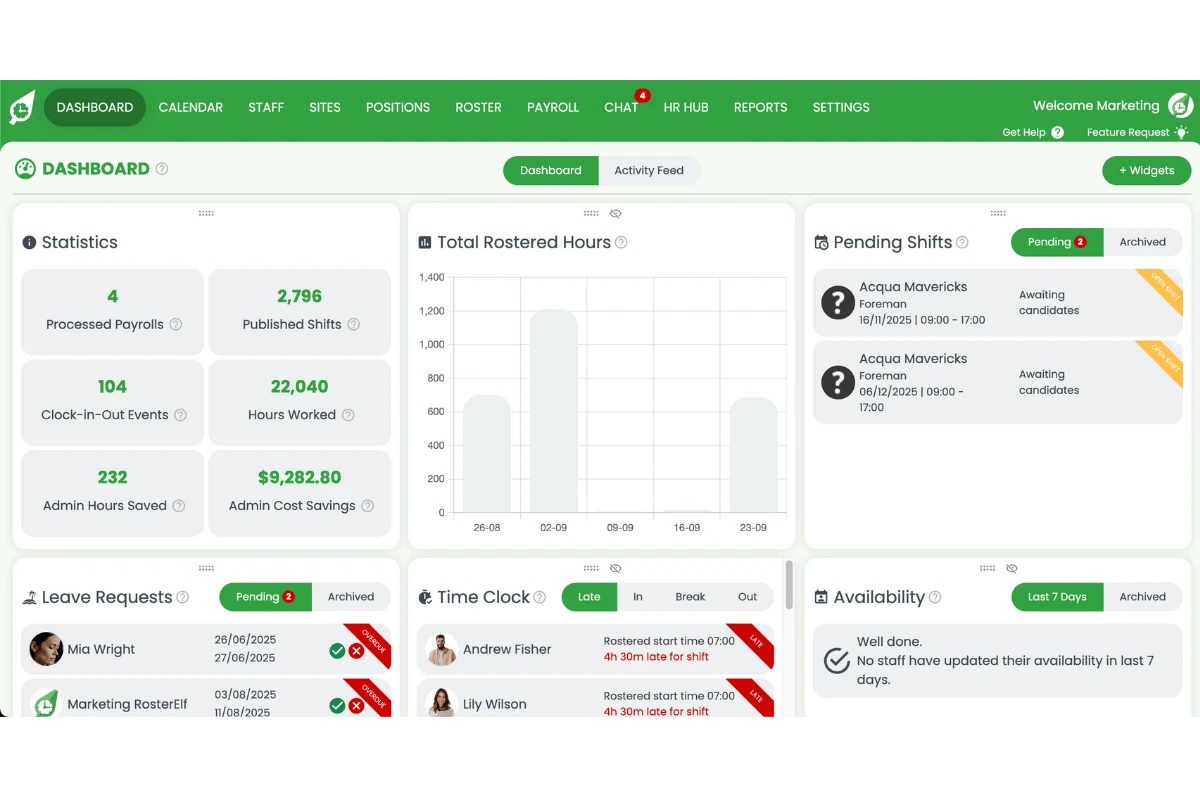
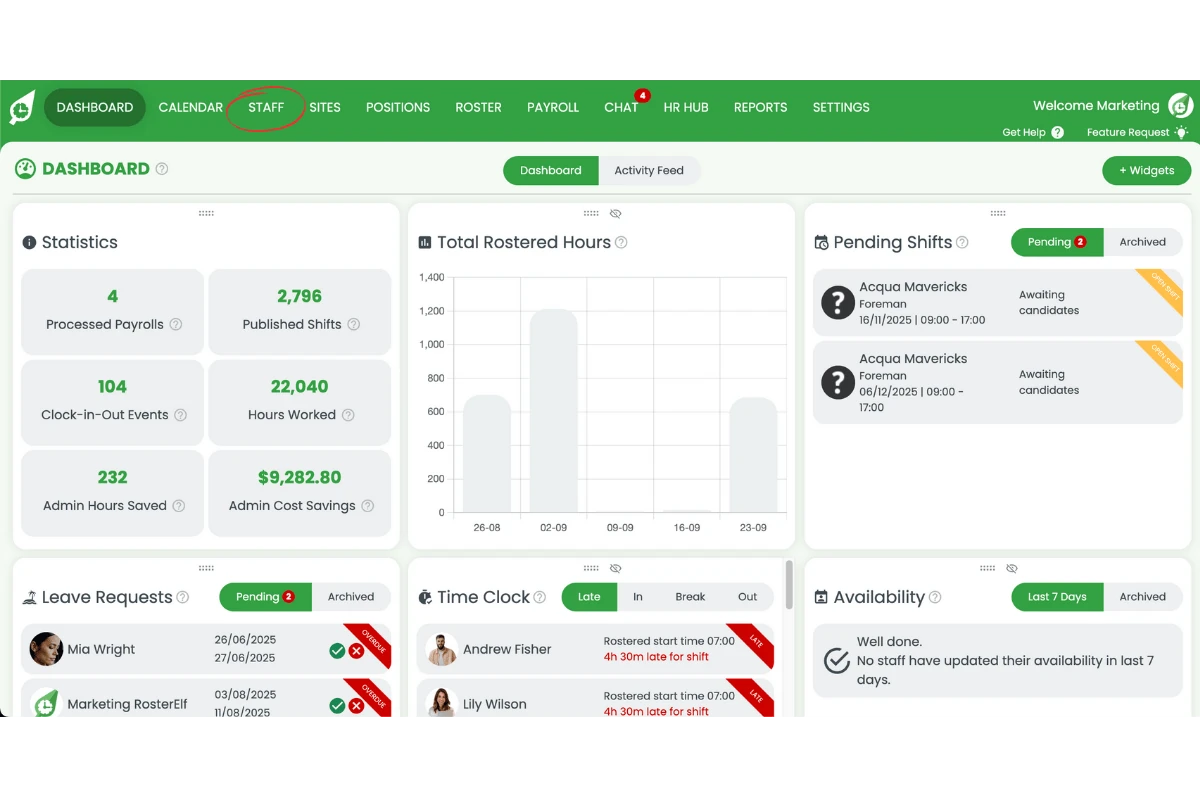
1.1.2 Go to the Staff tab.
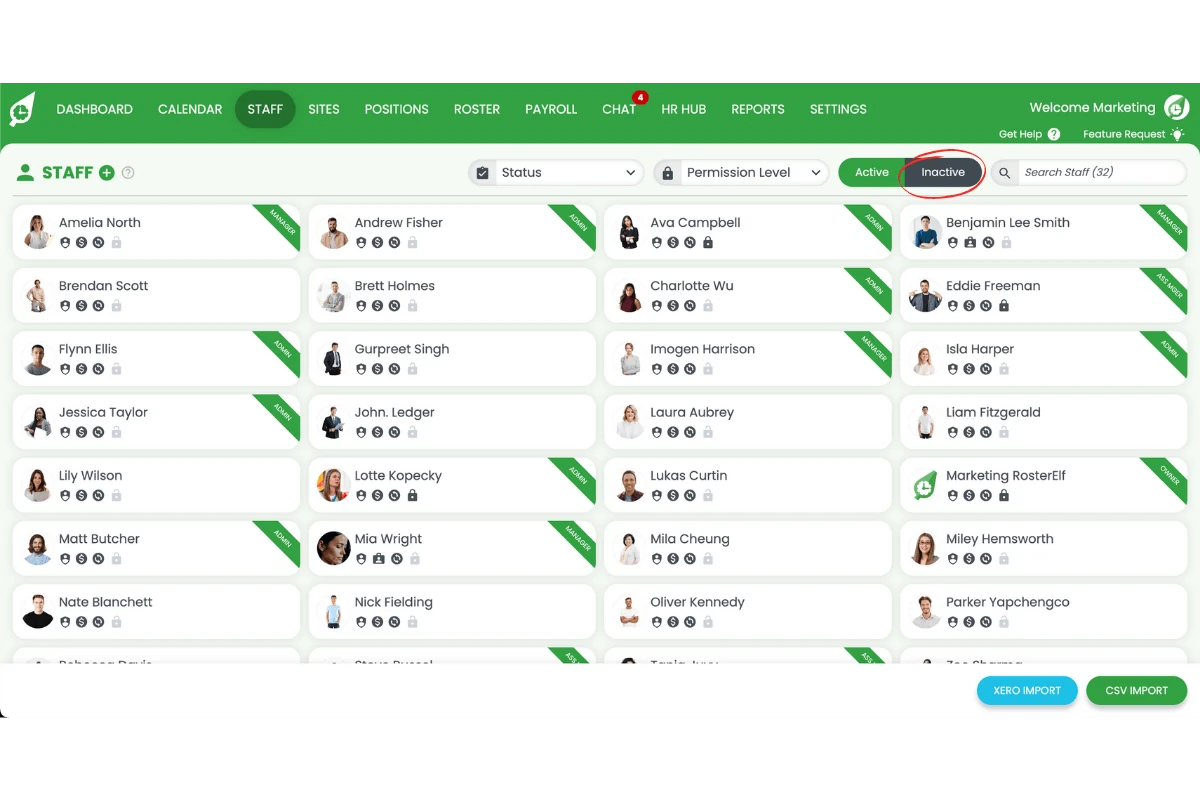
1.1.3 Press Inactive.
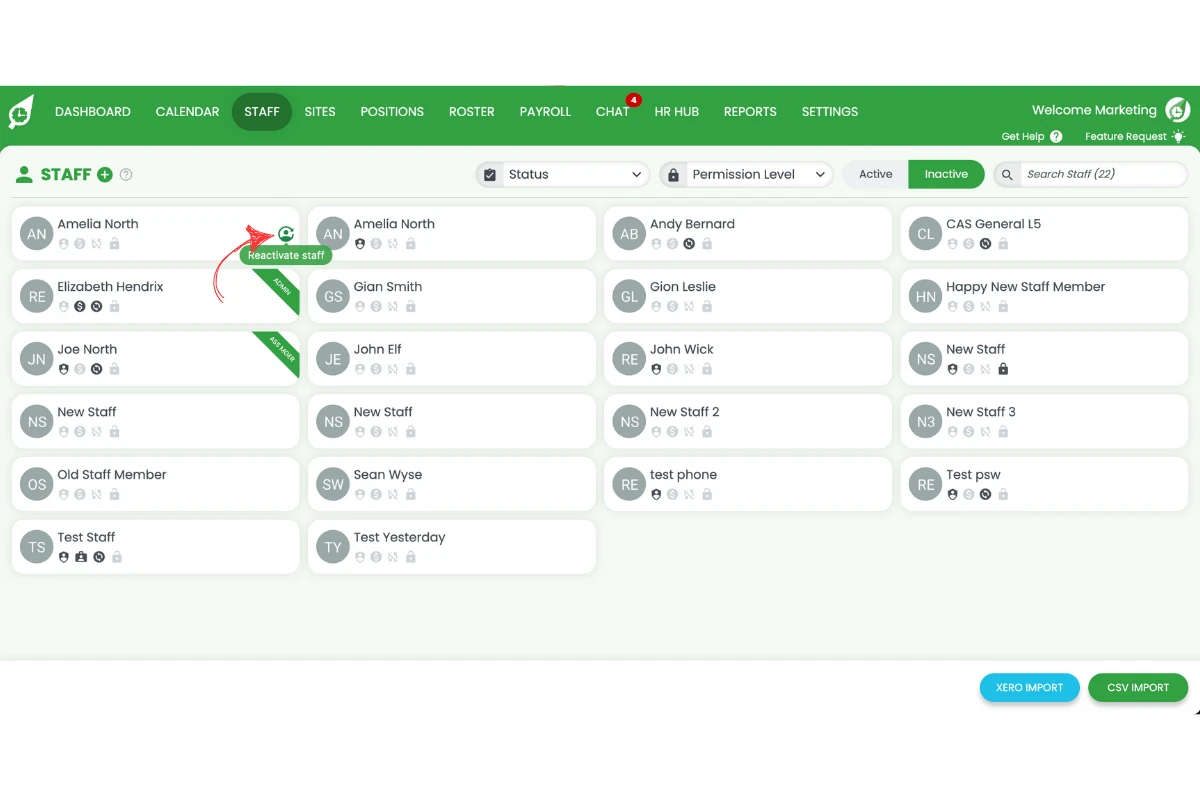
1.1.4 Press Reactivate on the staff member.
2. Remove future shifts
Once the staff member is active, you can bulk remove their shifts from the roster. Deleting future shifts ensures they won’t appear in upcoming schedules or reports.
2.1 Delete all future shifts
2.1.1 Go to the Roster.
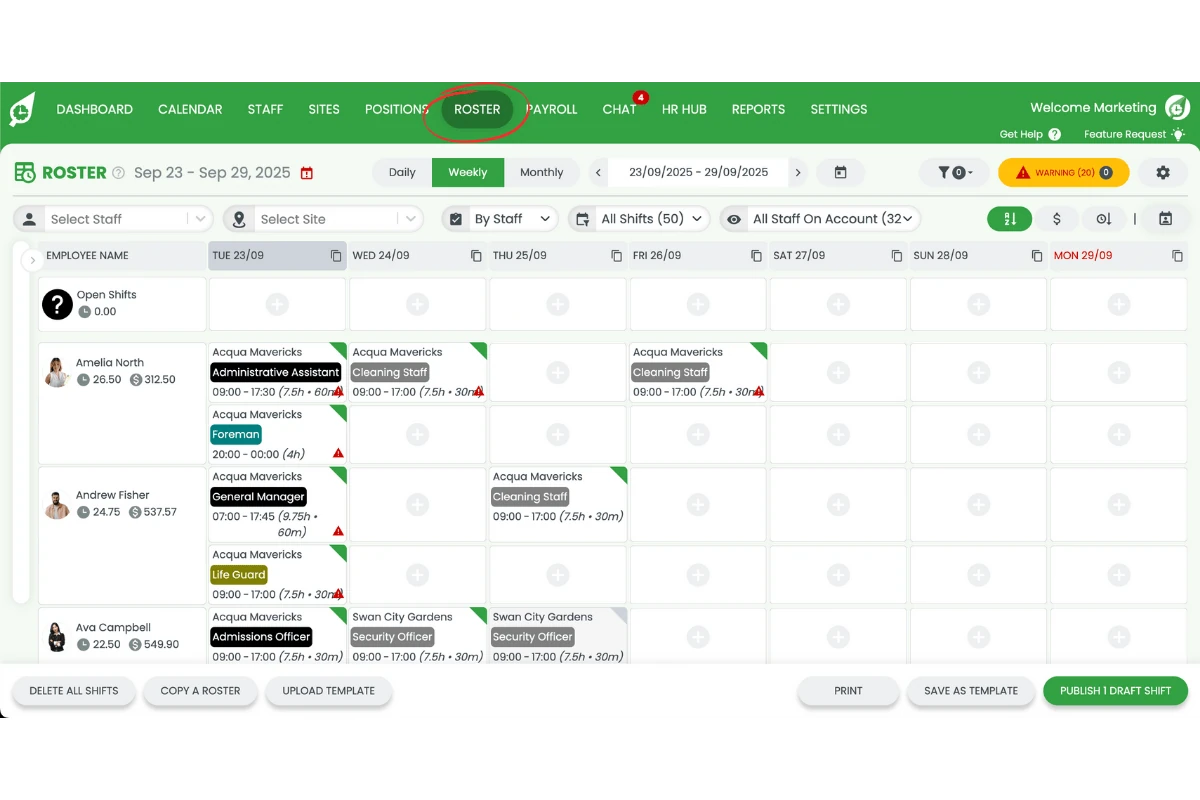
2.1.2 Locate the staff member’s next shift.
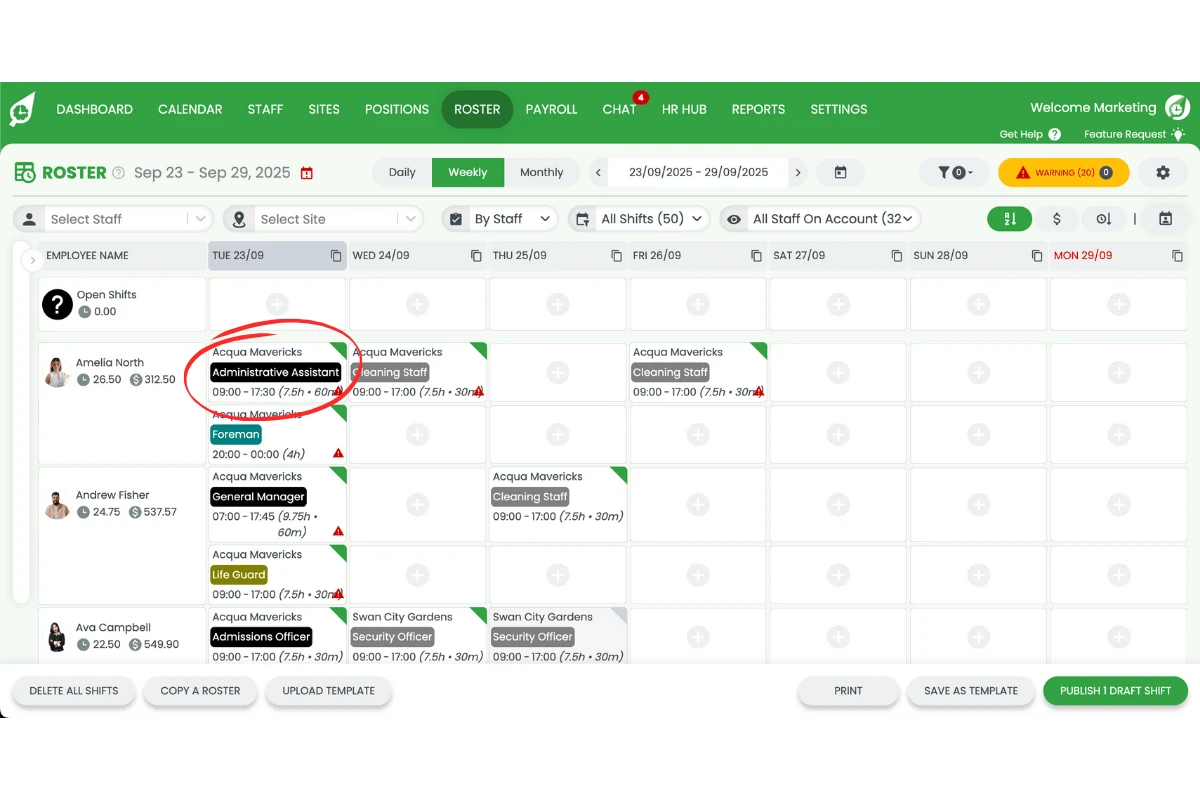
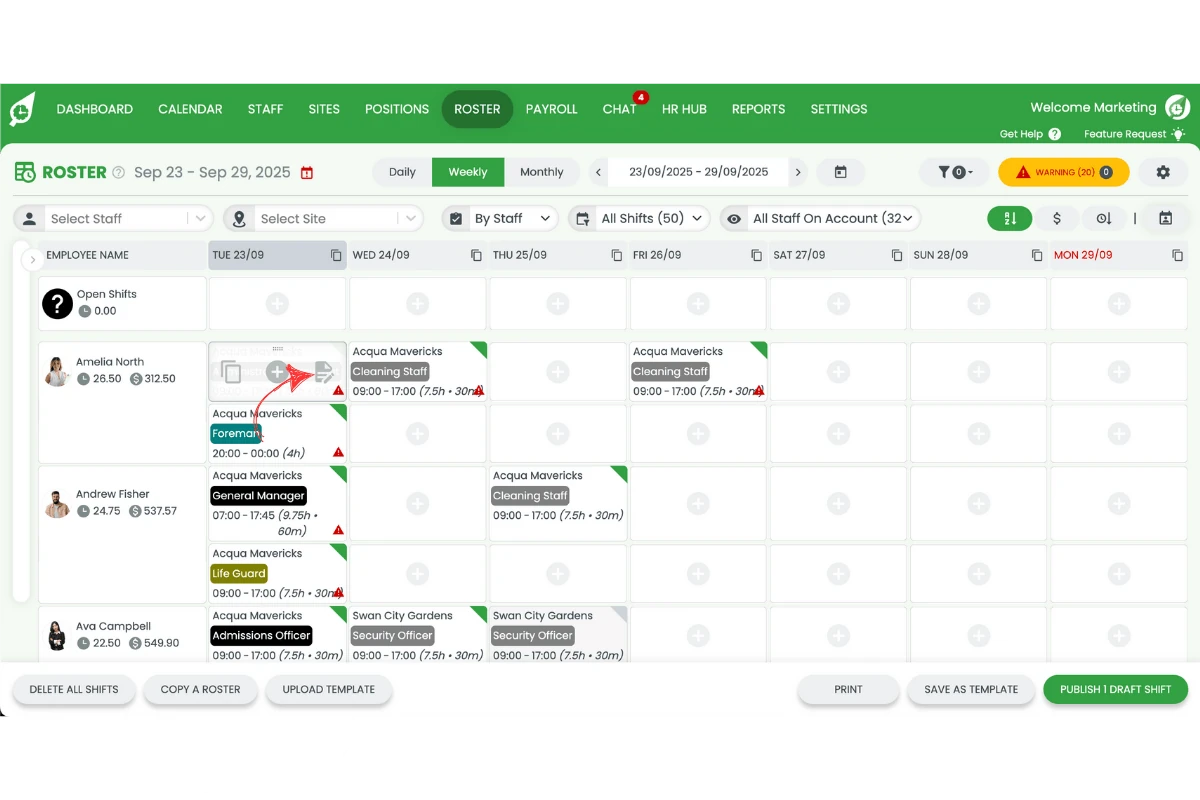
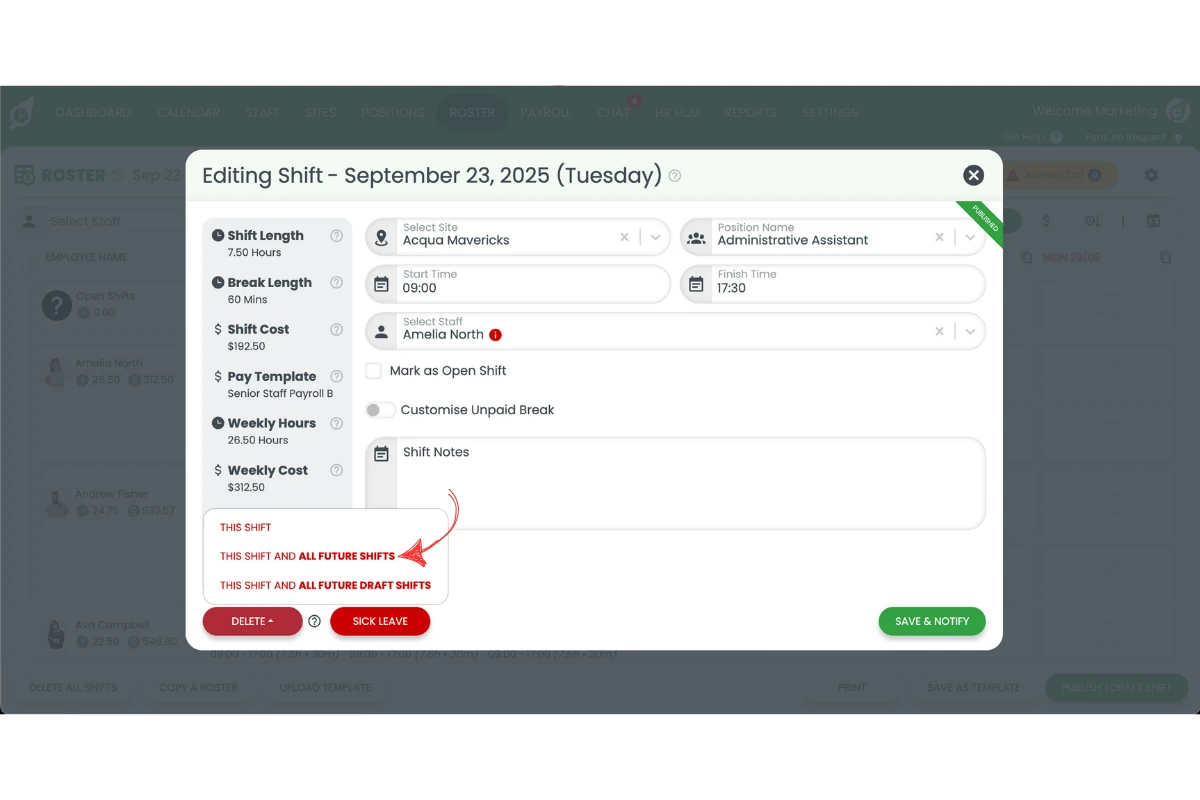
2.1.3 Press Edit.
2.1.4 Select Delete.
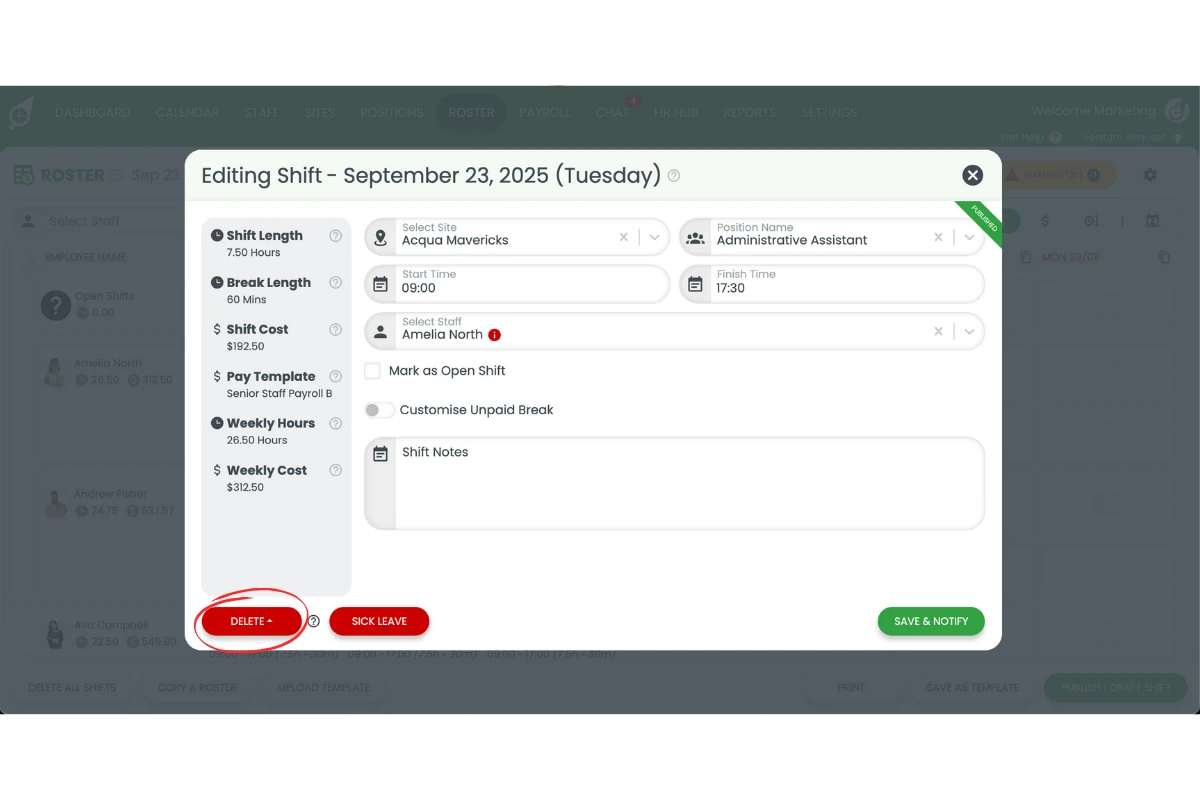
2.1.5 Choose This shift and all future shifts.
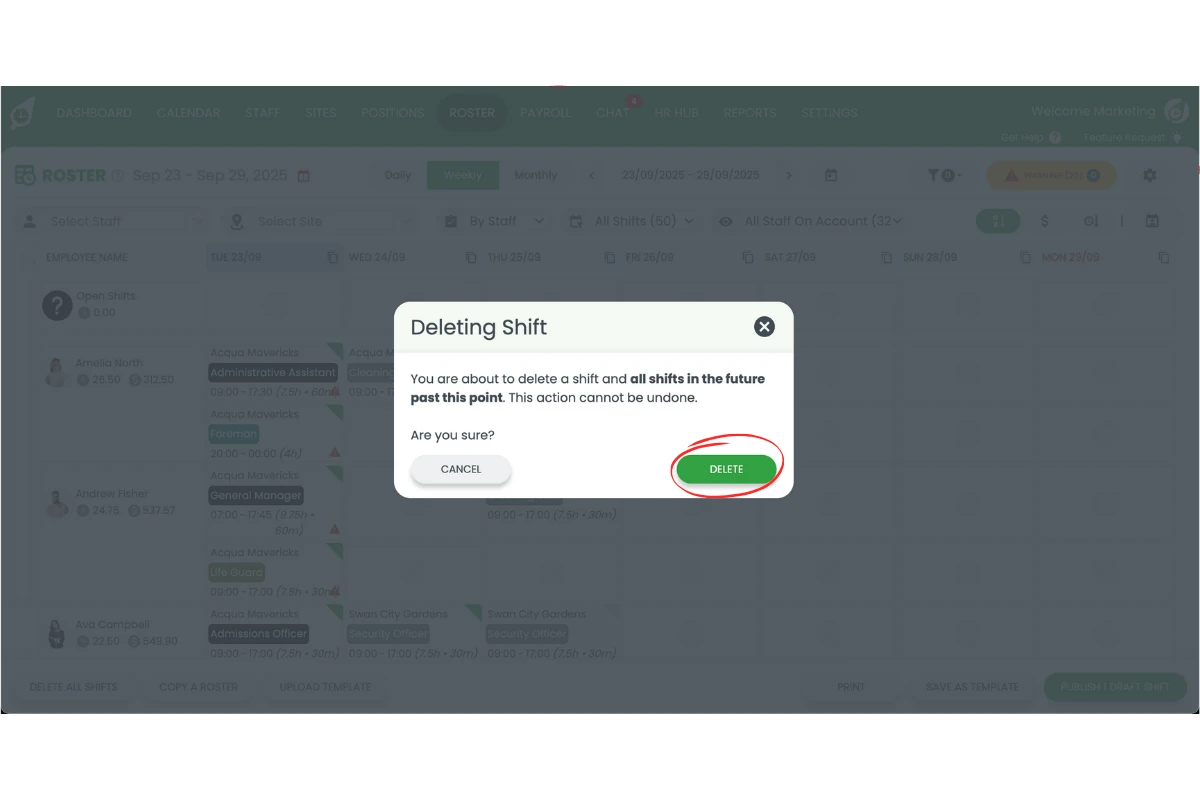
2.1.6 Press Delete.
3. Archive staff member
With all shifts cleared, you can safely archive the staff member. Archiving removes them from the active list while keeping their records for future reference.
H3: 3.1 Final archive
3.1.1 Go back to the Staff tab.
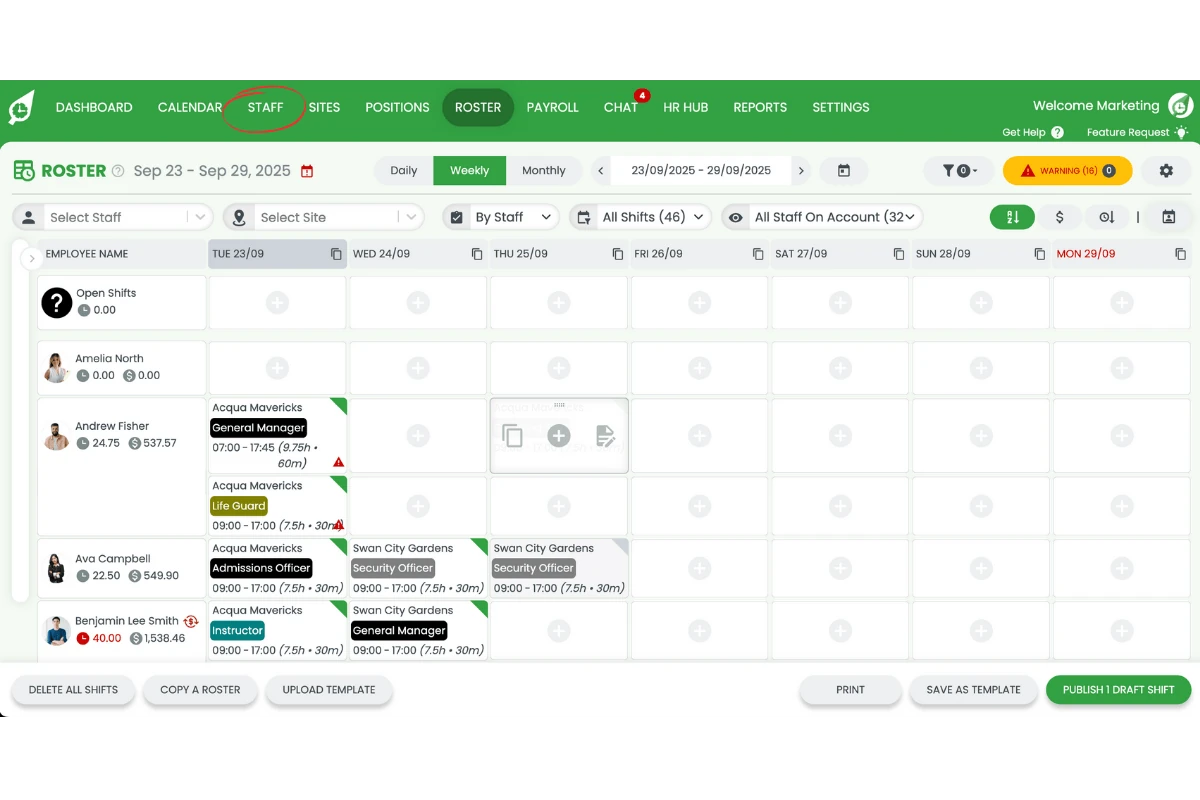
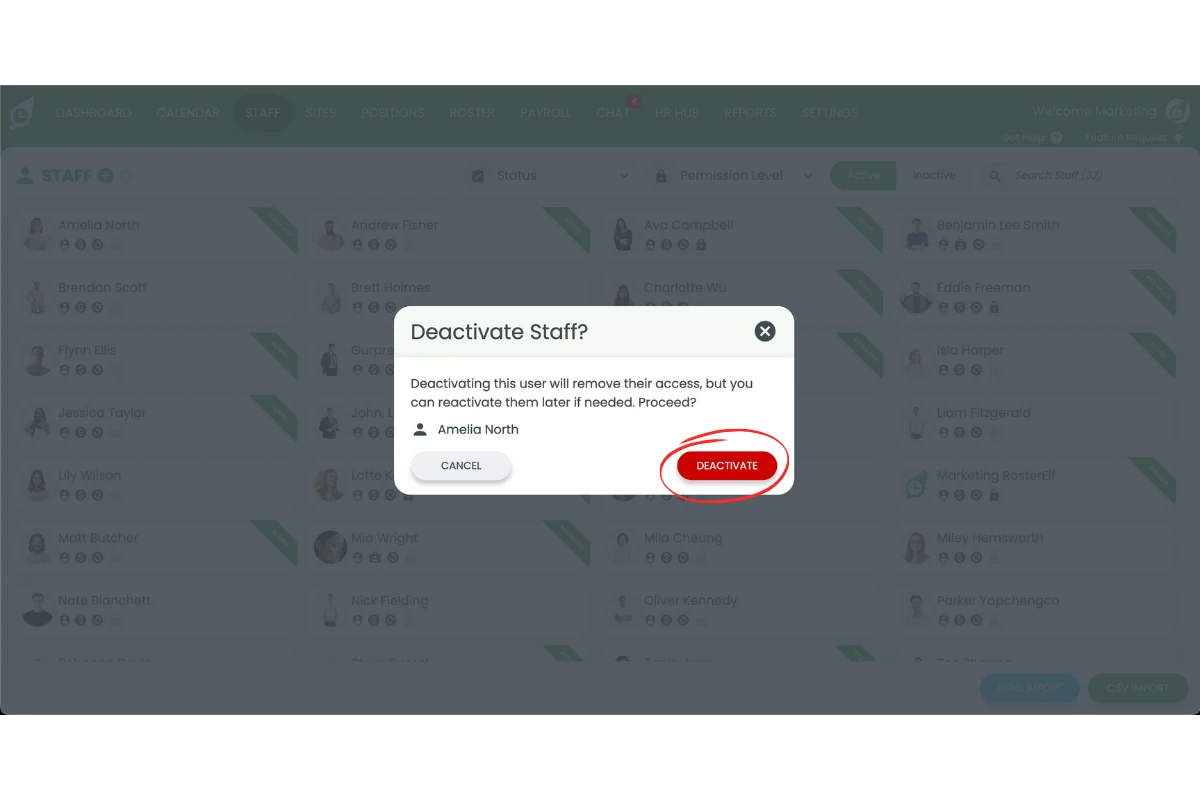
3.1.2 Press X to re-archive the staff member.
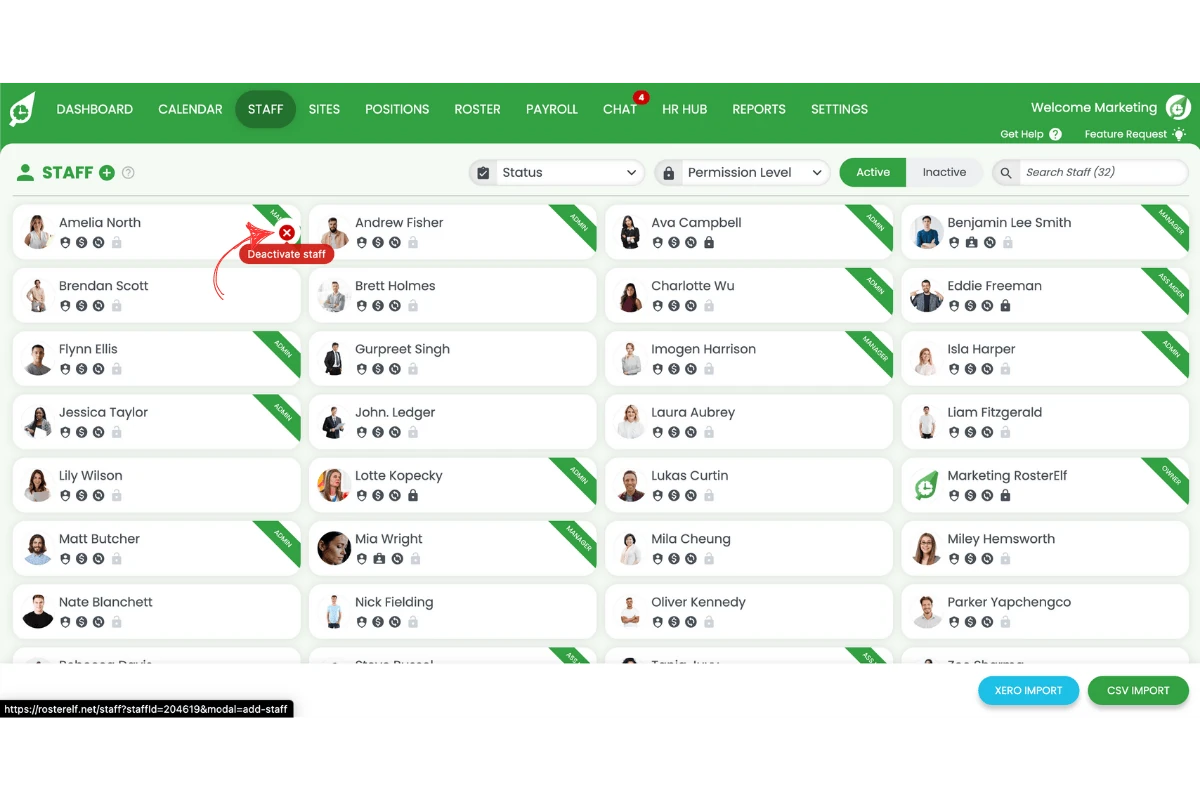
3.1.3 Press deactivate to confirm.
1: Why should I bulk remove shifts before archiving staff in RosterElf?
You should bulk remove shifts before archiving staff to prevent their shifts from appearing in future rosters or reports. This keeps your roster accurate and avoids confusion for managers.
2: Can I remove all future shifts for a staff member at once in RosterElf?
Yes. You can delete all future shifts in one step by selecting This shift and all future shifts when editing their roster entry.
3: What happens if I archive a staff member without removing their shifts first?
If you archive a staff member without removing their shifts, those shifts may still appear in the roster. This can cause errors and confusion when scheduling.
4: Do I lose staff records when I archive them in RosterElf?
No. Archiving only removes the staff member from your active list. Their records remain saved for future reference.
5: Can I reactivate a staff member after archiving them in RosterElf?
Yes. You can reactivate an archived staff member at any time by going to the Staff tab, selecting Inactive, and pressing Reactivate.
Frequently asked questions
1. How do I bulk remove shifts for a staff member before archiving?
Navigate to the Roster tab, apply filters to show only the staff member’s shifts, then use the Delete All Shifts option to remove all visible shifts for that staff member.
2. Can I delete only future shifts for a staff member?
Yes. Filter the roster to show future dates and the specific staff member, then use Delete All Shifts to remove only upcoming shifts.
3. Will deleting shifts notify the staff member?
Yes. If you delete published shifts, the affected staff member will receive a notification about the deletion.
4. Can I recover deleted shifts?
No. Once shifts are deleted, they cannot be recovered. Ensure you have selected the correct filters before confirming deletion.
5. Why should I remove shifts before archiving a staff member?
Removing future shifts ensures the archived staff member is not scheduled for any upcoming work. This prevents confusion and keeps your roster accurate.