

Deleting shifts on the roster allows you to manage your scheduling effectively by removing unnecessary shifts. This article provides step-by-step instructions on deleting single or multiple shifts, including options for deleting future shifts. By following this guide, you’ll have a clear understanding of how to delete shifts for individual staff or in specific periods, helping you streamline the roster and ensure only relevant shifts remain. Remember, deleting a shift cannot be undone, so proceed carefully.
1. Options for deleting shifts on the roster
To delete shifts on the roster, first navigate to the Roster tab in the app. Below are different methods for deleting shifts, covering individual shifts, shifts within a specific period, and shifts for a specific staff member.
2. Deleting shifts in a roster period
In this section, you’ll learn how to delete all shifts within a specific roster period—daily, weekly, or monthly. You can delete all draft shifts, published shifts, or both. This feature is especially useful for managing shifts across entire scheduling periods.
2.1. Steps to delete all shifts in a period
2.1.1 Click the Delete All Shifts button at the bottom left of your screen.
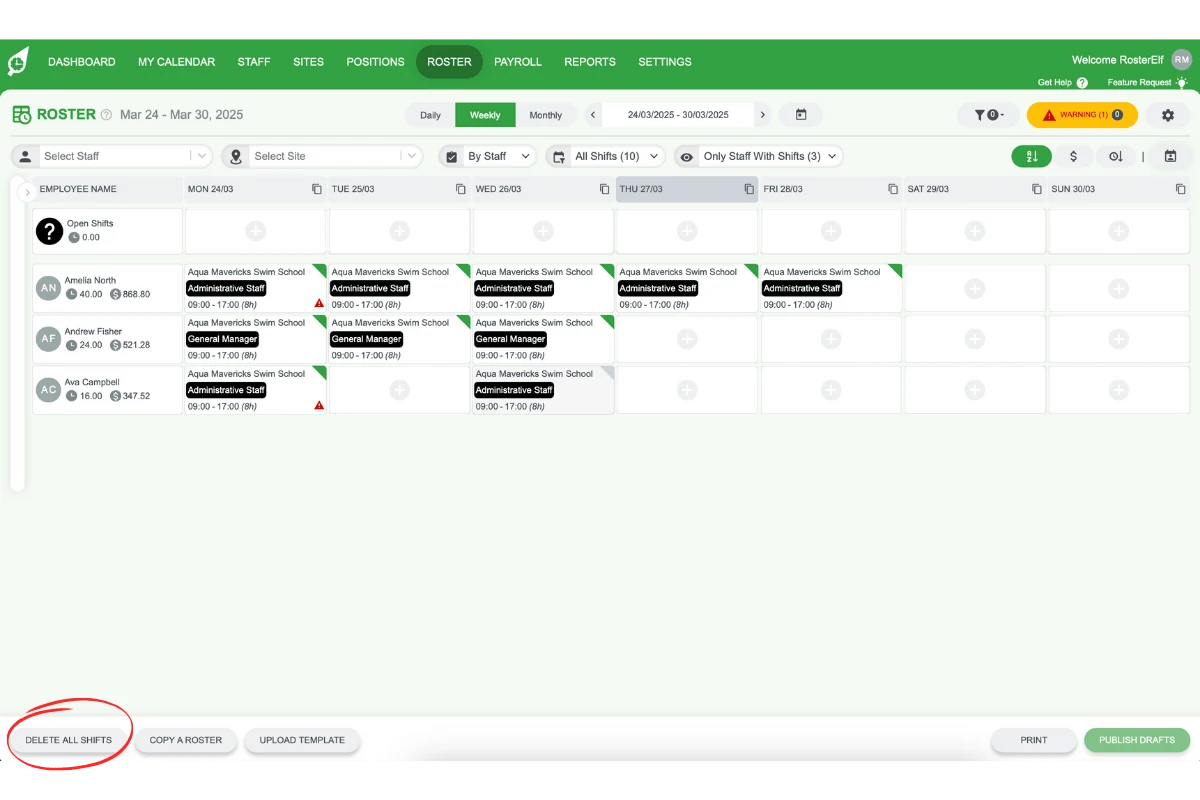
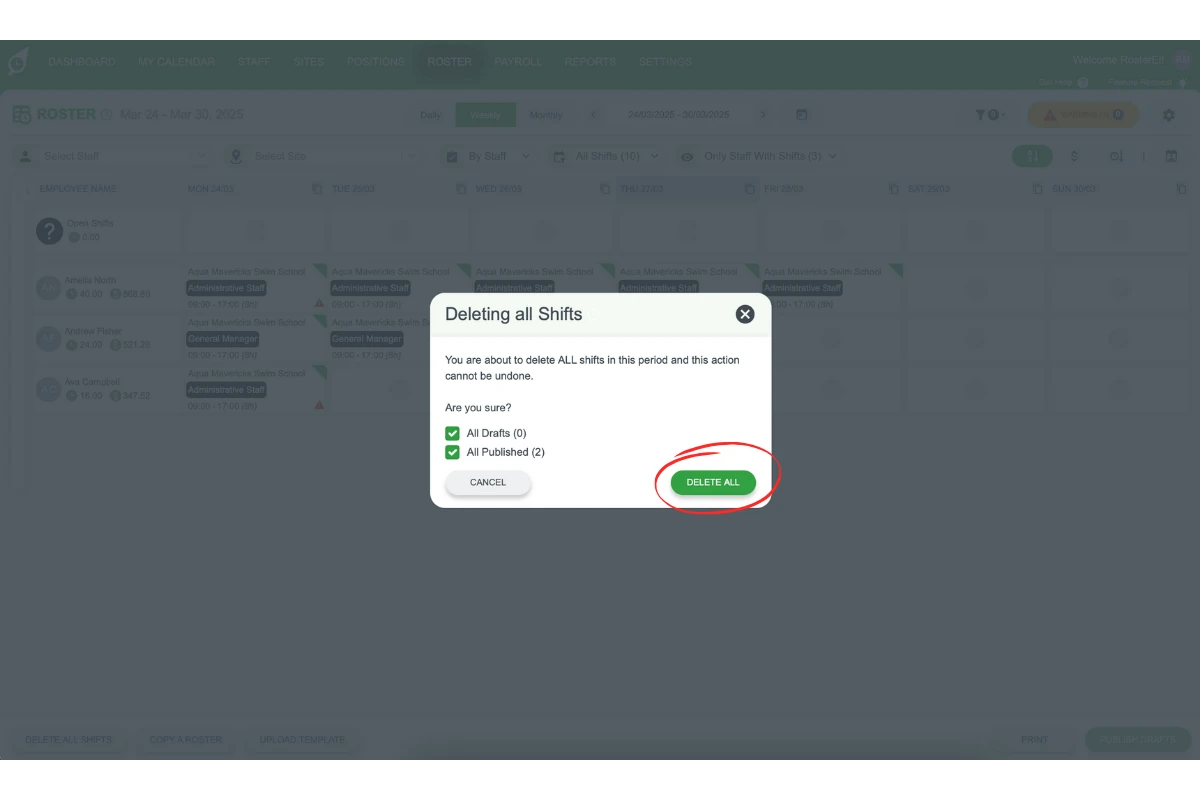
2.1.2 Choose to delete All Draft Shifts, All Published Shifts, or both.
2.1.3 Warning: Deleted shifts cannot be recovered. Click Delete All to confirm, based on your selected options. Staff will be notified if a published shift is deleted.
3. Deleting shifts for individual staff members
This section explains how to delete shifts for a specific staff member. You can delete only the selected shift, all future shifts, or all future draft shifts for that staff member. This option is helpful when adjusting shifts for individual staff without affecting the entire roster.
3.1. Steps to delete shifts in the Editing Shift window
3.1.1 Hover over the shift you want to delete and select Edit Shift.
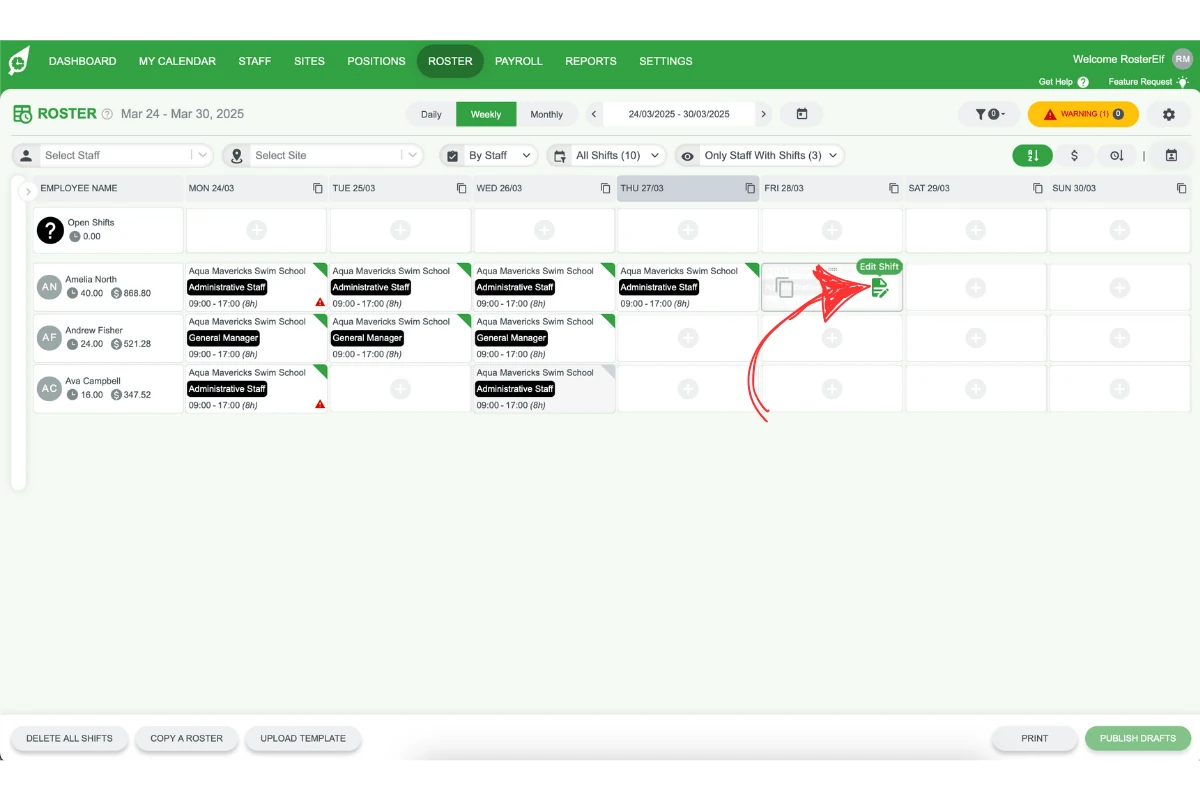
3.1.2 In the Editing Shift window, click DELETE at the bottom left and choose This Shift, This Shift and All Future Shifts or This Shift and All Future Draft Shifts.
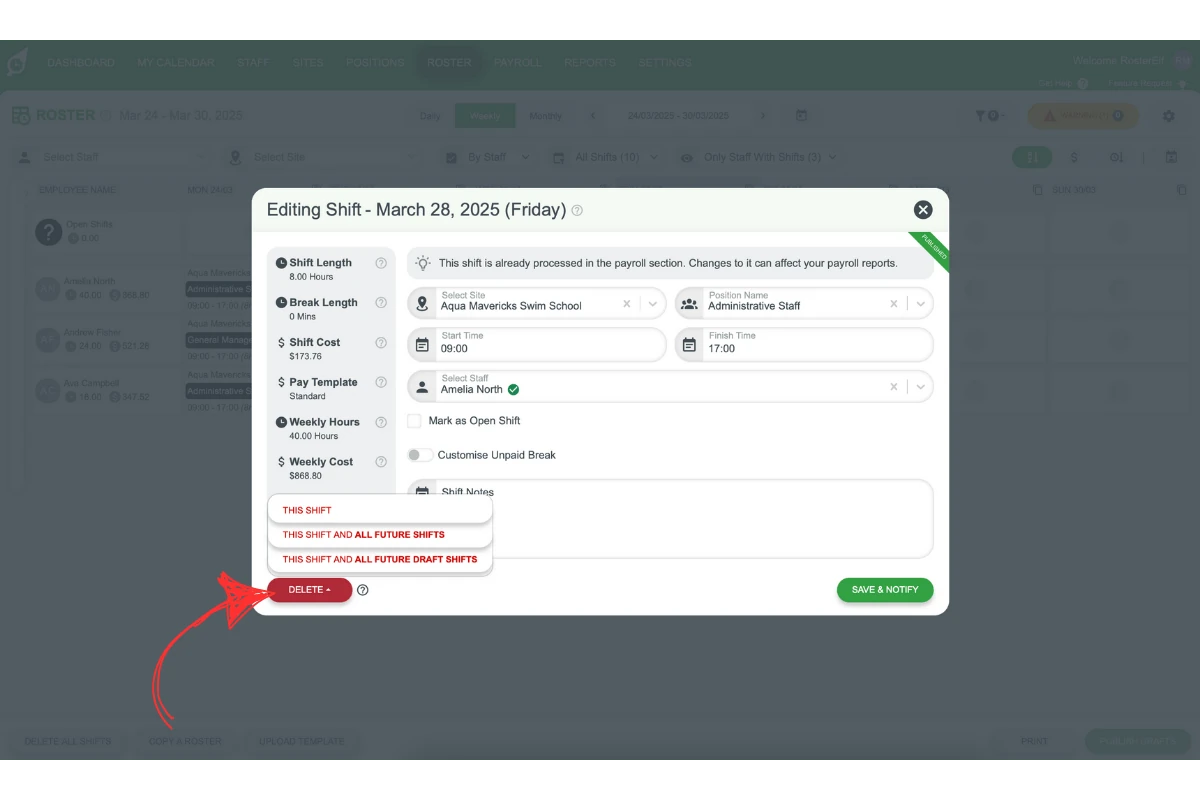
3.1.3 Warning: Deleted shifts cannot be recovered. Staff will be notified if a published shift is deleted.
3.2. Deleting a shift in the daily view of the roster
3.2.1 Hover over the shift you want to delete. If Delete (bin), Copy and Edit icons appear, click the bin icon and confirm. If your screen shows a View button instead, click it to open the shift.
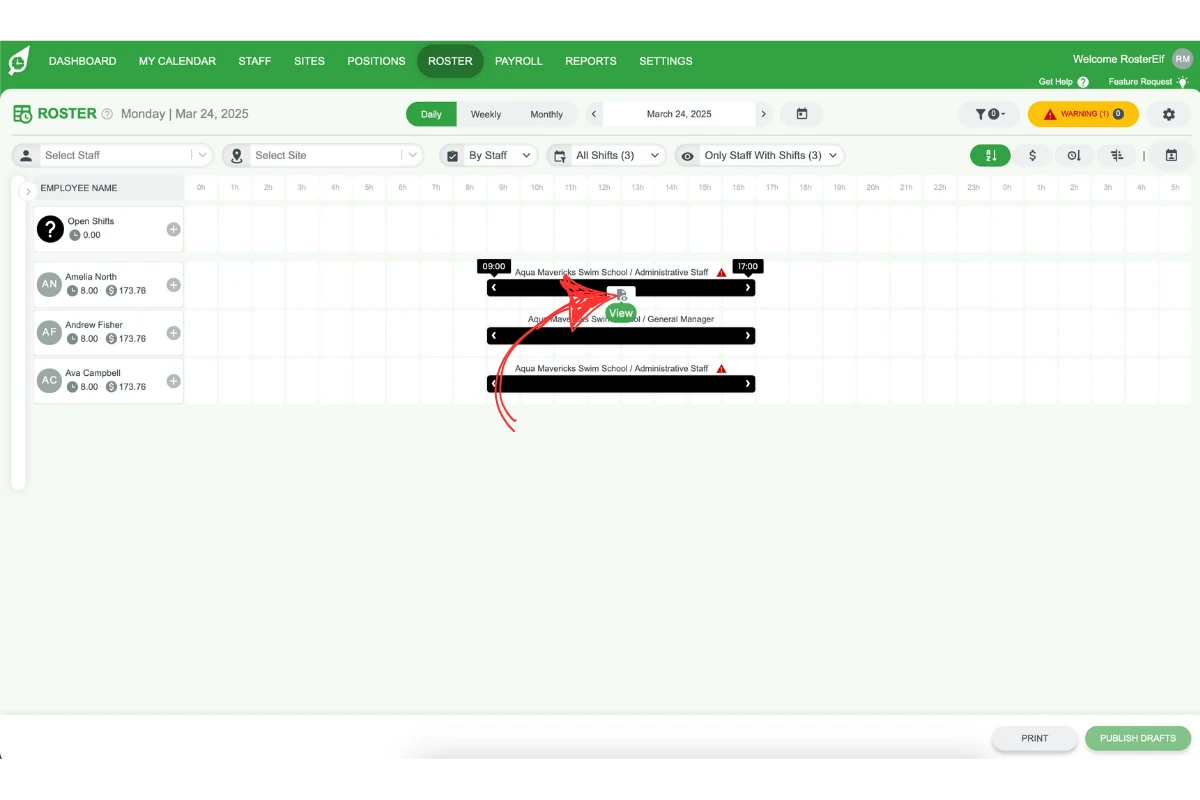
3.2.2 If you opened the shift with View, click DELETE in the Viewing Shift window.
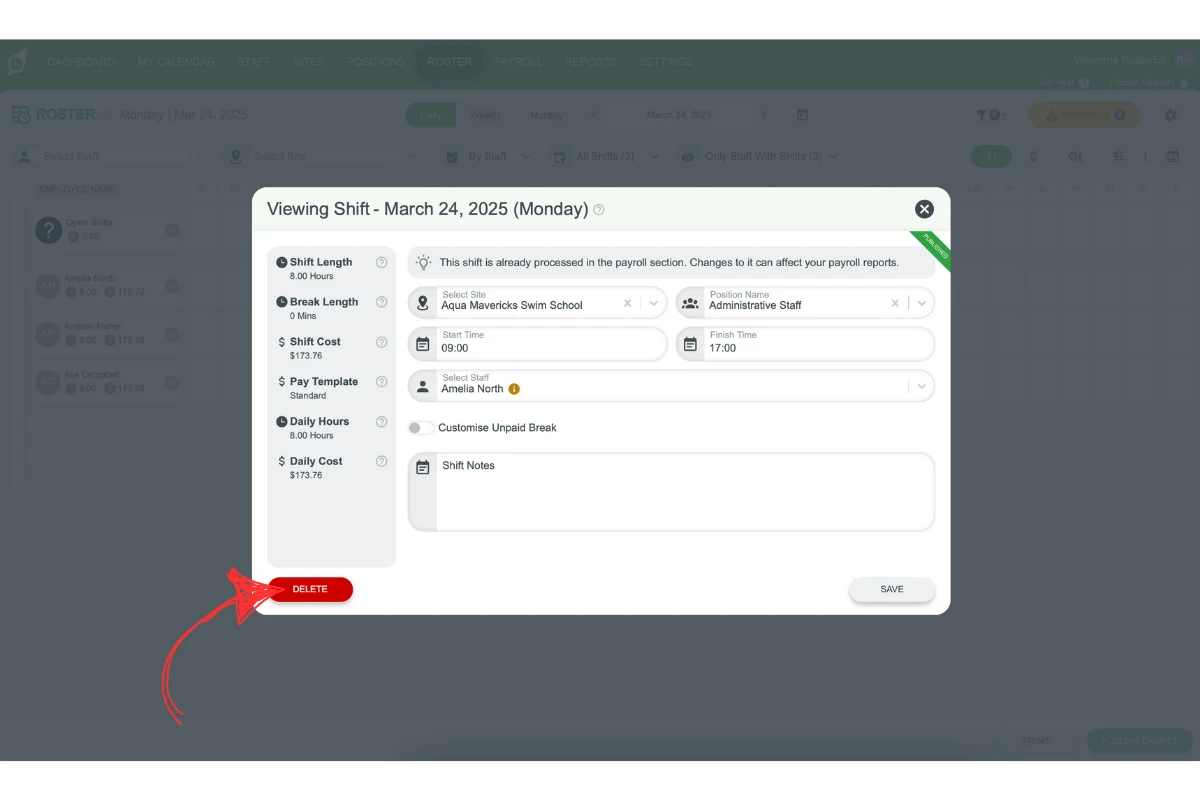
3.2.3 Warning: Confirm the action in the confirmation modal. Staff will be notified if a published shift is deleted.
Frequently asked questions
1. How do I delete all shifts for a specific roster period?
To delete all shifts in a daily, weekly, or monthly roster period, navigate to the roster and click the Delete All Shifts button at the bottom left. Then, select either All Draft Shifts, All Published Shifts, or both, and confirm. Be aware that deleted shifts cannot be recovered, and staff will be notified of published shift deletions.
2. Can I delete shifts for just one staff member?
Yes, you can delete shifts for a specific staff member by hovering over their shift, selecting Edit Shift, and choosing the appropriate delete option. This allows you to delete only that shift, all future shifts, or future draft shifts for that staff member.
3. What happens when I delete a published shift?
When you delete a published shift, the affected staff member receives a notification. This applies to single shifts, all shifts within a roster period, or shifts for an individual staff member.
4. Is there an option to delete only draft shifts?
Yes, the Delete All Shifts option includes choices to delete only draft shifts, published shifts, or both. Selecting only draft shifts helps maintain your schedule without affecting any published shifts.
5. Can I undo a deleted shift?
No, once a shift is deleted, it cannot be recovered. Ensure you select the correct delete option to avoid unintended deletions.
6. Can I delete all recurring shifts directly in the roster?
No. The delete button in the roster will not remove recurring shifts.
7. Why can't I delete a shift that already has clock-in/out data?
RosterElf prevents deleting a shift once it has recorded clock-in/out data, to protect payroll accuracy. If the recorded hours are wrong, correct them from the Payroll tab’s Custom column instead — see Manually adjust shift hours. For the full rules on editing shifts that have already occurred, see Manage and edit past rosters.