

Remove a roster template in RosterElf
This article explains how to delete a roster template in RosterElf. Roster templates help you save time by storing common shift patterns for reuse. However, you may need to remove a template if it is outdated, incorrect, or no longer required for your site.
Deleting unused roster templates helps keep your account organised and reduces confusion when uploading templates to a roster. It ensures managers only see relevant and accurate templates when building new rosters. This improves efficiency and reduces the risk of applying the wrong shift structure.
In this guide, you will learn how to open the roster area, select the correct site, access the upload template section, and permanently delete a template. Each step is simple and quick to complete. Following this process ensures your roster templates remain accurate, clean, and easy to manage.
1. Delete a roster template in RosterElf
This section explains how to delete a roster template from the roster screen in RosterElf. You must access the correct site before removing a template. Deleting a template will permanently remove it from the template list for that site. It will no longer be available for upload when building future rosters. Make sure you confirm the correct template before deleting it. This helps prevent accidental removal of active templates used by your team.
1.1 delete a roster template from upload template
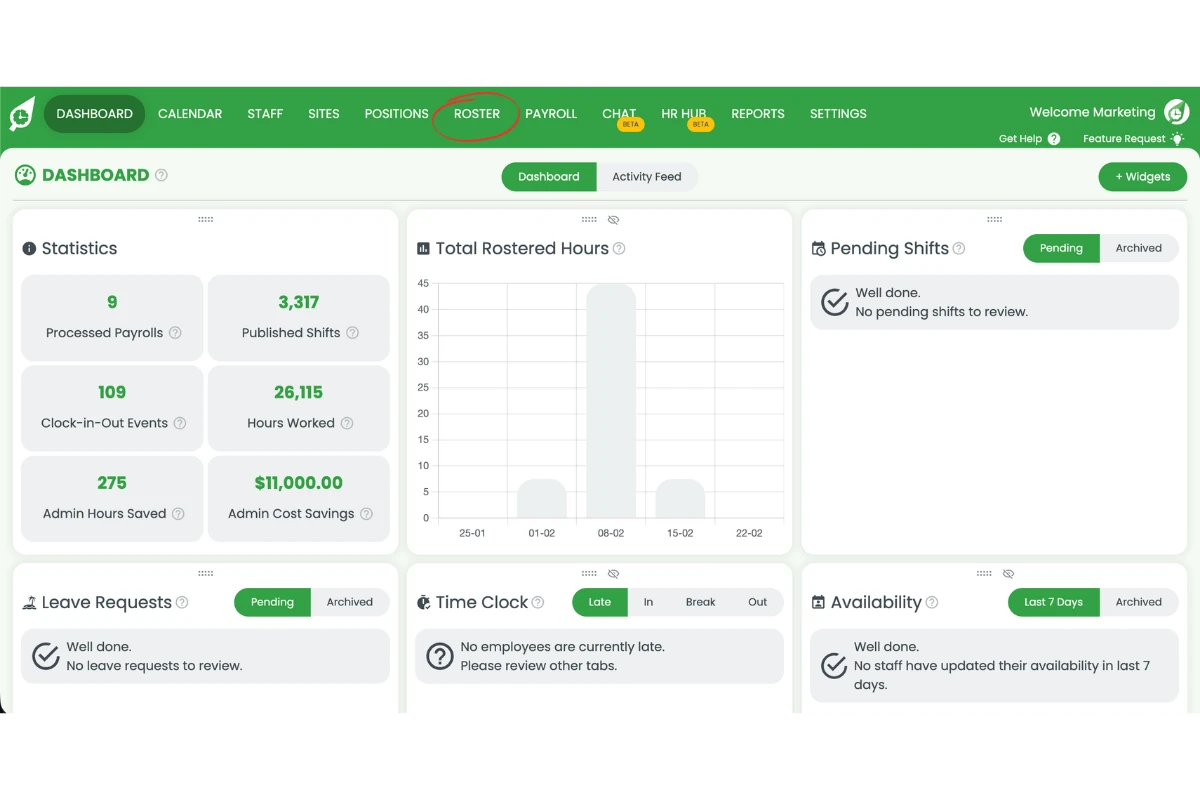
1.1.1 Open Roster.
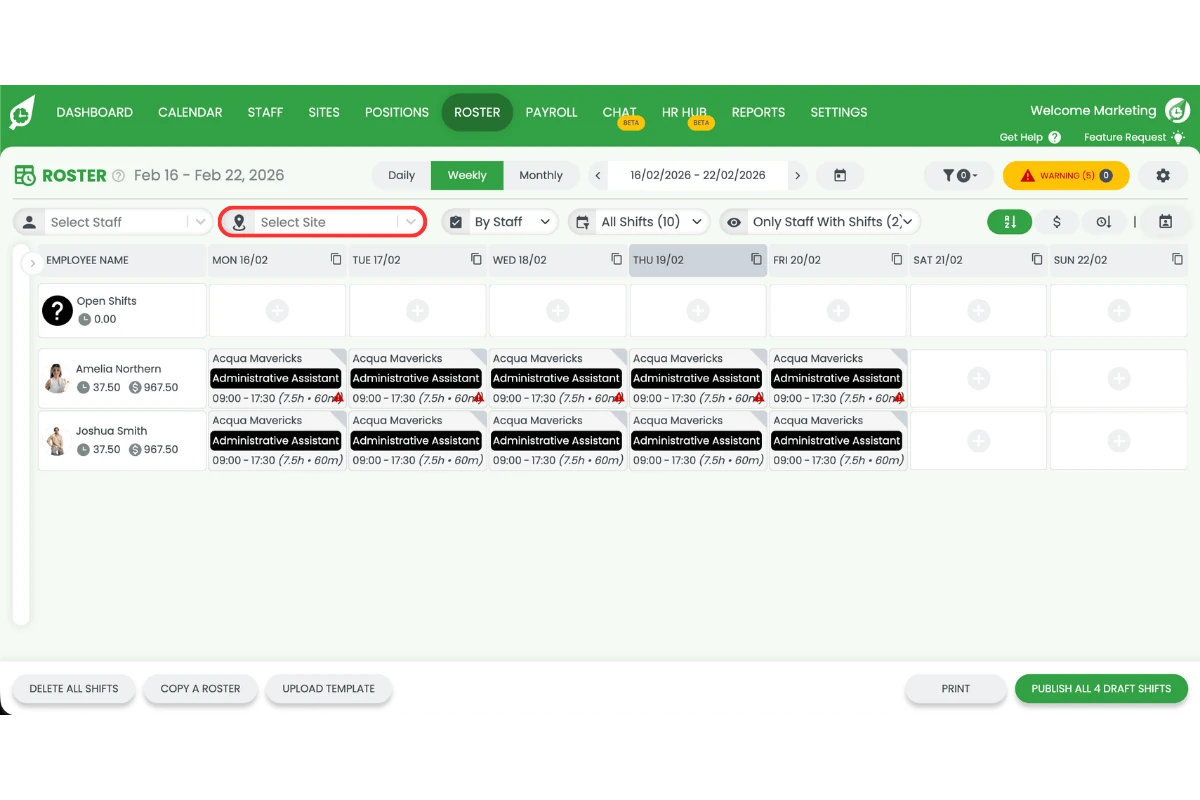
1.1.2 Select a site.
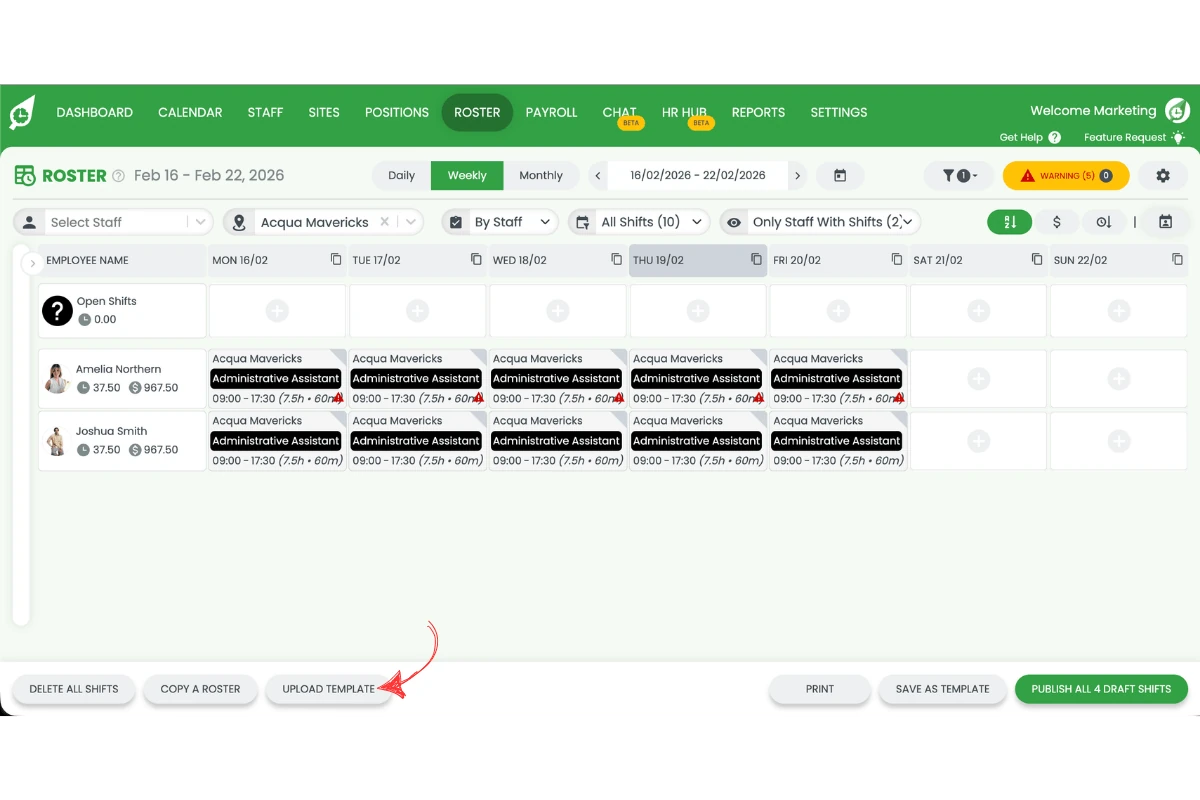
1.1.3 Click Upload template.
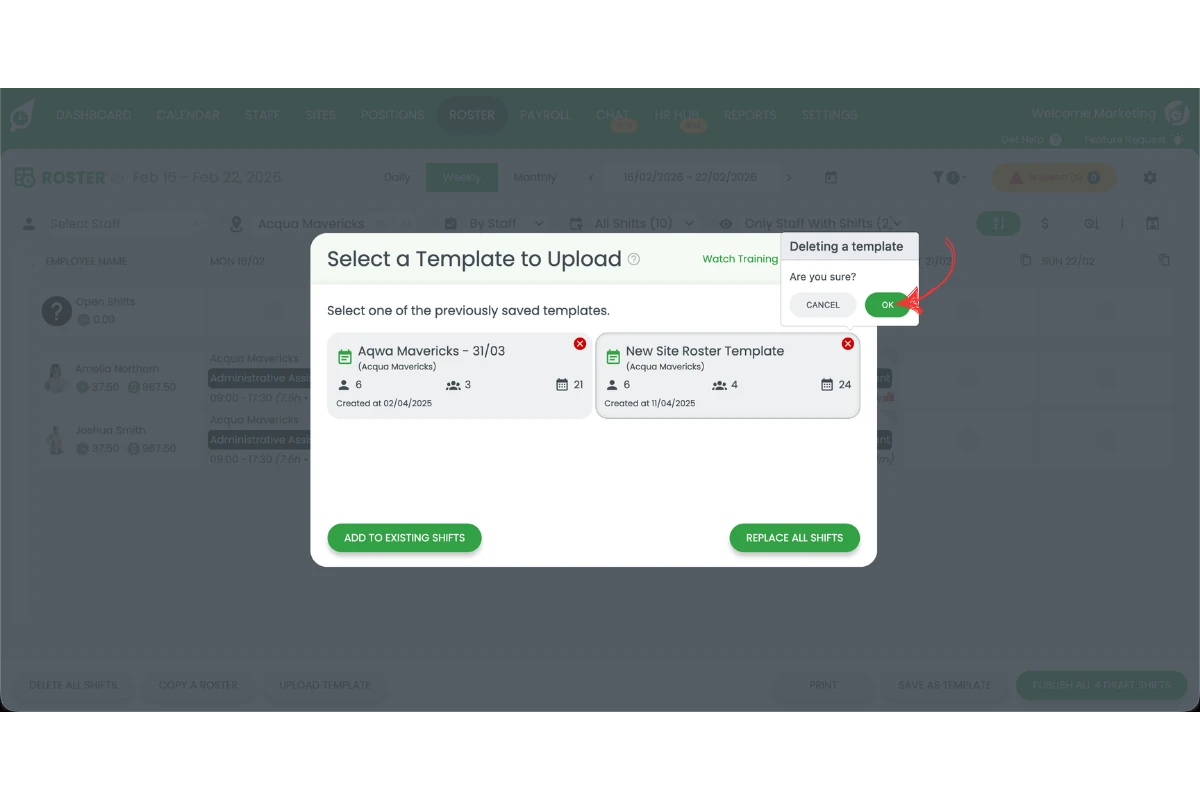
1.1.4 Click the red X next to the roster template you want to delete.
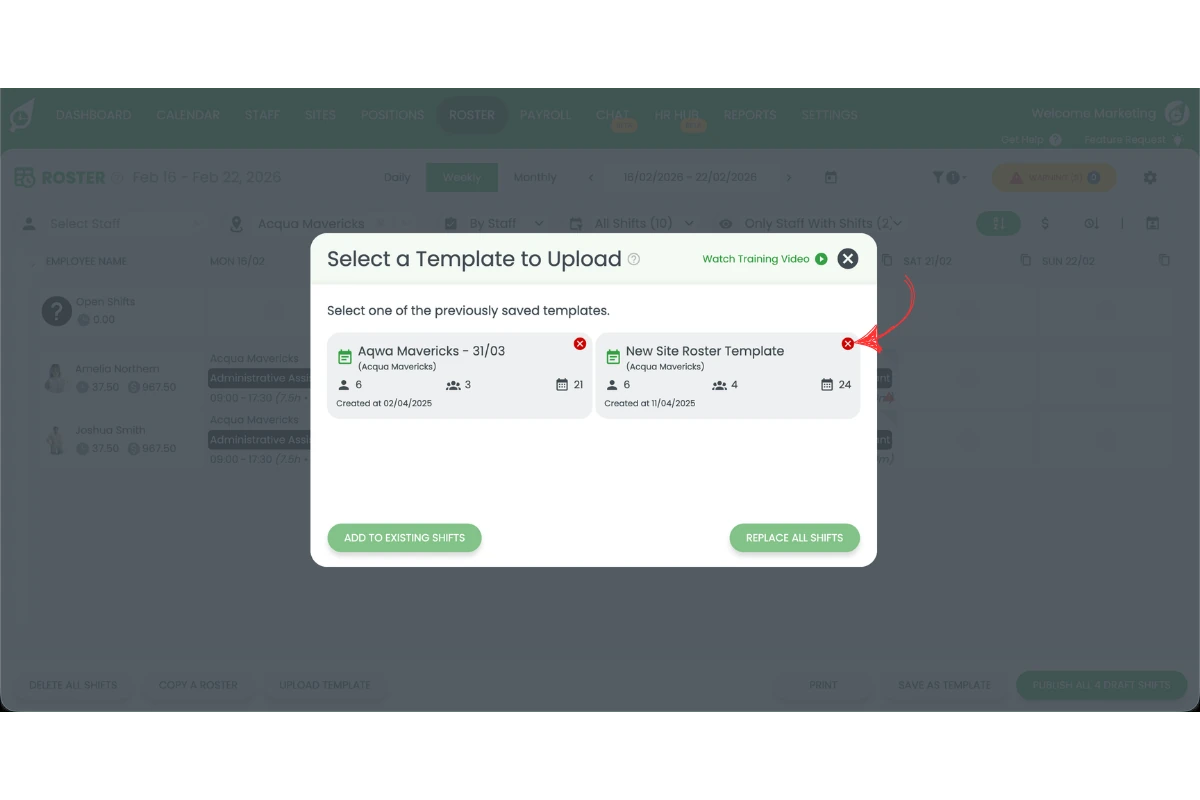
1.1.5 A Deleting a template prompt asks “Are you sure?”. Click OK to permanently delete the roster template, or CANCEL to keep it.
Frequently asked questions
1. How do I delete a roster template in RosterElf?
To delete a roster template in RosterElf, open the Roster tab and select the correct site. Click Upload template, then locate the template you want to remove. Click the red X next to the template name and select OK. This permanently deletes the roster template from that site. Once deleted, you cannot upload or reuse the template when building future rosters. Always check that you are deleting the correct template before confirming.
2. Can I recover a deleted roster template in RosterElf?
No, you cannot recover a deleted roster template in RosterElf. When you click OK, the system permanently removes the template from that site. You will need to recreate the roster template manually if you delete it by mistake. Review the template name carefully before confirming deletion to avoid losing active or frequently used shift structures.
3. Does deleting a roster template affect existing rosters?
No, deleting a roster template does not affect rosters that you have already created or published. It only removes the template from the upload template list. Existing rosters remain unchanged. However, you will not be able to reuse that template for future roster periods unless you recreate it.
4. Why should I delete unused roster templates in RosterElf?
Deleting unused roster templates keeps your RosterElf account organised and easier to manage. It reduces confusion when selecting templates during roster creation. Removing outdated or incorrect templates helps prevent managers from uploading the wrong shift structure. This improves accuracy and saves time when building new rosters.
5. Do I need to select the correct site before deleting a roster template?
Yes, you must select the correct site before deleting a roster template in RosterElf. Templates are site-specific. If you are in the wrong site, you may not see the correct template list. Always confirm you are working within the correct site before clicking Upload template and deleting a template.