

Saving and uploading roster templates
Roster templates allow you to save and reuse specific roster setups, saving time and ensuring consistency. This guide explains how to create, save, and upload templates for your rosters, helping you streamline your workforce scheduling. Following these steps, you’ll be able to apply templates to different rosters or layer templates for a flexible schedule setup across multiple sites and shifts.
Any position on the roster when you save the template — including a recurring position like Paid Break — is saved along with it, so you don’t need to re-add it each time you apply the template.
1. Saving a roster template
Saving a roster template helps you reuse a specific schedule setup. This section covers how to set up and save templates, add shifts, and use naming conventions for easy identification. Once saved, these templates can be applied or layered onto rosters for quick scheduling.
1.1 filtering the roster by site
Go to the weekly view of the roster.
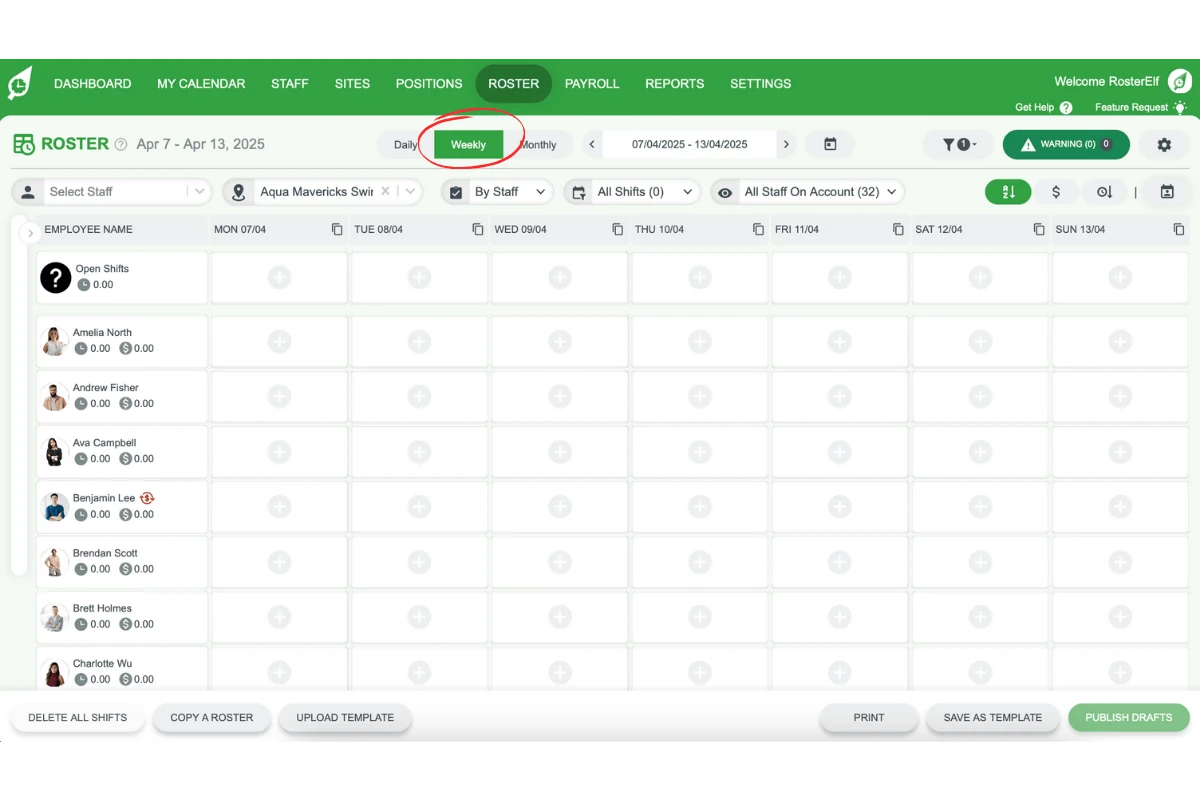
Filter your roster to display a specific site.
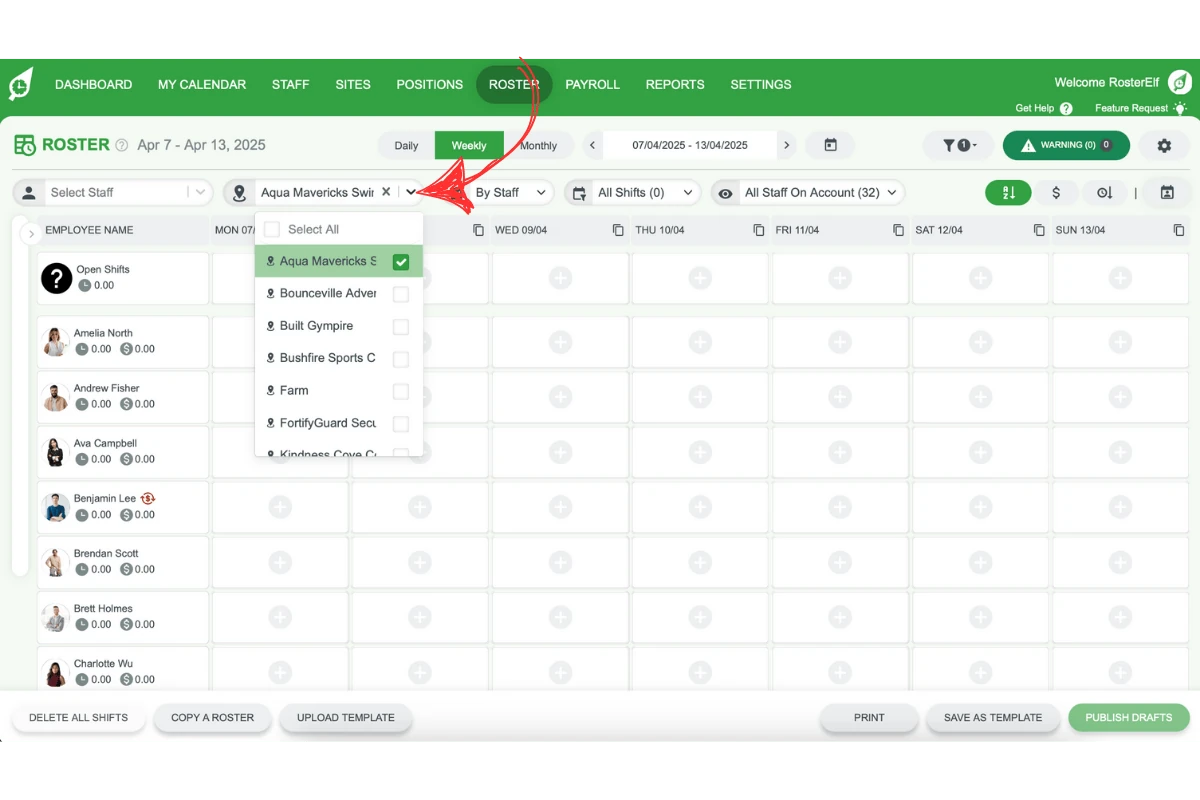
1.2 adding shifts to the roster
Add the required shifts to the roster.
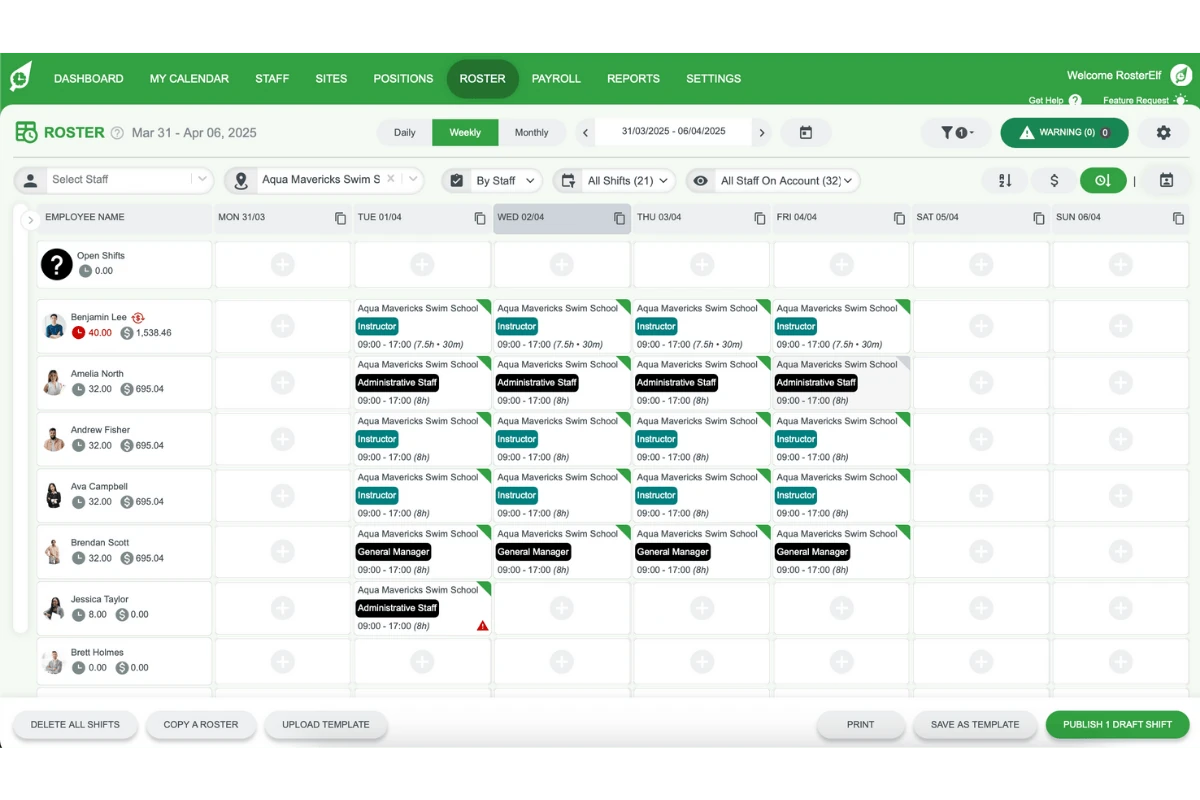
Include both draft and published shifts; all will load as drafts when reusing.
1.3 saving the template
Click Save as Template at the bottom right of the screen.
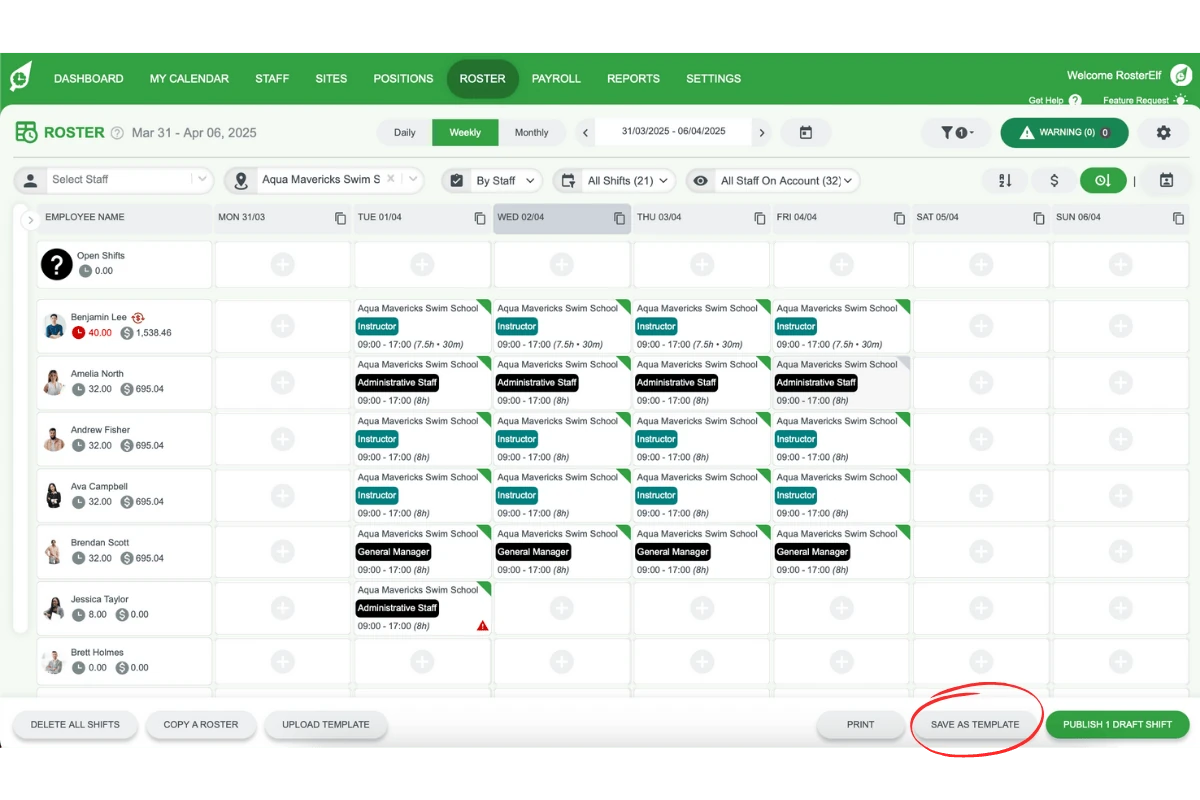
Name the template following a common naming format (e.g., Site - Shift - Crew).
Confirm by clicking Save.
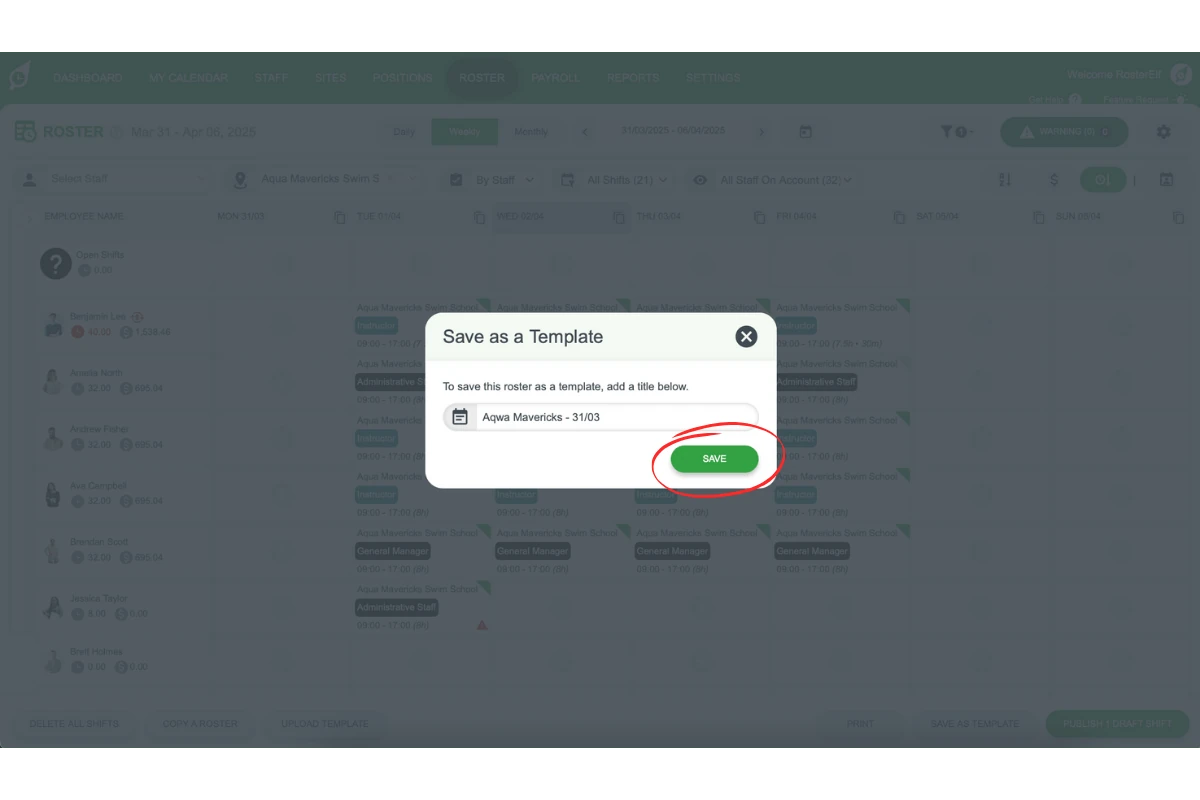
Example naming convention
For a business with multiple sites and rotating crews:
- Warehouse - Day Shift - Crew A
- Warehouse - Night Shift - Crew B
2. Uploading a template
Uploading a saved template enables quick reuse of previous roster setups. This section guides you through applying templates to a new roster period, including options for replacing or layering shifts based on your needs.
2.1 selecting a template for upload
Filter the roster to the desired site.
Go to the weekly view of the roster.
Select the week to add the template.
Click Upload Template and select the required template.
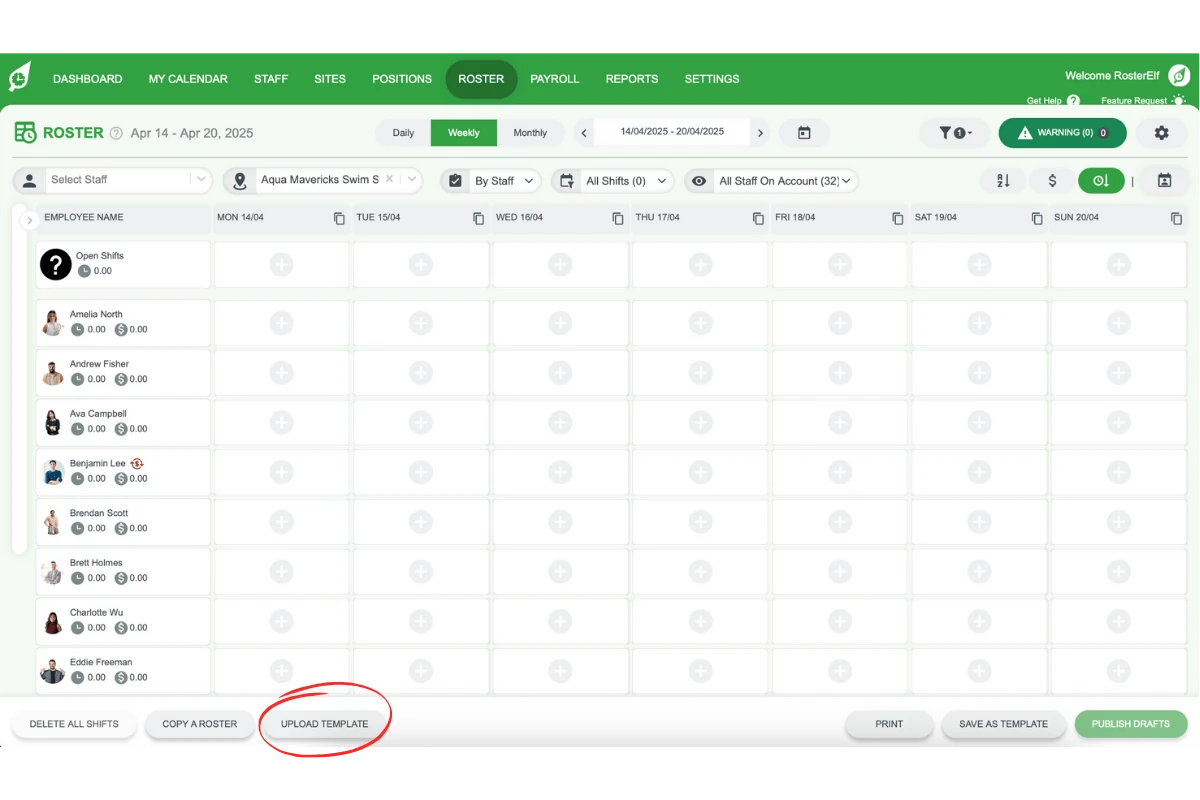
2.2 replace or layer shifts
Choose Replace All Shifts to delete current shifts and apply a clean template.
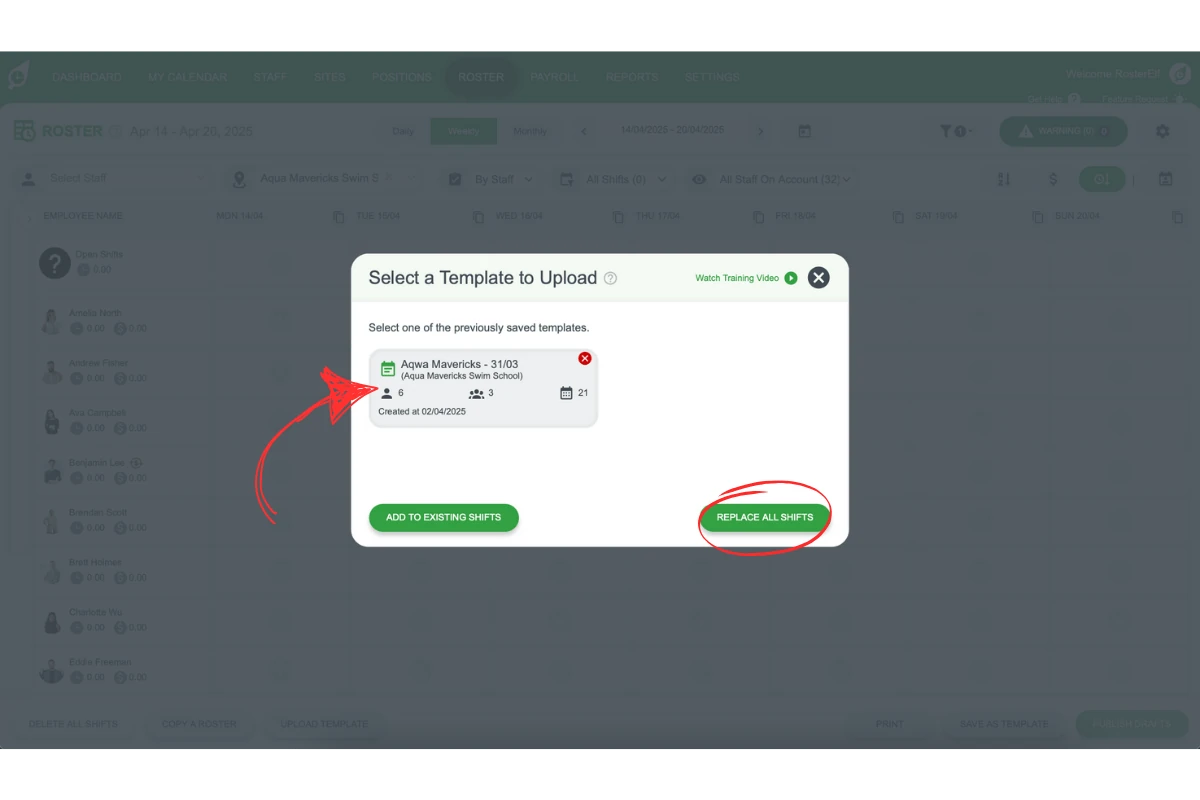
Choose Add to Existing Shifts to layer the template over existing shifts.
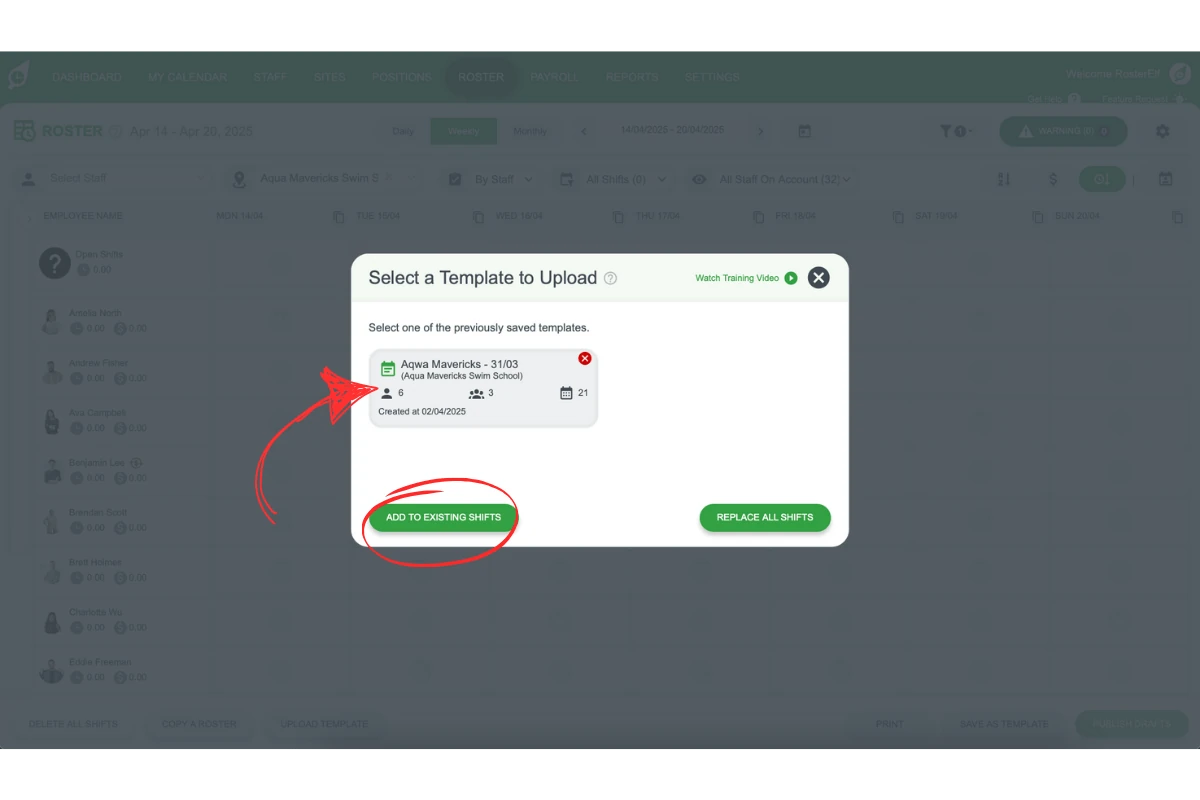
Remember
Only future shifts will update if you upload mid-period.
3. Layering templates
Layering templates allows you to stack multiple templates on a single roster for more complex scheduling needs. Use this section to combine templates, such as day and night shifts for multiple teams, into a single roster setup.
3.1 loading multiple templates
Upload the first template using the steps in Section 2.
Click on Add to Existing Shifts to keep existing shifts on the roster.
Repeat the upload process for each additional template.
Example of Layering Schedule
For a warehouse using cycles:
| Week | Day Shift | Night Shift | Off |
|---|---|---|---|
| 1 | Crew A | Crew B | Crew C |
| 2 | Crew C | Crew A | Crew B |
Frequently asked questions
1. What is a roster template, and how does it help?
A roster template is a saved schedule setup that you can reuse, making scheduling faster and more consistent across different rosters and sites.
2. How do I save a roster template?
To save a roster template, go to the weekly roster view, set up the shifts you need, and click Save as Template at the bottom right. Use a clear naming format for easy identification.
3. How can I upload a roster template?
In the weekly roster view, select the desired site and week, then click Upload Template. Choose the template you wish to upload, and decide if you want to replace existing shifts or layer the template over them.
4. What is the difference between replacing and layering shifts?
Replace All Shifts removes current shifts and applies a fresh template. Add to Existing Shifts layers the template over the existing schedule, keeping the current shifts intact.
5. How can I layer multiple templates onto a roster?
To layer multiple templates, follow the upload steps, selecting Add to Existing Shifts each time to keep shifts from each template intact. This lets you build a comprehensive schedule by combining different templates.
6. How do I delete a roster template I no longer need?
To delete a roster template, open the Roster tab, select the correct site, and click Upload Template. Click the red X next to the template you want to remove, then click Confirm. This permanently deletes the template from that site.
7. Can I edit a saved roster template directly?
No, RosterElf doesn’t currently support editing a saved template directly. Instead, upload the template onto a roster, make the changes you need, then click Save as Template again. Use the same name to overwrite the original template, or a new name to save it as a separate one. If you’re building a template that includes open (unassigned) shifts, see Create roster template with open shifts.