

This article explains how to set a custom week start in the roster view in RosterElf. It is common for your payroll cycle to differ from how you want to view your roster. For example, your payroll may run Tuesday to Monday, but you may prefer to view your roster from Monday to Sunday.
RosterElf allows you to control how you view your roster without changing your payroll cycle. This means you can adjust your view for easier planning while keeping payroll accurate and consistent. By using the date selector in both weekly and monthly views, you can quickly change the start date of your roster display. This gives you flexibility when reviewing shifts, managing staff, and planning ahead.
This guide will show you how to adjust your roster view using weekly and monthly options so you can work with the dates that suit your business needs.
1. Set custom week start in weekly roster view
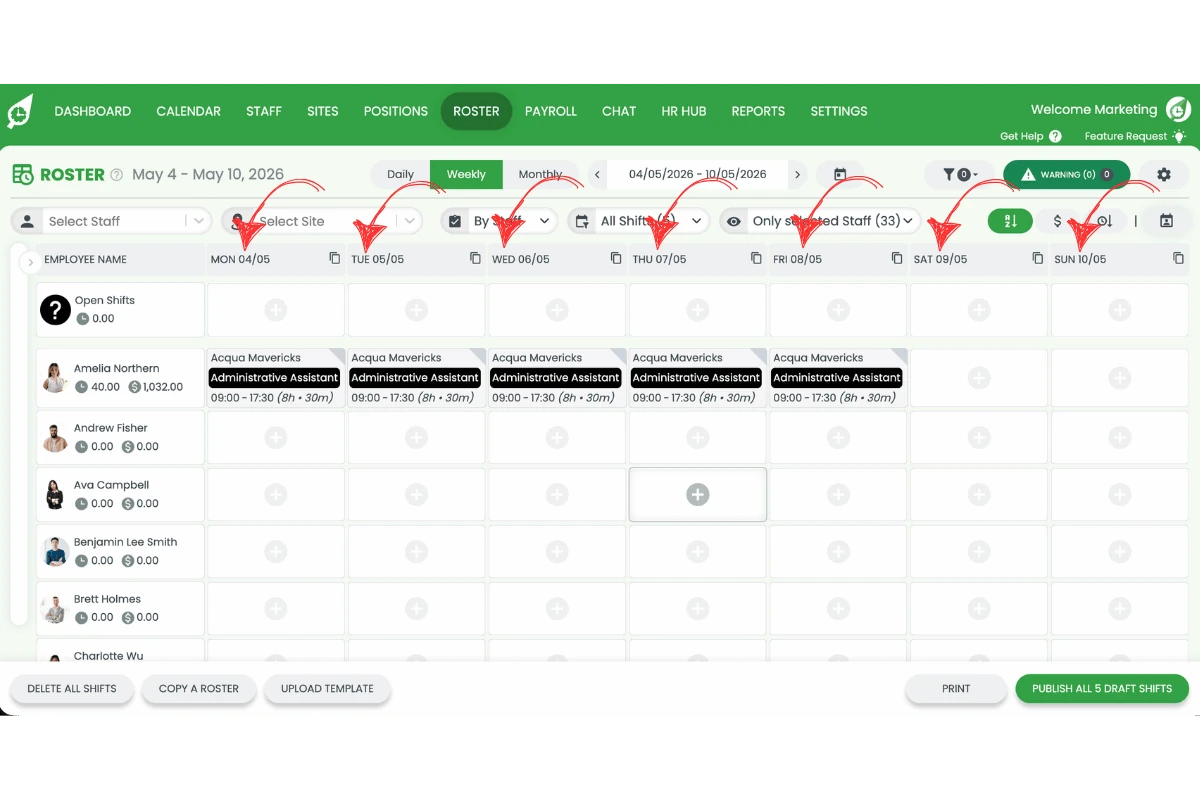
This section explains how to set a custom week start in the weekly roster view. The weekly view allows you to display any 7-day period based on the date you select. This is useful if you want your roster to begin on a different day than your payroll cycle.
Using the weekly view gives you flexibility when scheduling staff and reviewing shifts. It ensures you can plan your week in a way that aligns with your operational needs while payroll continues to follow its set cycle.
1.1 set custom week start using date selector
1.1.1 Open the roster by clicking Roster in the top navigation menu.
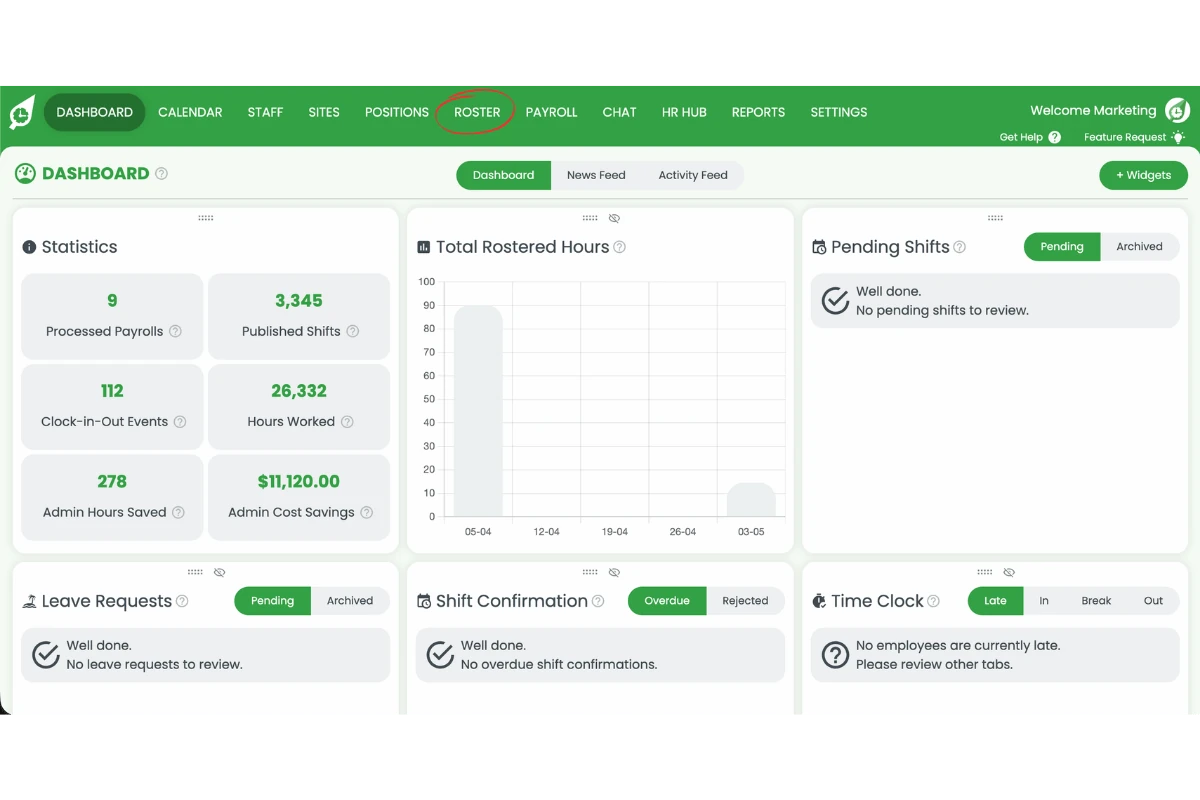
1.1.2 Select Weekly view from the view toggle at the top of the roster.
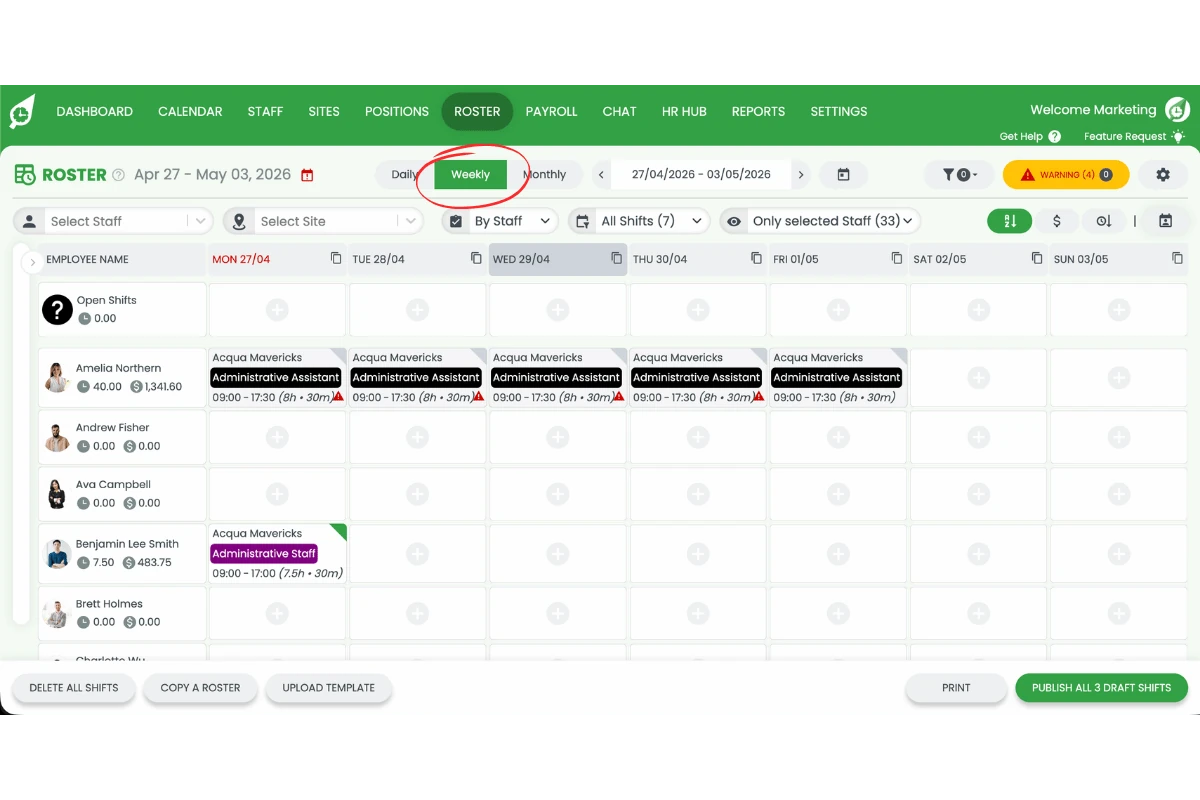
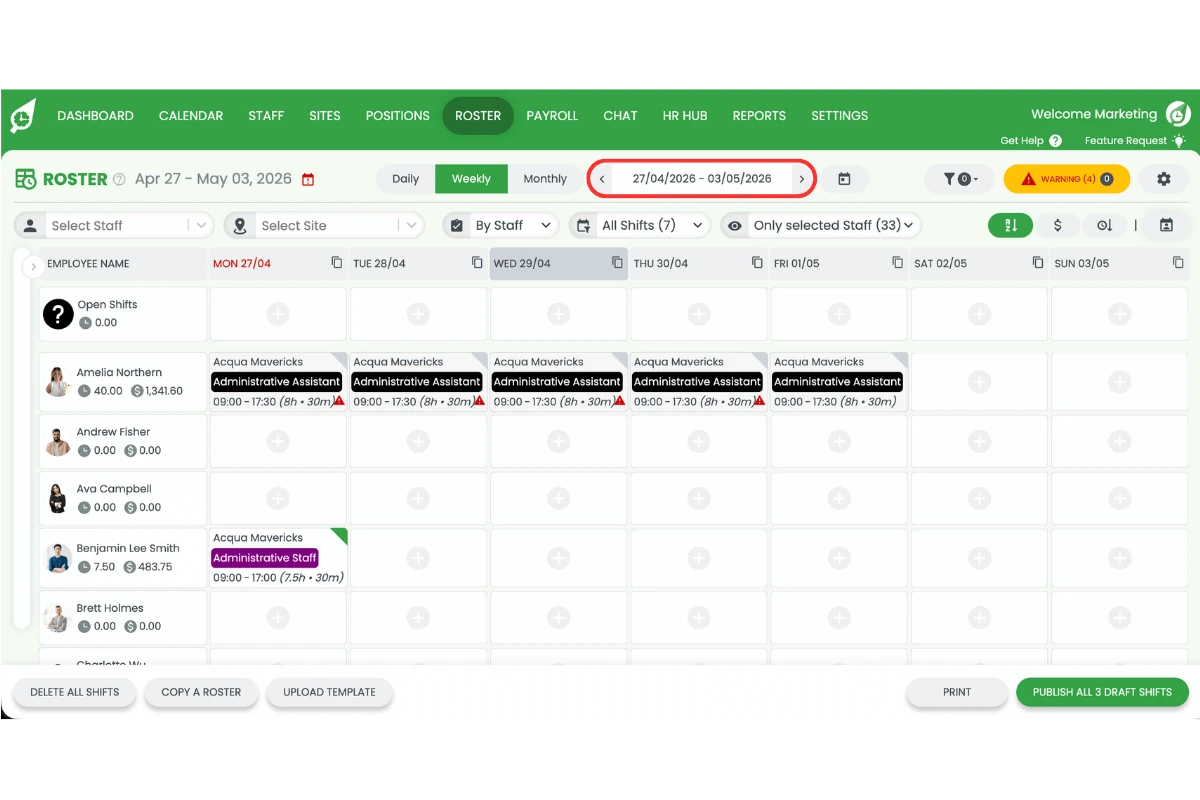
1.1.3 Click the date selector (the date range shown between the navigation arrows).
1.1.4 Choose your preferred start date from the calendar that appears.
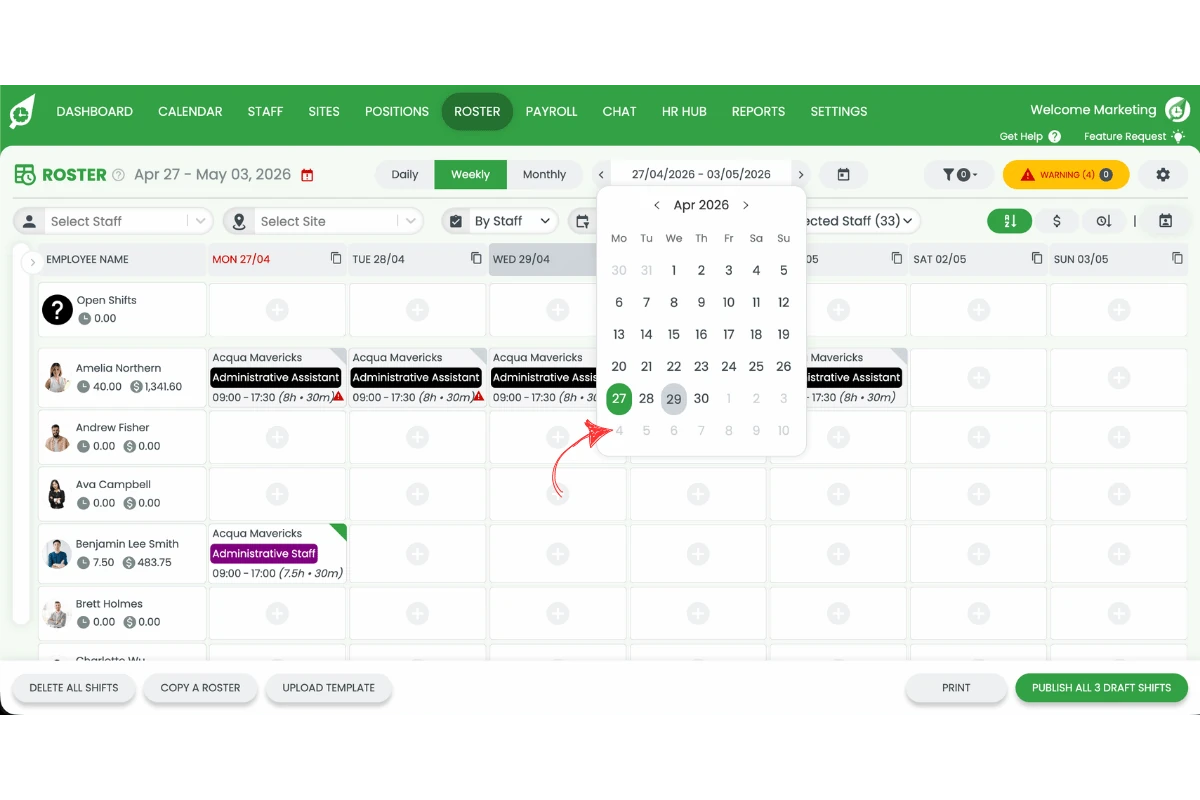
1.1.5 The roster will now display the 7-day period starting from your selected date.
2. Set custom week start in monthly roster view
This section explains how to adjust your roster using the monthly view. The monthly view allows you to see a full calendar based on the date you select. While it does not limit you to a 7-day period, it helps you view shifts across a broader timeframe.
Using the monthly view is useful for long-term planning and identifying trends in staffing. It also allows you to quickly navigate between different dates while maintaining visibility across the entire month.
2.1 set custom date in monthly roster view
2.1.1 Open the roster by clicking Roster in the top navigation menu.
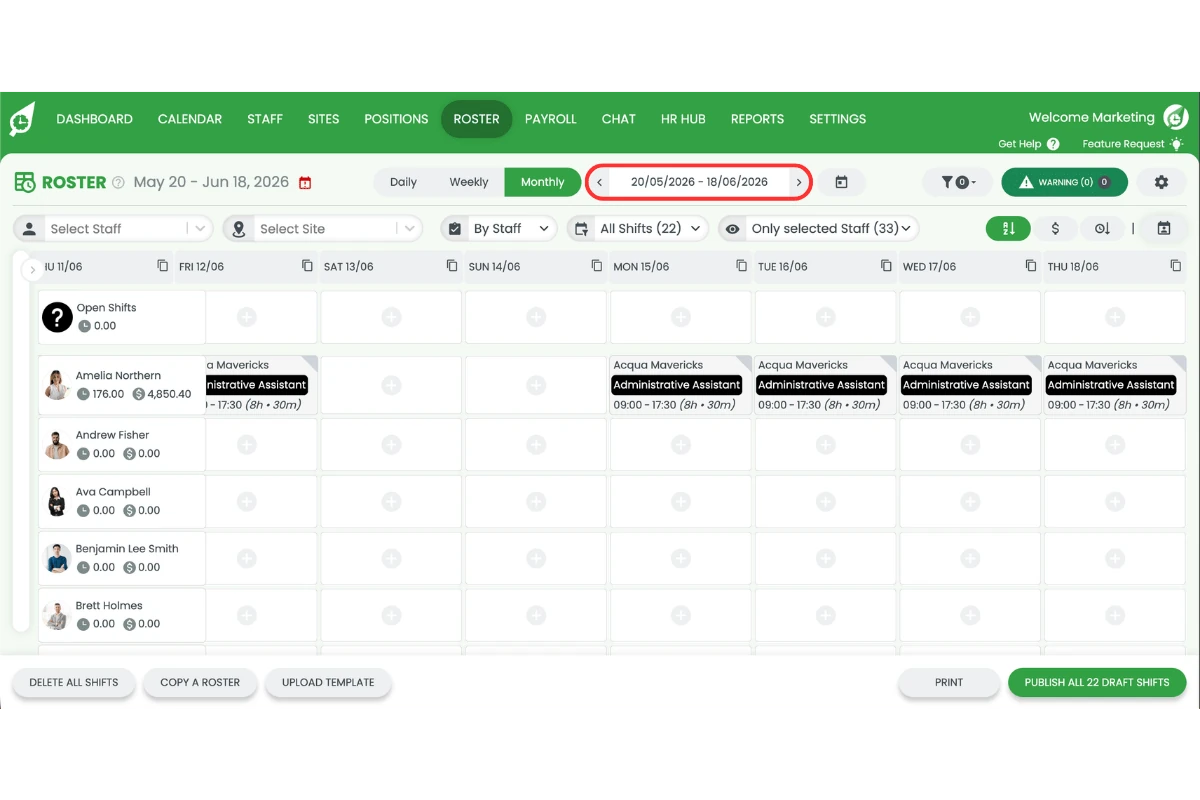
2.1.2 Select Monthly view from the view toggle at the top of the roster.
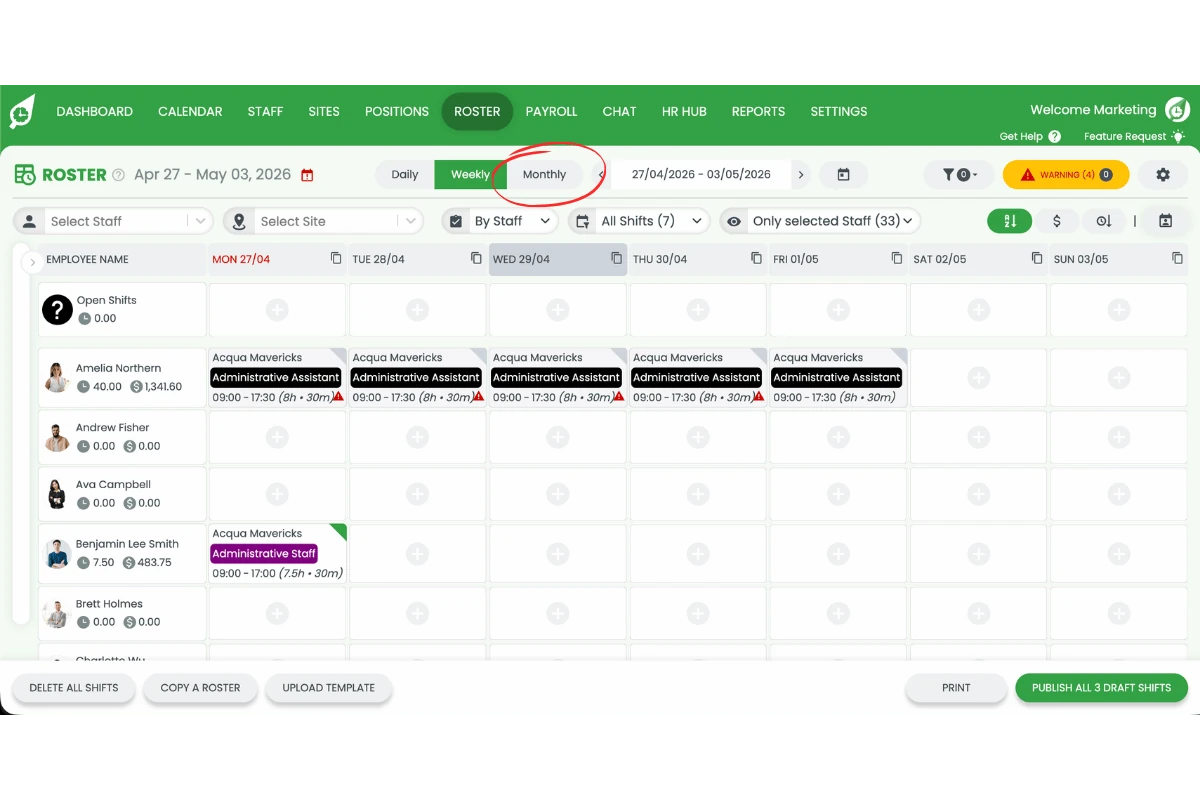
2.1.3 Click the date selector (the month and year shown between the navigation arrows).
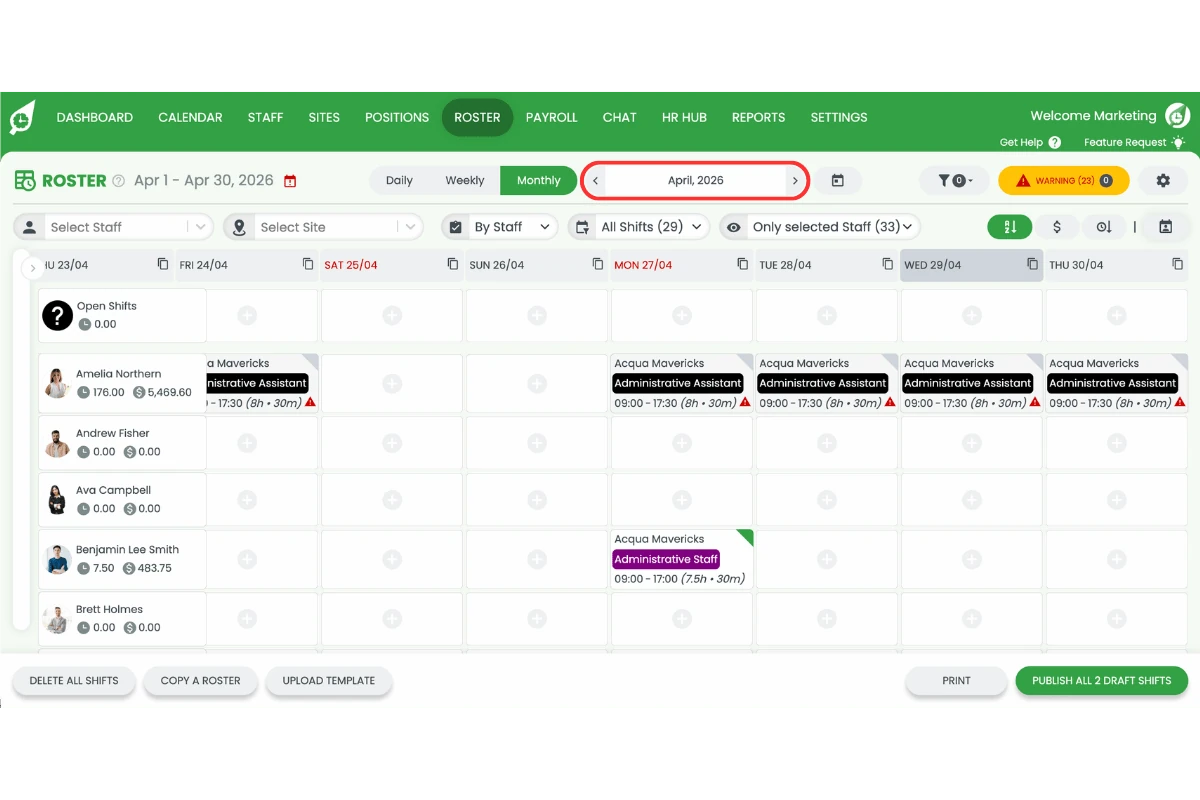
2.1.4 Choose your preferred date from the calendar that appears.
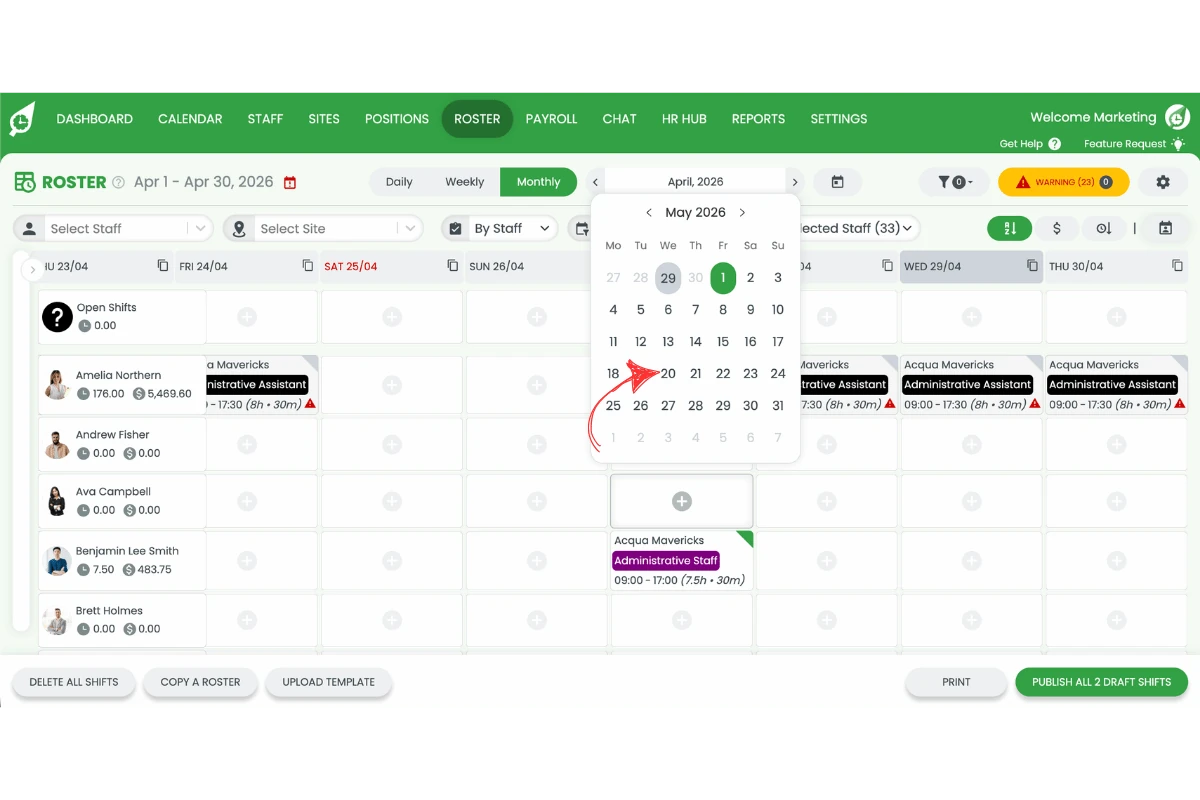
2.1.5 The monthly roster will now display from your selected date.
Frequently asked questions
1. How do I set a custom week start in roster view?
You can set a custom week start in roster view by using the date selector in the weekly view. Open the roster, select Weekly view, click the date selector, and choose your preferred start date. The roster will then display a 7-day period from that selected date.
2. Does changing the roster week start affect payroll?
No, changing the roster week start does not affect payroll. This feature only changes how your roster is displayed. Your payroll cycle remains unchanged and continues to run based on its existing schedule. To change the payroll week start, see update pay cycles and week start days.
3. Can I view any 7-day period in the weekly roster view?
Yes, the weekly roster view allows you to display any 7-day period. Simply select a date using the date selector, and the system will show the 7 days from that date. This gives you flexibility when planning and reviewing shifts.
4. How do I change the date in the monthly roster view?
To change the date in the monthly roster view, open the roster, select Monthly view, and click the date selector. Choose your preferred date, and the system will display the roster for that month.
5. When should I use weekly vs monthly roster view?
Use the weekly roster view when you need to focus on short-term scheduling and specific 7-day periods. Use the monthly roster view when you want a broader overview of shifts, identify trends, or plan staffing across a longer timeframe.
6. Will changing the roster start day affect my payroll?
No, changing the roster start day does not affect your payroll. The roster view only controls how your shifts are displayed. Your payroll cycle and calculations remain unchanged, even if your roster starts on a different day.