

Introduction to the staff file report
This guide explains how to access and run the staff file report in RosterElf. The staff file report provides an overview of all employee details in your account, including positions, contact information, employment status, and payroll data. Using this report helps you review, export, or share staff information quickly for auditing, compliance, or administrative purposes.
By following this guide, you’ll learn how to find the report, apply filters, and export the data if required. This ensures your business records stay up to date and easily accessible when needed.
1. Opening the staff file report
This section explains how to open the staff file report in RosterElf. You’ll start by locating the Reports tab and selecting the correct report type. Accessing it directly from your RosterElf dashboard ensures you can view accurate, real-time data for your team.
1.1 locate the staff file report
1.1.1 Open your RosterElf account.
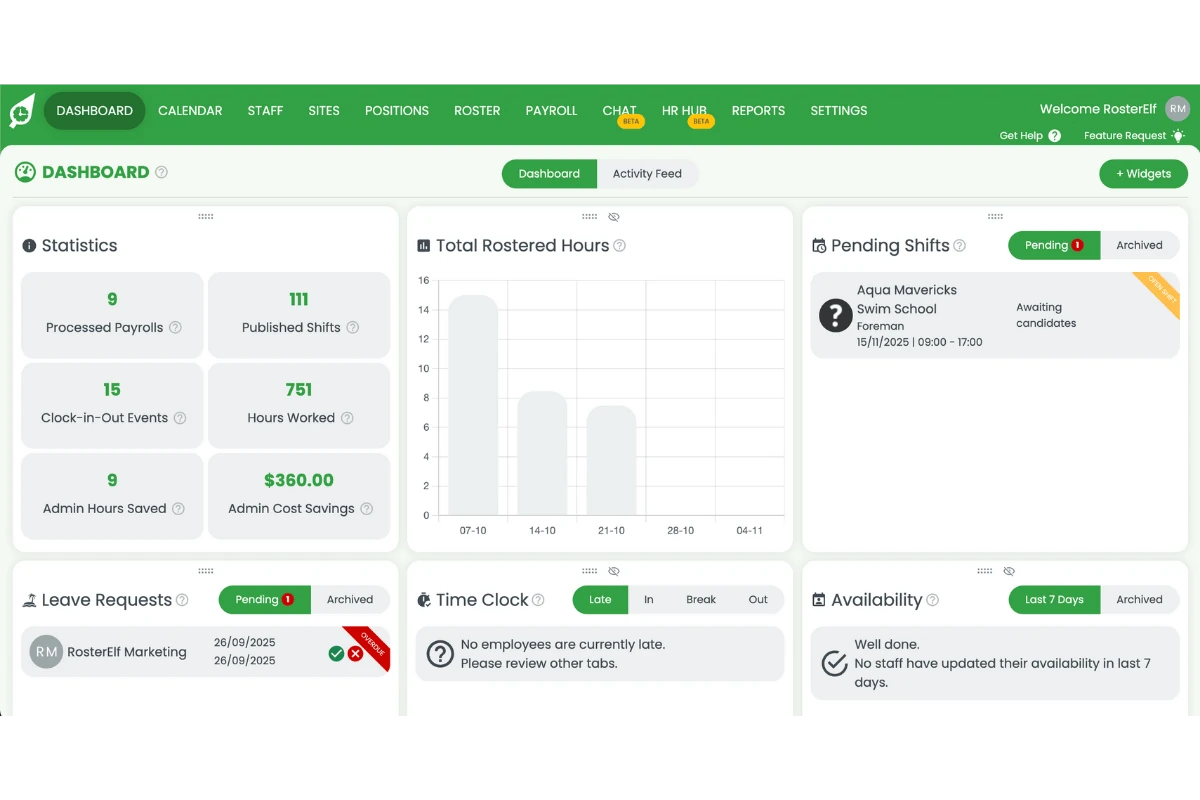
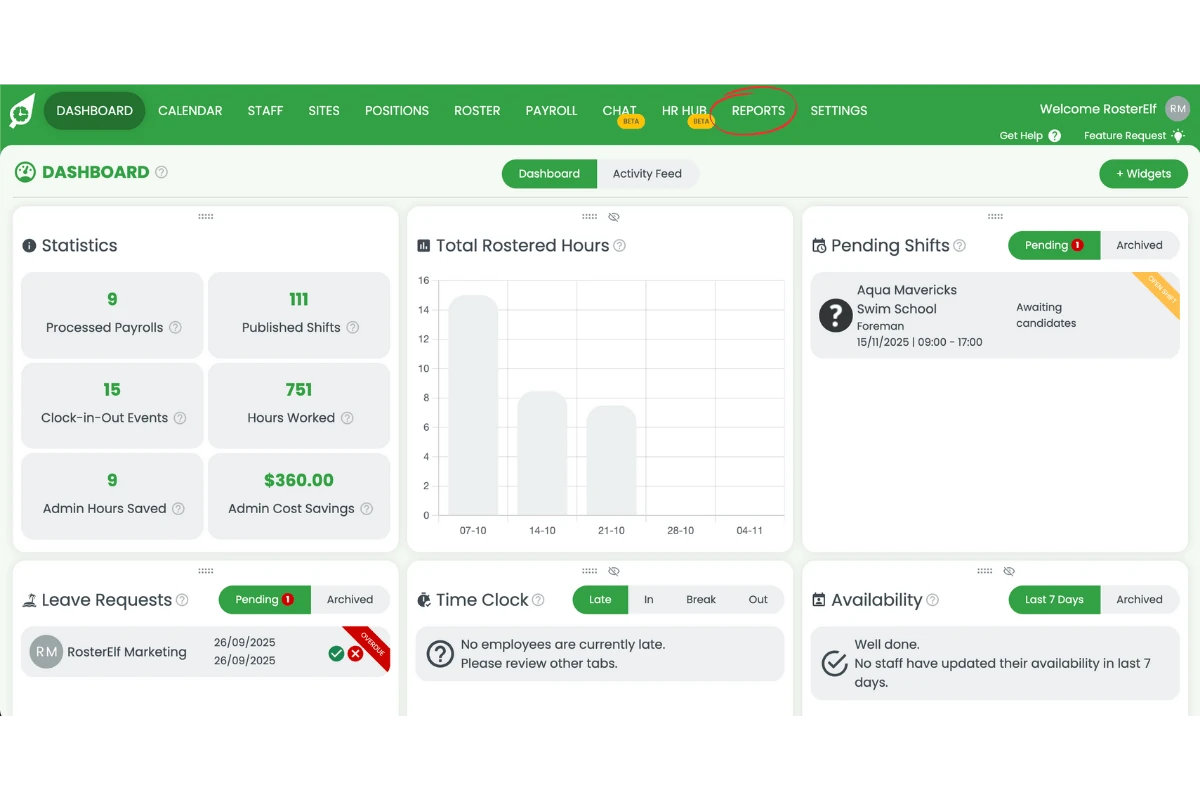
1.1.2 Click Reports from the main menu.
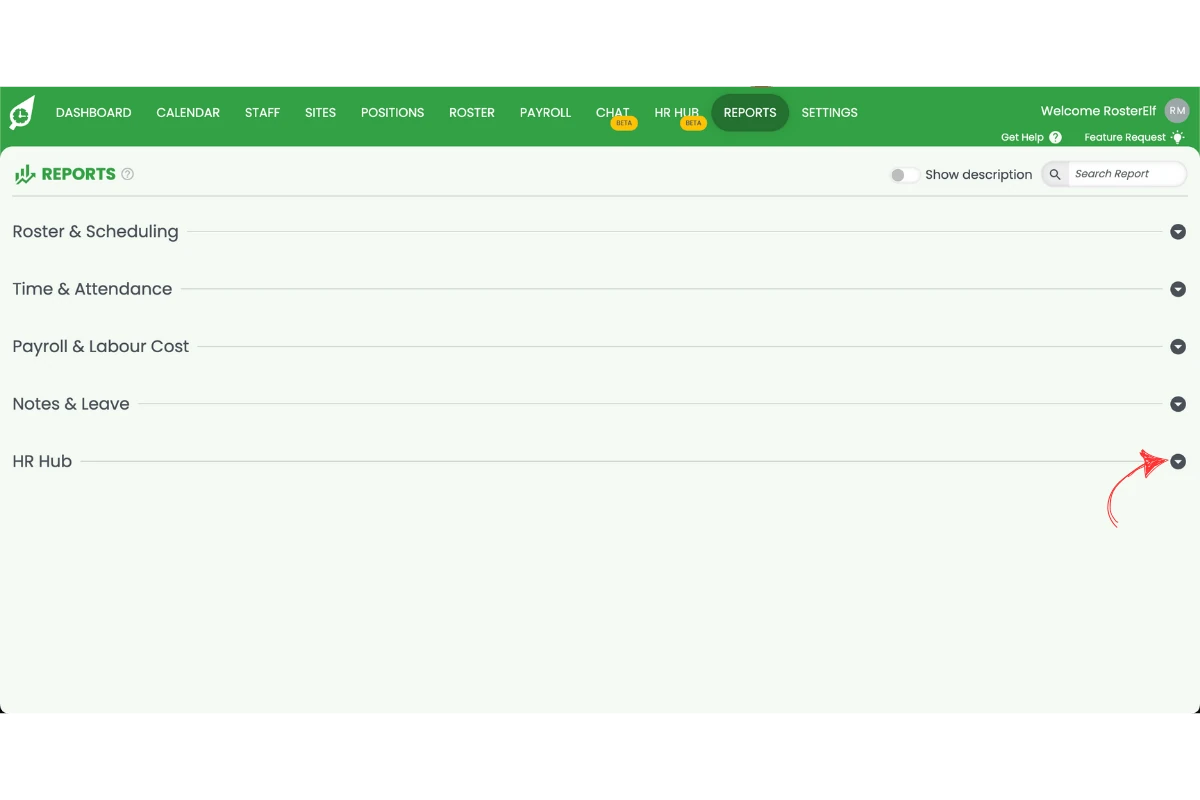
1.1.3 Search for the HR Hub category.
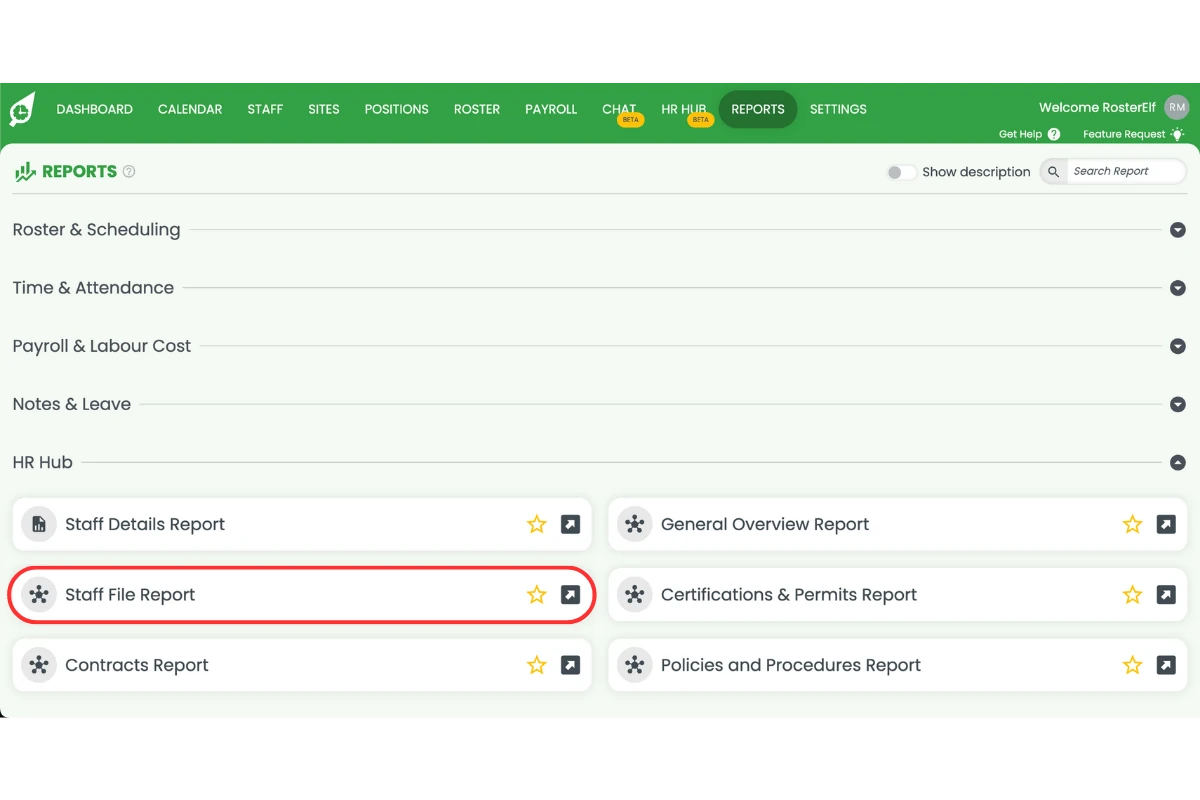
1.1.4 Select Staff file report.
2. Customizing and running the report
Once you’ve selected the staff file report, you can customize it by applying filters. This helps you focus on specific staff groups, roles, or sites. Running the report with the right filters ensures the data displayed is relevant and easy to interpret.
2.1 apply filters and generate results
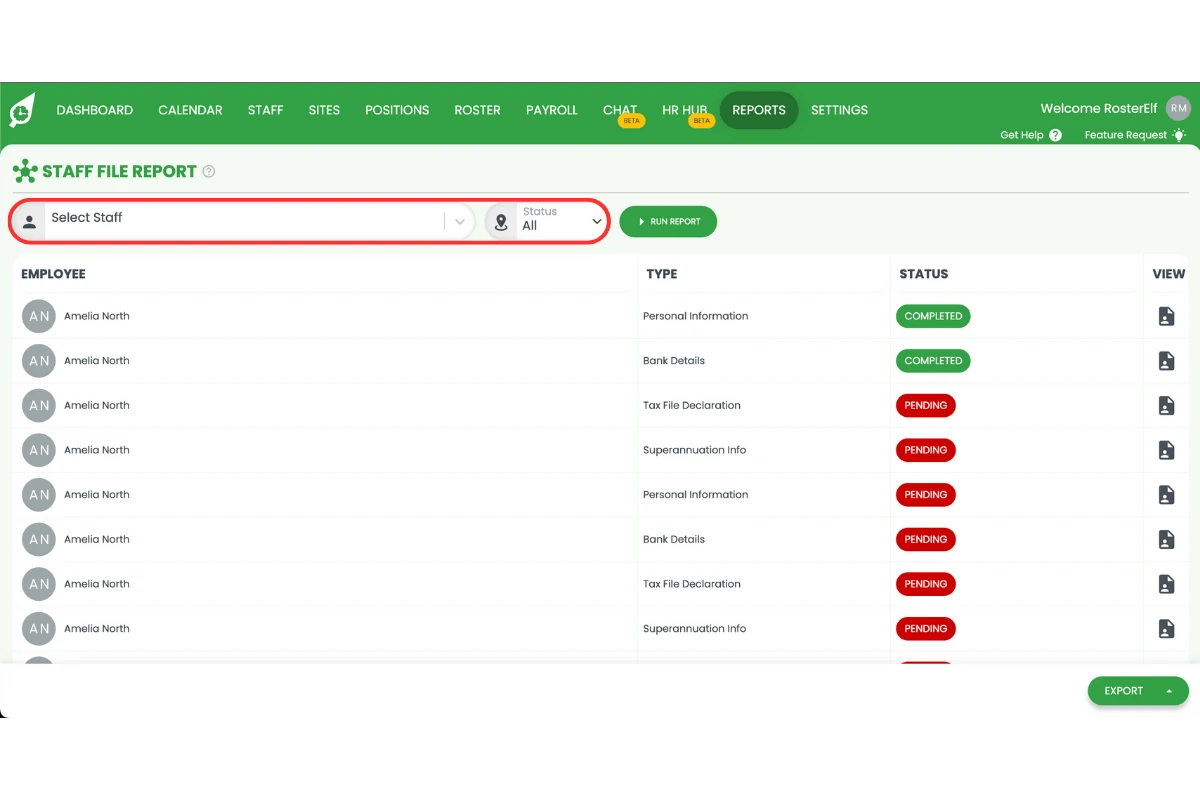
2.1.1 Set your desired filters.
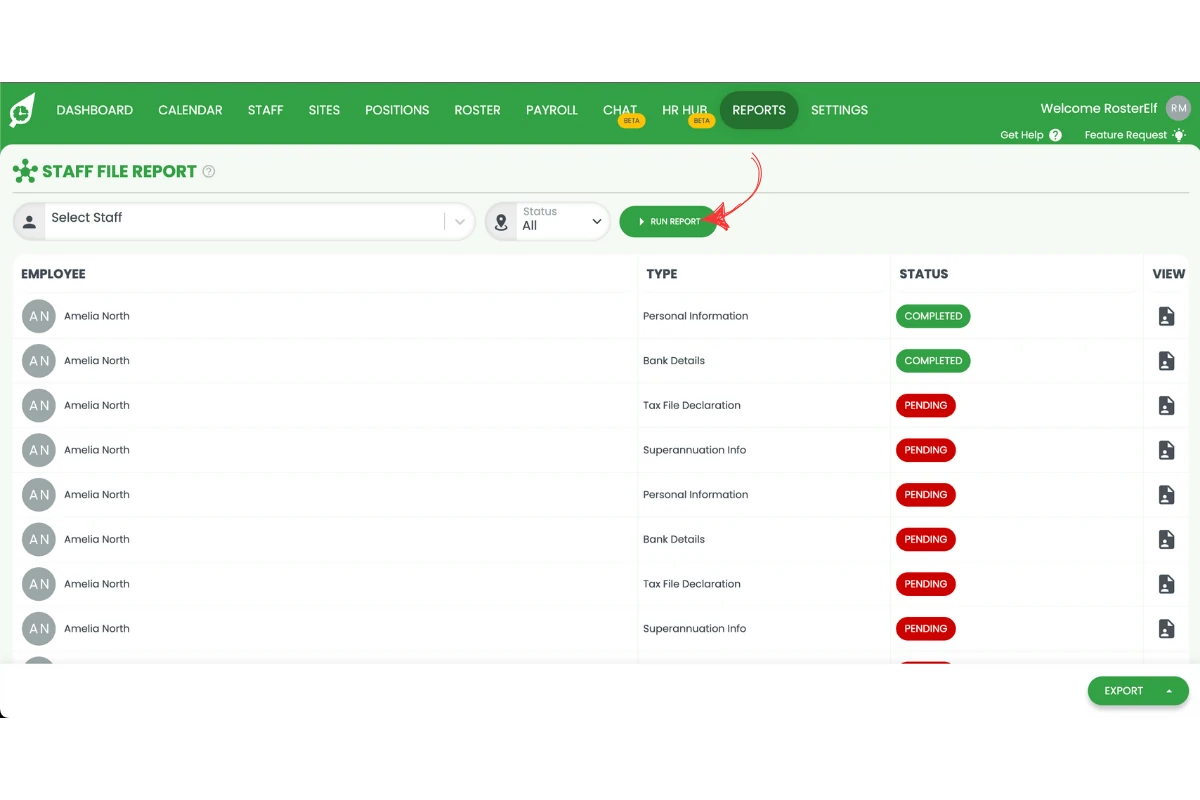
2.1.2 Click Run report to generate your results.
3. Exporting or saving the report
After reviewing the report, you can export it for record-keeping or sharing with other departments. Exporting reports in RosterElf helps maintain proper documentation and ensures information is easily shared across your business systems.
3.1 export the report
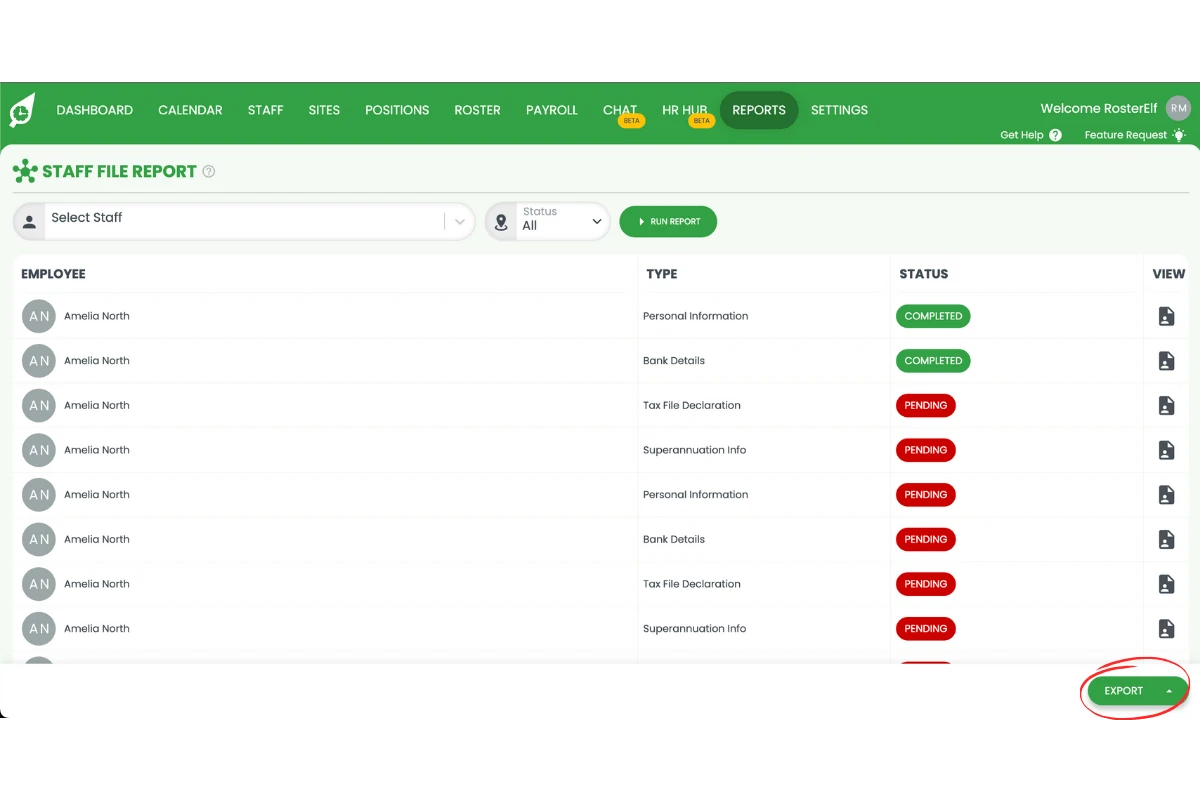
3.1.1 Click Export.
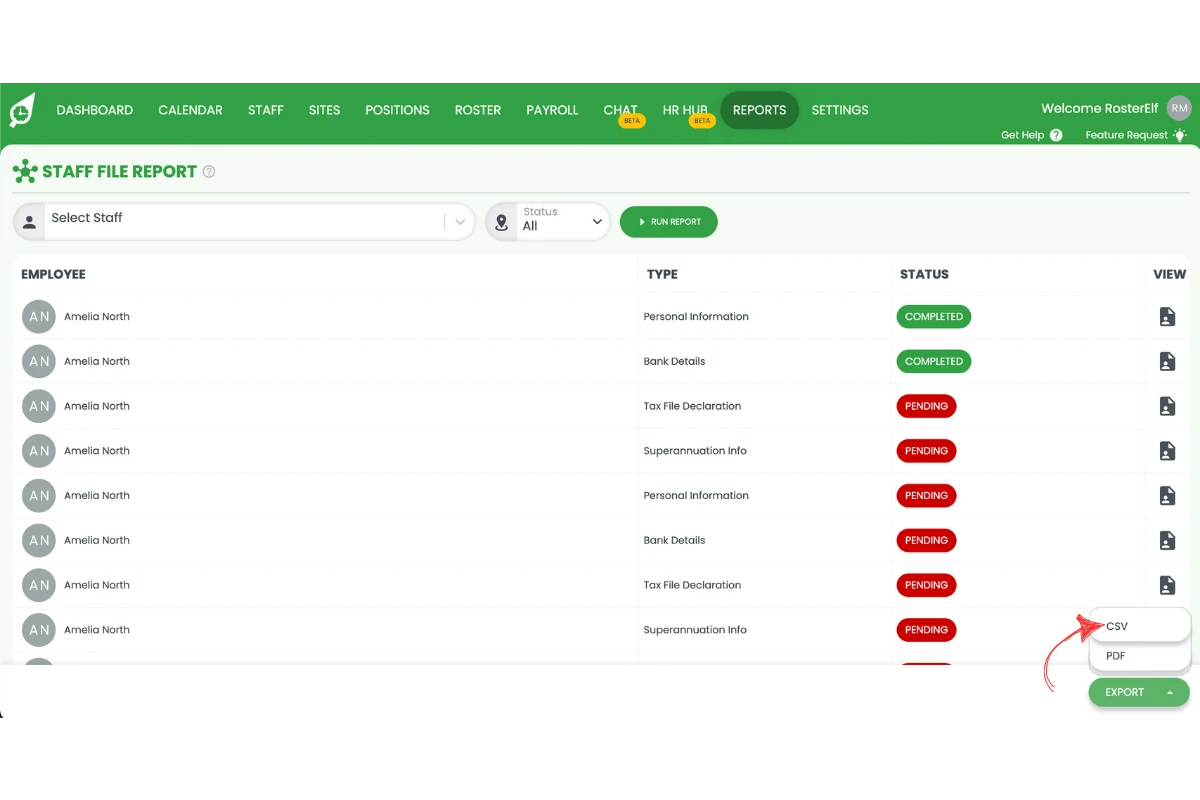
3.1.2 Choose your preferred format (e.g. CSV or PDF).
Frequently asked questions
1. What is the staff file report in RosterElf?
The staff file report in RosterElf provides a complete overview of all employee information, including contact details, positions, employment status, and payroll data. It helps businesses manage staff records, perform audits, and maintain compliance efficiently.
2. How do I access the staff file report in RosterElf?
To access the staff file report, open your RosterElf account and go to the Reports tab. Use the search bar to find Staff file report and select it from the results to view your employee data.
3. Can I filter the staff file report by site or employment status?
Yes. You can apply filters such as site, position, or employment status before running the report. This customisation helps you generate specific insights based on your business needs.
4. How do I export the staff file report from RosterElf?
Once your report is generated, click Export and choose your preferred format, such as CSV or PDF. Save the file to your device for record-keeping or sharing with other team members.
5. Why should I use the staff file report in RosterElf?
The staff file report saves time by consolidating all employee information in one place. It ensures your staff records are accurate, simplifies compliance checks, and helps your team stay organised.