

Staff onboarding in RosterElf
This guide explains how to streamline staff onboarding in RosterElf, helping businesses efficiently onboard new staff members. By adding staff to your RosterElf account, you can collect essential information and documentation with ease. For Xero customers, staff details can be transferred to Xero after onboarding. This process ensures a smooth, compliant start for new hires, saving you time and effort.
1. Setting up staff onboarding
This section covers the setup required to onboard new staff in RosterElf. It includes settings to collect staff details and documentation efficiently. By configuring the onboarding process, you can ensure that new employees complete the necessary steps from day one.
1.1 accessing the HR Hub settings
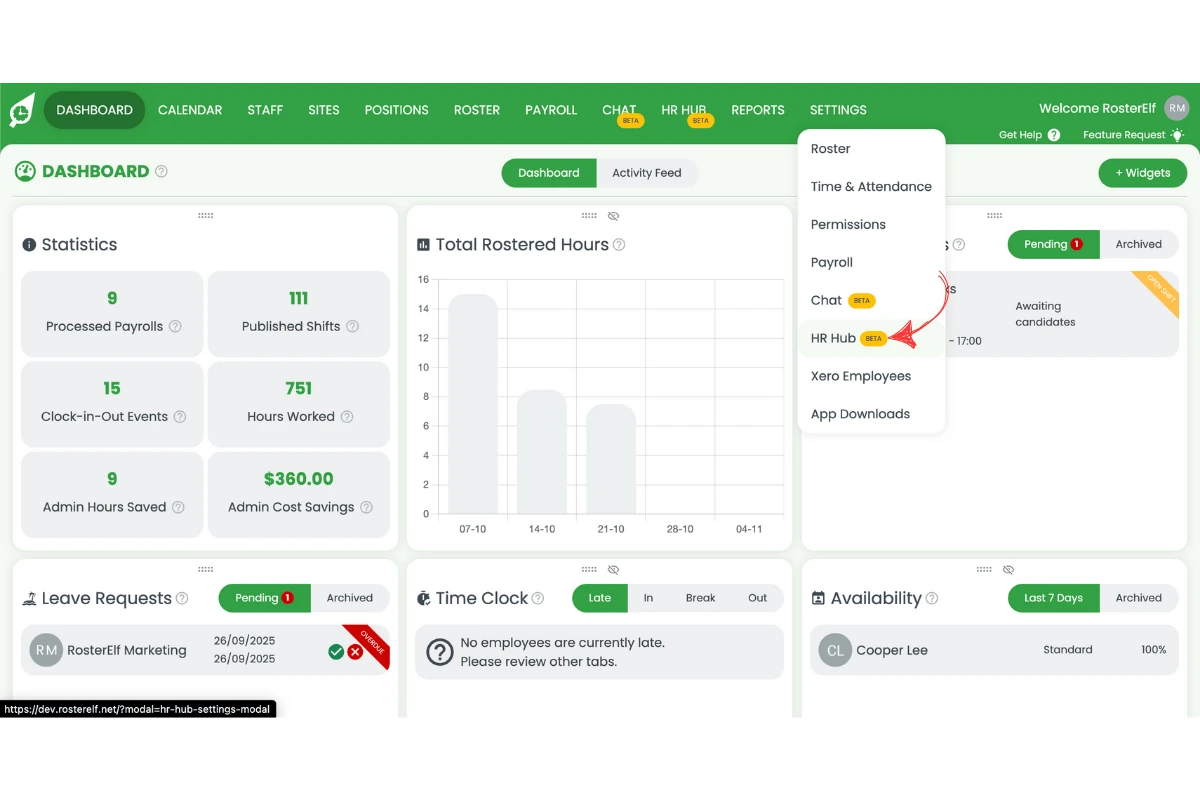
1.1.1 Click on Settings from the main menu.
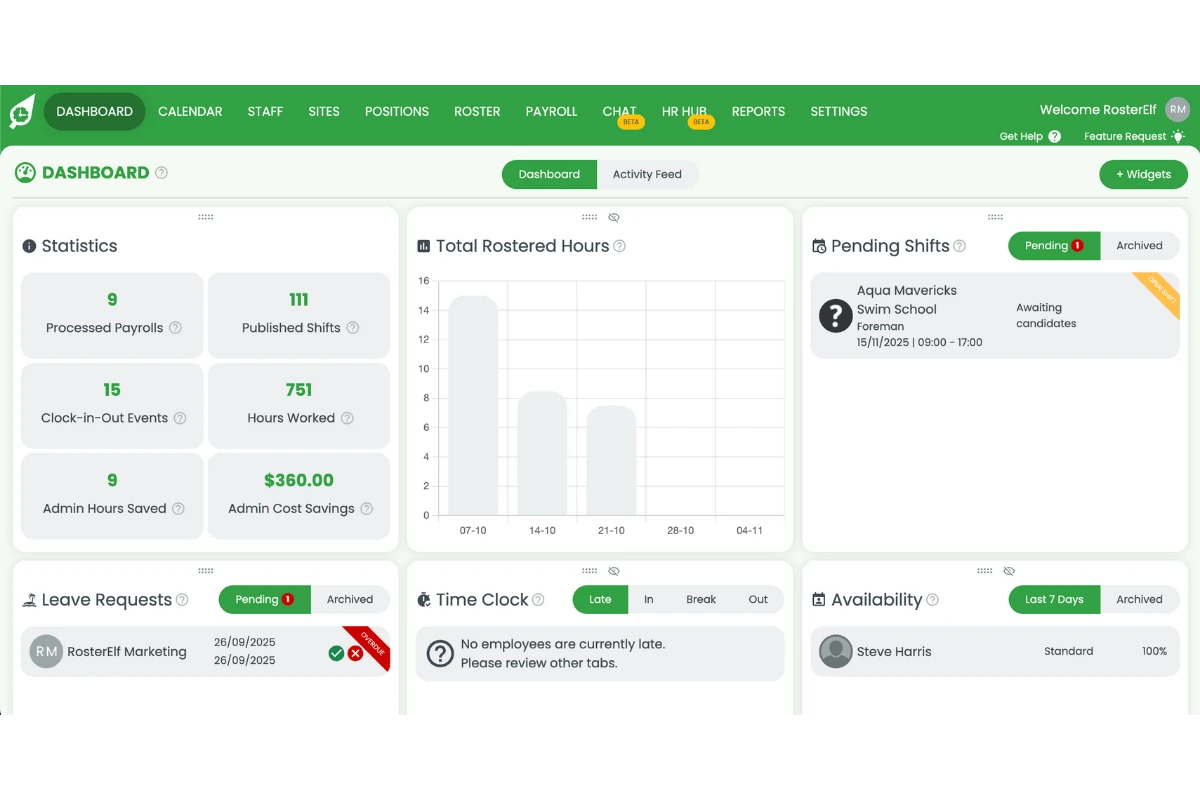
1.1.2 Select HR Hub from the options.
1.2 configuring onboarding sections
1.2.1 Toggle on each section you would like as part of the employee onboarding.
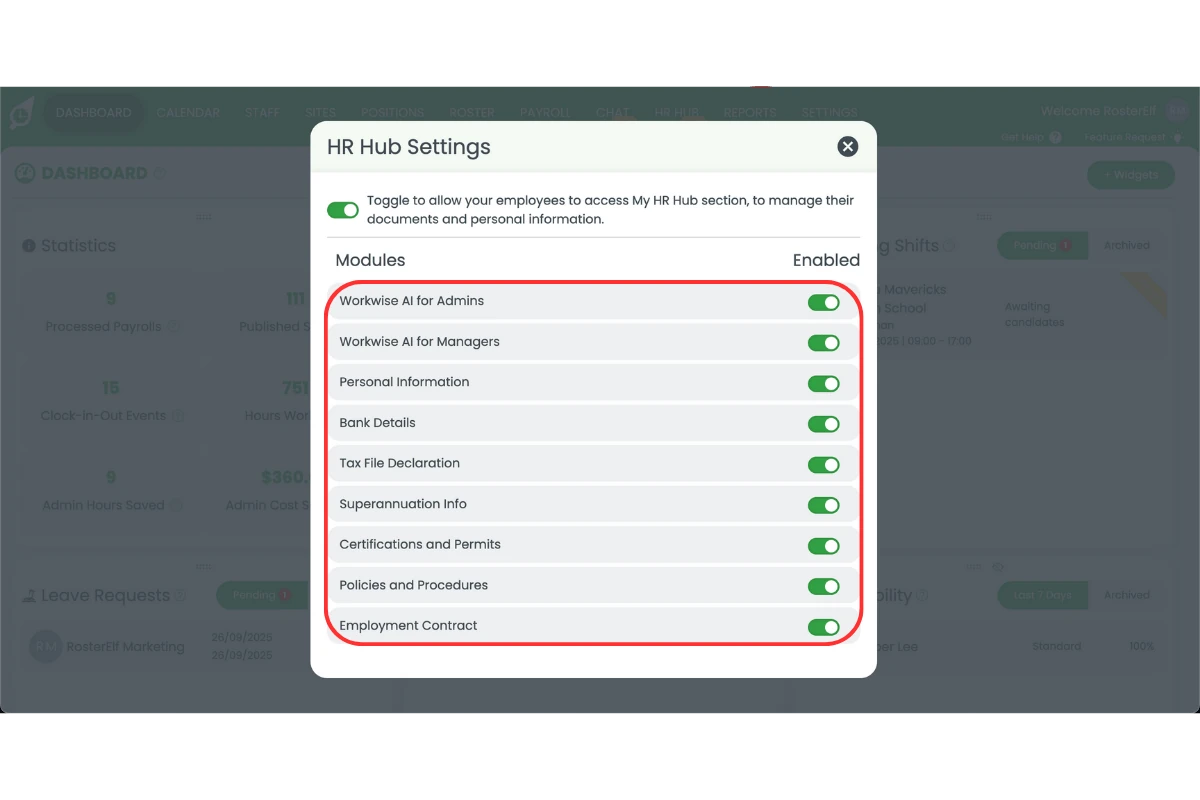
1.2.2 This enables the onboarding process to begin immediately after adding staff.
2. Completing staff onboarding
This section explains what happens after a staff member completes their onboarding. It covers how to manage and access their details and documents within RosterElf.
2.1 staff welcome email
2.1.1 When a staff member is added, you’ll be prompted to send the welcome message.
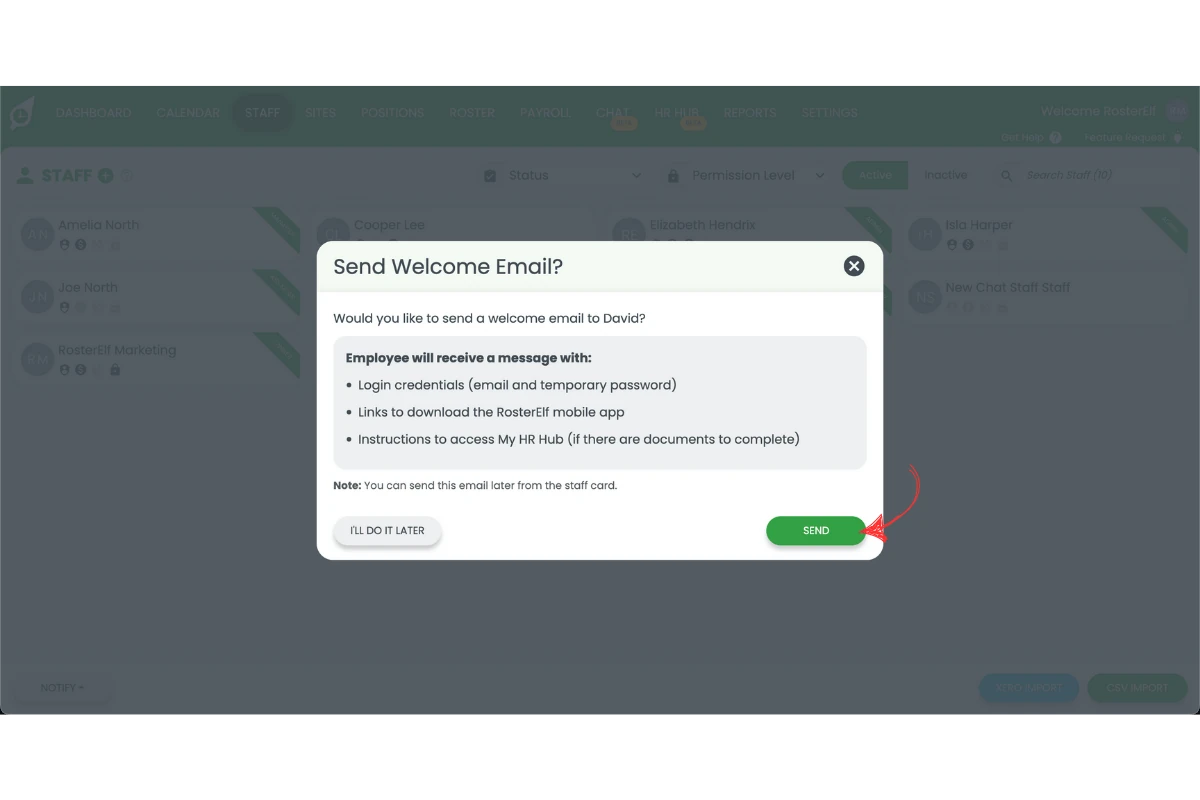
2.1.2 The email includes login credentials, a link to download the smartphone app, and a link to their onboarding page.
2.2 managing onboarding documents
2.2.1 After completing the onboarding process, staff documents and details will be available on their staff file.
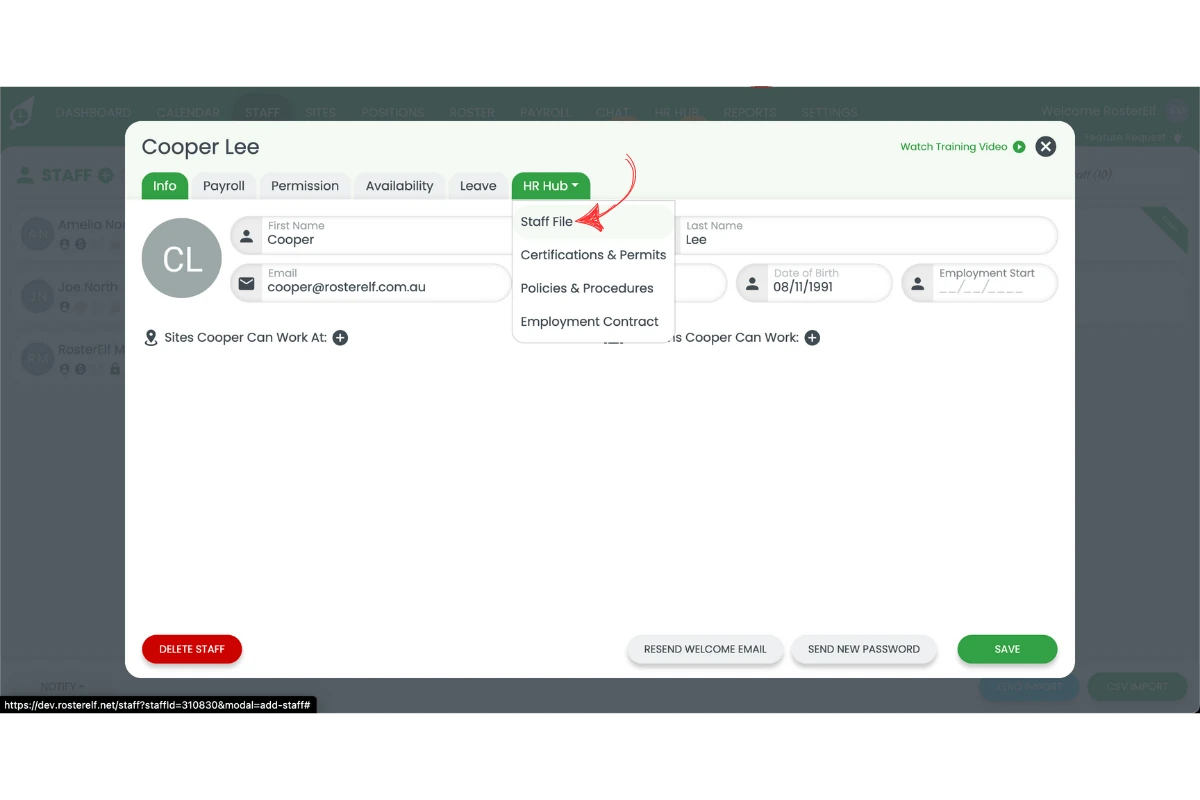
2.2.2 You can review and manage this information from within the RosterElf platform.
2.2.3 For more details on reviewing and approving onboarding documents, refer to the Review and approve onboarding documents guide.
Frequently asked questions
1. How do I set up staff onboarding in RosterElf?
To set up staff onboarding in RosterElf, go to Settings, then select HR Hub. From there, you can configure the onboarding process, including automatic email links for new staff members.
2. Can I make superannuation details mandatory during onboarding?
Once superannuation is activated in the HR Hub settings, it will be a mandatory field for staff to complete during onboarding.
3. What happens after a staff member completes their onboarding?
Once a staff member finishes their onboarding, they will receive a welcome email with login details and links to the RosterElf app. Their documents and details will be available in their staff file for easy management.
4. How can I review and approve onboarding documents in RosterElf?
You can review and approve onboarding documents directly from the staff card in RosterElf. For more details on this process, refer to the Review and approve onboarding documents guide.
5. Is the HR Hub available on all RosterElf plans?
No, you will need to have the HR Hub add-on as part of your subscription to access these onboarding features.
6. How can I send the Fair Work Information Statement and Casual Employment Information Statement in RosterElf?
The Fair Work Information Statement and Casual Employment Information Statement are automatically included in all RosterElf welcome messages. When you send a welcome message to a new employee, both documents are attached so staff can review the required employment information during onboarding.