

Accessing completed staff onboarding information
This article explains how to access and manage your staff’s onboarding information once they have completed the required steps. For your staff to receive the onboarding link, you must first set up the HR Hub. This guide covers how to view onboarding details and sync them with Xero, if applicable. For initial setup, refer to the guide: Customise employee onboarding process.
1. Accessing staff onboarding information
In this section, you’ll learn how to access the onboarding information of your staff members. It covers viewing documents and downloading any relevant information.
1.1 viewing staff onboarding details
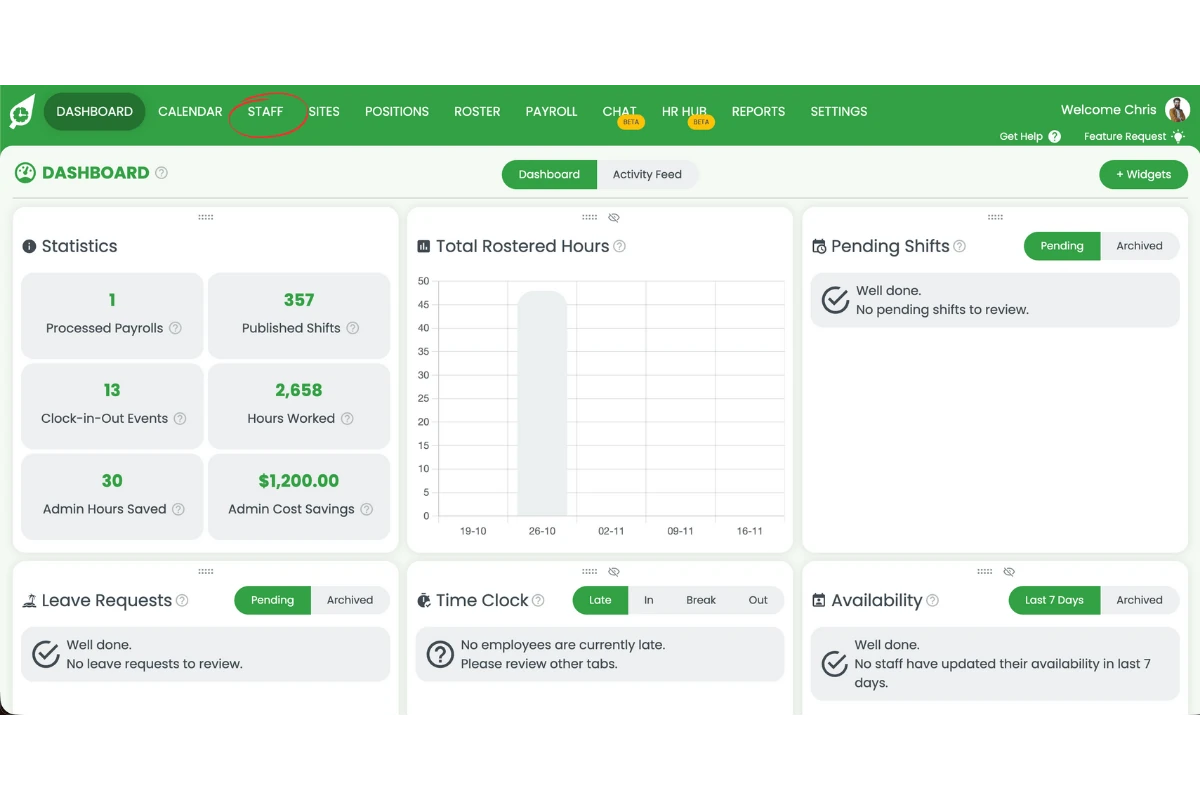
1.1.1 Click on the Staff tab in your account.
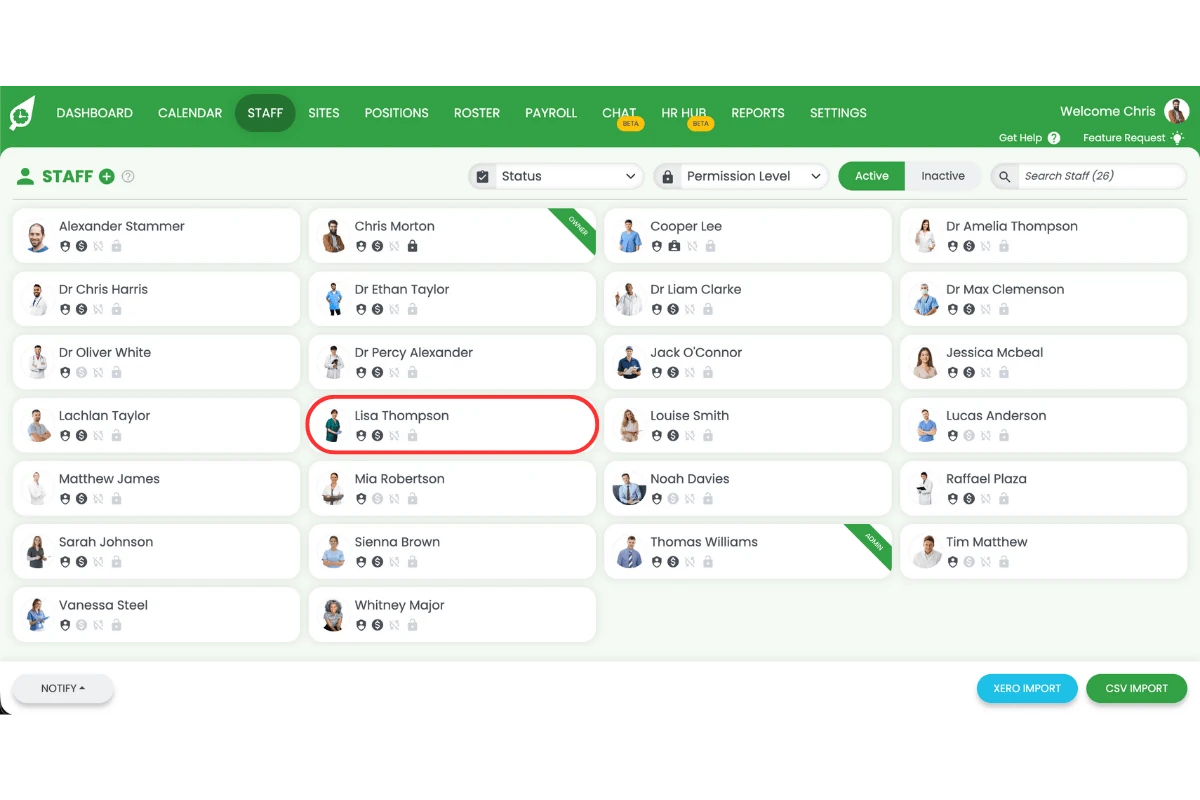
1.1.2 Select the staff member whose information you want to view.
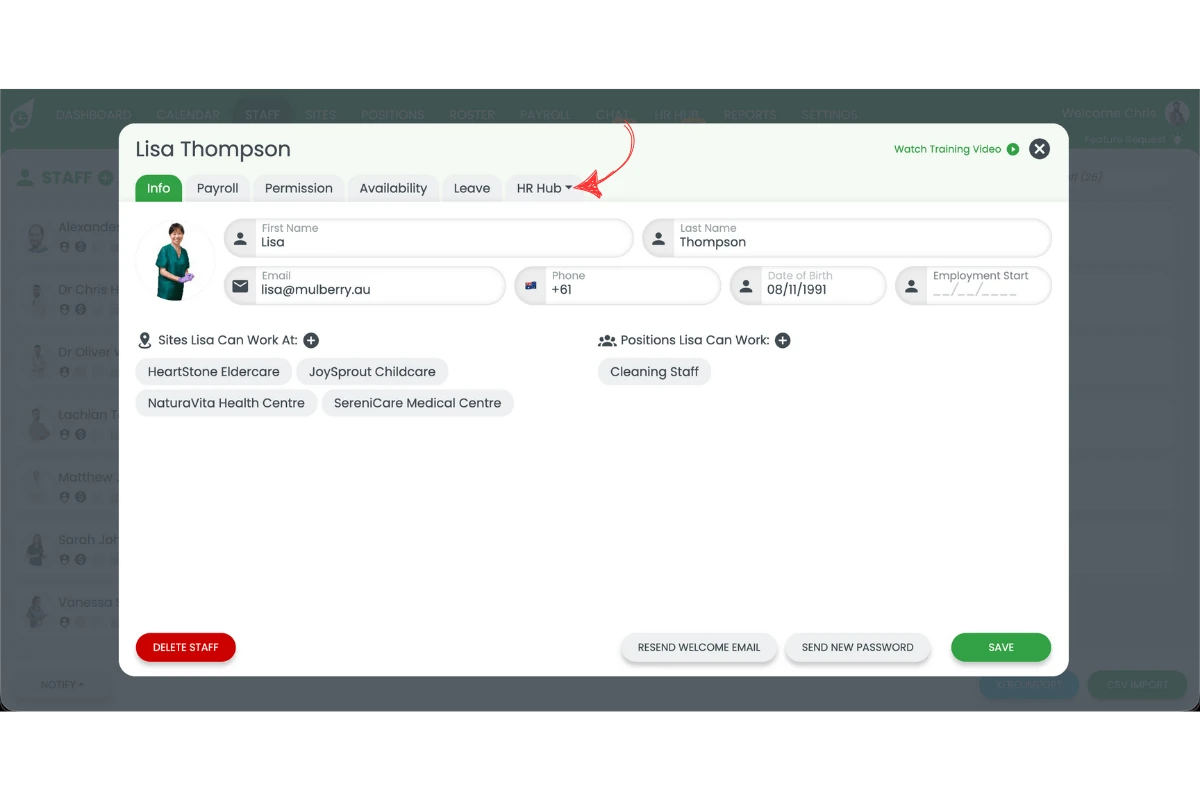
1.1.3 Navigate to the HR Hub tab.
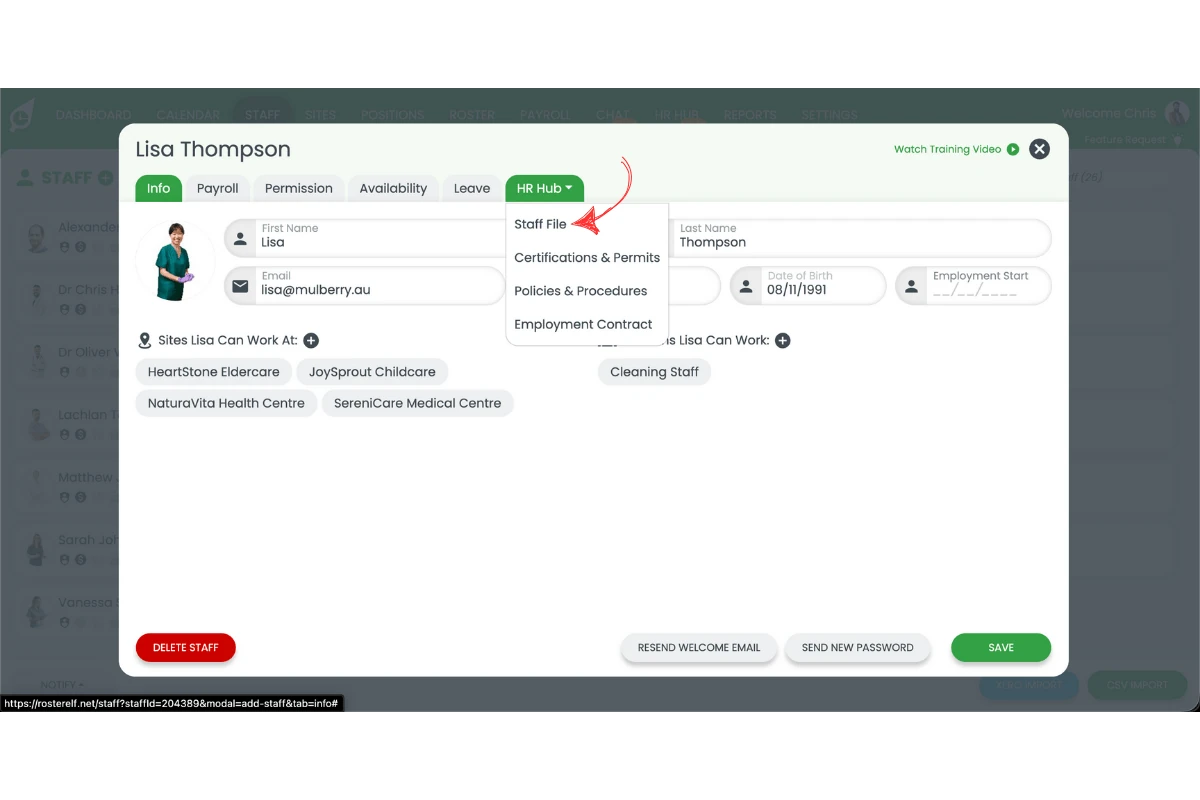
1.1.4 Click through each tab to see all captured information.
2. Managing Xero integration for onboarding
This section outlines how to manage Xero integration and create staff profiles in Xero. For more on syncing staff lists with Xero, see Sync staff list with Xero.
2.1 syncing staff information to Xero
2.1.1 Ensure all required sections—Personal Information, Bank Details, and Tax File Number—are entered.
2.1.2 Note: Superannuation and Company Documents do not sync with Xero.
2.1.3 Press Sync Staff in Xero and staff information will push automatically to Xero.
3. Downloading and updating staff information
This section explains how to download documents or resend the onboarding link. These tools are useful if staff have made errors or if you need copies of onboarding files.
3.1 downloading company documents
3.1.1 Go to any of the tabs under HR Hub tab.
3.1.2 Click the download icon to download a copy of each document.
3.2 updating or resending staff information
3.2.1 Click Resend Welcome Message to resend the link to the staff member.
Note
The HR Hub eliminates the need for manual approval of onboarding documents, streamlining the process for both admins and staff.
Frequently asked questions
1. How do I access completed onboarding information for my staff?
To access a staff member’s completed onboarding information, go to the Staff tab, select the staff member, and navigate to the HR Hub section. Here, you can review all onboarding details, ensuring that essential information is complete.
2. Can I approve or update staff onboarding details?
No, with the HR Hub there is no need to approve documents.
3. Can I update a staff members onboarding information?
No, currently a staff member needs to provide all the correct information.
4. How do I create a staff profile in Xero?
To create a new staff profile in Xero, click the Create Staff in Xero button in the onboarding section. To avoid duplicates, use Employee Sync with Xero if the staff member already exists in Xero.
5. How can I download company documents or update staff information?
To download a document, go to the Company Documents tab and click the file icon. For updates, use Resend Welcome Message for staff member to update their information.